
 Member
 Futureboy
APC Smart-UPS 1500 Battery Replacement

Collabora vs ONLYOFFICE
Since the Nextcloud Hub release switched from ONLYOFFICE to Collabora Online as default, lots of people have asked why. Is one better than the other? Let's talk about this.
History
Let me first say - the decision wasn't pure technical. As always, relations and other reasons play a role. I'll try to cover both aspects, but there is always more. With that out of the way, let's first look at how ONLYOFFICE got into Nextcloud.
Frank, myself and others in the Nextcloud community have wanted to integrate office in our collaboration platform for most of the past decade. Previously, we* had invested quite a bit in getting a collaborative document editor into our private cloud. The Documents app was a from-the-ground-up developed ODF editor with a unique and very clever design, built by KO GmbH (now sadly defunct). We together put resources in integration and further development and we hoped other (open source) businesses would invest and contribute too, so the solution would grow in time. Also, we had hoped some customers would be willing to pay for it. Both of these did not really come true, and KO sadly didn't survive.
* Note that I use 'we' here loosely as I wasn't really involved back then, so think 'the core team', as a slowly-changing team of people, including Frank, Jan, Arthur and others.
Fast forward to our launch on June 2 2016 (happy birthday!), and a few months later we announced Collabora Online integration. We had worked with Collabora to make this available not just to enterprise customers, as before, but to all users thanks to the 'CODE' docker image. As you know, we care deeply about community/private home users and this was of course a great step forward.
But running docker, setting up a reverse proxy on a second domain with proper certificates - it isn't easy and does not work for everyone. So we had to keep maintaining the Documents app a little, as some users still could only use that.
ONLYOFFICE vs Collabora
Meanwhile, a new open source online office solution came around, ONLYOFFICE. Let's talk for a sec how they compare Collabora, as the two could not be more technically and non-technically different!
Technical: how they work
The way Collabora Online works is:
An embedded version of Libreoffice runs on the server. It reads the document, then 'streams' the rendered document as image tiles to the browser client, which shows it to the user. The browser client does some of the menu's and lots of smart things like showing the cursor, other users, text selection etc, but many other components like pop-up menu's and sidebars are also streamed from the back-end, giving relatively good feature parity with LibreOffice. This strategy is responsible for giving LibreOffice, for example, desktop-level table style editing, better than any other online office solution.
The way ONLYOFFICE works is:
The document is converted on the server to a JSON file which is streamed to the browser client. The browser client is the full office suite, editing the document. Once done, it sends back the JSON and the server merges and exports it back to a file. A fully html5 canvas based front-end means a relatively pretty user interface and any javascript dev can go hacking.
So what does this mean?
- LibreOffice is much heavier on the server and network connection, but uses a bit less client resources which tends to help mobile devices with battery life during editing
- You get the full Libreoffice file type support. Decades worth of obscure file formats, it is all there.
- ONLYOFFICE has a more modern UI, writing it all in Javascript so it is far easier to be mobile-friendly. You can imagine how useless those old LibreOffice paragraph settings dialogs are on a mobile phone screen!
- In theory ONLYOFFICE would be much easier to integrate in web apps in general. Most app frameworks can consume a javascript or json component, a simply streamed, tiled image is far less flexible...
Compatibility
On document support, three things.
First, with regard to the Microsoft file compatibility - this is ALWAYS hit and miss. I can't objectively claim either is better or worse, you will always find a file that works well in one but not the other. But you will also find lots of MS Office files that won't work in Office 365, or break the desktop version between Mac and Windows or even just from older versions, because Microsoft screwed up their own compatibility.
Second, one thing I can say: if you migrate from Collabora Online to ONLYOFFICE and most of your files are ODF files because that's what Collabora uses by default, you're in for a bad experience. The ODF support in ONLYOFFICE is quite basic. But with MS Office files they feel on-par to me and that's what probably matters for most people. (sadly, yes)
Third, if you need any other file types - Collabora can handle a LOT, due to its long legacy. Word Perfect anyone?
For other technical capabilities - I probably be best off simply pointing to the comparisons both made themselves:
Social/historical differences
Let's talk about the second big difference between Collabora and ONLYOFFICE: their roots. Collabora builds on and is part of the LibreOffice community, a decades-old project, and consists of long time open source believers. Development is open and accessible and there are lots of individuals and companies that work on and can provide services for its code base. ONLYOFFICE on the other hand, is quite new to open source and only a bit over a dozen people have contributed to the code base. Their open core model if of course less than favorite in the open source world, though it is still miles better than proprietary - some people seem to lose sight of that sometimes, if you ask me. For an end user, the development model makes little difference, in either case.
let me emphasize two things.
First, it is awesome that we have TWO open source office suits. Building one is an amazing accomplishment - we have had others in the past but most are no longer really viable due to the massive amount of resources required to keep up.
Second, I think it is great that ONLYOFFICE decided to open source their product. I believe most people really under estimate what it takes to turn around your business model so radically. And if you're unhappy with decisions made, in either case - contribute, get involved. That is how you change things in open source.
Getting Office in Nextcloud
So, as I said in the History section, by 2017 we had three office solutions integrated in Nextcloud. One was easy to install but unmaintained and quickly deteriorating. The other two were harder to install but much more complete.
You know we're ambitious people, so indeed we have thought about and discussed this situation forever. And at some point, Robin started to really investigate what would be possible. After looking deeply at both, he finally managed to create a proof of concept with ONLYOFFICE. What he did was:
1. Separate the 'converter' part from ONLYOFFICE, the javascript front-end and the 'rest'
2. Made a separate binary of the converter, package the javascript and rewrite all the glue that lets them interact in PHP
3. Make this thing install-able as one big blob, acting as alternative 'server' with a proxy component that ties it all together
This was a LOT of work, but after polishing it, we had something we could show to the ONLYOFFICE people. They were initially not huge fans of what we did - no surprise, as it was an ugly solution. We discussed this for a fair bit and in the end, we agreed on an approach.
The result was what we made available last January with the first release of Nextcloud hub. We saw it as a first step towards deeper integration. Watch the video below to get an idea of what it looked like!
And then...
After release, two things happened.
First, ONLYOFFICE has sadly been unable to focus much on the integration with Nextcloud. There was a long wish list we had - there is a lot you can do to make the experience nicer, from removing/disabling/hiding duplicated features like the build in chat and file handling to making file collaboration work in other apps like Talk, or adding certain features that connect even deeper like @mentioning users for example. Unfortunately, this didn't happen. No blame, there is a lot happening in the world right now!
Second, Collabora was inspired by the work and while we didn't think we could make it install-able with such ease, they obviously know their own technology better. And indeed, they did make it happen! Besides that, we worked with them to improve the already pretty good integration further, allowing you to edit documents while in a video call or chat in Talk.
As our focus continues to be on providing the best experience possible, we simply looked at that: what gives, right now, the best experience. And thus our latest video shows Collabora instead...
Note that this doesn't mean we don't like ONLYOFFICE. 😍 This just changed the default you get on installation. Both solutions are very good and continue to be available for users! And perhaps things will change for the next release. Given the large differences at every level between the two, I consider it a benefit to have both approaches available for Nextcloud users!
So is Collabora better?
I will let Captain Marvel answer that.


openSUSE Tumbleweed – Review of the weeks 2020/21 – 23
Dear Tumbleweed users and hackers,
It has been a while since I wrote a ‘weekly’ review. My own fault for taking some days off, right? At least I had good weather and enjoyed the time – a lot even. But now I am in dept to you: I owe you a review over what happened over the last three weeks. Since the last review, openSUSE Tumbleweed has seen 11 new snapshots (0514, 0515, 0516, 0517, 0519, 0520, 0523, 0526, 0528, 0602 and 0603). Thanks to Max for taking care of it during my absence).
The most notable changes in those snapshots were:
- Mozilla Firefox 76.0.1
- Linux kernel 5.6.12 & 5.6.14
- The YaST changes, as announced by the YaST Team in their sprint reports
- Mesa 20.0.7
- VirtualBox 6.1.8
- KDE Applications 20.04.1
- Sudo 1.9.0 (final release)
- GCC 10 as default distro compiler (all packages have been attempted to rebuild. Currently, ~ 5% of packages fail to build)
- Qt 5.15.0
- Inkscape 1.0
- TexLive 2020
- Guile 3.0.2
This means almost all of the things from the last ‘weekly review’s’ ‘things in progress’ have been delivered by now. But that does not mean there is nothing left. Currently, the staging projects are filled with these major changes:
- RPM change: %{_libexecdir} is being changed to /usr/libexec. This exposes quite a lot of packages that abuse %{_libexecdir} and fail to build
- Mozilla Firefox 77.0
- KDE Plasma 5.19
- SQlite 3.32.1
- Linux kernel 5.7.0
- Mesa 20.1.0
- openSSL 3.0

Post-Mortem: download.opensuse.org outage
Summary
As the current storage used on download.opensuse.org is running out of service, we started to move to a new storage via pvmove command. The first 12TB were transferred without any problem and no noticeable impact to production. After that, the old storage produced some (maybe longstanding, but unnoticed) problems on some drives, resulting in "unreadable sectors" failure messages in the upper filesystem levels. We managed to recover some data by restarting the pvmove with some offset (like pvmove /dev/vdd:4325375+131072 /dev/vde) over and over again - and finally triggered a bug in dm_mirror at kernel level, which is used by pvmove, and a bad block on a hard drive...
Details
As result, we needed to reboot download.opensuse.org to get the system back to work. As we wanted to get all data transferred to the new storage device, this became a loop:
- starting pvmove with offset
- waiting for the old storage to run in hard drive timeouts and resetting a drive
- looking at the pvmove/dm_mirror running into trouble
- seeing the meanwhile known kernel oops
- rebooting the machine; start at 1
And as everyone knows: the last steps are always the hardest. While reaching the end of the transfer, the loop started to happen more often. Finally too often for our feeling - so we decided to switch over to our 2nd mirror in Provo, which normally holds all the data (21T) as well, but often a bit outdated because of latency and bandwidth. But this mirror was running stable, so better old content than no content.
So we finally switched the DNS entries for download.opensuse.org and downloadcontent.opensuse.org at 23:00 CEST, pointing to the mirror server in Provo.
Next morning, around 08:00 CEST, people notified us that the SSL certificate for download.opensuse.org is not correct. Right: we forgot to renew the "Let's Encrypt" certificate on the Provo mirror to also contain the new DNS entries. This was a one minute job, but an important one we forgot after the long day before.
Our openSUSE Kernel Guru Jeff Mahoney and our Bugfinder Rüdiger Oertel helped us with the main problem and provided debug information and new test-kernels over the whole time, that helped us to track down and finally eliminate the original problem. A big THANK YOU for this, Jeff and Rudi!
So finally, in the morning of Wednesday 3rd June 2020, around 10:00, we were able to finish the pvmove to the new storage. But: with all the problems, we decided to run an xfs_check/xfs_repair on the filesystem - and this takes some time on a 21TB storage. So we decided to leave the DNS in Provo, but instead provide the redirector database there, to free up some bandwidth that is needed to run the office in Provo. Luckily, we still had the DB server, configs and other stuff ready to use there. So all we needed to do was to transfer a current database dump from Nuremberg to Provo, restore the dump and check the old backup setup. This was done in ~30min and Provo was "the new download.opensuse.org" redirector.
After checking the xfs on the new storage, we finally declared the machine in Nuremberg production ready again around 12:00 CEST and switched the DNS back to the old system in Nuremberg with the new storage.
Lessons Learned
What Went Well
- As always our power users and admins are very fast and vocal about problems they see.
- The close cooperation with our kernel guru and the live chat helped to identify and solve at least the kernel problem
- Having a full secondary mirror server at hand which is running in another DC and even in another continent is very helpful, if you need to switch over
- Having the needed backups and setups ready before a problem occurs also helps to keep the downtime low
What Went Wrong
- the full secondary mirror server did not contain up-to date data for all the 21TB of packages and files. This lead to some (luckily small) confusion, as some repositories suddenly contained old data
- our OBS was not directly affected by the outage, but could not push new packages to the secondary mirror directly. The available bandwidth did not allow to keep everything in sync.
Where We Got Lucky
- having the experts together and having the ability for them to talk directly with each other solves problems way quicker than anything else
- the setup we used during a power outage of the Nuremberg office 3 years ago was still up and running (and maintained) over all the years. This helped us to setup the backup system in a very quick time frame.
Action Items
Limited to the available bandwidth in Provo:
- try to establish a sync between the databases in Provo and Nuremberg, which would allow us a hot-standby
- evaluate possibilities to sync the Provo mirror more often
General:
- As the filesystem on the standard download.opensuse.org machine is now some years old, was hot-resized multiple times and now had seen some problems (which could be somehow repaired by xfs_repair, but nevertheless), we will try to copy the data over to a completely new xfs version 5 filesystem during the next days
- Try to get an additional full mirror closer to the one in Nuremberg, which does not have the bandwidth and latency problems - and establish this one as "hot-standby" or even a load-balanced system.

openSUSE + LibreOffice Conference Will Take Place Online
Organizers of the openSUSE + LibreOffice Conference along with the project’s boards have made the decision to change the conference to an online conference.
The uncertainty surrounding the COVID-19 pandemic and its effect on travel, conference planning, logistics and possibility for attendees to come to the event were reasons for shifting the event from a physical event to an online event.
Shifting the conference online is good news and the organizers intend to provide a great conference that is filled with insightful talks, technical presentations and sessions dedicated for those who want to socialize during the event. Using video a conferencing tool, attendees learn about new technologies in openSUSE and LibreOffice and have the chance to chat to developers and ask questions. Communities involved in marketing, design, QA and other topics will be able to meet online, catch up and exchange ideas.
The Call for Papers (CfP) will remain open and people can continue to submit their talks until July 21. The submissions for the CfP will continue to take place on the Open Source Event Manager (OSEM) instance at https://events.opensuse.org. The collection of submissions will be organized in the OSEM tool, but the online event will take place on a different website site like the one recently used for the openSUSE Virtual Summit – https://opensuse.reqmagic.com. The platform works with Firefox, Chromium and other open-source browsers. The software leverages various APIs (YouTube, Dolby, etc) to enable web based service, which is entirely HTML5 based with no plugins required.
More information about the time frame and schedule of the conference will be made available soon.
The following tracks can be selected when submitting talks related to openSUSE:
a) openSUSE
b) Open Source
c) Cloud and Containers
d) Embedded.
The following tracks can be selected when submitting talks related to LibreOffice:
a) Development, APIs, Extensions, Future Technology
b) Quality Assurance
c) Localization, Documentation and Native Language Projects
d) Appealing Libreoffice: Ease of Use, Design and Accessibility
e) Open Document Format, Document Liberation and Interoperability
f) Advocating, Promoting, Marketing LibreOffice
Talks can range from easy to difficult and there are 15 minute, 30 minute and 45 minute slots available.
The openSUSE + LibreOffice Conference organizers would like to hear immediately from community members who would be interested in organizing mini-online summits to go along with the conference in their local language. The idea would be that the mini-online summits could reach greater audiences for communities that are willing to help with organizing it, as it happens for the monthly events organized by the LibreOffice Spanish speaking community. While the openSUSE + LibreOffice Conference will be done in English, the mini-online summits can be done in a local language. For languages spoken in several countries with active communities (for instance, French, German and Spanish), the efforts will have to be coordinated in order to involve all volunteers. For those who are interested, email ddemaio@opensuse.org with the subject “openSUSE + LibreOffice Conference Mini-Summit”.
How to submit a proposal
Please submit your proposal to the following website: https://events.opensuse.org/conferences/oSLO
• Create an account if you don’t already have one.

• Your proposal must be written in English and be no longer than 500 words.

• Please run spell and grammar checkers for your proposal before submission.

    ◦ https://extensions.libreoffice.org/extensions/languagetool

    ◦ https://www.grammarly.com/

• Your biography on your profile page is also a reviewed document. Please do not forget to write your background.

• You must obey openSUSE Conference code of conduct:
https://en.opensuse.org/openSUSE:Conference_code_of_conduct
It is recommended that you use the slide deck of what ever organization you choose to represent. The openSUSE slide decks are located at https://github.com/openSUSE/artwork/tree/master/slides and the LibreOffice slide deck is located at https://extensions.libreoffice.org/templates/libreoffice-presentation-templates
Guide to write your proposal
Please write your proposal so that it is related to one or more topics
For example, if your talk is on security or desktop, it is better that it contains how to install that applications or demo on openSUSE.
Please clarify what the participants will learn from your talk.
• The introduction of main technology or software in your talk

• The main topic of your talk
Rebuilding a Ryobi 18v NiCad Battery
IP renumbering in Provo 2020-06-05
SUSE is getting a new ISP in Provo - and a new set of external IP addresses. This switch affects also some openSUSE servers that are currently running in the Provo datacenter. Mainly the Provo mirror server of download.opensuse.org, available via http://provo-mirror.opensuse.org/.
All machines that are currently using an IPv4 address starting with 130.57.72.XX will get a new IPv4 address assigned in the 91.193.113.64/27 network. Normally, this should go unnoticed, especially if you are using DNS.
Namely, the following four productive services are affected:
- debuginfod.opensuse.org
- provo-mirror.opensuse.org
- provo-downloadcontent.opensuse.org
- twsnapshot.opensuse.org
The migration will start next Friday, 2020-06-05, 09:00 MDT (click on the link to see the event in your timezone) - we hope to finish it during a few hours.

Highlights of YaST Development Sprints 99 and 100
One hundred development sprints, that’s a nice rounded number… and a good moment to rethink the way we write and publish our reports.
Yes, you read it right. This post will be the last one following our traditional format, assuming something can already be called “traditional” after four and a half years. As we will explain at the end of this post, subsequent reports will look more as a digest with links to information and not that much as a traditional blog post that tries to tell a story.
But the Age of the Digest has not come yet. Let’s close the Age of the Stories with a last blog post covering several topics:
- A better editor for the
<partitioning>section of AutoYaST - Improved YaST support for advanced LVM and Btrfs features
- Ensuring YaST is not left behind in the migration to
/usr/etc - Taking XML processing in YaST to the next level
Many of those topic are clearly oriented into the mid-term future and, as such, it will take some time until they reach stable versions of openSUSE Leap or SUSE Linux Enterprise. Unless told otherwise, the changes described in this post will only be visible in the short term for openSUSE Tumbleweed users.
AutoYaST UI: Improve Editing Drives
Let’s start with an exception to the rule just mentioned. That is, something many users will see soon in their systems, since we plan to release it as a maintenance update for both 15.1 and 15.2 and the corresponding SLE versions.
As part of the initiative to modernize AutoYaST, the user interface for creating or editing the profile’s partitioning section has been finally revamped. That means no more missing storage features such as Bcache, RAIDs, Btrfs multi-device file systems, etc.

Apart from allowing to set every supported attribute by the AutoYaST partitioning section, during the rewrite we tried to keep the module as simple as possible to easy the user interaction, not only distributing the fields to put related stuff together and not having a crammed interface but also avoiding warnings and confirmation popup for each change done.

Of course, there is room for improvement yet, but at least we did the first step getting rid of the complex and broken old UI to start working in a simpler one.

Recognizing LVM Advanced Features
As you know, YaST can be used to configure storage setups combining several technologies like MD RAID, bcache, Btrfs and LVM. Not every single feature of each one of those technologies can be tweaked using YaST, since would lead to a completely unmanegable interface and a hardly predictable behavior.
But even if YaST cannot create certain advanced configurations, it should be able to recognize them, display them in the interface and allow simple modifications.
In the last couple of sprints we have focused in teaching YaST how to deal with advanced LVM features. Now it is able to detect and use LVM RAID, mirror logical volumes and LVM snapshots, both thick and thin ones.
YaST does not allow to create such setups and we don’t plan to support that in a foreseable future. But users that already use those LVM features will now be able to use YaST for some operations and to have a more complete and accurate picture of their storage configuration. In addition, the partial support for such technologies makes easier the upgrade process for systems using them.
Probing Btrfs Snapshot Relations and Two Peculiarities
On a purely technical level, all the additions explained above imply adding new possibilities to the so-called devicegraph which is used by libstorage-ng to represent any system. That included representing the LVM snapshots and the relations between origins and snapshots. That being done, it should be easy enough to go one step further and also recognize and represent those relations for btrfs subvolumes… except for two peculiarities.
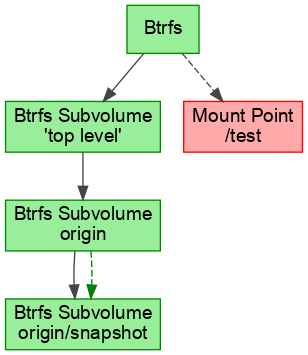
The first one is that a btrfs snapshot can be both the child and the snapshot of the same subvolume. Suppose we have a btrfs mounted at /test. First we create a subvolume and then a snapshot of it:
cd /test
btrfs subvolume create origin
btrfs subvolume snapshot origin origin/snapshot
Now “snapshot” is a child of “origin” since it is placed directly under “origin” in the directory structure. In the devicegraph this means we have parallel edges (the gray for the child and the green for the snapshot):
The second peculiarity comes from the freedom of btrfs to rename and move subvolumes. We can move “origin” under “snapshot”:
mv origin/snapshot .
mv origin snapshot
The resulting devicegraph has a cycle:
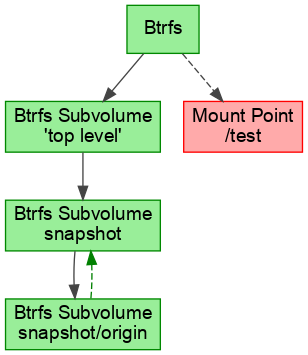
So far that could not happen and some algorithms assumed that the devicegraph is always a directed acyclic graph (DAG). To remedy those algorithms we let them operate on a filtered devicegraph that hides the snapshot relations. Those filters were also added lately to libstorage-ng for LVM snapshots.
Now that libstorage-ng contains the mechanisms to deal with all these circumstances, we can think about offering advanced Btrfs options in YaST. But that will take some time since it comes with some challenges, with the design of the interface not being exactly the smallest one. Meanwhile, you can play around with this new libstorage-ng feature using the “probe” command included in the package “libstorage-ng-utils”, as long as you enable the experimental feature with the new variable “YAST_BTRFS_SNAPSHOT_RELATIONS”.
YAST_BTRFS_SNAPSHOT_RELATIONS=yes /usr/lib/libstorage-ng/utils/probe --display
Automatic Check for New /usr/etc/ Files
As we have already mentioned in previous
reports,
more and more parts of the distribution are changing the way they organize their
configuration files. Things are moving from single configuration files in
/etc to a layered structure that starts at /usr/etc and includes multiple
files with different orders of precedence.
The YaST developers need to know when a file location is changed so we could
adapt YaST to read and write to the correct location. Otherwise it could easily
happen that the YaST changes would be ignored and we would get bug reports
later. Therefore we implemented a regular check which scans for all etc
configuration files in Tumbleweed and reports new unknown files.
The script is run once a week automatically at Travis. It downloads the repository metadata file which contains a list of files from all packages. It also contains files which are marked as “ghost”, these files are not part of the package but might be created by RPM post-install script or by user. We just compare the found files with a known list.
Some implementation details of that script may be interesting for our more
technical readers, since it uncompresses a *.xml.gz file and parses the XML on
the fly while downloading. That means it does not need to temporarily save the
file to disk or need it loaded whole in memory. That is really important in this
case because the unpacked XML is really huge, it has more than 650MB!
Improvements in YaST’s XML Parser
And talking about technical details, you may remember a couple of sprints ago we mentioned we had started a small side project to improve YaST’s XML parser. Now we can report significant progress on that front.
Let’s first clarify that we are not trying to re-invent the wheel by writing just another low-level parser to deal with XML internals. We are relying on existing parsers to rethink the way YaST serializes data into XML and back. All that with the following goals:
- Ensuring consistency of information when data is transformed into XML and then into raw data again, with our previous tools some information got silently lost in translation.
- Report accurate errors if something goes wrong during the mentioned transformation, so we know whether we can trust the result.
- Possibility of validating the XML at an early stage of (Auto)YaST execution.
- Reduce the amount of code we need to maintain.
- Make hand writting of XML easier.
We wrote quite some details about how we are achieving each one of those goals just to realize all that fits better into a separate dedicated blog post. Stay tuned if you are interested in those technical details. If you are not, you may be wondering how all this affects you as a final user. So far, the advantages will be specially noticeable for AutoYaST users. More consistent and shorter XML enables easier editing of the AutoYaST profile. Schema validation allows early warning when the XML is malformed. And the more precise error reporting will prevent silent failures caused by errors in the AutoYaST profile that can lead to subsequent problems in the system.
We keep moving
The future will not only bring a better AutoYaST, more LVM and Btrfs capabilities or a new XML parser. As mentioned at the beginning of this post, we will also change a bit the way we communicate the changes implemented in every YaST development sprint.
We currently invest quite some effort every two weeks putting all the information together in the form of a text that can be read as a consistent and self-contained nice story, and that is not always that easy. We feel time has come to try an alternative approach.
From now on, our sprint reports will consist basically in a curated and organized list of links to pull requests at Github. On one hand, the YaST Team puts a lot of effort into writing comprehensive and didactic descriptions for each pull request. On the other hand, our readers are usually more interested in some particular topics than in others. So we feel such digest will provide a good overview allowing the readers to focus on some topics by checking the descriptions of the corresponding pull requests.
We will still publish those summaries in this blog. And we will continue publishing occasional extra posts dedicated to a single topic, like the one about the revamped XML parser we just mentioned some lines above.
So, see you soon in this blog and in all our usual communication channels… and keep having a lot of fun!
Developing Software for Linux on Mainframe at Home
When developing for architectures that are not mainstream, developers often have challenges to get access to current systems that allow to work on a specific software. Especially when asking to fix an issue that shows up only on big endian hardware, the answer I repeatedly get is, that it’s hard to get access to an appropriate machine.
I just recently saw reports that told that the qemu project made substantial progress with supporting more current Mainframe hardware. Thus I thought, how hard could it be to create a virtual machine that allows to develop for s390x on local workstation hardware.
It turned out to be much easier than I thought. First, I did a standard install of tumbleweed for s390x, which went quite easy. But then I remembered that also the OBS supports emulators, and specifically qemu to run virtual machines.
I got myself a recent version of qemu-s390 from the Virtualization project:
osc repourls Virtualization
...
su
cd /etc/zypp/repos.d && \
wget https://download.opensuse.org/repositories/Virtualization/openSUSE_Leap_15.1/Virtualization.repo
zypper install --allow-vendor-change qemu-s390
exit
After this, we are almost done. The next part is to checkout some package from OBS and try to build it:
mkdir ~/obs && cd $_
osc co openSUSE:Factory:zSystems cmsfs
cd openSUSE:Factory:zSystems/cmsfs
Now, you can run the build locally with the ‘osc’ command. You will have to specify the amount of memory you want to give to the resulting virtual machine, in my case here, it is 8GByte:
osc build --vm-type qemu --vm-memory=8192 standard s390xBuilding locally is nice, but how about working on that software? That is where the fun begins. Typically you would be able to do a chroot to a local directory when building in a chroot environment. So, lets just do some beginner error and run osc with the chroot command:
osc chroot --vm-type qemu --vm-memory=8192 standard s390xTo my big surprise, that command did not complain. I just opened up a second terminal, and found that in the background some processes were heavily working, and after a while, I was actually placed into a shell.
To double check, I ran ‘cat /proc/cpuinfo’ and yes, I am placed into a s390x virtual machine!
Putting things together: All you have to do, to have a running s390x virtual machine crafted for some specific package with all latest updates is:
- Get the package source from OBS
- Run osc chroot
I think that is really great functionality. Thanks to the excellent OBS team that made this work out of the box without much hassle. Great Job!!!
openSUSE for INNOVATORS Project is born
It is with great enthusiasm that I announce the INNOVATORS for openSUSE project, is an initiative to share projects, articles and news about innovative projects on the openSUSE platform developed by the community and public and private companies.
All information on this wiki is related to innovative projects that use augmented reality technology, artificial intelligence, computer vision, robotics, virtual assistants and any and all innovative technology (in all hardware plataforms ).
This initiative search collaborators for the project, the objective is to show the power of the openSUSE platform in innovative projects. To send suggestions, criticisms or be part of the INNOVATORS openSUSE community, send an email to the administrator Alessandro de Oliveira Faria (A.K.A. CABELO) at the email cabelo@opensuse.org.
To inaugurate the openSUSE for INNOVATORS project, we announced the ISOLALERT software created to combat COVID-19 by monitoring social isolation with computer vision. More information HERE