the avatar of Chun-Hung sakana Huang

GNOME.Asia Summit 2018 Call for Papers is now open

GNOME.Asia Summit 2018 Call for Papers is now open
GNOME.Asia Summit 2018 invites proposals for presentations at the conference.
GNOME.Asia Summit is the featured annual GNOME conference in Asia. It focuses primarily on the GNOME desktop, but also covers applications and the platform development tools. The summit brings together the GNOME community in Asia to provide a forum for users, developers, foundation leaders, governments and businesses to discuss the present technology and future developments.
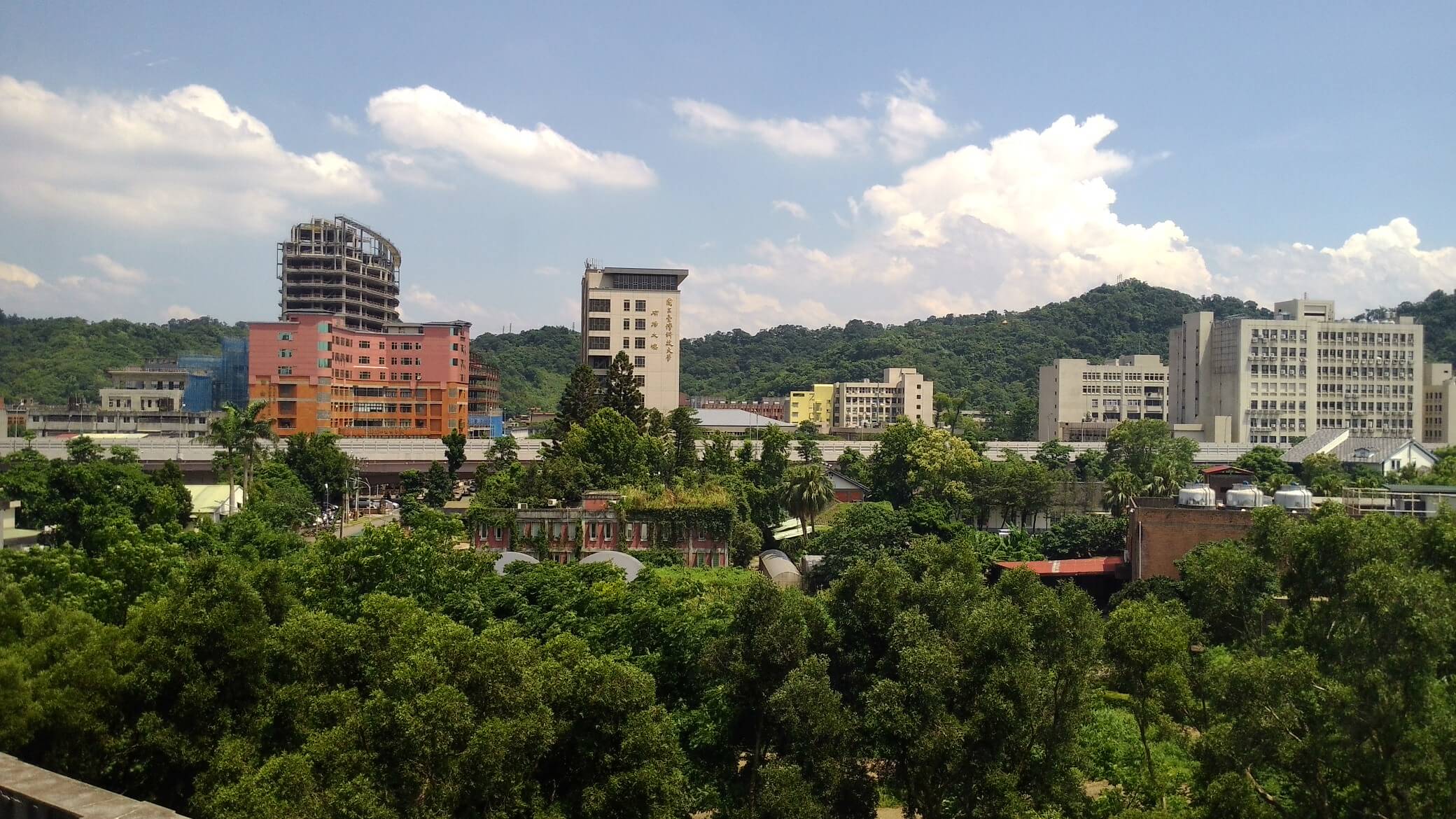
picture from Chi-Hung Lin – https://www.flickr.com/photos/92585929@N06/27325096293, CC BY-SA 2.0
The conference will be co-hosted with COSCUP 2018 which will be held in Taipei, Taiwan from 2018-08-11 until 2018-08-12. We welcome proposals by newcomers and experienced speakers alike.
Chinese Version(local language) 中文版(本地語言)請參見:https://openingsource.org/2003/zh-tw/

Important Information

  • The deadline:
    • Submission: 2018-05-20
    • Notification of acceptance: 2018-06-01 until 2018-06-05
    • Full programme published: Early July
  • Conference:
    • Conference date: Aug 11th – 12th , 2018
    • Venue: National Taiwan University of Science and Technology, Taipei, Taiwan.

Possible topics include, but are not limited to:
Contributing to GNOME
  • Latest developments
  • Writing applications for GNOME 3
  • UI design
  • QA and testing
  • Accessibility
  • Human Interface Engineering (Icons and Graphic Design)
  • Marketing/Engagement
  • Asia success stories / Local GNOME Projects
  • GNOME and Education
  • FOSS outreach programs, including Google Summer of Code
  • Developing GNOME on mobile devices (smart phones, tablets)
  • Developing GNOME on embedded systems or open hardware
Contributing to Linux and F/LOSS
  • Linux kernel and development
  • The development and promotion of open-source operating systems
  • About Debian, Fedora, openSUSE, Ubuntu, FreeBSD, and other distributions
  • The development and promotion of other open-source projects
Open Source Enlightenment and Related Story

  • The Knowledge and Spirit of Open Source
  • Open Source stories of your own
  • How to optimize the process and  improve efficiency with the help of open-source tools
  • How to engage non-technical clightning talksontributors in Open Source Projects
  • How to engage more female contributors in Open Source Projects

Emerging Technologies

  • Artificial Intelligence
  • DevOps with AI
  • Deep Learning
  • AR & VR
  • Big Data
  • Distributed systems
  • Open Source DevOps

We are also interested in other topics related to Free/Libre and Open Source Software which are not listed above.
There will be an opportunity for speakers and GNOME Foundation members to request sponsorship by the GNOME Foundation. Please submit applications to the GNOME Travel Committee https://wiki.gnome.org/Travel .
A standard session will be scheduled for 45 mins (35 mins talk + 10 mins Q&A). The session could be a technical talk, panel discussion, or BOF. If you need more time or additional resources, feel free to get in touch with the organizing team.
For those who would like to participate but are not sure if they’d like to do a full talk, we have shorter lightning talks. These are a 10 minutes presentation to demonstrate your work or promote an interesting topic. These talks will be grouped together in a single session.
Please provide a short abstract of your proposal (under 150 words). Include your name, biographical information, a photo suitable for the web, a title, and a description of your presentation. The reviewing team will evaluate the entries based on the submitted abstracts and available time by following the schedule.
Submission deadline: 2018-05-20
Confirmation of paper acceptance: 2018-06-01 until 2018-06-05

All interested contributors are highly encouraged to send in talks.
The GNOME.Asia 2018 Team
the avatar of Chun-Hung sakana Huang

Docker with openSUSE Leap 15

Docker with openSUSE Leap 15

OS: openSUSE Leap 15.0 Beta
Docker version:  17.09.1-ce

Docker is a software technology providing containers, promoted by the company Docker, Inc. Docker provides an additional layer of abstraction and automation of operating-system-level virtualization on Windows and Linux.
Docker implements a high-level API to provide lightweight containers that run processes in isolation.
Because Docker containers are so lightweight, a single server or virtual machine can run several containers simultaneously.

Let’s do some hands on with docker and openSUSE Leap 15

== Install Docker  ==

Use GUI method
use yast2  sw_single install docker

# yast2  sw_single

Search  docker
Select docker to install


Use command line to install docker

use zypper to install, if you don’t want interactive use #zypper  -n install docker
# zypper  install  docker

Loading repository data...
Reading installed packages...
Resolving package dependencies...

The following 13 NEW packages are going to be installed:
 containerd criu docker docker-bash-completion docker-libnetwork docker-runc git-core git-gui gitk libnet9
 libsha1detectcoll1 python2-ipaddr python2-protobuf

The following recommended package was automatically selected:
 criu

13 new packages to install.
Overall download size: 23.2 MiB. Already cached: 0 B. After the operation, additional 117.1 MiB will be used.
Continue? [y/n/...? shows all options] (y):  Y


Check docker version when you install it
# docker  --version
Docker version 17.09.1-ce, build f4ffd2511ce9


== Start docker service and setup boot enable  ==

GUI method
Use yast2  services-manager
# yast2  services-manager

click docker
click Start/Stop start docker service
click Enable/Disable Setup boot enable docker service
Click OK


Command line method

use systemctl command

Check docker service status
# systemctl  status  docker

* docker.service - Docker Application Container Engine
  Loaded: loaded (/usr/lib/systemd/system/docker.service; disabled; vendor preset: disabled)
  Active: inactive (dead)
    Docs: http://docs.docker.com


Start  docker service
# systemctl  start   docker

# systemctl  status docker

* docker.service - Docker Application Container Engine
  Loaded: loaded (/usr/lib/systemd/system/docker.service; disabled; vendor preset: disabled)
  Active: active (running) since Fri 2018-04-27 21:24:09 CST; 3s ago
    Docs: http://docs.docker.com
Main PID: 13632 (dockerd)
   Tasks: 9


Setup boot enable docker service

Checking boot status
# systemctl  is-enabled docker
disabled

Setup boot enable docker
# systemctl  enable docker
Created symlink /etc/systemd/system/multi-user.target.wants/docker.service -> /usr/lib/systemd/system/docker.service.


# systemctl  is-enabled docker
enabled


== If you want normal user could use docker command  ==

The docker package creates a new group named docker. Users, other than root user, need to be part of this group in order to interact with the Docker daemon. You can add users with:
#usermod   -a -G docker   

Like

#usermod   -a -G docker   max


Practice:  docker basic command

Check Docker version

# docker  --version
Docker version 17.09.1-ce, build f4ffd2511ce9

Pull your first  docker image

# docker  pull   busybox
Using default tag: latest
latest: Pulling from library/busybox
f70adabe43c0: Pull complete
Digest: sha256:58ac43b2cc92c687a32c8be6278e50a063579655fe3090125dcb2af0ff9e1a64
Status: Downloaded newer image for busybox:latest


Check your docker images
# docker  images
REPOSITORY          TAG IMAGE ID            CREATED SIZE
busybox             latest 8ac48589692a        3 weeks ago 1.15MB


Search docker images on the web

For example, search opensuse


Search docker images with command

# docker  search  opensuse
NAME                                  DESCRIPTION          STARS OFFICIAL AUTOMATED
opensuse                              This project contains the stable releases ...   230 [OK]
opensuse/portus                       Production ready Docker image of Portus.        65 [OK]


Get your openSUSE docker images  :)
Default is latest if you not order tag

# docker  pull   opensuse
Using default tag: latest
latest: Pulling from library/opensuse
47aa660240a8: Pull complete
Digest: sha256:569e6ee7a622838b9fa1111c3bfa99a50fdb34b7503f945b7d18ce66bb94a369
Status: Downloaded newer image for opensuse:latest

Check your docker images again

# docker  images
REPOSITORY          TAG IMAGE ID            CREATED SIZE
opensuse            latest 35057ab4ef08        6 days ago 110MB
busybox             latest 8ac48589692a        3 weeks ago 1.15MB

Get docker image with tag

# docker  pull  opensuse:42.3
42.3: Pulling from library/opensuse
Digest: sha256:569e6ee7a622838b9fa1111c3bfa99a50fdb34b7503f945b7d18ce66bb94a369
Status: Downloaded newer image for opensuse:42.3


Check your docker images again, you will see opensuse:latest and opensuse:42.3 has the same  IMAGE ID because they are the same.

# docker  images
REPOSITORY          TAG IMAGE ID            CREATED SIZE
opensuse            42.3 35057ab4ef08        6 days ago          110MB
opensuse            latest 35057ab4ef08        6 days ago          110MB
busybox             latest 8ac48589692a        3 weeks ago 1.15MB

Of course, you could pull other images from docker hub, for example

# docker  pull  sakana/sshd
Using default tag: latest
latest: Pulling from sakana/sshd
Digest: sha256:8f140e190db2d683b36cbac1d57410cdfb67029c4580b7b3aad3730005936544
Status: Downloaded newer image for sakana/sshd:latest


Practice:  Run docker container

Know your docker container status before you go
You will not see anything when you use #docker ps command

# docker  ps
CONTAINER ID IMAGE COMMAND CREATED STATUS PORTS NAMES


# docker   ps   -a
CONTAINER ID IMAGE COMMAND CREATED STATUS PORTS NAMES

Run your first docker container with openSUSE

# docker   run   --rm   -i  -t   opensuse   /bin/bash
  • run execute docker
  • --rm Automatically remove the container when it exits
  • -i Keep STDIN open even if not attached
  • -t Allocate a pseudo-TTY

In the container
You could try to echo $HOSTNAME to check you are in docker contaienr now.

00172605a6e5:/ # echo $HOSTNAME
00172605a6e5

Leave the container

00172605a6e5:/ # exit
exit
Check docker container status with #docker ps

# docker  ps
CONTAINER ID IMAGE COMMAND CREATED STATUS PORTS NAMES


# docker   ps   -a
CONTAINER ID IMAGE COMMAND CREATED STATUS PORTS NAMES


Run docker container again without  --rm

# docker   run   -i  -t   opensuse   /bin/bash

Leave the docker container

62d16d591ad0:/ # exit
exit

Check docker container status with #docker ps
You will find -- if you not use --rm option, docker container will not remove from your host.

# docker  ps
CONTAINER ID IMAGE COMMAND CREATED STATUS PORTS NAMES


# docker   ps   -a
CONTAINER ID        IMAGE COMMAND             CREATED STATUS             PORTS NAMES
62d16d591ad0        opensuse "/bin/bash"         About a minute ago Exited (0) About a minute ago                       quizzical_almeida

the avatar of Han Wen Kam

openSUSE Leap 42.3 on Google Cloud Platform (GCP)

Blogging... I'm glad I started in 2008, it is like having a diary that you can never misplace... and reading some old entries can bring back wonderful memories, as I recall and review the course of my life from this, albeit narrow, technology perspective.

Anyway, its been a good 4+ years since my last entry and the longest hiatus... glad and grateful to say that I am now working for Google.  My personal Linux passion is still very much alive and personal bias towards all things SUSE (more openSUSE since 2011).

Problem Statement:

So, it is May 2018 and I am little disappointed that openSUSE Leap did not make it to the out-of-the-box public images on Google Cloud Platform (GCP).  However, it is listed in the "Community supported images" category.

PS:  I'm placing my vain hope that Leap 15 will make it though...

This blog entry describes the steps to create a vanilla openSUSE Leap 42.3 VM on GCP and thereafter, create a custom image from this said VM so you can easily/quickly create openSUSE Leap 42.3 VMs for other workloads in the future through the GCP Web Console.

From this point on, I will assume you have a GCP account and therefore access to GCP consoles etc.  It is not difficult to start with Google Cloud Platform, just go to https://cloud.google.com/free/ to get a Free Tier account.

Create an openSUSE Leap 42.3 VM on GCP:

  1. Login to your GCP console and your project (default or otherwise).
  2. From Menu (top-left),  Compute Engine -> VM instances
  3. Note that openSUSE is not listed as an Operating System image when you try to create a new VM.  This is well documented at the Images section of the Compute Engine topic.
  4. Launch the Cloud Shell within the console, on the top-right.
  5. Find the available community supported openSUSE Leap image with the following command input to the Cloud Shell. 
    • gcloud compute images list --project opensuse-cloud --no-standard-images 
  6. Create a VM with the openSUSE Leap 42.3 image in the Singapore datacenter (or any Zones that is closest to you)

  7. SSH into your newly created openSUSE Leap 42.3 VM to download and apply the latest updates/patches.  Click the SSH button (see screenshot above).
    • Once you SSH into your VM,  zypper up.
  8. Reboot the VM to test all updates are working.
    • Reboot:  sudo reboot.  You will lose SSH connection, naturally.
    • Sign back in via SSH button... it may take a few tries as the VM is rebooting.
    • Sign out of SSH:  exit
  9. Shutdown the VM.  Select the VM (checkbox) from the Console and Click STOP.

Create a custom image in your GCP Project for Re-use later:

  1. From the GCP console, navigate to Compute Engine -> Images
  2. Click [+] CREATE IMAGE 
  3. Put in the name of your new image (eg. my-opensuse-leap-423) and select Source as Disk and Source disk as the boot disk from the right VM (eg. osleap423).
    • (Optional) You can click the command line link at the bottom to note the equivalent Cloud Shell command.  This is useful if you want to script actions for future re-use and not use the web-console.
  4. Once your custom image is created, you will be able to select it for the next VM you wish to create.
Enjoy! :-)

a silhouette of a person's head and shoulders, used as a default avatar

Crazy complexity

Its crazy how complex PCs have become. ARMs are not exactly simple with the TrustZone and similar stuff, but.. this is crazy. If you thought you understand x86 architecture... this is likely to prove you wrong. There's now non-x86 cpu inside x86 that performs a lot of rather critical functions...
...and shows that SGX indeed is evil.
a silhouette of a person's head and shoulders, used as a default avatar

Microsoft sabotaging someone else's computers

My father got himself in a nice trap: he let his Lenovo notebook to update to Windows 10. Hard to blame him, as user interface was confusing on purpose.Now 2 out of 3 USB ports are non-functional (USB 2 port works USB 3 ports don't), and there's no way to fix that. And apparently, Microsoft knew about the problem. Congratulations, Microsoft...

Ouch and they are also sending people to jail for producing CDs neccessary to use licenses they already sold. Microsoft still is evil.
a silhouette of a person's head and shoulders, used as a default avatar

O2 attacking their own customers

Just because you are paying for internet service does not mean O2 will not try to replace web-pages with advertising. Ouch. Seems like everyone needs to use https, we need better network-neutrality laws, and probably also class-action lawsuits.
a silhouette of a person's head and shoulders, used as a default avatar

Dark design patterns

Got Jolla installed. Ok, it looks cool. But already some unnice things can be seen. You _need_ jolla account to install apps. You need to agree to nasty legaleese. You are asked for name and password, it looks like that's all, and then it wants to know real name, email address, birthday... Appstore looks cool... but does not list licenses for software being installed. Still better than Android. Miles away from Debian.
It also seems to require login separate from app store login to get the "really" interesting stuff. Unfortunately, I don't know how to get that one.
I'd quite like to get python/gtk to work on Jolla (or maybe Android). If someone knows how to do that, I'd like to know. But I guess running Maemo Leste is easier at the moment.
a silhouette of a person's head and shoulders, used as a default avatar

Motorola Droid 4 is now usable

23.4.2018, around 12:34... I realized how unix ttys are sabotaging my attempts to send SMS.. and solved it. So now I have Motorola Droid 4, running 4.17-rc1 kernel, with voice calls working, SMSes, data connection, GPS working and have some basic GUIs to control the stuff. WIFI works. Screen locks, and keyboard map still could be improved. Battery life will probably will not be great. But hey, its a start -- I have GNU/Linux working on a cellphone. More precisely Maemo Leste, based on Devuan, based on Debian. Sure, some kernel patches are still needed, and there's a lot more work to do in userland... Today, Microsoft sold out last Windows Mobile phones. I guess that's just a coincidence.

the avatar of Hans Petter Jansson

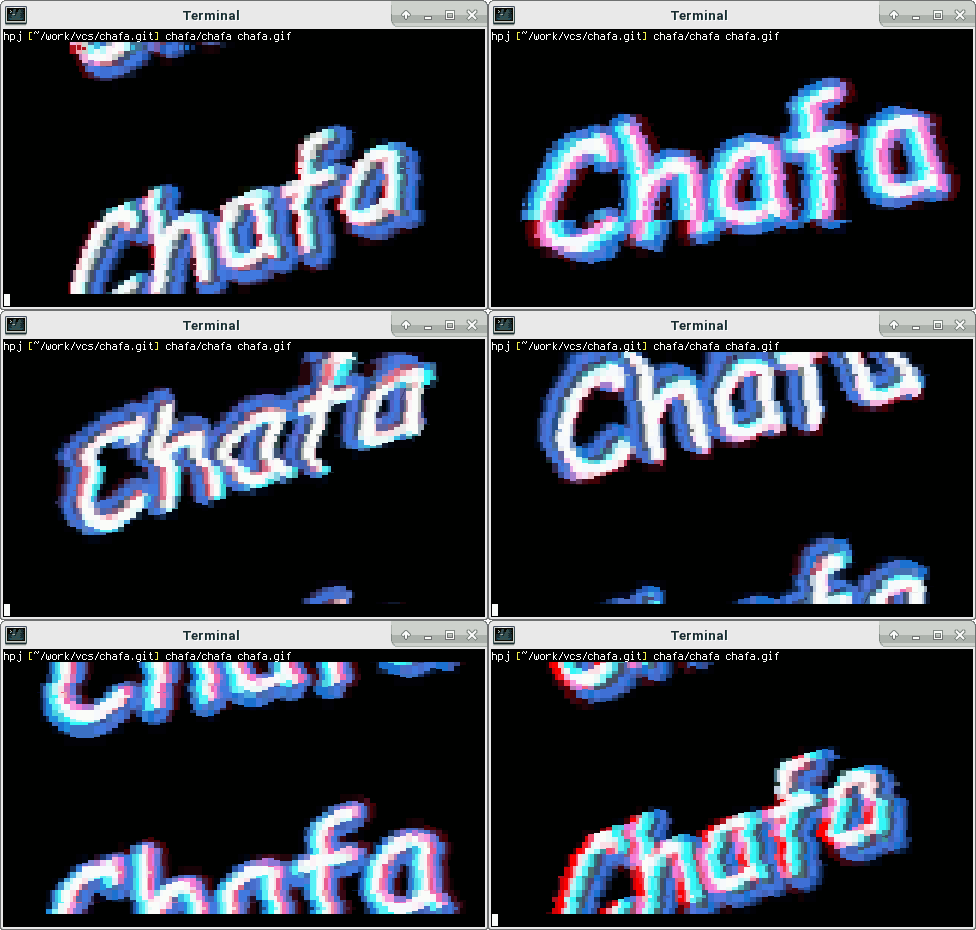
Introducing Chafa

Chafa logo

Here’s something I didn’t know: The DEC VT100 turns 40 in August. This factlet comes courtesy of Wikipedia, as I’m not quite old and wise enough to have made its acquaintance outside of a museum. None the less, the VT100 and its extended family of hard-working office furniture has always been with me in terms of the ECMA-48 standard, better known as ANSI X3.64 or simply (and these days, probably as accurately as any formal descriptor) “ANSI codes“, which it helped pioneer.

This pinnacle of 1970s UX is somehow still going strong, and recent developments like lots and lots of colors, ubiquitous Unicode support, good monospace fonts, etc. have opened up some interesting possibilities for creative abuse in a rich tradition that dates all the way back to manual typewriters, if not further. Previous entrants in this category are the venerable aalib and libcaca, and more recently there’s timg and others that use the U+2580 half-block symbol.

I wrote a small tool to further improve on this. It combines a range of Unicode symbols in an attempt to minimize the squared error of the output, and has plenty of bells and whistles besides. Check it out.

a silhouette of a person's head and shoulders, used as a default avatar
darix posted at

More fun with Freeipa and DNS: Funky records

After all the fun we had in part 1 of our FreeIPA + DNS series, we now come to a new chapter.

During the move of openSUSE to Let’s Encrypt we used the excellent tool from ssllabs to verify each server after we changed the certificate. One of our coworkers noted “Hey, why don’t you have a CAA record. It would give you an even better score”. CAA records allow the domain owner to specify which certificate authorities are allowed to create certificates for this domain. Which seems to be a nice benefit for little work. For a longer explanation see this blog post from Qualys.