
 knocte
Introducing geewallet
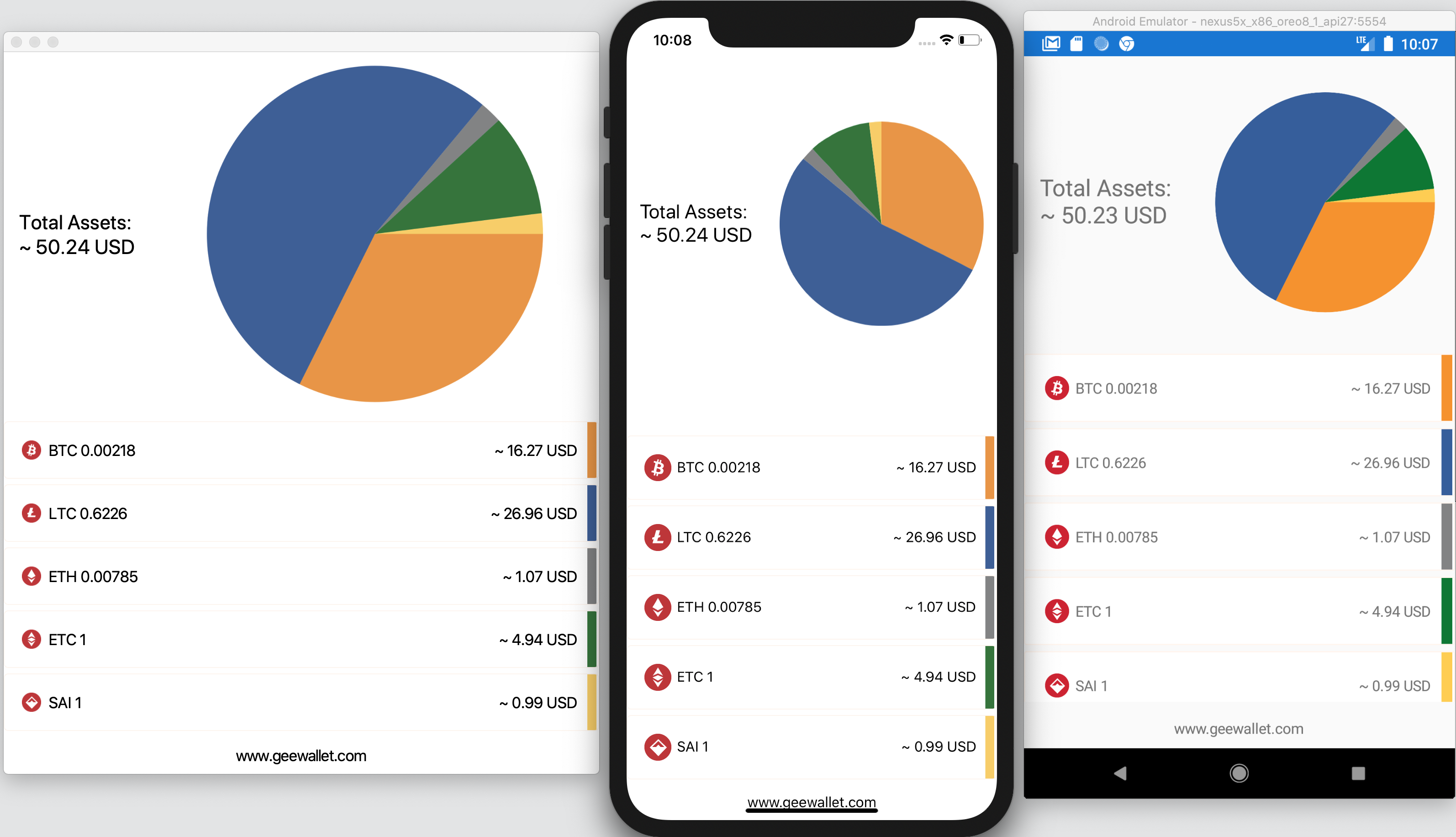
- Make it even more user friendly: blockchain addresses are akin to the numeric IP addresses of the early 80s when DNS still didn’t exist. We plan to use either ENS or IPNS or BNS or OpenCAP so that people can identify recipients much more easily.
- Implement Layer2 technologies: we’re already past the proof of concept phase. We have branches that can open channels. The promise of these technologies is instantaneous transactions (no waits!) and ridiculous (if not free) fees.
- Switch the GTK Xamarin.Forms driver to work with the new “GtkSharp” binding under the hood, which doesn’t require glue libraries. (I’ve had quite a few nightmares with native dependencies/libs when building the sandboxed snap package!)
- Integrate with some Rust projects: MimbleWimble(Grin) lib, the distributed COMIT project for trustless atomic swaps, or other Layer2-related ones such as rust-lightning.
- Cryptography work: threshold keys or deniable encryption (think "duress" passwords).
- NFC support (find recipients without QR codes!).
- Tizen support (watches!).
- Acceptance testing via UI Selenium tests (look up the Uno Platform).
- Flatpak support: unfortunately I haven’t had time to look at this sandboxing technology, but it shouldn’t be too hard to do, especially considering that there’s already a Mono-based project that supports it: SparkleShare.
- Ubuntu packaging: there’s a patch blocked on some Ubuntu bug that makes the wallet (or any .NET app these days, as it affects the .NET package manager: nuget) not build in Ubuntu 19.10. If this patch is not merged soon, the next LTS of Ubuntu will have this bug :( As far as I understand, what needs to be solved is this issue so that the latest hotfixes are bundled. (BTW I have to thank Timotheus Pokorra, the person in charge to package Mono in Fedora, for his help on this matter so far.)
- GNOME community: I’m in search for a home for this project. I don’t like that it lives in my GitLab username, because it’s not easy to find. One of the reasons I’ve used GitLab is because I love the fact that being open source, many communities are adopting this infrastructure, like Debian and GNOME. That’s why I’ve used as a bug tracker, for merge requests and to run CI jobs. This means that it should be easy to migrate to GNOME’s GitLab, isn’t it? There are unmaintained projects (e.g. banshee, which I couldn’t continue maintaining due to changes in life priorities...) already hosted there, so maybe it’s not much to ask if I could host a maintained one? It's probably the first Gtk-based wallet out there.
- Please don’t ask me to add support for your favourite %coin% or <token>.
- If you want to contribute, don’t ask me what to work on, just think of your personal itch you want to scratch and discuss it with me filing a GitLab issue. If you’re a C# developer, I wrote a quick F# tutorial for you.
- Thanks for reading up until here! It’s my pleasure to write about this project.
PS: If you're still not convinced about these technologies or if you didn't understand that PoW video I posted earlier, I recommend you to go back to basics by watching this other video produced by a mathematician educator which explains it really well.

 Member
Creating Onion Services on OpenBSD
OpenBSD is a new beast for me. I’m still learning, experimenting, and trying out new things. Yesterday I was able to create 3 onion services on it quite easily but it takes time to learn the correct order of operations and to learn how to find out why things don’t work when you think they should.
A word about OpenBSD
OpenBSD isn’t friendly to newbies. The developers, users, and management work to make the best and most secure OS that they can. When you work with OpenBSD, it is assumed that you have at least a moderate to advanced amount of Linux or Unix knowledge and experience before starting and that you know how to read documentation, man pages, etc. Don’t bother asking for help unless you’ve done your homework first. Here’s an unedited quote from a recent mailing list post:
> I never read
Please stop wasting our time then.
Setting up Tor
It will become obvious in a minute, but it’s important to set up your Tor onion services first and your web server later. We will be setting up 3 onion services with 3 completely different addresses that have completely different websites associated with them.
First install Tor:
pkg_add tor
Enable the tor service:
rcctl enable tor
Here is my torrc file. It can be a little hard to see, but I enabled separate logging and debugging for Tor when I was working through this. If you don’t, it can be hard to see why something isn’t working. For example, mine kept failing but I couldn’t get a good error as to why until I did this. The reason was because I hand’t actually created the /var/tor/ directories nor set them to the correct permissions. I didn’t see that until I starting watching those logs.
Here is how I set up the configuration for each site. These are the directories that I forgot to create. They contain the public and private keys and the hostname for each onion service.
HiddenServiceDir /var/tor/site1
HiddenServicePort 80 127.0.0.1:8080

HiddenServiceDir /var/tor/site2
HiddenServicePort 80 127.0.0.1:8081

HiddenServiceDir /var/tor/site3
HiddenServicePort 80 127.0.0.1:8082
Each onion service is running internally on port 8080, 8081, or 8082, etc. This is the port that the actual OpenBSD OS will see running. However, tor will be expecting traffic to come in on the standard http port 80. You might be wondering how this works. Tor will be advertising my onion service on port 80. That traffic will come in via tor and get translated to the internal port that the OS will use.
Once I had this running correctly, I finally started tor.
rcctl start tor
Once tor is up an running, check each HiddenServiceDir for the hostname of each onion service. You will need them to test the web server.
Setting up httpd
OpenBSD has it’s own web server that comes with the standard installation called httpd. This is not the same as the Apache httpd that comes with Redhat or Ubuntu. This is a secure minimalist webserver which might actually be ideal for Onion services.
By default, you can’t just start the httpd service and have it running with a default configuration like you can with Apache or Nginx. You actually need to create an /etc/httpd.conf file first. Here is mine.
## Site 1

server "tpsh5cb4zl73pwymkkuopl4roibk4envf6k3ybdcdzuhuztrytsnxxqd.onion" {
listen on * port 8080
root "/htdocs/tpsh5cb4zl73pwymkkuopl4roibk4envf6k3ybdcdzuhuztrytsnxxqd.onion"
}

# Include additional MIME types
types {
include "/usr/share/misc/mime.types"
}

## Site 2

server "ueaireabdst7uqupz5dlrt5vhltgid3wyz4esgwd7buug7nc2absawyd.onion" {
listen on * port 8081
root "/htdocs/ueaireabdst7uqupz5dlrt5vhltgid3wyz4esgwd7buug7nc2absawyd.onion"
}

## Site 3

server "r6udfh5el5bigkpnh7twtsx3j6w6cxmyexlaa23vacqugq7jo6hxlryd.onion" {
listen on * port 8082
root "/htdocs/r6udfh5el5bigkpnh7twtsx3j6w6cxmyexlaa23vacqugq7jo6hxlryd.onion"
}
The first things is the define the name of the url that traffic will be coming in on. I got this from the onion hostname that was generated by tor. Secondly, that hostname needs to be matched with the internal port number that tor will be sending traffic to. Finally you need to tell the web server where to find the actual html that make up that website. I used the complete onion name for that directory. That’s not actually necessary but to me it is helpful. Be careful: although the line of code says “root” it is not the compete directory. htdocs is actually under /var/www/.
You can test your web server’s configuration without actually starting it by running:
httpd -n
Once you get a “configuration OK” status, you can enable and start it
rcctl enable httpd

rcctl start httpd
A really great resource for starting to work with this web server is here. I would suggest waiting 30 seconds or so after starting the web server to check the urls with the Tor Browser or you can check them directly using the internal ports with curl.
Final thoughts:
OpenBSD put security before performance.
OpenBSD believes in strong security. Our aspiration is to be NUMBER ONE in the industry for security (if we are not already there). Our open software development model permits us to take a more uncompromising view towards increased security than most vendors are able to. We can make changes the vendors would not make. Also, since OpenBSD is exported with cryptography, we are able to take cryptographic approaches towards fixing security problems.
Security is not privacy and it is certainly not anonymity and yet these things work well together. This focus makes OpenBSD the right match for those who want to use Tor and why I will always suggest that people avoid Windows or Macs for those who are serious about privacy because they put those platforms put user experience and sales before anything else on top of being closed source.

Scrcpy on openSUSE | Display and Control Android devices over USB
Linux in the Kitchen | Life Enhancement Blathering
openSUSE Tumbleweed – Review of the week 2020/01
Dear Tumbleweed users and hackers,
Happy new year! The year 2020 has started in full swing and I wish everybody a great new year!
For Tumbleweed, things have started off reasonably well: Snapshot 20200101 (first one of the year) has been published, and 0102 will be discarded. Ups  But let’s step back a bit and do the review of the whole week (which was the crossing over of 2019 to 2020). In the last week, we have released a total of 6 snapshots! Ok, I admit, they were all rather ‘small’ updates, as many contributors are with their families and have better things to do than submitting breaking updates. The six updates released were, still from 2019: 1227, 1228, 1229, 1230 and 1231 and from 2020 the one mentioned earlier: 20200101. The snapshots contained these package changes:
- Ruby RSpec 3.9.0
- Wireshark 3.2.0
- Mozilla Firefox 71.0
- Rust 1.39.0
Obviously, with so many contributors on leave, the stagings that are actually in need of attention barely moved. So it is no big surprise that the list of ‘things being forged’ is largely unchanged:
- RPM 4.15: most issues are solved by now, one final piece of post-build-checks has been submitted and supposedly makes this acceptable soon
- Python 3.8
- systemd 244: mostly ready, but python-prompt_toolkit1 keeps on failing with this update
- Qt 5.14. Build and testing have been completed. There are some legal reviews pending
- Kubernetes 5.17: openQA still failing
- Linux kernel 5.4.x: Issues to be resolved in the used signing CA and the certificate in use.
- SQLite 3.30: python-django still failing, despite fix-patches added to sqlite
- Rust 1.40
I expect, with the holiday season mostly being over, to see an increase in submissions again. Let’s hope OBS will not meltdown under the pressure

Kraft Version 0.90
Zum Jahresabschluss 2019 wurde noch die neue Kraft Version 0.90 herausgegeben.
Das wichtigste neue Feature ist die Überarbeitung der Folgedokumente. Als Folgedokumente werden Dokumente bezeichnet, die bei der Abwicklung von Aufträgen aufeinander folgen, zum Beispiel eine Rechnung, die auf ein Angebot folgt.
In Kraft gibt es Unterstützung dafür: Anstatt die Rechnung, die auf das Angebot folgen soll, ganz neu anzulegen, kann das Angebot selektiert werden und im Menü der Punkt Nachfolgedokument erzeugen ausgewählt werden. In dem darauf folgenden Dialog kann in der neuen Version ausgewählt werden, ob und aus welchem Quelldokument die Posten in die Rechnung kopiert werden sollen. 
Wenn zb. eine Abschlagsrechnung als erstes Folgedokument des Angebotes angelegt wurde, möchte man nicht deren Posten, sondern die des Angebotes kopieren.
Ebenfalls neu ist die Unterstützung von Abschlagsrechnungen. Wenn eine als Folgedokument gestellt wurde, wird der Schlussrechnung automatisch ein Posten eingefügt, der die Summe der Abschlagsrechnung abzieht. Er kann dort angepasst werden.
Weitere Änderungen sind eine weiter vereinfachte Benutzeroberfläche, um die Arbeit mit Kraft noch einfacher zu machen. Die Übersetzung der Dokument-Vorlagen wurde vereinfacht und die Vorlagen wurden in Details verbessert. Daneben gibt es viele andere kleine sichtbare und unsichtbare Verbesserungen.
Nicht unerwähnt sollen Beiträge aus der Kraft-Community bleiben: Es wurde eine komplette Übersetzung der Software ins Niederländische beigetragen und ein neuer Dokument-Typ Angebot ohne Preise hinzugefügt, der von der Community vorgeschlagen wurde. Dafür besten Dank, davon lebt Kraft!
Viel Erfolg mit Kraft in 2020!
Quick Tiling in KDE Plasma on openSUSE


The best way to update your openSUSE Leap system
There are several ways to update openSUSE Leap. However, there is one way that has served me the best over the last 10 years using openSUSE. And this is via the YaST Software Management graphical (GUI) interface.
Other ways to update openSUSE Leap are:
- Via the command line / Zypper
- YaST online update
- KDE Plasma Software Updates
The command line / Zypper method works just as well as the method described in this article. However, not everybody is comfortable with using the command line (CLI) interface.
YaST online update is good for patching openSUSE official software, however this doesn’t cover software patches from third party repositories such as Packman or Google Chrome.
KDE Plasma Software Updates does find all software that needs updating, however it isn’t smart enough to resolve all issues So sometimes a software update will fail because of missing dependencies or package conflicts.
Using YaST Software Management for updating an openSUSE Leap system is therefore the most reliable way of doing it. The first step in this method is to open YaST and then open Software Management.

The next step is to open the tab Repositories. If you have used this tab before, it should already be available. Otherwise, click on the View button and then select Repositories.

In this tab, click on one of the software packages with the right mouse button (context click) and select ‘All in This List’ and then click on ‘ Update if newer version available’.

Now go to the tab Installation Summary and click on the Accept button.

In many cases there are also Automatic Changes, these are dependent software packages that will be automatically updated to the right version or will be automatically installed. Click Continue to advance.

Now the update will start and all updates will be downloaded and installed.

In some situations a new Linux kernel is installed as well. The system will need to reboot for this new kernel to work. All other software packages will function normally and will not require any system reboot. So you can continue working if you want to. But reboot your system after finishing your activities. Click OK to advance.

In the end YaST Software Management will present an overview of the installed software packages. Click on Finish to end the update process. Or click on Continue if you like to install additional software packages.

Conclusion
The YaST Software Management tool is the most reliable way to update your openSUSE Leap system via a graphical (GUI) interface. In a future article I will address updating openSUSE (Leap and Tumbleweed) systems via the command line.
Published on: 1 January 2020
Fusion 360 on openSUSE Linux | Review