
 rriemann
Road Trip from Germany to the Retreat in the Alps
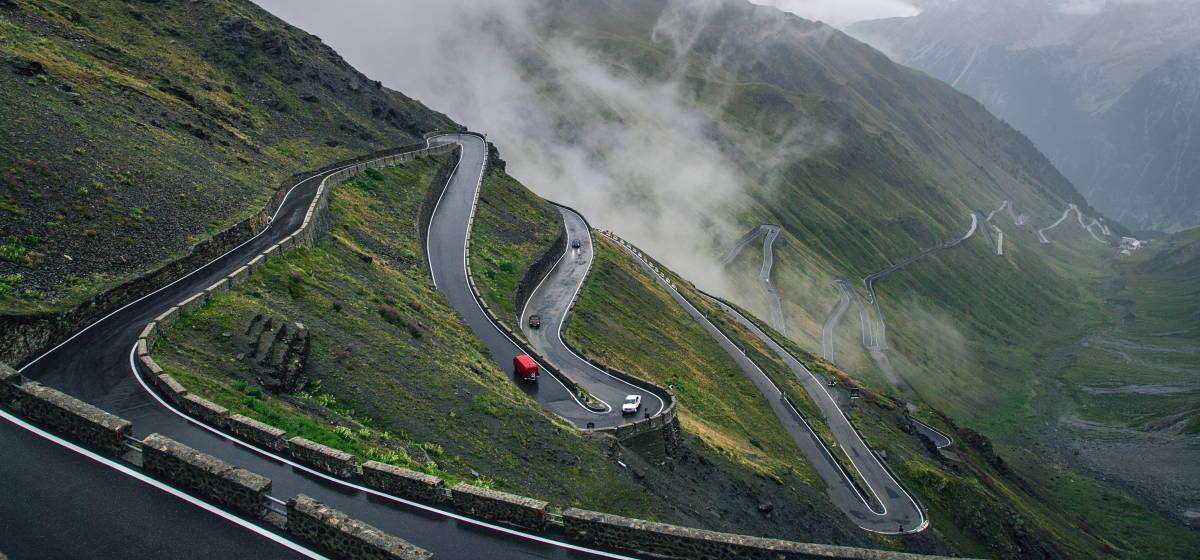
The black slope for all road trip novices. Photo by Raul Taciu.
If the mountain won’t come to the prophet, then the prophet must go to the mountain.1
If the mountain is very far away, the prophet is well advised to rather ride by horse, Uber or even take a plane. I was lucky to get the chance to use the car of the family. Unfortunately, this car was not in Brussels, but in North Rhine-Westphalia in Germany. Though, a car is much smaller and more mobile than a mountain, it was again me who had to go get the car.
I avoid cars whenever possible. I fly more often than I drive a car. So when I got to Germany for the hand-over of the car, we drive first together to the gas station, so I can verify that I can still manage to refill the tank, which I have not done for years.
The estimated total driving time to the Alps amounts to 8 hours. Considering that my longest drive was 4 hours from Berlin to the Baltic Sea, I decide to split the ride in two and stay halfway overnight. On my way to the Alps I make two stops in Germany for grocery shopping. Fritz-Kola, Bionade, different kinds of nuts, Klöße, Spätzle and few other specialities that are either very expensive in France or not available at all. In the end, little space is left in the car.
On the Road
I am on the Autobahn. I listen to the album A Night At The Opera from Queen. I listen to the album twice. When I reached again the last song God Save The Queen, still much Autobahn is ahead of me. I have to concentrate at every motorway junction. In between, at 120 km/h, time seems to halt. Nothing happens. FLASH. Yikes! Apparently, I did not slow down fast enough and got caught by a speed camera. This would be the first time in my life I get an administrative fine.
The next minutes I observe the real-time fuel consumption per 100 km. I heard once car engines would be designed to be most fuel-efficient at an engine-specific speed. Without the non-conservative force friction, I would only need fuel for the initial acceleration and to climb the mountains. In the plane, my consumption should be close to 0. Hence, the majority of the consumption is required to balance friction to keep the speed. During my studies, we learned that friction is a function of the speed and includes significant higher order contributions in . That means,
Consequently, the fuel consumption is optimal for a speed . :thinking: I keep on driving.
I listen to the German audio book Ich bin dann mal weg (english: I’m Off Then) on Spotify. Hape Kerkling reads his report from his pilgrim journey on the Camino de Santiago. I am also somehow on a trip to find rest. I wonder if I should also walk the Camino. Eventually, I arrive at my planned stop in a youth hostel in the south of Germany.
The youth hostel is quite busy. It accommodates 200 high school students from an international school in Germany, a seminar group of enthusiasts of frequency therapy led by their guru living in Canada and touring once every year in Europe, and a group of professional bicycle sport trainers. I get along best with the sports trainers and we start discussing social justice. With the question how a different salary of public servants in hospitals and schools can be justified, I go to bed.
On the Road Again
Next morning, I prepare myself for entering Switzerland. The use of their motorways requires a car vignette that can be bought at the border. I leave the hostel.
Proud of me, I refill the car at the gas station all alone. Then, I pass through the city to get on the motorway to Switzerland. FLASH. :unamused: Most likely, I got again trapped by a speed camera. The forest of street signs 30 km/h in the evening changed to ordinary 30 km/h signs while the street with 3 lanes per direction resembles a motor road. I feel cheated.
Without any further issues, I reach the border between Germany and Switzerland and buy a car vignette. The sales person is very friendly and attaches the new vignette next to the collection of old vignettes with the oldest dating back to 2012. These vignettes give proof of my father’s travels—like backpack travellers would put stickers of their discovered countries on their backpack.
My itinerary to the French Alps brings me to few Swiss cities I do not know yet. I decide to leave the motorway and have a walk downtown in Basel. Not 5 minutes later, the police knocks on my window while I wait at an intersection. We greet each other friendly. Then, they ask me to park close by for an inspection. This is the first time in my life that I am subject to police scrutiny as a car driver. They let me know that expired vignettes must be removed in Switzerland. The penalty is 265€. Fortunately, the police officers are in a good mood and propose that I remove the vignettes as soon as possible and do not pay the penalty. I am easily convinced of this plan and accept without further ado. Then, I discover in Basel its difficulties to find a parking spot in the city centre. Eventually, I can have a sort walk. All in all, I do not like Basel so much.
I continue my journey to the French Alps and leave again the highway to the city centre of the Swiss de facto capital Bern. Given my experience in Basel, I decide to give up finding a free parking spot and take the central parking house right next to the old town. The sun shines. Bern was founded in the Middle Age and the centre still reflects this charm.
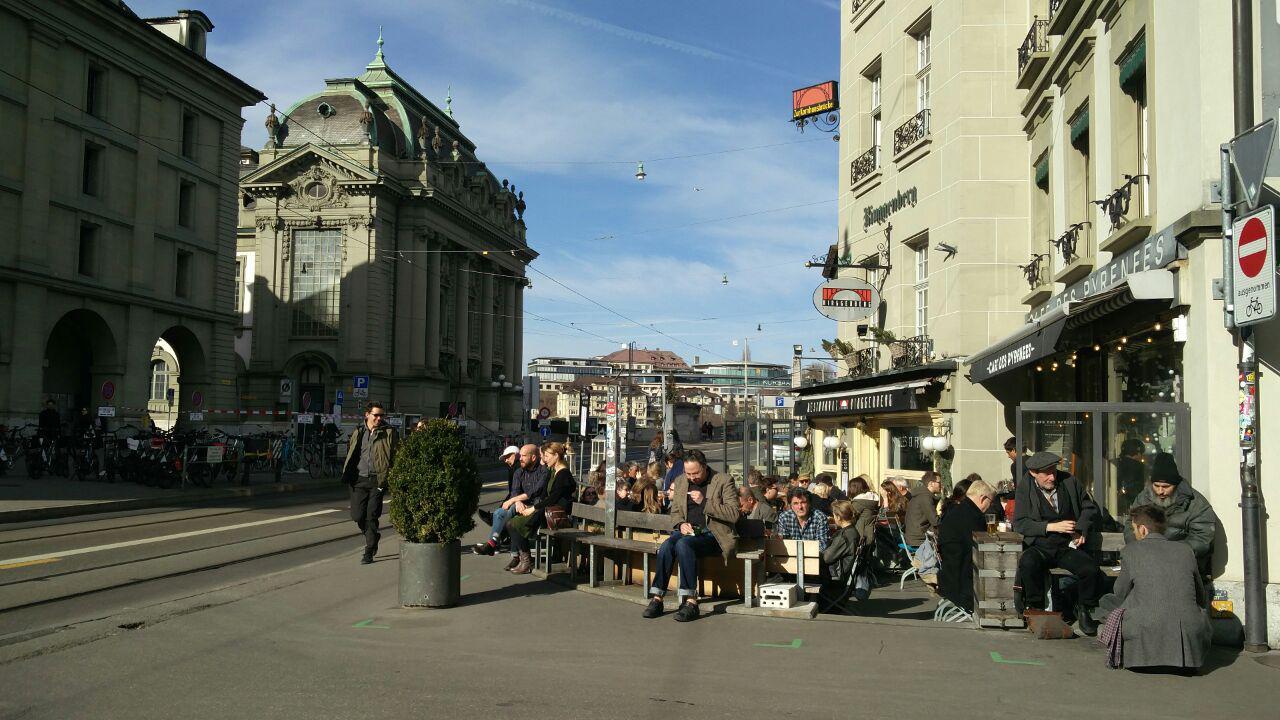
People of Bern enjoying a warm Sunday afternoon in early March.
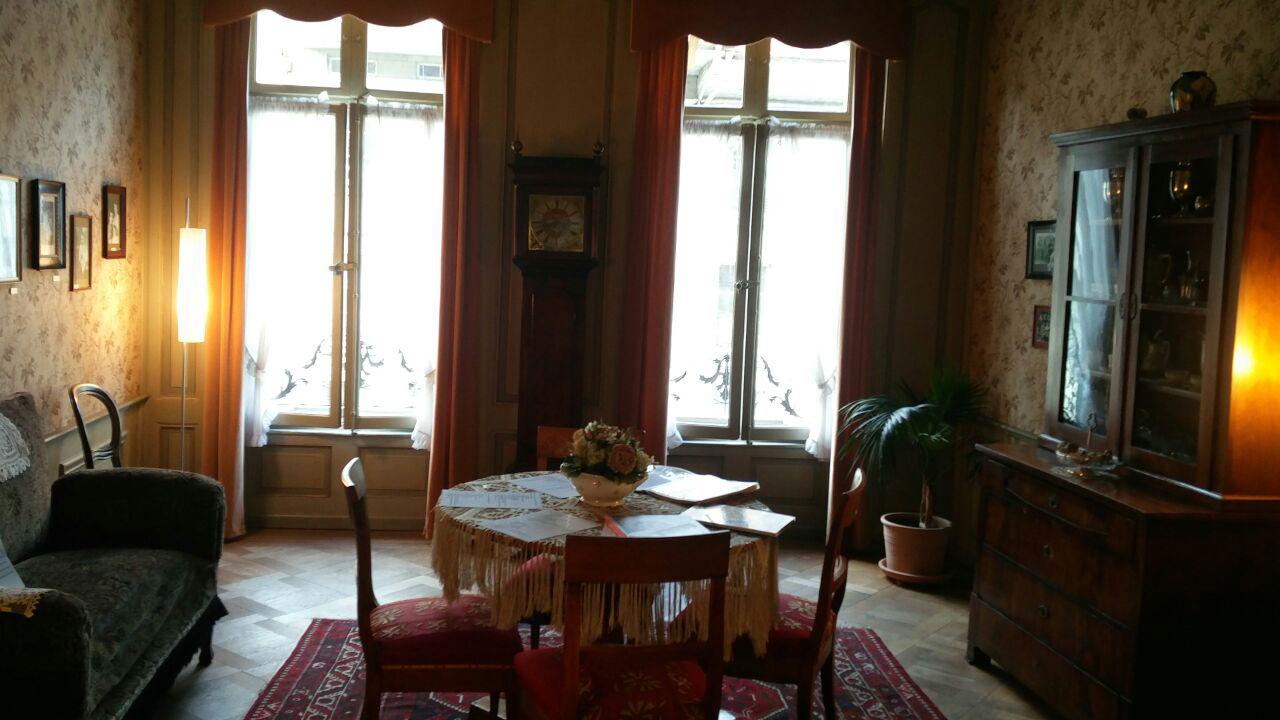
The living room of Einstein in Bern.
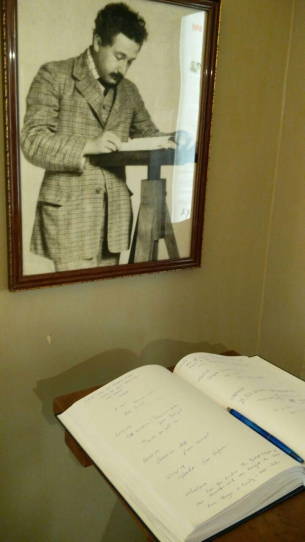
The guest book of the Einstein Museum Bern.
It is full of personal data.
While strawling to the old city, I discover an Einstein museum installed in his former flat. In the museum I learn that Einstein’ first and only daughter has been lost. I wonder if this daughter is still alive and knows her famous parents. On the way out, I notice the guest book of the museum, in which people—many apparently greedy for significance after the recent impressions from Einstein’s live–let other people know of their visit. For many, this is just a guest book. For me, it is a filing system containing personal data subject to data protection laws. As I need to arrive in the Alps before sunset, I decide to not inform the only present staff member of this recent discovery and just leave.
Eventually, I leave Bern and head towards Martigny and then Chamonix. In between, the motorway becomes a thin black slope that winds upwards the mountains in sharp curves. The temperature drops under the freezing point. Fortunately, the road is dry and clean. I continue with caution—much to the regret of those presumably local drivers that queue with little distance behind me. I can only relax again once I found enough space on the side to let them pass.
On the last kilometres before my destination, I pick up a hitch-hiker finishing the service as snow rescue patrol. I get some tips on the best skiing spots before our paths divide again. A quarter hour later, I arrive in my valley. I consider twice next time if I should not rather take the train.
-
According to Wiktionary, the prophet is in the Turkish proverb retold by Francis Bacon actually Muhammad. The form I know has been generalised to all prophets. They have a common problem here. Maybe they should have asked Atlas, who was used to carry heavy stuff. :thinking: ↩︎

Weblate 3.5
Weblate 3.5 has been released today. It includes improvements in the translation memory, addons or alerting.
Full list of changes:
- Improved performance of built in translation memory.
- Added interface to manage global translation memory.
- Improved alerting on bad component state.
- Added user interface to manage whiteboard messages.
- Addon commit message now can be configured.
- Reduce number of commits when updating upstream repository.
- Fixed possible metadata loss when moving component between projects.
- Improved navigation in the zen mode.
- Added several new quality checks (Markdown related and URL).
- Added support for app store metadata files.
- Added support for toggling GitHub or Gerrit integration.
- Added check for Kashida letters.
- Added option to squash commits based on authors.
- Improved support for xlsx file format.
- Compatibility with tesseract 4.0.
- Billing addon now removes projects for unpaid billings after 45 days.
If you are upgrading from older version, please follow our upgrading instructions.
You can find more information about Weblate on https://weblate.org, the code is hosted on Github. If you are curious how it looks, you can try it out on demo server. Weblate is also being used on https://hosted.weblate.org/ as official translating service for phpMyAdmin, OsmAnd, Turris, FreedomBox, Weblate itself and many other projects.
Should you be looking for hosting of translations for your project, I'm happy to host them for you or help with setting it up on your infrastructure.
Further development of Weblate would not be possible without people providing donations, thanks to everybody who have helped so far! The roadmap for next release is just being prepared, you can influence this by expressing support for individual issues either by comments or by providing bounty for them.

 Member
pfSense Box Setup for Home or Small Office

KIWI repository SSL redirect pitfall
[ DEBUG ]: 09:52:15 | system: Retrieving: dracut-kiwi-lib-9.17.23-lp150.1.1.x86_64.rpm [.error] [ DEBUG ]: 09:52:15 | system: Abort, retry, ignore? [a/r/i/...? shows all options] (a): aSSL error for an http:// URL? Digging for the zypper logs in the chroot found, that this request got redirected to https://provo-mirror.opensuse.org/repositories/... today, which failed due to missing SSL certificates.
[ INFO ]: Processing: [########################################] 100%
[ ERROR ]: 09:52:15 | KiwiInstallPhaseFailed: System package installation failed: Download (curl) error for 'http://download.opensuse.org/repositories/Virtualization:/Appliances:/Builder/openSUSE_Leap_15.0/x86_64/dracut-kiwi-lib-9.17.23-lp150.1.1.x86_64.rpm':
Error code: Curl error 60
Error message: SSL certificate problem: unable to get local issuer certificate
After I had debugged the issue, the solution was quite simple: in the <packages type="bootstrap"> section, just replace ca-certificates with ca-certificates-mozilla and everything works fine again.
Of course, jut building the image in OBS would also have solved this issue, but for debugging and developing, a "native" kiwi build was really necessary today.

Rust build scripts vs. Meson
One of the pain points in trying to make the Meson build system work
with Rust and Cargo is Cargo's use of build scripts, i.e. the
build.rs that many Rust programs use for doing things before the
main build. This post is about my exploration of what build.rs
does.
Thanks to Nirbheek Chauhan for his comments and additions to a draft of this article!
TL;DR: build.rs is pretty ad-hoc and somewhat primitive, when
compared to Meson's very nice, high-level patterns for build-time
things.
I have the intuition that giving names to the things that are
usually done in build.rs scripts, and creating abstractions for
them, can make it easier later to implement those abstractions in
terms of Meson. Maybe we can eliminate build.rs in most cases?
Maybe Cargo can acquire higher-level concepts that plug well to Meson?
(That is... I think we can refactor our way out of this mess.)
What does build.rs do?
The first paragraph in the documentation for Cargo build scripts tells us this:
Some packages need to compile third-party non-Rust code, for example C libraries. Other packages need to link to C libraries which can either be located on the system or possibly need to be built from source. Others still need facilities for functionality such as code generation before building (think parser generators).
That is,
-
Compiling third-party non-Rust code. For example, maybe there is a C sub-library that the Rust crate needs.
-
Link to C libraries... located on the system... or built from source. For example, in gtk-rs, the sys crates link to
libgtk-3.so,libcairo.so, etc. and need to find a way to locate those libraries withpkg-config. -
Code generation. In the C world this could be generating a parser with
yacc; in the Rust world there are many utilities to generate code that is later used in your actual program.
In the next sections I'll look briefly at each of these cases, but in a different order.
Code generation
Here is an example, in how librsvg generates code for a couple of things that get autogenerated before compiling the main library:
- A perfect hash function (PHF) of attributes and CSS property names.
- A pair of lookup tables for SRGB linearization and un-linearization.
For example, this is main() in build.rs:
fn main() {
    generate_phf_of_svg_attributes();
    generate_srgb_tables();
}
And this is the first few lines of of the first function:
fn generate_phf_of_svg_attributes() {
    let path = Path::new(&env::var("OUT_DIR").unwrap()).join("attributes-codegen.rs");
    let mut file = BufWriter::new(File::create(&path).unwrap());

    writeln!(&mut file, "#[repr(C)]").unwrap();

    // ... etc
}
Generate a path like $OUT_DIR/attributes-codegen.rs, create a file
with that name, a BufWriter for the file, and start outputting code
to it.
Similarly, the second function:
fn generate_srgb_tables() {
    let linearize_table = compute_table(linearize);
    let unlinearize_table = compute_table(unlinearize);

    let path = Path::new(&env::var("OUT_DIR").unwrap()).join("srgb-codegen.rs");
    let mut file = BufWriter::new(File::create(&path).unwrap());

    // ...

    print_table(&mut file, "LINEARIZE", &linearize_table);
    print_table(&mut file, "UNLINEARIZE", &unlinearize_table);
}
Compute two lookup tables, create a file named
$OUT_DIR/srgb-codegen.rs, and write the lookup tables to the file.
Later in the actual librsvg code, the generated files get included
into the source code using the include! macro. For example, here is
where attributes-codegen.rs gets included:
// attributes.rs

extern crate phf;  // crate for perfect hash function

// the generated file has the declaration for enum Attribute
include!(concat!(env!("OUT_DIR"), "/attributes-codegen.rs"));
One thing to note here is that the generated source files
(attributes-codegen.rs, srgb-codegen.rs) get put in $OUT_DIR, a
directory that Cargo creates for the compilation artifacts. The files do
not get put into the original source directories with the rest of
the library's code; the idea is to keep the source directories
pristine.
At least in those terms, Meson and Cargo agree that source directories should be kept clean of autogenerated files.
The Code Generation section of Cargo's documentation agrees:
In general, build scripts should not modify any files outside of OUT_DIR. It may seem fine on the first blush, but it does cause problems when you use such crate as a dependency, because there's an implicit invariant that sources in .cargo/registry should be immutable. cargo won't allow such scripts when packaging.
Now, some things to note here:
-
Both the
build.rsprogram and the actual library sources look at the$OUT_DIRenvironment variable for the location of the generated sources. -
The Cargo docs say that if the code generator needs input files, it can look for them based on its current directory, which will be the toplevel of your source package (i.e. your toplevel
Cargo.toml).
Meson hates this scheme of things. In particular, Meson is very systematic about where it finds input files and sources, and where things like code generators are allowed to place their output.
The way Meson communicates these paths to code generators is via command-line arguments to "custom targets". Here is an example that is easier to read than the documentation:
gen = find_program('generator.py')

outputs = custom_target('generated',
  output : ['foo.h', 'foo.c'],
  command : [gen, '@OUTDIR@'],
  ...
)
This defines a target named 'generated', which will use the
generator.py program to output two files, foo.h and foo.c. That
Python program will get called with @OUTDIR@ as a command-line
argument; in effect, meson will call
/full/path/to/generator.py @OUTDIR@ explicitly, without any magic
passed through environment variables.
If this looks similar to what Cargo does above with build.rs, it's
because it is similar. It's just that Meson gives a name to
the concept of generating code at build time (Meson's name for this is
a custom target), and provides a mechanism to say which program is
the generator, which files it is expected to generate, and how to call
the program with appropriate arguments to put files in the right
place.
In contrast, Cargo assumes that all of that information can be inferred from an environment variable.
In addition, if the custom target takes other files as input (say, so
it can call yacc my-grammar.y), the custom_target() command can
take an input: argument. This way, Meson can add a dependency on
those input files, so that the appropriate things will be rebuilt if
the input files change.
Now, Cargo could very well provide a small utility crate that build scripts could use to figure out all that information. Meson would tell Cargo to use its scheme of things, and pass it down to build scripts via that utility crate. I.e. to have
// build.rs

extern crate cargo_high_level;

let output = Path::new(cargo_high_level::get_output_path()).join("codegen.rs");
//                     ^^^^^^^^^^^^^^^^^^^^^^^^^^^^^^^^^^^ this, instead of:

let output = Path::new(&env::var("OUT_DIR").unwrap()).join("codegen.rs");

// let the build system know about generated dependencies
cargo_high_level::add_output(output);
A similar mechanism could be used for the way Meson likes to pass command-line arguments to the programs that deal with custom targets.
Linking to C libraries on the system
Some Rust crates need to link to lower-level C libraries that actually
do the work. For example, in gtk-rs, there are high-level binding
crates called gtk, gdk, cairo, etc. These use low-level crates
called gtk-sys, gdk-sys, cairo-sys. Those -sys crates are
just direct wrappers on top of the C functions of the respective
system libraries: gtk-sys makes almost every function in
libgtk-3.so available as a Rust-callable function.
System libraries sometimes live in a well-known part of the filesystem
(/usr/lib64, for example); other times, like in Windows and MacOS,
they could be anywhere. To find that location plus other related
metadata (include paths for C header files, library version), many
system libraries use pkg-config. At the highest
level, one can run pkg-config on the command line, or from build
scripts, to query some things about libraries. For example:
# what's the system's installed version of GTK?
$ pkg-config --modversion gtk+-3.0
3.24.4

# what compiler flags would a C compiler need for GTK?
$ pkg-config --cflags gtk+-3.0
-pthread -I/usr/include/gtk-3.0 -I/usr/include/at-spi2-atk/2.0 -I/usr/include/at-spi-2.0 -I/usr/include/dbus-1.0 -I/usr/lib64/dbus-1.0/include -I/usr/include/gtk-3.0 -I/usr/include/gio-unix-2.0/ -I/usr/include/libxkbcommon -I/usr/include/wayland -I/usr/include/cairo -I/usr/include/pango-1.0 -I/usr/include/harfbuzz -I/usr/include/pango-1.0 -I/usr/include/fribidi -I/usr/include/atk-1.0 -I/usr/include/cairo -I/usr/include/pixman-1 -I/usr/include/freetype2 -I/usr/include/libdrm -I/usr/include/libpng16 -I/usr/include/gdk-pixbuf-2.0 -I/usr/include/libmount -I/usr/include/blkid -I/usr/include/uuid -I/usr/include/glib-2.0 -I/usr/lib64/glib-2.0/include

# and which libraries?
$ pkg-config --libs gtk+-3.0
-lgtk-3 -lgdk-3 -lpangocairo-1.0 -lpango-1.0 -latk-1.0 -lcairo-gobject -lcairo -lgdk_pixbuf-2.0 -lgio-2.0 -lgobject-2.0 -lglib-2.0
There is a pkg-config crate which build.rs can
use to call this, and communicate that information to Cargo. The
example in the crate's documentation is for asking pkg-config for the
foo package, with version at least 1.2.3:
extern crate pkg_config;

fn main() {
    pkg_config::Config::new().atleast_version("1.2.3").probe("foo").unwrap();
}
And the documentation says,
After running pkg-config all appropriate Cargo metadata will be printed on stdout if the search was successful.
Wait, what?
Indeed, printing specially-formated stuff on stdout is how build.rs
scripts communicate back to Cargo about their findings. To quote Cargo's docs
on build scripts; the following is talking
about the stdout of build.rs:
Any line that starts with cargo: is interpreted directly by Cargo. This line must be of the form cargo:key=value, like the examples below:
# specially recognized by Cargo
cargo:rustc-link-lib=static=foo
cargo:rustc-link-search=native=/path/to/foo
cargo:rustc-cfg=foo
cargo:rustc-env=FOO=bar
# arbitrary user-defined metadata
cargo:root=/path/to/foo
cargo:libdir=/path/to/foo/lib
cargo:include=/path/to/foo/include
One can use the stdout of a build.rs program to add additional
command-line options for rustc, or set environment variables for it,
or add library paths, or specific libraries.
Meson hates this scheme of things. I suppose it would prefer to
do the pkg-config calls itself, and then pass that information down to
Cargo, you guessed it, via command-line options or something
well-defined like that. Again, the example cargo_high_level crate I
proposed above could be used to communicate this information from
Meson to Cargo scripts. Meson also doesn't like this because it would
prefer to know about pkg-config-based libraries in a declarative
fashion, without having to run a random script like build.rs.
Building C code from Rust
Finally, some Rust crates build a bit of C code and then link that
into the compiled Rust code. I have no experience with that, but
the respective build scripts generally use the cc crate to
call a C compiler and pass options to it conveniently. I suppose
Meson would prefer to do this instead, or at least to have a
high-level way of passing down information to Cargo.
In effect, Meson has to be in charge of picking the C compiler. Having the thing-to-be-built pick on its own has caused big problems in the past: GObject-Introspection made the same mistake years ago when it decided to use distutils to detect the C compiler; gtk-doc did as well. When those tools are used, we still deal with problems with cross-compilation and when the system has more than one C compiler in it.
Snarky comments about the Unix philosophy
If part of the Unix philosophy is that shit can be glued together with environment variables and stringly-typed stdout... it's a pretty bad philosophy. All the cases above boil down to having a well-defined, more or less strongly-typed way to pass information between programs instead of shaking proverbial tree of the filesystem and the environment and seeing if something usable falls down.
Would we really have to modify all build.rs scripts for this?
Probably. Why not? Meson already has a lot of very well-structured
knowledge of how to deal with multi-platform compilation and
installation. Re-creating this knowledge in ad-hoc ways in build.rs
is not very pleasant or maintainable.
Related work
zypper-upgraderepo 1.2 is out
Fixes and updates applied with this second minor version improved and extended the main functions, let’s see what’s new.
If you are new to the zypper-upgraderepo plugin, give a look to the previous article to better understand the mission and the basic usage.
Repository check
The first important change is inherent the way to check a valid repository:
- the HTTP request sent is HEAD instead of GET in order to have a more lightweight answer from the server, being the HTML page not included in the packet;
- the request point directly to the repodata.xml file instead of the folder, that because some server security setting could hide the directory listing and send back a 404 error although the repository works properly.
Check just a few repos
Most of the times we want to check the whole repository’s list at once, but sometimes we want to check few of them to see whether or not they are finally available or ready to be upgraded without looping through the whole list again and again. That’s where the –only-repo switch followed by a list of comma-separated numbers comes in help.
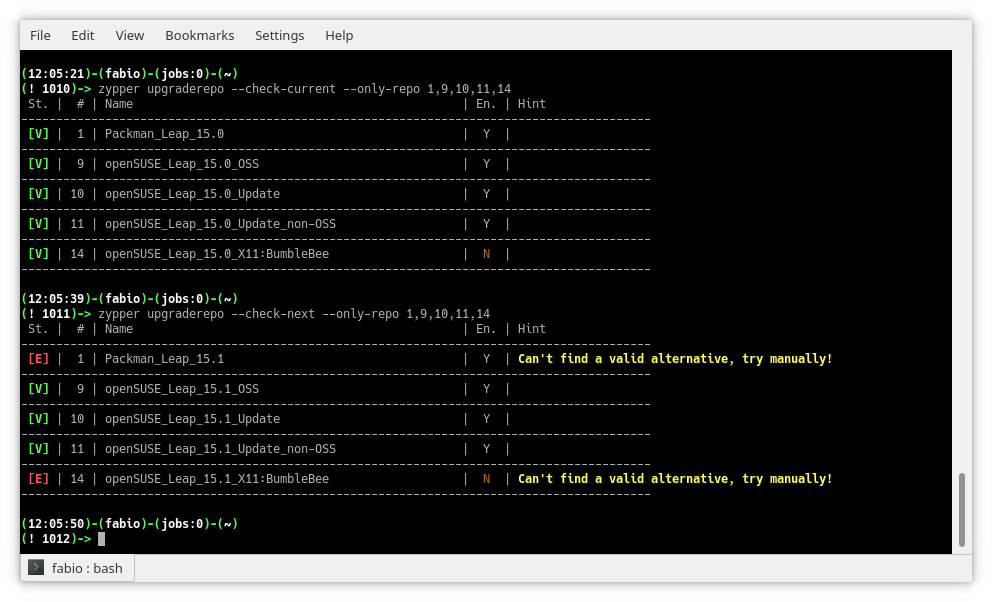
–only-repo switch
All repo by default
The disabled repositories now are shown by default and a new column highlights which of them are enabled or not, keeping their number in sync with the zypper lr output. To see only the enabled ones just use the switch –only-enabled.
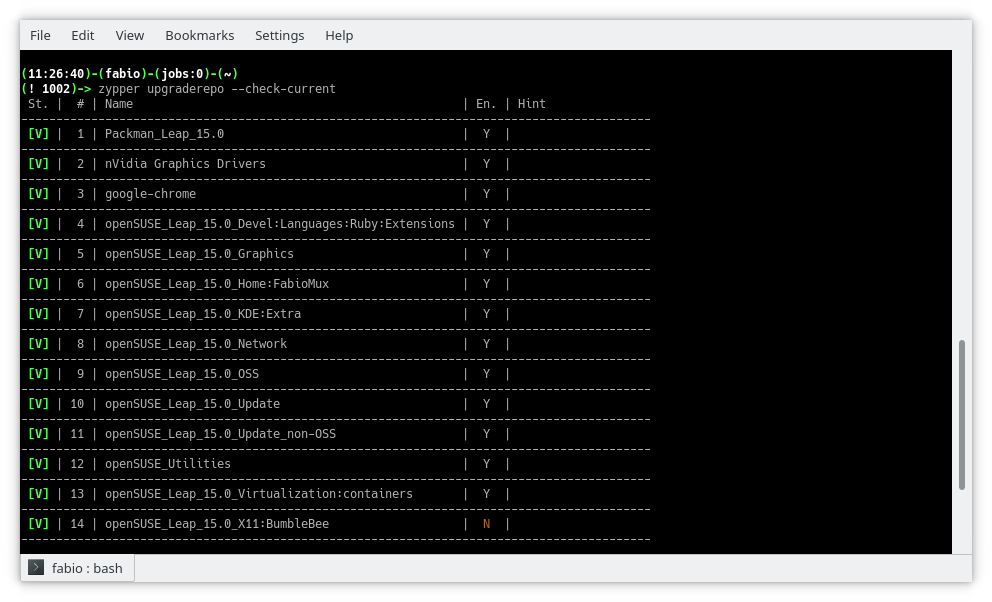
Table view
Report view
Beside the table view, the switch –report introduce a new pleasant view using just two columns and spanning the right cell to more rows in order to improve the number of info and the reading quality.
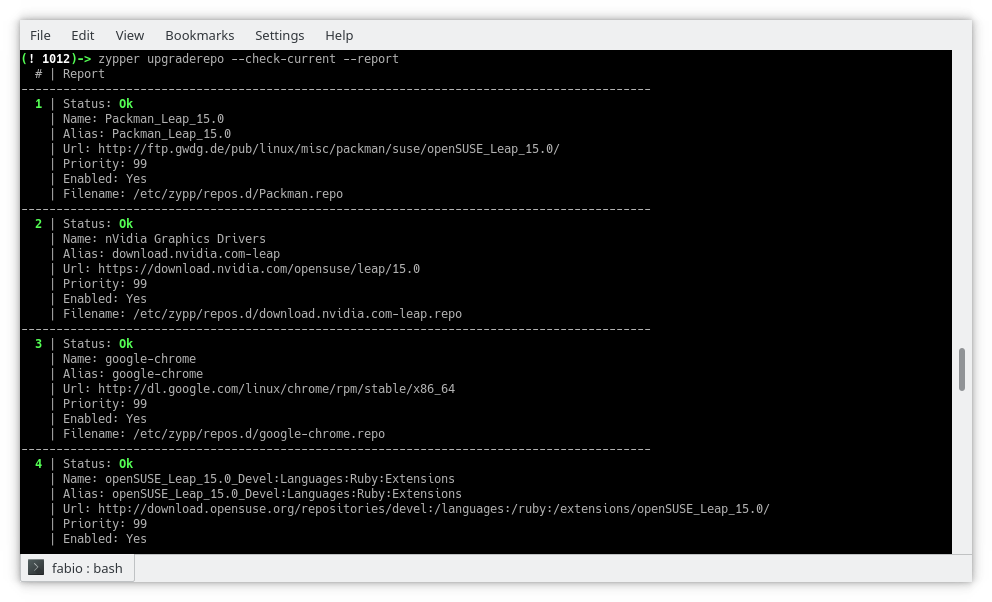
Report view
Other changes
The procedure which tries to discover an alternative URL now dives back and forth the directory list in order to explore the whole tree of folders wherever the access is allowed by the server itself. The side effect is a general improvement also in repo downgrade.
The output in upgrade mode is now verbose and shows a table similar to the checking one, giving details about the changed URLs in the details column.
The server timeout error is now handled through the switch –timeout which allows tweaking the time before to consider an error any late answer from the server itself.
Final thoughts and what’s next
This plugin is practically completed, achieving all the goals needed for its main purpose no other relevant changes are scheduled, so I started thinking of other projects to work in my spare time.
Among them, there is one I am interested in: bring the power of openSUSE software search page to the command line.
However, there are some problems:
- This website doesn’t implement any web API so will be a lot of scraping job;
- There are missing packages while switching from the global research (selecting All distribution) to the specific distribution;
- Packages from Packman are not included.
I have already got some ideas to solve them and did lay down several lines of code, so let’s see what happens!
KDE Plasma 5.15.0 on openSUSE Tumbleweed
Certified danger
Makulu Linux 15 | Review from an openSUSE User

FOSDEM 2019 aftermath
 |
| Nextcloud group |
One more year visiting Brussels to visit the ultimate FOSS conference, FOSDEM 2019. This is my second year.
My trip was easy. A stop in Rome and then Charleroi. Bought tickets online for a shuttle bus to Brussels (I write this for the people who read this for the first time and they want to attend to FOSDEM). In Rome, I met two friends from my Nextcloud presentations in Greece. It was their first time visiting FOSDEM conference.
The first time it was all new and unknown. This time, I tried to attend as many talks as possible, but I failed. Well, the first day I had to cover Nextcloud booth and the second day (usually is calmer), after I left Nextcloud booth to walk around the campus and check if there's a talk for me, I missed the notification on signal about the group picture. So that's why I'm not in the group picture.
FOSDEM supposed to be all about the talks but usually is all about meeting new people and have a conversation outside of the talks. Also as far as I know, if I want to see a specific talk, I have to sit in the room early in the morning because rooms are crowded for the whole day. Also, there's a plus, that you can watch all the talks from your computer at home wearing slippers and pajamas.
FOSDEM usually starts on Friday at Delirium Cafe (map) with the beer event. The place is awesome and it has plenty of beers but you better go little early. It'll be crowded and you might have to wait 30 mins to get your beer.

The first conference day is all about finding the buildings, rooms, etc and also the booths of my fav projects.
One of my favs is openSUSE booth. Beer is always the no1 item that people are interested (obviously). Free stickers and Linux magazine. GNU Health was also there.
 |
| openSUSE booth |
Next stop GNOME booth. This year is special for me because GUADEC will be held at my city.
 |
| GNOME booth |
And finally Nextcloud booth where it was the place I talked to many people about the project.
 |
| Nextcloud booth |
I had the chance to take a picture with an elephant. Relax, the PostgreSQL one.

During those 2 days, I met many Greek friends from FOSS communities. I also met some friends who moved to Belgium due to Greek's financial issues.
Here is a video:
If you would like to see more video from me, press the button to subscribe:
To end this post, I would like to thank Nextcloud, that sponsored my trip.