
 Member
 CzP
CzPNew toy in the house for AI, gaming, Linux, Windows and FreeBSD
There is a new toy in the house. It is a miniature workstation from HP, built around AMD’s Ryzen AI Max+ PRO 395 chip. If you are interested in the specifications and other details, check the HP product page at https://www.hp.com/us-en/workstations/z2-mini-a.html. In the long run, this box will serve many purposes:
- learning AI, but running as much as possible locally instead of utilizing cloud services
- learning Kubernetes by building everything from scratch on multiple virtual machines
- home server: running complex test environments on a single box (128 GB of RAM should be enough in most cases :-) )
- photo editing using Capture One Pro
- occasional gaming :-)
For now, I have finished unboxing and taken the first steps with Windows. It worked, though I made a mistake during setup and had to reinstall. I do not mind, since I do not like using pre-installed operating systems anyway. At least I know the machine works.
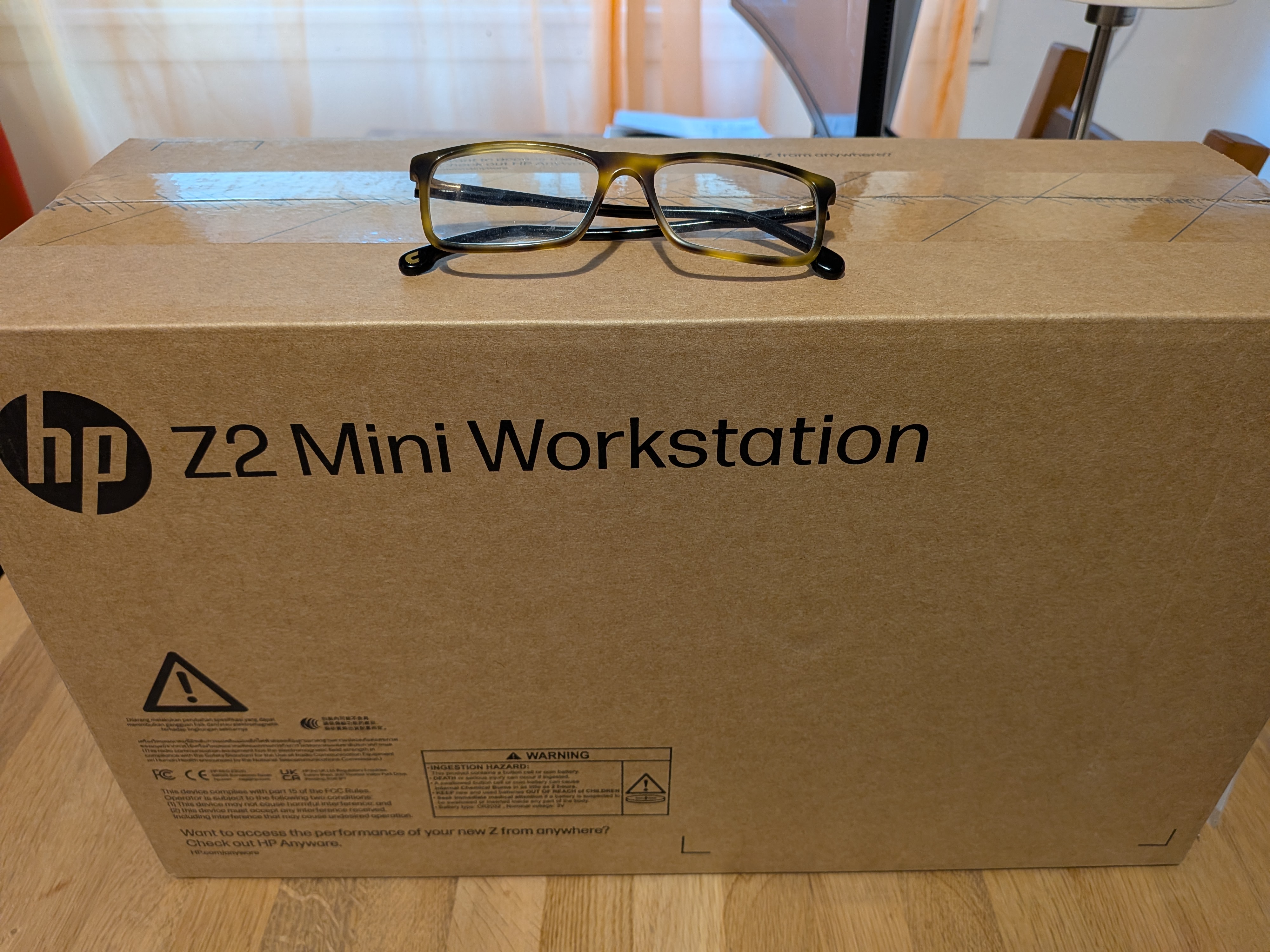
The whole packaging is smaller than my previous desktop computer
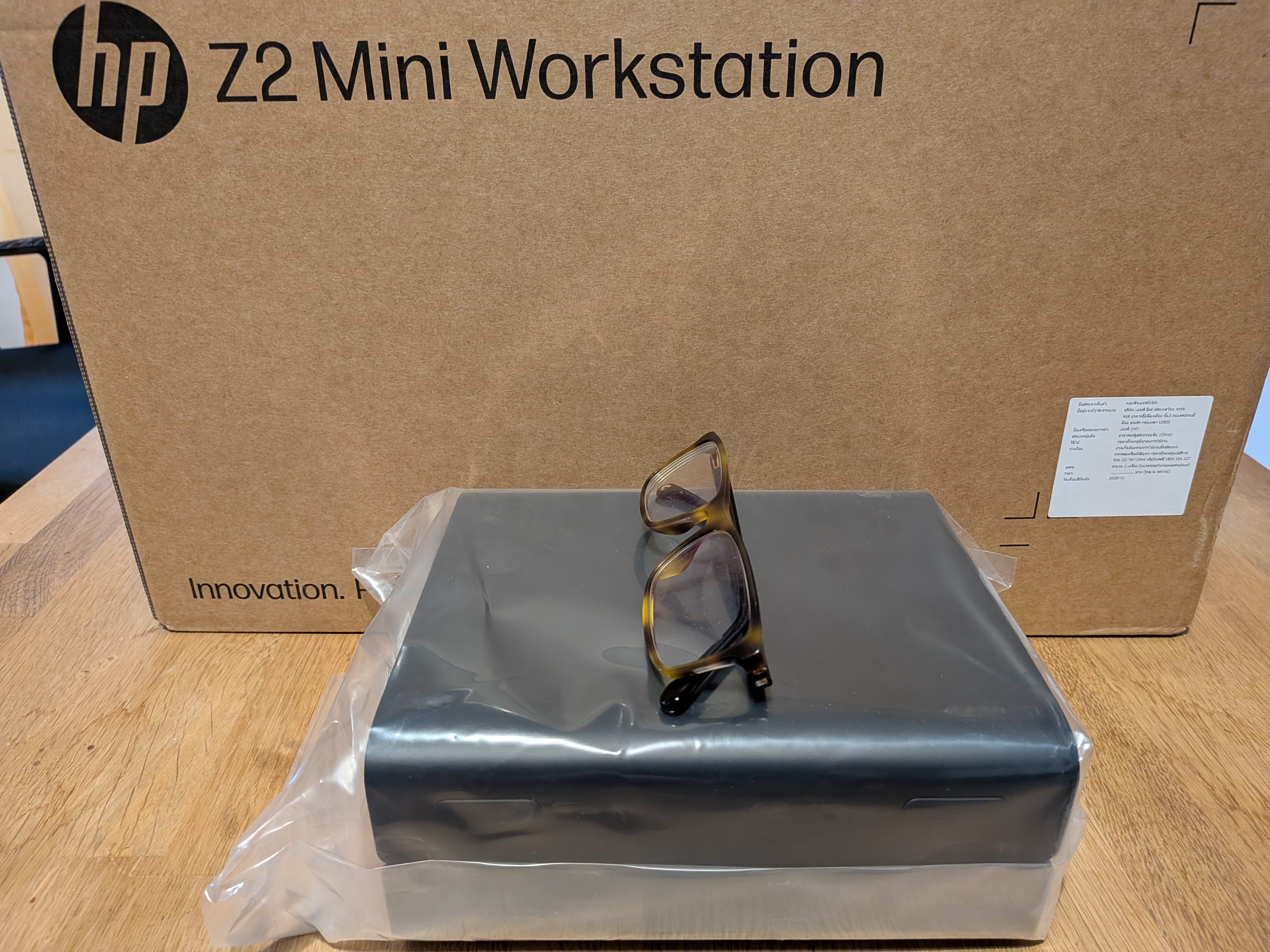
The computer itself is barely larger than a book
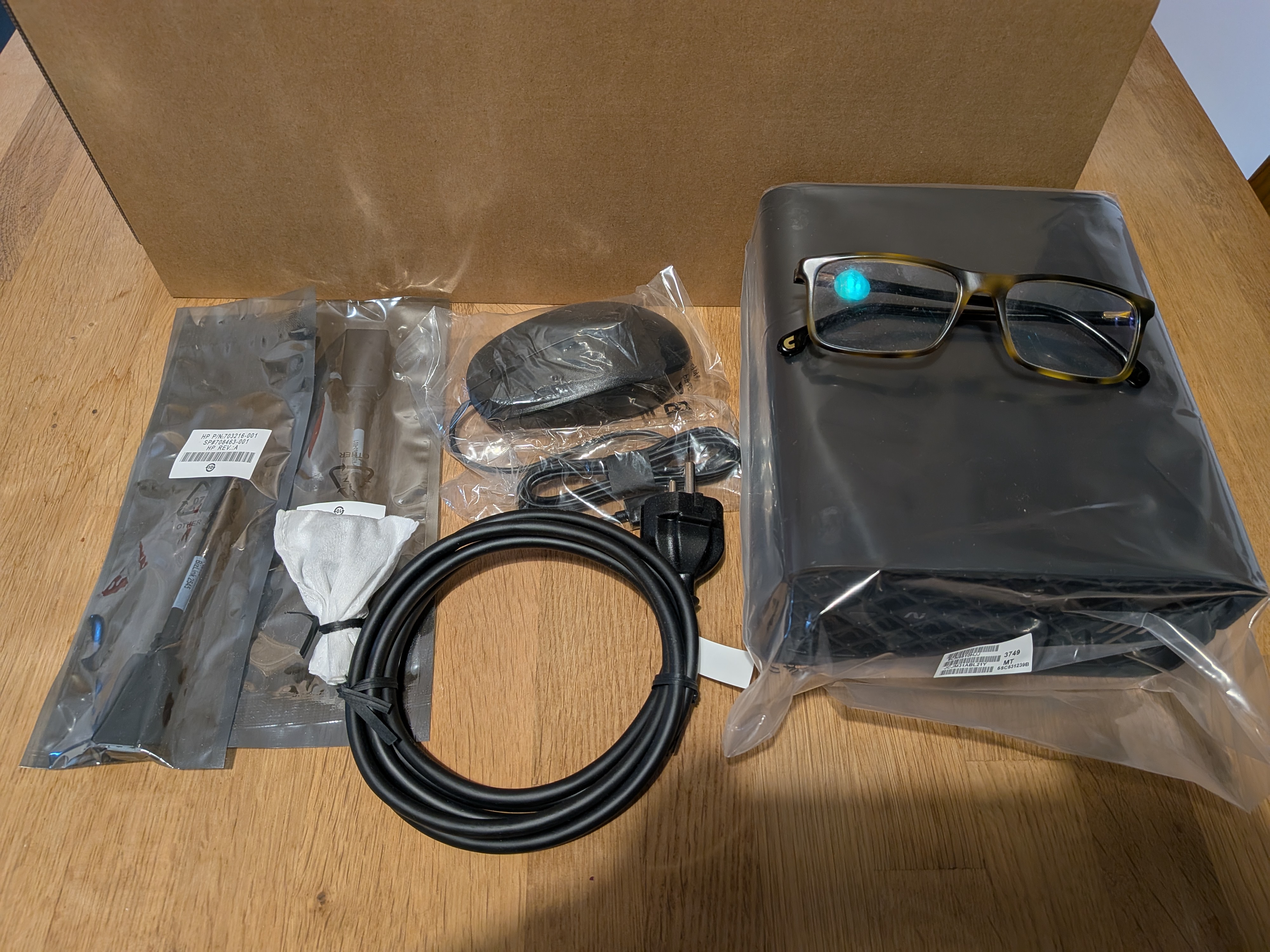
Keyboard, mouse, display port converter all in the box

On the chaos of my desk :-)
Right now I am hesitant to migrate any production applications or data to the new box. I have already clicked “use the whole disk” instead of creating a partition a few times, so I want to finalize the partitioning before using the box for anything beyond hardware testing. Better safe than sorry :-)
I plan to install a couple of Linux distributions. I mainly use openSUSE on the desktop, but I found instructions for Fedora to accelerate AI on this AMD chip. So, I’ll most likely install both. And, of course, I also plan to install FreeBSD 15 on the machine and see how it works both as a server and as a desktop.
I plan to post updates about my experiences in the coming weeks.
UDP reliability improved in syslog-ng Debian packaging
UDP log collection is a legacy feature that does not provide any security or reliability, but is still in wide use. You can improve its reliability using eBPF on Linux in recent syslog-ng versions. Support for eBPF was added to Debian packages while preparing for the 4.11.0 syslog-ng release.
You can learn more about eBPF support in syslog-ng from the documentation or reading my blog at https://www.syslog-ng.com/community/b/blog/posts/syslog-ng-4-2-extra-udp-performance
Right now, packaging changes only affect the syslog-ng nightly Debian / Ubuntu packages and the syslog-ng nightly container image. You can learn more about how to use them in the syslog-ng README on GitHub at https://github.com/syslog-ng/syslog-ng/ Once the syslog-ng 4.11.0 release is available, using the stable syslog-ng packages will include improved UDP support as well.
Are you interested in improving TCP performance for a single or few high traffic connections? You are looking for the parallelize() option: https://www.syslog-ng.com/community/b/blog/posts/accelerating-single-tcp-connections-in-syslog-ng-parallelize The good news is that the required changes are now available in ivykis upstream, so this feature is not limited to our builds anymore.

syslog-ng logo
Originally published at https://www.syslog-ng.com/community/b/blog/posts/udp-reliability-improved-in-syslog-ng-debian-packaging

Post-mortem: Service Degradation in OBS

Introducing pass-exporter - Export your passwords from pass to bitwarden csv format
This is a rudimentary attempt (that surprisingly works) to export passwords from pass to Bitwarden csv format
As a requisite you need to have the private key that protects the passwords, exported as an ASCII armored key (Or whatever the nomenclature is), the important bit is that you export it:
gpg --export-secret-keys --armor $YOURFINGERPRINT > private-key.asc
To run simply run, you need to clone the sources from the git repo1 and inside the directory run:
go run . --private-key private-key.asc --identity alice@example.com
Alternatively you can build it and then run it (Sky is the limit)
You can check usage too by passing --help, It runs fairly fast, and in the end up with a pass_exported_passwords.csv (again see program help for defaults).
A feature that I’d like to add is a support for user plugins, to i.e check if an otp token is duplicated, or if a password is being reused, but that’s for the future. 2
As usual PRs are welcome, specially for adding tests.
PS: “Maybe” I fix the program to be able to be installed via go install $foo (or somebody submits a PR :D)
Footnotes
-
The repo is located at: https://github.com/foursixnine/pass-exporter ↩

Protect Your Framework Laptop 13 | Why Bumpers Matter

Building Self-Hosted Trading Infrastructure on openSUSE
Modern Linux systems are increasingly used to run autonomous, policy-driven services that operate continuously without user interaction. One example is a self-hosted trading agent running on openSUSE Tumbleweed, and can be run on other openSUSE flavors if desired.
There is no flashy interface, no proprietary cloud service, no opaque black box and no paid service that charges a monthly fee. Instead, the system runs reliably 24/7 continuously executing predefined policies in response to market signals.
The setup highlights the use of Linux distributions in the age of decentralized finance. Running autonomous and securely with minimal human intervention is a natural fit for Linux-based operating environments.
Unlike trading apps and services, this approach favors transparency. Configurations are easy. Logs are readable. Services are managed through systemd. When something goes wrong, administrators can inspect, roll back or fine-tune their system without surrendering control to closed platforms.
Open-source tooling allows users to deploy and audit their own automation logic without relying on proprietary platforms. A trading agent built on a development platform’s APIs allows anyone with a laptop or Raspberry Pi running openSUSE or other another Linux distribution to operate in 24-hour financial markets.
While this example focuses on trading logic, the architecture applies equally to other continuous workloads such as telemetry processing, monitoring systems, API polling services or data aggregation pipelines.
Trading logic implemented in these systems may adopt a conservative posture; however, this does not eliminate risk. Users reading this assume full responsibility for both market exposure and technical failure modes. This content does not constitute financial advice, but is only showing a use case for the technology available to Linux users.
The agent checks price data and calculates a desired indicator as well as other services. One indicator that can be used is the Relative Strength Index (RSI) of recent candles. When the RSI drops below a threshold, the agent considers buying a digital asset. When the RSI rises above an upper threshold, it considers selling that digital asset.
The example shown operates only in spot markets and avoids leverage.
The example given is not a high-frequency system. It is designed to run quietly, sometimes doing nothing at all.
Running the Agent on openSUSE
The trading agent runs as a standard Node.js service. On openSUSE, it is typically managed using a user-level systemd unit.
Starting the Agent manually:
sudo zypper in nodejs
node --max-old-space-size=8192 dist/bot.js
Running it as a background service:
systemctl --user enable --now jup-bot.service
Monitoring logs:
journalctl --user -u jup-bot.service -f
The approach works identical on Leap, Tumbleweed and MicroOS. MicroOS users can benefit from automatic rollback if a system update ever breaks the runtime.
One of the system’s defining characteristics is that all trading behavior is controlled through environment variables, not hard-coded values.
This makes experimentation safer and easier. Changes can be tested, reverted or tuned without recompiling the application.
Timing and Conditions
Defines how many candles are used for RSI calculation.
RSI_PERIOD=14
Fourteen is a common default for 15-minute charts and balances responsiveness with noise reduction. Shorter periods react faster but generate more signals, while longer periods smooth fluctuations and trade less frequently.
Buy and Sell
Define the thresholds that trigger trades.
RSI_BUY=30
RSI_SELL=70
Lowering the buy threshold makes buy signals more selective, reducing trade frequency. Raising the sell threshold delays exits, also reducing churn. Moving either threshold closer to the midpoint increases trading activity and sensitivity to price movement.
Fine-tuning on openSUSE
openSUSE users often fine-tune in stages rather than all at once.
A conservative configuration might look like:
TRADE_FRACTION=0.40
MIN_SOL_RESERVE=0.20
RSI_BUY=28
RSI_SELL=72
CHECK_INTERVAL_SECONDS=900
COOLDOWN_SECONDS=3600
A more aggressive configuration might look like:
TRADE_FRACTION=0.80
MIN_SOL_RESERVE=0.05
RSI_BUY=30
RSI_SELL=70
CHECK_INTERVAL_SECONDS=900
COOLDOWN_SECONDS=1800
Changes are applied simply by restarting the service.
This use case is not about digital assets or cryptocurrency; it is about demonstrating its use case in the space.
The distribution provides a foundation for autonomous, policy-driven systems that must run as programmed continuously, transparently and easily recover from failure. Whether the task is trading, data aggregation, monitoring or infrastructure automation, the same principles apply.
Running autonomous services on open systems reinforces transparency, recoverability and operational control. Whether the workload is trading, monitoring or automation, openSUSE provides the foundation.
Here are differentiators for each openSUSE flavor. Leap offers enterprise-grade stability for users who prefer slower change and long support cycles; plus there is the option to upgrade to SUSE Linux Enterprise Server for those who want it. Tumbleweed provides up-to-date kernels and libraries, ideal for developers working with fast-moving blockchain SDKs. MicroOS, with its transactional updates and immutable filesystem, is especially well-suited for unattended edge services where reliability and rollback matter more than manual tweaking.
The trading agent may be watching price charts, but the real story here is about control; who has it, how it is exercised, and whether users can see and understand the system they are using. On openSUSE, they can.
Have alot of fun!

openSUSE Leap 16.0 is now available on Google Cloud Platform
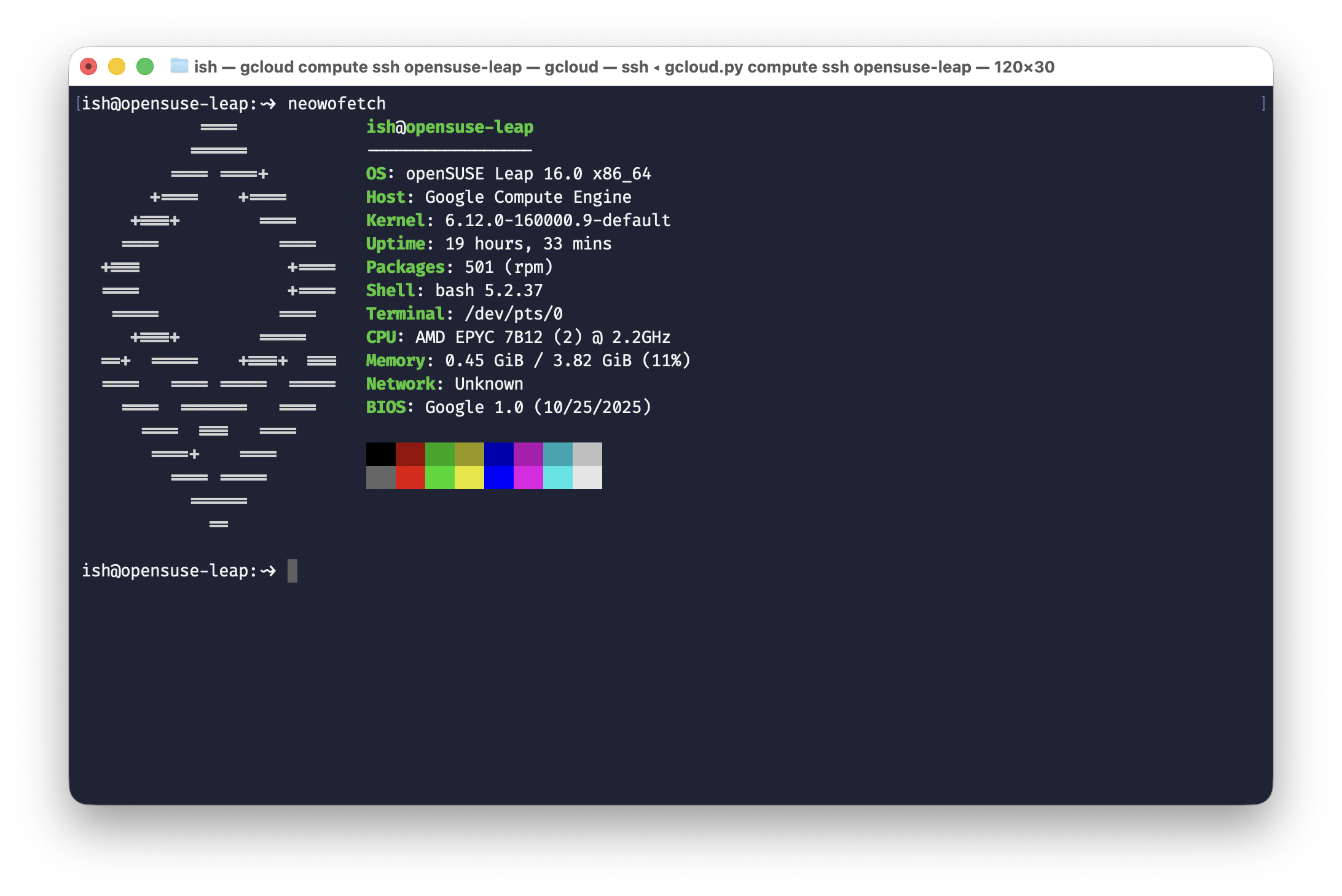
openSUSE Leap 16.0 is now available as a public image on Google Cloud Platform. Both x86_64 and Arm64 images were built on 16 February 2026 and are ready for use with Compute Engine instances.
Launching an instance with openSUSE Leap 16.0
Getting started with Leap 16.0 on GCP is straightforward. From the Google Cloud Console, navigate to Compute Engine > VM instances and click Create Instance.
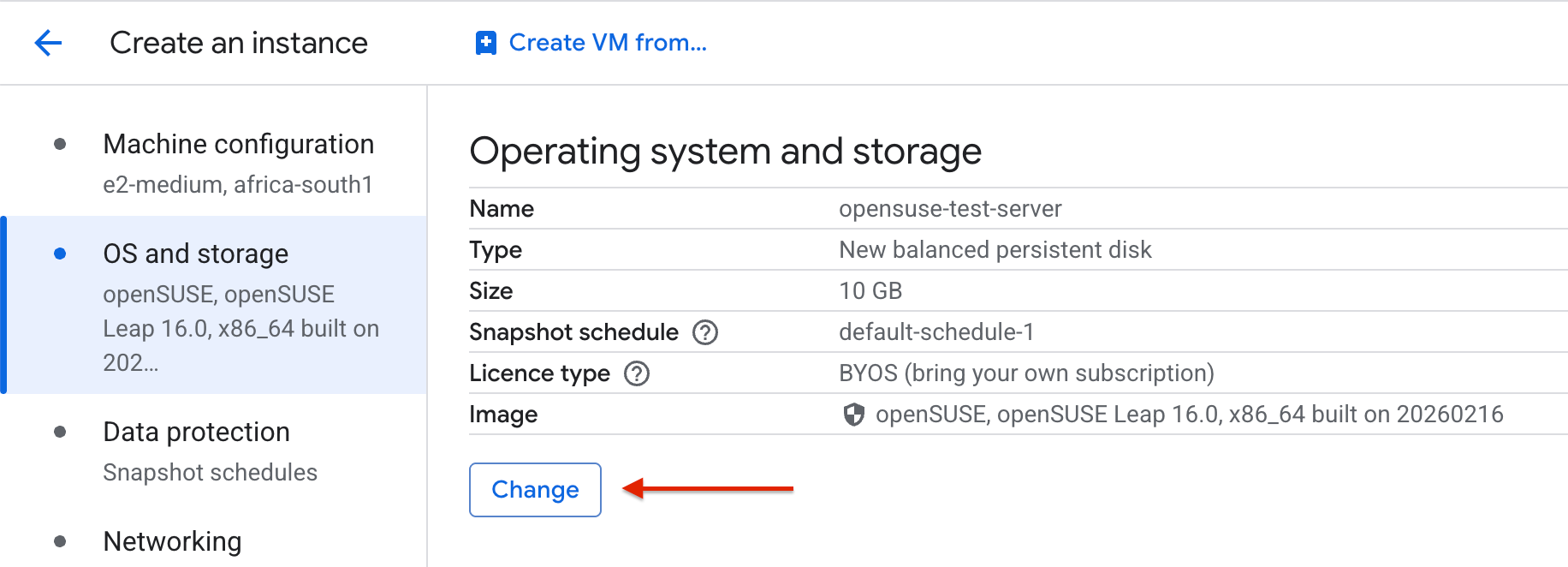
In the instance configuration page, scroll down to the OS and storage section and click Change to open the boot disk configuration panel.
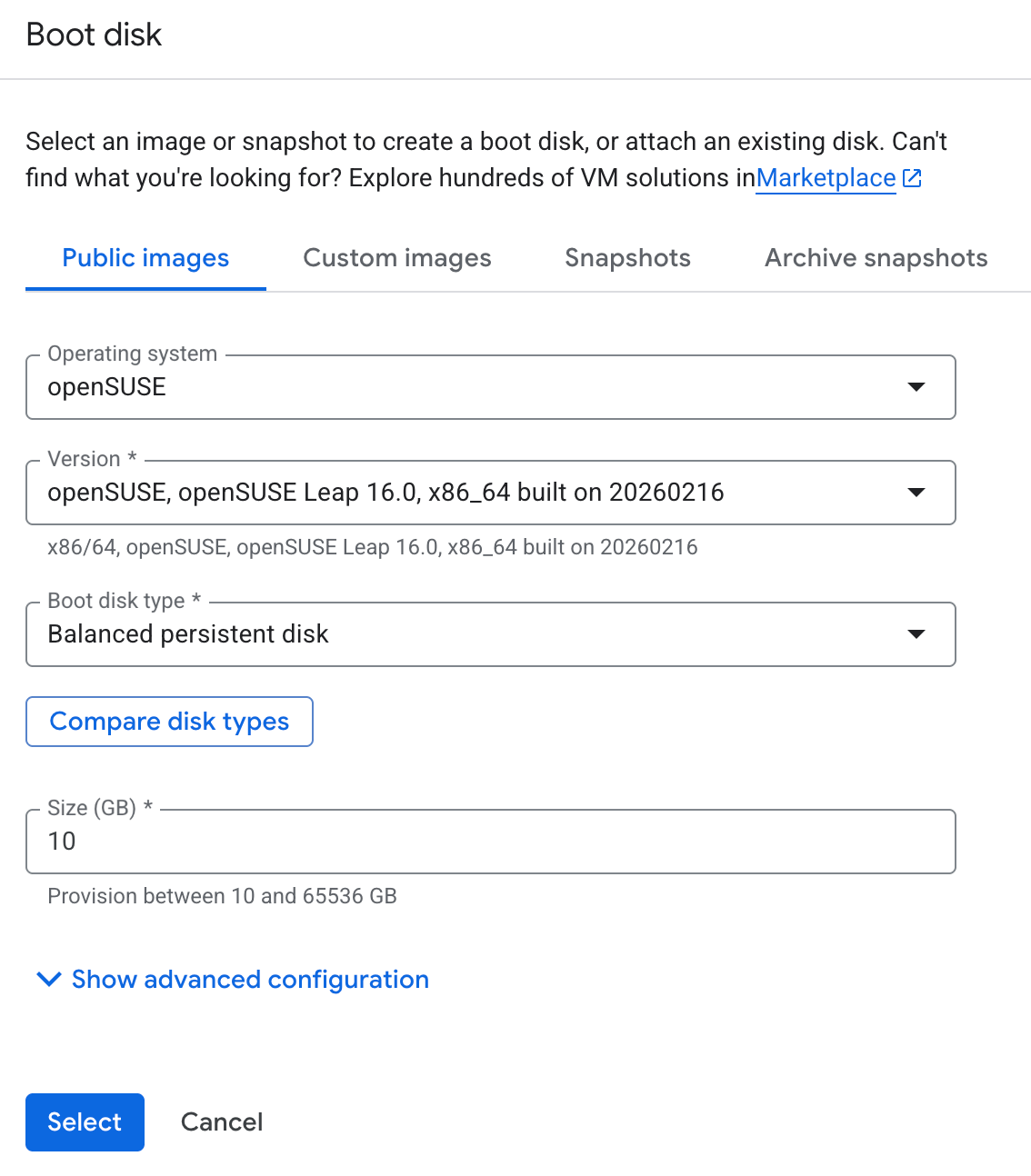
Under the Public images tab, select openSUSE from the Operating system dropdown. You will then see openSUSE Leap listed under the Version dropdown — select the openSUSE Leap 16.0 entry. Choose your preferred boot disk type and size, then click Select to confirm.
From there, configure the rest of your instance settings — machine type, networking, firewall rules — as you normally would, and click Create to launch your new Leap 16.0 VM.
A note on Google Cloud Observability
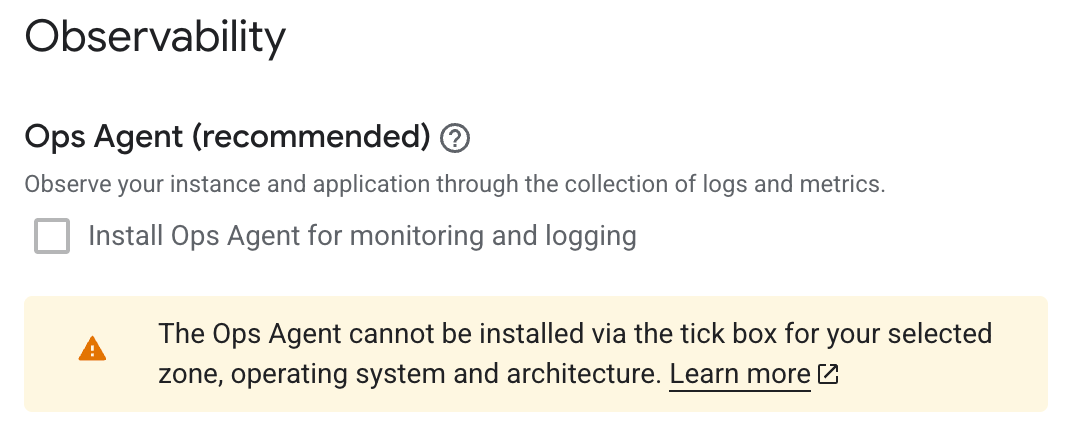
During instance creation, you will notice the Observability - Ops Agent section near the bottom of the configuration page. For supported operating systems, this provides a convenient Install Ops Agent for Monitoring and Logging checkbox that automatically installs the agent when the VM boots. However, with openSUSE Leap 16.0 selected as the boot disk image, this checkbox is greyed out and displays the message: "Not available for the selected image." This is because the automated installation method does not yet support Leap 16.0.
You might think the next step would be to install the Ops Agent manually via the command line. Google's installation documentation provides a script for exactly this:
curl -sSO https://dl.google.com/cloudagents/add-google-cloud-ops-agent-repo.sh
sudo bash add-google-cloud-ops-agent-repo.sh --also-install
Unfortunately, this does not work on Leap 16.0 either — and the reason is buried in how the script identifies your operating system.
Why does the script fail?
The script reads /etc/os-release to determine the OS family and version. For any SUSE-based distribution, including openSUSE Leap, it routes to a handle_suse function via a case statement in main():
sles|opensuse-leap) handle_suse ;;Inside handle_suse, the add_repo() function extracts the major version number and constructs a SLES-based repository codename:
local SUSE_VERSION=${VERSION_ID%%.*}
local CODENAME="${REPO_CODENAME:-"sles${SUSE_VERSION}"}"
On openSUSE Leap 16.0, VERSION_ID is 16.0, so SUSE_VERSION resolves to 16 and the codename becomes sles16. The script then attempts to add a repository at:
https://packages.cloud.google.com/yum/repos/google-cloud-ops-agent-sles16-$basearch-allThe problem is that this repository simply does not exist. Google currently publishes Ops Agent packages for sles12 and sles15, but there is no sles16 repository — SLES 16 itself has not been released yet. The script makes no distinction between SLES and openSUSE Leap; it treats both as the same platform and derives the repo path purely from the major version number. The result is a refresh_failed error telling you to check your network connectivity and verify that you are running a supported distribution.
This leaves openSUSE Leap users on GCP in a bit of a gap. While the Ops Agent officially supports Leap 15.6, that image is no longer available on GCP — only Leap 16.0 is offered as a public image. So the supported version cannot be deployed, and the deployable version is not supported. Until Google publishes a compatible repository for Leap 16.0, there is no straightforward path to running the Ops Agent on an openSUSE instance on GCP. Keep an eye on the Ops Agent supported platforms list for updates.
Installing the Leap 15.6 version of the agent isn't a viable workaround due to missing libraries.
Problem: 1: nothing provides 'libcrypto.so.1.1()(64bit)' needed by the to be installed google-cloud-ops-agent-2.63.0-1.sles15.x86_64As always, the openSUSE community welcomes feedback and bug reports — if you run into issues with the GCP images that are specific to the openSUSE project, report them through the openSUSE Bugzilla.
openSUSE Board Election 2025 has been announced
The openSUSE Board Election 2025 has officially been announced. Originally scheduled for November/December 2025, the election was postponed due to a backlog of tasks on the membership database. The Election Committee – Ariez Vachha, Edwin Zakaria, Lubos Kocman and Eddy Lareine – has now published the election schedule.
Two seats on the openSUSE Board are up for grabs as Simon Lees and Shawn W Dunn complete their mandate. This is a great opportunity for community members who want to help shape the direction of the openSUSE Project.

Key dates
- 27 February – Deadline for candidates to declare their intention
- 28 February – Candidate slate published
- 1 March – Voting opens
- 9 March – Results announced (ballots remain open for one week)
Who can participate?
Only active openSUSE members are eligible to vote. If you're a contributor but not yet a member, you can apply for membership at any time. Members who join after the candidate slate is published on 28 February can still vote, but will not be able to run as a candidate.
If your membership is approved after voting has begun, reach out to the election officials to inform them. Membership approval and voting in the election is not an automatic process. The election officials will use an up to data membership database for the election process on the 1 March when opening the ballots. Thus, membership approvals after that date have to be informed to the officials.
Details on how to become a member are available on the wiki: openSUSE:Members
Get involved
If you're interested in running, reach out to the Election Committee via their mailing list before the 27th of February. The announcement was made on the openSUSE Project mailing list and social media, and the election wiki page has been updated with full details.
The openSUSE Board plays a vital role in guiding the project. Whether you choose to run or simply cast your vote, your participation matters.
Calls for Board Candidates Moves Forward
The openSUSE Project has opened nominations and candidacy for its regular Board Election and voting is scheduled to begin March 1.
After a delay to clean up the membership database, the Election Committee confirmed the process is back on track. Project members will choose candidates to fill two open seats on the openSUSE Board.
The two open seats are those currently filled by Shawn W. Dunn and Simon Lees.
The call is open to all eligible openSUSE members interested in helping guide the project’s community, governance and external representation. Serving on the Board offers a direct opportunity to shape how openSUSE resolves issues, supports contributors and represents itself within the open-source community.
Nominations and self-applications are open through Feb. 28. Candidates must be current openSUSE members.
Voting is scheduled to begin March 1 and close March 8. Results are expected to be announced March 9.
Members who wish to run should email project@lists.opensuse.org and election-officials@lists.opensuse.org with their name, registered email address and openSUSE username.
The Election Committee encouraged members to step forward. The project depends on community members willing to lead, listen and represent the project’s shared values.
A recent article provides recommendations to assist candidates in preparing to run for the openSUSE Board and can be found on news.opensuse.org.

Linux CVE assignment process
As described previously, the Linux kernel security team does not identify or mark or announce any sort of security fixes that are made to the Linux kernel tree. So how, if the Linux kernel were to become a CVE Numbering Authority (CNA) and responsible for issuing CVEs, would the identification of security fixes happen in a way that can be done by a volunteer staff? This post goes into the process of how kernel fixes are currently automatically assigned to CVEs, and also the other “out of band” ways a CVE can be issued for the Linux kernel project.