
 ximion
Adding fonts to software centers
L ast year, the AppStream specification gained proper support for adding metadata for fonts, after Richard Hughes did some work on it years ago. We weren’t happy with how fonts were handled at that time, so we searched for better solutions, which is why this took a bit longer to be done. Last year, I was implementing the final support for fonts in both appstream-generator (the metadata extractor used by Debian and a few others) as well as the AppStream specification. This blogpost was sitting on my todo list as a draft for a long time now, and I only just now managed to finish it, so sorry for announcing this so late. Fonts are already available via AppStream for a year, and this post just sums up the status quo and some neat tricks if you want to write metainfo files for fonts. If you are following AppStream (or the Debian fonts list), you know everything already
  .
.
Both Richard and I first tried to extract all the metadata to display fonts in a proper way to the users from the font files directly. This turned out to be very difficult, since font metadata is often wrong or incomplete, and certain desirable bits of metadata (like a longer description) are missing entirely. After messing around with different ways to solve this for days (afterall, by extracting the data from font files directly we would have hundreds of fonts directly available in software centers), I also came to the same conclusion as Richard: The best and easiest solution here is to mandate the availability of metainfo files per font.
Which brings me to the second issue: What is a font? For any person knowing about fonts, they will understand one font as one font face, e.g. “Lato Regular Italic” or “Lato Bold”. A user however will see the font family as a font, e.g. just “Lato” instead of all the font faces separated out. Since AppStream data is used primarily by software centers, we want something that is easy for users to understand. Hence, an AppStream “font” components really describes a font family or collection of fonts, instead of individual font faces. We do also want AppStream data to be useful for system components looking for a specific font, which is why font components will advertise the individual font face names they contain via a <provides/> -tag. Naming fonts and making them identifiable is a whole other issue, I used a document from Adobe on font naming issues as a rough guideline while working on this.
How to write a good metainfo file for a font is best shown with an example. Lato is a well-looking font family that we want displayed in a software center. So, we write a metainfo file for it an place it in /usr/share/metainfo/com.latofonts.Lato.metainfo.xml for the AppStream metadata generator to pick up:
<?xml version="1.0" encoding="UTF-8"?>
<component type="font">
<id>com.latofonts.Lato</id>
<metadata_license>FSFAP</metadata_license>
<project_license>OFL-1.1</project_license>
<name>Lato</name>
<summary>A sanserif typeface family</summary>
<description>
<p>
Lato is a sanserif typeface family designed in the Summer 2010 by Warsaw-based designer
Łukasz Dziedzic (“Lato” means “Summer” in Polish). In December 2010 the Lato family
was published under the open-source Open Font License by his foundry tyPoland, with
support from Google.
</p>
</description>
<url type="homepage">http://www.latofonts.com/</url>
<provides>
<font>Lato Regular</font>
<font>Lato Black Italic</font>
<font>Lato Black</font>
<font>Lato Bold Italic</font>
<font>Lato Bold</font>
<font>Lato Hairline Italic</font>
...
</provides>
</component>
When the file is processed, we know that we need to look for fonts in the package it is contained in. So, the appstream-generator will load all the fonts in the package and render example texts for them as an image, so we can show users a preview of the font. It will also use heuristics to render an “icon” for the respective font component using its regular typeface. Of course that is not ideal – what if there are multiple font faces in a package? What if the heuristics fail to detect the right font face to display?
This behavior can be influenced by adding <font/> tags to a <provides/> tag in the metainfo file. The font-provides tags should contain the fullnames of the font faces you want to associate with this font component. If the font file does not define a fullname, the family and style are used instead. That way, someone writing the metainfo file can control which fonts belong to the described component. The metadata generator will also pick the first mentioned font name in the <provides/> list as the one to render the example icon for. It will also sort the example text images in the same order as the fonts are listed in the provides-tag.
The example lines of text are written in a language matching the font using Pango.
But what about symbolic fonts? Or fonts where any heuristic fails? At the moment, we see ugly tofu characters or boxes instead of an actual, useful representation of the font. This brings me to an inofficial extension to font metainfo files, that, as far as I know, only appstream-generator supports at the moment. I am not happy enough with this solution to add it to the real specification, but it serves as a good method to fix up the edge cases where we can not render good example images for fonts. AppStream-Generator supports the FontIconText and FontSampleText custom AppStream properties to allow metainfo file authors to override the default texts and autodetected values. FontIconText will override the characters used to render the icon, while FontSampleText can be a line of text used to render the example images. This is especially useful for symbolic fonts, where the heuristics usually fail and we do not know which glyphs would be representative for a font.
For example, a font with mathematical symbols might want to add the following to its metainfo file:
<custom>
  <value key="FontIconText">∑√</value>
  <value key="FontSampleText">∑ ∮ √ ‖...‖ ⊕ ? ℕ ⋉</value>
</custom>
Any unicode glyphs are allowed, but asgen will but some length restrictions on the texts.
So, In summary:
- Fonts are hard
- I need to blog faster
- Please add metainfo files to your fonts and submit them upstream if you can!
- Fonts must have a metainfo file in order to show up in GNOME Software, KDE Discover, AppCenter, etc.
- The “new” font specification is backwards compatible to Richard’s pioneer work in 2014
- The appstream-generator supports a few non-standard values to influence how font images are rendered that you might be interested in (maybe we can do something like that for appstream-builder as well)
- The appstream-generator does not (yet?) support the <extends/> logic Richard outlined in his blog post, mainly because it wasn’t necessary in Debian/Ubuntu/Arch yet (which is asgen’s primary audience), and upstream projects would rarely want to write multiple metainfo files.
- The metaInfo files are not supposed to replace the existing fontconfig files, and we can not generate them from existing metadata, sadly
- If you want a more detailed look at writing font metainfo files, take a look at the AppStream specification.
-
Please write more font metadata


 Member
Client-side, server-side and zero-knowledge end-to-end encryption in Nextcloud
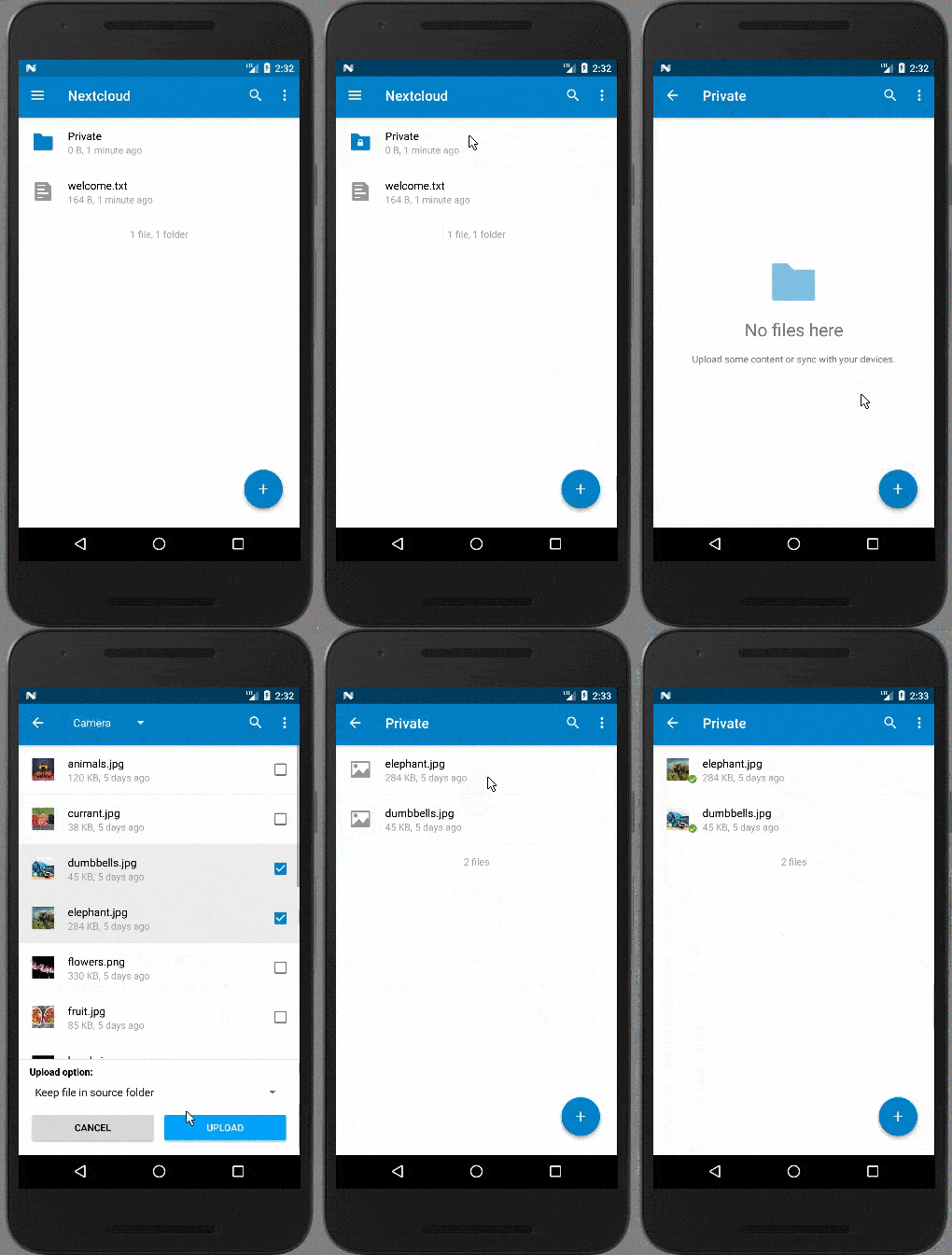 |
| Android encryption in action |
End-to-End Encryption
End-to-end encryption is usually associated with communication channels, think chat or video calls. Signal, Telegram and lately WhatsApp employ end-to-end encryption. So what does it mean?The main property of end-to-end encryption is that the data is encrypted on the one end and decrypted on the other end, so only the sender and receiver can read it.
As an example, take the Nextcloud Video Calls app. When you share a link for a call and the other person joins, the Nextcloud Server essentially gives the other user the address of your computer and helps you connect to each other. It will also send signals when others join the call, when you mute and so on. But the actual call takes place between your system and that of your conversational partner, directly. And before it is sent out, your browser will encrypt the data for the other side to decrypt. This way, nobody in between, like your internet provider, can listen in!
The main downside of the term is that the definition of that 'end' can vary: you can say that normal https encryption is 'end-to-end', defining one end as the browser and the other end as the server. So this brings us to the difference between server-side and client-side encryption.
Server-side encryption
Server-side encryption serves to protect data on or going through a server: as soon as the data arrives, the server encrypts it. When you use a cloud storage like Amazon S3 or a Dropbox account or a FTP at another office with Nextcloud, our Server-side Encryption encrypts the data before it gets sent to the other storage and decrypt it only after it has been retrieved. Server-side encryption thus protects your data from access by a third party storage solution.Note that encryption in the browser is essentially server-side encryption: the code that does the work comes from the server and thus the server controls what is going on. If a server is compromised, the attacker (or evil system administrator or government agency) can simply make a minor modification to that code so it gives them access to your private key!
When the data is on the server itself, however, the server admin has access to it as the keys are managed by the server. In case of Nextcloud, we encrypt that key with your login, making it impossible for the server to decrypt the files unless you are logged. That is called "protection of data at rest", but, of course, you log in all the time if you have the client running.
So the limitation of server-side encryption lies in what it does not protect you from: the server being compromised.
Client-side encryption
This is why server-side encryption is often contrasted with client-side encryption, which is what is employed by the end-to-end encryption Nextcloud introduced today. Where server-side encryption happens after transmission to the server, we encrypt the data on the Android, iOS or desktop client already. Then, only at the receiving end, it is decrypted again. That receiving end can be another device owned by the same user or a device owned by another user who has been given access to the data. But not anyone in between or otherwise not authorized! This is sometimes also called a zero-knowledge privacy: at no point in time can the server have any knowledge of the data. |
| The process of creating keys |
A little bit about keys
Usually, public and private keys are used for the encryption and decryption. How does that work?Everybody has a set of closely related keys, a 'public' and a 'private' key. They work a bit like a mail box works: anyone can throw a letter in the box, but only the mailman (or woman) can open and empty it. The public key is, as the name implies, public. Anyone can use it to encrypt something. But to decrypt the result, the private key is needed!
Nextcloud generates a public and private key pair the first time a user enables end-to-end encryption in their client. The public key gets signed by the server with 'certificate' to verify the user identity (our Cryptographic Identity Protection feature) and stored there for other users to encrypt files to that they wish to share. The private key gets encrypted with a locally, app-generated very secure and very long (12 word!) passcode which is displayed to the user and then the key gets stored on the server as well.
Another device owned by the user can download the private key, the user can enter the 12 word passcode to decrypt it, and this device will then also be able to encrypt and decrypt files. That is how you add your phone and desktop after you enabled end-to-end encryption on your laptop.
You can learn much more about exactly how the encryption and decryption work on the end-to-end encryption web page we made as well as the whitepaper you can download there.
Enterprise challenges
While consumers use end-to-end encryption for chat for years, larger organizations like companies and governments have struggled to find solutions that protect their sensitive data without disrupting productivity and legal requirements for audit logs.Indeed, many solutions create a new layer over existing solutions like Box and Dropbox or have poor key management, making sharing cumbersome and less secure. A real enterprise solution needs to take the burden of complexity away from users and, if it needs to be anywhere, put it on the shoulders of the system administrators. Nextcloud has done exactly that, not even allowing users to create their own, potentially insecure password and making adding devices easy. The 12-word passcode can be recovered from any of the devices an user owns and it is possible to enable a system wide recovery key. If enabled, users will get warned of this and the system administrator gets to see and note down the key once and only once. After that, the code is destroyed and no attacker would be able to steal it, provided the server administrator puts it in a safe location: we'd recommend an actual safe.
Another important feature for enterprises is support for a Hardware Security Module which could be used to generate user certificates. Without it, our design does not allow users to switch identities (as this could be abused by an attacker with control over the server) but this restriction can be relaxed if a secure HSM is in the mix.
You can learn more on our webpage about end-to-end encryption!

Nextcloud gets End to End Encryption
Today is a special day for Nextcloud and me because Nextcloud gets a cool and important new capability. This is end to end encryption for file sync and share. Nextcloud supports server side encryption for a long time and all file transfer over the internet is encrypted with

TLS/SSL of course. But there is still the need for full end to end encryption to make sure that the data is secure in all scenarios. One
example is that the current server side encryption doesn’t protect the data against an evil server admin or if the server is hacked. The new end to end solution does that.
This feature is more important then ever in the light of Trump and other governments including western ones like the UK who want to have access to the private data of users.
Please read this blog post about the upcoming dangers in the next few months. European datacenter is no solution, recent developments show
Most requested feature
End to end encryption is our most ever requested feature. Users and customers have been asking for this for many many years so I am super happy that we finally do this now. So you might ask “what took you so long?” There are many reasons.
The first is that it is hard. This needs to be done without compromising the user experience. Then we wanted to support as many core Nextcloud features as possible, for example sharing. And we wanted to do this in a way that doesn’t compromise performance. Obviously security is the highest priority and that is hard in itself. But another must have requirement is to make the feature truly enterprise ready. So real key management is necessary and it has to be designed with the assumption that users make mistakes. We don’t need another solution that is aimed at technical users, losing their data when they forget their password for example… Our solution doesn’t even let users pick their own password, taking away the risk of passwords that are easy to hack due to reuse or shortness! We also wanted to implement this feature fully transparent and native in all clients and fully open source instead of integrating a third party tool. It was hard to find a solution that balanced all these requirements. But I’m happy to say that Björn, who already designed and developed the server side architecture and Lukas our security lead, found a good architecture, with a lot of feedback from a number of other team members of course. This has been a real collaborative effort, building on our years of experience and a good understanding of the needs of our users and customers.
How does it work?
The feature consists of several components. There is the actual encryption and decryption code which is implemented in the Nextcloud iOS and Android apps and in the Mac, Windows and Linux clients. And then there is a server component which is implemented as a Nextcloud app to do the key management. This is useful to make it easy for the users to distribute private and public keys to all clients and share with each other. Obviously the private keys are encrypted with very strong auto generated passwords which are only known by the users and clients and are never accessible by the server. The key server also supports an optional recovery key which can be activated to make it possible to recover lost passwords/keys. This feature can be activated or deactivated to balance user convenience and security. The clients will warn users when the feature is or gets enabled.
End to end encryption can be activated by the users on a folder by folder basis. Once a user decided to encrypt a folder everything inside the folder will be encryption including the content of the files and folder and the metadata like filenames. From now on the folder is no longer accessible from the Nextcloud web-interface and WebDAV. But it is still fully readable and writable from iOS, Android and Mac, Windows, Linux. Sharing still works via public keys of other users. The full design is explained here and the architecture is further documented here
Enterprise ready
It was a key requirement to implement this feature in a way that it is not only useful for home users who want to protect their data on home-servers or at service providers. It had to be done in a way that it is useful for companies and other large organisation. We had conversations with some of our bigger customers over the last few month to make sure that this integrated nicely into the enterprise infrastructure and is compliant with existing policies. One example is that we will try to integrate this into Desktops like KDE, Gnome, Mac and Windows and will support Hardware Security Modules.
Where are we today?
This feature will be fully production ready and included in Nextcloud 13 which will be out later this year. But we didn’t want to wait until then and announce and release something as soon as possible so we can get feedback from encryption experts and the wider infosec community. So today we have our architecture document ready here. The server component is fully implemented and can be found in our github. There is a preview version of the Android app available which is fully working. The Desktop client and the iOS app are in the middle of the development. You can expect preview builds in the next few days. You can see the development and give feedback in the repositories in github.
More information can be found here:
The software can be found here:
So please give feedback about the architecture and the code if you want to get involved. This is a big step forward to protect the data of users and companies against hackers and organisations who want to abuse it in various ways!
SUSECON - librmb slides

How To Running Systemd on openSUSE Docker Container
After had some headache because of learning for a logic gate :D. I tried again to solving old case why openSUSE container on docker can’t running systemd.
So, I have run openSUSE container on docker. But when I start the container, systemd can’t be running because of this error.
Failed to connect to bus: No such file or directory.
I have tried many ways to solve it, but it still can’t after i found a miracle :D. Thank you, reszelas!
Obviously, the problem is simple. Normally when you run a container you aren’t running an init system. systemctl is a process that communicates with systemd over dbus. If you aren’t running dbus or systemd, I would expect systemctl to fail. So, in openSUSE container, dbus and sysvinit are not installed.
You need to install that dependency and run some command to running systemctl on your container. For easy ways, you can build it using Dockerfile and use official images.
Below is following step to enable systemd on your openSUSE Docker Container :
- Build a container using Dockerfile, copy following content for your Dockerfile:
FROM opensuse:latest
MAINTAINER Some people

RUN zypper install -y dbus-1 systemd-sysvinit
RUN cp /usr/lib/systemd/system/dbus.service /etc/systemd/system/; \
    sed -i 's/OOMScoreAdjust=-900//' /etc/systemd/system/dbus.service

VOLUME ["/sys/fs/cgroup", "/run"]

CMD ["/sbin/init"]
Then, build it :
docker build -t opensuse423 .
Run the container:
docker run -d --name=opensuse-systemd --privileged -v /sys/fs/cgroup:/sys/fs/cgroup:ro opensuse423;
docker exec -it opensuse-systemd bash
Finally, you can run systemd on your openSUSE container, you can check by running systemctl commands, like restart your service or etc. for example :
systemctl list-units
Thank you, i will get back to work :D.
The post How To Running Systemd on openSUSE Docker Container appeared first on dhenandi.com.
Colorful LEDs
Unfortunately, it has problems. Lets begin with inconsistent naming: some drivers use :r suffix, some use :red. There's no explicit grouping of LEDs for one light -- there's no place to store parameters common for the light. (LEDs could be grouped by name.)
RGB colorspace is pretty well defined, and people expect to set specific colors. Unfortunately.... that does not work well with LEDs. First, LEDs are usually not balanced according to human perception system, so full power to the LEDs (255, 255, 255) may not
result in white. Second, monitors normally use gamma correction before displaying color, so (128, 128, 128) does not correspond to 50% of light being produced. But LEDs normally use PWM, so (128, 128, 128) does correspond to 50% light. Result is that colors are completely off.
I tested HSV colorspace for the LEDs. That would have advantage of old triggers being able to use selected colors... Unfortunately, on N900, white color is something like 15% blue, which would result in significantly reducing number of white intensities we can display.
The Purism Librem 5 - open source freedom for your smartphone
A dream comes true; a smartphone focused on security and privacy and fully based on open source technology.
This is what the Purism Librem 5 is planned to become: the first smartphone completely build on top of open source software and open source compatible hardware. Lately the project got a lot of attention as of KDE and GNOME announcing their partnership with Purism for the Librem 5.
As the fund raising campaign for the Librem 5 is still in need for backers it’s now up to all those...
SUSE Support Lands Upstream In cloud-init
Well it’s been many many years and many many releases that we’ve been carrying a large number of patches for the cloud-init package in openSUSE and SUSE Linux Enterprise. I remember the first semi serious implementation of SLES support happened when I worked with HP to get SLES into the HP Public Cloud offering, which was based on OpenStack. The offer was eventually named Helion Public Cloud and then eventually shut down. Yes, it’s been many many years and I have received many questions about when is SUSE support going to be upstreamed, and my answer was always, “when I get around to it“. Well, it finally happened, in big part thanks to the cloud-init summit which was held for the first time earlier this year. Google in Seattle was a great host and I very much appreciate that I was invited.
Anyway, long story short spending some face time with other contributors and working out the kinks that existed in the pipeline worked wonders. Rather than sending a small patch here and there the main implementation for openSUSE and SLE, lots of code, were accepted shortly after the cloud-init summit and over the last couple of days another couple of patches took us another step forward.
There are a few more loose ends that need work but with 17 patches removed from the package build, currently building in Cloud:Tools:Next in OBS we’ve made major progress.
Well, I for one am happy about this, and those that want to install from source can do so and have openSUSE and SLE support working from the upstream sources and not just from the packages included with openSUSE and SLE.
Thanks to Canonical for organizing the summit to get everyone together and thanks to Google for hosting the summit.
Oh and before I forget, getting the changes accepted was not the only major step forward, openSUSE Leap 42.3 will, in the not too distant future, like in the next couple of days, be integrated into cloud-init testing using containers the lxd project builds, go figure who knew these even existed.

Ceph Meetup Berlin - Followup: librmb
