
 Member
 anaumov
Russian openSUSE community
Hello everybody,
I want to share some ideas about the success of the Russian openSUSE community, and try to answer the question about its popularity. As you can see it is one of the top places:
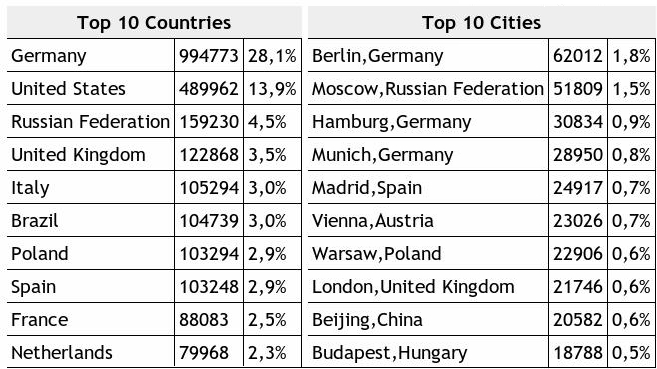
The reason for the high popularity of this distribution in Germany is of course the fact that the German SuSE distribution and the main branch of development is located in Nuremberg. Popularity in the U.S. is due Novell – an American company, and of course the language is English. But why are so many people in Russia choosing openSUSE?
Good question. One of the main things that influence the choice of distribution – the quality and localization. The global community plays a top role for quality of distribution and local make it appropriate for Russian language users (of course a local community can be as part of a global community).

Perhaps most important is the documentation. And of course, not everyone wants (or can) read the documentation in English. Everyone wants to read the documentation in their native language. The distribution may be in a good shape and stable, nice and convenient, but without documentation it will use very few. Translated documentation is very important to the community. The translation must have a high quality, understandable, and as it must be kept up to date.
For the community its also profitable that 2 guys from the community working for Novell (in Nuremberg and in Prague). This provides better communication between “developers – community”. It helps to be closer to the project. This allows you to always be aware of all the major news of the project. And of course the translation is much better if they are engaged not just as a translator, but the employee who works on the distribution.
Of course this also applys for software. Although it is not as important as documentation, it still makes an impression on the quality of distribution. Everyone wants to work with the software in their native language %)
A successful community is a group of people who love openSUSE, who understands why the software should be free, who wants to make openSUSE better and better… every day.

Community Discussion - Part 3

z-shell (zsh) completion for osc and zypper
z-shell (zsh) completion for osc and zypper
When working with the openSUSE distribution, there are a couple of tools you have to deal with over and over again. Two of them are osc and zypper. The first one to build or fix packages, the latter to install, remove or update them. Using one of those tools on a regular basis? Read on…
…but to make this post actually useful for you, there needs to be another prerequisite: You need to use zsh as your primary shell. And I hope you do. If not, you should definitely put this on your TODO list.
All of the following is ready to use, because it's already in openSUSE Factory for quite some time and has already been in openSUSE 11.2. I just have the feeling that people are not aware of this feature, so I am writing this post…
osc
So let's start with osc. There are a couple of sub commands like checkout, getbinaries or branch I need all the time. And every time I do, I have to look up the syntax. For instance, have a look at the osc getbinaries command:
$ osc help getbinaries
osc getbinaries PROJECT PACKAGE REPOSITORY ARCHITECTURE
Hm? Four parameters? Things like that were actually the reason I sat down implementing a solution which works quite well for me: Zsh completion for osc. Now you can do stuff like the following:
$ osc getbinaries <tab>
home:hmacht              openSUSE:11.0            openSUSE:11.3            SUSE:SLE-11:Update:Test
home:hmacht:kernel-sony  openSUSE:11.1            openSUSE:Factory
openSUSE:10.3            openSUSE:11.2            SUSE:SLE-11-SP1:GA

$ osc getbinaries openSUSE:Factory aaa_base <tab>
openSUSE_10.2     openSUSE_11.0     openSUSE_11.2     openSUSE_Factory  SUSE_SLE-11_GA
openSUSE_10.3     openSUSE_11.1     openSUSE_11.3     standard

$ osc getbinaries openSUSE:Factory aaa_base openSUSE_Factory
i586    x86_64
Quite handy, isn't it?
You might also wonder why the first completion output in the above example contains my personal home project home:hmacht. By default, the completion contains a couple of default build targets, repositories and architectures like openSUSE_Factory, openSUSE:Factory or x86_64. You can extend those lists with the shell variables ZSH_OSC_PROJECTS_EXTRA and ZSH_OSC_BUILD_TARGETS_EXTRA. My corresponding part of my ~/.zshrc looks so:
export ZSH_OSC_PROJECTS_EXTRA="home:hmacht home:hmacht:kernel-sony SUSE:SLE-11:Update:Test SUSE:SLE-11-SP1:GA"
export ZSH_OSC_BUILD_TARGETS_EXTRA="standard SUSE_SLE-11_GA"
After that, the extra repos/targets show up in the completion output.
By default, the completion is in verbose mode:
$ osc <tab>
--debugger             -- jump into the debugger before executing anything
--no-keyring           -- disable usage of desktop keyring system
--post-mortem          -- jump into the debugger in case of errors
--version              -- show program's version number and exit
-A                     -- URL/alias, --apiurl=URL/alias
-H                     -- --http-debug debug HTTP traffic
-c                     -- FILE, --config=FILE
-d                     -- --debug print info useful for debugging
-h                     -- --help show this help message and exit
-q                     -- --quiet be quiet, not verbose
-t                     -- --traceback print call trace in case of errors
-v                     -- --verbose increase verbosity
abortbuild             -- Aborts the build of a certain project/package
add                    -- Mark files to be added upon the next commit
addremove              -- (ar) Adds new files, removes disappeared files
aggregatepac           -- "Aggregate" a package to another package
api                    -- Issue an arbitrary request to the API
branch                 -- (bco, branchco, getpac)
bugowner               -- Show bugowners of a project/package
build                  -- Build a package on your local machine
[...]
To change that you can set
$ zstyle ':completion:*:osc:*' verbose no
$ zstyle ':completion:*:osc-subcommand:*' verbose no
Now it looks like:
$ osc <tab>
--debugger             api                    diff                   meta                   resolved
--no-keyring           branch                 disable                mkpac                  results
--post-mortem          bugowner               getbinaries            mv                     rremove
--version              build                  global                 my                     search
[...]
All the completion output is auto generated by the osc help output (btw., even osc help <tab> can be completed), so new commands should show up automatically. However, this contains the risk of possible bugs where the help output is unexpected, so if you find any issues, send me a mail or add a comment.
zypper
Basically all the above applies for zypper. An example output looks like:
$ zypper re<tab>
refresh                 -- ref Refresh all repositories.
refresh-services        -- refs Refresh all services.
remove                  -- rm Remove packages.
removelock              -- rl Remove a package lock.
removerepo              -- rr Remove specified repository.
removeservice           -- rs Remove specified service.
renamerepo              -- nr Rename specified repository.
repos                   -- lr List all defined repositories.
Change verbose/short output with:
$ zstyle ':completion:*:osc:*' verbose no
$ zstyle ':completion:*:osc-subcommand:*' verbose no
Personally I use the zypper completion quite seldom, nevertheless, some people might find it useful.

ruby-dbus 0.3.0 Works on Ubuntu
NEWS:
Bug fixes:RPMs can be found via Webpin.
These are by Klaus Kaempf:
- Fixed "undefined method `get_node' for nil:NilClass" on Ubuntu Karmic (Ticket#34).
- Get the session bus address even if unset in ENV (Issue#4).
- Improved exceptions a bit: UndefinedInterface, InvalidMethodName, NoMethodError, no RuntimeException
Features:
- Make the signal dispatcher call all handlers (Issue#3).
- Run on Ruby < 1.8.7 (Issue#2).
- Avoid needless DBus::IncompleteBufferException (Ticket#33).
- Don't ignore DBus Errors in request_service, raise them (Ticket#32).
- Automatic signature inference for variants.
- Introduced FormalParameter where a plain pair had been used.

Last Call for GNOME Summer of Code 2010 Ideas! Student proposal period starts Monday!
If you have ideas for your project, you have today and tomorrow to add them to the wiki before our meeting. Please place new ideas in the "Other Ideas" section.
The student proposal period starts Monday. If you want to help review student proposals, please sign up as a mentor. If you don't use your full name and include details when applying to be a mentor, we may not know who you are, so if you choose to do that please email me, Ruben, or Daniel with your link_id so we don't reject you. :-) We have to be careful because there are some sneaky or confused students out there who try to sign up as mentors.
The ideas page will be under tight control after our meeting on Saturday, but it will still be possible to add ideas if you check with folks in #soc-admin or on the GNOME soc-mentors-list first.
Prague Visit
I myself did not have much tasks except to meet people, say hi and see if anything
comes up to discuss, so I mostly did my regular work.
Thomas lecture was a success as far as I see, the hospitality of our SUSE colleagues was very great and the hotel nice.
I took several trips into the inner city to take pictures.
Tuesday: Trip with the 50mm lens on the Nikon D90. Found that 50mm is not well suited to architectural photography, only long shots really possible. Took some nice perspectives though.
Wednesday: Trip with the 35mm lens. Better, I also took some more shake-free pictures of the castle. Enjoyed the Globe Bookstore, recommended by skh.
Thursday: Trip with the 18-200mm Zoom Lens. Went up to the castle, took an interesting cathedral entrace shot, some panaromas and a bit of voyerism shots ;).
Announce: Linux Desktop Testing Project (LDTP) 2.0.4 released
LDTPv2 hang in Ubuntu 10.04 is fixed
Don't navigate table cell, as it causes more resource and time in OpenOffice calc
Added new API simulatemousemove for DnD test (VMware Workstation / Player Unity-GHI feature)
Patch by Ara Pulido for b.g.o bug # 612311
Listen all Window events, else new application like Firefox is not listed
waittillguiexist now can wait for state as well
hasstate can wait for given time till the state is True
Special thanks to Eitan Isaacson [1], Ara Pulido [2], James Tatum [3], Anupa Kamath [VMware, India], Slava Podokshik [VMware, USA]
Download source:
http://download.freedesktop.org/ldtp/2.x/2.0.x/ldtp-2.0.4.tar.gz
Download RPM from
http://download.opensuse.org/repositories/home:/anagappan:/ldtp2:/rpm/
Will schedule deb build in openSUSE build service tomorrow
For detailed information on LDTP framework and latest updates visit http://ldtp.freedesktop.org
For information on various APIs in LDTP including those added for this release can be got from http://ldtp.freedesktop.org/user-doc/index.html
Report bugs - http://ldtp.freedesktop.org/wiki/Bugs
IRC Channel - #ldtp on irc.freenode.net
[1] - http://monotonous.org/
[2] - http://ubuntutesting.wordpress.com/
[3] - https://launchpad.net/~jtatum

Celebrating Ada Lovelace Day
I'm going to introduce to you one of the most brilliant mathematicians of her era, a heroine that lived in difficult times where women were not admitted to the universities and scientific societies. Despite all the obstacles, she significantly contributed to number theory and her findings helped to solve one of the greatest mathematical mysteries of all times - Fermat's last theorem. Ladies and gentleman, Sophie Germain.
Sophie was born in 1776 into the middle class French family. She discovered magical world of numbers and mathematics as a teenager, to a great dismay of her parents who in the effort to prevent their daughter from pursuing such an unfeminine career used to confiscate her candles and remove heating from her room so that she couldn't study. But in the end, it was her father who financially supported her research and her efforts to break into the male-only community of mathematicians.
In 1794, Ecole Polytechnique was opened in Paris, but unfortunately, its gates were closed to women. In order to pursue studies anyway, Sophie assumed an identity of drop-out student, monsieur Le Blanc and was submitting answer sheets under this pseudonym. It was only after course supervisor, Joseph-Louis Lagrange, astonished by her brilliant answers, insisted on meeting the talented student when her true identity was revealed.
She quickly moved from homework assignments to more difficult problems and being interested in number theory, she had to come across Fermat's theorem sooner or later. She proved the theorem for particular type of primes, making an important step towards the final proof on which later generations of mathematicians could build. In later age, she also explored elasticity theory and received grand prize from Paris Academy of Sciences for her research on the subject. Sophie died of breast cancer in 1831. A particular type of primes (if n is prime, 2n+1 is also prime) is called "Sophie Germain prime" in her honour.
My choice of extraordinary female scientist to blog about was not random - I wanted to introduce a pioneer woman in some field to illustrate how much prejudice and institutionalized misogyny women had to (and sadly, sometimes still have to) overcome to succeed just as well as men do. Using the words of Carl Friedrich Gauss ("the prince of mathematician") in one of his letters to Germain: "A taste for the abstract sciences in general and above all the mysteries of numbers is excessively rare: one is not astonished at it: the enchanting charms of this sublime science reveal only to those who have the courage to go deeply into it. But when a person of the sex which, according to our customs and prejudices, must encounter infinitely more difficulties than men to familiarize herself with these thorny researches, succeeds nevertheless in surmounting these obstacles and penetrating the most obscure parts of them, then without doubt she must have the noblest courage, quite extraordinary talents and superior genius."
Many thanks to these brave heroines who paved the way to us, modern women in technology and science.
References: Wikipedia, Simon Singh's book (Fermat's Last Theorem - highly recommended read)

Technical Preview of PySide-Shiboken

Marcelo Lira (PySide developer) announced moments ago on the PySide mailing list the technical preview of PySide-Shiboken:
Hello folks,

today we got the Shiboken generated PySide bindings in a good enough
shape to do a proper release
with tarballs and all the required niceties, instead of rough git
urls. Keep in mind that this is an alfa release,
or a "technical preview" as the kids in my lawn are used to say, some
modules are missing and bugs are not
hard to find.

This PySide release contains bindings for the following modules:

* QtCore
* QtGui
* QtNetwork
* QtWebKit
* QtSvg
* QtXml
* QtTest
* QtOpenGL
* QtSql

Feel free to try your Python code with this version of PySide. You
know how it works: more users == less bugs.
As long as you guys tell us about the bugs: http://bugs.openbossa.org

A noteworthy fact is the first release of the Shiboken C++ binding
generator. Yay!
We strongly encourage it's use to produce non-Qt C++ bindings for
Python, it will make your life easier.
If it turns out to be not so easy, come and talk with us on #pyside
channel (Freenode).

Here follow everything needed for this release, in order of compilation.

API Extractor, version 0.4.0
http://www.pyside.org/files/apiextractor-0.4.0.tar.bz2

Generator Runner, version 0.4.0
http://www.pyside.org/files/generatorrunner-0.4.0.tar.bz2

Shiboken, version 0.2.0
http://www.pyside.org/files/shiboken-0.2.0.tar.bz2

PySide, version 0.3.0
http://www.pyside.org/files/pyside-qt4.6+0.3.0.tar.bz2

You will notice that the size of the generated bindings for the Qt
modules in no way resemble the figures from the Boost.Python version.
And talking about Boost: packagers, be aware that no component depends
on Boost::Graph anymore. Yay^2!

P.S.: cgoncalves, thanks for all the code. And to everyone else that
provided bug reports, patches, beers, etc.

And I followed by adding the usual pos-release-announcement announcement:
Don't want to get your hands dirty and have headaches due to compilation
issues? That's bloody easy! Get this very same release version already
packaged for your distribution from the openSUSE Build Service! Packages
(32bit and 64bit) available for the following distributions:

- openSUSE 11.0, 11.1, 11.2 (for both Qt 4.5 and Qt 4.6 version available),
and Factory
- Fedora 11 and 12
- Mandriva 2009.1 and 2010

You can install PySide package by adding the proper repository from
http://download.opensuse.org/repositories/home:/cgoncalves:/pyside:/shiboken/
to your package manager (zypper, yum, urpi, smart or any other rpm-md
compatible) followed by the installation of package 'python-pyside'.

But (!) in case you are all a bleeding-eye person, or simply if you want to
take an extremely important role on the development by testing it and
reporting back to developers, you can even get the regularly snapshots taken
from PySide's Git mainline by adding the devel repository[1].

Or if you happen to be from the old-school and love PySide Boost based you can
still install and use it[2].

I would like to take the opportunity to congratulate and thanks the PySide
team for their magnificent effort given to the project. You guys rock!


[1] http://download.opensuse.org/repositories/home:/cgoncalves:/pyside:/devel/
[2] http://download.opensuse.org/repositories/home:/cgoncalves:/pyside:/boost/
Back from Israel
I brought this hilarious joke home as a souvenir (attention - if you tend to be offended by jokes showing the Palestinians in negative light, don't read on):
What happens when a fly falls into a coffee cup?
The Italian - throws the cup, breaks it, and walks away in a fit of rage.
The German - carefully washes the cup, sterilizes it and makes a new cup of coffee.
The Frenchman - takes out the fly, and drinks the coffee.
The Chinese - eats the fly and throws away the coffee.
The Russian - Drinks the coffee with the fly, since it was extra with no charge.
The Israeli - sells the coffee to the Frenchman, the fly to the Chinese, drinks tea and uses the extra money to invent a device that prevents flies from falling into coffee.
The Palestinian - blames the Israeli for the fly falling in his coffee, protests the act of aggression to the UN, takes a loan from the European Union to buy a new cup of coffee, uses the money to purchase explosives and then blows up the coffee house where the Italian, the Frenchman, the Chinese, the German and the Russian are all trying to explain to the Israeli that he should give away his cup of tea to the Palestinian.