

Hackweek 24

It's the time for a new Hack Week. The Hack Week 24 was from November 18th to November 22th, and I've decided to join the New openSUSE-welcome project this time.
The idea of this project is to revisit the existing openSUSE welcome app, and I've been trying to help here, specifically for the GNOME desktop installation.
openSUSE-welcome
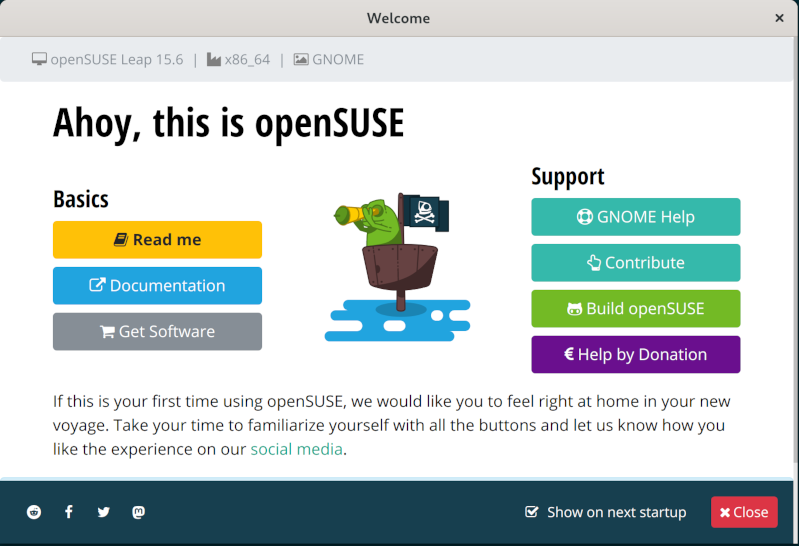
Right now after installing any openSUSE distribution with a graphical desktop, the user is welcomed on first login with a custom welcome app.
This custom application is a Qt/QML with some basic information and useful links.
The same generic application is used for all desktops, and for popular desktops right now exists upstream applications for this purpose, so we were talking on Monday morning about it and decided to use specific apps for desktops.
So for GNOME, we can use the GNOME Tour application.
gnome-tour

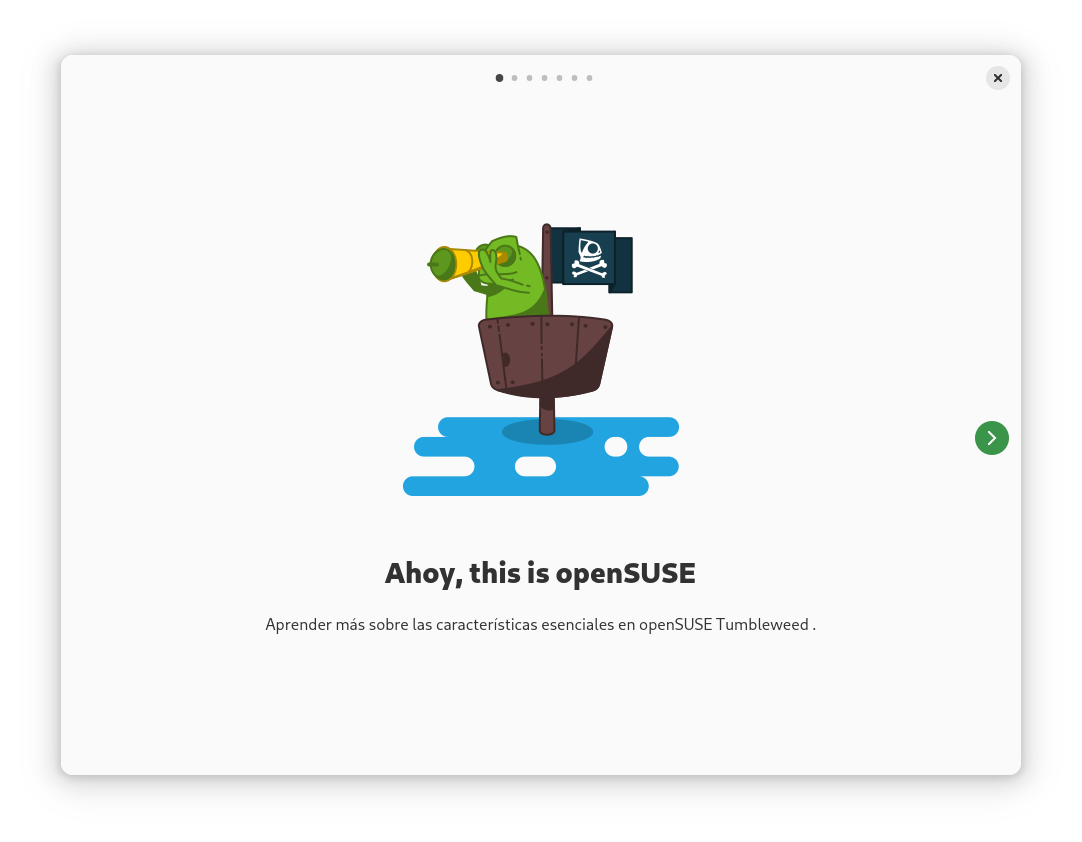
GNOME Tour is a simple rust/gtk4 application with some fancy images in a slideshow.
This application is generic and just shows information about GNOME desktop, so I created a fork for openSUSE to do some openSUSE specific customization and use this application as openSUSE welcome in GNOME desktop for Tumbleweed and Leap.
Desktop patterns, the welcome workflow
After some testing and investigation about the current workflow for the welcome app:
- x11_enhanced pattern recommends opensuse-welcome app.
- We can add a
Recommends: gnome-tourto the gnome pattern - The application run using xdg autostart, so gnome-tour package
should put the file in
/etc/xdg/autostartand set to hidden on close. - In the case of having a system with multiple desktops, we can
choose the specific welcome app using the
OnlyShowIn/NotShowInconfig in desktop file
So I've created a draft PR to do not show the openSUSE-welcome app in GNOME, and I've also the gnome-tour fork in my home OBS project.
I've been testing this configuration in Tumbleweed with GNOME, KDE and XFCE installed and it works as expected. The openSUSE-welcome is shown in KDE and XFCE and the gnome-tour app is only shown in GNOME.

Next steps
The next steps to have the GNOME Tour app as default welcome for openSUSE GNOME installation are:
- Send forked
gnome-tourpackage toGNOME:Nextproject in OBS. - Add the
Recommends: gnome-tourtopatterns-gnometoGNOME:Nextproject in OBS. - Make sure that any other welcome application is not shown in GNOME.
- Review openQA tests that expect opensuse-welcome and adapt for the new application.

 Member
 baltolkien
Mi escritorio Plasma de noviembre 2024 #viernesdeescritorio
Esta novena entrega del año de la iniciativa #viernesdeescritorio que vuelve a los fondos clásicos. Bienvenidos a mi escritorio Plasma de noviembre 2024, realizado sobre Kymera Slimbook, con el que llegamos a las 54 entregas compartiendo «Mi escritorio» de forma mensual.
Mi escritorio Plasma de noviembre 2024 #viernesdeescritorio
Esta va a ser la quincuagésimocuarta (54 para los que nos cuesta leer esto) vez que muestro mi escritorio Plasma 6 en público, lo cual es número nada desdeñable de entradas que sigue creciendo de forma constante. Hice un recopilatorio con los 12 escritorios del 2022 y este diciembre he hecho una con los 13 del 2023. Por fin he encontrado el momento perfecto para hacer este tipo de entradas.
Y en esta ocasión vuelvo a mis ordenador de escritorio, con el que estoy trabajando últimamente. Este equipo tiene instalado un KDE Neon con Plasma 6.2.3, sobre una versión de KDE Frameworks 6.8 y una versión de Qt 6.8 El servidor gráfico es Wayland y el Kernel es 6.8.0-49-generic (64 bits).
He cambiado al tema global Sweet Mars de Eliverlara, con los iconos Candy, de mismo creador. He añadido el clásico y elegante reloj Digital Clock Be Style y tambén he modificado el lanzador de aplicaciones a Menu Ditto que quizás estaría mejor centrado pero que de momento se queda ahí. Respecto al fondo he buscado uno con estilo neon que lo haga colorido llamado Sweet Space, tambien de Eliverlara.
El resultado de mi escritorio Plasma de noviembre de 2024 es un entorno de trabajo oscuro y, como siempre, funcional que podéis ver en la imagen inferior (pinchad sobre ella para verlo un poco más grande).

La entrada Mi escritorio Plasma de noviembre 2024 #viernesdeescritorio se publicó primero en KDE Blog.

Switching from Docker to Podman
The State at the Beginning
Earlier I had made progress on my server to serve different websites from inside containers, including refreshing SSL certificates. But the server started to be aging, and for both learning and future proofing purposes I started looking at migrating to something newer. And, I never really finished all the old work anyway. Instead I have a new container in use that has SSH running inside, that should be migrated as well.
OS / Software Upgrades
First of all I updated the OS, to have the latest or at least newer Podman available, as I tend to prefer the distro version to any special repositories. I encountered a few problems with disk space running out a few times, but managed to sort out those issues without rendering the server unusable.
From Docker to Podman
The main topic was switching from Docker to Podman. That involved reading about docker-compose vs podman-compose, the different formats for those two, quadlets, pods… so many options, and interestingly many of those have been in varying states of development for the past years, so I’m glad I haven’t been too fast on making this switch.
I have liked docker compose. Creating pods from CLI is certainly not interesting for me so not worth the effort. Quadlets would be elegant, but I yearn for something more automatically created from a single definition for quadlets like the podlets, which however are not to be merged into podman upstream. Lots of interesting discussion on which ones of these are deprecated, no longer hot etc.
I checked that indeed it seemed I can use podman as a drop-in replacement for Docker, using the docker-compose format. However, the idea to move to native podman-compose format was hindered by comments like ”compose is no longer the way to go with Podman” 🤔
Reality Check
At this point I decided to actually test this ”drop-in replacement” I mentioned seemed working, and while the container was indeed running without a hitch, I found out that .. well, the services didn’t work. So before I got too excited about rewriting everything in something new, I went towards actually figuring out what are the problems currently.
That took quite a bit of time, but eventually I was back to the status before starting. I spent a bit too much time assuming the problem was with podman configuration, while at the end I needed correct firewall routings to the podman network interface, something that wasn’t explicitly required before with docker and earlier OS version.
Problem solved! Except that now SSH to container worked, but some SSH features did not work… again, some time was spent until I found out that Podman has dropped AUDIT_WRITE capability from default settings at some point, mostly needed by SSH. Problem Solved! Except that even though there was a change in error messages, it still didn’t work. AUDIT_CONTROL or a workaround is needed too, for obvious-to-anyone reasons (a nice read, plot thickens etc).
At this point I thought that rewriting anything more would just complicate things, and it’d be better to make the current solution to ”actually work”. So far I had played with the single container that was already in use, but I knew there’d be a bigger effort to combine that with the containerized nginx proxy and let’s encrypt that were not yet running in a container by default, running on host instead, and having all of those work together.
At the End
For my use on this single server case, I found that actually podman-compose with the compatible docker format is not too bad thing to use. I have a more recent platform in use, Podman even in rootful mode is somewhat more secure than Docker, and I have solved issues in integrating this migrated container and some of the other services working in another migrated container too. Most importantly, at the end I had not created more problems than I solved, I have version controlled configuration, improved Ansible scripts and functional backups for re-deployment. Given the time restrictions I have for working on things like these, it’s better to have something that a) works, b) is re-deployable than something that is using another technology but is more hackish.
While I could move from podman-compose to quadlets, that would actually make things more complex at least in the current state of things in case I’d like to move to kubernetes. compose -> quadlets and compose -> kubernetes seem quite straightforward, but quadlets -> kubernetes is a bit different topic. Not that I’d really have any use for kubernetes, but for learning purposes it could be nice to keep the option. Maybe using .kube files with quadlets could be ok though.
A separate project would be also to switch to native Podman compose YAML format to strive towards rootless containers.

Música Unidos pelo Sul, um fracasso…
Em maio em virtude da tragédia das enchentes no Sul, lancei uma música intitulada “Unidos pelo Sul” no Spotify, com o objetivo de angariar fundos para as vítimas das enchentes que assolaram a região Sul do Brasil. A ideia era transformar a arte em uma ferramenta de ajuda humanitária, direcionando toda a renda arrecadada para as pessoas afetadas por essa catástrofe. No entanto, apesar da boa intenção, a campanha não alcançou o sucesso esperado.
A música foi ouvida por 6.250 pessoas, o que resultou na arrecadação de apenas 7 dólares. Este resultado foi surpreendentemente baixo, especialmente quando comparado com outra iniciativa que promovi, o “Carnaval da Selfie”, realizado em fevereiro. Este evento atraiu mais de 60 mil ouvintes e arrecadou 10 vezes mais, demonstrando uma grande disparidade entre os dois projetos. Esta diferença nos resultados levanta questões importantes sobre o engajamento do público em causas humanitárias, comparado a eventos mais leves e festivos.

É intrigante observar que, mesmo sem custos adicionais para os ouvintes, a adesão a uma campanha com um propósito claramente benéfico foi significativamente menor. Este fenômeno sugere uma reflexão sobre o comportamento humano e o tipo de incentivos que motivam a participação em diferentes tipos de campanhas.
Quero esclarecer que toda a renda gerada, de fato, não foi destinada às vítimas das enchentes, conforme o planejado. Pois o saque mínimo é $14,30 e a campanha não alcançou este valor. A transparência neste processo é fundamental para mim, pois entendo a importância de manter a confiança de todos que apoiaram a iniciativa, mesmo que o resultado financeiro tenha sido menor do que o esperado.
Apesar do resultado desanimador desta campanha, não desisto. Continuarei buscando formas de usar minha música para fazer a diferença no mundo. Este episódio serviu como uma lição valiosa sobre os desafios de mobilizar apoio para causas urgentes e me motivou a pensar em novas estratégias para engajar mais pessoas em futuras iniciativas. Agradeço a todos que ouviram a música e aos que continuam a apoiar esforços para ajudar quem mais precisa.


Spotify:
https://tinyurl.com/rs-spotify-music

YouTube Music:
https://tinyurl.com/rs-youtube-music

Amazon Music:
https://tinyurl.com/rs-amazon-music

Apple Music:
https://tinyurl.com/rs-apple-music

iTunes:
https://tinyurl.com/rs-apple-music

Deezer:
https://tinyurl.com/rs-deezer

TikTok Music:
https://tinyurl.com/rs-tiktok
Hackweek 24
It's the time for a new Hack Week. The Hack Week 24 was from November 18th to November 22th, and I've decided to join the New openSUSE-welcome project this time.
The idea of this project is to revisit the existing openSUSE welcome app, and I've been trying to help here, specifically for the GNOME desktop installation.
openSUSE-welcome
Right now after installing any openSUSE distribution with a graphical desktop, the user is welcomed on first login with a custom welcome app.
This custom application is a Qt/QML with some basic information and useful links.
The same generic application is used for all desktops, and for popular desktops right now exists upstream applications for this purpose, so we were talking on Monday morning about it and decided to use specific apps for desktops.
So for GNOME, we can use the GNOME Tour application.
gnome-tour
GNOME Tour is a simple rust/gtk4 application with some fancy images in a slideshow.
This application is generic and just shows information about GNOME desktop, so I created a fork for openSUSE to do some openSUSE specific customization and use this application as openSUSE welcome in GNOME desktop for Tumbleweed and Leap.
Desktop patterns, the welcome workflow
After some testing and investigation about the current workflow for the welcome app:
- x11_enhanced pattern recommends opensuse-welcome app.
- We can add a
Recommends: gnome-tourto the gnome pattern - The application run using xdg autostart, so gnome-tour package
should put the file in
/etc/xdg/autostartand set to hidden on close. - In the case of having a system with multiple desktops, we can
choose the specific welcome app using the
OnlyShowIn/NotShowInconfig in desktop file
So I've created a draft PR to do not show the openSUSE-welcome app in GNOME, and I've also the gnome-tour fork in my home OBS project.
I've been testing this configuration in Tumbleweed with GNOME, KDE and XFCE installed and it works as expected. The openSUSE-welcome is shown in KDE and XFCE and the gnome-tour app is only shown in GNOME.
Next steps
The next steps to have the GNOME Tour app as default welcome for openSUSE GNOME installation are:
- Send forked
gnome-tourpackage toGNOME:Nextproject in OBS. - Add the
Recommends: gnome-tourtopatterns-gnometoGNOME:Nextproject in OBS. - Make sure that any other welcome application is not shown in GNOME.
- Review openQA tests that expect opensuse-welcome and adapt for the new application.
Cómo convertir archivos docx a pdf en linux
Hay pocas cosas que no se puedan hacer de forma sencilla en Linux, bien sea con alguna aplicación grafica o bien sea en consola, como en el caso que nos ocupa hoy. Me complace compartir con todos vosotros cómo convertir archivos docx a pdf en linux en lote y mediante LIbreOffice pero en consola o terminal, ahorrando un montón de tiempo.
Cómo convertir archivos docx a pdf en linux
Recientemente me ha tocado corregir un nutrido conjunto de ejercicios de un grupo de estudiantes. Para la corrección he decidido utilizar Okular y aprovecharme de las funcionalidades de anotación que tiene integradas: subrayado, flechas, notas mecanografiadas, formas básicas y, sobre todo, los sellos.
Gracias a todas estas posibilidades puedo darle al alumno la retroalimentación que se merece. Pero claro, para ello los documentos deben estar en formato pdf.
De esta forma el proceso que seguía era: abrir el archivo con LibreOffice, exportar a pdf, borrar el archivo docx, abrir el nuevo archivo pdf con ojular y editar. Es decir, debía realizar 5 acciones para cada archivo, algo que no es laborioso si tienes pocos documentos pero que a partir de 10 de ellos se hace faragoso.
Así que pensé, ¿no hay una forma de hacerlo más sencillo? Evidentemente no pensaba en la corrección sino en la coversión de archivos. Recordé que había Service Menu para Doplhin que lo hacían, pero eso era antes de Plasma 6. Probé alguno pero no funcionó.
La respuesta llegó en un hilo de Ask Ubuntu, y sin instalar nada, simplemente usando LibreOffice en modo consola.

Básicamente debemos preparara una carpteta con todos los archivos a pasar, abrir una consola (con F4, por ejemplo si estamos en Dolphin) y escribir:
lowriter --convert-to pdf *.docxLa explicación del comando es sencilla: lowriter (que tendrás instalado si tienes LibreOffice) –convert-to (convierte) pdf (a pdf) *.docx (los archivos docx que encuentre).
Lo mismo podemos hacer para archivos *.doc
lowriter --convert-to pdf *.docY con este sencillo comando acabo de ahorrame muchos minutos perdidos. ¿no es maravilloso? ¿cómo lo hacéis vosotros?
Más información: Ask Ubuntu
La entrada Cómo convertir archivos docx a pdf en linux se publicó primero en KDE Blog.
Experimental syslog-ng container image based on Alma Linux
The official syslog-ng container image is based on Debian Stable. However, we’ve been getting requests for an RPM-based image for many years. So, I made an initial version available based on Alma Linux and now I need your feedback about it! This image uses the “init” variant of Alma Linux 9 containers as a base image. What does this mean? Well, it uses systemd service management inside, making it possible to run multiple services from a single container. While only syslog-ng is included right now, I also plan to add the syslog-ng Prometheus exporter to the image. Note that while the example command lines show Docker, I also tested it using Podman.
Read more at: https://www.syslog-ng.com/community/b/blog/posts/experimental-syslog-ng-container-image-based-on-alma-linux

syslog-ng logo
Reloj sencillo para tu escritorio, Material Clock – Plasmoides para Plasma 6 (11)
Tras un parón debido al salto de Qt5/KF5 a Qt6/KF6 que realizó la Comunidad KDE hace ya más de seis meses decidí retomar esta sección aunque renombrándola ya que en ella solo hablaré de Plasmoides para Plasma 6. En la entrada de hoy me complace compartir con vosotros un reloj sencillo para tu escritorio que lleva por nombre Material Clock, un plasmoide que muestra la hora y el día con el estilo Material Design.
Reloj sencillo para tu escritorio, Material Clock – Plasmoides para Plasma 6 (11)
Como he comentado en otras ocasiones, de plasmoides tenemos de todo tipo funcionales, de configuración, de comportamiento, de decoración o, como no podía ser de otra forma, de información sobre nuestro sistema como puede ser el uso de disco duro, o de memoria RAM, la temperatura o la carga de uso de nuestras CPUs.
Así que espero que le deis la bienvenida a un plasmoide llamado Material Clock, una creación del incombustible cesp99 que nos ofrece un reloj sencillo para tu escritorio que muestra la hora y el día con el estilo Material Design, ese lenguaje visual que combina los principios del buen diseño con la innovación técnica y científica, o al menos eso dice Google.

Y como siempre digo, si os gusta el plasmoide podéis «pagarlo» de muchas formas en la página de KDE Store, que estoy seguro que el desarrollador lo agradecerá: puntúale positivamente, hazle un comentario en la página o realiza una donación. Ayudar al desarrollo del Software Libre también se hace simplemente dando las gracias, ayuda mucho más de lo que os podéis imaginar, recordad la campaña I love Free Software Day de la Free Software Foundation donde se nos recordaba esta forma tan sencilla de colaborar con el gran proyecto del Software Libre y que en el blog dedicamos un artículo.
Más información: KDE Store
¿Qué son los plasmoides?
Para los no iniciados en el blog, quizás la palabra plasmoide le suene un poco rara pero no es mas que el nombre que reciben los widgets para el escritorio Plasma de KDE.
En otras palabras, los plasmoides no son más que pequeñas aplicaciones que puestas sobre el escritorio o sobre una de las barras de tareas del mismo aumentan las funcionalidades del mismo o simplemente lo decoran.
La entrada Reloj sencillo para tu escritorio, Material Clock – Plasmoides para Plasma 6 (11) se publicó primero en KDE Blog.

Leap Micro 6.1 Alpha is now available. Get ready for Leap Micro 5.5 End of Life.
Leap Micro 6.1 Alpha images can be found at get.opensuse.org. Unless some serious issues are found, users can expect a quick transition to GA within a few weeks.
About Leap Micro
Leap Micro 6.1 is a rebranded SUSE Linux Enterprise Micro 6.1 which is an ultra-reliable container and Virtual Machine host by SUSE. Leap Micro is released twice a year and has support over two releases.
Leap Micro 5.5 will be EOL with the release of Leap Micro 6.1
With the release of Leap Micro 6.1, Leap Micro 5.5 reaches End Of Life; users will no longer receive maintenance updates and are advised to upgrade to 6.1.
More conservative users can stay on Leap Micro 6.0, which will receive updates until the release of Leap Micro 6.2.
Notable changes
Users performing clean install will notice visible changes to the first boot wizard. The jeos-firstboot wizard can now create an additional user and optionally the 2FA secret but the PAM config is missing. It will be added with the GM builds.
We’ve added soft-reboot support.
Inclusion of vhostmd for SAP Virtualization. Addition of chrony-pool-empty and pf-bb-config. PREEMPT_RT kernel for Arm, ZRAM support, and support for TOTP 2fa for pam login mainly for the cockpit. Working JIT compilation of eBPF rules.
SLE Micro 6.1 received additional support for ppc64le, however, we intend to keep Leap Micro only for x86_64 and aarch64. The main reason is that there is no demand from the community to support these arches.
Understanding individual images
Users can refer to the Leap Micro 6.0 announcement where we already covered this part.
Upgrading from previous release.
A recommendation for migration from 5.X is to make a clean install since this is a brand-new major version.
For those who’d like to try migration, please follow the upgrade guide.
Migration from 6.0 should work with zypper --releasever 6.1 dup inside transactional-update shell
There is a chance that we’ll include a new migration tool which is expected to be developed as part of hackweek in Leap Micro 6.1 Beta. This would make the upgrade more straightforward for the future upgrades.
Release Notes
Users can refer to SLE Micro 6.1 Release notes once available.
Leap Micro 6.1 uses openSUSE-repos for repository management. It is highly recommended to pay attention to this detail, especially for those who migrate. Here is an article explaining how openSUSE repos work.
Just like 6.0, Leap Micro 6.1 has no longer a dedicated SLE update repo. This has been merged into the main repository.
Upgrade to Freedom! The Switch from Windows 10
The end of Windows 10 support in October 2025 presents a great opportunity for the Linux community to collectively help users transition their still-functional hardware to operating systems that can extend the life of their laptops, desktops or other devices.
Millions of users face the prospect of upgrading to a new version of Windows or transition to alternatives like openSUSE’s operating system or other Linux alternatives.
This looming transition sets the stage for Linux communities to embrace the Upgrade to Freedom! campaign; its aims is to help Windows users understand how to continue using their current hardware and switch to a Linux distribution like openSUSE, or others. Many of which are just as user-friendly and familiar in design as paid operating system versions.
This time next year Windows 10 is expected to no longer receive security and maintenance updates, which leaves systems vulnerable to malware, cyberattacks and other threats. This should raise significant concerns about data privacy and system reliability for businesses, governments and individuals.
The Upgrade to Freedom! campaign is designed to encourage people to select an environmentally responsible solution by collectively guiding users through the process of transitioning to a Linux Distribution.
One key argument for moving to Linux is the environmental benefits. Joanna Murzyn, who spoke at the KDE Akademy conference in 2024, warns about the increasing problem of electronic waste (e-waste). In her presentation, titled Only Hackers Will Survive, she highlights the environmental toll of throwing out perfectly usable computers.
E-waste, which includes discarded laptops, desktops and other electronics, releases toxic substances like lead, mercury and cadmium into the environment, according to Murzyn. These substances can contaminate soil and water as well as cause long-term harm to ecosystems and human health. Murzyn urged people to resist the urge to “upgrade” to new hardware and instead explore solutions like Linux that extend the life of existing devices.
Distributions like Ubuntu, Fedora, AlmaLinux and more are likely to do similar campaigns to bring users into the Linux ecosystem. Members of the openSUSE community feel that it would be best to combine forces with these distributions and have a unified and collaborative approach that highlights the shared benefits of transitioning to Linux. Linux communities can amplify their collective impact and make the transition smoother for users.
This campaign has the desired effect to show powerful, secure and customizable alternatives to Windows can be. One of the campaign’s core goals is to show users that their existing hardware is still fully functional, even if Windows 10 is reaching its end-of-life.
For users with older laptops and desktops, especially those incompatible with Windows 11, switching to a Linux distribution is a powerful way to avoid discarding perfectly usable hardware. openSUSE, for example, provides excellent performance on a wide range of hardware, including machines more than a decade old. By choosing Linux, users can continue using their devices for years to come and don’t need to invest in new hardware.
The Upgrade to Freedom! campaign will begin hosting webinars, releasing video tutorials and live Q&A sessions to help users make the switch to Linux. Whether you’re a gamer, a developer, or an everyday user, there are Linux distributions that cater to your needs.
If you decide to make openSUSE your choice as the result of the Freedom Campaign, great! Use the steps below to get started. If you want more exhaustive steps, click here.
How to Download and Install openSUSE:
Step 1: Download the ISO
- Go to get.opensuse.org.
- Choose your preferred version of openSUSE (E.g. Leap or Tumbleweed).
- Download the ISO file to your computer.
Step 2: Create a Bootable USB
- Insert a USB drive (at least 4GB) into your computer.
- Use software like Etcher, Rufus (Windows), or Impression (Linux) to write the openSUSE ISO to the USB drive.
- Select the downloaded ISO file and start the process to create a bootable USB.
Step 3: Install openSUSE
- Once the system boots from the USB, select “Install openSUSE.”
- Follow the on-screen instructions to choose your language, region, and partition your hard drive.
- Confirm the installation and let the process complete.
Step 4: Restart and Enjoy
- Once the installation is complete, restart your computer.
- Remove the USB drive.
- Boot into your new openSUSE system and enjoy!
Steps if you have problems
- Check your bios options in Window and change it for the USB.
- If you encounter issues, reach out to the openSUSE forum.