
 Member
 Victorhck
¡openSUSE cumple 18 años!
El 9 de agosto de 2005, se hizo un anuncio durante la LinuxWorld Conference & Expo en San Francisco, dando nacimiento a lo que ahora conocemos como el Proyecto openSUSE.

La distribución de GNU/Linux, openSUSE cumple 18 años de historia. Todo un acontecimiento, en un mundo tan cambiante y a veces efímero. Así que un año más toca felicitar a toda la comunidad que mantiene vivo el proyecto.
La ya desaparecida compañía Novell (para algunas personas de nefasto recuerdo) el 9 de agosto hizo el anuncio de un nuevo proyecto llamado openSUSE.
Novell anunció hoy la creación del proyecto openSUSE, una nueva iniciativa patrocinada por Novell destinada a promover la adopción de Linux en todo el mundo. Alojado en http://opensuse.org, el proyecto brinda acceso fácil y gratuito a la distribución de Linux más útil del mundo, SUSE Linux. El proyecto también abre el proceso de desarrollo de SUSE Linux al brindar a los desarrolladores de la comunidad de código abierto acceso a la revisión, prueba y desarrollo de la distribución de SUSE Linux. La participación de la comunidad comienza esta semana, con la primera versión beta de SUSE Linux 10.0. Como resultado, los desarrolladores de todo el mundo podrán contribuir a futuras versiones.
El viaje de openSUSE comenzó oficialmente con el lanzamiento de las versiones beta de SUSE Linux 10.0 bajo el nombre de openSUSE.org. El primer lanzamiento oficial bajo el nombre de openSUSE fue 10.2.
Atrás quedaron los tiempos de Novell, y las vicisitudes posteriores de SUSE integradas en diversos grupos y distintas adquisiciones. Hasta llegar al panorama actual en el que SUSE como entidad propia se mantiene frente a un mercado volátil y feroz.
De aquella época siguen en pie las distribuciones SUSE y openSUSE. La primera de caracter empresarial de amplio espectro y la segunda como una versión comunitaria de la primera de la que cuenta con todo el apoyo de SUSE hacia la comunidad.
Sigue SUSE ofreciendo productos y adaptándose a nuevas tecnologías y sigue openSUSE como comunidad ofreciendo una distribución de GNU/Linux adaptable, robusta y fiable.
Conocía a openSUSE allá por un lejano 2011, y fue la primera distribución de GNU/Linux que con conocimiento de causa instalé en mi equipo.
Me llevó a un período de descubrimiento de tecnologías, de nuevas formas de hacer las cosas y nuevas filosofías. Como parte de esa filosofía estaba la cooperación y el compartir, un espíritu que imperaba en los albores de la primigenia internet muchos años antes.
Desde entonces ese período de aprendizaje no ha parado. Ha ido evolucionando, pero sigue vigente el mantenerte atento, el aprender y el querer buscar y compartir.
Producto de ese compartir y búsqueda de conocimiento surgió este blog que lees. Que como yo mismo ha ido evolucionando, no centrándose únicamente en openSUSE (aunque siendo un eje principal del blog) y abriéndose a todo el espectro del software libre.
18 años en un proyecto son muchos. En todo este tiempo, la piel del camaleón ha mudado. Personas que fueron parte importante del proyecto, lo dejaron o se hicieron a un lado por otras cuestiones y motivaciones dejando paso a nuevas generaciones.
Un relevo necesario que no debe cesar si queremos que el proyecto comunitario de openSUSE siga vivo mucho tiempo más. Que se adapte, que cambie su color, que expanda sus extremidades, pero que siga manteniendo la esencia.
Por mi parte sigo usando openSUSE en mis dispositivos. Me funciona a las mil maravillas y es un espacio en el que me encuentro muy cómodo.
Que un proyecto dure 18 es algo poco usual. Que un blog (el mío) lleve 11 años en línea es poco habitual. Que un linuxero (yo mismo) se mantenga en la misma distribución durante todos esos años es poco habitual.
Así que si lees esto, tu también lector o lectora eres poco habitual. Disfrutemos de nuestra unicidad, en una gran comunidad de unicidades como es openSUSE.
Have a lot of fun!

Primeros pasos con LabPlot – Vídeo
Hace un tiempo que presenté Labplot, un software de visualización y análisis de datos de la Comunidad KDE libre y gratuito multsistema que tienes decenas de funcionalidades de gran calidad. Hoy quiero seguir promocionando esta aplicación ya que sus desarrolladores están realizando una vídeos cortos que nos muestran píldoras de sus funcionalidades. Ya os presenté cómo ajustar una distribución de datos mediante esta aplicación y la corrección de la línea de base para tus datos espectrales, pero hoy quiero ir a algo más básicos como son los primeros pasos con LabPlot, es decir como importar datos y visualizarlos, lo cual se explica en menos de 2 minutos.
Primeros pasos con LabPlot – Vídeo
De la mano de los desarrolladores de LabPlot nos llega un vídeo que debí presentar hace mucho, que ya tiene un año de vida y que es el básico para iniciarse en esta aplicación.
En este caso se trata de realizar la importación de datos y la realización de la primera visualización de los mismos. Todo empieza creando un nuva tabla e importando datos a la misma desde un fichero de texto debidamente preparado. Las opciones de Labplot permite la importación según casi cualquier parámetro: coma, tabulación, formato de fecha, codificación de fichero, etc. Así como la posibilidad de añadir o reemplazar datos a la tabla de datos sobre la que queremos importar. Además, se dispone de una vista previa antes de importar los datos que nos permite comprobar que se está realizando como queremos.
El siguiente paso es la visualización de los datos en una gráfica, para lo cual Labplot también ofrece muchas opciones. Para finalizar, nos explica como realizar la exportación de la gráfica resultante en casi cualquier formato gráfico. Y todo este proceso es explicado en apenas 2 minutos. Sin duda una herramienta más que intuitiva y eficaz.
¿Qué es LabPlot?
Si eres un profesional o un amante de los datos necesitas alguna herramienta digital que te ayude a poder trabajar con ellos y sacar las conclusiones que necesites.
Este es el cometido de Labplot, un software de visualización y análisis de datos de la Comunidad KDE libre y gratuito multsistema accesible para todo el mundo, ya que cumple la norma de las aplicaciones KDE: simples por defecto, potentes cuando se necesita.
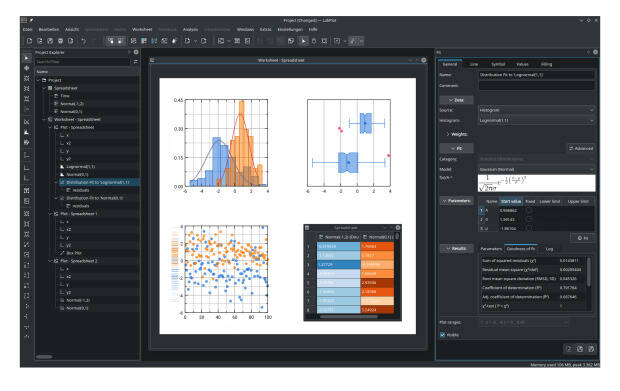
Sus principales caracteristicas son las siguientes:
- Visualización y trazado de datos de alta calidad con pocos clics.
- Análisis de datos y estadísticas fiables y sencillos, sin necesidad de codificación.
- Informática intuitiva y rápida con cuadernos interactivos.
- Extracción de datos de imágenes sin esfuerzo.
- Importación y exportación de datos desde y hacia múltiples formatos sin problemas.
- Disponible para Linux, Windows, macOS, y FreeBSD
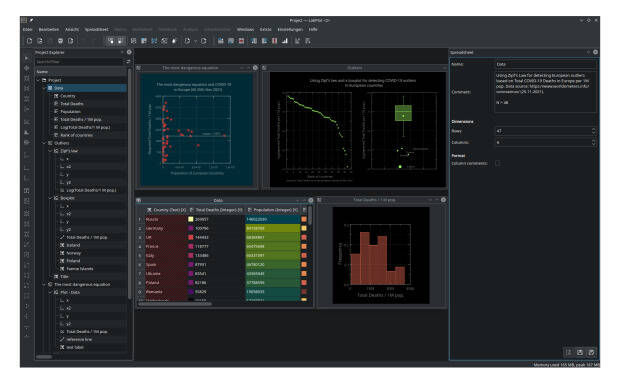
En la actualidad ya se encuentra en su versión 2.9 que fue lanzada el pasado 25 de junio y que nos ofrece las siguientes novedades:
- Nuevo tipo de visualización, el diagrama de caja que proporciona un resumen rápido de las propiedades estadísticas básicas del conjunto de datos,
- Colección de múltiples mapas de color.
- Nueva función que permite el formato condicional de los datos en la hoja de cálculo nos permiten obtener información sobre la estructura de sus datos y sus propiedades estadísticas directamente en la hoja de cálculo.
- Añadida la transformada de Hilbert al conjunto de funciones de análisis.
- Posibilidad para importar y exportar más formatos, habiendo añadido MATLAB, SAS, Stata y SPSS a la lista.
Más información; Labplot
La entrada Primeros pasos con LabPlot – Vídeo se publicó primero en KDE Blog.

Yeah! Today is 18 Years of openSUSE
Happy 18th Birthday to openSUSE! It’s that time of the year once again where we will raise our virtual glasses and celebrate the remarkable journey of open-source innovation.
On August 9th, 2005, an announcement was made during the LinuxWorld Conference & Expo in San Francisco, giving birth to what we now know as the openSUSE Project.
The now defunct company known as Novell unveiled openSUSE to the technology world with excitement. Riding on the heels of the success of Red Hat’s announcement of Fedora, it was natural for Novell to embrace the open-source movement and introduce its own community-driven Linux distribution.
The journey of openSUSE officially began with the release of beta versions of SUSE Linux 10.0 under the banner of openSUSE.org. The first official release under the openSUSE name was 10.2.
As we celebrate 18 years of openSUSE, it’s an opportune moment to reflect on the incredible journey this project has undertaken. Here we are years later and openSUSE stands strong with a lot of experiences endured by the community and its main sponsor SUSE. SUSE joined Novell in 2003, which broadened its horizons and influence. Six years later Novell made the announcement of the openSUSE Project there was an acquisition of SUSE by The Attachmate Group, which was later integrated into Micro Focus in 2014; this point in time showcased SUSE’s resilience. EQT added a unique touch in 2018 with the purchase of SUSE. In 2021, SUSE’s public debut on the Frankfurt Stock Exchange highlighted its dynamic evolution and enduring voyage as an open-source company.
To celebrate the project’s 18th Birthday, consider joining openSUSE’s virtual bar, where open-source enthusiasts from across the globe can gather to celebrate, connect, and share their passion for openSUSE. Known as slash bar (/bar), the virtual doors to meet others with a similar passion remain open. Join in or listen to the openSUSE bar’s playlist on Spotify.
As the world evolves, so does openSUSE, and we hope you celebrate along with us for turning 18. Let’s toast to 18 years of open-source excellence and look forward to the exciting chapters that lie ahead. Happy 18th Birthday, openSUSE! Here’s to the journey and the future!

Submit Your Packages in SCM/CI Workflows
De charla con Yoyo en Salmorejo Geek
Yoyo de Salmorejo Geek me invitó a una de sus charlas distendidas sobre salseo de GNU/Linux y muchas otras cosas

Hace un tiempo, el amigo Yoyo de Salmorejo Geek, me propuso volver a participar en una de sus charlas para encontrarnos y hablar de esto y aquello, que incluye salseo sobre GNU/Linux, y un poco de todo.
Muy agradecido por su ofrecimiento, encontramos una fecha que nos cuadró a ambos y el pasado día 3 de agosto a eso de las 22h de la noche estuvimos compartiendo un tiempo de charla.
¡Desde el 2017 que no charlábamos! Así que mucho ha cambiado desde entonces…
No es una entrevista, aunque sí me preguntó por algunos de los temas «candentes» en el mundillo del software libre, como mi opinión sobre flatpack, snap, pipewire, etc…
Y tuve que reconocer mi ignorancia sobre esos tema, ya que no los utilizo, por tanto no he invertido tiempo en leer o escribir en el blog sobre ello.
Además de eso, un repaso a mi humilde arsenal tecnológico en comparación con el de Yoyo, un tipo multisistema con variados equipos en los que probar distros.
Y mucho más, como tirar un poco de nostalgia para hablar de otros tiempos y otras personas ya «desaparecidas» del entorno de internet y que de alguna manera nos dejaron un poco de huella.
Pero no quiero destriparte el contenido, si te apetece escuchas esta pequeña charla en la que compartimos confidencias y risas. Me lo pasé muy bien y espero que tu al oirlo también disfrutes. Gracias de nuevo a Yoyo por invitarme a «su casa».
Puedes verlo y escucharlo en estos enlaces:
- https://www.youtube.com/watch?v=1_mInrgRgKY
- https://www.ivoox.com/ep-328-victorhck-un-superviviente-vieja-audios-mp3_rf_113779144_1.html
Por cierto hablo de mi avatar y menciono muy de pasada quién lo creó. Aquí te dejo el enlace al artista multimedia del que he tomado mi avatar:


Junction | Application Chooser for Hyperlinks
Muere Bram Moolenaar el creador y desarrollador del editor Vim
Un artículo triste este el de anunciar la muerte de un desarrollador de un proyecto tan importante como el editor Vim

En un mensaje de la familia en la cuenta del propio Bram Moolinaar en Google Groups, han anunciado que este falleció el pasado 3 de agosto de 2023.
El anuncio en cuestión dice lo siguiente:
Estimados,
Es con gran pesar que tenemos que informarles que Bram Moolenaar falleció el 3 de agosto de 2023.
Bram sufría de una condición médica que progresó rápidamente en las últimas semanas.Bram dedicó gran parte de su vida a VIM y estaba muy orgulloso de la comunidad de VIM de la que todos ustedes forman parte.
Ahora, como familia, estamos organizando el funeral de Bram, que tendrá lugar en los Países Bajos y se llevará a cabo en el idioma holandés. La fecha exacta, la hora y el lugar aún están por determinarse.
Si desea asistir a su funeral, envíe un mensaje a f…@gmail.com. Esta dirección de correo electrónico también se puede utilizar para ponerse en contacto con la familia sobre otros asuntos, teniendo en cuenta la situación en la que nos encontramos ahora como familia.Atentamente,
La familia de Bram Moolenaar
Una pena tener que despedir al creador y principal desarrollador y mantenedor del código del editor Vim. Además el proyecto era «charityware». El dinero que recaudaba se enviaba a una ONG que ayudaba niños y niñas en Uganda
Desde aquí mencionar que compartí con él algunos correos cuando actualizé la traducción de Vim al español.
Espero que el proyecto de Vim a la que Bram dedicó buena parte de su vida pueda seguir adelante a cargo de la comunidad.
Aquí puedes leer una entrevista a Bram Moolinaar que publiqué en enero de 2022:
Una pena tener que publicar noticias tristes como esta… Que la tierra te sea leve y que tu proyecto sobreviva como memoria a la persona.


Python in openSUSE Tumbleweed
openSUSE Tumbleweed is a rolling release distribution, so it's ideal for developers and users that like to have the bleeding edge software.
It's also really "stable" to be a rolling release, from time to time you can find a broken package because of one package is updated and another one is not compatible yet, but it's something that doesn't happen too often thanks to openqa tests, so you don't need to worry about a breaking system.

You can find the Python interpreter and a lot of python modules in every Linux distribution, but Tumbleweed does an interesting thing for Python.
Default Python version (python3 -> python-3.11)
If you don't worry about the python version, you can just rely on
python3. In Tumbleweed python3 is not a real package, but the
default python version provides python3, so depending on when you
install python3 you will get a different package, if you install
it today (August 2023) you'll get python311.
In your system you'll have the /usr/bin/python3 binary that points
to the default python, so you don't need to worry about the current
version, you'll have there the default Python version for the
operating system.
In addition to the Python interpreter, you can find in the
distribution a lot of python modules, but again you can use the
default version, so, for example, if you want to install poetry, you
just use zypper install python3-poetry and that will install
the real package python311-poetry.
Multiple python versions (3.8, 3.9, 3.10, 3.11)
Besides the default Python, in Tumbleweed you can also find other supported Python interpreters. Right now you can find all the Python versions currently supported by the Python Foundation, from 3.8 to 3.11.
For Python 3.8 you'll only find the interpreter, because the python modules are not built anymore, but for all the other versions you can find almost the same modules.
All python modules that provide binaries uses the
update-alternatives, so you can configure in your system the version
that you want to use as default. For example, if you want to use the
3.9 version of poetry, having installed different versions you can
decide what /usr/bin/poetry points to:
$ sudo zypper in python311-poetry python39-poetry
$ sudo update-alternatives --config poetry
/usr/bin/python3 is a link provided by the default python package,
so you can't modify with update-alternatives, so if you want to use
a different python version, make sure to do the correct call with the
full name python3.9, and use the correct shebang in your python
scripts, for example #!/usr/bin/env python3.9.
What happens when default changes?
This way of distributing Python interpreter and modules is useful, because you don't need to update your software to work with the latest Python version, if your software requires another version, you can just install and continue using it, even on a bleeding-edge distribution like Tumbleweed.
But this method has some problems. When the default Python interpreter
is changed in the distribution, all packages that depends on python3
will be updated, and that works correctly. But if you have installed
some python module using the python3 prefix, that package, and all
dependencies, is not updated automatically.
For example, if you installed python3-poetry when python3.10 was
the default system, and then the distribution updates the system
Python to python3.11, you don't get the python311-poetry package
by default, you'll need to install it again. This could break you
software, because if you use python3 and the dependencies are not
updated, you'll find that some dependencies are not installed after
updating.
For that reason, when the default python is changed in Tumbleweed, if
you've software that rely on python3 you should make sure to install
dependencies again by hand. And also you can do a cleanup and remove
all old version packages that you don't need anymore.
If you just want the latest version you can just do all at once with a simple script like this:
#!/bin/bash
# up-py-tw.sh

FROM=$1
TO=$2

if [ $# -lt 2 ]
then
    echo "Usage:   up-py-tw.sh FROM TO"
    echo "example: up-py-tw.sh 310 311"
    exit 0
fi

echo "Updating python packages from $FROM to $TO"

OLDP=$(zypper -q search -i python${FROM}-* | tail --lines +4 | cut --delimiter \| --fields 2)
NEWP=$(echo $OLDP | sed "s/python${FROM}/python${TO}/g")

sudo zypper in $NEWP
sudo zypper rm $OLDP
You should verify what will be installed and what will be removed to make sure that just the python related packages are removed. It's possible that other packages depend on a python version that's older than the system one and that's okay.
Beta version (3.12.0b4)
In Tumbleweed, right now you can find all the supported Python versions, but it's not just that. At this moment you can also find the beta version of the next Python interpreter.
$ sudo zypper in python312
So if you are adventurous and want to test some new feature in the next Python release, you can do it with the version provided there. This version could also be used by openSUSE packagers to test the packages before the Python version is released so it allow us to prepare everything for the release and it could be in the distribution earlier and more tested.
Development
All this multiple python versions is done at distribution level and
usually there's only one source package that produces the
python39-foo, python310-foo and python311-foo. The source
package is usually called python-foo and can be found in the
Python devel project.
These packages spec uses the python-rpm-macros to generate all the versions from one source. If you're a packager you can find more information on the openSUSE wiki about Python Packaging.
#openSUSE Tumbleweed revisión de las semanas 30 y 31 de 2023
Tumbleweed es una distribución de GNU/Linux «Rolling Release» o de actualización contínua. Aquí puedes estar al tanto de las últimas novedades.

openSUSE Tumbleweed es la versión «rolling release» o de actualización continua de la distribución de GNU/Linux openSUSE.
Hagamos un repaso a las novedades que han llegado hasta los repositorios estas semanas.
El anuncio original lo puedes leer en el blog de Dominique Leuenberger, publicado bajo licencia CC-by-sa, en este este enlace:
En estas 2 semana se han publicado un total de 10 snapshots desde la anterior revisión (0719, 0724, 0727..0731, 0801, 0802, y 0803).
Los cambios más relevantes en estas dos semanas han sido:
- Qemu 8.0.3
- systemd 253.7
- Linux kernel 6.4.4 & 6.4.6
- openSSH 9.3p2
- PHP 8.2.8
- Mesa 23.1.4
- cURL 8.2.0 & 8.2.1
- GStreamer 1.22.5
- Samba 4.18.5
- Mozilla Firefox 115.0.3
- KDE Plasma 5.27.7
- Inkscape 1.3
Y las actualizaciones sobre las que se están trabajando para próximas versiones:
- glibc 2.38
- Mesa 23.1.5
- Mozilla Firefox 116
- Linux kernel 6.4.8
- Perl 5.38.0
- Python Sphinx 7.1.x
Si quieres estar a la última con software actualizado y probado utiliza openSUSE Tumbleweed la opción rolling release de la distribución de GNU/Linux openSUSE.
Mantente actualizado y ya sabes: Have a lot of fun!!
Enlaces de interés
- ¿Por qué deberías utilizar openSUSE Tumbleweed?
- zypper dup en Tumbleweed hace todo el trabajo al actualizar
- ¿Cual es el mejor comando para actualizar Tumbleweed?
- ¿Qué es el test openQA?
- http://download.opensuse.org/tumbleweed/iso/
- https://es.opensuse.org/Portal:Tumbleweed

——————————–
openSUSE Tumbleweed – Review of the weeks 2023/30 & 31
Dear Tumbleweed users and hackers,
As so often during the vacation season, I take some Fridays off and am punished for it by having to do reviews spanning more than one week. The same thing happened this time, so you had to wait an extra week again to find out what happened in Tumbleweed. A total of 10 snapshots have been published since my last review (0719, 0724, 0727..0731, 0801, 0802, and 0803). Between 0719 and 0724, there was a more significant gap due to SUSE moving some infrastructure between data centers.
The most relevant changes delivered during the last two weeks include:
- Qemu 8.0.3
- systemd 253.7
- Linux kernel 6.4.4 & 6.4.6
- openSSH 9.3p2
- PHP 8.2.8
- Mesa 23.1.4
- cURL 8.2.0 & 8.2.1
- GStreamer 1.22.5
- Samba 4.18.5
- Mozilla Firefox 115.0.3
- KDE Plasma 5.27.7
- Inkscape 1.3
Staging projects are well used, and we have the following changes in the queue for testing:
- glibc 2.38
- Mesa 23.1.5
- Mozilla Firefox 116 (fails to build on i586, aarch64, armv7l – inclusion blocked)
- Linux kernel 6.4.8
- Perl 5.38.0
- Python Sphinx 7.1.x