
 Member
 baltolkien
Plank dock, una alternativa a la barra de tareas para Plasma
Si una cosa destaca en los sistemas GNU/Linux es que tenemos alternativas para casi todo. Este es el caso de la barra de tareas que os presento hoy. Se trata de Plank dock, una alternativa a la barra de tareas clásica de Plasma que rivaliza incluso con otras más atrevidas como Latte Dock.
Plank dock, una alternativa a la barra de tareas para Plasma
Lo bueno de la diversidad es que siempre encuentras cosas nuevas que complementan las que conoces y que te abren nuevas posibilidades.
Es el caso de Plank dock, una barra que he conocido en una conversación de Telegram en el Grupo de Linux y Tapas, y que ha hecho que personalice de una forma sencilla pero rompedora mi escritorio (ya lo veréis el próximo viernes).
Para explicarlo de forma sencilla, Plank Dock es un docker al estilo de los sistemas MacOS que tiene un consumo de recursos muy limitado, aunque hay que destacar que también sus funcionalidades también lo son.
Y es que cuando lo vemos en funcionamiento nos viene a la cabeza el completo Latte Dock, el cual es extraordinario y lleno de funcionalidades, pero que evidentemente consume muchos más recursos.

No obstante, Plank Dock nos ofrece todas estas funciones (traducido de Linux Uprising):
- Muestra los iconos de las aplicaciones en ejecución y permite anclar las aplicaciones al dock
- Permite arrastrar y soltar para reorganizar los iconos en el dock
- Múltiples modos de ocultación: intellihide, autohide (siempre se oculta hasta que se mueve el ratón cerca de la parte inferior de la pantalla), esquivar ventana maximizada, esquivar ventana, esquivar ventana activa, con retardo configurable para ocultar y desocultar y presión opcional (para no revelarla accidentalmente) para revelar el dock
- Posición configurable en la pantalla: abajo, arriba, izquierda o derecha
- Múltiples posibilidades de alineación: centro, relleno (que rellena el fondo del dock para el 100% del ancho de la pantalla, haciendo que aparezca como un panel; en esta configuración se puede cambiar la disposición de los iconos al centro, inicio o final del dock), inicio (izquierda o arriba, dependiendo de la orientación del dock) y final (derecha o abajo, dependiendo de si el dock es horizontal o vertical).
- Tamaño de los iconos configurable, y efecto de zoom de los iconos opcional (con nivel de zoom configurable); la función de zoom de los iconos está desactivada en elementary OS y Fedora debido a una posible infracción de la patente
- Puede configurarse para que sólo muestre los elementos anclados para que funcione sólo como un lanzador (sin mostrar las aplicaciones en ejecución), útil en las configuraciones de múltiples docks en las que un dock sirve sólo como lanzador (mostrando sólo las aplicaciones ancladas)
- Puede mostrar sólo las aplicaciones que se ejecutan en el espacio de trabajo actual
- Permite elegir el monitor en el que se muestra el dock
- Soporta docklets y viene con algunos incorporados (estos son applets / herramientas independientes que se ejecutan dentro de Plank, por ejemplo, Clippy, un gestor de portapapeles, un indicador de batería, un escritorio de muestra o un icono de basura)
- Soporte de temas
- Ejecutar varios docks al mismo tiempo, cada uno con su propia configuración (esta funcionalidad no está expuesta en las preferencias de Plank)

No obstante, tiene alguna limitación como, por ejemplo, que no soporta Wayland, algo que si hace Latte Dock y que no se soluciona pronto dejará obsoleto este dock.
packagesの説明文書を訳しつつ、使えるものを探してみました(F編その2)
この記事は openSUSE Advent Calendar の7日目です。
今回は filelight を紹介します。
filelight はグラフィカルにファイルの使用量を表示するツールです。KDE 環境が必要です。起動すると、以下のように、おそらくマウントポイント単位でディスクの使用状況をドーナツ状のグラフで表示します。
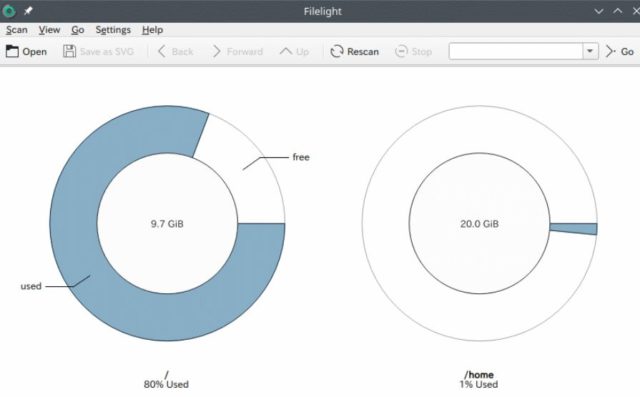
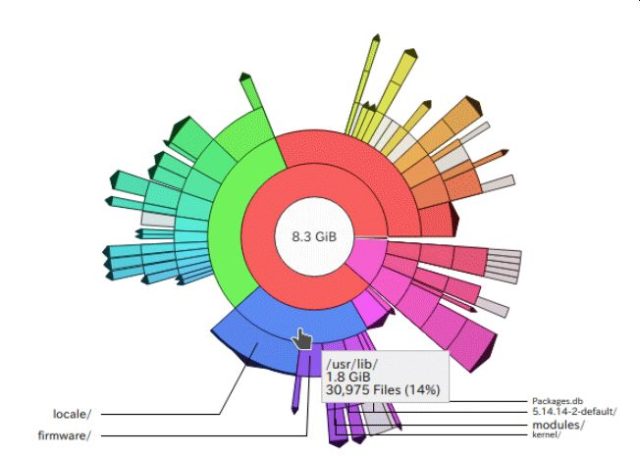
色が付いているところをクリックすると、その部分をドリルダウンして詳細を表示していきます。
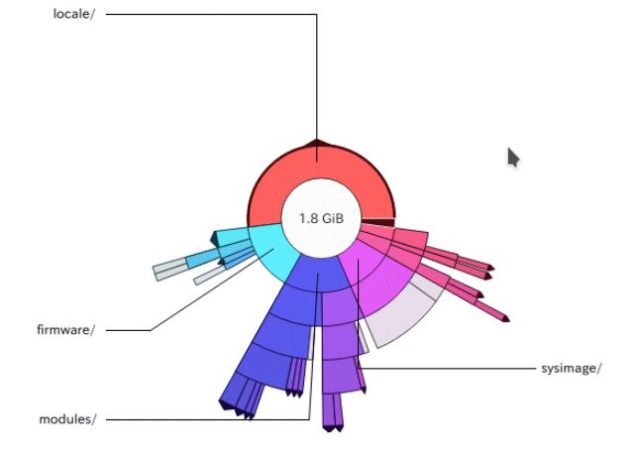
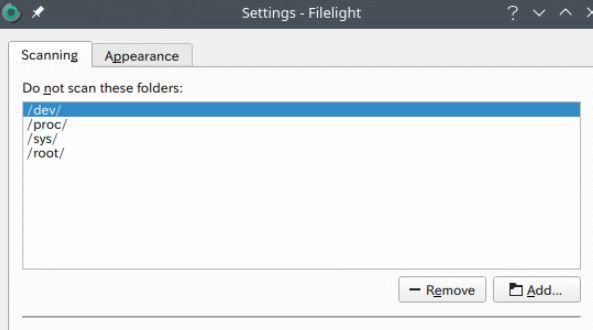
また、特定のディレクトリについては調査対象外とすることもできます。既定では、/dev,/proc,/sys,/root が除外対象になっています。
そのほかにも、注目しているところをズームインしたり、画像を SVG 形式で保存できる機能もあります。
ただ、ドリルダウンは、最初の状態、すなわちマウントポイント毎の表示画面には戻れません。あるマウントポイントのトップまでしか戻れません。別のマウントポイントの状況を見るときには、一旦 filelight を再起動する必要があります。/homeや/var などをそれぞれ別パーティションにしてマウントしている場合には少々不便です。
ただ、その点を考慮に入れても、状況をグラフィカルに見ることができるのはとても便利です。気軽に使えるツールとして常用しても良いと思います。
なお、filelight は、Windows 版もあります。Microsoft Store で入手が可能です。
KDE ECO en los podcast de GNU/Linux València
Me complace presentar a KDE ECO en los podcast de GNU/Linux València que fue grabado hace unos días y que tengo ya en mi playlist. Además del nuevo proyecto de KDE, en este podcast también se habla de NAS libres, los escáners de tinte, la Ley Iceta, VIziu y GNU Taler.
KDE ECO en los podcast de GNU/Linux València

Tras mucho tiempo en silencia, básicamente porque no tienen forma de cuadrar agendas, vuelven los podcast de GNU/Linux València. Unos podcast que suelen ser de tipo tertulia muy amena y destinada a todo el mundo.
En palabras de los miembros de la Asociación encargadas de publicar la entrada correspondiente a su podcast.
Hoy tenemos en el podcast a Alejandro, Julián, Voro y Taraak hablando de temas relacionados con el software y la cultura libres, de sus ventajas o de los inconvenientes de usar lo privativo. Entre otros:
- Nace KDE Eco, por un Software energéticamente eficiente [https://www.kdeblog.com/nace-kde-eco-por-un-software-energeticamente-eficiente.html]
- Problemas con las actualizaciones en el NAS
- ¿No hay tinta? ¡¡No va el escáner!! [https://open.lbry.com/@rossmanngroup:a/canon-disables-scanner-when-ink-runs:9]
- OpenBSD lanza su versión 7.0 [https://www.phoronix.com/scan.php?page=news_item&px=OpenBSD-7.0-Released]
- Contra la censura hoy, ayer y siempre [https://blogs.publico.es/dominiopublico/41020/ley-iceta-contra-la-censura-hoy-ayer-y-siempre/]
- Vizio demandado por violaciones de la licencia GPL
Finalmente, hablamos de la charla que se desarrolló ayer en Las Naves (¡gracias!) sobre GNU Taler, el software para un sistema de pago socialmente responsable [https://taler.net/es/index.html].
Y como es habitual en este tipo de entrada, os dejo directamente el audio para que lo disfrutéis.
Más información: GNU/Linux València
¡Únete a GNU/Linux València!
Aprovecho para recordar que desde hace unos meses, los chicos de GNU/Linux Valencia ya tienen su menú propio en el blog, con lo que seguir sus eventos en esta humilde bitácora será más fácil que nunca, y así podréis comprobar su alto nivel de actividades que realizan que destacan por su variedad.
Y que además, GNU/Linux València ha crecido y se ha ¡¡¡convertido en asociación!!! Así que si buscas una forma de colaborar con el Software Libre, esta asociación puede ser tu sitio. ¡Te esperamos!
第四世代 Intel CPU 使用時の poweroff バグを修正する
この記事は openSUSE Advent Calendar の6日目です。
通常、root になって、 poweroff コマンドを投入すると、システムはシャットダウン動作を行い、電源を落として停止します。しかし、第四世代 Intel CPU の場合、poweroff コマンドで一度電源断まで行ったのち、数秒後に再起動してしまいます。少なくとも手元の i3-4130T、i5-4200M ではこの現象が発生します。
これを解決するには、boot時、grub.cfg の中に、 linux /vmlinuz-........ xhci_hcd.quirks=0x2000
のように、パラメータを追加する必要があります。
第四世代 Intel CPU を使ったマシンは、今から7-8年くらい前のもので、少々古いマシンではありますが、使い方によってはまだまだ使えます。もしもなぜか再起動してしまうという現象にお悩みの場合には上記のパラメータを試してみてください。

三大雲平台工具容器升級小記 - ansible 2.11.6 / AWS Cli 2.4.5 / gcloud 365.0
三大雲平台工具容器升級小記 - ansible 2.11.6 / AWS Cli 2.4.5 / gcloud 365.0
OS: container with openSUSE Leap 15.3
上次升級是 2021/5/14 , 這次會來升級的原因是
更新 AWS Cli 以及 gcloud 版本
Ansible 在 2.10 以後的版本, 有很多 module 被移動到 Ansible Collections, 也就是說現在不是如同 Ansible 官網上面的 pip3 install ‘ansible[azure]’ 的安裝方式. 接下來就是透過 collection 方式來進行安裝
參考網路上的文章 https://stackoverflow.com/questions/64921336/warning-ansible-2-10-3-does-not-provide-the-extra-azure
https://docs.ansible.com/ansible/latest/scenario_guides/guide_azure.html
這樣也是好事, 之前也是因為這樣報了一個 issue ( 目前還是有 Bug, 持續回報中 )
然後也同步紀錄一下目前 Azure CloudShell 上面的 Ansible 資訊
Ansible: 2.10.2 / python 3.7.3

先整理結果
升級前
OS: openSUSE Leap 15.3
awscli: aws-cli/2.2.4 Python/3.8.8
gcloud: Google Cloud SDK 340.0.0
azure-cli: 2.23.0 (目前有 bug)
ansible: 2.10.9
升級後
OS: openSUSE Leap 15.3
awscli: aws-cli/2.4.5 Python/3.8.8
gcloud: Google Cloud SDK 365.0.0
azure-cli: 2.30.0 (目前有 bug)
ansible: 2.11.6
AWS CLI v2 安裝文件
GCP Cloud SDK 版本
另外此次執行 ansible --version 也會收到之後 ansible 需要 python 3.8 以上的告警, 訊息如下
[DEPRECATION WARNING]: Ansible will require Python 3.8 or newer on the controller starting with Ansible 2.12. Current version: 3.6.13 (default, Mar 10 2021, 18:30:35) [GCC]. This feature will be removed from ansible-core in version 2.12. Deprecation warnings can be disabled by setting deprecation_warnings=False in ansible.cfg.
這次的做法還是會透過 docker build 指令來進行
我有比較過 docker build 以及使用現有的 docker image 修改後再使用 docker commit 建立的 image 大小還是很有差異的
Dockerfile 的部分我是拿之前的 Dockerfile 來修改目前是 openSUSE Leap 15.3
修改細節
Update time
Google SDK 版本還有下載的檔案路徑以及檔案名稱
列出 diff 的結果給大家參考
> diff opensuseLeap153_ansible_20211205_Dockerfile opensuseLeap152_ansible_20210513_Dockerfile
1,2c1,2
< # openSUSE Leap 15.3 with ansible, azure-cli, aws cli, gcloud
< FROM opensuse/leap:15.3
---
> # openSUSE Leap 15.2 with ansible, azure-cli, aws cli, gcloud
> FROM opensuse/leap:15.2
6c6
< # update time: 20211205
---
> # update time: 20210513
13,14c13
< RUN zypper refresh && \
< zypper install -y python3-pip && \
---
> RUN zypper install -y python3-pip && \
76c75
< # Install google cloud SDK 365.0.0
---
> # Install google cloud SDK 340.0.0
78,79c77,78
< RUN wget https://dl.google.com/dl/cloudsdk/channels/rapid/downloads/google-cloud-sdk-365.0.0-linux-x86_64.tar.gz && \
< tar zxvf google-cloud-sdk-365.0.0-linux-x86_64.tar.gz && \
---
> RUN wget https://dl.google.com/dl/cloudsdk/channels/rapid/downloads/google-cloud-sdk-340.0.0-linux-x86_64.tar.gz && \
> tar zxvf google-cloud-sdk-340.0.0-linux-x86_64.tar.gz && \
Dockerfile 內容如下
我檔案的名稱取名爲 opensuseLeap153_ansible_20211205_Dockerfile
# openSUSE Leap 15.3 with ansible, azure-cli, aws cli, gcloud
FROM opensuse/leap:15.3
# Author
# MAINTAINER 已經棄用, 之後要使用 LABEL 方式
# update time: 20211205
LABEL maintainer="sakana@cycu.org.tw"
# Set LANG for UTF-8 - for Chinese
ENV LANG C.UTF-8
# Install python3-pip, upgrade pip, ansible, boto, boto3
RUN zypper refresh && \
zypper install -y python3-pip && \
pip3 install --upgrade pip && \
pip3 install ansible && \
pip3 install boto boto3
# Install openssh, set ls alias
RUN zypper install -y openssh
RUN echo "alias ls='ls --color=tty'" >> /root/.bashrc
# Install wget, download azure_rm.py, set permission
RUN zypper install -y wget
# azure_rm.py no need to download
# Starting with Ansible 2.8, Ansible provides an Azure dynamic-inventory plug-in
# https://docs.ansible.com/ansible/latest/plugins/inventory/azure_rm.html
# old azure_rm.py URL https://raw.githubusercontent.com/ansible/ansible/devel/contrib/inventory/azure_rm.py
#
# Create working directory in /root
RUN mkdir /root/.azure && \
mkdir /root/.aws && \
mkdir /root/playbook && \
mkdir -p /root/.config/gcloud && \
wget https://raw.githubusercontent.com/sakanamax/LearnAnsible/master/template/ansible.cfg && \
mv /ansible.cfg /root && \
wget https://raw.githubusercontent.com/sakanamax/LearnAnsible/master/template/hosts && \
mv /hosts /root
#### Azure ####
# Install azure-cli
# 2020/11/29 Still have az login issue in Github https://github.com/Azure/azure-cli/issues/13209
RUN zypper install -y curl && \
rpm --import https://packages.microsoft.com/keys/microsoft.asc && \
zypper addrepo --name 'Azure CLI' --check https://packages.microsoft.com/yumrepos/azure-cli azure-cli && \
zypper install --from azure-cli -y azure-cli
# Install Ansible azure module
# After ansible 2.10, some module move to ansible collect, change install method
RUN zypper install -y curl && \
curl -O https://raw.githubusercontent.com/ansible-collections/azure/dev/requirements-azure.txt && \
pip3 install -r requirements-azure.txt && \
rm -f requirements-azure.txt && \
ansible-galaxy collection install azure.azcollection
#install vim tar gzip jq unzip less bind-utils iputils groff
RUN zypper install -y vim tar gzip jq unzip less bind-utils iputils groff
RUN echo "set encoding=utf8" > /root/.vimrc
#### AWS ####
# Install awscli v1
#RUN pip3 install awscli
#RUN echo "source /usr/bin/aws_bash_completer" >> /root/.bashrc
# Install awscli v2
RUN curl "https://awscli.amazonaws.com/awscli-exe-linux-x86_64.zip" -o "awscliv2.zip" && \
unzip awscliv2.zip && \
/aws/install
RUN echo "complete -C '/usr/local/bin/aws_completer' aws" >> /root/.bashrc
#### GCP ####
# Install google cloud SDK 365.0.0
ENV CLOUDSDK_CORE_DISABLE_PROMPTS 1
RUN wget https://dl.google.com/dl/cloudsdk/channels/rapid/downloads/google-cloud-sdk-365.0.0-linux-x86_64.tar.gz && \
tar zxvf google-cloud-sdk-365.0.0-linux-x86_64.tar.gz && \
/google-cloud-sdk/install.sh && \
echo "if [ -f '/google-cloud-sdk/path.bash.inc' ]; then . '/google-cloud-sdk/path.bash.inc'; fi" >> /root/.bashrc && \
echo "if [ -f '/google-cloud-sdk/completion.bash.inc' ]; then . '/google-cloud-sdk/completion.bash.inc'; fi" >> /root/.bashrc
使用 docker build 指令建立 image
> docker build -t sakana/ansible_opensuse153:20211205 -f ./opensuseLeap153_ansible_20211205_Dockerfile .
使用 -f 指定 Dockerfile 名稱
最後是 ” . “ 目前的目錄
測試 container image
> docker run -v ~/.aws:/root/.aws -v ~/.azure:/root/.azure -v ~/.config/gcloud:/root/.config/gcloud -it sakana/ansible_opensuse153:20211205 /bin/bash
測試結果 OK, 建立 tag
這邊目前因為 openSUSE Leap 15 使用舊的 azure cli 以及相依性, 所以現在 az 指令會有問題, 已經 update issue 以及花了很多時間調整, 目前還是要等 openSUSE and Azure 看是否會有後續更新
但是 ansible with azure 沒有問題, 所以目前 az 指令可能會暫時透過 Azure cloud shell
觀察資訊
> docker images
REPOSITORY TAG IMAGE ID CREATED SIZE
sakana/ansible_opensuse153 20211205 66ae2ff51b1a 31 minutes ago 2.86GB
opensuse/leap latest 09d5e2cf44af 5 weeks ago 109MB
建立 tag
> docker tag 66ae2ff51b1a sakana/ansible_opensuse153:latest
登入 docker
> docker login
上傳 image
> docker push sakana/ansible_opensuse153:20211205
> docker push sakana/ansible_opensuse153:latest
完工, 以後使用就用
> docker run -v ~/.aws:/root/.aws -v ~/.azure:/root/.azure -v ~/.config/gcloud:/root/.config/gcloud -it sakana/ansible_opensuse153 /bin/bash
額外小記: 又碰到 Azure 的認證資訊已經超過一年了, 參考之前自己的筆記
http://sakananote2.blogspot.com/2020/05/azure-dynamic-inventory-with-ansible.html
使用 az ad sp list --all --output table | grep azure-cli 找出舊的認證,
刪除他 ex: # az ad sp delete --id d06f8905-ad21-425b-9da5-3e0bcf22a853
然後建立新的認證 ex: # az ad sp create-for-rbac --query '{"client_id": appId, "secret": password, "tenant": tenant}'
查詢 subscription_id, ex: # az account show --query "{ subscription_id: id }"
更新 ~/.azure/credentials
~ enjoy it
Reference:
http://sakananote2.blogspot.com/2021/05/ansible-2109-aws-cli-224-gcloud-3400.html
http://sakananote2.blogspot.com/2020/11/ansible-2103-azure-module.html
https://sakananote2.blogspot.com/2020/11/opensuse-leap-152-container.html
https://stackoverflow.com/questions/64921336/warning-ansible-2-10-3-does-not-provide-the-extra-azure
http://sakananote2.blogspot.com/2020/08/opensuse-leap-152-container.html
https://sakananote2.blogspot.com/2020/05/aws-cli-v2-with-opensuse-leap-151.html
http://sakananote2.blogspot.com/2020/01/python-3-with-opensuse-leap-151.html
http://sakananote2.blogspot.com/2019/07/with-opensuse-leap-15-container.html
http://sakananote2.blogspot.com/2019/05/ansible-azure-cli-awscli-gcloud-with.html
http://sakananote2.blogspot.com/2019/11/with-opensuse-leap-151-container.html
ArcStarry, cursores simpáticos para Plasma
Sigo pensando que en muchas ocasiones nos olvidamos que los cursores son una parte de esa personalización extrema a la que podemos llegar con nuestro Plasma. Hoy quiero toca hablar de un tema de cursores llamado ArcStarry que destaca por sus colores su estilo plano pero redondeado que le confieren mucha personalidad y que pueden quedar perfectos para temas navideños por su combinación de colores.
ArcStarry, cursores simpáticos para Plasma
Cada vez aprendo más sobre personalización de Plasma. Y es que no al ser tan modular, las opciones y los componentes a configurar son casi infinitos. Por suerte, los creadores de temas cada vez afinan más y más, y ofrecen dicha personalización a todos los niveles.
Nacidos de la mano y de la mente de yeyushengfan258 nos llega ArcStarry, un pack de cursores que combina el blanco y el azul para ofrecernos una simpática creación. O al menos así me lo parece a mi.

Y como siempre digo, si os gusta este conjunto de cursores ArcStarry podéis “pagarlo” de muchas formas en la página de KDE Store, que estoy seguro que el desarrollador lo agradecerá: puntúale positivamente, hazle un comentario en la página o realiza una donación. Ayudar al desarrollo del Software Libre también se hace simplemente dando las gracias, ayuda mucho más de lo que os podéis imaginar, recordad la campaña I love Free Software Day 2017 de la Free Software Foundation donde se nos recordaba esta forma tan sencilla de colaborar con el gran proyecto del Software Libre y que en el blog dedicamos un artículo.
Más información: KDE Store
Cómo cambiar el tema de los cursores en Plasma
Al igual que con los iconos hay varias formas de cambiar el tema de cursores en Plasma, hoy quiero explicar la de instalación «a mano»:
- Descargar el archivo Fuchsia o Fuchsia-popi desde la pestaña Files de KDE Store de Fuchsia.
- Abrir las Preferencias del Sistema.
- Ir a la sección Apariencia.
- Ir a la subsección Cursores.
- En esta ventana pinchar en “Instalar desde un fichero”
- Buscar el archivo descargado, y dar a instalar.
- Seleccionar el tema y aplicar.
Si tenéis dificultad, simplemente se debe descargar y extraer el tema en «/usr/share/icons» o «~/.icons».
Rápido, sencillo y efectivo, como la mayoría de cosas en en el escritorio Plasma de la Comunidad KDE.
packagesの説明文書を訳しつつ、使えるものを探してみました(F編その1)
この記事は openSUSE Advent Calendar の5日目です。
今回は fbi を紹介します。
パッケージ名 fbi
バージョン Retrieving package fbi-2.14-3.8.x86_64
動作 ○
少々物騒な名前ですが、フレームバッファ上にイメージを表示させるツールです。こんな感じで表示されます。

画面の下にはステータスが表示されています。
また、 -t オプションで、指定された秒数毎にループして複数の画像を表示させることもできます。そのとき、 –blend オプションを使用すると前後の画像をオーバラップすることができます。
コンソール上でちょっと画像をチェックしたり、X 環境なしで簡単なフォトビューワを作るときには便利に使えそうです。
Ryzen 7 5700G 搭載の新しいPCでopenSUSE Leap 15.3を使う
openSUSE Advent Calendar 2021 の 4日目です。書き手がまだまだ足りませんので、ぜひ気軽に投稿をお願いします。
今日は新しいPCの話です。これまでは、2012年に組んだ Core i7-3770S のデスクトップ PC を Windows 10 で、Dynabook VZ72 (i7-7500U) で openSUSE Leap を使ってきました。このデスクトップPCのほうが、まもなく10年ということもあり、時々フリーズしたり、性能不足なところもあり、半導体が高騰している微妙なタイミングですが、完全に壊れる前に買い換えることにしました。
構成
新しい PC の構成は次のとおりです。
- CPU: Ryzen 7 5700G
- M/B: Gigabyte X570S
- ネットワークカードは RTL8125 2.5GbE
- メモリー: SanMax Technologies PC4-25600 16GB CL22 Skhynix × 2
- SSD: CFD CSSD-M2B5GPG3VNF (512GB, PCIe Gen 4×4)
- ケース: Fractal Design Define 7 Compact
- 電源: Antec NeoECO GOLD 550W(旧PCから流用)
マザーボードが無駄にX570なのは、実家の DeskMini A300 の PC の調子が悪く、故障箇所の切り分けを行うために旧CPUに対応したX570にしました。ちょっと無駄です。さらに、GPU 内臓の Ryzen 7 5000G は PCIe が Gen 3 になってしまうので、X570 の意味がありません…。残ったメリットは、増設した場合のメモリークロックくらいでしょうか。
今回こそコンパクトな PC にしたいと思っていたのですが、この状況でマザーボードの選択肢が少なく、結局 ATX ケースになってしまいました。Fractal Design の 5インチベイのないコンパクトラインのケースなのですが、今まで使っていた 15年以上前の ATX ケースよりずいぶん大きいです。最近、デスクトップ PC をわざわざ買う人は、ハイエンドのグラッフィックカードを付けるからか仕方がないですね。HDD は NAS に移してしまったので、3.5インチや2.5インチベイも使っておらず、中身はすっからかんです。そのうち簡易水冷でも導入して有効活用することにしましょう。
openSUSE Leap を入れる
これまで、デスクトップでは Windows を使っていましたが、最近、Steam で配信されているゲーム(AOCとか)は Linux でも動くので、ホスト OS を openSUSE にしてしまうことにしました。加えて、openSUSE 界隈で流行っているかもしれない、PCI pass-through を使って、物理 GPU を Windows ゲストに直接接続すれば快適な Windows ゲスト環境が作れるはず…と考えていました。結局、Windows ゲストはちょっと試しただけで使っていないのですが、この話はまた今度。
さて、openSUSE Leap のカーネルは、新しいハードウェアに対応できるようにパッチがたくさん入っていますが、ちょっと古いです。そのため、最新のハードウェアでは一部の機能が使えないことがあります。今回、Leap は普通にインストールできましたが、画面の解像度が 4K にならないし、もっさりしていて、少なくともグラフィックドライバまわりが動いてない感じでした。
そんなときは、最新のカーネルを OBS から持ってきます。Leap 向けの最新カーネルは以下の OBS プロジェクトでビルドされています。このリポジトリを登録して、kernel-default や kernel-frimware-* をインストールすれば OK です。
https://build.opensuse.org/project/show/Kernel:stable:Backport
このリポジトリは openSUSE Leap としてメンテされているものではありませんのでご注意ください。
新しいPCは?
8コア、16スレッドということで、やっぱりパッケージのビルド作業が快適になりました。CPU内蔵のGPUですが、Full HDでゲームをする分には十分で、グラフィックカードを増設するのはだいぶ先になりそうです。
#openSUSE Tumbleweed revisión de la semana 48 de 2021
Tumbleweed es una distribución «Rolling Release» de actualización contínua. Aquí puedes estar al tanto de las últimas novedades.

openSUSE Tumbleweed es la versión «rolling release» o de actualización continua de la distribución de GNU/Linux openSUSE.
Hagamos un repaso a las novedades que han llegado hasta los repositorios esta semana.
El anuncio original lo puedes leer en el blog de Dominique Leuenberger, publicado bajo licencia CC-by-sa, en este este enlace:
Tumbleweed es imparable. Por segunda semana consecutiva se han publicado snapshots de manera diaria.
Se han publicado un total de 7 snapshots: 1125…1201.
Los cambios más notables han sido:
- PCRE2 10.39
- Mozilla Firefox 94.0.2
- gpg 2.3.3
- virtualbox 6.1.30
- fprintd 1.94.1
- Ruby CVE fixes
- Linux kernel 5.15.5
- bash 5.1.12
Y muchos cambios que se están probando y que pronto podremos disfruta. Por ejemplo:
- KDE Plasma 5.23.4
- Automake 1.16.5
- Mesa 21.3.1
- Poppler 21.11.0
- Linux kernel 5.15.6
- Harfbuzz 3.1.1
- GCC 11
- cmake 3.22.0
Si quieres estar a la última con software actualizado y probado utiliza openSUSE Tumbleweed la opción rolling release de la distribución de GNU/Linux openSUSE.
Mantente actualizado y ya sabes: Have a lot of fun!!
Enlaces de interés
-
-
- ¿Por qué deberías utilizar openSUSE Tumbleweed?
- zypper dup en Tumbleweed hace todo el trabajo al actualizar
- ¿Cual es el mejor comando para actualizar Tumbleweed?
- Comprueba la valoración de las «snapshots» de Tumbleweed
- ¿Qué es el test openQA?
- http://download.opensuse.org/tumbleweed/iso/
- https://es.opensuse.org/Portal:Tumbleweed
-

——————————–
openSUSE Tumbleweed – Review of the week 2021/48
Dear Tumbleweed users and hackers,
Tumbleweed has been strong and unstoppable: for the 2nd week in a row we have published daily snapshots, i.e. 7 snapshots since the late review. Snapshots were numbered 1125…1201.
The noteworthy changes in those snapshots were:
- PCRE2 10.39
- Mozilla Firefox 94.0.2
- gpg 2.3.3
- virtualbox 6.1.30
- fprintd 1.94.1
- Ruby CVE fixes: ruby 2.7.5 & ruby 3.0.3
- Linux kernel 5.15.5
- bash 5.1.12: /bin/sh is no longer managed using update-alternatives, but comes as part of bash-sh or alternative *-sh packages (currently only busybox-sh as alternative)
- Tumbleweed moved suse_version from 1550 to 1599 to avoid a possible conflict on internal config files of build with the upcming SLE15SP5/Leap 15.5 plans
Changes that are currently being built/tested in upcoming snapshots and stagings:
- KDE Plasma 5.23.4
- Automake 1.16.5
- Mesa 21.3.1
- Poppler 21.11.0
- Linux kernel 5.15.6
- Harfbuzz 3.1.1: NOTE: this has an ABI break over 2.9.x, but Leap/SLE are moving as well and biting the bullet, and other distros do too
- GCC 11: Enable the full cross compiler, cross-aarch64-gcc11 and cross-riscv64-gcc11 now provide a fully hosted C (and C++) cross compiler, not just a freestanding one
- cmake 3.22.0
- Moving default php version from php7 to php8
- Testing the results when moving system ruby from 2.7 to 3.0
- pipewire 0.3.40, with a move to from pipewire-media-session to wireplumber; currently failing openQA
- openSSL 3.0