
 Member
 Diamond_gr
Απενεργοποίηση ήχου κάμερας κατά την λήψη screenshot

ΠΡΟΒΛΗΜΑ
Σε συνέχεια του άρθρου Ένωση πολλών εικόνων σε ένα .pdf, θα δουμε πως μπορούμε να απενεργοποιήσουμε τον ήχο κάμερας που κάνει ο υπολογιστής με το πάτημα του πλήκτρου PrtScr. Αν δεν βγάζετε πολλά στιγμιότυπα οθόνης, δεν θα σας πειράζει, αλλά αν τυχόν βγάζετε συχνά, θα δείτε ότι είναι ενοχλητικό.ΛΥΣΗ
Όσο και να έψαξα κάποια ρύθμιση, δεν βρήκα κάτι. Η λύση δόθηκε με την «διαγραφή» του ήχου και αντικατάστασή του με ένα κενό ήχο. Πως γίνεται αυτό;Για αρχή μετονομάστε τον ήχο για να το έχετε σε περίπτωση που θέλετε να τον επαναφέρετε. Αυτό γίνεται με την εντολή (μία γραμμή):
Αντικαταστήστε το με ένα κενό ήχο (μία γραμμή).
Σε περίπτωση που θέλετε να επαναφέρετε τον ήχο της κάμερας, απλά δώστε την εντολή (μία γραμμή):
Αν έχετε βρει κάποιον άλλο τρόπο, αφήστε τον στα σχόλια.

El comando yes de #GNU
Veamos qué puede hacer y cómo podemos utilizar el comando yes de las herramientas coreutils del sistema GNU

Las herramientas coreutils del sistema GNU, son las herramientas básicas de nuestro sistema a la hora de gestionarlo desde la línea de comandos.
En esta ocasión echaremos al comando yes, que puede parecer “una frikada” un poco inútil, pero ¿podremos utilizarlo para algo útil? Seguro que sí…
Este artículo es una adaptación de este artículo en inglés escrito por Anoop.
El comando yes por sí solo, al ejecutarlo sin más en una consola, imprime una serie interminable de letras y. Y eso es todo lo que hace… Ejecuta en tu terminal:
yes
Para detener esa imparable secuencia de “y” utiliza la combinación de teclas Ctrl+c ¿Y eso qué sentido tiene?
Esta herramienta fue diseñada en principio para responder afirmativamente (“y” o “yes”) de manera automática a scripts o programas interactivos que pidieran una respuesta del usuario para confirmar una acción.
Pero desde hace tiempo esa funcionalidad quedó anticuada, ya que se han incorporado opciones que fuerzan (-f o –force) que se haga una acción sin necesidad de pedir una confirmación por parte del usuario.
Podemos hacer que el comando rm pregunte una confirmación antes de borrar unos archivos con la opción -i:
rm -i *.txt
Pero también podemos hacer que el comando yes conteste a todo que sí por nosotros:
yes | rm -i *.txt
Vale, este es un caso tonto sin mucho sentido, pero ¿ves cómo lo podríamos utilizar en otros casos?
Pero el comando yes hace algo más. Puede imprimir en la pantalla una secuencia interminable de la frase que le pases como comando. Ejecuta ahora:
yes hola mundo!!!
El comando imprime sin fin la cadena pasada y un salto de línea. De nuevo para detener esa secuencia interminable deberemos hacerlo con Ctrl+c
Casos de uso del comando yes
¿Y para qué podemos utilizar este comando? En principio no parece que tenga mucha utilidad, pero puede servirnos como herramienta en algunos casos.
Podemos generar archivos de texto grandes para utilizarlos en otras tareas. Por ejemplo:
yes 1234 qwer asdf zxcv > archivo.txt
Puede crearnos en pocos segundos un archivo llamado archivo.txt de varios Megas o Gigas, hasta que pulsemos Ctrl-c para detener el proceso.
Pero quizás queremos generar un archivo de un número determinado de líneas, por ejemplo 1000:
yes 1234 qwert asdf zxcv | head -1000 > archivo.txt
También podemos utilizar el comando yes para poner a prueba la CPU de nuestro equipo creando una tarea que haga que el sistema “se estrese” para comprobar que los ventiladores funcionan y todo el sistema responde a esta carga de trabajo.
Abre tu monitor del sistema (htop por ejemplo) y ejecuta:
yes > /dev/null
Verás que la carga de las CPU’s de tu equipo se ponen a trabajar al 100%.
También podemos utilizar el comando yes para comprobar si ciertos comando funcionan correctamente con una entrada tan extensa de comandos.
Como ves el comando es muy sencillo y seguro que respondió a una necesidad de los desarrolladores en aquellos primeros días de la creación del sistema GNU o Unix…
¿Utilizas en alguna ocasión el comando yes? ¿Lo utilizas de una forma distinta a las presentadas aquí? Comparte tus experiencias en los comentarios.

Kubic with Kubernetes 1.22.1 released
Announcement
The Kubic Project is proud to announce that snapshot 20210901 has been released containing Kubernetes 1.22.1.
Release Notes are avaialble HERE.
Upgrade Steps
All newly deployed Kubic clusters will automatically be Kubernetes 1.22.1 from this point.
For existing clusters, please follow our new documentation our wiki HERE
Thanks and have a lot of fun!
The Kubic Team
Akademy 2022 busca sede ¡anímate y presenta una candidatura!
Ha aparecido la noticia del dot (blog de anuncios de KDE) y es que la reunión internacional de desarrolladores y simpatizantes de KDE, Akademy 2022 busca sede y creo que si tienes un buen equipo de trabajo y ganas de reunir a lo mejor de la Comunidad KDE y del Software Libre en general esta es tu oportunidad.
Akademy 2020 busca sede ¡anímate y presenta una candidatura!
El pasado miércoles 1 de septiembre fue anunciado que Akademy 2022 busca sede europea para celebrar su evento anual, pensando que para el año que viene ya no tengamos restricciones pandémicas (o al menos que sean compatibles con un evento presencial).
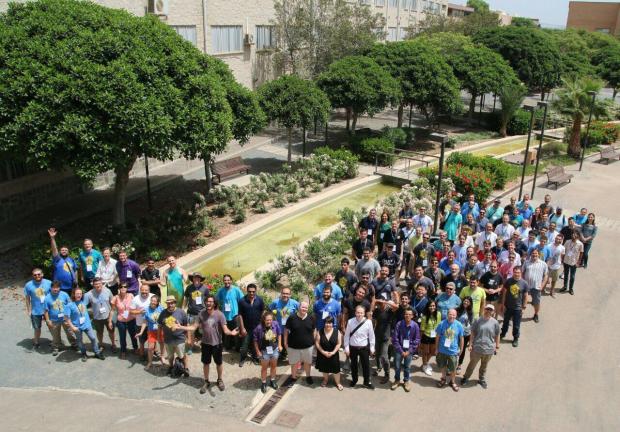
Los requisitos se pueden encontrar en el siguiente dossier.
A modo de resumen:
- El evento se celebrará en verano del hemisferio norte
- Se necesita un recinto para unas 300 personas con salas auxiliares para las conferencias en paralelo (para unas 150 personas)
- Las salas deben estar dotadas con proyectores, micrófonos, multitud de tomas de corriente y wifi o conexión de red (esto es deseable aunque no imprescindible).
- La sede debe contar buena comunicación con un aeropuerto, con un buen servicio de transporte público, alojamiento económico (tipo albergues o hostels) y comida también económica (aunque no necesariamente rápida).
- Además, para las sesiones de hacking se necesitan varias salas (de 6 a 10)para pequeños grupos de trabajo y una mayor para reuniones (para unas 300 personas)
Parece mucho, pero en realidad cualquier universidad que se precie debería poder ofrecer todas estas condiciones.
¿Qué es Akademy?
Para los que no lo sepan, Akademy es el evento de la Comunidad KDE que aúna en una gran conferencia todo tipo de simpatizantes de KDE como desarrolladores, diseñadores, usuarios, traductores, promotores. Allí se reunirán a lo largo de una semana para compartir charlas, cenas, ponencias, talleres y, en definitiva, para trabajar juntos.
Es una gran semana que sirve para unir más fuerte los lazos que unen nuestra Comunidad, así como para crear nuevos

openSUSE Results from Google Summer of Code
The openSUSE Project participated in this year’s Google Summer of Code along with several mentoring organizations.
Six of the seven accepted projects were successfully completed and mentors of the participating projects helped students improve their programming skills and knowledge of open source over the 10-week program.
Let’s review the contributions!
The first contribution we will cover involves the Uyuni Project. The purpose of the project was converting the JSP code of virtual systems pages to ReactJS. Improving the User Interface of freshly created virtual systems page resulted in a Pull Request 4152 that is listed as work in progress and is nearing completion.
Another contribution focused on improving the IBus themes to make it separate from the current GNOME-Shell theme and GTK theme. This will allow users to customize it with other GNOME-Shell themes and GTK themes. Three community members helped mentor. The student, Songlin Jiang, listed the entire GSoC experience on the Hollow Man’s Blog.
Another student blogging about their experience was Quinn Okabayashi from Swarthmore College. Quinn listed several Pull Requests on his blog while working on the identity management platform written in Rust called Kanidm. Quinn lists the code and details on the My project: integrating Tokio tracing into Kanidm blog.
More Rust code contributions were served up in this year’s GSoC as PRoot was looking to implement a prototype version of PRoot with the Rust language. The project was looking at the most basic features. Daily reports were published and a comprehensive overview can be found on GitHub Gist.
This year Rancher participated in GSoC with openSUSE as the mentoring organization. The mentor and student were focused on building complex logging pipelines by writing Kubernetes custom resource configurations. The goal was to create a tool that would capture a log stream from a running pod and let the users replay it as they desire while correlating those logs with Flow resource specs and highlighting the applied filters. Users could easily understand how the Logging Operator interacts with their application and fine-tune it to their liking. The month of August is filled with excellent contributions from Isala Piyarisi.
Kanidm had another project in this year’s GSoC and the final month of August was several commits from student victorcwai. There were two deliverables for the identity management platform by victorcwai. The first proposed using a Backup code to restore single-device accounts. Authenticated users could generate the Backup code and use it later. When they want to login, they can replace the TOTP/WebAuthn challenge with Backup code. For example, TOTP + password auth will be Backup code + password instead. The second deliverable was integrating the async-std library on OpenSSL and the Rust web framework tide to have an async library of openssl and tide ssl listener with the async-std runtime. A list of the pull requests and an overview of the project were published on victorcwai’s blog.
The openSUSE Project has participated in several GSoC events since 2006 and the project’s mentors have helped more than 60 students become free software developers. The project is always looking for community members who are interested in mentoring for GSoc and can email ddemaio@opensuse.org if they want to help mentor.
Magic Bricks
My first encounter with a digital camera was around 1996 when my university IT department acquired the Apple Quicktake 100. While the quality of the output was laughable compared to the analog counterparts, the convenience of such a device was clear. It wasn't too long after that when I got my first digital camera, the Ricoh RDC-5000 which I used to capture the new worlds I vistited. Many devices followed.
Ever since I switched from photo to video as my default media format of capturing places and moments, there have been three major attributes I would seek out of a camera. A nice separation of subjects using shallow depth of field, a dreamy slow motion look using high frame rates and a pleasing image using optical or electronic stabilization.
All of these fields have been getting steady improvements and I always fantasize how my young self would react to seeing footage taken from a tiny little rectangle I carry around in my pocket. It is just incredible that the footage below is hand held and the cameraman is not driving a onewheel or using a gimbal, steadycam or some other aid. Just ninja walking. When do we stop calling these magic bricks phones?
Magic Bricks
My first encounter with a digital camera was around 1996 when my university IT department acquired the Apple Quicktake 100. While the quality of the output was laughable compared to the analog counterparts, the convenience of such a device was clear. It wasn’t too long after that when I got my first digital camera, the Ricoh RDC-5000 which I used to capture the new worlds I vistited. Many devices followed.
Ever since I switched from photo to video as my default media format of capturing places and moments, there have been three major attributes I would seek out of a camera. A nice separation of subjects using shallow depth of field, a dreamy slow motion look using high frame rates and a pleasing image using optical or electronic stabilization.
All of these fields have been getting steady improvements and I always fantasize how my young self would react to seeing footage taken from a tiny little rectangle I carry around in my pocket. It is just incredible that the footage below is hand held and the cameraman is not driving a onewheel or using a gimbal, steadycam or some other aid. Just ninja walking. When do we stop calling these magic bricks phones?
Skate Your Name: Patrik from jimmac on Vimeo. Music arranged on Polyend Tracker.

Quelques photos du SFD du 4 sept à Rouen, Normandie
We Had A Lot Of Fun 🙂 All sfd21
The post Quelques photos du SFD du 4 sept à Rouen, Normandie appeared first on Cybersécurité, Linux et Open Source à leur plus haut niveau | Network Users Institute | Rouen - Normandie.
Dia de la Llibertat del Programari 2021
Normalmente se me pasa este evento hasta que es tarde. Se trata de la celebración que habitualmente organiza Caliu del Dia de la Llibertat del Programari 2021 en Barcelona el próximo 18 de septiembre que se enmarca dentro del Software Freedom Day. Un evento donde la Comunidad KDE suele estar muy presente y que este año no va a ser una excepción.
Dia de la Llibertat del Programari 2021
La convocatoria se ha realizado en catalán, y la podéis ver en la página del evento organizado por Caliu, pero me he tomado la libertad de traducirla para el blog e intentar conseguir dos objetivos: llamar la atención para que vaya más gente e inspirar a otras organizaciones a realizar acciones parecidas en su zona local.
Ven a celebrar el Software Libre en un día de actividades
Mediante el uso del software libre, obtenéis el control sobre vuestro ordenador y vuestros datos. Cada persona tiene la libertad de participar y de usar el software libre, ya sea usando un sistema operativo completamente libre cómo lo GNU/Linux o una plataforma no libre como Windows o Mac OS usando programas libres.

El Software Libre se define por las libertades de uso, de estudio y adaptación, de redistribución y distribución de las mejoras, de forma que todo el mundo se pueda beneficiar.
El acceso al código fuente es necesario para disfrutar de esta libertad. Estas cuatro libertades permiten la participación igualitaria en la era de la información.
La información de interés y las charlas son las siguientes:
- Espacio Joven Bocanord
- Agudells, 37
- Metro Lo Carmel
| Hora | Título | Ponente |
|---|---|---|
| 17:30 | Servicios y administración del servidor de Caliu | Alex Muntada y Aniol Martí |
| 18:30 | hardware y KDE | Aleix Pol |
| 19:30 | Firmas digitales a ficheros PDF con Okular | Albert Astals |
| 20:00 | Coloquio | Caliu |
Lástima que de momento solo haya un evento de este día en todo la península.
