
 Member
 CzP
CzPParsing Fortigate logs and other syslog-ng 3.31 news
Version 3.31 of syslog-ng has been released recently. One of its most user-visible features is the parser for Fortigate logs, yet another networking vendor that produces log messages not conforming to syslog specifications. Parsing Fortigate logs builds upon the new no-header flag of syslog-ng combined with the key-value and date parsers. Other features include a new silent message option for the Telegram destination and automatic directory creation for disk-buffer files.
Note: as you could guess from the previous paragraph, Fortigate is not alone. Cisco also has “interesting” log messages, and a bit of extra parsing also helps with PAN-OS, even if their messages conform to syslog specifications.
Before you begin
In this blog, we check out some of the new features of syslog-ng 3.31. If you want to test them, you need to install syslog-ng 3.31 or later (I’m running a Git snapshot version on my laptop). It is available already in FreeBSD ports, but most Linux distributions carry older versions. Check the 3rd-party binaries page on the syslog-ng website if there are up-to-date 3rd-party packages for your distribution of choice: https://www.syslog-ng.com/3rd-party-binaries
Once you have syslog-ng 3.31 up and running, you are ready to test some of the new features. Let’s start with some of the smaller features and finish with the big one!
Disk buffer directory
Prior to version 3.31 of syslog-ng, you had to create a directory for disk buffer files manually before starting syslog-ng. If the directory was missing, syslog-ng stopped with an error. In my latest syslog-ng article on opensoure.com, where syslog-ng on a Raspberry Pi machine buffers sensor data until the server becomes available, I also warn you to create the directory.
Starting with version 3.31, if the directory specified in the configuration does not exist, syslog-ng creates it automatically.
Silent Telegram messages
Sending alerts to Telegram from syslog-ng has been possible for years already. But there are some situations when you want to receive all the interesting messages on your mobile without being disturbed each time a new message arrives. This is where the new disable_notification() option to the Telegram destination can come handy. If set to `True`, your mobile receives the new messages without alerting you each time.
“no-header” flag for the syslog parser
Some log messages only keep the PRI field from the syslog specification, but they lack a proper syslog header. Among others, Fortigate logs belong to these log messages. In this case, you can use the “no-header” flag on incoming log messages. This way, syslog-ng parses the PRI field, and puts the rest of the log message into $MSG. If the message is otherwise structured, you can parse it further, extract the date using the date parser, and create name-value pairs from other useful information.
Working with Fortigate logs
Here are some sample Fortigate log messages. These were used to test the new parser, and we will use them as well. You can copy and paste them from here or from /usr/share/syslog-ng/include/scl/fortigate/fortigate.conf as well:
<189>date=2021-01-15 time=12:58:59 devname="FORTI_111" devid="FG100D3G12801312" logid="0001000014" type="traffic" subtype="local" level="notice" vd="root" eventtime=1610704739683510055 tz="+0300" srcip=91.234.154.139 srcname="91.234.154.139" srcport=45295 srcintf="wan1" srcintfrole="wan" dstip=213.59.243.9 dstname="213.59.243.9" dstport=46730 dstintf="unknown0" dstintfrole="undefined" sessionid=2364413215 proto=17 action="deny" policyid=0 policytype="local-in-policy" service="udp/46730" dstcountry="Russian Federation" srccountry="Russian Federation" trandisp="noop" app="udp/46730" duration=0 sentbyte=0 rcvdbyte=0 sentpkt=0 appcat="unscanned" crscore=5 craction=262144 crlevel="low"
<189>date=2021-01-15 time=12:58:59 devname="FORTI_111" devid="FG100D3G12801312" logid="0001000014" type="traffic" subtype="local" level="notice" vd="root" eventtime=1610704739683498829 tz="+0300" srcip=91.234.154.139 srcname="91.234.154.139" srcport=45295 srcintf="wan1" srcintfrole="wan" dstip=213.59.243.9 dstname="213.59.243.9" dstport=46730 dstintf="unknown0" dstintfrole="undefined" sessionid=2364413214 proto=17 action="deny" policyid=0 policytype="local-in-policy" service="udp/46730" dstcountry="Russian Federation" srccountry="Russian Federation" trandisp="noop" app="udp/46730" duration=0 sentbyte=0 rcvdbyte=0 sentpkt=0 appcat="unscanned" crscore=5 craction=262144 crlevel="low"
<189>date=2021-01-15 time=12:58:59 devname="FORTI_111" devid="FG100D3G12801312" logid="0000000013" type="traffic" subtype="forward" level="notice" vd="root" eventtime=1610704739683525562 tz="+0300" srcip=10.9.1.26 srcname="sotina-sv" srcport=61105 srcintf="9 VLAN" srcintfrole="lan" dstip=77.88.55.66 dstname="www.yandex.ru" dstport=443 dstintf="wan1" dstintfrole="wan" sessionid=2364410752 proto=6 action="close" policyid=42 policytype="policy" poluuid="c1e5431a-d082-51e7-53e0-d3a8ab1a3ee2" service="HTTPS" dstcountry="Russian Federation" srccountry="Reserved" trandisp="snat" transip=213.59.243.9 transport=61105 appid=42899 app="Yandex" appcat="General.Interest" apprisk="elevated" applist="Application Control_User" duration=15 sentbyte=7286 rcvdbyte=1490 sentpkt=16 rcvdpkt=8 wanin=1158 wanout=6470 lanin=6470 lanout=6470 utmaction="allow" countapp=1 osname="Windows" srcswversion="7" unauthuser="sotina-sv" unauthusersource="kerberos" mastersrcmac="00:24:21:ac:fb:da" srcmac="00:24:21:ac:fb:da" srcserver=0
<189>date=2021-01-15 time=12:58:59 devname="FORTI_111" devid="FG100D3G12801312" logid="0001000014" type="traffic" subtype="local" level="notice" vd="root" eventtime=1610704739683532607 tz="+0300" srcip=94.143.50.155 srcname="94.143.50.155" srcport=56368 srcintf="wan1" srcintfrole="wan" dstip=213.59.243.9 dstname="213.59.243.9" dstport=46730 dstintf="unknown0" dstintfrole="undefined" sessionid=2364413216 proto=6 action="deny" policyid=0 policytype="local-in-policy" service="tcp/46730" dstcountry="Russian Federation" srccountry="Russian Federation" trandisp="noop" app="tcp/46730" duration=0 sentbyte=0 rcvdbyte=0 sentpkt=0 appcat="unscanned" crscore=5 craction=262144 crlevel="low"
As you can see, these lines start as any other log messages start, with a <PRI> field, but otherwise, they lack a proper syslog header. All further data is described as name-value pairs.
When we send this log to a port without Fortigate parsing enabled, the results are far from ideal. The date and time of the message will reflect the current time instead of the time encoded in the log message:
Mar 12 15:14:21 localhost date=2021-01-15 time=12:58:59 devname="FORTI_111" devid="FG100D3G12801312" logid="0001000014" type="traffic" subtype="local" level="notice" vd="root" eventtime=1610704739683510055 tz="+0300" srcip=91.234.154.139 srcname="91.234.154.139" srcport=45295 srcintf="wan1" srcintfrole="wan" dstip=213.59.243.9 dstname="213.59.243.9" dstport=46730 dstintf="unknown0" dstintfrole="undefined" sessionid=2364413215 proto=17 action="deny" policyid=0 policytype="local-in-policy" service="udp/46730" dstcountry="Russian Federation" srccountry="Russian Federation" trandisp="noop" app="udp/46730" duration=0 sentbyte=0 rcvdbyte=0 sentpkt=0 appcat="unscanned" crscore=5 craction=262144 crlevel="low"
By using the fortigate-parser(), we can extract the date from the message and also create name-value pairs from the message. This enables easier filtering (alerting), saving only specific fields to save space, or storing specific fields to an SQL or noSQL database, like Elasticsearch.
Luckily, there is no need to configure the fortigate-parser() yourself. Unless you have a high message rate, where even the smallest extra processing counts, using the default-network-drivers() of syslog-ng is easier. It parses Fortigate logs, and many other message types automatically. For this scenario and for other debugging ideas, check the Cisco parser blog at https://www.syslog-ng.com/community/b/blog/posts/parsing-cisco-logs-in-syslog-ng
The following configuration uses the default-network-drivers with a JSON-formatted destination file. This way, you can see that syslog-ng parses the logs and creates name-value pairs from them.
source s_net {
    default-network-drivers();
};
template t_jsonfile {
    template("$(format-json --scope rfc5424 --scope dot-nv-pairs
        --rekey .* --shift 1 --scope nv-pairs --key ISODATE)\n\n");
};
destination d_fromfortigate {
    file("/var/log/fromfortigate" template(t_jsonfile));
};
log {
    source(s_net);
    destination(d_fromfortigate);
};
The source is default-network-drivers() and it listens on TCP port 514. The template uses JSON formatting, includes any syslog fields and removes the leading dots from name-value pairs (by default syslog-ng parsers create names that start with a dot, but it can cause weird problems for example with Elasticsearch) before storing them. Then, apply this template to a destination file. Finally, a log statement connects the source to the destination.
Using netcat, you can send the test messages to the network source on port 514 and check the results:
czplaptop:~ # cat fortigate.txt | netcat -4 -n -N -v 127.0.0.1 514
Connection to 127.0.0.1 514 port [tcp/*] succeeded!
czplaptop:~ # cat /var/log/fromfortigate
{"fortigate":{"vd":"root","tz":"+0300","type":"traffic","trandisp":"noop","time":"12:58:59","subtype":"local","srcport":"45295","srcname":"91.234.154.139","srcip":"91.234.154.139","srcintfrole":"wan","srcintf":"wan1","srccountry":"Russian Federation","sessionid":"2364413215","service":"udp/46730","sentpkt":"0","sentbyte":"0","rcvdbyte":"0","proto":"17","policytype":"local-in-policy","policyid":"0","logid":"0001000014","level":"notice","eventtime":"1610704739683510055","duration":"0","dstport":"46730","dstname":"213.59.243.9","dstip":"213.59.243.9","dstintfrole":"undefined","dstintf":"unknown0","dstcountry":"Russian Federation","devname":"FORTI_111","devid":"FG100D3G12801312","date":"2021-01-15","crscore":"5","crlevel":"low","craction":"262144","appcat":"unscanned","app":"udp/46730","action":"deny"},"app":{"name":"fortigate"},"SOURCE":"s_net","PRIORITY":"notice","MESSAGE":"date=2021-01-15 time=12:58:59 devname=\"FORTI_111\" devid=\"FG100D3G12801312\" logid=\"0001000014\" type=\"traffic\" subtype=\"local\" level=\"notice\" vd=\"root\" eventtime=1610704739683510055 tz=\"+0300\" srcip=91.234.154.139 srcname=\"91.234.154.139\" srcport=45295 srcintf=\"wan1\" srcintfrole=\"wan\" dstip=213.59.243.9 dstname=\"213.59.243.9\" dstport=46730 dstintf=\"unknown0\" dstintfrole=\"undefined\" sessionid=2364413215 proto=17 action=\"deny\" policyid=0 policytype=\"local-in-policy\" service=\"udp/46730\" dstcountry=\"Russian Federation\" srccountry=\"Russian Federation\" trandisp=\"noop\" app=\"udp/46730\" duration=0 sentbyte=0 rcvdbyte=0 sentpkt=0 appcat=\"unscanned\" crscore=5 craction=262144 crlevel=\"low\"","ISODATE":"2021-01-15T12:58:59+01:00","HOST_FROM":"localhost","HOST":"localhost","FACILITY":"local7","DATE":"Jan 15 12:58:59"}
[…]
You can see all the name-value pairs extracted from the log messages, including a proper date as found in the log message.
What is next?
These were just my highlights from the 3.31 syslog-ng release. For the complete list of changes, check https://github.com/syslog-ng/syslog-ng/releases/tag/syslog-ng-3.31.1 where you might find other new features or bugfixes that might convince you to upgrade syslog-ng on your hosts.
If you have questions or comments related to syslog-ng, do not hesitate to contact us. You can reach us by email or even chat with us. For a list of possibilities, check our GitHub page under the “Community” section at https://github.com/syslog-ng/syslog-ng. On Twitter, I am available as @Pczanik.
packagesの説明文書を訳しつつ、使えるものを探してみました(G編)
前回は K でしたが、今回は G です。GAP 、GPS 関連のパッケージが多数ありました。ただ、取り上げられそうなものはあまりなく、1つだけです。
パッケージ名 Gcompris
バージョン gcompris-qt-1.0-2.1
動作 ○
詳細
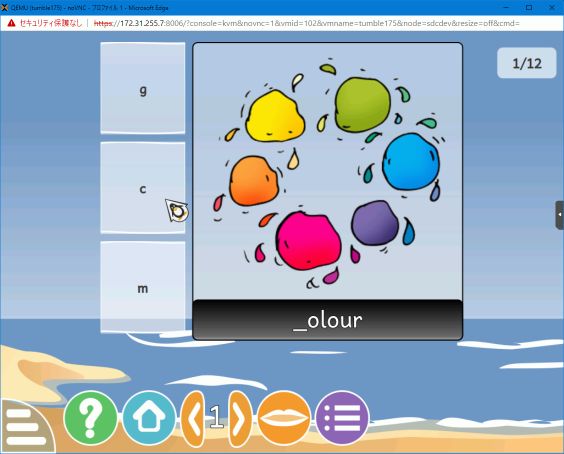
2歳から10歳までの子供向けの教育ソフトです。かなりの数の小さなアクティビティが含まれています。それなりに良く出来ています。但し、日本語には対応していません。いくつかの言語向けの翻訳はあるのですが。
そのため、日本ではあまり使い道はないでしょう。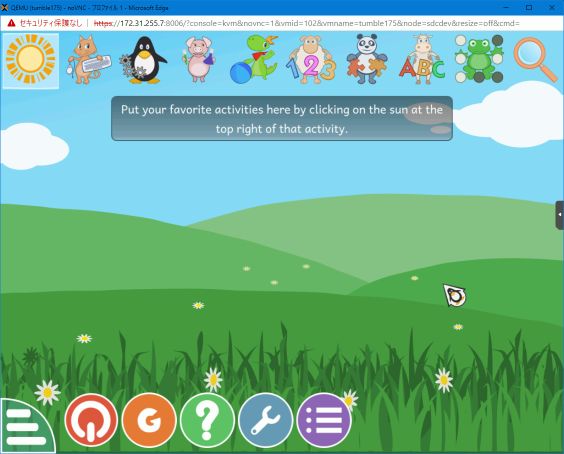
Presenta tu charla a Akademy 2021, edición en línea
Este año, como el anterior, Akademy 2021 se celebrará en línea del 18 al 25 de Junio. Ayer mismo se abrió el Call for Papers, es decir, el momento de participar activamente en el evento. Así que ya sabes: presenta tu charla a Akademy 2021 y presenta al mundo tu proyecto.
Presenta tu charla a Akademy 2021, edición en línea

A pesar de todas las restricciones para vernos que tenemos debido a la pandemia que ya dura un año, los eventos comunitarios no se han detenido.
El pasado 25 de febrero compartí con vosotros que este año Akademy 2021 se realizaría en línea del 18 al 25 de junio, en una edición que continua con el formato del 2020
Siguiendo el esquema habitual, las charlas se realizarán en línea el sábado 19, el domingo 20 y medio día del viernes 25, dejando el resto de días para el trabajo en pequeños grupos en sala más reservadas pero no privadas, es decir, que no están cerradas sino que todo el que quiera aportar algo está invitado.
Como se ha comentado en anteriores ocasiones, uno de los objetivos de Akademy es aprender y enseñar nuevos conocimientos y compartir entre nosotros la pasión de lo que se hace en KDE.
Para compartir ideas, experiencias o momentos, se reservan talleres específicos en la sede (o se aprovechan los corrillos en los pasillos, las cenas o los momentos de barra), pero para enseñar y compartir detalles técnicos se utilizan las charlas.

Si crees que tienes algo importante que presentar, por favor házselo saber a la organización. Y si crees que alguien debería presentar su ponencia, no dejes de animarlo para que lo haga. Todas las contribuciones son útiles.
Para más detalles, mira las líneas generales del Call for Papers. Tienes de plazo para enviar tu propuesta hasta el domingo 2 de mayo 23:59:59 CEST.
¿Qué es Akademy?
Para los que no lo sepan, Akademy es el evento de la Comunidad KDE que aúna en una gran conferencia todo tipo de simpatizantes de KDE como desarrolladores, diseñadores, usuarios, traductores, promotores, ideólogos, etc. Allí se reunirán a lo largo de una semana para compartir charlas, cenas, ponencias, talleres y, en definitiva, para trabajar juntos.
Es una gran semana que sirve para unir más fuerte los lazos que unen nuestra Comunidad, así como para crear nuevos que se mantendran gracias a las listas de correo, canales irc o Sprints.
Hay que recordar que en España tenemos gran tradición en la celebración de Akademy ya que en 2005 se celebró en Málaga , en 2011 en Gran Canaria, en 2013 en Bilbao, en 2015 en A Coruña y en 2017 en Almería, todos esos años junto con Akademy-es (como este año), y que fue un gran éxito tanto de asistentes, como de ponencias o de resultados. Así que no tienes excusa para asistir ya que por el «precio» de uno este año tienes dos grandísimos eventos a tu alcance.
packagesの説明文書を訳しつつ、使えるものを探してみました(K編)
前回は X でしたが、今回は K です。Kは、KDE関係が多いようです。そのほかに、kubernetes や kopano というツール群のファイルもかなりあります。
パッケージ名 kalzium
バージョン kalzium-20.12.2-1.2
動作 ◎
詳細
周期律表です。日本語も表示されます。ちゃんとメンテナンスされているようで、Nihonium も載っていました。起動した段階では、各元素毎の表示項目は最小限のみです。
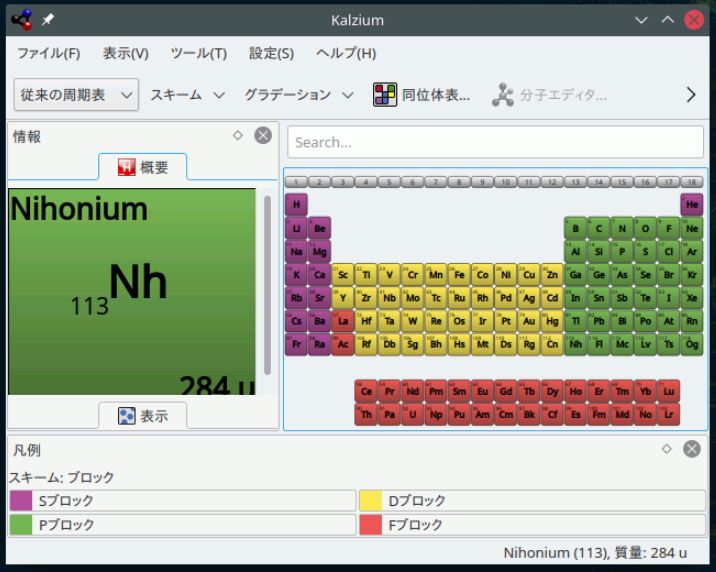
しかしメニューを選ぶことでかなり色々な表示が出来ます。たとえば、その元素にまつわるイラストを表示してみたり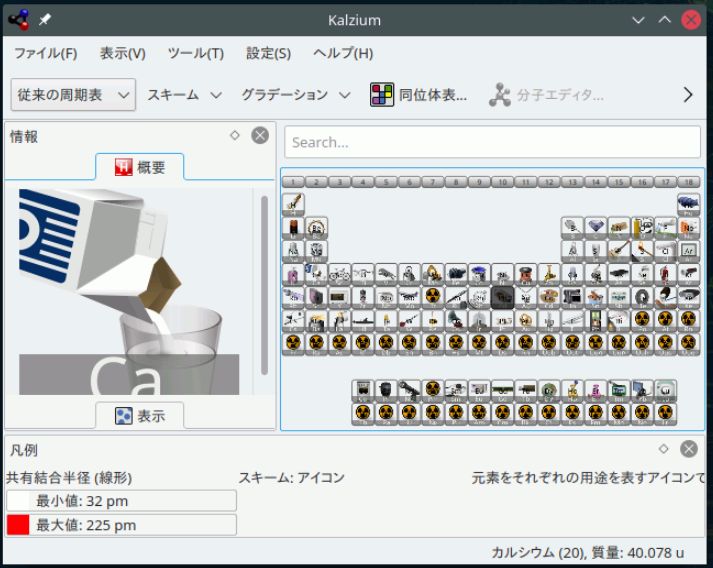
元素データの概要を表示することも出来ます。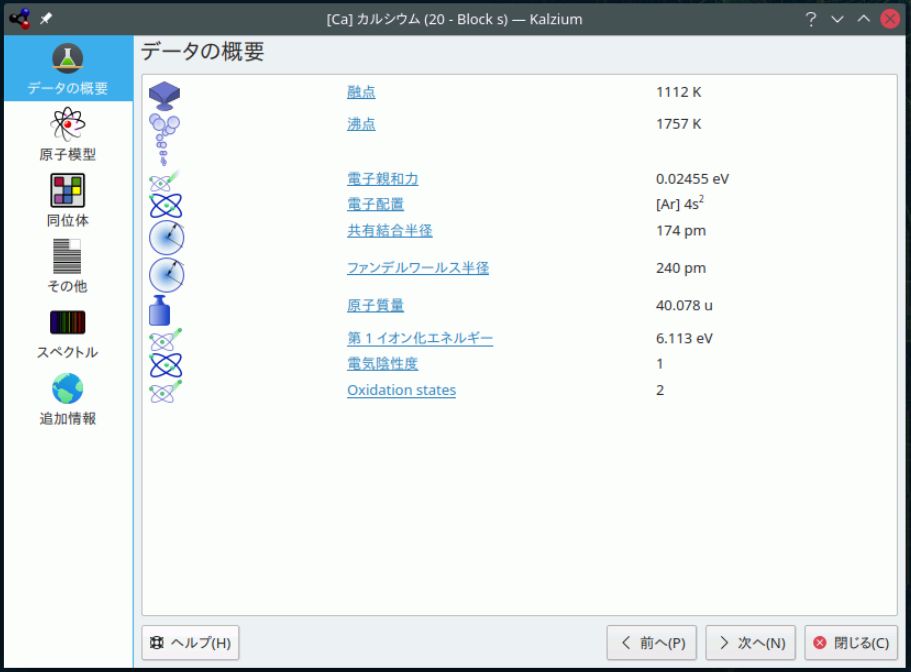
パッケージ名 klavalo
バージョン klavaro-3.11-1.2
動作 ◎
詳細
タッチタイプ練習ソフトです。オーソドックスに、ステップバイステップで練習することが出来るようになります。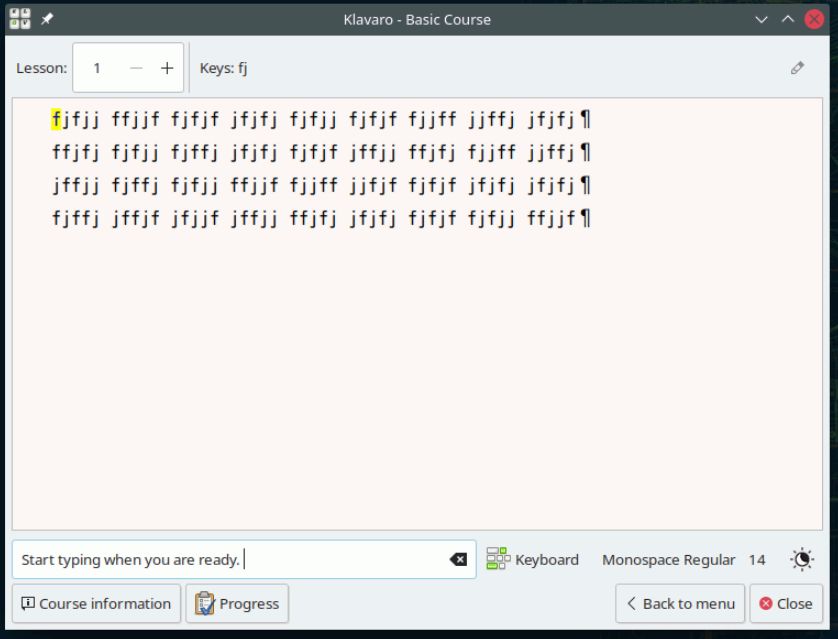
良く出来ているところは、キーマップを色々と替えられるところです。標準では qwerty USA キーボードですが、dvorakにも対応しています。dvorakにすると練習用データも dvorakに切り替わります。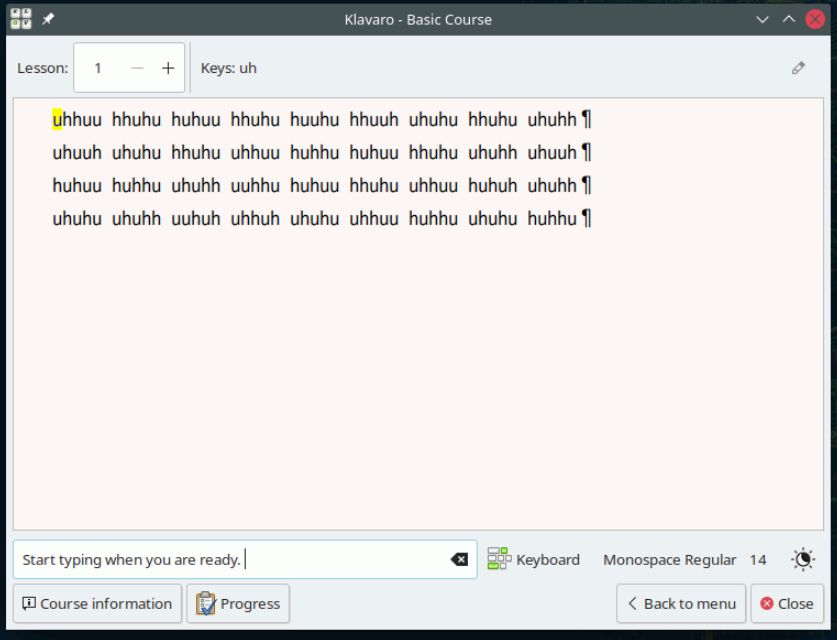
日本語キーボードにも対応しています。特殊記号の位置が正しい場所に来ます。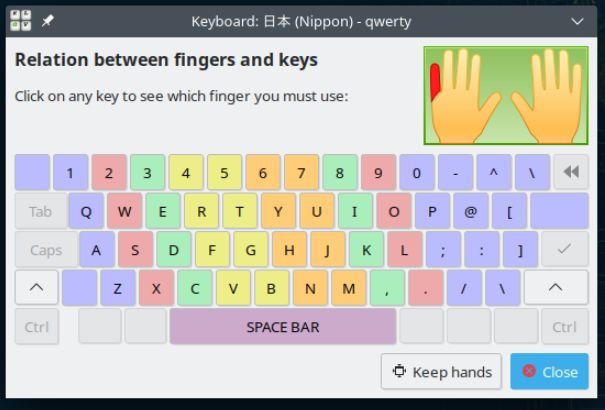
タッチタイプ練習ソフトには、コンソール用の GNU typist (gtypist) がありますが、日本語キーボードに対応している点、GUIで見やすい点でこちらの方が使い勝手が良いでしょう。
パッケージ名 krename
バージョン krename-5.0.1-2.3
動作 ◎
詳細
ファイルリネームツールです。GUI で対話的にファイル名を変更できます。単に名前を置き換えるだけではなく、順番に番号を振るとか、接頭辞、接尾辞を付けるなども出来ます。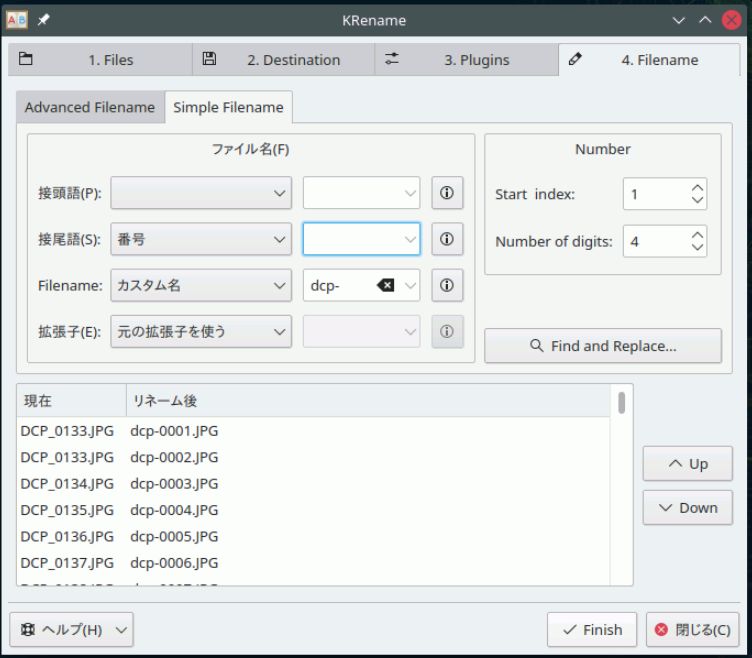
また、プラグインがあり、日付などの変更も出来ます。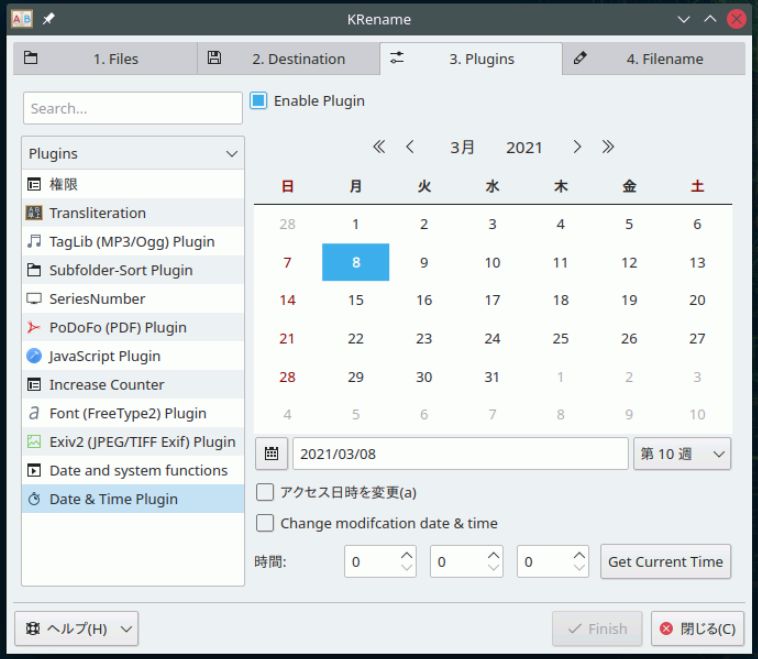
パッケージ名 kstars
バージョン kstars-3.5.2-1.1
動作 ◎
詳細
いわゆるデスクトッププラネタリウムです。そこそこ日本語化されていて、星座名などは日本語で表示されます。オプションで星座の絵も表示できます。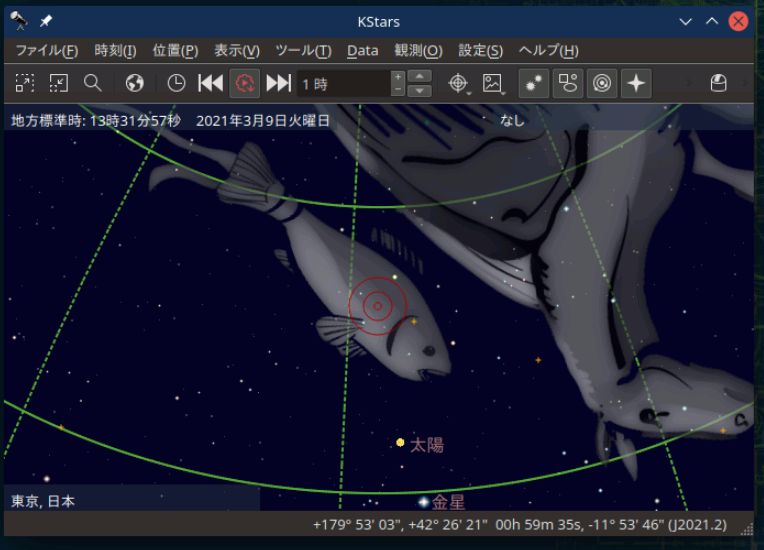
観測地点も予め日本のいくつかの都市がプリセットされています。野辺山とか飛騨とか、たぶん天文台がある所も含まれているのが面白いところです。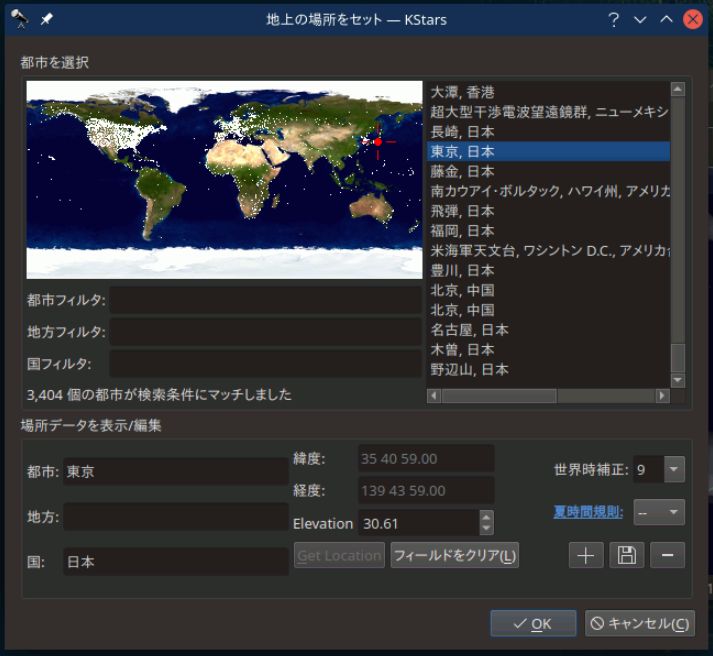
パッケージ名 ksystemlog
バージョン ksystemlog-20.12.2-1.2
動作 ◎
詳細
システムのログを GUI で表示するツールです。kernelのログ、X.org のログ、systemd のログが選べます。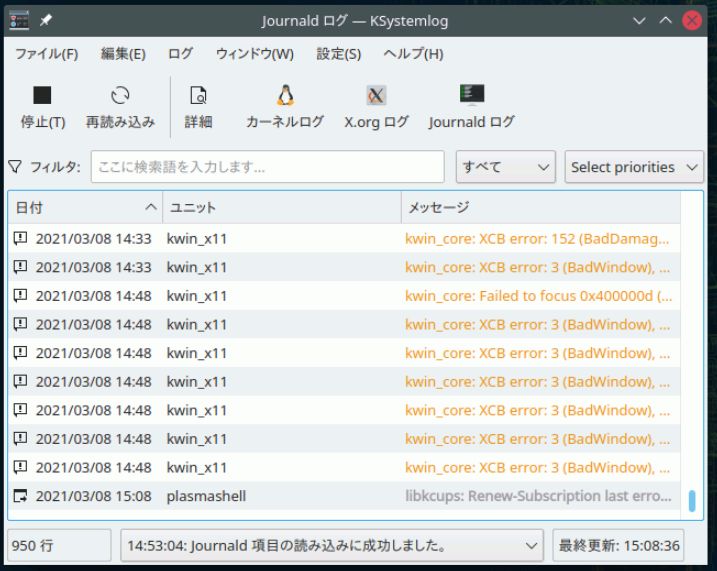
各行をクリックすることで詳細が表示されます。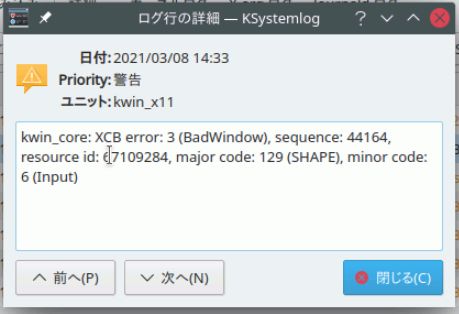
時々刻々と追加されているログについても、常時モニタしていますので、手軽にログを見たいときには便利でしょう。ただ、任意のログを見ることは出来なさそうなのですが。
パッケージ名 ktouch
バージョン ktouch-20.12.2-1.2
動作 ◎
詳細
これもタッチタイプ練習ソフトです。最初にレベル指定をした後 練習モードに入ります。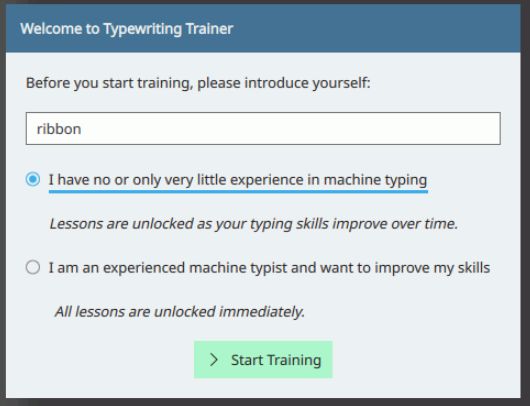 いくつかコースは予め用意されています。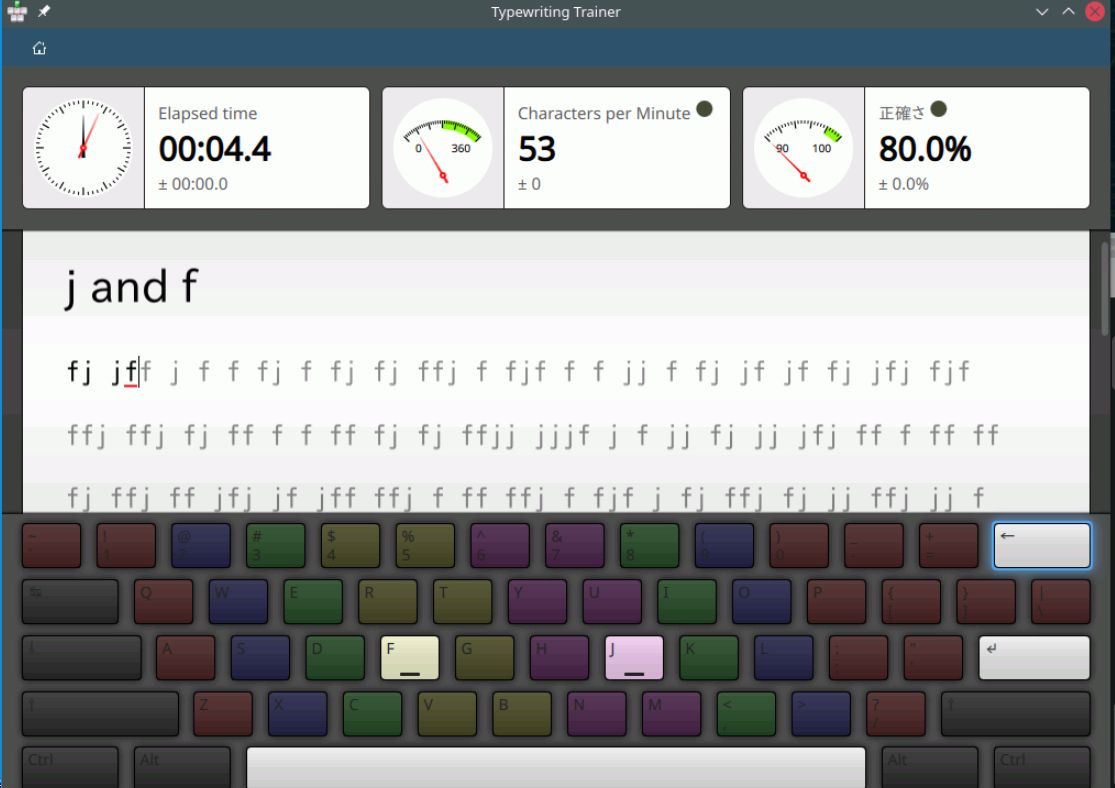
ただし、日本語キーボードには未対応、コースもそれほど多いわけではないので、先に紹介した klavaro と比べると見劣りがします。klavaro がある以上こちらを選ぶ必要性はなさそうです。

Playing along with NFTables
By default, openSUSE Leap 15.x is using the firewalld firewall implementation (and the firewalld backend is using iptables under the hood).
But since a while, openSUSE also has nftables support available - but neither YaST nor other special tooling is currently configured to directly support it. But we have some machines in our infrastructure, that are neither straight forward desktop machines nor do they idle most of the time. So let’s try out how good we are at trying out and testing new things and use one of our central administrative machines: the VPN gateway, which gives all openSUSE heroes access to the internal world of the openSUSE infrastructure.
This machine is already a bit special:
- The “external” interface holds the connection to the internet
- The “private” interface is inside the openSUSE heroes private network
- We run openVPN with tun devices (one for udp and one for tcp) to allow the openSUSE heroes to connect via a personal certificate + their user credentials
- In addition, we run wireguard to connect the private networks in Provo and Nuremberg (at our Sponsors) together
- And before we forget: our VPN gateway is not only a VPN gateway: it is also used as gateway to the internet for all internal machines, allowing only ‘pre-known traffic’ destinations
All this makes the firewall setup a little bit more complicated.
BTW: naming your interfaces by giving them explicit names like “external” or “private”, like in our example, has a huge benefit, if you play along with services or firewalls. Just have a look in /etc/udev/rules.d/70-persistent-net.rules once your devices are up and rename them according to your needs (you can also use YaST for this). But remember to also check/rename the interfaces in */etc/sysconfig/network/ifcfg-** to use the same name before rebooting your machine. Otherwise your end up in a non-working network setup.
Let’s have a short look at the area we are talking about:

As you hopefully notice, none of the services on the community side is affected. There we have standard (iptables) based firewalls and use proxies to forward user requests to the right server.
On the openSUSE hero side, we exchanged the old SuSEfirewall2 based setup with a new one based on nftables.
There are a couple of reasons that influenced us in switching over to nftables:
- the old SuSEfirewall2 worked, but generated a huge iptables list on our machine in question
- using ipsets or variables with SuSEfirewall2 was doable, but not an easy task
- we ran into some problems with NAT and Masquerading using firewalld as frontend
- Salt is another interesting field:
- Salt’ing SuSEfirewall2 by deploying some files on a machine is always possible, but not really straight forward
- there is no Salt module for SuSEfirewall2 (and there will probably never be one)
- there are Salt modules for firewalld and nftables, both on nearly the same level
- nftables is integrated since a while in the kernel and should replace all the *tables modules long term. So why not jumping directly to it, as we (as admins) do not use GUI tools like YaST or firewalld-gui anyway?
So what are the major advantages?
- Sets are part of the core functionality. You can have sets of ports, interface names, and address ranges. No more ipset. No more multiport.
ip daddr { 1.1.1.1, 1.0.0.1 } tcp dport { dns, https } oifname { "external", "wg_vpn1" } accept;This means you can have very compact firewall sets to cover a lot of cases with a few rules. - No more extra rules for logging. Only turn on counter where you need it.
counter log prefix "[nftables] forward reject " reject - You can cover IPv4 and IPv6 with a single ruleset when using
table inet, but you can have per IP protocol tables as well. And sometimes even need them e.g. for postrouting.
Starting from scratch
A very basic /etc/nftables.conf would look something like this
#!/usr/sbin/nft -f

flush ruleset

# This matches IPv4 and IPv6
table inet filter {
    # chain names are up to you.
    # what part of the traffic they cover,
    # depends on the type line.
	chain input {
		type filter hook input priority 0; policy accept;
	}
	chain forward {
		type filter hook forward priority 0; policy accept;
	}
	chain output {
		type filter hook output priority 0; policy accept;
	}
}
But so far we did not stop or allow any traffic. Well actually we let everything in and out now because all chains have the policy accept.
#!/usr/sbin/nft -f

flush ruleset

table inet filter {
    chain base_checks {
        ## another set, this time for connection tracking states.
        # allow established/related connections
        ct state {established, related} accept;

        # early drop of invalid connections
        ct state invalid drop;
    }

   	chain input {
		type filter hook input priority 0; policy drop;

        # allow from loopback
        iif "lo" accept;

        jump base_checks;

        # allow icmp and igmp
        ip6 nexthdr icmpv6 icmpv6 type { echo-request, echo-reply, packet-too-big, time-exceeded, parameter-problem, destination-unreachable, packet-too-big, mld-listener-query, mld-listener-report, mld-listener-reduction, nd-router-solicit, nd-router-advert, nd-neighbor-solicit, nd-neighbor-advert, ind-neighbor-solicit, ind-neighbor-advert, mld2-listener-report } accept;
        ip protocol icmp icmp type { echo-request, echo-reply, destination-unreachable, router-solicitation, router-advertisement, time-exceeded, parameter-problem } accept;
        ip protocol igmp accept;

        # for testing reject with logging
        counter log prefix "[nftables] input reject " reject;
	}
    chain forward {
		type filter hook forward priority 0; policy accept;
	}
	chain output {
		type filter hook output priority 0; policy accept;
	}
}
You can activate the configuration with nft --file nftables.conf, but do NOT do this on a remote machine. It is also a good habit to run nft --check --file nftables.conf before actually loading the file to catch syntax errors.
So what did we change?
- most importantly we changed the policy of the chain to drop and added a reject rule at the end. So nothing gets in right now.
- We allow all traffic on the localhost interface.
- The base_checks chain handles all packets related to established connections. This makes sure that incoming packets for outgoing connections get through.
- We allowed important ICMP/IGMP packets. Again this is using a set and the type names and not some crtyptic numbers. YAY for readability.
Now if someome tries to do a ssh connect to our machine, we will see:
[nftables] input reject IN=enp1s0 OUT= MAC=52:54:00:4c:51:6c:52:54:00:73:a1:57:08:00 SRC=172.16.16.2 DST=172.16.16.30 LEN=60 TOS=0x00 PREC=0x00 TTL=64 ID=22652 DF PROTO=TCP SPT=55574 DPT=22 WINDOW=64240 RES=0x00 SYN URGP=0
and nft list ruleset will show us
counter packets 1 bytes 60 log prefix "[nftables] input reject " reject
So we are secure now. Though maybe allowing SSH back in would be nice. You know just in case. We have 2 options now. Option 1 would be to insert the following line before our reject line.
tcp dport 22 accept;
But did we mention already that we have sets and that they are great? Especially great if we need the same list of ports/ip ranges/interface names in multiple places?
We have 2 ways to define sets:
define wanted_tcp_ports {
  22,
}
Yes the trailing comma is ok. And it makes adding elements to the list easier. So we do them all the time. This will change our rule above to
tcp dport $wanted_tcp_ports accept;
If we load the config file and run nft list ruleset, we will see:
tcp dport { 22 } accept
But there is actually a slightly better way to do this:
    set wanted_tcp_ports {
        type inet_service; flags interval;
        elements = {
           ssh
        }
    }
That way our firewall rule becomes:
tcp dport @wanted_tcp_ports accept;
And if we dump our firewall with nft list ruleset afterwards it will still be shown as @wanted_tcp_ports and not have variable replaced with the value.
While this is great already, the 2nd syntax actually has one more advantage.
$ nft add element inet filter wanted_tcp_ports \{ 443 \}
Now our wanted_tcp_ports list will allow port 22 and 443. This is of course often more useful if we use it with IP addresses.
    set fail2ban_hosts {
        type ipv4_addr; flags interval;
        elements = {
           192.168.0.0/24
        }
    }
Let us append some elements to that set too.
$ nft add element inet filter fail2ban_hosts \{ 192.168.254.255, 192.168.253.0/24 \}
$ nft list ruleset
… and we get …
        set fail2ban_hosts {
                type ipv4_addr
                flags interval
                elements = { 192.168.0.0/24, 192.168.253.0/24,
                             192.168.254.255 }
        }
Now we could change fail2ban to append elements to the set instead of creating a new rule for each new machine it wants to block. Fewer rules. Faster processing.
But with reloading the firewall we dropped port 443 from the port list again. Oops. Though … if you are happy with the rules. You can just run
$ nft list ruleset > nftables.conf
When you are using all the sets instead of the variables, all your firewall rules will still look nice.
Our complete firewall looks like
table inet filter {
        set wanted_tcp_ports {
                type inet_service
                flags interval
                elements = { 22, 443 }
        }

        set fail2ban_hosts {
                type ipv4_addr
                flags interval
                elements = { 192.168.0.0/24, 192.168.253.0/24,
                             192.168.254.255 }
        }

        chain base_checks {
                ct state { established, related } accept
                ct state invalid drop
        }

        chain input {
                type filter hook input priority filter; policy drop;
                iif "lo" accept
                jump base_checks
                ip6 nexthdr ipv6-icmp icmpv6 type { destination-unreachable, packet-too-big, time-exceeded, parameter-problem, echo-request, echo-reply, mld-listener-query, mld-listener-report, mld-listener-done, nd-router-solicit, nd-router-advert, nd-neighbor-solicit, nd-neighbor-advert, ind-neighbor-solicit, ind-neighbor-advert, mld2-listener-report } accept
                ip protocol icmp icmp type { echo-reply, destination-unreachable, echo-request, router-advertisement, router-solicitation, time-exceeded, parameter-problem } accept
                ip protocol igmp accept
                tcp dport @wanted_tcp_ports accept
                counter packets 12 bytes 828 log prefix "[nftables] input reject " reject
        }

        chain forward {
                type filter hook forward priority filter; policy accept;
        }

        chain output {
                type filter hook output priority filter; policy accept;
        }
}
For more see the nftables wiki
Lanzada la tercera actualización de Plasma 5.21
Tal y como estaba previsto en el calendario de lanzamiento de los desarrolladores, hoy martes 16 de marzo la Comunidad KDE ha comunicado que ha sido lanzada la tercera actualización de Plasma 5.21. Una noticia que aunque es esperada y previsible es la demostración palpable del alto grado de implicación de la Comunidad en la mejora continua de este gran entorno de escritorio de Software Libre.
Lanzada la tercera actualización de Plasma 5.21
No existe Software creado por la humanidad que no contenga errores. Es un hecho incontestable y cuya única solución son las actualizaciones. Es por ello que en el ciclo de desarrollo del software creado por la Comunidad KDE se incluye siempre las fechas de las actualizaciones.

De esta forma, el martes 16 de marzo ha sido lanzada la tercera actualización de Plasma 5.21, la cual solo trae (que no es poco) soluciones a los bugs encontrados en esta semana de vida del escritorio y mejoras en las traducciones. Es por tanto, una actualización 100% recomendable.
Más información: KDE
Las novedades básicas de Plasma 5.21
Os dejo las novedades más destacada de esta nueva versión son:
- Nuevo lanzador de aplicaciones que presenta una interfaz de usuario de doble panel, mejoras en la navegación con el teclado y con el ratón, mejor accesibilidad y soporte para idiomas con escritura de derecha a izquierda.
- Mejoras visuales en el tema por defecto de Plasma que disponen ahora de una combinación de colores renovada y lucen un nuevo estilo de barra de encabezado unificado con un aspecto limpio y refrescante.
- Presentación de Breeze Crepúsculo («Twilight») nevo tema oficial disponible que combina lo mejor de los temas claros y oscuros.

- Nueva interfaz de información del sistema llamdo Plasma System Monitor para monitorizar los recursos del sistema construido sobre Kirigami y un servicio de estadísticas del sistema llamado «KSystemStats».
- Mejoras y avances importantes en Kwin con Wayland cuyo código de composición de KWin se ha refactorizado mejorando la latencia (tiempo de respuesta del escritorio) .
- Nueva página para las «Preferencias del sistema»: las preferencias del cortafuegos de Plasma. Este módulo de configuración le permite ajustar y editar el cortafuegos de su sistema y constituye una interfaz gráfica para «UFW» y «firewalld».
Depurando un error en una tarea cron en Rapsberry Pi
Veamos cómo buscar pistas sobre porqué una tarea cron en mi Raspbery Pi no me funcionaba

Recientemente tuve que volver a instalar NextCloud Pi, basado en Debian, en mi sistema Raspberry, porque después de un problema dejé inutilizado el sistema.
Después de configurar todo de manera sencilla, gracias a las herramientas que ofrece NextCloud Pi, quise restablecer un par de tareas cron que tenía habilitadas.
Pero pude comprobar después de un tiempo que esas tareas no se estaban ejecutando. ¿Cómo tirar del hilo para tratar de ver qué estaba mal? Aquí te dejo unos trucos.
- Comprueba el código escrito. La mayoría de las veces es eso el problema. Quizás te falta una ruta, quizás está mal, quizás confundiste un 0 con una O, quizás… revisa minuciosamente el código escrito.
- Comprueba que has escrito correctamente las fechas en las que quieres que se ejecuta. En la red hay numerosos tutoriales para ver cómo se hace.
- Cuando te refieras a un comando o un archivo, asegúrate que el usuario que ejecuta la tarea tiene derechos y que invocas al comando o archivo con rutas absolutas (consulta con pwd o whereis la ruta del archivo o comando)
- Echa un vistazo a /var/mail y comprueba el contenido del archivo tu_usuario donde encontrarás salidas relacionadas con tu tarea cron si ha sido fallida. Grep o la búsqueda de Vim puede ayudarte a buscar dentro del archivo.
- Habilita los registros que generan las tareas cron. Para ello primero habilita que se guarden registros, debes editar el archivo /etc/rsyslog.conf y quitar el comentario (eliminado el símbolo #) o añadir la línea: cron.* /var/log/cron.log
- Después de eso debes reiniciar el sistema de registros con: sudo service rsyslog restart y sudo service cron restart
- Y consultar los archivos que genere las tareas cron en /var/log/cron.log
Con esto yo dí con el problema y se restablecieron las tareas cron que tenía configuradas, volviendo a funcionar correctamente.
Por cierto, puedes hacer una copia de seguridad de tus tareas cron mediante:
crontab -l > archivo.txt
El comando crontab -l muestra por pantalla el contenido de la tarea cro y en este caso lo redireccionamos a un archivo para guardarlo para futuras ocasiones.
¿Te ha servido? ¿Tienes otros trucos que te resultan útiles? Compártelos en los comentarios del blog.


KDE Plasma 5.21 on openSUSE Tumbleweed | Better Then Ever
Anunciado Linux App Summit 2021 en línea
La noticia es algo vieja pero es que a veces éstas se solapan unas con otras y no encuentro el momento de buscarle un hueco y dedicarle como se merece una entrada. Y es que ha sido anunciado Linux App Summit 2021 en línea del 13 al 15 de mayo. Otra oportunidad de conocer las fortalezas de los dos entornos de trabajo más importantes de GNU/Linux: KDE y Gnome.
Anunciado Linux App Summit 2021 en línea
Como ya he dicho en otros artículos aunque este blog siempre ha sido de KDE (el nombre del mismo da alguna pista) nunca ha sido anti-gnome. Creo que la colaboración, aunque sea entre proyectos paralelos, es beneficiosa para la Comunidad GNU/Linux.
Justo eso es el objetivo del evento Linux App Summit, que lleva celebrándose hace unos años, que va cogiendo cada vez más impulso y que se ha convertido en un clásico en el blog y que reúne bajo un mismo techo, aunque sea virtual, a los desarrolladores de los entornos de trabajo KDE y Gnome para que compartan ideas, código y conocimiento.

De este modo me congratulo en compartir con vosotros que ha sido anunciado Linux App Summit 2021 en línea del 13 al 15 de mayo en los mejores servidores y en directo para todo el mundo.
El cierre de «Call for Papers» es hasta el 15 de marzo (que es hoy, aunque seguro que lo amplían) así que para abril supongo que tendremos el anuncio de las charlas.
El registro ya está abierto, así que os podéis apuntar en este enlace con lo que podréis estar más informados de este interesante encuentro.
Más información: Linux App summit 2021
packagesの説明文書を訳しつつ、使えるものを探してみました(X編)
前回は I でしたが、今回は X です。
カテゴリ X では、やはり X Window System 関連のものがかなりあるようです。
また、xroach のような、プリミティブな X 機能を使うソフトウェアのいくつかは動きませんでした。
パッケージ名 xfishtank
バージョン fishtank-2.5-1.2
結果 ◎
詳細
昔ながらの、Xの画面を水族館にするソフトウェアです。最近では知らない人も多いかと思いますので取り上げてみました。全画面を使いますので、ちょっとした息抜き用です。スクリーンセーバの機能はありません。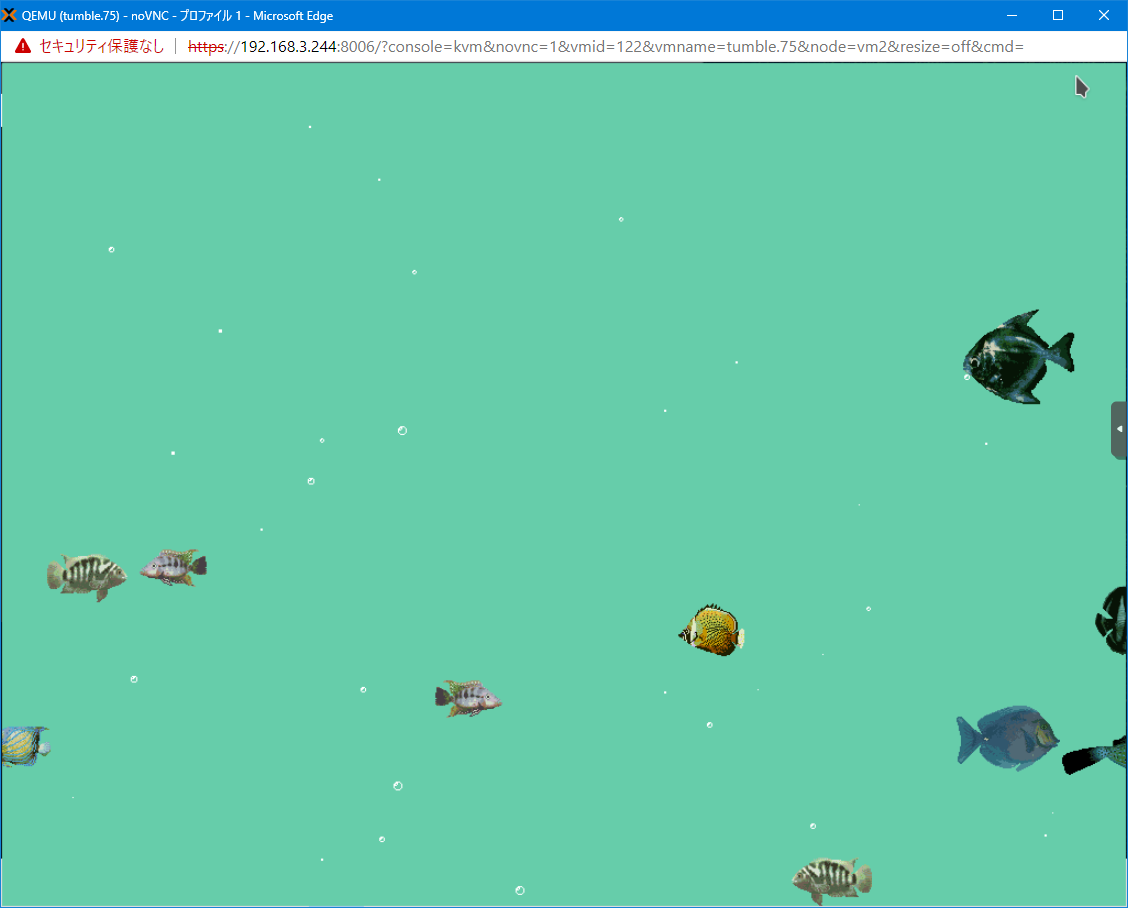
パッケージ名 xpra
バージョン xpra-4.0.6-3.2
結果 ×
詳細
セッションを保持しながらリモートのサーバに接続できるソフトウェアです。X 版 screen であると、ドキュメントには記載があります。
しかし、Thumbleweed では、Pythonのコードでエラーを吐き、動きませんでした。openSUSE 15.2 では一応起動はしましたがうまく繋がりませんでした。たぶん色々と動かすためには調整が必要そうです。