
 Member
 dragotin
Hand in Hand
as you might know, ownCloud uses the Open Build Service (short OBS) to produce and distribute the binary packages for the various distributions we want to support.
The OBS is a great system as it does not only build for various Linuxes but also lets the users download the binary packages utilizing a huge mirroring infrastructure. All for you, all for the good of free software.
And there is even more: OBS offers a nice download page which can either be embedded into a projects webpage or be linked from it. Depending on the settings of the OBS project, for example the number of Linuxes it builds for, the page is adopted automatically. So you never again have to deal with lots of download links to the projects repository downloads. See the ownCloud Client Package download page as an living example.
Now the page had a shortcoming for apt based distributions. I became aware of it as the problem as well as the solution to it was nicely pointed out by this blog: Apt wants to have the key before it trusts the download source. OBS generates the key but its not obvious how to import.
This morning I told one of the brave OBS developers to the blog post and already now the solution is online. From now on, the download page also shows the exact command line to import the key. Isn’t that great how quickly things become better if a couple of people do a little bit work together?
Thanks a lot, guys, really cool…

[Announce] Ruby API to write LDTP (GUI Automation) tests
Announce: C#/VB.NET/PowerShell API to write LDTP (GUI Automation) tests
I'm happy to announce we now have C# API for LDTP. Tested the API set with VB.NET and PowerShell.

Get latest LDTP binary from here

Credit: John Yingjun Li, who have done the most of work creating C# client, verifying with Linux LDTP, creating VB.NET test app.

API's tested against Cobra (Windows LDTP) and LDTP (Linux version, remotely though). Include Ldtp.dll and CookComputing.XmlRpcV2.dll into your project as dependency.

Check C# client and example source.

openSUSE and Identity
There are many other factors that make up our computer interactions. In a sense, the word "designers" also involves people who are not directly related to the graphical world. Those could be - a sales manager who also decides what elements we see on the computer screen; a contracted hardware company that would like you to have a certain software on by default; and many others may also have a part in the user interface designing process. The computer GUI has a varied influence in its identity.
The multi-influence, or “multi-graphical input” for devicces’ GUI has come under particular focus in recent years. Mass adoption of mobile devices has spread the graphical competition to all new heights. It has become much harder for companies and their products to stand out on the current market, or to make a difference. Differentiation is the call for each of them. Making their devices different graphically has called for stronger branding, and each of the market players now steeres in different direction. The objective being - attracting new client and retaining the existing ones. The drive for graphical differentiation makes it clear that stringer branding will help them sing a different song.
This changes have also made it into many of our Linux environments. KDE, for example, decided to make a radical jump with KDE 4. While recently Gnome released their 3rd series other environments, prefer to keep the same idea of what a GUI should look like.
Currently Linux, as a worldwide community, faces strong fragmentation. Not all of us use KDE, or Gnome, or a graphical interface at all. At the end of the day these communities are the ones creating new software, new widgets, and new graphics. Eventually these fragmentation or macro-collaboration environment is unable to achieve "collective individuality." This means that because of the different influences that happen in a Linux environment, collectively we cannot achieve a strong branding and differentiation. We cannot stand out because all of us want to stand out. Our software or contributions speak the language and mind of its creator, except in a Linux environment, anyone can be a creator.
These changes raise a question from our own group of contributors. Is openSUSE at the height of this weave of stylistic changes? This question is not about code or software integration, but exclusively about the end user experience. Reasoning carefully, the answer would be "partially." openSUSE has not taken full advantage of the branding capabilities provided by both KDE 4 and Gnome 3. This trend is more so surprising considering that openSUSE is the first to integrate and use many new Linux technologies through its unique OBS service, yet brand-wise we remain stagnant. Early adoption and fast integration in our distribution makes it harder to work on and maintain distribution specific styling.


In the recent years we have become quite passive in developing our own identity, other than using green as a base color openSUSE. Subtle color changes however do little with styling KDE or Gnome for the releases.
In earlier years this was a much stronger effort. Back then both KDE and Gnome had their own distribution specific themes within openSUSE. But recent changes in both environments have made it harder to keep up with distribution styling, and we have fallen behind. Even now openSUSE’s artwork team has not diminished in its efforts to work on styling, however the technical aspects of styling KDE and Gnome has become much harder to keep up with.
There are no simple way of creating interfaces for KDE to create a window style without knowing C++, for example. We have to rely on the technical knowledge of developers with strong knowledge and understanding of C++and GTK/Qt core technologies. In gnome changes with GTK 3 have been taxing on developers since they now need to migrate their themes to work with the new widget styles present in GTK 3. For openSUSE, this all means that is has become harder to create our own styling therefore we adopt KDE and Gnome’s default styling.
Adopting the defaults provided by KDE and Gnome will eventually move openSUSE to a state of visual stagnation. Not because these integrated window environments will stop moving forward with GUI developments on their own, but simply because we will have traded our visual identity to their definition of a default. While the rest of the technology world moves ahead with change, openSUSE will remain unnoticed for its outdated visuals.
Styling matters more than what we give it credit for. Styling is the first impression any users gets as they install our distribution. Styling can be provocative and generate interest, contribution and a larger reach with users. openSUSE will collectively speak to a wider audience given its “new suit.” openSUSE’s identity will speak for the project as people download the ISO. The unknown new user that is willing to try Linux for the first time will be impressed with the power of openSUSE and the cleanness of its desktop, the boldness of our green geecko will secure another happy user and a possible contributor. Even our current users will see how their distribution of choice changes to fit their daily work routine.
Recent work on styling from openSUSE’s artwork team has yielded great results for the distribution. With the help of a few contributors to the artwork team, we have been able to include new wallpapers, splash screens, boot screens, marketing materials and a few other things to the distribution. However, this is no different than it has been for a few years. We style the same elements with every release. To have a bigger effect and support with the community, we launched image contests, updated wiki pages, pushed sources to git, created new scripts for the automated wallpaper sizing, and have integrated more contributors than in previous years. Our channel user base is looking to expand.
As a result of this push for work there has been great integration in the team. We have been able to identify each other's strengths and have used them smartly as we integrate artwork into the distribution. Good attitude, willingness and enthusiasm to participate has been our idea since we reorganized ourselves. A sense of belonging and an akin interest in making opensuse a sleek distribution graphically is our intention. Getting help and comments from our team is easier than ever.
Through our team's interaction, we have determined a desire to make our distribution a stronger player in the linux graphical environment. We must jump into the wagon where the trend is going. We cannot be passive about our identity anymore. This is not to say that we want to be graphically similar to others and borrow their styles, but rather our aim to have openSUSE be recognized beyond the color green and the geecko. We imagine a time where icons, window styles, colors, wallpapers, desktop organization, specific desktop widgets are all integrated with a strong presence in the Linux world.
If we stay the same we will remain there as well for prospective users. We need to make a strong impressions to those people who are deciding between Windows, Mac and Linux. Those who hear of the power that Linux has and through the power of each community. We have the resources, now we need to move the mountains in order to achieve these goals.
We would also be much more ahead in styling than most. Take for example Ubuntu. They have created a style of their own with their human and name coded releases. They have persisted and perfected their styling beyond even what most would think or like. We do not mean to have this type of interface for openSUSE but definitively make a stronger impression much like Ubuntu has.
Additionally, we would provide a much less attacked interface by staying within the regular styling standards that the majority of users have on their desktop. We don’t mean to be radical with changes, but include our community in speaking about what they think should be allowed as a stylistic change in the distribution. We understand that the behind-the-doors changes are not particularly supported and also having the input of our community will add for great thinking and clever organization on the desktop. We could well be the most cooperative distribution when it comes to style.

Beware Inflation
By a continuing process of inflation, government can confiscate, secretly and unobserved, an important part of the wealth of their citizens.
-- John Maynard Keynes, The Economic Consequences of the Peace
ownCloud BOF at Akademy 2012
Akademy 2012 isn’t far any more and I just registered for a BOF at this years Akademy in Tallin. It will take place in Room 419 on monday, July 2nd, 2012 at 10:30.
 Subject of the BOF will be the integration between KDE and ownCloud. As onwCloud originated from the KDE project we should meet and think together again how we can provide useful integration for the users combining the power of both technologies.
After a short overview of where the ownCloud project is going and what the recent achievements are (if participants are interested) I think we should concentrate on the technical level.
There are a couple of rough ideas already how we can integrate on a technical level, such as
- Integration of the ownCloud data storage in the KDE user experience.
- KDE features for the ownCloud Desktop Client like KWallet integration or KDE SSL certificate management.
- Synchronisation of PIM data like contacts, addresses, bookmarks or RSS feeds
- a syncing API for application data to be synced in KDE applications.
- Syncing of KDE application configurations.
- Plasma integration of ownCloud/syncing client.
I am sure there will be more we can come up with. Let me know upfront if you want me to put it on the list or even better show up at the BOF in person.

Ferrocement: a brief, incomplete, and simple introduction
Ferrocement is a building technique that allows for very flexible forms to be made with concrete. You can make vaults, walls, round tanks or differently-shaped ones, cisterns...
For a normal concrete pour, you need some kind of formwork that is difficult to build and awkward to remove later. Ferrocement generally lets you avoid most or all of the formwork, as what is built can support itself even as the concrete is curing.
I am not an expert in ferrocement, but I've had had enough things in my house made with this technique that I can give a little introduction.
Building a bridge - a little example
For this example, we'll build a small bridge to cross a ditch in the ground - a Permaculture-style swale for water catchment. The bridge is not designed to sustain big loads, or for a great span; it is just a little example.

You form a rebar mesh into the shape you want, overlay it with hexagonal wire mesh, and tie it all together with wire. The more taut the hexagonal mesh, the better. You can make the wire ties with pliers, or with an L-shaped tool that builders use to twist wire elegantly.

Pour a little concrete base on each end of the bridge, on which to seat the wire mesh. The basic recipe is:
- Four 20-liter buckets of gravel.
- Four 20-liter buckets of sand.
- One 50 Kg bag of Portland cement.

Put the mesh over the concrete bases, seating it reasonably well.

Then you start pouring concrete over the bridge's mesh. Do the lower ends first, and climb up to the center. You have to spread the concrete mixture with a trowel, but without tamping it down - that would cause it to spill through the mesh. Something will spill, but it is generally only the most liquid part of the mixture, and not the majority of the material that clings to the gravel.

Continue up. The mixture at the bottom holds what goes at the top, and you go like that until you reach the center.
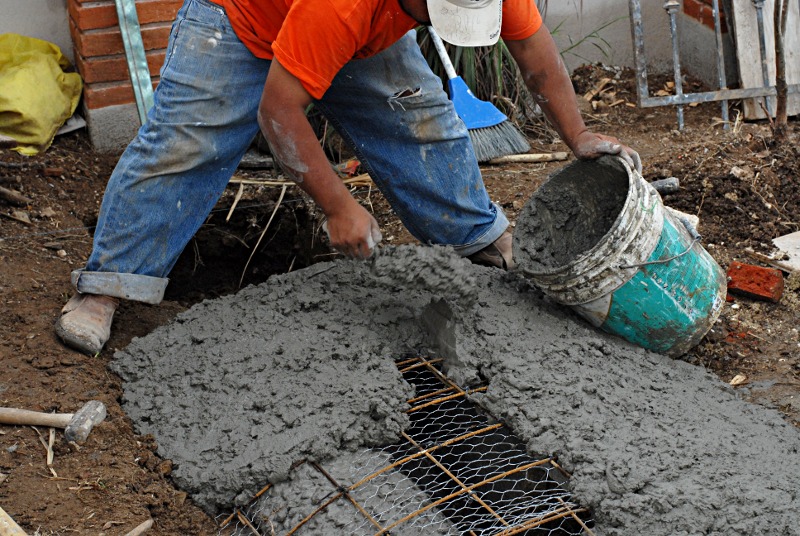
The next day, the bridge is strong enough to walk on. The concrete is not fully cured yet, but it is strong enough. Then you can coat it and smooth it with a flat trowel to refine the surface.

Ferrocement vaults
Some time ago, Christopher Alexander's book A Pattern Language inspired my wife and myself to expand our house, and to build concrete vaults instead of flat roofs. Vaults are easy to build, don't require expensive and wasteful formwork, drain automatically, give you tall ceilings, and make rooms quite special.
It was then that I found Flying Concrete, a fantastic web page of ferrocement construction, especially vaulted structures. The idea is to build catenary vaults. A catenary is the curve that results from hanging a chain from two points; when you turn it upside down, you get the most efficient vault possible. The church of the Sagrada Familia, in Barcelona, by Antoni Gaudí, is a very tall structure built entirely out of catenary vaults and arches.

Ignore the light brown strips under the structure; originally I wanted to use flexible wooden strips instead of rebar, but got MDF by accident - and only later discovered that it got unusably soft when wet. Other than that, the structure of the vault is the same as for the little bridge: rebar and tied wire mesh.
First you can lay on a thin layer of concrete, let it harden a bit, and then lay a thicker layer on top of that. This prevents the mesh from sagging too much from the initial weight.

In the picture above you can see a larger vault alredy poured, and a similar vault in the process of being formed. The base of each of those is a square of about 4x4 meters, and the vault itself is under 1 meter tall. This requires no formwork at all; the rebar/mesh and concrete support themselves.
Free-form structures
Finally, let me show you two staircases. The vaulted arches on the first one, and the funny curve on the second one, are a thin ferrocement shell. Then the steps are poured on top of the hardened shell, each one with little wood to hold the concrete.


References
Flying Concrete is Steve Kornher's no-bullshit resource about practical construction with ferrocement. He builds vaults, staircases, and chimneys reminiscent of Antoni Gaudí's capricious forms. Last time I checked, he was experimenting with building an entire house with no "ferro" - no rebar at all, just a compression structure based on catenary curves. Based on his advice, I was able to build concrete vaults at my house.

Boxing ARM With Geekos
Participation in the second openSUSE Collaboration Summer Camp

Do you feel hot?
The time has come to arrange your summer getaways!
The 2nd openSUSE Collaboration Summer Camp has almost arrived this year in the familiar place (hotel Grand Platon in Katerini beach) at 20-22 July 2012!
Like last summer we will all meet together and we will combine our baths and beers by the pool with presentations and workshops (don’t forget to bring your laptop with you!)
The event is not only about openSUSE users!
The goal of the event is the collaboration between people who enjoy to contribute to FOSS and the acquaintance with the different ways they can do it.
We look forward to seeing all of you no matter the distro you use, to discuss, exchange opinions and of course we wait for your own presentations and/or workshops on the topics that interest you!
Like last summer there will be a variety of topics that are going to be presented, that will be interesting to everyone, even to the new and not so experienced users.
Everyone can actively contribute, attend the presentations and host their own workshops!
You have to know:
1.[CfP] Submission of presentations and workshops is open! We are looking forward for your ideas. Please fill the form , by clicking on the link below :
http://www.os-el.gr/content/submit-talk-collaboration-summer-camp-2012
2. Participation & room reservation : (It would be a good idea to do it as early as you can , so we can check the availability of the rooms with the hotel. Please send us an e-mail with your details at reservations@os-el.gr )
(In order to reserve a room you have to pay the 50 % of the total cost – You will receive more info about the bank deposit via e-mail.)
The cost for the rooms is (including breakfast & dinner):
* Single room – 35 euros/per night
* Double room – 45 euros/per night
* Triple room – 60 euros/per night
3. For more information & registration form:
— Send us an e-mail at : summercamp@os-el.gr
— Get into our IRC Channel #openSUSE-el in Freenode
4.Maps
Coordinates (Hotel): 40.249513,22.585809
Map (Directions from Thessaloniki) -> http://goo.gl/maps/HIGu
Map (Directions from Athens) -> http://goo.gl/maps/kxrN
Map (Directions from Railway station of Katerini to the Hotel)-> http://goo.gl/maps/TGkq
Because we love what we do, we are having fun contributing to FOSS and we hate doing it alone in our rooms during Summer time.
WE ARE LOOKING FORWARD TO SEEING YOU ALL!
Participación en la segunda openSUSE Collaboration Summer Camp
¿Tenéis calor?
Ahora es el momento de organizar las excursiones de verano!
La segunda openSUSE Collaboration Summer Camp, se acerca rápidamente y tendrá lugar en el sitio ya conocido (Hotel Grand Platon – Playa de Katerini) , de 20 a 22 de julio del 2012.
Como el año pasado nos reunimos , disfrutamos de la playa , la piscina , la cerveza combinado con presentaciones y workshops (no te olvides de traer tu portatil!)
El evento no esta orientado solo para usuarios de openSUSE!
El objetivo es la colaboración entre las personas que aprovechan las ventajas de la contribución en FLOSS (Free Software / Open Source).
Los esperamos a todos (no nos importa cual distribución utilizais), para discutir, intercambiar puntos de vista y por supuesto esperamos sus presentaciones o/y workshops sobre los temas que les interesan!
Como el año pasado, habrá una variedad de temas,que serán presentados de forma que satisfaga a todos, incluso los nuevos y no tan experimentados usuarios.
Todo el mundo puede participar activamente, para asistir a las presentaciones y workshops! Además podéis presentar la presentación o/y workshop que os guste.
Teneís que saber:
1. [CfP] La submision de las presentaciones y workshops ya está abierto y esperamos sus sugerencias (solo en ingles)!
Todo lo que necesitas hacer es llenar el formulario: http://www.os-el.gr/content/submit-talk-collaboration-summer-camp-2012
2. Por formulario de inscripción y alojamiento (hacerlo en el tiempo indicado, para ayudarnos a mantener las habitaciones disponibles que serán necesarios en el hotel) enviar sus datos a reservations@os-el.gr
(Para reservar se requiere el 50% del coste – más información sobre el depósito, usted recibirá vía correo electrónico)
El costo de las habitaciones (incluye desayuno y cena):
* Habitación individual – 35 euros/noche
* Doble – 45 euros/noche
* Triple – 60 € /noche
3. Tenéis otras preguntas o dudas?
* Más información se puede encontrar en la página www.os-el.gr/summercamp/en/
* Para cualquier duda, póngase en contacto con nosotros a través del correo electrónico ya sea en(español,inglés): summercamp@os-el.gr
Porque amamos lo que hacemos y gastamos buena contribución a FS / OSS, incluso en verano.
4.Mapas
Coordenadas (Hotel): 40.249513,22.585809
Mapa (llegar desde Salònica) -> http://goo.gl/maps/HIGu
Mapa (llegar desde Aténas) -> http://goo.gl/maps/kxrN
Mapa (Mapa (llegar desde la estación del tren de Katerini hasta el Hotel)-> http://goo.gl/maps/TGkq
OS ESPERAMOS A TODOS ALLÍ!