openSUSE Board Election 2021 happening right now
The election was announced on the project mailing list on the 1st of November 2021. The current Election Committee is composed of Ariez Vachha, Mohammad Edwin Zakaria and myself.
This election is required to fill two seats on the openSUSE Board, as the term for Simon Lees and Vinzenz Vietzke are coming to an end.
To learn more about openSUSE membership, check out this wiki.
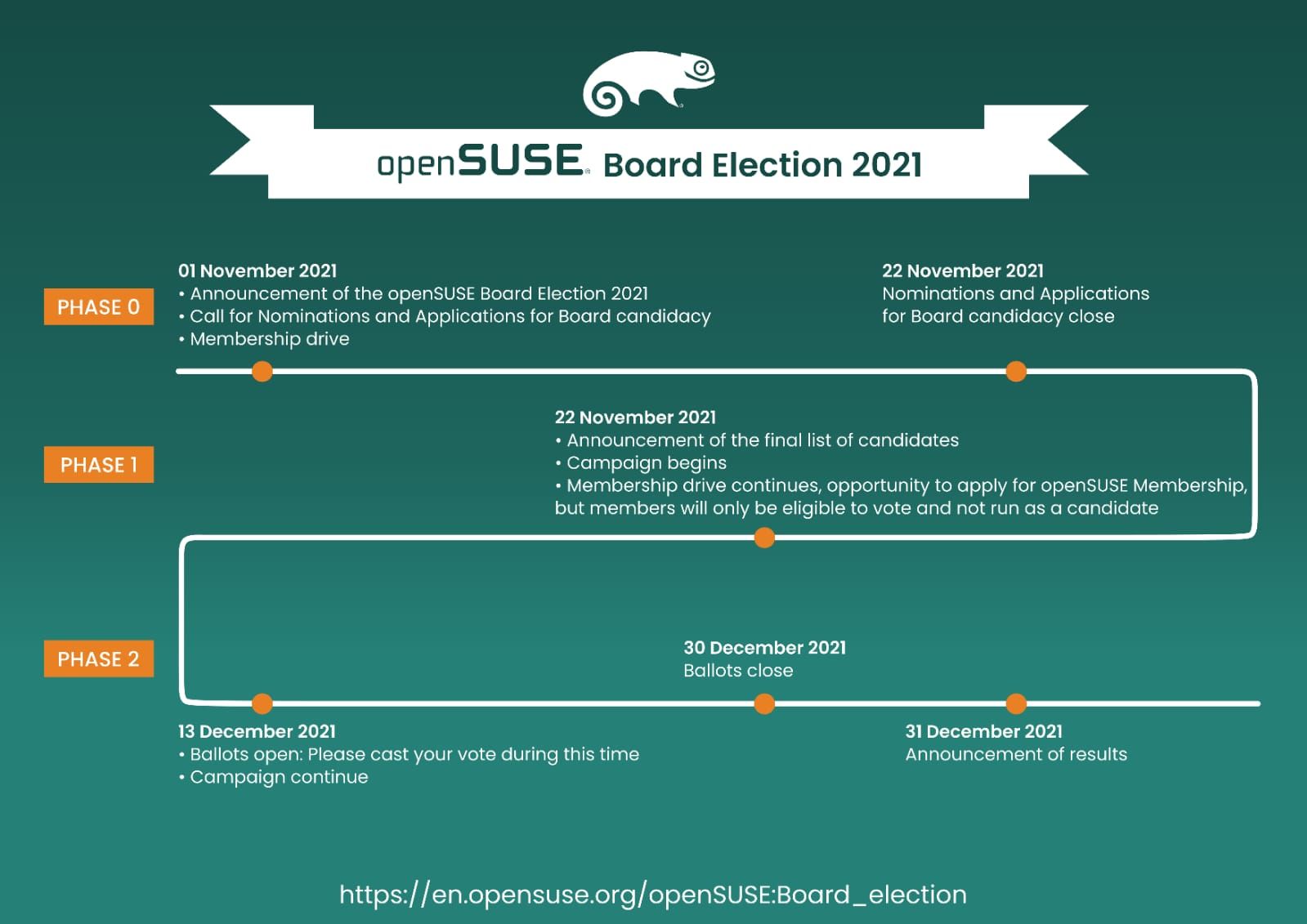
As the initial nominations/applications phase ended, we had only two members who expressed to run for this election. They are:
• Attila Pinter
• Maurizio Galli
Since, we had only two candidates for two available seats, we extended the nominations/applications phase for another two weeks, giving other members the chance to toss the names of people who'd they wish to nominate. However, even after the two weeks, we were still left with only two candidates and therefore, as per the election rule about insufficient nominations, we started the election and each candidate is required to obtain 50% of votes to be considered a winner.
The ballots were opened on the 13th of December and openSUSE members received their voting URL/credentials by email. They can vote until the 30th of December at 23h59 UTC. Ballots will close on 31st December at midnight and a few hours later the result will be announced.

 rriemann
Orient Cruise: Dubai
I dedicate this text to Vincent and Sara. :wave: If we cannot share the experience, so let me share at least the story.
Prologue
Also in 2021, holiday plans fell victim to yet another Covid-19 wave. Eventually, I waited until mid December and booked in face of the next emerging Covid-19 variant Omicron the least adventures holidays of my adulthood: a week-long all-inclusive cruise in the Orient with every aspect handled in due care by a world-class global-scale tour operator.
For the sake of completeness, let me quickly recap the outbound connection to the destination. I got a Rail&Fly ticket to a nearby airport in Germany. The Airbus A380 to Dubai, a huge airplane with two floors, was approximately occupied 30%, maybe less. I use Atmosfair.de for CO2 compensation. Not sure who would need to pay for all those empty seats around me. The time difference between Germany and Dubai is 3 hours. I arrive after about 6 hours of flight and a short sleep of about 3 hours at 6 o’clock in the morning. On top of mandatory PCR tests to get on the flight, it seems that Dubai tests just again all tourists upon arrival. No need to wait for the result – it is delivered about 3 hours later to you via SMS. I wonder what happens in the case of a positive test. I didn’t find out as my test was fortunately negative. 😁
The tour operator takes care of the transfer to the cruise ship. They also handle all subsequent paper work to enter the destination countries, that means here the United Arabic Emirates (UAE) and Oman. For this purpose, they require all passengers to hand over their passports before getting on board of the ship. After some hesitation and some questioning, I resign and hand out my passport, too.
Once on board of the ship, I drop off my luggage, eat something and head out to explore Dubai on my own.
Dubai: Everything is also a Shopping Mall
I have made no efforts to prepare my first day in Dubai. I only downloaded a city map. The cruise ship harbour of Dubai is a 30 min car ride from the lively city centre. So I join two other passengers, who happen to know Dubai very well, for a shared taxi ride to their destination, the Dubai Mall. I am amazed by all those skyscrappers on the way. Every street is a high way with 3 lanes minimum it seems.
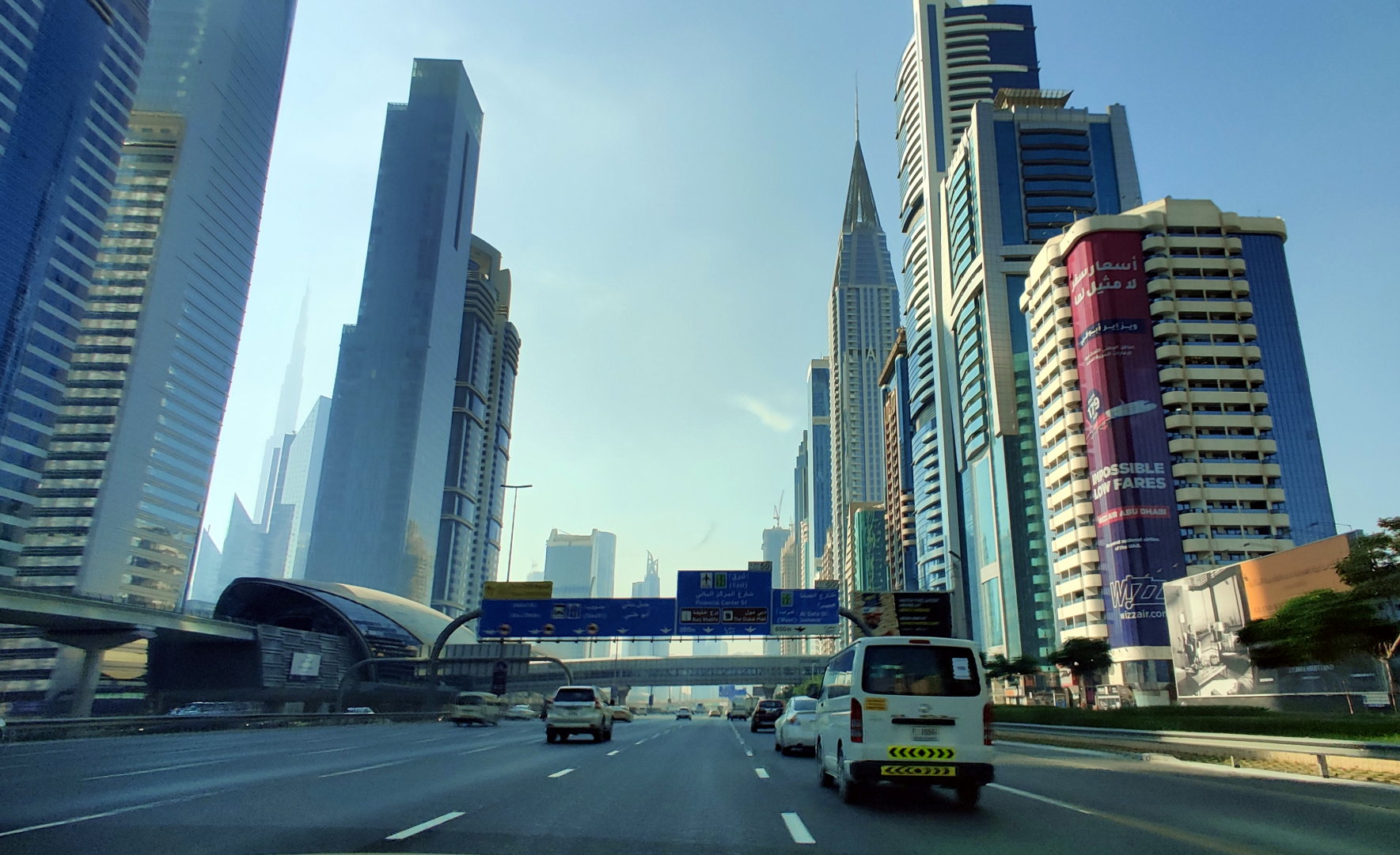
Taxi ride from the harbour to the Dubai Mall. On the left side, you can see the aerial railway with its futuristic railway station (open in large).
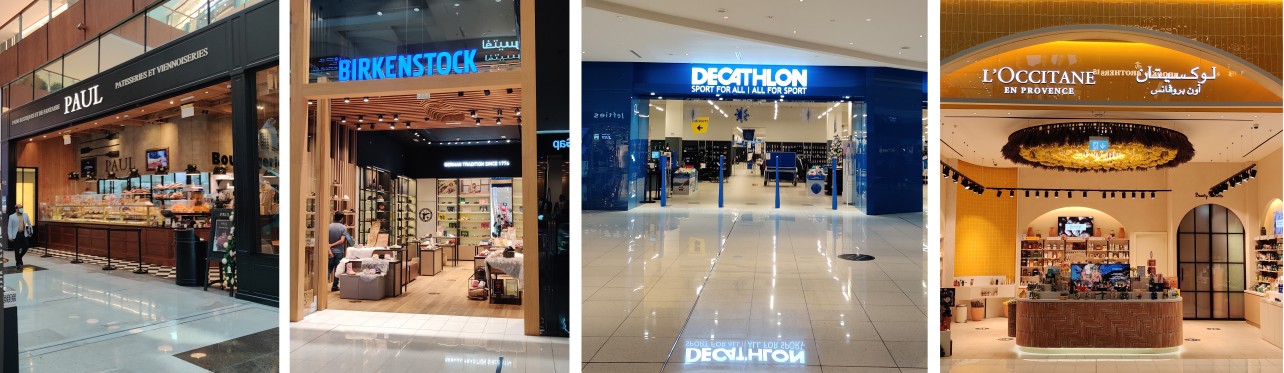
Before the other passengers leave, they point me to the famous aquarium in the mall. The aquarium spans several floors and is indeed impressive. Otherwise, the mall has everything you expect: fashion store H&M, bakery PAUL, L’Occitane en Provence, Birkenstock, Decathlon, the best of the best!
I consider to buy a camera lens for landscape photography. I find an electronics store, who got one for 1500€. Now, the deal I found earlier in the Internet to rent this lens for 100€ per week appears under a totally different, much better light. So I head towards the rental office in the South of Dubai. Long tubes hanging 6 meters over the highways bring you from the mall to the metro. The metro is in fact an aerial railway. And it is packed. The people seem to be from all over the world – later I learn that Dubai has about 80% immigrants.
The photography rental shop is in the 8th floor of a skyscraper. Fortunately, they still have the lens in stock. Unfortunately, I cannot get it, because they ask as a deposit for a) my passport, b) amount blocked with a local credit card, or c) 1200€ cash in local currency. The tour operator has my passport, I don’t have a local credit card and feel uneasy to withdraw and hand in 1500€ in cash. I am frustrated. 😩 I envy all those people who have spare passports due to their second nationality. People ask me sometimes why I wanted to become also a French citizen. I just got one argument more. I decide to find another store that possibly rents lenses. I end up in the Dubai Marina Mall and buy eventually for about 280€ an entry-level lens.1
On my way out, I discover a city e-bike self-rental station. I quickly sign up for a day plan (4€) and cycle to the Dubai Marina. I make a lot of photos.
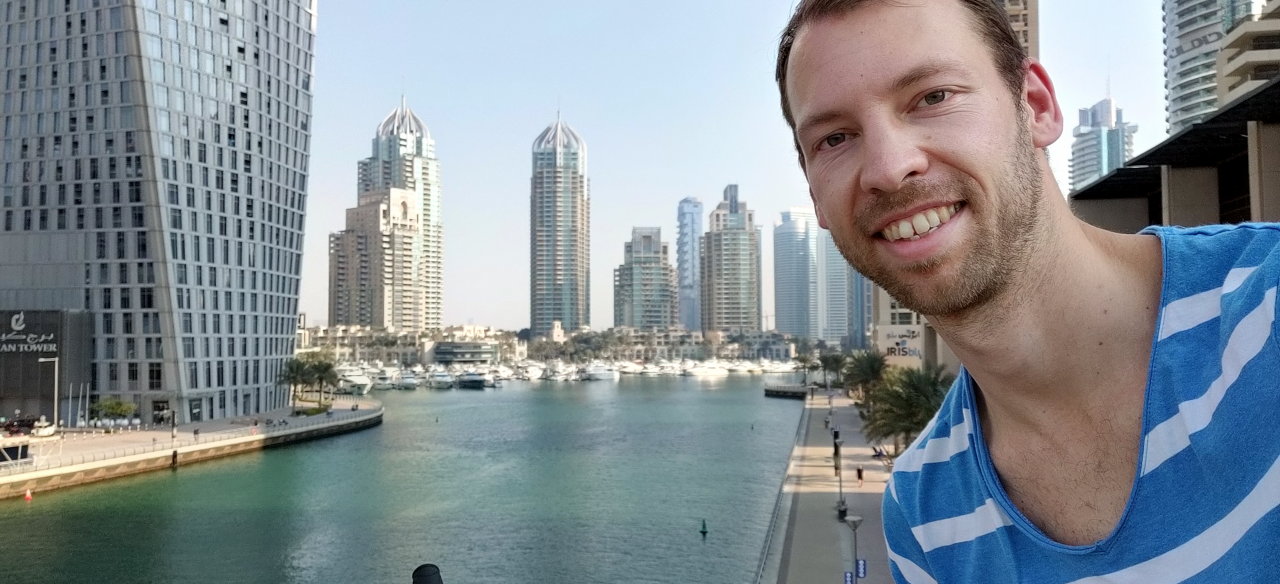
Selfie at the Dubai Marina (open in large).
Then, I head towards the artificial lagoon The Palm Jumeirah. Unfortunately, I am on the wrong way of the highway and after half an hour to find a path I realise that there seems to be just no way to cross it with a bike. It happened again two more times later that day.
Eventually, I give up the search and get on the Monorail panorama train to access The Palm. The third stop is integrated in, guess what, the Nakheel Mall. The Mall features a hotel with a restaurant on the top called The View. The ticket for the lift after 4:00 PM (sunset time) is 40% more. It is now 4:03 PM.  I decide to keep it for next time (:wave: Vincent, Sara), hop on the Monorail, and get to the next stop: Atlantis Aquaventure. It turns out, the part freely accessible is mostly a mall. Again! They have also an aquapark and a hotel and Dolphins.
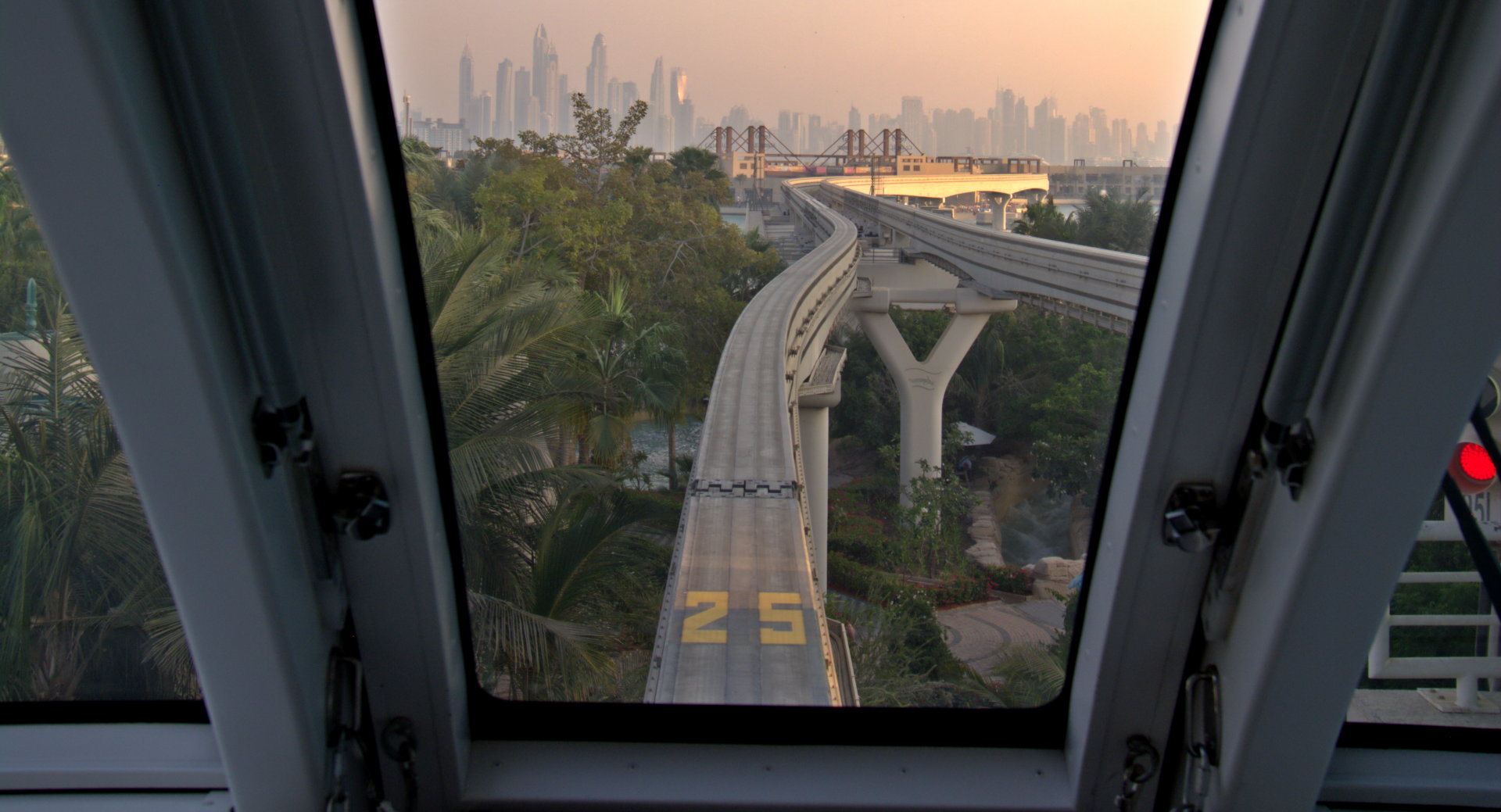
View from the Monorail on The Palm Jumeirah (open in large).
I leave The Palm, find a city e-bike and get back to the harbour. After 90 minutes cycling without a break, I check the map. This city is huge and I am nowhere close to the harbour. On the way to bring the bike back to a rental station, I discover the Dubai Canal and the newly constructed canalfront promenade and bridges. Though I am quite exhausted, I spend another hour to make photos. Eventually, I get a taxi that brings me back to the harbour. At midnight, the ship leaves Dubai for the next stop in Abu Dhabi.
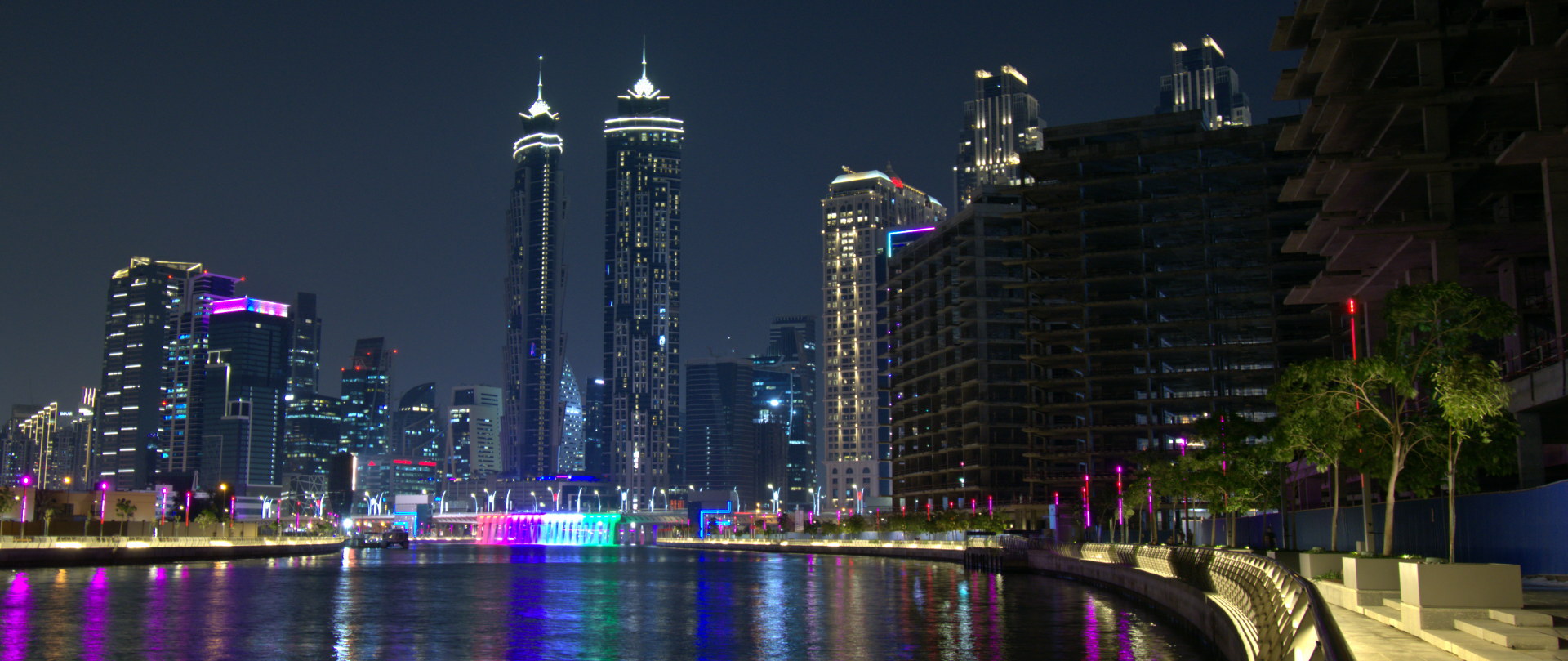
View from the Dubai Canal (open in large).
-
For the curious: I got the Nikon AF-P DX Nikkor 10-22mm f/4.5-5.6G VR. Basically all subsequent photos are shot with either that lens on a Nikon D7100 body or with my Oneplus 7 Pro phone. ↩︎

 Member
FreeBSD jails made simple using BastilleBSD
I wish I had BastilleBSD twenty years ago. I had a part-time sysadmin job - running web servers. PHP started to become popular by the turn of the century. Using jails on FreeBSD seemed to be a safe environment to run PHP-enabled web servers. However, there were no tools yet to work with jails. I had to write many scripts to build and update jails.
A bit of history
At first, I had a single server. Adding a new client every other month by hand was not a big overhead. However, after a year or so, the service became popular. First, I automated adding new users, then creating jails, migrating jails between servers. Later, the service gained central management, an LDAP and Windows-based management application, and almost everything was automated. At its peak, my system served tens of thousands of domains.
Of course, my scripts were not so universally useful as BastilleBSD. They were single purpose: creating FreeBSD jails with various PHP versions. Later some extra utilities were added, like ImageMagick, used by many popular PHP applications. As disk space was a premium, these scripts made sure that only the absolutely necessary files stayed in the jails. Removing all shells and apps with extra privileges also helped in reducing the attack surface. The way how my jails were created also meant that package management was not an option. The jails could not be updated. Any security update meant compiling a new base system and new ports.
Why BastilleBSD?

BastilleBSD logo
BastilleBSD has a very different approach to jails. Of course, not all functionalities of my scripts are covered, for example migrating jails between hosts is missing. However, they are more generic and make it easy to maintain jails.
Compiling an updated jail and updating jails was a painful process even with my scripts. With BastilleBSD, updating the base system without touching any of the ports is easy:
bastille update 13.0-RELEASE
And it is updated with the latest security updates in all jails utilizing this base system.
I spent a lot of time removing files from jails. This way I could spare hundreds of megabytes for each jail. BastilleBSD solves this problem in a different way: the base system is installed only once and mounted under each jail in read-only mode. This saves even more space and makes the system even more tamper-proof.
To add an application to a jail, I had to compile everything from scratch. Once everything was installed, the scripts removed much of the files. BastilleBSD has full package management within jails. If a user needs an extra app, it can easily be installed. And all ports in a jail can be updated easily, almost the same way as on the host:
bastille pkg alcatraz update
bastille pkg alcatraz upgrade
What’s more, BastilleBSD has a template system. Instead of installing all applications by hand from ports, templates can automate the process. It’s a bit like Dockerfile on Linux, but there is no central registry to store images. You can download the templates using git and apply the template to a jail locally.
bastille template alcatraz BastilleBSD-Templates/syslog-ng
I do not want to list here all BastilleBSD advantages, so here are just some highlights: it can configure PF firewall rules, use ZFS, and there is even some experimental support for Linux-based jails.
What is next?
If you want to learn more about BastilleBSD, check their website: https://bastillebsd.org/. For a very simplified introduction, you can also read my blog, where I use the syslog-ng template of BastilleBSD to setup a couple of syslog-ng servers: https://www.syslog-ng.com/community/b/blog/posts/running-syslog-ng-in-bastille-revisited

Let it snow '21

Amidst the holidays that perhaps aren't turning out exactly as hoped, one can take comfort in small tokens of continuity – like the fact that xsnow is still being actively maintained.
Thanks, everyone, for all the good software. Let's extract the best from the year to come.
March 5th, 2022 update: Sigh.

Digest of YaST Development Sprint 137
Year 2021 comes to an end, but not before the YaST Team publishes another development report covering areas as diverse as:
- Improvements in the installer self-update mechanism
- Better error reporting in storage analysis
- More consistent management of UEFI
- Better handling of the installer boot arguments
- More intuitive representation of thin logical volumes
Let’s check every one in detail.
Fast Self-Update for All
As you may know, YaST has the ability to update itself at the very beginning of the installation of the operating system. That makes possible to correct the installation process in case errors are detected after publishing a given release of SUSE Linux Enterprise.
Recently we found there was room for improving the speed and also to simplify how the mechanism works in some scenarios. It’s hard to explain exactly what we did in only a few words… so we will not try. ;-) But if you don’t mind reading quite some words and watching a couple of animations, go and check the description of this pull request.
Apart from the already mentioned improvements, we also extended the YaST self-update to support relative URLs. Check the details in this separate pull request.
Better Error Reporting Regarding Storage Devices
One of the most important phases of the execution of YaST, both during installation and when running some of the available configuration modules, is the analysis of the storage setup of the system. That includes checking the available disks and how they are organized into partitions, RAIDs, LVM volume groups and many other storage technologies recognized by YaST. If something goes wrong during that process, YaST stops and asks the user whether it should abort the current process.
That’s fine for most cases. But what happens if a system presents a problematic setup… replicated in more than 60 disks? Those kinds of setups are not unusual in enterprise environments and having to click “continue” 60 times is not exactly fun. So we decided to improve how YaST reports those errors, adding also the possibility of easily reviewing them all at any later point in time from the Partitioner. Check this description of the feature, containing dozens of screenshots!
This new mechanism will be used in future releases of Leap and SLE and is already available in openSUSE Tumbleweed.
More Consistent Management of UEFI
A lot of modern systems use UEFI firmware for booting. But correctly checking if a given system uses that technology or which UEFI features are available may not always be that straightforward. During this sprint we did some internal reorganization of the YaST code which deals with UEFI to make it more robust. Why an internal reorganization may be relevant for our blog readers? Because we took the opportunity to document how the detection works and how it can be overridden for YaST to setup UEFI from a system booting in legacy x86 mode and vice versa.
Better Handling of the Installer Boot Arguments
What do self-update, error reporting and UEFI detection have in common in YaST? Of course, that all of them have been mentioned on this blog post. But also that their behavior can be influenced passing some boot parameter to the installer. That’s a powerful tool for advanced users that provides great flexibility but that had a tiny drawback… until it was fixed during this sprint.
Intuitive Visualization of LVM Thin Volumes
The last change we want to highlight in this report is something that may be considered cosmetic and that affects only those using such an expert tool as LVM thin logical volumes. But it represents the kind of details we really enjoy improving when we have some spare development cycles. The small UI adjustment you can see in this pull request is already available at openSUSE Tumbleweed and will be also there in future releases of SLE and openSUSE Leap.
That’s all for this year
As we always point, this is only a small sample of everything we have done during the sprint. But we don’t want to keep you busy reading about bug-fixes and small code reorganizations. After all, year 2022 is around the corner and it’s already vacation season in many areas around the globe. So go and enjoy the celebrations. The YaST Team will be here next year with more news to share. Take care!
M8 — Drum and Base

I drafted a post on how the Dirtywave M8 is an amazing synth, but given the time and the growing scope of that post, I'll sum it up in a short blurb instead. For a single man project, this synth is a miracle. Very geeky, all shortcut driven, standing on the shoulders of tracker giants, particularly LSDJ, it has a solid workflow and most definitely isn't a gimmick. You'll have to do without any visual aid. This is what I love on the Elektron boxes, where the display really helps you understand what you're doing when filtering or creating an LFO. All you have here are hex numbers and consistent shortcuts. But it sounds absolutely marvelous and allows you to create music anywhere.
I'd like to share two tracks I've learned the ropes of the device on, but also the genre itself. I've listened to DNB mainly through Noisia/Vision radio podcast that made my runs possible (I hated running all my life, but it's really the best way to combat the negative effects of sitting behind a computer all day). But I've never actually tried producing a track within that DNB realm.


While I lean on samples for the beats, the base is all the internal FM (with multiple oscilator types, not just sine) and macrosynth engines.
I've also been learning the ropes of Blender's geometry nodes recently. While only scratching the surface, I created this visualizer for the track. The heavy lifting is done with baking the sound to f-curves, which is then somewhat tweaked to acceptable ranges with f-curve modifiers.
I also have to mention the absolutely bonkers amazing visual identity of the M8 project. It just couldn't be more hip. This is also my very last gear acquisition. For sure.
M8 — Drum and Base

I drafted a post on how the Dirtywave M8 is an amazing synth, but given the time and the growing scope of that post, I’ll sum it up in a short blurb instead. For a single man project, this synth is a miracle. Very geeky, all shortcut driven, standing on the shoulders of tracker giants, particularly LSDJ, it has a solid workflow and most definitely isn’t a gimmick. You’ll have to do without any visual aid. This is what I love on the Elektron boxes, where the display really helps you understand what you’re doing when filtering or creating an LFO. All you have here are hex numbers and consistent shortcuts. But it sounds absolutely marvelous and allows you to create music anywhere.
I’d like to share two tracks I’ve learned the ropes of the device on, but also the genre itself. I’ve listened to DNB mainly through Noisia/Vision radio podcast that made my runs possible (I hated running all my life, but it’s really the best way to combat the negative effects of sitting behind a computer all day). But I’ve never actually tried producing a track within that DNB realm.


While I lean on samples for the beats, the base is all the internal FM (with multiple oscilator types, not just sine) and macrosynth engines.
I’ve also been learning the ropes of Blender’s geometry nodes recently. While only scratching the surface, I created this visualizer for the track. The heavy lifting is done with baking the sound to f-curves, which is then somewhat tweaked to acceptable ranges with f-curve modifiers.
I also have to mention the absolutely bonkers amazing visual identity of the M8 project. It just couldn’t be more hip. This is also my very last gear acquisition. For sure.
Previously, Previously, Previously, Previously, Previously, Previously, Previously.

geewallet 0.4.300.0 released!
10th of my 21-day quarantine*! And to celebrate, I'm going to release a new version of geewallet. It's not that I blog about geewallet releases often (or blog at all, lately), but this one is a special one for me. We decided to call it 0.4.300.0

The highlights:
- We fixed the GTK theme for our snap package. (Long version of the story: ever since we upgraded our snap generation process to take place in Ubuntu 20.04 instead of Ubuntu 18.04, the theme stopped working so the app was not showing anymore with the default theme of the system, but with the default Gtk theme, which is very plain. Even if you might consider this issue important, we haven't had time to look at it because we've been very busy finishing Lightning support. Sorry.)
- The chart rendering doesn't use SkiaSharp anymore, but good-old Cairo. This fixes some UI glitches that we had in the GTK frontend. (Long version: for this, we didn't just draw the chart using Cairo in our Gtk frontend, we actually wrote an implementation of the Shapes API for the Xamarin.Forms' GTK backend, and we contributed the work upstream: https://github.com/xamarin/Xamarin.Forms/pull/14235 . Hopefully they merge it soon so that we don't need to use our own forked repo/nuget anymore.)
- Fixed a crash when pairing with a cold-storage wallet. (Long version: user might not know that pairing is only allowed against another geewallet instance; low-hanging fruit bugfix which I shouldn't have neglected for so long, I know.)
- Fixed a crash when scanning some QR-codes that contained unknown parameters in the bitcoin URI. (Long version: I was actually in El Salvador and when trying to use a BTM, I found this bug! Apparently some BTMs here add an extraneous "chivo" param in the URI's querystring, in case the wallet being used is the one from the government; not sure why. In this case, geewallet was failing fast instead of ignoring the unexpected intruder.)
- Our CI now checks that our Android, macOS, and iOS frontends don't break. Previously the only frontends that we built in CI were the Gtk one (Linux) and the Console one (cross-platform, it's just terminal-based).
- We do snap package generation in GitLab now instead of GitHub. This is good because Microsoft keeps changing the Linux VMs being used in the GitHubActions service so we cannot keep up fixing things that just break out of the blue (so, they break independently from what we change in our commits, which is very confusing!). (Long version: we had to use GitHubActions because GitLabCI uses docker under the hood; so given that snapcraft uses systemd, it conflicts with it; now we use a "docker in docker" approach to be able to run in GitLabCI; which also allows us to publish the snap package as an artifact in the GitLabCI pipeline, not just publishing it to the Snap Store; this way, in case you somehow need a previous version in the future you can grab it from there, something that you couldn't just via snap AFAIU).
- Even though this wallet supports two ETH currencies (ETH itself, and DAI), we don't recommend their use at the moment because of the high fees and long confirmation waits these days. This is because the wallet waits for an ETH transaction to be mined (to make sure it didn't run out of gas, and if it did, report the problem to the user), but these days this wait is longer than the time-out. The short-term fix for this is either a) assume it will never ran out of gas, since our address is not a contract anyway (so I guess it can never run out of gas, right? feel free to prove me wrong, my ETH knowledge is not top-notch), or b) have some UI indicating that a transaction has been sent but not accepted by the network yet. The long-term fix is to have off-chain (Layer2) technology supported by the wallet, but we don't know which technology we will choose for this, and of course we're giving priority to the first Layer2 technology: Lightning (which is only compatible with BTC and LTC). All this aside, the wallet works well with ETC (an Ethereum-compatible technology). Anyway, this doesn't worry me too much because... what is the ETH blockchain used for these days, mainly? NFTs and DeFi pyramid schemes. In case you didn't get the memo, most of the former (if not all) are scams, and the latter are all of them mainly based on dubious centralized stablecoins (which could suffer fractional reserve and therefore cause bank runs, as Elizabeth Warren has already warned about).
- Despite this wallet being implemented with .NET (F#), our Windows compatibility story is very poor :'-( We ran into limitations of the Microsoft's AOT technology being used for UWP apps (required by the official process required to publish it in the WindowsStore) in the past. Nowadays apparently you can publish apps in the WindowsStore without these limitations, but we haven't tried again. Maybe by the next time we give it another go, we might have moved to MAUI already (which means WinUI instead of UWP under the hood). As always, if this is your cup of tea, we accept MRs!
PHP 8 Horde (Maintaina)
Over the next few days, all Horde libraries and apps in the maintaina-com organization will be whitelisted for PHP 8x. in their FRAMEWORK_6_0 branch development versions. One next step will be a flavour of the OpenSUSE based containers and deployments which runs off PHP 8.0. While some few libraries have been enabled for PHP 8, it is almost certain that horde as a whole will not run correctly. Main culprits are the horde/rpc and horde/form packages and their user code, but there are some other ugly places that need attention.
Development Baseline at 7.4
Code in the maintaina-com repo will stay compatible with PHP 7.4 – at least for the time being. Decisions at Horde LLC may override that at some point or time may just march on. PHP 7.4 has been released two years ago, has ended active support 20 days ago and will be EOLed for upstream security support on November 28th 2022 – roughly 11 months to go. Linux distributions have a tradition to follow their own schedules and backport security fixes. OpenSUSE LEAP 15.3 ships with PHP 7.4 while openSUSE Tumbleweed has switched to PHP 8.0.13 – with PHP 8.1 versions becoming available from official repos soon.
This is a tough decision as PHP 8 and 8.1 have some really interesting features which would allow us to develop more elegant, more readable and more efficient code. For software that is not intended for this audience, I will immediately allow using 8.x-only features as soon as we are confident with Horde’s compatibility. This is going to be a major theme of January and possibly February.
No need to switch right now
If you are running Horde as of horde.org master branches or maintaina-com FRAMEWORK_6_0 branches off PHP 7.4, you should NOT switch right now. We will announce once we think any leftover issues are minor enough for an acceptable early adopter experience.
No particular love for 8.0.x
There is no guarantee our runtime will stay fixed at 8.0. PHP 8.1 offers a lot of new features and a considerable performance boost for some relevant scenarios. While making Maintaina Horde work with 8.x on a 7.4 feature baseline is the first step, the logical next step is upgrading feature baseline to 8.1 or higher. This will be much less of a problem if we get an official Horde 6 release in the meantime and users can choose between a properly conservative release version and a more adventurous Maintaina version. This is not something I have under control though. Horde LLC do as they find appropriate and sustainable and for many users, there is little reason to choose Maintaina over the official releases once we have a Horde 6 version that properly runs on recent PHP and supports Composer out of the box. I am perfectly fine with that and looking forward to it. I will always assist with a migration path as far as I can afford to.
Time is Money, Money buys Time
If you have an urgent commercial interest in a PHP 8-ready Horde version, you really do not want to rely on Maintaina’s timelines and priorities which may be subject to change. You will need to spend money. Approach somebody to do it for you, either Horde LLC or the company I work for, B1 Systems GmbH – both are formidable places to look for Horde-experienced development resources.
Update 2021-12-18 21:00 CET
I just ran the update to the metadata as a mass operation for everything which contains a .horde.yml file – the rest will have to wait until I stumble across it. I leveraged an edited version of horde/git-tools, some bash magic, some mass editing in vscode using their regex tool and some manual fixing.
- All packages now formally require “php”: “^7.4 || ^8”
- If horde-installer-plugin is required, I now go for “^2 || dev-FRAMEWORK_6_0” – however in maintaina-com/Core, I have a job that rebuilds composer.json on commit and this job showed me that the components tool needs an update in this aspect.
- SPDX license code warnings for LGPL and GPL versions have been remedied to LGPL-2.0-only, LGPL-3.0-only, GPL-3.0-only each
- Added the CI workflow where missing. Mostly it will fail until further editing. This is intentional.
- I did NOT unify all versions of CI workflow as some deviations are intentional. I did however unify PHP versions for the unit tests to “7.4”, “8.0” and “latest” and I did unify phpunit versions to “9.5” and “latest”.
- Unified/added the phpdoc workflow and the update-satis workflow as we had multiple versions for no good reason. I have settled for a version of the phpdoc job that will scan lib/, src/ and app/ if they exist
- Cleaned up a lot of metadata mess in the Kolab related packages.
- Removed some version: tags from composer.json files
- Removed the optional pear dependency of imp for the ASN1 implementation from phpseclib – need to look for a proper composer-ready and less outdated replacement.
While the mass changes themselves seem to have gone right, the resulting avalanche of CI jobs showed some issues:
- phpdoc job and update-satis job fail if they run in parallel and the satis repo content has changed since checkout. Either give the push commands in the loop a minute to wait each time or make the job smarter about handling these clashes. Still, failing is better than silently overwriting content
- Having so many versions of the CI job is not maintainable. Need to factor out the boilerplate into an action, make version requirements a config variable with a builtin default and have some mechanism for there rare cases where extra software is needed for meaningful QA, i.e. database and storage related items.
- After getting this migration done, upgrading the git-tools utility may be an interesting exercise in PHP 8 and PHPStan.
- I may have created unnecessary conflicts with some open pull requests. Sorry, contributors. I will improve.
The syslog-ng insider 2021-12: Humio; Log Management; Panther;
The December syslog-ng newsletter is now on-line:
- Sending logs to Panther using syslog-ng
- Reducing the complexity of log management
- Sending logs to Humio using the elasticsearch-http() destination of syslog-ng
It is available at https://www.syslog-ng.com/community/b/blog/posts/the-syslog-ng-insider-2021-12-humio-log-management-panther