
New Prototype Builds Bringing Leap, SLE Closer Will be Available Soon
The release manager for openSUSE Leap, Lubos Kocman, has updated openSUSE’s develop community on efforts to bring the codes of Leap and SUSE Linux Enterprise closer together.
In an email to the openSUSE-Factory mailing list, Kocman explained that the prototype project openSUSE Jump should become available for early testing soon and that contributions to the project could become available in the next five weeks.
“First, I’d like to announce that we’ll start publishing images and FTP trees for openSUSE Jump, so people can get their hands on [it],” Kocman wrote. “Please be aware that Jump is still in Alpha quality. I expect data to be available later this week as there is still pending work on pontifex by Heroes.
The Alpha quality state of Jump is gradually progressing.
Jump is an interim name given to the experimental distribution in the Open Build Service as developers try to synchronize SLE binaries for openSUSE Leap.
Kocman explained how feature requests will work, the process for how contributions will be handled and and he also explained how the submissions will lead to greater transparency.
“Backports and openSUSE Leap code submissions will have pretty much the same experience as now,” he wrote. “With the exception that you’ll be able to use just one submit request target for more convenience and reusability as there will be one build used for both Package Hub and Leap. Submissions to SUSE Linux Enterprise will get more transparent. I’d really like to ask you to look at it as a good starting point. I see it as a big improvement from what we have now since you’ll be now able to see behind the scenes. This all is constantly happening, you were just not able to see it before.”
Kocman went on to name several steps on how to update SLE package.

 Member
 Futureboy
BIOS Update Dell Latitude E6440 on Linux
Noodlings 18 | Hardware is for the Terminal

Digest of YaST Development Sprint 105
Although a significant part of the YaST Team is enjoying their well deserved summer vacations, the development wheel keeps turning. During the latest two weeks we have fixed quite some bugs in several parts of (Auto)YaST. But listing fixed bugs it’s quite boring, so let’s focus on more interesting stuff we have also achieved.
- Fetching the AutoYaST profile during installation can be a complex process, as a first step to simplify that, we have documented the current handling of the profile.
- Talking about simplicity, we removed an undocumented AutoYaST feature for creating images.
- We implemented a couple of improvements regarding I/O devices auto-configuration on s390: now Linuxrc persists the setting to the installed system and the installation proposal allows to tune it.
- AutoYaST cloning was also improved and the firewall section can now be exported in compact format. That is, including only the modified zones.
- We achieved a small reduction in the size of the system images used to run the installer.
- As a side result, the documentation of
mk_imagereceived a significant update. - We fixed several aspects of the Service Manager section of the AutoYaST UI. See the pull requests: [1], [2], [3].
- We also made sure YaST can deal with the dual location of
/usr/etc/nsswitch.confand/etc/nsswitch.conf. - Last but not least, we unified the layout for the installer and YaST Firstboot, making both more configurable in the process. See the related documentation and some screenshots.
YaST Firstboot with the layout steps and active banner (the SUSE logo).

YaST Firstboot with the layout title-on-top and also active banner.

YaST Firstboot with the layout title-on-left and without banner.

As you can imagine, more combinations are possible.
As summer continues in Europe, we hope to bring you more refreshing news in two weeks. Meanwhile, try the new features and have a lot of fun!
Skopeo, xxHash, GCC 10.2 are Among Updates in Tumbleweed
openSUSE Tumbleweed had continuous daily snapshots with a handful of software package updates this week.
Many minor-version updates and one major-version update became available to Tumbleweed users and the newest snapshot, 20200804, updated the iso-codes package, which lists country, language and currency names; the new 4.5.0 version updated translations and the subdivision names for Belarus. The Greybird Geeko theme was updated to improve contrast of gtk2 selection background color. The desktop calculator qalculate was updated to version 3.12.0 and improved exact simplification of roots. The fast hash algorithm xxhash 0.8.0 stablized the XXH3. Both libyui-ncurses and ncurses had minor updates. The snapshot is trending stable with a rating of 97, according to the Tumbleweed snapshot reviewer.
Snapshots 20200803 and 20200802 updated multiple scripts and configurations in the aaa_base package, which addressed an offline systemd situation and made an adjustment for usr/bin/service regarding legacy-action initscripts. The Light, Midlight, Mid and Dark colors were correctly set in the update from adwaita-qt 1.1.1 to 1.1.4 in snapshots 20200803. DNS forwarder and DHCP server, dnsmasq 2.82, fixed a crash that was triggered under a heavy TCP connection load, which was introduced in version 2.81. Authorization manager polkit 0.117 activated Gitlab CI and fixed a memory management issue. The snapshot is trending stable with a rating of 93, according to the Tumbleweed snapshot reviewer.
GNU Compiler Collection 10.2 arrived in the 20200802 snapshot. The updated GCC fixed a recent chromium build failure. The command line utility for various operations on container images and image repositories, skopeo, updated to version 1.1.1 and now runs htpasswd from the build-container instead of registry:2. Nodejs14 14.6.0 added an option to track unmanaged file descriptors, the automake tool updated to version 1.16.2, which added new features support for zstd and the automake option, dist-zstd, and library mpfr updated to version 4.1.0. The snapshot is trending stable with a rating of 92, according to the Tumbleweed snapshot reviewer.
The lone major version update of the week arrived in snapshot 20200801. The 3.0 version of python-cryptography removed support for LibreSSL 2.7.x, 2.8.x, and 2.9.0. Several other python packages were updated in the snapshot and both autoyast2 and yast2-packager were updated to 4.3.32 and 4.3.6 respectively. The snapshot is trending at a rating of 80, according to the Tumbleweed snapshot reviewer.
The snapshot 20200731 provided an update of git 2.28.0 and now recognizes the “diff.relative” configuration variable and the “fetch.writeCommitGraph” is deemed to be still a bit too risky, but is no longer part of the “feature.experimental” set. The 5.7.11 Linux Kernel fixed a with Btrfs mount failure and back-reference resolution failure. Debugging tool xfsprogs updated to 5.7.0 and redis 6.0.6 fixed a few rare leaks. With sendmail 8.16.1, openSSL versions before 0.9.8 are no longer supported. The snapshot is likely to record a stable rating of 99, according to the Tumbleweed snapshot reviewer.

Stasiek Michalski answers Richard Brown's questions as the openSUSE election campaign progresses
The openSUSE election campaign is in progress.
Community members are welcome to ask the candidates questions about their views on the project and to comment on some of the pertinent matters within the community. Richard Brown, former Chairman of openSUSE, put a few questions to Stasiek Michalski about his views on conflict resolution, the board structure and the project's key sponsor SUSE.
Stasiek expressed his views as he answered Richard on the project mailing list. Coming to the question about conflict resolution he stated:
I wish we could just exist without conflict, but I recognize being a pacifist in today's world is pretty much impossible ;)
Stasiek says that he is all ears to members on various channels where he hangs out, Telegram, Discord, Reddit, Twitter among other channels listed on this website.
I encourage members to engage with both our candidates for this election, Stasiek Michalski and Pierre Böckmann.
Release Team to have retrospective meeting about openSUSE Leap 15.2
Members of the openSUSE community will have two retrospective meetings about the release of openSUSE Leap 15.2 after receiving feedback from the recent survey.
The meetings are scheduled for tomorrow, Thursday, at 06:00 - 08:00 UTC and 15:00 - 17:00 UTC.
Release Manager Luboš Kocman provided a short summary about the feedback received and information about the meeting in an email this week to the project.
“Thanks to everyone who participated in our openSUSE Leap 15.2 release retrospective that took place on survey.opensuse.org,” Kocman wrote. “The survey was fully anonymous and questions were: What went well and What didn’t go too well.
“We did receive about 200 responses… 623 records in total,” he wrote.
The retrospective is open for anyone who would like to attend. The two rounds of reviews will go over results and turn them into actionable items. There is also the possibility to have an additional meeting if more time is needed.
The anonymous findings can be found on the openSUSE etherpad.
The virtual review meetings will take place at https://meet.opensuse.org/ReleaseEngineeringMeeting.
Leap 15.2 Install party @ GOLEM - A quick report
Italian Linux users did an openSUSE Leap 15.2 Launch Party, at the local LUG (it’s called GOLEM, it’s in a small town in central Italy), and Dario Faggioli made a quick report.
We have space outside, so we could do an actual physical event and still respect the social distancing restrictions which are continue to hold here in Italy.
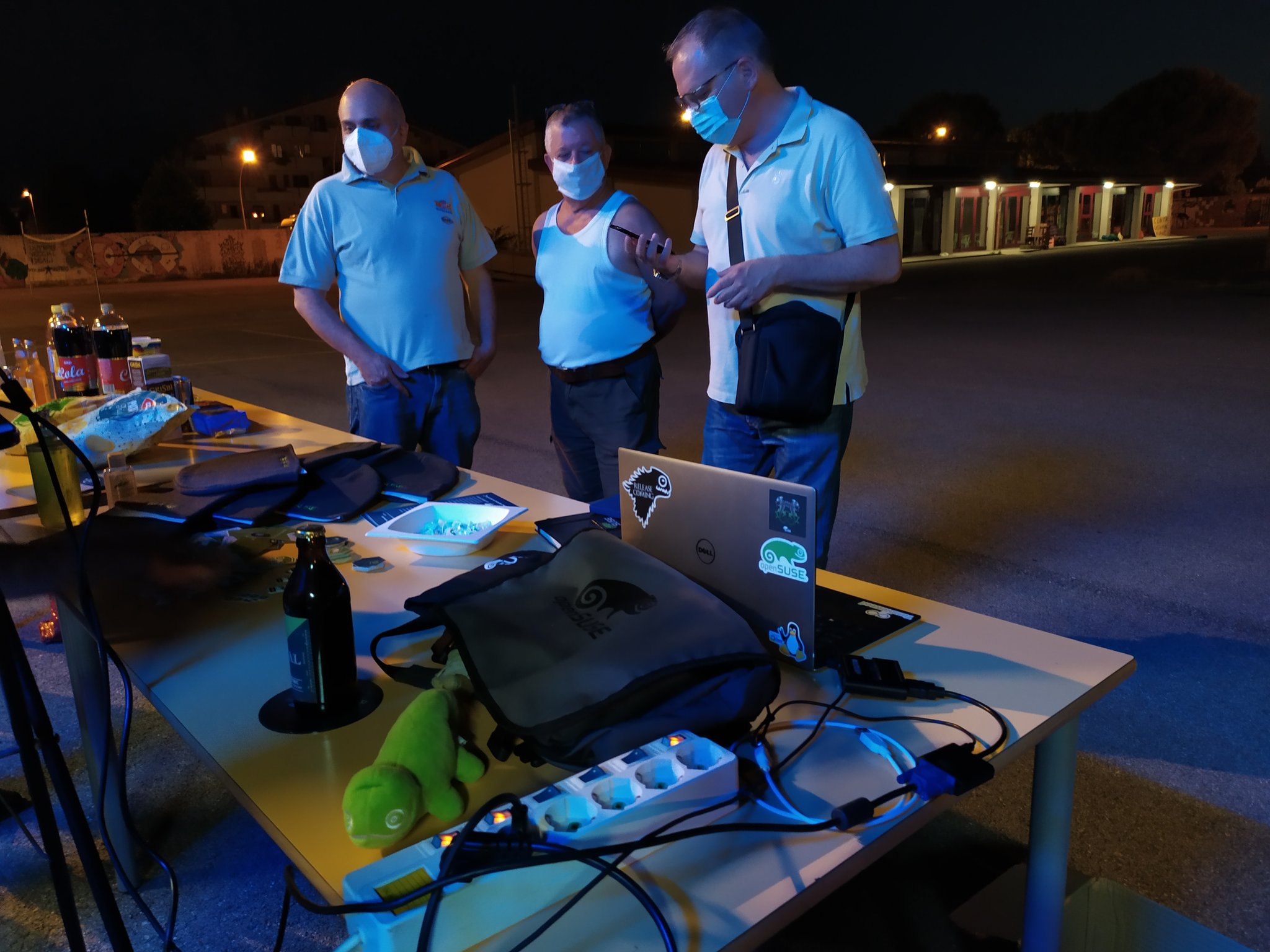
First of all, this meant that I could bring and distribute the super- awesome swags that Doug sent me. And I really want to thank him a lot one more time for shipping them over extremely quickly. They are great and people loved them!
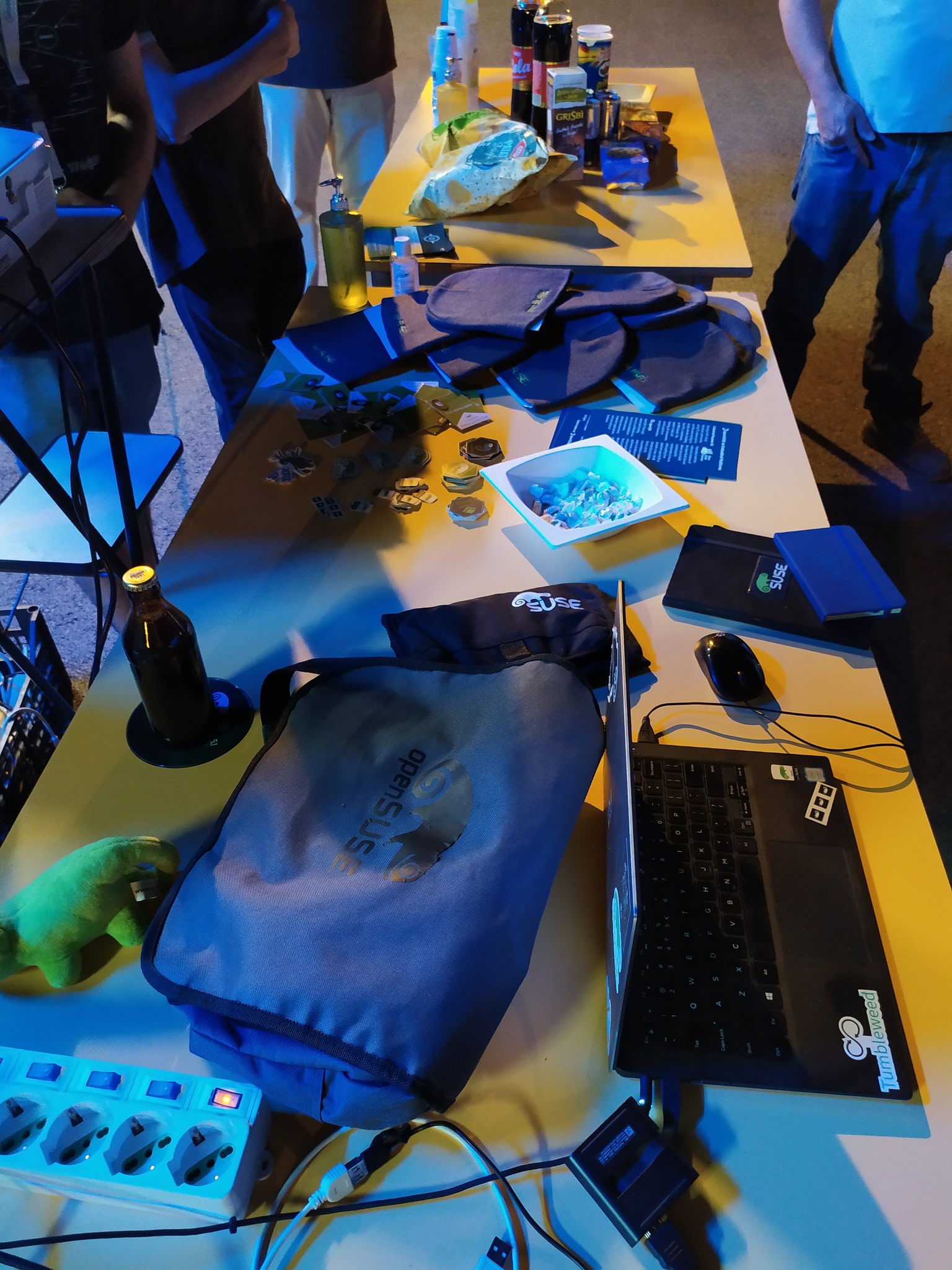
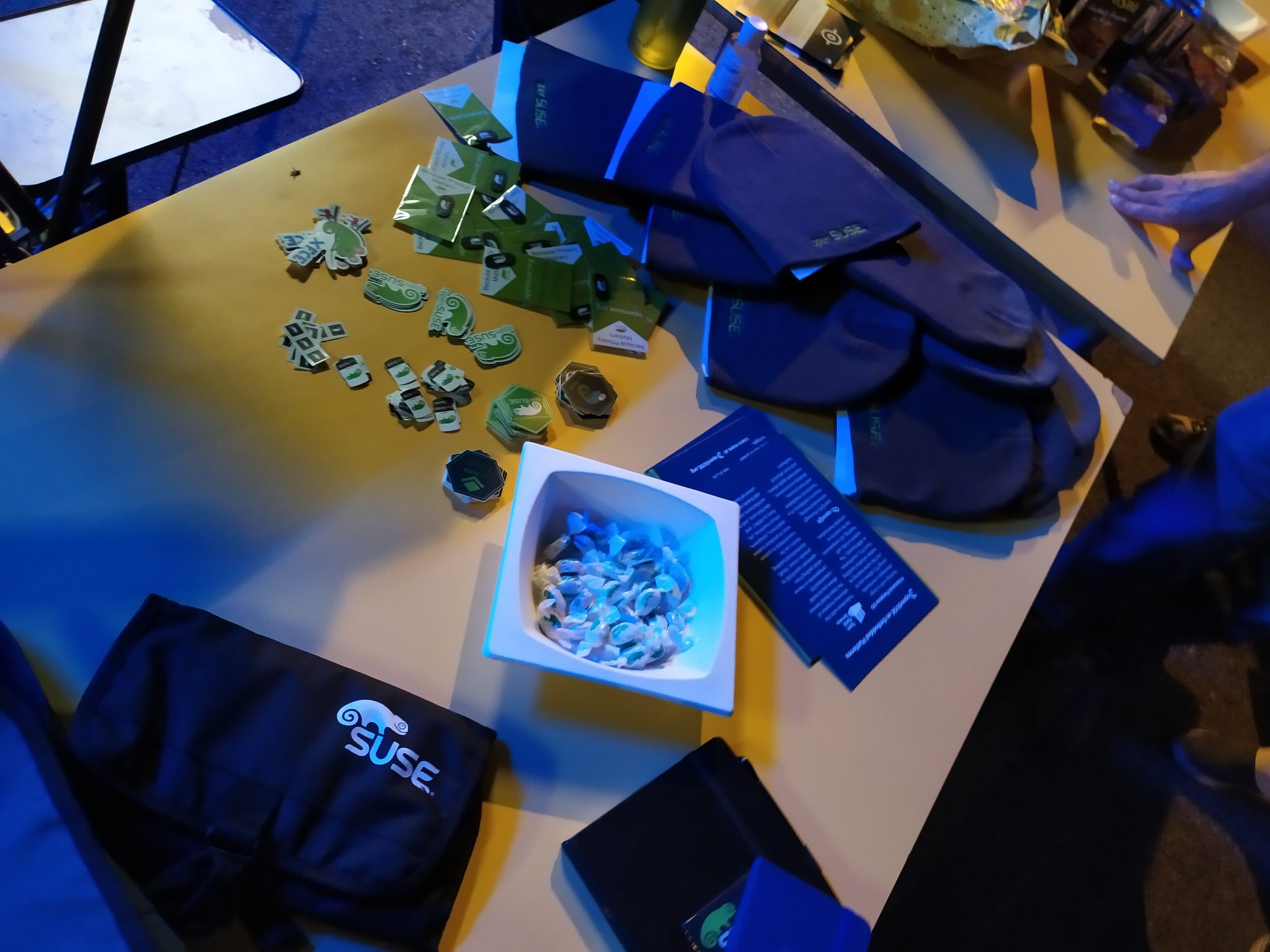
Ah, the event was also recorded, but they still have to let me know whether that worked well or not.
I decided to do a live install as I think our installer is great, and wanted to show it off a bit. :-) In fact, I’ve heard a few times people saying that installing openSUSE is difficult, and I wanted to give it a shot to busting that myth.
I showed how it is possible to install the distro with just a few clicks, which is the opposite of difficult. After that, I went back and explained all the various possible customizations that one can make – but only if she wants to– at each stage.
Feedback on this was extremely good, and I think I’m going to reuse this same approach for other similar occasions.
While the installer was copying packages, there was the time to talk a bit about the characteristics of Leap such as its goals, release cycle, development process, relationship with SLE, etc.
I quickly mentioned the maintenance process, taking advantage of some slides kindly provided by Marina (thanks to you again as well!), and this also was perceived as very interesting.
After the system was ready, I had the time to showcase YaST a little, to explain how to add Packman repos for the codecs and to introduce BTRFS snapshots, snapper and demo a reboot into a previous snapshot and the rollback.
I managed to hint quickly at OBS, but there was only the time to mention OpenQA, and I couldn’t give them a meaningful tour of these two.
People where curious and interested, so I call the event a success.
They asked questions mainly about YaST, BTRFS and zypper. Plus two more, rather specific ones: 1) Why don’t we ship/install multimedia codec by default (even the proprietary and patent encumbered ones), like Ubuntu and even Debian? 2) Why don’t we use an LTS kernel for Leap?
Just to be clear, I’m not actually asking the questions here. :-)
I just felt it would be useful to report this, especially considering that I hear these being asked pretty often, during various events or in various channels or forums.
Anyways, I honestly think the event was a good one, considering that we’re a small LUG from a small place and that we’re still elbow deep inside a pandemic. :-/
And we’re already planning a similar event about Tumbleweed! Not a release party, probably… or maybe yes: I just have to make it coincide with the publishing of a TW snapshot, which should not be too difficult after all. :-P
Turn off Monitor using CLI
Candidates list for the openSUSE Ad-hoc Board Election
The Call for Nominations for the openSUSE Ad-hoc Board Election ended last night. The Election Committee received the nominations of two openSUSE members and both nominees accepted to run as candidate for this election.
The names of the candidates are:
The announcement was made on the project mailing list by Ariez Vachha on behalf of the Election Committee.
As from today the election campaign begins. Electronic vote will begin on the 17th of August and ballots will close on the 30th of August.
All the best to both candidates! 👍