
 Member
 CzP
CzPDeprecating Java-based drivers from syslog-ng: Is HDFS next?
While most Java-based drivers have been deprecated in syslog-ng years ago, we have recently removed all of them in preparation to syslog-ng 4.9.0. Right now, the only Java-based driver remaining is HDFS, so we want to ask the syslog-ng community if the HDFS destination is still needed for them.
Read more at https://www.syslog-ng.com/community/b/blog/posts/deprecating-java-based-drivers-from-syslog-ng-is-hdfs-next

syslog-ng logo

Tumbleweed Monthly Update - May 2025
May ended with a large update for openSUSE’s rolling release. While that snapshot addressed several Common Vulnerabilities and Exposures, more security fixes were introduced throughout the month.
May introduced qemu 10.0 with improved virtualization performance, KDE Plasma 6.3.5 with polished usability fixes, and GStreamer 1.26.1 with smoother media playback across desktop and embedded devices. Security took center stage with OpenSSL 3.5.0’s post-quantum cryptography support and kernel updates, which addresses speculative execution vulnerabilities. Whether you’re a developer, sysadmin, or daily desktop user, May’s snapshots deliver meaningful enhancements for a trusted Tumbleweed experience.
As always, be sure to roll back using snapper if any issues arise.
For more details on the change logs for the month, visit the openSUSE Factory mailing list.
New Features and Enhancements
qemu 10.0: This is a major leap forward for virtualization on openSUSE Tumbleweed and will benefit desktop users, developers and server admins alike. This update allows for better I/O performance for virtual machines by spreading work across multiple threads though the added multiqueue support to virtio-scsi. The Intel GPU passthrough (VFIO) is now better supported and helps users build more capable desktop virtual machines or development environments with hardware acceleration. Developers and embedded enthusiasts will be happy to know the update now supports new arm, LoongArch, RISC-V, HPPA boards and CPU features. Notable improvements include ARM’s EL2 timer emulation and support for new RISC-V extensions like smrnmi and supm. The QEMU Machine Protocol (QMP) documentation has been revamped for easier automation and scripting. This version also fixes build issues with GCC 15 and improves test reliability for openSUSE packaging. Be sure to check the deprecated features, especially for those running 32-bit hosts.
KDE Plasma 6.3.5: Plasma’s KWin window manager has bug fixes targeting crashes, rendering issues, HDR brightness control, tablet input reliability, and smoother screen dimming behavior. Discover improves how update information displays. The “Still Looking” indicator bug has been resolved for a smoother package search experience. Notification bubbles are now better padded and positioned. The weather widget now respects default units, the notes applet won’t misbehave with layout sizes, and task manager grouping visuals are more predictable. Dolphin won’t accidentally misplace interface elements, Plasma Vaults avoid build errors, and color scheme integrations in apps and applets use the correct styling for a more cohesive look.
GStreamer 1.26.1: This release improves media playback reliability, especially for streaming, subtitles, and camera input. If you use apps like GNOME Videos, OBS, or PipeWire-based systems, this update means fewer crashes and smoother performance. Notable fixes improve subtitle handling in H.264/H.265, A/V sync for V4L2 decoding, stability in WebRTC calls, better Matroska and MP4 support, and more accurate frame-rate detection. Developers also get better plugin loading on Windows and improved compatibility with newer Python and GObject versions. This update boosts multimedia experience across desktops, browsers, and embedded devices.
gimp 3.0.4: The update resolves a clipboard bug that caused pasted content to appear padded and ensures smoother behavior when monitors are disconnected or changed; this speeds up startup for users with large font libraries. Non-destructive filter workflows see improvements with better undo tracking and fewer visual artifacts. KDE Wayland users benefit from corrected icon rendering, and .ICO file support is fixed with a patch for the ZDI-CAN-26752 bug. Two now-upstreamed patches were dropped, keeping the package clean and current.
gnome-music 48.0: This update brings better compatibility with modern Python environments by dropping legacy specific workarounds and improving GLib integration. While not a feature-heavy update, it fixes backend issues related to introspection and ensures smoother startup and stability on current openSUSE Tumbleweed systems.
OpenSSL 3.5.0: This major update strengthens cryptographic security and modernizes TLS support for openSUSE Tumbleweed users. The default encryption for tools like req, cms, and smime now uses the stronger aes-256-cbc cipher instead of the outdated 3DES. TLS configuration is improved with support for post-quantum cryptography (PQC) key exchange methods like ML-KEM, which gives users a future-proof option that’s also faster than older methods. The release introduces QUIC server support (used in HTTP/3), which matters for developers building low-latency or streaming applications. Day-to-day, this improves system-wide crypto performance, enhances compatibility with modern web protocols, and strengthens encryption defaults. Users of secure tools like cURL, Git, or anything using OpenSSL-backed TLS benefit from better security and reduced CPU load on newer hardware.
KDE Gear 25.04.1: This update brings a focused wave of polish and stability, smoothing out workflows across key apps like Dolphin, Kdenlive and KDE Connect. File management is cleaner with improved theming and context menus in Dolphin, while Kdenlive benefits from a long list of crash fixes, layout refinements, and a less aggressive autosave. KDE Connect also fixes media crashes and improves navigation.
KDE Frameworks 6.14.0: This release improves system integration, accessibility, and app behavior across the KDE stack. Developers benefit from safer file handling in KArchive, drag-and-drop enhancements in KIO, improved high-contrast theme support in KColorScheme, and smoother Wayland clipboard operations in KGuiAddons. Kirigami receives layout fixes and scrolling improvements, while KWallet introduced support for KeePassXC password manager as a backend. Syntax highlighting gains new language definitions, including ACPI and RISC-V updates.
Key Package Updates
GTK4 4.18.5: This release improves overall desktop stability and responsiveness for Tumbleweed users. It resolves several crashes and bugs that could affect file chooser dialogs, accessibility tools, and input methods like XCompose, which provide important fixes for anyone using multilingual input or screen readers. A major performance issue related to Cairo blur rendering has been addressed, which benefits applications using shadows, transitions, or transparency. This update also smooths out behavior in apps like Epiphany and those built with gtkmm. The changes result in fewer surprises and smoother experiences across GNOME apps and custom GTK-based tools.
kernel-source 6.14.6 and 6.14.5: The 6.14.6 update includes protections against CVE-2024-28956, a newly identified speculative execution vulnerability affecting modern Intel CPUs. It introduces the ITS (Indirect Target Selection) mitigation mechanism and ensures safer handling of return and branch instructions during context switches. Several branch predictor hardening improvements were added and are important for embedded devices and containers using ARM64 hardware. A long-standing bug with some HP laptop mute LEDs is also resolved. The 6.14.5 release brings another round of bug fixes and driver updates that enhance system stability and compatibility on the rolling release. This update resolves edge-case crashes, memory leaks, and device compatibility issues across key subsystems like networking (MLX5, ENETC), Bluetooth, and CPU frequency scaling. Graphics users benefit from Intel Xe driver tuning and DRM fixes that improve performance and power management, while media hardware support continues to expand with updates for newer camera sensors. Filesystem integrity also improves with Btrfs and ceph fixes, which helps prevent data corruption in low-level edge scenarios.
curl 8.14.0: This release addresses two vulnerabilities affecting QUIC certificate verification with wolfSSL have been patched, ensuring proper validation and pinning (CVE-2025-4947, CVE-2025-5025). The release also adds support for OpenSSL + ngtcp2 QUIC combinations and introduces new TLS options like CURLOPT_SSL_SIGNATURE_ALGORITHMS. MQTT connections now send pings at upkeep intervals, and users can disable auto-pong replies for WebSockets. This update reinforces both curl’s stability and its evolving network protocol support.
AppStream 1.0.5: This brings improvements that help software centers and package managers like GNOME Software or Discover show richer and more accurate metadata to users. This update enhances how screenshots, icons and descriptions are validated and interpreted, helping app developers ensure their software listings look polished and follow consistent standards. Tumbleweed users should see better visual consistency in software listings, fewer glitches in app stores, and improved metadata quality across repositories.
fwupd 2.0.9: This library improves firmware update reliability and broadens hardware compatibility is a meaningful upgrade for users who rely on secure and seamless firmware management in openSUSE rolling release. Key improvements include better support for updating the UEFI Key Exchange Key (KEK) and signature database (db), now allowing multiple certificates to be installed at once, which are essential for maintaining secure boot integrity. For developers or advanced users, the fwupdtool now includes more verbose JSON output and better Redfish handling, while hidden or backup devices are properly excluded from updates. These changes boost system stability, expand device coverage, and make managing firmware updates more dependable across desktops and servers.
gpg2 2.5.6: This version fixes a regression introduced in the previous version that misclassified signatures from revoked or expired keys as “missing,” which confused users reviewing signed files or emails. Another important fix prevents potential crashes (double free) when running in no signature cache mode. Some new features include support for left-anchored substring filters (helpful when scripting key listings), the --quick-tsign-key command for efficiently creating trust signatures, and a new User-Id option during key generation to streamline custom workflows. There’s also better smart card support, with improvements to certificate selection and card detection, especially for P15 cards.
sqlite 3.49.2: This software package addresses a rare memory error triggered by the NOT NULL optimization introduced in version 3.40.0, which ensures safer query execution. Fixes were also applied to DISTINCT queries using views and edge cases involving UNIQUE constraints with IN operators, which are issues that could lead to incorrect query results in complex schemas. Users relying on the generate_series() function will see better stability, and minor build improvements enhance portability.
thunar 4.20.3: The file manager now receives a warning before permanently deleting files, adding a crucial layer of protection. The file manager handles user-defined custom actions (UCAs) more reliably, especially when submenus are involved, thanks to fixes for several memory leaks and submenu bugs. On Wayland, popup menus now behave correctly and no longer stay open unexpectedly. The update also fixes crashes related to the list view and properties dialog, improves file handling on exFAT file systems, and enhances statusbar updates during searches.
PipeWire 1.4.4: This update restores compatibility with older 1.2-style MIDI and addresses regressions that impacted tools like mpv. The update also enhances integration with libcamera, ensuring smoother video and multimedia processing in GStreamer. Users working with MIDI devices benefit from improved UMP and ALSA sequencer support, including better handling of SysEx and program changes. NetJACK2 networking is now more reliable with refined driver/manager roles and error management.
Bug Fixes and Security Updates
Several key security vulnerabilities were addressed this month. Common Vulnerabilities and Exposures this month are:
Security Updates
- CVE-2025-32914: An out-of-bounds read vulnerability allows malicious HTTP clients to trigger memory access errors, potentially leading to crashes.
- CVE-2025-32907: Fixed excessive memory use from repeated HTTP range requests causing partial resource exhaustion.
- CVE-2025-46421: Fixed leak of Authorization headers on HTTP redirects, preventing credential exposure to third-party hosts.
-
CVE-2025-4969: Buffer overflow in curl’s
dynbufAPI could lead to data corruption or crash. -
CVE-2025-4476: In curl, improperly handled credentials in
setoptmay leak across requests. -
CVE-2025-4948:
CURLOPT_SSL_VERIFYPEERbypass possible in curl when reusing connections with wolfSSL.
-
CVE-2025-23394: Fixed potential privilege escalation in
cyradmdue to improper shell escaping when invoking subshell commands.
Mozilla Firefox 138.0:
- CVE-2025-2817: Fixed privilege escalation in Firefox Updater allowing SYSTEM-level operations.
- CVE-2025-4082: Fixed memory corruption in WebGL shader attributes on macOS.
-
CVE-2025-4083: Fixed process isolation bypass via
javascript:links in cross-origin frames. - CVE-2025-4085: Resolved potential information leakage and privilege escalation via UITour actor.
- CVE-2025-4086: Obscured file extension in download prompt via crafted filenames.
- CVE-2025-4087: Fixed unsafe attribute access during XPath parsing.
- CVE-2025-4088: Prevented CSRF via Storage Access API redirects.
- CVE-2025-4089: Fixed local code execution risk in “copy as cURL” developer tool.
- CVE-2025-4090: Fixed library path leakage in Firefox for Android via log output.
- CVE-2025-4091: Memory safety bugs fixed in Firefox 138, Thunderbird 138, and ESR versions.
- CVE-2025-4092: Additional memory safety fixes in Firefox 138 and Thunderbird 138. More fixes made for version 138.0.1 and 138.0.4
curl 8.14.0:
- CVE-2025-4947: Fixed an improper Certificate Validation in libcurl (QUIC with IP Address).
- CVE-2025-5025): Addressed a missing Certificate Pinning in libcurl (QUIC with wolfSSL).
-
CVE-2025-3416: A use-after-free vulnerability in OpenSSL’s handling of the
propertiesargument in certain functions could lead to undefined behavior or incorrect property parsing, potentially causing OpenSSL to treat the input as an empty string.
gpg2 2.5.6:
- CVE-2025-30258: Fixed a verification denial-of-service (DoS) vulnerability in GnuPG versions prior to 2.5.5.
kernel-source 6.14.6:
- CVE-2024-28956: Addressed multiple vulnerabilities related to Indirect Target Selection (ITS) on x86, including improper branch prediction behavior and missing mitigations for RSB stuffing.
**iputils:
-
CVE-2025-47268: Fixed an integer overflow in
pingthat could lead to a denial of service when handling crafted ICMP Echo Reply packets.
open-vm-tools 12.5.2:
- CVE-2025-22247: Resolved an insecure file handling flaw that allowed local attackers on a guest VM to tamper with files, potentially leading to privilege escalation.
nbdkit 1.42.3:
- CVE-2025-47712: Addressed a vulnerability allowing low-privileged users to cause partial denial-of-service via resource exhaustion.
- CVE-2025-47711: Fixed improper input handling that could allow denial-of-service through resource exhaustion or instability.
- CVE-2024-7383: Fixed an issue where TLS connections failed to properly verify NBD server certificates, allowing potential man-in-the-middle attacks.
webkit2gtk3 2.48.2:
- CVE-2025-24223: Fixed a memory corruption issue in WebKit when processing maliciously crafted web content.
- CVE-2025-31204: Resolved a memory corruption vulnerability in WebKit triggered by malicious web content.
- CVE-2025-31205: Addressed a cross-origin data exfiltration flaw in WebKit due to improper security checks.
- CVE-2025-31215: Resolved a vulnerability in WebKit where processing malicious web content could cause unexpected process crashes.
- CVE-2025-4382: Fixed an issue where GRUB’s TPM-based auto-decryption could leave LUKS disks decrypted in memory after a filesystem failure. An attacker with physical access could exploit this to access unencrypted data by forcing GRUB into rescue mode.
mozjs128 128.10.1:
- CVE-2025-4920: Fixed an out-of-bounds access when resolving Promise objects in Firefox.
- CVE-2025-4921: Fixed an out-of-bounds access during optimization of linear sums in Firefox.
-
CVE-2025-4575: Fixed an issue in OpenSSL 3.5 where the
-addrejectoption inopenssl x509mistakenly marked certificates as trusted instead of rejected.
postgresql17 17.5:
- CVE-2025-4207: Fixed a buffer over-read vulnerability in PostgreSQL’s GB18030 encoding check, which could result in denial-of-service.
- CVE-2025-4516: Fixed a use-after-free vulnerability in CPython that could lead to memory corruption.
Users are advised to update to the latest versions to mitigate these vulnerabilities.
Conclusion
May’s Tumbleweed updates highlight the strength of Tumbleweed to bring together performance improvements, UI polish and critical security updates. QEMU 10 expands hardware support and accelerates virtual machines, while OpenSSL 3.5 modernizes encryption defaults, which deliver noticeable improvements for everyday Linux use. The introduction this month of post-quantum cryptography (PQC) in OpenSSL 3.5 is a major advancement. KDE Gear 25.04.1 brought stability to essential apps like Dolphin and Kdenlive, ensuring workflows remain smooth and intuitive. Thunar also saw meaningful improvements, including safer file deletion and better Wayland behavior. Multimedia users saw benefits from GStreamer and GTK enhancements. AppStream 1.0.5 enhanced how package managers and software centers display app metadata, resulting in cleaner, more informative listings. Updates to SQLite 3.49.2 and gpg2 2.5.6 resolved edge-case bugs that could affect scripts, key management, or database reliability. These rolling release updates make a difference and show that Tumbleweed continues to deliver consistent new software updates every month for developers and power users.
Slowroll Arrivals
Please note that these updates also apply to Slowroll and arrive between an average of 5 to 10 days after being released in Tumbleweed snapshot. This monthly approach has been consistent for many months, ensuring stability and timely enhancements for users. Updated packages for Slowroll are regularly published in emails on openSUSE Factory mailing list.
Contributing to openSUSE Tumbleweed
Stay updated with the latest snapshots by subscribing to the openSUSE Factory mailing list. For those Tumbleweed users who want to contribute or want to engage with detailed technological discussions, subscribe to the openSUSE Factory mailing list . The openSUSE team encourages users to continue participating through bug reports, feature suggestions and discussions.
Your contributions and feedback make openSUSE Tumbleweed better with every update. Whether reporting bugs, suggesting features, or participating in community discussions, your involvement is highly valued.
Tumbleweed – Review of the weeks 2025/21 & 22
Dear Tumbleweed users and hackers,
I’m again spanning the review over two weeks. During Week 2025/21, there was a large downtime on OBS/openQA due to some storage failures. This took longer than anticipated, so we delayed checking in for new snapshots. All submissions created during that time were handled, albeit more slowly than usual.
This week looked better from an infra pov, but with a holiday on Thursday, things still went slow. In summary, we have published two snapshots (0515 and 0522) during this week, with 0527 currently being in QA (delayed due to Mesa vs wine issues detected during build) – but even with that out of the way, we can already say that snapshot won’t be published (nvidia firmware package issues, see https://bugzilla.opensuse.org/show_bug.cgi?id=1243843)
Let’s look at the bright side and see what the two published snapshots brought to your computers:
- SDL 3.2.14
- Ruby 3.4.4
- SQLite 3.49.2
- libguestfs 1.55.11
- python setuptools 78.1.1
- XEN 4.20.0_12
Things that are planned to be released with the next snapshots to come:
- Mesa 25.1.1
- Mozilla Firafox 138.0.4
- GNOME 48.2
- fwupd 2.0.10
- GIMP 3.0.4
- Linux glibc devel 6.15
- LLVM 20.1.5
- Pipewire 1.4.3
- PostgreSQL 17.5
- Linux kernel 6.15

Install Belgian eID on Atomic Fedora 42 (Kinoite/Silverblue)
To do my tax declaration in Belgium, I have several login methods. One of them is the Belgian eID (eidas). To use it, you need an ID card (or resident card) and a smart card reader. I use the smart card reader CardMan 3121 from OMNIKEY. The setup will also allow you to sign PDF documents and emails with your Belgian ID card. Neat! Other countries would require the purchase of additional certificates, but in Belgian you should have it already – free of charge.
Install Belgian eID on an Atomic Fedora desktop
sudo rpm-ostree install https://eid.belgium.be/sites/default/files/software/eid-archive-fedora-2021-1.noarch.rpm
# reboot now
sudo rpm-ostree install -A eid-viewer eid-mw
# optional reboot
You can check if everything is in order with rpm-ostree status. My output:
State: idle
Deployments:
  fedora:fedora/42/x86_64/kinoite
                  Version: 42.20250429.1 (2025-04-29T19:10:59Z)
               BaseCommit: 530f49cde70f792bb77daa1c0570e1e2e66e2e1ac15c5edcf8e4b2774e452105
                   Commit: b96d42074e4448754bd192650dd5efbdc4192ac004667adb35491db84cb47440
             GPGSignature: Valid signature by B0F4950458F69E1150C6C5EDC8AC4916105EF944
                     Diff: 6 added
          LayeredPackages: eid-mw eid-viewer [redacted]
            LocalPackages: eid-archive-fedora-2021-1.noarch

● fedora:fedora/42/x86_64/kinoite
                  Version: 42.20250429.1 (2025-04-29T19:10:59Z)
         BootedBaseCommit: 530f49cde70f792bb77daa1c0570e1e2e66e2e1ac15c5edcf8e4b2774e452105
                   Commit: 1a3e69661f9dbca3cd798c807c59d2c2c28331f7496b9ea0dab6d46986c6b740
               LiveCommit: b96d42074e4448754bd192650dd5efbdc4192ac004667adb35491db84cb47440
                 LiveDiff: 6 added
             GPGSignature: Valid signature by B0F4950458F69E1150C6C5EDC8AC4916105EF944
          LayeredPackages: [redacted]
            LocalPackages: eid-archive-fedora-2021-1.noarch
                 Unlocked: transient
Then, you need to install the Firefox plugin from https://addons.mozilla.org/en-US/firefox/addon/belgium-eid/.
Note that on Atomic Fedora desktops, Firefox is (as of May 2025) installed as system application and other browsers (such as Chromium) is installed in a flatpak sandbox. So it is very likely that other browsers than Firefox cannot access the eID setup on the system.
References:
- https://eid.belgium.be/en/linux-eid-software-installation on linux setup for Belgian eID
- https://rpmfusion.org/Howto/OSTree on the setup of third-party RPM repositories for rpm-ostree based distros (such as Fedora Kinoite/Silverblue)
First Test with eid-viewer
You should find now in your application menu eID Viewer. Or you lunch in the terminal eid-viewer. Enter your card. Then you should see the data on your card already.
Login with eID
You can now use the Belgian eID to access a governmental service, such as the tax declaration portal. Go to https://fin.belgium.be/fr/particuliers/declaration-impot/rentrer-declaration and choose eID as your mean for authentication. You will need to provide the PIN code that comes with the ID card. :tada:
Sign PDFs with eID
This is not so clear yet. Okular is usually a flatpak. In order to have gpg find the card reader, I had to restart a service first:
gpg --card-status
# => can't connect to 'socket:///home/rriemann/.gnupg/log-socket': No such file or directory
systemctl restart pcscd
gpg --card-status
# can't connect to 'socket:///home/rriemann/.gnupg/log-socket': No such file or directory
# Reader ...........: OMNIKEY AG CardMan 3121 00 00
# Application ID ...: 534C4090413423078AA5B22712924134
# Application type .: PKCS#15
Okular supports as PDF signature backends both NSS and GnuPG (S/MIME). As it does not work with any option, I check in the app Kleopatra (KDE certificate manager) the smartcards. It turns out I have to configure the trust of various certificates belonging to the Belgian authorities.
Then, I restart Okular again and choose under Settings → Configure Backends… → PDF backend configuration the option Signature Backend to GnuPG (S/MIME). I get the following feedback:
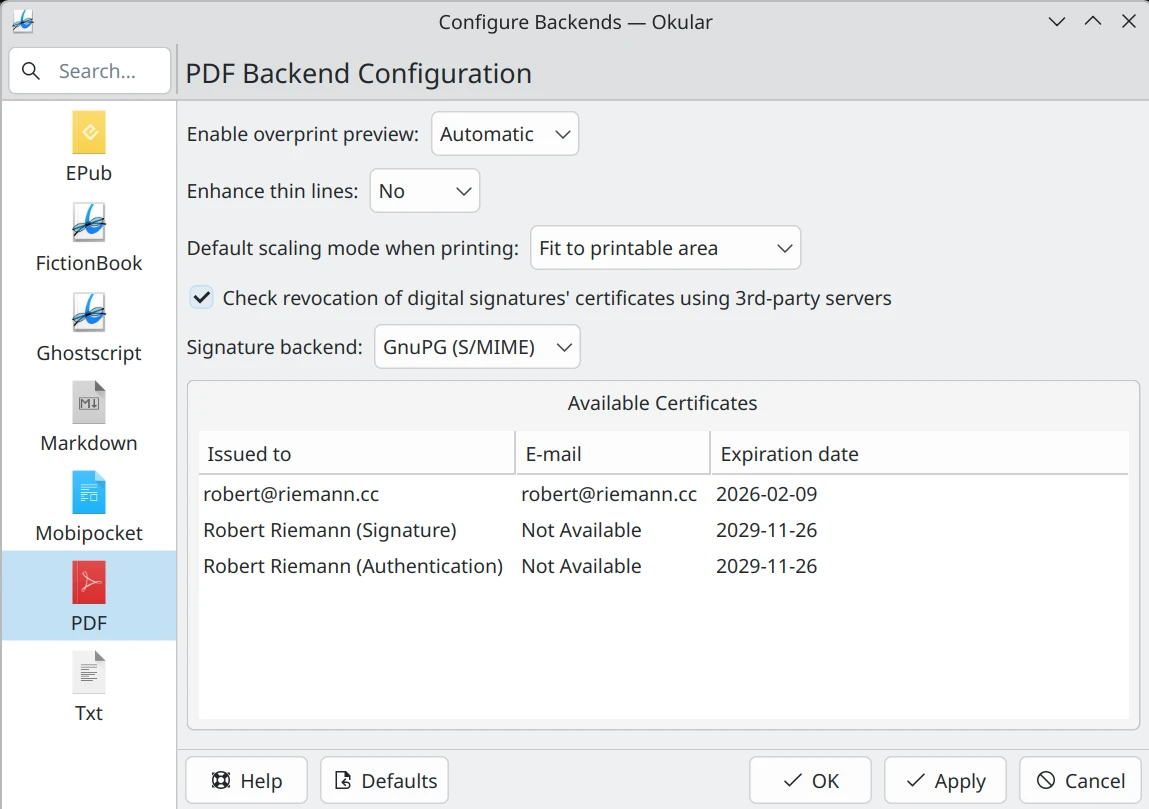
When I then choose in the Okular Tools menu the signing option, I end up in a loop with a pinentry-qt dialogue:
Please insert the card with serial number:
[redacted serial number]
It does not work. So close!
An alternative for signing offers the command line tool pdfsig.
With pdfsig -backend GPG -list-nicks, I get a list of fingerprints. One of the hardware ones is for signing, one for authentication. The smartcard tab in the app Kleopatra also displays the names/purposes alongside the fingerprint. So it may be better suited. Otherwise, try out all to find the one for signing. Then, PDFs should be signed with:
pdfsig unsigned.pdf signed.pdf -add-signature -nick [redacted my fingerprint] -reason 'for fun!'
Unfortunately, I only get an error:
signDocument: error getting signature info
We can try briefly the NSS backend with pdfsig. For this, use pdfsig -list-nicks to check nick names:
Certificate nicknames available: BELPIC:Authentication BELPIC:Signature
Then, signing should work with:
pdfsig unsigned.pdf signed.pdf -add-signature -nick BELPIC:Signature -reason 'for fun!'
Then, I get queried for the pin and upon entry, the PDF is signed. This can be checked as follows:
# pdfsig signed.pdf
Digital Signature Info of: signed.pdf
Signature #1:
  - Signature Field Name: 34B8E9A9E274A3BCE18E633ABD5B1ECA
  - Signer Certificate Common Name: Robert Riemann (Signature)
  - Signer full Distinguished Name: CN=Robert Riemann (Signature),serialNumber=[redacted],givenName=Robert,SN=Riemann,C=DE
  - Signing Time: May 29 2025 14:58:22
  - Signing Hash Algorithm: SHA-256
  - Signature Type: adbe.pkcs7.detached
  - Signed Ranges: [0 - 515528], [535530 - 536032]
  - Total document signed
  - Signature Validation: Signature is Valid.
  - Certificate Validation: Certificate issuer isn't Trusted.
It remains yet to determine why the certificate validation fails even though the certificate is marked trusted in Kleopatra. Let me know if you have an answer!
Lend a Hand at the openSUSE Conference
The openSUSE community wants to make the project’s conference in Nuremberg smooth, welcoming and beneficial to attendees. We’re calling on you to get involved!
Whether you’re a longtime contributor or a new face looking to get more involved, there are several ways you can support the conference and ensure everyone has a good time.
We Need Volunteers for:
🟢 Registration Booth / Welcome Desk
Be the first friendly face attendees see! Help us greet participants, hand out badges and swag, and answer basic questions about the venue and schedule.
🟢 Timekeeping During Talks
Help keep our sessions running on time by signaling to speakers when they’re approaching the end of their allotted time. This simple task helps ensure everyone gets a fair and punctual presentation slot.
🟢 Shop Assistance
We’ll have a shop set up at the venue with openSUSE merchandise available for purchase. Volunteers will help the booth lead organize inventory and assist with transactions.
🟢 Video Team Support
The video team could use extra hands with camera setup on June 25 and session recordings through the conference as well as stream monitoring. No prior experience required; just a willingness to help and learn.
Those who are interested should email ddemaio@opensuse.org with the subject header oSC25 Help.
Spreading Awareness – Celebrating 20 Years of openSUSE
This year marks 20 years of openSUSE, and we’re working on a special video project to honor the people and stories behind the project. As part of this, we’re running a campaign at the conference to highlight how individuals contribute to openSUSE. Whether it’s packaging, translation, infrastructure, design, community organizing, release management or documentation, we would like for you to spend a few minutes on camera.
If you’d like to help capture these stories or support the video team’s work to showcase them, we’d love to hear from you. Send an email to ddemaio@opensuse.org with the subject header openSUSE 20 Year!
How to Volunteer
If you’re attending the conference and would like to get involved in any of the roles above, please register here and send a message to the email above. Let’s make openSUSE Conference 2025 one to remember.
Kea DHCP: Local Vulnerabilities in many Linux and BSD Distributions
Table of Contents
- 1) Introduction
- 2) Overview of Kea Design
-
3) Security Issues
- 3.1) Local Privilege Escalation by Injecting a Hook Library via the
set-configCommand (CVE-2025-32801) - 3.2) Arbitrary File Overwrite via
config-writeCommand (CVE-2025-32802) - 3.3) Redirection of Log Files to Arbitrary Paths (shared CVE with 3.2)
- 3.4) Service Spoofing with Sockets in
/tmp(shared CVE with 3.2) - 3.5) Denial-of-Service issues with Sockets in
/tmp(shared CVE with 3.2) - 3.6) World-Readable DHCP Lease Files in
/var/lib/kea/*.cvs(CVE-2025-32803) - 3.7) World-Readable Kea Log Files (shared CVE with 3.6)
- 3.1) Local Privilege Escalation by Injecting a Hook Library via the
- 4) Hardening Suggestions
- 5) Bugfixes
- 6) Affectedness of Kea Configurations on Common Linux and UNIX Systems
- 7) CVE Assignments
- Timeline
- Change History
- References
1) Introduction
The Kea DHCP distribution is the next generation DHCP server suite offered by the Internet Systems Consortium (ISC). It replaces the traditional ISC DHCP software which has reached its end of life.
Since SUSE is also going to ship Kea DHCP in its products, we performed a routine review of its code base. Even before checking the network security of Kea, we stumbled over a range of local security issues, among them a local root exploit which is possible in many default installations of Kea on Linux and BSD distributions. This, as well as some other issues and security recommendations for Kea follow below in a detailed report.
This report is based on Kea release 2.6.1. Any source code references in this report relate to this version. Many systems still ship older releases of Kea, but we believe they are all affected as well by the issues described in this report.
In the next section an overview of the Kea design, as far as it is relevant for the issues in this report, is provided. In section 3) the security issues we found will be discussed in detail. In section 4) further hardening suggestions are provided. In section 5) the upstream bugfixes for the issues are discussed. In section 6) the packaging properties and affectedness of Kea in widespread Linux and UNIX systems are documented. Finally in section 7) an overview of the CVE assignments is given.
2) Overview of Kea Design
This section provides a short overview of the involved components, to allow readers that are unfamiliar with Kea to better understand the rest of this report.
Kea offers three separate services for dhcp4, dhcp6 and dhcp-ddns. A
kea-ctrl-agent is active by default in most Kea installations and offers an
HTTP REST API listening on localhost:8000. This REST API is based on JSON
requests that are either processed by kea-ctrl-agent itself or forwarded to
one of the Kea services it controls. To allow forwarding, each Kea service
listens on a UNIX domain socket that is only accessible to kea-ctrl-agent.
In most installations, the REST API is by default accessible to all users in
the system without authentication. Many installations run the Kea
services with full root privileges. On Linux systems that use a dedicated
service user account instead, the Linux capability CAP_NET_BIND_SERVICE is
assigned to all of the Kea services. The dhcp4 service additionally needs
CAP_NET_RAW to function.
The default configuration and the packaging of Kea are important aspects to judge the exploitability of the issues described in this report. In some sense, the issues could be considered vendor-specific problems and not upstream issues (some ISC engineers argued in this direction when we first reported these issues). The number of affected Kea packages and the fact that the default configuration installed by the Kea build system also enables an unauthenticated REST API make these seem like overarching upstream issues to us, however.
3) Security Issues
3.1) Local Privilege Escalation by Injecting a Hook Library via the set-config Command (CVE-2025-32801)
The set-config REST API command allows to completely control the
configuration of kea-ctrl-agent itself, as well as of the individual Kea
services. A trivial local privilege escalation is possible by configuring a
hook library under control of an unprivileged user. The following example uses
the curl utility to perform the exploit.
someuser$ curl -X POST -H "Content-Type: application/json" \
    -d '{ "command": "config-set", "arguments":
          { "Control-agent": {"hooks-libraries": [{"library": "/home/someuser/libexploit.so"}] }}}' \
    localhost:8000
By placing a constructor function into libexploit.so, attacker controlled
code will be executed by kea-ctrl-agent upon dlopen() of the library. The
impact is arbitrary code execution with full root privileges on installations
that run Kea services as root. On systems that use a dedicated service user
for Kea, the impact will be full control over the Kea processes and also
escalated networking privileges.
Hook libraries can be configured for any of the other Kea services as well, thus code execution can be achieved in the context of each of the Kea daemons this way.
We offer a simple Python script
kea-hook-lib-exploit.py for download
which can be used to reproduce the issue.
3.2) Arbitrary File Overwrite via config-write Command (CVE-2025-32802)
The config-write REST API command instructs a Kea service to write out its
configuration to an arbitrary file path:
curl -X POST -H "Content-Type: application/json" \
    -d '{ "command": "config-write", "arguments": { "filename": "/etc/evil.conf" } }' \
    localhost:8000
The file write happens via a regular C++ std::ofstream with trunc setting,
i.e. the target file will be truncated and overwritten if it already exists.
The configuration content that is written to disk can as well be controlled by
the attacker, but the JSON format and configuration sanity checks that are
enforced by Kea restrict the degree of freedom of what will eventually be
written out.
If the Kea services run with full root privileges, then this is a local
denial-of-service bordering on a local root exploit. By embedding shell code,
a crafted JSON configuration written e.g. to a file in /etc/profile.d could
trigger a local root exploit upon root logging in, for example.
If the Kea services are running as dedicated service users, then this attack vector can be used to corrupt Kea-owned configuration, log and state files, thus resulting in integrity violation and denial-of-service limited to the scope of the Kea services.
3.3) Redirection of Log Files to Arbitrary Paths (shared CVE with 3.2)
This is similar to issue 3.2): an arbitrary new logfile path can be configured to be used by Kea services. This is an example JSON configuration that demonstrates the problem:
{
    "command": "config-set",
        "arguments": {
             "Control-agent": {
                 "loggers": [{
                     "name": "kea-ctrl-agent",
                     "output-options": [{
                         "output": "/root/bad.log"
                     }],
                     "severity": "DEBUG"
                 }]
             }
         }
     }
}
This configuration causes kea-ctrl-agent to create the file /root/bad.log
and also to change logging severity to DEBUG, potentially exposing sensitive
internal program state. Also a lock file will be created in
/root/bad.log.lock.
This attack vector poses another local denial-of-service vulnerability bordering on a local root exploit, similar to what is outlined in section 3.2).
3.4) Service Spoofing with Sockets in /tmp (shared CVE with 3.2)
For the purposes of forwarding a REST API request to one of the Kea services,
kea-ctrl-agent attempts to connect to the service’s UNIX domain socket. If
a legit Kea admin tries to send a command to a Kea service that is not
currently running, like the kea-dhcp-ddns service (which isn’t configured by
default on most distributions), then the admin can fall victim to a local
service spoofing attack.
Whether this is possible depends upon the directory into which the UNIX domain
sockets are placed. Many distributions use the public /tmp directory for
this. In this case an unprivileged local user can create the UNIX domain
socket in question on its own, for example in /tmp/kea-ddns-ctrl-socket. If
this succeeds, then API requests will be forwarded to a spoofed service that
can respond with a crafted reply. With this a local attacker can attempt to
trick the admin into performing dangerous actions, or might be able to
intercept sensitive data contained in the request forwarded to the spoofed
service.
We reproduced this attack vector for example on Fedora 41 as follows:
curl -X POST -H "Content-Type: application/json" \
    -d '{ "command": "config-get", "service": [ "d2" ], "arguments": { "secret": "data" } }' \
    localhost:8000
The d2 service socket is configured by default in kea-ctrl-agent and
refers to the kea-dhcp-ddns service. When running strace on
kea-ctrl-agent then the following connect() attempt is observed during
this request:
connect(18, {sa_family=AF_UNIX, sun_path="/tmp/kea-ddns-ctrl-socket"}, 27) = -1 ENOENT (No such file or directory)
A local unprivileged user can bind a UNIX domain socket in
/tmp/kea-ddns-ctrl-socket to intercept any such requests.
This attack type also affects Kea services that are configured but not yet
running, e.g. before the Kea service unit or init script is started, or when
Kea services are restarted. Upon startup each service will attempt to
unlink() the UNIX domain socket path before binding to it, but this is
subject to a race condition that unprivileged users can win by rebinding a
socket in this location before the legit service has a chance to do so. The
legit service will then fail to start, while the unprivileged user will be
able to intercept REST API requests that are forwarded to the spoofed service
by kea-ctrl-agent.
3.5) Denial-of-Service issues with Sockets in /tmp (shared CVE with 3.2)
The use of the /tmp directory for the Kea service sockets is generally
problematic. The Kea services create lock files in the socket directory that
are derived from the socket names. Any local user can pre-create either the
UNIX domain sockets or the associated lock files to prevent Kea services from
starting.
3.6) World-Readable DHCP Lease Files in /var/lib/kea/*.cvs (CVE-2025-32803)
Many of the distributions we checked grant read access to the state data of
the default Kea in-memory database, which is in most cases found in /var/lib/kea.
This means all local users will be able to access this information and thereby
this poses a local information leak. Whether DHCP leases are private data is
debatable. More sensitive data might be stored in these files (in a future
implementation), however.
We don’t recommend to allow general read access to this data. We originally only reported this as a hardening recommendation, but upstream decided to assign a CVE for it anyway.
3.7) World-Readable Kea Log Files (shared CVE with 3.6)
On most systems we checked, the Kea log files found in /var/log/kea or
/var/log/kea*.log are world-readable. As a hardening measure we
recommend to restrict access to this data.
We originally only reported this as a hardening recommendation, but upstream decided to assign a CVE for it anyway.
4) Hardening Suggestions
This section contains further hardening suggestions about issues that we don’t consider high severity at the moment.
4.1) Possible Timing Attack against the HTTP Basic Auth Implementation
kea-ctrl-agent uses the HTTP Basic Auth mechanism to implement
authentication on the REST API interface. In this scheme the string
"<username>:<password>" is base64 encoded and placed into an
"Authorization:" HTTP header.
The verification of these credentials happens in
BasicHttpAuthConfig::checkAuth(). The code maintains a
std::unordered_map<std::string, std::string>, where the keys consist of the
base64 encoded "<username>:<password>" combinations found in the Kea
configuration. The values are the cleartext usernames that can be
authenticated with the credentials found in the key.
In basic_auth_config.cc:365 the credentials
provided by the REST API client are looked up directly in this map data
structure to verify them. The verification of cleartext passwords can suffer
from timing attack weaknesses when the passwords are compared using optimized
string comparison routines. Attackers can perform statistical analysis of the
time required by a service to report an authentication failure to construct,
little by little, a valid user/password combination.
In the case of kea-ctrl-agent it isn’t plaintext passwords that are compared,
but the base64 encoded "<username>:<password>" strings. This adds a bit of
complexity but does not prevent a timing attack from succeeding. A bigger
hurdle is the use of the std::unordered_map, however, which uses a hash
function to lookup elements in the map. When using the gcc compiler suite
and the libstdc++ standard library, then the default hash function used for
std::string is MurmurHash2 with a static
seed. While the hash lookup complicates a
possible timing attack, it is still a deterministic algorithm and an attacker
might be able to choose input values in a way that causes kea-ctrl-agent to
produce hash values for the hash map lookup that are suitable for a timing
attack.
To be on the safe side we suggest to supply a custom KeyEqual template
parameter to the std::unordered_map. This key comparison function should
implement a constant-time comparison of the input data to avoid any observable
timing differences.
Since the complexity of such a timing attack, given the circumstances, will be very high, we don’t see this as a relevant security issue at the moment. A dedicated attacker might be willing to make an attempt at this and succeed, however.
4.2) API Credentials Leak via ‘get-config’ Command
When API authorization is enabled in the REST API, then the configuration potentially contains cleartext user names and passwords that can be used for authentication. A user that already has a valid set of credentials can discover the credentials of other users by retrieving the configuration via the API, even if the configuration file would otherwise not be world-readable in the system.
This means that any user with valid credentials can impersonate any other user. This can also be problematic when the credentials of a user are revoked at some point. By storing the credentials of other users, such a user could still access the API even after being denied access to Kea. Another issue could be that users might be reusing the same credentials for other, unrelated services.
Cleartext credentials should never be exposed on the API level, except maybe
if the client is root anyway. Even then it could be a source of information
leaks, for example if an admin shares a Kea configuration dump (e.g. for
debugging purposes), unaware of the fact that cleartext credentials are
contained in the data.
Users of Kea can circumvent this problem by avoiding storing cleartext credentials in the Kea configuration and instead referring to credential files on disk that are only accessible to privileged users.
5) Bugfixes
In our initial report we suggested to upstream to restrict paths from where hook libraries are loaded (issue 3.1) and also paths where configuration and log files are written to (issues 3.2, 3.3). It is obvious, however, that the unauthenticated REST API is problematic beyond the concrete exploit scenarios we explored. Arbitrary users in the system should not be able to fully control Kea’s configuration, for example. Thus we advised to enforce authentication on REST API level by default.
To fix the issues described in this report, upstream published bugfix releases for all currently supported versions of Kea:
We looked into release 2.6.3 and believe the bugfixes are thorough. As is also documented in the upstream release notes, the following changes have been introduced:
- For many operations only safe directories are allowed for reading from or
writing to. Among others this covers the following aspects:
- Hook libraries can only be loaded from a trusted system directory (addresses issue 3.1).
- Configuration files can only be written to the trusted system configuration directory (addresses issue 3.2).
- Logfiles can only be written to the log directory determined during build time (addresses issue 3.3).
- The default configuration files installed by Kea now enforce authentication of the REST API.
- The log, state and socket directories are now installed without the world readable / world writable bits set (addresses issues 3.5, 3.6, 3.7).
- Sockets are now placed under
/var/run/keaby default. This directory must not be world-writable (addresses issue 3.5). - The documentation and example files have been updated to avoid issues like discussed in this report.
The hardenings for the issues described in section 4) are not yet available, but upstream intends to address them in the near future.
6) Affectedness of Kea Configurations on Common Linux and UNIX Systems
Kea is a cross-platform project that also targets traditional UNIX systems, which might be the reason why there are no well established standards for the packaging of Kea. Every distribution integrates Kea in its own way, leading to a complex variety of outcomes with regards to affectedness. The defaults and the resulting affectedness on a range of current well-known Linux and BSD systems are documented in detail in this section.
All systems we looked at have been updated to the most recent package versions on 2025-05-23.
6.1) Arch Linux
| System Release | rolling release (as of 2025-05-23) |
| Kea Version | 2.6.1 |
| Kea Credentials | root:root |
| Kea Socket Dir | /tmp |
| Kea Log Dir | /var/log/kea-*.log, mode 0644 |
| Kea State Dir | /var/lib/kea, mode 0755 |
| Affected By | 3.1 through 3.7 |
Arch Linux is affected by all the issues.
6.2) Debian Linux
| System Release | 12.10, 12.11 (Bookworm) |
| Kea Version | 2.2.0 |
| Kea Credentials | _kea:_kea |
| Kea Socket Dir | /run/kea, owned by _kea:_kea mode 0755 |
| Kea Log Dir | /var/log/kea, owned by _kea:_kea mode 0750 |
| Kea State Dir | /var/lib/kea, mode 0755 |
| Affected By | 3.1 (partially), 3.2 (partially), 3.3 (partially), 3.6 |
When we first discovered these issues we looked into Debian 12.10. Meanwhile Debian 12.11 has been released. The situation seems to be the same in both versions, however.
No local root exploit is possible here, because the services run as non-root. Debian also applies an AppArmor profile to Kea services. This makes the hook library injection (3.1) difficult. For the injection to succeed, a directory would be needed that can be written to by the attacker and from where the Kea service is allowed to read and map a library. This seems not possible in the current AppArmor profile used for Kea. Due to this, Debian is not affected by 3.1) at all.
3.2) and 3.3) only affect files owned by _kea and that are allowed to
be written to according to AppArmor configuration. This still allows to
corrupt the log, lock and state files owned by _kea.
The only information leak is found in the state directory (3.6); logs are protected.
AppArmor Security
We checked more closely if there is a loophole in the Kea AppArmor profiles to
make arbitrary code execution (3.1) possible after all. The profiles for the
dhcp4, dhcp6 and ddns Kea services allow reading and mapping of files found in
/home/*/.Private/**, with the restriction that the files must be owned by
_kea. An attacker with a home directory can place an injection library in
its $HOME/.Private/libexploit.so. Only the ownership of the file is
preventing the exploit from succeeding.
By leveraging issue 3.2), the Kea services can be instructed to create _kea
owned files in the attacker’s $HOME/.Private. The content of the created
files is not fully attacker controlled, however, so it will not be possible to
craft a valid ELF object for loading via dlopen() this way. By placing a
setgid-directory in $HOME/.Private/evil-dir, any files created in this
directory will even have the group-ownership of the attacker. The file mode
will be 0644, however, so the attacker is still not able to write to the file.
Our research shows that there is only a very thin line of defense left against
this arbitrary code execution in _kea:_kea context on Debian, but it seems
to hold.
Update
Jakub Wilk shared a working attack vector on the
oss-security mailing list which makes it possible to overcome the AppArmor
restrictions after all. To allow code execution, a default ACL (access control
list) entry can be assigned to $HOME/.Private:
$ setfacl -d -m u:$LOGNAME:rwx ~/.Private/
The mode of newly created files in this directory will be the bitwise AND
between the default ACL setting and the mode parameter used by the program
that creates the file (the process’s umask is not used in this case). When
observed with strace, the creation of configuration files by Kea looks like
this:
openat(AT_FDCWD, "/home/<user>/.Private/libexploit.so", O_WRONLY|O_CREAT|O_TRUNC, 0666) = 14
As a result, the libexploit.so created by Kea will end up with a mode of
0666. The executable bits will be missing, but Linux allows to mmap()
executable code from the file even if it doesn’t have executable bits assigned.
This is enough for the dlopen() within Kea to succeed and for arbitrary code
to be executed. Actual library code can simply be redirected into a
libexploit.so that was previously created by Kea:
$ cat /path/to/librealexploit.so >~/.Private/libexploit.so
The exploit code will still be restricted by the AppArmor profiles applied to the Kea processes. This means that e.g. only files allowed to be written to by the AppArmor profiles can be modified. This still makes it possible to control all Kea state on disk.
6.3) Ubuntu Linux
| System Release | 24.04.02 LTS |
| Kea version | 2.4.1 |
| Kea Credentials | _kea:_kea |
| Kea Socket Dir | /run/kea, owned by _kea:_kea mode 0755 |
| Kea Log Dir | /var/log/kea, owned by _kea:_kea mode 0750 |
| Kea State Dir | /var/lib/kea, mode 0755 |
| Affected By | 3.6 |
Ubuntu is mostly equivalent to the situation on Debian Linux with one major
difference: REST API access authentication is enforced either by configuring a
custom “user:password” pair, or by generating a random password. If no
password is configured, kea-ctrl-agent will not start.
Due to this, Ubuntu is not affected by 3.1 and 3.2 at all. Only the information leak in the state directory (3.6) exists.
6.4) Fedora Linux
| Fedora 41 | Fedora 42 | |
|---|---|---|
| Kea Version | 2.6.1 | 2.6.2 |
| Kea Credentials | kea:kea |
” |
| Kea Socket Dir | /tmp | ” |
| Kea Log Dir | /var/log/kea, mode 0755 | /var/log/kea mode 0750 |
| Kea State Dir | /var/lib/kea, mode 0750 | ” |
| Affected By | (all limited to the kea:kea credentials) 3.1, 3.2, 3.3, 3.4, 3.5, 3.7 |
(all limited to the kea:kea credentials) 3.1, 3.2, 3.3, 3.4, 3.5 |
When we first discovered these issues we looked into Fedora 41. Meanwhile
Fedora 42 has been released. There are some changes found in Fedora 42, most
notably a safer mode for /var/log/kea.
No local root exploit is possible on Fedora, because the services run as non-root.
Items 3.1 and 3.2 only affect Kea integrity and escalation of the
CAP_NET_RAW and CAP_NET_BIND_SERVICE capabilities. There is no SELinux
policy in effect for Kea, thus there are no additional protection layers
present that would prevent arbitrary code execution in the context of
kea:kea (3.1).
Fedora is affected by 3.3, 3.4 and 3.5 within the constraints of the
kea:kea credentials. On Fedora 41 there exists an information leak in the
log directory (3.7). The state directory is safe on both Fedora versions.
6.5) Gentoo Linux
| System Release | rolling release (as of 2025-05-23) |
| Kea Version | 2.4.1 |
| Kea Credentials | root:root |
| Kea Socket Dir | /run/kea owned by dhcp:dhcp mode 0750 |
| Kea Log Dir | /var/log/kea, owned by root:dhcp mode 0750 |
| Kea State Dir | /var/lib/kea, owned by root:dhcp mode 0750 |
| Affected By | if kea-ctrl-agent is manually enabled: 3.1, 3.2, 3.3 |
On Gentoo Linux Kea is only available as an unstable ~amd64 ebuild. It
seems still incomplete, because the default configuration is broken (wrong
paths) and the services won’t start. Also the kea-ctrl-agent is not part of
the default configuration.
The directory permissions are inconsistent with the root:root credentials
the Kea services are running with. This creates opportunities for a
compromised dhcp user/group to stage symlink attacks in /run/kea, for
example.
There are no information leaks and the /tmp directory is not used for
sockets. Since the agent is not configured by default at all, we consider that
Gentoo is not affected by any of the issues.
When kea-ctrl-agent is actively added to the mix and authorization is not
enabled on the REST API, then Gentoo would be affected by issues 3.1,
3.2 and 3.3.
6.6) openSUSE Tumbleweed
| System Release | rolling release (as of 2025-04-01) | rolling release (as of 2025-05-23) |
|---|---|---|
| Kea Version | 2.6.1 | 2.6.2 |
| Kea Credentials | root:root |
keadhcp:keadhcp |
| Kea Socket Dir | /tmp | /tmp |
| Kea Log Dir | /var/log/kea, owned by keadhcp:keadhcp mode 0755 |
mode changed to 0750 |
| Kea State Dir | /var/lib/kea, owned by root:root mode 0755 |
/var/lib/kea, owned by keadhcp:keadhcp mode 0750 |
| Affected By | 3.1 through 3.7 | (all limited to keadhcp credentials) 3.1, 3.2, 3.3, 3.4, 3.5 |
When we first discovered these issues, openSUSE Tumbleweed was fully affected
by all of them. We asked our Kea maintainer to harden the packaging already
before the publication of these issues, which was possible without disclosing
any information about the vulnerabilities. In the current packaging on openSUSE
Tumbleweed Kea no longer runs as root and the systemd unit has
ProtectSystem=full enabled, which adds another layer of defense. The
information leaks in /var/log/kea and /var/lib/kea have been fixed as
well.
The more disruptive changes have been delayed until the general publication of these issues and will soon be addressed as well.
6.7) FreeBSD
| System Release | 14.2 |
| Kea Version | 2.6.1 |
| Kea Credentials | root:root |
| Kea Socket Dir | /tmp |
| Kea Log Dir | /var/log/kea-*.log, owned by root:root mode 0644 |
| Kea State Dir | /var/db/kea, owned by root:wheel mode 0755 |
| Affected By | 3.1 through 3.7 |
FreeBSD is affected by all the issues.
6.8) NetBSD (pkgsrc binary)
| System Release | 10.1 |
| Kea Version | 2.6.1 |
| Kea Credentials | root:root |
| Kea Socket Dir | /tmp |
| Kea Log Dir | /var/log/kea-*.log, owned by root:wheel mode 0644 |
| Kea State Dir | /var/lib/kea, owned by root:wheel mode 0755 |
| Affected By | if example configuration is used unmodified: 3.1 through 3.7 |
NetBSD supports the installation of a pkgsrc binary distribution of Kea, which is also available on some other systems like MacOS. This distribution of Kea is affected by all the issues.
By default no configuration is active, however. Admins have to copy over the
configuration from example files found in /usr/pkg/share/examples/kea. Thus
it is debatable whether NetBSD is affected in default installations of Kea.
6.9) OpenBSD
| System Release | 7.6 | 7.7 |
| Kea Version | 2.4.1 | ” |
| Kea Credentials | root:root |
” |
| Kea Socket Dir | /var/run/kea, owned by root:_kea mode 0775 |
” |
| Kea Log Dir | redirected to syslog (world-readable) | ” |
| Kea State Dir | /var/lib/kea, owned by root:_kea mode 0775 |
mode 0750 |
| Affected By | 3.1, 3.2, 3.3, 3.6, 3.7 | 3.1, 3.2, 3.3, 3.7 |
When we first discovered these issues we looked into OpenBSD 7.6. Meanwhile
OpenBSD 7.7 has been released. As far as we can see only the mode of the
/var/lib/kea directory changed in this release.
OpenBSD is affected by issues 3.1, 3.2 and 3.3. Sockets are placed in a dedicated directory, thus 3.4 and 3.5 do not apply here. There exist information leaks for log and state data (the latter only in release 7.6).
The _kea group ownership for the socket and state dir is inconsistent with
the actual daemon credentials. A compromised _kea group could stage symlink
attacks in these directories.
7) CVE Assignments
Kea upstream assigned the following CVEs. Some of them are cumulative and cover multiple of the issues found in this report.
| CVE | Corresponding Issues | Description |
|---|---|---|
| CVE-2025-32801 | 3.1 | Loading a malicious hook library can lead to local privilege escalation. |
| CVE-2025-32802 | 3.2, 3.3, 3.4, 3.5 | Insecure handling of file paths allows multiple local attacks. |
| CVE-2025-32803 | 3.6, 3.7 | Insecure file permissions can result in confidential information leakage. |
Timeline
| 2025-04-01 | We reported the findings via a private issue in the ISC GitLab. |
| 2025-04-02 | After some initial controversial discussions, Kea upstream decided to accept the offer for coordinated disclosure and to work on bugfixes. |
| 2025-04-10 | Upstream assigned CVEs for the issues. |
| 2025-04-29 | Upstream communicated a coordinated release date of 2025-05-28 and their intention to involve the distros mailing list 5 days earlier. Given the range of affected distributions and the severity of the issues, we suggested to involve the distros mailing list already 10 days before publication. |
| 2025-05-15 | Kea upstream pre-disclosed the vulnerabilities to the distros mailing list. |
| 2025-05-22 | Kea upstream shared links to private bugfix releases 2.4.2, 2.6.3, and 2.7.9, containing fixes for the issues, both with the distros mailing list and in the private GitLab issue. |
| 2025-05-26 | We inspected the differences between version 2.6.2 and version 2.6.3 and found the bugfixes to be thorough. |
| 2025-05-28 | Publication happened as planned. |
Change History
| 2025-05-30 | Added additional attack vector to section 6.2) to overcome AppArmor on Debian Linux. Fixed missing entry for issue 3.3 in section 7). |
References
Testing the new syslog-ng wildcard-file() source options on Linux
Last year, syslog-ng 4.8.0 improved the wildcard-file() source on FreeBSD and MacOS. Version 4.9.0 will do the same for Linux by using inotify for file and directory monitoring, resulting in faster performance while using significantly less resources. This blog is a call for testing the new wildcard-file() source options before release.
Read more at https://www.syslog-ng.com/community/b/blog/posts/testing-the-new-syslog-ng-wildcard-file-source-options-on-linux
syslog-ng logo
Releasing version 15
Agama 15 is out and it is time for a new blog post after our previous announcement of... wait... Agama 13? You may be wondering what happened to Agama 14. The answer is easy, we released it but we were too busy to write the corresponding blog post. So this will serve as an announcement for both versions.
Let's jump directly into the new features because there is a lot to cover.
Usability improvements related to localization
We will start with those features affecting directly the web user interface. And in that regard we have to mention the changes introduced in the internationalization area. Agama offers two different localization (l10n) configurations:
- One for the installer interface (language and keyboard layout).
- Another for the installed Linux distribution (language, keyboard layout, and timezone).
There are many good reasons for that distinction, but users of previous versions of Agama used to confuse these settings despite being configured at different places of the user interface. That should not be the case anymore thanks to the many usability improvements introduced by this pull request, which includes a detailed description of the changes with many screenshots.

Revamped Wi-Fi user interface
The network section of the web user interface also received many usability improvements, especially regarding the configuration of Wi-Fi connections. Once again, the individual changes are too many to be listed here but can be checked at the description of the corresponding pull request at Github.

Clarify options at the storage page
If there is another aspect of the configuration that can be as challenging as the network, that is the storage setup. We keep adding more options on every Agama release and sometimes that implies we must invest some time polishing small details to make the whole user interface more understandable.
In that regard, Agama 14 reorganized the contextual menus on the storage section to help users find the option they are looking for and understand the implications of each action.

Registration: extensions and certificates
And talking about adding new options to Agama, we also have to consider which of those options are available at the web interface and which ones are there only to be tweaked using the command line or a configuration file (eg. during unattended installation). The possibility of fine-tuning the registration process was an example of the latter... until now.
Agama 14 made it possible to use the web interface to register extensions. Those extensions allow to add more capabilities to SUSE Linux Enterprise right from the installation of the system.

But that is not the only news regarding registration. Agama 15 also added more options to deal with self-signed certificates for those SUSE customers using RMT (Repository Mirroring Tool) to manage subscriptions on their own internal network.

Management of certificate warnings and errors go beyond the visual interface and Agama 15 also offers several ways to handle the situation on unattended installations. In fact, the possibilities of unattended installations are dramatically expanded with these new releases of Agama. Starting with a special case.
Unattended configuration for iSCSI and DASD devices
We usually implement new features first in the configuration used for unattended installation (the profile, using AutoYaST jargon) and only later we decide whether the given feature must be available at the web interface and, if so, to what extent. But the case of iSCSI and DASD configuration was an exception. Due to their special nature, we first implemented interactive management for them, available already at the early versions of the Agama web interface. Users have had to wait until recent versions 14 and 15 to be able to configure iSCSI and DASD respectively using only a section of the Agama configuration.
We are in the process of improving the documentation for the Agama configuration, but meanwhile examples for both storage technologies can be found at Agama's examples directory.
Storage section: improved searches and software RAIDs
And talking about unattended installation and storage technologies, Agama 15 also represents a step forward in the way to select and combine the disks and partitions in the target system.
On the one hand, the search property that allows to match existing devices with definitions in the
configuration was improved to support filtering by name, size and partition number. On the other
hand, this Agama release includes the first fully functional implementation of the property
mdRaids that allows to create and reuse MD RAID devices.
The combination of those new features allows to create configurations like the following.
{


  "storage": {


    "drives": [


      {


        "search": {


          "condition": { "size": { "greater": "1 TiB" } },


          "max": 2


        },


        "partitions": [


          { "search": "*", "delete": true },


          {


            "size": "20 GiB",


            "alias": "parts-for-root"


          },


          {


            "size": { "min": "1 GiB" },


            "alias": "parts-for-home"


          }


        ]


      }


    ],


    "mdRaids": [


      {


        "devices": ["parts-for-root"],


        "level": "raid0",


        "filesystem": { "path": "/" }


      },


      {


        "devices": ["parts-for-home"],


        "level": "raid1",


        "name": "data",


        "encryption": {


          "luks2": { "password": "notsecret" }


        },


        "filesystem": { "path": "/home" }


      }


    ]


  }


}
Advanced boot loader configuration
Apart from the storage configuration, there are other aspects where users of unattended installation may have special requirements. One of those areas is the configuration of the boot loader.
The new Agama versions allow to setup an arbitrary timeout for the menu and also additional parameters to be passed to the kernel on every boot of the target system.
{


  "bootloader": {


    "timeout": 10,


    "extraKernelParams": "verbose"


  }


}
Creation of network bridges
The network section of the configuration was also expanded with the possibility to define bridge interfaces. As you can see in the following example, the syntax follows the same general principles than the previously existing support for network bonding.
{


  "network": {


    "connections": [


      {


        "id": "Bridge0",


        "method4": "manual",


        "interface": "br0",


        "addresses": ["192.168.1.100/24"],


        "gateway4": "192.168.1.1",


        "nameservers": ["192.168.1.1"],


        "bridge": {


          "ports": ["eth0", "eth1"],


          "stp": false


        }


      }


    ]


  }


}
But not all improvements in the unattended installation field correspond to new configuration options or sections. There are also other aspects of the experience we decided to enhance.
Relative URLs at the Agama configuration
As the most seasoned (open)SUSE users know, AutoYaST may be a bit singular when it comes to URLs.
One of the most creative AutoYaST tricks is the usage of an AutoYaST-specific schema relurl to
specify URLs that are relative to the location of the profile. Of course, specifying resources
relatively to the profile is useful in many scenarios, but for Agama we decided it could be done
better.
Instead of porting relurl, Agama 15 introduces the concept of URL reference, well known from
HTML and standardized at RFC3986. You can see
the difference between an absolute and a relative URL in the following example.
{


  "files": [


    {


      "destination": "/etc/issue.d/readme.issue",


      "url": "http://192.168.122.1/agama/issue-readme"


    },


    {


      "destination": "/etc/issue.d/agama.issue",


      "url": "./issue-sles"


    }


  ]


}
Improvements at the command-line interface
So far we described many improvements for both the web user interface and the unattended installation process. But as you know, the latter is not really any special mode at Agama, but just a way to trigger the installation in a way in which it still can be monitored and controlled using the mentioned web interface or Agama's command-line tools.
During this sprint we improved several aspect of those tools, especially regarding its ability to
interact with remote systems, and implemented a new command agama monitor that can be used to
connect to any ongoing installation and follow the process.

We must admit the previous screenshot corresponds to an improved version of the agama monitor
command which is not included at Agama 15. Because, of course, this release is just another step in
the long way to our Agama vision.
More to come
As you can see, we are already working on Agama 16 and beyond. You can check our plans at the public project roadmap and test the latest development version using the corresponding Live ISO images.
If you got questions or want to get involved, do not hesitate to contact us at the
Agama project at GitHub and our #yast channel at
Libera.chat. Have a lot of fun!

Building a Local Bugzilla RAG System
My goal was to build a local database that could:
- Ingest my ~4GB Bugzilla database
- Answer questions or give advice on new bugs based on historical ones
- Run offline on my openSUSE Tumbleweed machine, which is equipped with 64GB RAM and an AMD Ryzen 7 PRO 7840U
Naturally, my first idea was to build a standalone LLM like GPT. But fine-tuning an LLM on custom data is resource-intensive—a massive understatement. When I started to fine-tune an LLM on my laptop, I let the process run for a full week, and it reached only 1%. Using cloud-based services or investing in powerful new hardware were not options. Also, the problem with standalone LLMs is that they may hallucinate or generate inaccurate information, especially on domain-specific topics. The other disadvantage of using LLMs is that they are static; once trained, they don’t know anything that happened afterward.
Scavengers Reign

I savored every episode, knowing this was going to be one of those rare shows, like Severance season one, that you only get to experience for the first time once. It pulls you into a vivid, immersive world that’s equal parts mesmerizing and unsettling. A place you’re fascinated by, but would never want to be put in. The atmosphere seeps into you — the sound design, the environments, the way it all just lingers under your skin. You can’t shake it off.
And now I’ve watched the final 12. episode and I already miss it. So I need to say: watch it. It’s something special.
The series is a full-length expansion of the short Scavengers by Joseph Bennett and Charles Huettner (With visible improvements across the board). They’ve cited Nausicaä as a major influence, but if you’re into Akira, you’ll catch a few visual nods there too. It’s brutal. It’s gorgeous. And honestly, I haven’t been this excited about an animated series in a long time.
Neither Netflix nor HBO wanted to greenlight the second season. But the show has come to a very satisfying closure, so I'm not complaining.
★★★★★