
Multiple branches and translations
 Fellow Package Maintainers,
How are you dealing with this ?
I guess f-spot is not the only project maintaining multiple parallel branches, a STABLE one, from which the releases and bugfix releases are created, and a master, open for business, new stuffs, and experimentations.
When we need to correct something on the STABLE branch, we push a new commit over there, then merge the STABLE back to master so it gets the same fixes. That works fine.
But it gets harder with translation commits. Most of the (awesome) translators (well, all except of one) translates the master and commits right there. Then, when it's time to release, I either ignore those translations (and that's seriously annoying for translators who pushed soem work in the .po), or I blindly backport (cherry-pick) the translations back to the STABLE branch and hope that no strings was removed in master's code. Then I merge the STABLE back to master. Both solutions are seriously suboptimal. Really.
I know how this problem is "solved" in most of the GNOME projects by putting deadlines and code freezes, and string freezes, but I guess we're not the only project around with this kind of issue.
The ideal workflow would be to have the translators (hey guys) aware of the STABLE branch, make them translate that branch, have them merge it back to master, and then, optionally, translate the missing/changed strings and commit that to master. I said ideal, cause I'm NOT gonna ask any translator to understand and follow this, be able to maually merge if something goes wrong, etc...
Translators (did I say thanks for your job lately) are already doing an ant job, most of them with no tools but a text editor, and we can't really add any pain to the process.
So, what are you doing in that case. How could we improve the process ?
Comments are open.
 lurchi
ldapsearch and base64 encoding
ldapsearch is a very nice tool, but there is one small problem — if an attributes value contains any special characters (anything outside the range of printable ASCII characters), the value is base64 encoded.
so for
ldapsearch -x -h abook.rwth-aachen.de -LLL -b o=abook sn='brüns' cn
the results are:
dn: uid=Stefan.Bruens@rwth-aachen.de, ou=datenbank, o=abook

cn:: U3RlZmFuIEJyw7xucw==
the following snippet helps:
alias un64='awk '\''BEGIN{FS=":: ";c="base64 -d"}{if(/\w+:: /) {print $2 |& c; close(c,"to"); c |& getline $2; close(c); printf("%s:: \"%s\"\n", $1, $2); next} print $0 }'\'''
Results:
ldapsearch -x -h abook.rwth-aachen.de -LLL -b o=abook sn='brüns'  cn | un64

dn: uid=Stefan.Bruens@rwth-aachen.de, ou=datenbank, o=abook

cn:: "Stefan Brüns"
Warning: Of course this works for attributes with printable characters only. LDAP can contain binary data, e.g. images of the user in JPEG format.
 Member
OBS Attribute System (not only for maintenance!)
People who follow the openSUSE Build Service (OBS) developments might know it already, we work on an attribute system for OBS. But what it is good for at all ?
Our current driver is to enable every OBS user to do maintenance for packages in the maintained products (which are currently openSUSE 11.0, 11.1 and a few days 11.2). The maintenance concept itself is described in a very first draft here
However, the attribute system is way more powerful and can be used to store all kind of informations, attached to projects, source packages or even binary sub packages. The important thing here is that the attribute types have own permission rules. So it is for example possible to edit data in projects like openSUSE:11.1 or Fedora:9 which are usually read only.
A simple example is the OBS:Screenshot attribute, as you might guess you can attach references to screenshots to it. Every maintainer or bugowner has write access to it, this means if you are the bugowner of a package, you store this kind of informations not only in your projects, but also in the openSUSE:11.X project packages.
There is also the openSUSE:Playground attribute type created, just for you, when you like to play with this. Btw, the current available attribute types can be requested via “osc meta prj OBS”. And when you use the osc 0.123svn from svn trunk or openSUSE:Tools:Unstable Project, you can even check single attributes in different ways or create them.
For example:
  osc meta attribute openSUSE:11.2                                                                # Shows the attributes of the openSUSE:11.2 project

  osc meta attribute home:adrianSuSE --attribute openSUSE:Playground --create         # just creates the attribute in my home project

  osc meta attribute home:adrianSuSE zphoto                                                  # returns empty, since the package hasn't the attribute.

  osc meta attribute home:adrianSuSE zphoto  --attribute-project                        # returns with attribute, since it falls back to the project
  # stores two values (World Domination and fast) inside of the attribute:

  osc meta attribute home:adrianSuSE --attribute openSUSE:Playground --set "World Domination,fast"

  osc meta attribute home:adrianSuSE                                                             # shows all attributes in my home
  osc search --attribute openSUSE:Playground                                                 # finds all packages in all projects with the openSUSE:Playground attribute

  osc search --package zphoto --attribute openSUSE:Playground                       # finds all zphoto packages in all project with the openSUSE:Playground attribute
Okay, Okay, all that sounds not horrible sexy when you read it first. But imaging the possibilities. Each team or use case can get their own attributes. They decide what to store in which package, independend if they can modify the sources of project or not. So a team can easily mark packages for any kind of purpose (to fix bugreport 1234, to complete their product Z, to show the state of the packages on web page X, …).
The “osc mbranch” command from the maintenance concept shows also the power of this. You do not need to know where all instances of your package, just tell the server that you need to work on it and the server collects them all.
Please note that the API for the attribute system still might change until OBS 1.7 gets released, we may even need to remove the attributes (even though this is not planned). However, the version running at opensuse.org should be ready to play with this system. And I _really_ would like to hear any kind of feedback, ideas or requests. Can you please comment here, what you can imaging, what else you can use this system for ?
Thanks a lot !
PS: New attribute types can be defined only by the administrator atm, but I am really happy to create any kind of attributes for you, even though you just want to play with it!
Mono-ifying Gnome3, one dependency at a time
 2 quick announcements:
libunique now has a managed binding, Unique#. As the mapping is already feature complete and API stable, the code is tagged 1.0.0. It's simple, it's as easy and obvious to use as the native libunique, it doesn't have funky dependency (except, well, for libunique 1.0.0), it installs itself in the GAC...
The code is hosted on gitorious http://gitorious.org/unique-sharp/unique-sharp and patches are welcome. There's no tarball so far, but if you need one, ask and you might receive.
F-Spot got yet another bugfix release (0.6.1.4) I worked on during the weekend, fixing an X issue on some screens. Unfortunately, the Karmic release of Ubuntu (congrats guys) unleashed a new horde of avid testers, and they were able to find an issue in the --view mode (the same issue, for the same widget, was reported for the facebook exporter too). I'll look at it this weekend, in the meantime the workaround is to run f-spot --view with GDK_NATIVE_WINDOWS=true.
[Update 2009/10/31: bug fixed]
A distro without packages?
Yesterday i noticed that openal-soft on 11.2 is broken, it just locks up with current pulseaudio. It’s not surprising noone noticed as there are no packages in Factory that use it anymore. Even Chromium BSU which roughly has a 0% chance that it will ever need maintenance, security or otherwise was dropped from Factory and moved to the build service games dumpsi^Wrepo. Please, put your packages back to Factory. Chances that people find and use the software are much bigger if the distro has it rather than some random build service repo. Yes, there are some rules you have to follow then but that’s also a sign of quality for our users. Yes, it won’t be the latest and greatest version always but that doesn’t matter for most packages. So please put your packages back to Factory [unless they are full of security bugs ;-)], a distro without packages is not useful.
openSUSE 11.2
GNOME on openSUSE 11.2 is very stable it's was build around 2.28.0 with upstream fixes, there's so many cool features for 11.2 that it feels like a new openSUSE and it's really fast compared to 11.1. Now i found zypper much more user friendly, fast (i feel that it's faster than apt) and support live upgrades just like other distros. Of course openSUSE 11.2 become faster on boot mostly because of the new kernel and ext4 (i'm not sure if some tweaks from goblin team went to the initscripts).
I encourage people to try openSUSE 11.2 (specially GNOME developers) because OBS which makes building packages easier and faster, the team is really tied to upstream (no obscure patches and downstream work without going upstream), the GNOME community is really cool and friendly and because the whole distro is stable and fast.
 So if you have a different finger print reader on your machine, it seems you can get the images from it!
Every now and then, it's time to...
The old keypair served me well during those past 8 years, but I managed to screw it up in the process of upgrading to opensuse 11.2 rc1. Here's the new public part:
-----BEGIN PGP PUBLIC KEY BLOCK-----
Version: GnuPG v2.0.12 (GNU/Linux)

mQENBErpajsBCADVpFuXevFtqwT44k5b3fAzWLlLKm0JkawrtFir/lpkZp4SMFrn
ZiQ+4I5OOcptmpQfZ6oLqE1P2pGUsl9H0V9CxI9NOK+z2dQBh36ccPPLXhjtG/wO
rIymJJ0UBVRjGUL+1IhGXI3u/BVY1yzEahCUd2gf3BpJkE8COvB6ewL2KPvCfery
vx5Ot0xAqfKVCAtJ8DEVeeVW+//s++DzdiTMqbRzMApM44rT/nd3ebhx/lEb8Opo
143JZKqyrlJ18f0B6CwVjufvnwqb5fvAA9TWRZ3qfbSvRQcRvhaSnAjR1WiDdmhO
FdJJwFLDfcx9vz8snCoB5aqjLXq+AncuhnTtABEBAAG0KVN0ZXBoYW5lIERlbGNy
b2l4IDxzdGVwaGFuZUBkZWxjcm9peC5vcmc+iQE2BBMBAgAgBQJK6Wo7AhsDBgsJ
CAcDAgQVAggDBBYCAwECHgECF4AACgkQYrBLwhj7hs4PGQgAzX4/Xpbz/g5LP6LU
huNi3mabC/SUfQ/jHfO+0pHpF2jTxaUF+eCdEC86FOZubtTHtvSN9tFBWgazvDaW
HvFBQgKBfjaWUHOXXeMkPsWhOkXIqaEE2kYHuqLrijDNgtTq/So1PcPIpAJsY1rr
No++7xKvC9/usEDlnrcz8D7jyyZN/6FGFMZ2YlxCq2qV7+6yJUK4XpLdrLIYChGW
IlLHL4jrHHwnEDtSg7aTMGK+gy4U2ha/rzcEtOS5ec1Tx3MrkWc2Z3BGHZDDTtJd
xeE85GsxsYWNWgt1XzwuHrvK7yPq3Udvgthqpi//VqXfA5S98edJQNc8BXIBYZ7S
90FB4rkBDQRK6Wo7AQgAr5exsNtPs3EW901frwoVFlZLSwWYJDESUJLK7CLS+B+I
fIwPWTP/v+VkaJqJNdjZkXx9d78XFjG0nb/o4xo2m7moCr/+7HnkE/7CdXmepzgU
oZ9EK1PWyPARYVD6JWAG0NQ/SzcEKqJyo+SCfNgVEdq/ls28zXVM0dzBRjOV5sQg
+fksv91d3cPo3+RKpdHfxAUTaW11nsgXiWofx6wbKvKQl2DSjB+8I+YnfAUaRtJq
2BfYHAl8eXvdMhnwkFNIpMQQ8T5phEHJEcp2k6D03HBIwWEkcIG6OLu3g2XGgC8p
z7o8ktRhUre6dEFDCaX2gYMDKviPikqOOlGvNKRgcQARAQABiQEfBBgBAgAJBQJK
6Wo7AhsMAAoJEGKwS8IY+4bOE7cH+wcnAxDYsnnT8NakDqflpzFgtD2r1SLE1J1s
aKk0XXtSSQWQSpxC7YEm9W37SyCBoajPoganWq8FT28VrRV2OqTi88QFOezvgZIW
VoRJHlrtXj3qvdSkF7zImOzCJpN3bKsp+SSO7Kp9KJ3ypGk7ozkgzArB45C6Ydnx
lxcKuoGpb/lr89c/COq4vsaRw4DaXwYbruFITNvRQyq9rZnnYzLnVvZMvmFWU9JI
NCGa5zJbXeNxBUNYpGA3GjaS5ACeVKyHVIJCG4rlxVW/w4AcrHVv+GqIXcuQWuKN
Io2gaZLUPV38CoeKCWWedvTFtYTqHOcHW9iGofr2kEKbz6kXCQA=
=QzP8
-----END PGP PUBLIC KEY BLOCK-----

Announcing Candidacy for the openSUSE Community Board
Community,
for everyone not subscribed (yet) to the opensuse-project mailinglist: here is my candidacy announcement for Board Member of the openSUSE Community Board once again.
Community, Election Committee,
I herewith announce my candidacy for Board Member of the openSUSE
Community Board.My name is Rupert, I’m 28 and I’m currently on the home stretch of
studying business administration and electrical engineering at
Darmstadt University of Technology.I have been involved with the openSUSE Project for several years. I
started using Linux with the release of SUSE Linux 9.1 and became an
active contributor to the Project during my Internship in Product
Management at Novell/SUSE in 2007/2008. In January 2008, I have been
approved as an official openSUSE member. As an employee and afterwards
as a community volunteer, I served as the Project Manager of the
openSUSE forums merge and contributed as a moderator to the openSUSE
community until May 2009. As a Workstudent for Community Architecture,
I worked on several forums-internal projects and contributed to the
openSUSE Weekly Newsletter in 2008/2009.Currently I’m involved in the efforts to come up with a sufficient
usability concept for the openSUSE Wiki in co-work with the Wiki- and
Booster Teams.My contributions to the openSUSE Project so far imho reflect clearly
that I’m an organizing and coordinating kind of person and that I’m
focused on the social components of building and growing an
Open-Source Community. From my perspective, having a strong marketing
focus and thus providing sufficient support- and documentation
resources to the end user is just as important to the success of the
openSUSE Project as contributing to the distribution in a developing
capacity actually is. Just to make clear where I’m coming from.Thanks,
Rupert
Thanks a lot for listening,
Rupert

Lange Nacht der Wissenschaften is over
Lange Nacht der Wissenschaften is an event to show all kinds of science in a simple way to the public. Many education facilities and companies in the Nuernberg area participated. It took place last Saturday and we had a rather long but very successful night. Our room at Georg-Simon Ohm Hochschule (technical university) was pretty well visited over the whole evening. We could welcome visitors with all kind of technology level – from pure beginners, long time Linux users to developers with deep technical knowledge. We served them 4 different dishes:
- openSUSE Education
Lars showed the benefits openSUSE Education has for schools and students and got in contact with a Nuernberg school which now want to move 30 clients to openSUSE Education.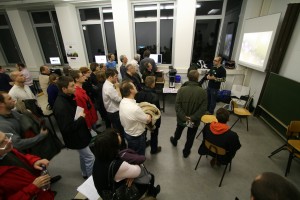
- Games on Linux
Andreas and Marco from live.linuX-gamers.net project showed impressively what games they offer from a Live-USB stick and received pretty many “wows” and “ahhs”. To them a special thanks for supporting the openSUSE project. -
openSUSE 11.2/Desktop
Here Juergen showed the strength of GIMP by merging two ancient city maps of Nuernberg into one. With that he was a real visitor magnet.
Will demonstrated the latest KDE and GNOME desktops. People were impressed by Digikam’s photo management capabilities, and interested to learn how the default KDE 4 desktop can be customized to resemble a more traditional KDE 3 or GNOME desktop, and that you can install thousands of different programs with YaST instead of having to download them from some website. - Build Service, Participation etc.
Pretty many visitors asked how they can contribute to openSUSE and were happy that they don’t have to be a developer to contribute. Wiki edits, translation and bug reports is sufficient. The more technical audience were impressed by the opportunities the Build Service offers them for their daily work.
-
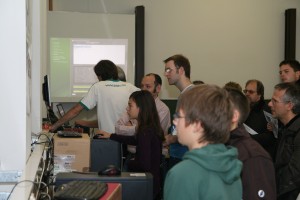
Kids playing games on Linux
Our room in the university was well attended till 11pm or so and we gave a talk each hour about different topics like “Introduction to openSUSE 11.2”, “Open Source philosophy”, openSUSE Education, Games on Linux and others. We handed out more then 500 openSUSE DVDs and had way more than 500 people attending our room.
People are interested in Linux and Linux is very well received. After a few focused questions which all started with “Does this … work with Linux?” people left our room, taking a DVD and saying, “If its that good, I’ll give it a try”. Most frequent question that evening was “How do you earn money?”. As many people know at which cost a Windows license or Windows Word come its not easy to understand that our products come for free and we charge for maintenance and support.
With our room at the university where several other events took place we could take advantage of an attractive venue for visitors. Thanks to that and thanks to our people who spent a Saturday night supporting openSUSE this was a successful participation and we should continue participate at “Lange Nacht der Wissenschaften” to fill the saying “From the local to the Global”.