
radeonhd 1.3.0 released
You may think that a release "cycle" of 6 months is... not that much. However, as most open source projects radeonhd is pretty much understaffed. Together with lots of additional work on Novell's side (which of course reduces the amount of time Egbert and I can spend on radeonhd) it took us a while to finally find some time for polishing. Because 2D acceleration is active by default now on (almost) all chipsets, we were seeing more regressions than usual.
Never mind, you're probably more interested about the new release. These are the main changes:
- Added support for RV740, M92, M93, M97.
- Added more support for HDMI audio, XVideo color spaces, backlight control.
- Added support for power management.
- 2D acceleration (EXA) is enabled by default now, except on RV740.
- Tons of bug fixes (AtomBIOS, Cursor, DDC, EXA, LUT, MC, Quirks, RandR).

 Member
 wstephenson
Qt 4.6 preview packages available for openSUSE
Since today is the big day when KDE trunk starts to depend on Qt 4.6, Raymond Wooninck (tittiatcoke), community packaging hero, has worked to provide packages of the unreleased Qt 4.6 in the openSUSE Build Service.
If you want to develop KDE trunk without the hassle of compiling Qt, you can use these packages (openSUSE 11.1). We'll be updating them every week to stay current as Qt 4.6 nears release. Please keep in mind that we're not responsible if you install them and your system KDE packages and anything else that depends on Qt stops working (although we will help you put things right, and the trolls will probably want to know about binary-incompatibility problmems) and when 4.6 is released, it will move into the KDE:Qt repo.

Making technology Previews succeed – OSC 09 Unconference session notes
I did an Unconference at openSUSE Conference 2009 titled: Roads Less Travelled – Making Technology Previews succeed“. More number of people than I had expected participated in the unconference session. I wanted to make the discussion notes (rough) available to a wider audience so that we could act on some of those:
Often Technology Previews are not solving their purpose. The objective of this session was to discuss, find out how we could get better feedback on Technology Previews and make them better.
The discussion is focused primarily on these areas:
- Advertise the feature through proper channels, places
- Make it easy enough for users to try out and provide feedback
- Make it less risk-prone
- What stops users from trying out?
- Provide better documentation?
Key discussion points, suggestions:
- Announcement in opensuse.org main page/wiki could grab the attention of community members who could help test Technology Previews.
- Reduce hassles in providing feedback. For e.g Perhaps facility without authentication/Single-signon?
- Easy ways/methods to provide feedback/input
- Bug/Issue reporting made easy, command line tools?
- Text area to provide feedback (as opposed a authentication based system).
- Create a dedicated page for preview for e.g. previews.opensuse.org
- irc channel for previews? (Discussion on all TPs, User testing one TP might get interested in another)
- Announcement in openSUSE Weekly news could help
- More Blogs, Articles, Whitepapers etc.. (blog entries should have provision for giving comments)
- Perhaps, try to get some help from documentation team?
- Provide instructions, mechanisms to safely try out without breaking things.
- Additional information about new technology while the community tries to use the old technology For e.g. while a user tries to do nfsv3 mount providing an informational message that NFSv4 is available and can be used
- Suggest using a VM
- Caution about what might break and what might not (Make community feel less riskier to try out).
Please feel free to comment on what might work and if you have any more suggestion.
The short presentation I used to introduce the topic can be found here: http://files.opensuse.org/opensuse/en/d/de/Roads_Less_Travelled.pdf

Tomboy 1.2 Planning Meeting Today
 "Cows are plentiful in Segovia?", Copyright Ellery Armstrong, Milk Teeth Photography, Used With Permission
In one hour (12:30 US Pacific time, 19:30 UTC), we'll be holding our cycle-ly planning meeting to make some plans for the next Tomboy release.
If you want to comment, listen, volunteer, or heckle, please join us in #tomboy on GIMPNet.
Oh, by the way, if you've been wanting to follow Tomboy updates on Twitter but you find me way to garrulous, you can now follow @tomboy for some peace of mind. We have @tomboy on identi.ca, too.

About Patterns versus Packages
Just a quick note to everyone using factory and wonder what patterns-openSUSE-kde4_basis is all about: our patterns install packages now.
To explain this change, I need to get a bit back in history: In openSUSE 11.0 we did a change that is still significant: we do no longer install patterns. In older releases, when you installed a “KDE Desktop” or a “GNOME Desktop”, yast would save that information as “pattern”. Patterns are basically groups of packages, but they can also depend on other patterns. They have a clear semantic when you install: “KDE Desktop” -> kdebase4-workspace, kdelibs4, amarok, …. Some describe them as “Macros for packages”. But there is still no clear semantic on removing a pattern as this relation between “KDE Desktop” and amarok is only in one direction. If you remove “KDE Desktop”, it’s not clear if you want to remove amarok too or if if should stay on your LXDE. So we decided to go away from installing patterns to make this clear: There is no way to remove a pattern as it’s never installed. It’s only “satisfied”, meaning a pattern can express that it’s not satisfied without amarok installed. So if you decide to remove amarok, the pattern will be left unsatisfied (appears as not installed).
As I said: openSUSE 11.0 and 11.1 do this and there are little problems associated with it. But now that we support “zypper dup”, it came clear that you will not get the same “KDE Desktop” on 11.2 if you do an update or an installation. This is kind of okay, but not how it should be: most users see a distribution upgrade as an installation without the need to start from scratch. The reason for this difference is that there is no information left that you have a “KDE Desktop” after you changed repositories (patterns only appear in the repository, not in the system). Now assume the 11.2 “KDE Desktop” needs dolphin too, otherwise you get only an ugly gray square (not true, but we assume it). The solver will see amarok and update it to the newest version, but as it doesn’t see a “KDE Desktop”, it won’t install dolphin.
So for openSUSE 11.2 I changed the patterns to generate packages with cryptic names to install along with the pattern. So if you install “KDE Desktop” on 11.2, it will install amarok, dolphin and patterns-openSUSE-kde4_basis. If you do zypper dup on openSUSE 11.3 (or factory in january) the solver will see patterns-openSUSE-kde4_basis and know the new requires of the new version and install e.g. choqok.
That doesn’t solve the 11.1->11.2 update case, but after updating to 11.2, you can reselect the patterns you want and you can be sure they will stay from now on. And perhaps we do an online update for 11.0 and 11.1 that will add patterns packages to the most prominent use case: the desktops.
openSUSE Ambassadors…numbers?
Alright. Just out of curiosity, I felt like finding out what the numbers show for South America compared to other regions in the Ambassadors Program of openSUSE.
As a reminder, the goals of the Ambassador Program are:
- Act as an evangelist for openSUSE to the public.
- Mentor new users and contributors.
- Support openSUSE at local events.
- Promote use of openSUSE and contributions to the openSUSE Project.
- Have a lot of fun!.
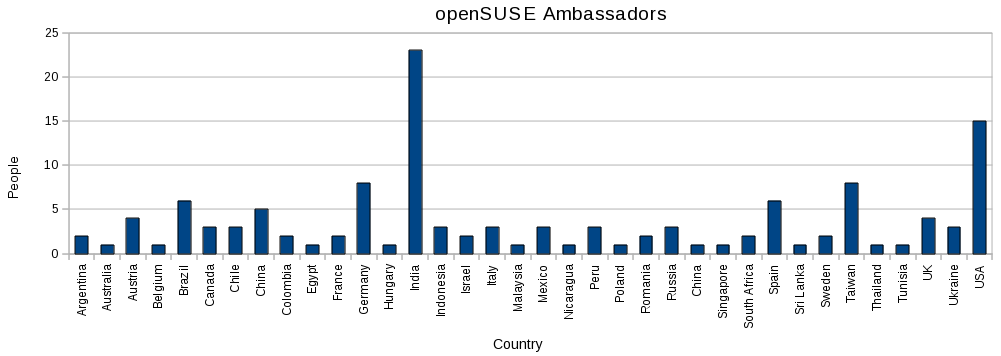
So, checking out the Ambassadors List, I got for South America:
- Brazil = 6.
- Chile = 3.
- Peru = 3.
- Argentina = 2.
- Colombia = 2.
Brazil is doing great here, doubling any other country’s Ambassadors number in the region. No doubt it’s not just users who are pushing Open Source out there but also their government and enterprises (example:Fisl), and I am glad openSUSE is a real choice for them. Compared to Europe, I believe statistical numbers are still OK for us  since the truth is that openSUSE is just ranked in the top five of the most popular Linux flavours in Chile, maybe it’s the same in other South America countries. So, Ambassadors for Europe (some countries only):
- Germany = 8.
- Spain = 6.
- Austria = 4.
- Italy = 3.
- France = 2.
As for North America, we have got:
- USA = 15.
- Canada = 3.
- Mexico = 3.
I even did a “quick and dirt” chart with OpenOffice’s Calc so you can have a graphical idea of our numbers around the world:
For more information, please, visit the openSUSE Ambassadors section.
Have a lot of fun!.
Tomboy Hits 1.0


It's been just over five years since Alex Graveley made the first commit to Tomboy CVS, unleashing a brilliantly simple note-taking application for people who just wanted to Get Stuff Done.


Tomboy Back In The Day (click for Alex's blog post)
Three years ago (right after I joined the project), Tomboy became a part of GNOME 2.16. It was about this time that Boyd Timothy joined the fun and became a co-maintainer with Alex. Much of the polish in Tomboy and many of the features you take for granted such as notebooks, synchronization, and bulleted lists appeared during his stewardship. After helping with sync, I was "promoted" to co-maintainer, too.
After Boyd and Calvin Gaisford (of Giver and Tasque fame) left to start their own company last year, I was left as the sole maintainer. I'm trying to do my part to build on the legacy left by Alex and Boyd. Fortunately for me, Tomboy seems to attract cool people like Chris Scobell, Stefan Schweizer, Benjamin Podszun, and dozens of others who have contributed major features and fixes.
One of the funny little things that tends to come up at Tomboy planning meetings is the version number. Tomboy's been around for five years now, and really it's been a pretty solid app for the majority of that history, especially once it became part of the GNOME desktop. So why is it versioned like some alpha product?
 Tomboy in your dock (click for full-screen shot)
Tomboy runs on every major operating system, is used by 50 kabillion people every day [citation needed], and even if we have more grand plans, Tomboy today really does help people Get Stuff Done.
So we're calling our new stable release 1.0, the first release of the 1.0.x stable series. The next big stable release will be 1.2, etc etc. I hope this arbitrary change will instill a sense of confidence in users, and maybe even get people thinking about what "Tomboy 2.0" might mean.
Here's what's new in Tomboy 1.0 since the 0.14.x stable releases:
-
WebSync add-in lets you synchronize your notes with the upcoming Tomboy Online web service, your own server running Snowy, or any other server implementing the new Tomboy Web REST API, which will soon include Ubuntu One and Midgard. Big thanks to Rodrigo Moya and Stuart Langridge from Canonical for their help on this.
-
NoteDirectoryWatcher add-in from Michael Fletcher (disabled by default) finally lets you edit your note files outside of Tomboy safely, even while it's running, opening the door for all sorts of ad-hoc sync solutions if you don't want to use a server.
- Underline add-in from Mark Wakim (disabled by default).
- Faster start-up.
-
UI improvements in note searching.
- More keyboard shortcuts.
- Loads of bug fixes.
- Updated documentation (a complete revamp is on the way for the GNOME 2.30 cycle).
- Notes and other files migrated to new standard directories.
I'm really excited about this release, because to me it represents a foundation. A lot of cruft has been cleaned up. Tomboy is leaner and meaner. Note and configuration files have moved to standard locations, making backups and upgrades better. Accessing those note files is now a less scary proposition. This is a good foundation on which we can build Tomboy's future.
With that in mind, here are some features I would love to tackle for Tomboy 1.2 if we can:
-
Automatic synchronization.
- More work on Snowy, Tomboy Online, and social features integrated right into Tomboy.
- Note sharing via Telepathy, and maybe even collaborative editing.
- A new innovative workflow for managing simple task lists (with integration points for EDS or Tasque wherever it makes sense).
- Customizable, themeable, simplified note UI.
- Rethinking notebooks and search.
- Better gnome-shell integration.
- Better Tomboy experience on Mac OS X.
- Additional memory and performance enhancements.
- Your ideas and patches!
Personally, I'm really inspired by GNOME 2.28's "Made to Share" slogan, so I expect that will be a running theme in Tomboy 1.2.
I'll make sure to announce when we pick a date and time for our roadmap planning meeting, which is when we will choose what features we really want to focus on this cycle.
You may have read that we now have an official PPA for Ubuntu users. This is all thanks to Alan Pope and Jorge Castro. Since the announcement of the PPA a few other people have joined the tomboy-packagers team so I'm looking forward to being able to provide instant gratification to Ubuntu users on any distro since Jaunty, whether they want the latest stable or the latest development release.
In openSUSE land, the GNOME team is working on a specific organization for repositories like this, but I have the packages ready in my home project, so if you want Tomboy 1.0.0 for openSUSE 11.1 or later (including SLED 11), you can get them here for now:

This post brought to you by the Tomboy Blogposter add-in.
Remote-Learner unveils
A little over two months ago, one of Moodles best partners announced the release of a suite of products called ELIS http://www.eschoolnews.com/tech-solutions/all-press-releases/index.cfm?i=60118 The products and principles of this organization seem oddly familiar. They support open source for schools, so does the openSUSE for Education project. They support a lower more reasonable TCO for Education Technology, so does the openSUSE for Education project. They really do a great job of supporting these ideals, so does the team from the openSUSE for Education. Thanks to both efforts open source Education Technology is becoming vastly superior choice.
.NET/Mono Code Camp: Registration is open
The agenda has also been published. It includes talks about Mono, MonoDevelop, mocking frameworks running on Mono, iPhone development (with MonoTouch), Moonlight, .NET to Linux portability, Mono.Addins and other stuff.


Fixes by pack of 12
 Important things first, just know that Ruben is no longer AWOL. He's even back to hacking mode, and working, together with Tigger, at adding image metadata support for images to taglib-sharp.
Now to the futile, I just released F-Spot 0.6.1.3 a few minutes ago. The main purpose of it was to fix the slideshow mode on gtk+ 2.18 (which we did) and as I was at releasing, I applied some pending patches from bugzilla, wrote some myself, and backported translations from master.
The change in the importing code is worth noticing. It no longer imports the files first to memory before writing them to disk. It's quite helpful now that most cameras can create video files bigger enough to fill your machine memory in less than a few minutes (at high bitrate, on HD resolution). It's only available if you have libgphoto2 >= 2.4 and doesn't work with the directory driver (used for memory cards e.g.). Marcus is working on a fix in gphoto2, so stay tuned.
If you ask about the screensaver, it still doesn't work with gtk+ 2.18 but works fine with gtk+ master, and will still work just fine with gtk+ 2.18.1 when it goes out.
That's it. Download it, build it, package it, enjoy it!