
 Member
 baltolkien
Juegos libres de calidad y en desarrollo enero 2025
Último día del mes, casi no llego a la entrada recopilatoria mensual que tiene como objetivo promocionar los juegos libres, pero no como una página que quede obsoleta o sea un cementerio de proyectos muertos, así que la voy a realizar poco a poco y con conocimiento de causa. Por ello, y conociendo mis limitaciones y mi estilo de trabajo, la voy a ir remodelando mes a mes y su contenido se irá ampliando poco a poco. De esta forma, bienvenidos a la entrada de juegos libres de calidad y en desarrollo de enero 2025 en la que recopilo los juegos libres presentados en forma de entrada «tocha» en el blog ampliándola con 0 A.d. y con noticias breves algunos de los juegos presentados.
Juegos libres de calidad y en desarrollo enero 2025

Como decía al principio, esta entrada de la serie Juegos Libre de Calidad y en Desarrollo pretende ser una entrada viva y creciente, que tenga una parte fija pero dinámica en la que muestre no solo juegos libres sino también su estado de desarrollo, sus novedades principales y, si es posible, alguna noticia relevante de alguno de ellos: lanzamientos especiales, vídeos, premios, cambios notables, etc.
Para empezar utilizaré una tabla para mostrar la información y los juegos iniciales que aparecen son aquellos que he analizado a fondo en el blog dado que son los que tengo más claro su desarrollo, y cada mes añadiré el siguiente que tengo en mente analizar.
| Género | Nombre | Presentado en el blog | Última actualización | Comentario | Otros juegos alternativos Libres o no. |
| Conducción | Speed-dreams | Si | Marzo 2024 Versión 2.3 |
Siempre activos en redes, sobre todo en X (ex-Twitter) | Need For Speed |
| Conducción | SuperTux Kart | Si | Septiembre 2023 1.4 Beta de 1.5, octubre 2024 |
Ya está aquí la beta de la versión 1.5. | SuperMario Kart |
| Estrategia por turnos | The Battle of Wesnoth | Si | 21 de diciembre de 2024 Versión en desarrollo 1.19.7 9 de noviembre de 2024 versión estable 1.18.3 |
En la versión en desarrollo sigue viento en popa. | ?¿?League of Legends??¿ |
| Estrategia por turnos | Hedgewars | Si | Versión 1.0 el 9 de octubre de 2019 | Se está desarrollando un nuevo editor de temas. | Worms Warmux (proyecto libre sin desarrollo) |
| Estrategia en tiempo real | OpenRA | Si | Versión estable 2023: 20231010 Versión beta: Playtest 20241228 |
Puedes jugar a clásicos de RTS como Red Alert, Command & Conquer y Dune 2000. Gran comunidad. | Warcraft, Starcraft, Red Alert, Command & Conquer, Dune 2000. |
| Estrategia en tiempo real | 0 A.D | Si | 30 de enero 2025 Alpha 27: Agni |
Recién publicado en el blog y nueva versión alpha publicada. Si esto es un alpha ¿qué será la primera versión estable? | Age of Empires |
| FPS | Alien Arena | Si | 7.71.7 (nueva) | ¡Alien Arena ha sido instalado más de 1500 veces desde Flathub! | Quake, Doom, Nexuiz, Unreal |
| FPS | Xonotic | Si |
20/06/2023 Versión 0.8.6 |
No necesita instalación | Quake, Doom, Nexuiz, Unreal |
| FPS | OpenArena | Si | 0.8.8 2012 |
Para los amantes de la nostalgia hiperactiva. Se prepra en secreto su versión 3.0. | Quake, Doom, Nexuiz, Unreal |
| MMORPG | Ryzom | Si | 3 de julio de 2021 Versión 3.4.0 |
Es posible que esta no sea la última versión ya que se parchea muy seguido. | World of Warcraft Albion Online |
| MMORPG | Eternal Lands | Si | Diciembre 2024 1.9.7 |
A pesar de tener un cliente algo antiguo los foros están activos 100% | World of Warcraft Albion Online |
| Plataformas | Supertux | Si | 2021 Versón 0.6.3 |
Se estimaba que la 0.7.0 saldrá en agosto de 2024, en la última entrada de su blog lo anuncian para el 2025. | Super Mario |
| Plataformas | Frogatto & Friends | Si | 1.0 2010 |
Juego cerrado y completo | Wonder Boy |
| Simulación | Simutrans | Si | 3 de junio 2024 Simutrans 124.2.2 |
En noviembre de 2024 migraron a un nuevo servidor. | Transport Tycoon Deluxe |
| Simulación | OpenTTD | Si | 3 de mayo 2024 14.1 |
Disponible en Steam y Gog. | Transport Tycoon Deluxe |
Novedades de los juegos de la tabla
- Empezamos con Speed-dreams que tiene en su wiki el listado de coches. En este vídeo podemos ver algunos de ellos.
- The Battle of Wesnoth y un vídeo con las 4 primeras misiones:
- Seguimos con los vídeos: Xonotic con el modo de juego Mayhem.
- Y finalizamos con un vídeo de Eternal Lands
La entrada Juegos libres de calidad y en desarrollo enero 2025 se publicó primero en KDE Blog.
#openSUSE Tumbleweed revisión de la semana 5 de 2025
Tumbleweed es una distribución de GNU/Linux «Rolling Release» o de actualización contínua. Aquí puedes estar al tanto de las últimas novedades.

openSUSE Tumbleweed es la versión «rolling release» o de actualización continua de la distribución de GNU/Linux openSUSE.
Hagamos un repaso a las novedades que han llegado hasta los repositorios esta semana.
Y recuerda que puedes estar al tanto de las nuevas publicaciones de snapshots en esta web:
El anuncio original lo puedes leer en el blog de Dominique Leuenberger, publicado bajo licencia CC-by-sa, en este este enlace:
Esta semana «solo» se han publicado 4 nuevas snapshots (0124, 0125, 0127, y 0128). Pero mantener ese ritmo de actualizaciones ya es bastante.
Las actualizaciones más destacadas de estas semanas:
- Mesa 24.3.4
- Mozilla Firefox 134.0.2
- Systemd 257.2
- FWupd 2.0.4+4
- Wine 10.0
- Eliminación de python 2 (como nos constó Danigm en este artículo)
Pero hay mucho más que se está preparando
- Meson 1.7.0
- Timezone 2025a
- RPM 4.20
- KDE Plasma 6.3
Si quieres estar a la última con software actualizado y probado utiliza openSUSE Tumbleweed la opción rolling release de la distribución de GNU/Linux openSUSE.
Mantente actualizado y ya sabes: Have a lot of fun!!
Enlaces de interés
- ¿Por qué deberías utilizar openSUSE Tumbleweed?
- zypper dup en Tumbleweed hace todo el trabajo al actualizar
- ¿Cual es el mejor comando para actualizar Tumbleweed?
- ¿Qué es el test openQA?
- http://download.opensuse.org/tumbleweed/iso/
- https://es.opensuse.org/Portal:Tumbleweed
——————————–
Tumbleweed – Review of the week 2025/05
Dear Tumbleweed users and hackers,
It seemed like a quiet week to me. Probably people are getting ready to meet up in Brussels for FOSDEM. Make sure to visit the booth area and talk to the people there. We have managed to release 4 snapshots (0124, 0125, 0127, and 0128)
The most relevant changes delivered this week are:
- Mesa 24.3.4
- Mozilla Firefox 134.0.2
- Drop of nscd
- Systemd 257.2
- FWupd 2.0.4+4
- Wine 10.0
- Removal of python 2
The outlook for the future sounds interesting too:
- Meson 1.7.0
- Timezone 2025a
- RPM 4.20: support for declarative build systems. I started playing with this a little bit using meson.
- KDE Plasma 6.3: beta 2 is currently staged
- Change of default LSM from AppArmor to SELinux is progressing, status is tracked at https://bugzilla.opensuse.org/show_bug.cgi?id=1230118.
Episodio 2 de Accesibilidad con Tecnologías libres: Whisper, ELA, accesibilidad web, Gnome en Ubuntu, visores de realidad virtual y aumentada
Lo tengo pendiente de hace mucho tiempo así que más vale empezar a compartirlo. Os presento el episodio 2 de Accesibilidad con Tecnologías libres,el cuál lleva como temas: Whisper, ELA, accesibilidad web, Gnome en Ubuntu, visores de realidad virtual y aumentada.
Episodio 2 de Accesibilidad con Tecnologías libres: Whisper, ELA, accesibilidad web, Gnome en Ubuntu, visores de realidad virtual y aumentada
Hace un año que presenté este podcast y he dejado pasar demasiado tiempo para seguir promocionándolo como se merece, así que me complace presentar el segundo episodio, aunque primero con contenido, de Accesibilidad con Tecnologías libres que tiene el siguiente resumen:
- David Marzal nos habla de Whisper y la transcrición con software libre.
- Thais entrevista a Jessica y hablan sobre ELA.
- Pablo Arias nos introduce en lo básico sobre accesibilidad web.
- Victor y Markolino testean Gnome en Ubuntu.
- Y Jonathan Chacón nos habla sobre visores de realidad virtual y aumentada.
Subtítulos disponibles en steno.fm si vuestra aplicación no los implementa.
Enlace a comentarios por si vuestra aplicación no los implementa. Transcripción completa pinchando aquí
- Créditos de la música:
- «Evening» de Kevin MacLeod (incompetech.com) – Licensed under CC: By Attribution 4.0
Este podcast tiene licencia Reconocimiento-CompartirIgual 4.0 Internacional (CC BY-SA 4.0).
Más información: Segundo episodio de Accesibilidad con Tecnologías Libres
Podcast Accesibilidad con Tecnologías libres

Jorge Lama, Víctor , David Marzal, Thais Pusada, Pablo Arias, Jonathan Chacon y Markolino son el equipo reunido para crear el podcast Accesibilidad con Tecnologías libres, un podcast para hablar sobre temas de accesibilidad y tecnologías libres.
En palabras de sus creadores:
En informática, la accesibilidad incluye diferentes ayudas como pueden ser las tipografías de alto contraste o gran tamaño, magnificadores de pantalla, lectores y revisores de pantalla, programas de reconocimiento de voz, teclados adaptados y otros dispositivos apuntadores o de entrada de información.
Además, las inteligencias artificiales están empezando a ser un gran aliado para mejorar la accesibilidad en muchos aspectos. Existen podcasts y canales de vídeo que hablan de la accesibilidad centrándose en entornos Windows o de Apple porque son los más conocidos por el público generalista. Pero en este podcast queremos dar a conocer otros aspectos de la accesibilidad y su relación con otras tecnologías menos conocidas.
Tecnologías que consideramos libres y que nos parecen mejores para la sociedad, en muchos casos…
Por supuesto, os invito a visitar la página de Archive.org donde están recogidos el resto de programas y donde nos indican también aquellos que estań subtitulados, aunque creo que al final lo estarán todos:
Créditos de la música:
La música usada ha sido «Evening» de Kevin MacLeod (incompetech.com)
Licensed under Creative Commons: By Attribution 4.0 License
http://creativecommons.org/licenses/by/4.0/
Personalmente, me parece un podcast muy interesante que aborda un tema recurrente en el mundo del Software Libre pero que todavía está lejos de solucionarse. Los diferentes proyectos de escritorio de GNU/Linux implementan cosas pero en muchas ocasiones no están coordinadas realmente con las personas que las necesitan. Esperemos que en los próximos años este aspecto se vaya mejorando y, si ocurre, creo que este podcast tendrá parte de culpa, en el buen sentido de la palabra.
Más información: Accesibilidad con Tecnologías Libres
La entrada Episodio 2 de Accesibilidad con Tecnologías libres: Whisper, ELA, accesibilidad web, Gnome en Ubuntu, visores de realidad virtual y aumentada se publicó primero en KDE Blog.
Mi blog forma parte del fediverso
He habilitado en mi blog la opción de WordPress de compartir mis artículos publicados en el fediverso mediante el protocolo ActivityPub

Hace un tiempo el amigo Ricardo aka. El pingüino Tolkiano, compartía en su blog la manera de habilitar que los blogs de WordPress publicasen sus nuevos artículos publicados también en el fediverso, para que llegasen a más audiencia.
Esta semana me he decidido a habilitar esa opción y hacer que los artículos que publico también se puedan leer desde cualquier servicio del fediverso.
Después de habilitar esa opción siguiendo los pasos del compañero RGB, mi blog ya forma parte del fediverso en la dirección:
Que ya cuenta con unos cuantos seguidores:
Fediverse Followers


Mis artículos ya se compartían en el fediverso a través de mi cuenta en Mastodon en la que a la hora de publicarse, de manera automática también se compartían en mi perfil.
Esto hace simplemente que tenga una cuenta nueva en la que también se irán publicando las nuevas entradas que vaya publicando y que puedes seguir o no, como tú veas.
Desde esos posts compartidos en el fediverso, podrás comentar y esos comentarios aparecerán por arte de magia en el artículo en mi blog, ¡algo alucinante!
Además al final de los artículos, de ahora en adelante añado un nuevo bloque llamado fediverse reactions, que hace que se muestren en el propio artículo cuantos «Me gusta» o cuantas veces se ha vuelto a compartir el artículo en el fediverso.
Enlaces de interés
- https://elpinguinotolkiano.wordpress.com/2023/10/12/conecta-tu-blog-en-wordpress-con-el-fediverso/
- https://wordpress.com/blog/2023/10/11/activitypub/
- https://wordpress.com/blog/2025/01/16/fediverse-reactions-block/


Tumbleweed Monthly Update - January 2025
Tumbleweed remains a strong example of a reliable rolling release as we step into 2025. This month delivered multiple snapshots and a wide range of updates! Two much anticipated major version updates arrived in snapshots this month; GIMP’s release candidate is giving users a good look into the 3.0 version and libvirt 11.0.0 improves virtualization performance, stability and flexibility. KDE Gear 24.12.1 improves app usability and KDE Plasma 6.2.5 brings some additional stability.
As always, be sure to roll back using snapper if any issues arise.
Happy updating and tumble on!
For more details on the change logs for the month, visit the openSUSE Factory mailing list.
New Features and Enhancements
GIMP 3.0.0~RC2: This makes a major leap to version 3.0 with significant updates and fixes. The build process is streamlined with improved handling of fonts, such as replacing Bitstream Vera with Google Noto Sans and ensuring stability even when fonts are missing. The Python runtime dependencies and enhanced debugging support with libbacktrace ensure smoother builds and better issue resolution. Experimental features like the Lua plugin are now gated for optional use, and Fedora-imported patches improve system monitor profile defaults, external help browser support, and privacy settings. These updates modernize GIMP’s architecture and prepare it for the final 3.0 release.
KDE Gear 24.12.1: Notable updates in this release were made to Dolphin, which improved behavior on X11, fixed thumbnail updates on renaming, and ensured search box initialization fixes. With Itinerary, enhancements for trip group handling were made; there were also improvement made to weather forecasts and it was optimized for crash prevention. Kdenlive addressed timeline issues, fixed crashes, improved layout handling and restored effects presets. KMail improved search functionalities and KPublicTransport enhanced station name recognition.
KDE Plasma 6.2.5: The Discover app store fixes overlapping update descriptions text and kpipewire fixes issues when streaming fails to update. The plasma update also prevents crashes by adding a dummy clipboard. Some screencasting was resolved with KWin. PowerDevil resolves crashes in unloadAllActiveActions and Plasma Networkmanager reverts fixing an issue with the connection speed tab remaining visible after disconnecting.
Rsync 3.4.1: This update brings critical bug fixes and security enhancements. Key updates include improved handling of the -H flag, resolution of a use-after-free issue in rename logging, and removal of the dependency on alloca() in the bundled popt. Security fixes address multiple vulnerabilities such as CVE-2024-12747, which mitigates a race condition in handling symbolic links, as well as CVE-2024-12084 through CVE-2024-12088, tackling heap buffer overflows, information leaks, and directory traversal risks. The update also introduces protocol version 32 and refines developer tools for improved permissions handling.
libvirt 11.0.0: This major release adds VLAN tagging and trunking support for network interfaces on Linux host bridges and enables domains to use advanced tlbflush Hyper-V features. User-defined aliases for devices in domain XML and virtiofs read-only mode are now supported. Enhanced vGPU migration between mdev and SRIOV VF devices is also introduced. Key fixes address transient domain TPM profile crashes, disk image deletion with snapshots, and post-copy migration recovery errors, alongside improvements in domain XML formatting and CPU model support.
libcdio 2.2.0: The library now uses GNU/Linux’s new ioctl with kernel 5.16+ and incorporates GitHub CI checks for better development workflow. Additionally, the update ensures compatibility with widestring APIs and provides better pkg-config detection.
Amarok 3.2.1 & 3.2.2: Amarok introduces Qt6 and KF6 compatibility, enabling support for gpodder, last.fm, and the Wikipedia context applet. The collection can now be filtered by empty tags, and the context view applet for the current track is displayed by default. Key fixes address crashes during file transfers to MTP devices, Ampache logins, and collection filtering. Additional improvements include reduced MTP device query flooding, refined font size limitations in the context view, and enhanced compatibility across compiler and Qt6 versions. Amarok now depends on KDE Frameworks 5.108, marking a step toward modernized builds and better stability.
libxml2 2.13.5: New features include API additions for more reliable malloc failure reporting and context-specific error handlers, such as xmlCtxtSetErrorHandler. The update introduces the XML_PARSE_NO_XXE parser option, enhancing security by disabling external entity loading. Key bug fixes address regressions in xmlIO, xmlreader, and handling of parameter entities. Additionally, significant optimizations ensure better compatibility with modern systems, improved error handling, and support for new configurations. Deprecated features such as HTTP POST support and legacy FTP functionality are gradually being phased out, which reflects a shift toward streamlined and secure XML processing.
Key Package Updates
Kernel Source 6.12.8, 6.12.10 and 6.13.0: The rolling release was one of the first to update to the 6.13 kernel and notable changes for it include a PCI/DPC quirk for PIO log size adjustments on Intel Raptor Lake-P (bsc#1234623). The update also drops a mainline patch for Nouveau backlight control and includes refreshed configurations. Enhanced USB handling, better support for various arm platforms and multiple bug fixes for IIO devices arrived in a previous kernel update. Key changes address vulnerabilities, improve stability and refine hardware compatibility across various subsystems. Version 6.12.8 had enhancements to ALSA and Bluetooth subsystems to address issues like memory leaks and invalid parameter handling. Btrfs received fixes for race conditions and improvements to power supply drivers were made.
btrfs-progs 6.12: This update includes recursive subvolume deletion for accessible subvolumes and the --subvol option in mkfs to create subvolumes with specific properties (read-only, read-write, or default). Other notable improvements include hard link detection in the --rootdir option, refined verbosity in receive and more accurate handling of compressed extents in check. The release also addresses several bugs, such as false positive checksum reports and improper subvolume iteration in rescue clear-ino-cache.
Systemd 257.2: Key updates in this package include improvements to user@.service. Various patches, such as fixes for TPM2 utilities and initrd_prepare behavior, have been integrated upstream. While the testsuite now requires cloning the systemd repository due to upstream changes; efforts are underway to adapt the sub-package.
Mesa 24.3.3: Fixes in this release include resolving rendering issues in Portal 2 and Half-Life 2, addressing crashes in Artifact Classic, and correcting a regression that broke Wayland on RS480M GPUs. Additional updates fix prop disc rendering in X-Plane 12, improve H264/H265 VAAPI encoding on R6700XT with proper QP value handling, and resolve missing text in Age of Mythology Retold on Arc b580 GPUs.
HarfBuzz 10.2.0: Font handling improvements arrive in this package. Unicode Variation Selectors are now considered during “cmap” table subsetting, while malformed UTF-8 strings are better guarded in hb_cairo_glyphs_from_buffer(). Rendering and parsing see significant fixes, including corrected scaling for “COLR” v1 glyphs and locale-independent double number parsing in the hb-subset tool. New APIs enable advanced font table serialization, repacking, and font variation settings conversion.
Coreutils 9.6: This release addresses multiple bug fixes, such as correcting issues in cp, mv, ls and tail, improving reliability and compliance with POSIX standards. Enhancements include new features like CRC32b support in cksum, indexed arguments in printf, and POSIX:2024 string comparison in test. Performance improvements touch key utilities like wc, cksum and sort to ensure faster operations on modern systems.
PHP 8.3.16: This package delivers a wide range of bug fixes and stability improvements across core features and extensions. Enhancements include addressing issues in DatePeriod, SimpleXML and FFI, resolving memory leaks in components like LibXML and Sockets, and improving compliance with standards such as RFC 6890 for IP filtering. Key fixes span vulnerabilities like use-after-free (UAF) in DOM and Iconv, segmentation faults in Gettext and Phar, and overflow issues in Streams. Developers benefit from improved error handling, compatibility updates, and hardened security measures for critical functions like proc_open().
Flatpak 1.16.0: The latest version has new environment variables like FLATPAK_TTY_PROGRESS, FLATPAK_DATA_DIR, and FLATPAK_DOWNLOAD_TMPDIR offer greater flexibility for configuring runtime behavior, such as progress indicators and alternative directory paths. Notable bug fixes include improved handling of dangling symlinks, corrections to introspection annotations in libflatpak, and resolving regressions with Wayland socket handling. Other refinements ensure smoother operation and compatibility, including fixes for terminal progress indicators and the installation of missing test data.
Bug Fixes and Security Updates
Several key security vulnerabilities were addressed this month:
- CVE-2024-12747: Fixed a race condition in handling symbolic links.
- CVE-2024-12084: Resolved a heap buffer overflow in checksum parsing.
- CVE-2024-12085: Fixed an information leak via uninitialized stack contents, defeating ASLR.
- CVE-2024-12086: Addressed server leakage of arbitrary client files.
- CVE-2024-12087: Resolved an issue allowing a server to make clients write files outside the destination directory using symbolic links.
-
CVE-2024-12088: Fixed a bypass for
--safe-linksfunctionality.
git 2.48.1:
- CVE-2024-50349: Fixed an issue where crafted URLs could inject ANSI escape sequences, potentially misleading users into sending credentials to malicious hosts.
- CVE-2024-52006: Addressed incorrect handling of line endings in credential helpers, preventing credential exposure.
- CVE-2020-6923: Fixed a memory buffer overflow vulnerability in HPLIP versions 3.20.8 and earlier, which could allow arbitrary code execution or denial of service.
- CVE-2024-40896: Fixed an out-of-bounds read and write vulnerability when processing HEIF files with forged overlay image offsets.
- CVE-2024-57823: Patch added to fix an integer underflow, which could lead to potential vulnerabilities.
Mozilla Firefox 134.0:
- CVE-2025-0244: Address bar spoofing using an invalid protocol scheme on Firefox for Android.
- CVE-2025-0245: Lock screen setting bypass in Firefox Focus for Android.
- CVE-2025-0246: Address bar spoofing using an invalid protocol scheme on Firefox for Android.
- CVE-2025-0237: WebChannel APIs susceptible to confused deputy attack.
- CVE-2025-0238: Use-after-free when breaking lines in text.
- CVE-2025-0239: Alt-Svc ALPN validation failure when redirected.
- CVE-2025-0240: Compartment mismatch when parsing JavaScript JSON module.
- CVE-2025-0241: Memory corruption when using JavaScript Text Segmentation.
- CVE-2025-0242: Memory safety bugs fixed across multiple versions of Firefox and Thunderbird.
- CVE-2025-0243: Memory safety bugs affecting Firefox, Thunderbird, and ESR versions.
- CVE-2025-0247: Memory safety bugs fixed in Firefox 134 and Thunderbird 134.
- CVE-2024-13176: A timing side-channel vulnerability in ECDSA signature computations could allow attackers to recover private keys.
Conclusion
KDE users will appreciate the refined experience offered by the latest KDE Gear and Plasma releases, with improved usability and bug fixes. Under the hood, Tumbleweed continues to receive critical updates, including security enhancements for Rsync and improved XML processing with libxml2. These updates, along with numerous others continue to make Tumbleweed a secure, stable and useful open-source platform.
Slowroll Arrivals
Please note that these updates also apply to Slowroll and arrive between an average of 5 to 10 days after being released in Tumbleweed snapshot. This monthly approach has been consistent for many months, ensuring stability and timely enhancements for users.
Contributing to openSUSE Tumbleweed
Stay updated with the latest snapshots by subscribing to the openSUSE Factory mailing list. For those Tumbleweed users who want to contribute or want to engage with detailed technological discussions, subscribe to the openSUSE Factory mailing list . The openSUSE team encourages users to continue participating through bug reports, feature suggestions and discussions.
Your contributions and feedback make openSUSE Tumbleweed better with every update. Whether reporting bugs, suggesting features, or participating in community discussions, your involvement is highly valued.
0 A.D., estrategia histórica en tiempo real – Juegos Linux (XVI)
Nueva entrada de la serie de grandes juegos libres. Hoy toca un género que apareció por primera vez en el blog la semana pasada con OpenRa, la estrategia en tiempo real y que me apetece mucho comentar. Se trata de 0 A.D, un juego desarrollado por Wildfire Games, un grupo mundial de desarrolladores de juegos voluntarios.
0 A.D., estrategia histórica en tiempo real – Juegos Linux (XVI)
Antes de empezar recordar que ya he tocado muchos de los géneros: estrategia por turnos (The Battle for Wesnoth, Hedgewars), disparos en primera persona (Xonotic, Alien Arena, OpenArena), velocidad (Speed Dreams, SuperTuxKart), MMORPG (Ryzom), plataformas (SuperTux), sandbox (Minestest) o simulador (OpenTTD, Simutrans). Así que si no os interesa este, podéis visitar alguno de los enlaces anteriores.
Allá por la década de los 90 yo tenía un PC así que tenía a mi disposición los juegos típicos de este sistema: simuladores, FPS, aventuras gráficas y, por supuesto, juegos de estrategia en tiempo real: Dune, Warcraft, Command & Conquer y Red Alert, entre sus máximos exponentes. Evidentemente, me aficioné a éstos últimos, llegando a su excelencia (en mi humilde opinión) con Warcraft III y Starcraft.
No obstante había otro tipo de juego que no llegué a engancharme que eran los Age of Empires. Para mi eran demasiado sesudos, algo de los que huía porque mi vida ya era bastante académica y seria, con lo que cuando me ponía a jugar quería descargar adrenalina, bien sea disparando o a golpe de click.
0 A.D. viene a cubrir el hueco de estos últimos, ofreciendo estrategia en tiempo real con tintes históricos y bastante complejo. Como decía en la introducción 0 A.D es un juego desarrollado por Wildfire Games, un grupo mundial de desarrolladores de juegos voluntarios donde tomas el papel de líder de una antigua civilización y debes reunir los recursos necesarios para formar una fuerza militar y dominar a tus enemigos.
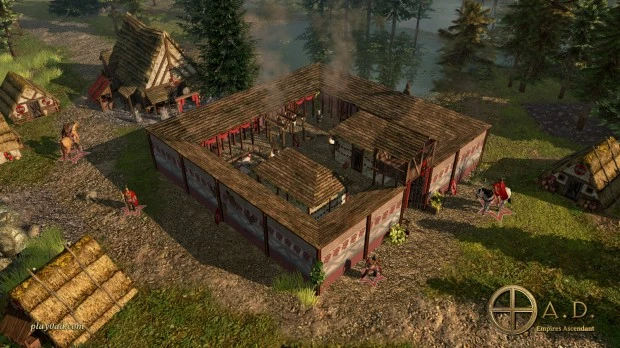
En palabras de sus desarrolladores:
«0 d.C.» es un periodo de tiempo que en realidad nunca existió: en el calendario habitual, se va del 1 a.C. al 1 d.C. y se salta el cero. Esto refleja la ficción histórica del juego: ¿Quién habría ganado si todas las facciones se hubieran enfrentado entre sí cuando cada una de ellas estaba en su mejor momento?
Pretendemos retratar algunas de las principales civilizaciones a lo largo del milenio que va del 500 a.C. al 500 d.C. (de ahí el punto medio, cero.) Es una perspectiva ambiciosa, así que en la primera edición de 0 d.C. nos centramos en los últimos cinco siglos a.C. Quizá en futuros paquetes de expansión se añadan más civilizaciones, junto con características de juego adicionales.
En el desarrollo de 0 A.D. hemos hecho especial hincapié en la precisión histórica. Planificamos todas nuestras unidades y edificios basándonos en reconstrucciones del aspecto que tendrían en el mundo antiguo. Incluso les ponemos nombres en las lenguas originales, como el griego y el latín. Pero no hay que olvidar que cualquier juego debe ser divertido, así que, en muchos casos, preferimos la jugabilidad a la precisión histórica.
En este punto hay que decir que el proyecto está muy vivo, una muestra es que los principales desarrolladores de Wildfire Games asistirán a la conferencia FOSDEM de este año, una muestra de su compromiso con la Comunidad.
Las características de 0 A.D.
Como siempre, me gusta hacer un listado con sus características básicas:.
- Multiplataforma: 0 A.D. está preparado para funcionar en Windows, Linux y OS X.
- Civilizaciones únicas: En 0 A.D. cada civilización es única en su apariencia y jugabilidad, incluyendo unidades, estructuras y árboles tecnológicos.
- Soldados ciudadanos: Algunas unidades de infantería y caballería no sólo pueden luchar, sino también recoger recursos y construir edificios, lo que las hace mucho más versátiles que en los típicos juegos de estrategia en tiempo real.
- La experiencia en combate es importante: Cuanto más tiempo pasen tus soldados ciudadanos luchando contra tus enemigos, más subirán de rango. Con cada rango, se hacen más fuertes, pero también empeoran en las tareas civiles.
- Intercambios tecnológicos: Algunas tecnologías están dispuestas en pares, y dentro de cada par, sólo puedes investigar una tecnología como máximo en cada partida. Esta elección es irreversible, ¡así que elige con cuidado!
- Formaciones de unidades: Organiza tus unidades en formaciones de batalla históricas, desde la Falange hasta el Testudo, y obtén bonificaciones, como un mayor blindaje. Sin embargo, ten cuidado con los costes que pueden conllevar, ¡como una menor velocidad! (En agosto de 2012, esta característica aún no se había implementado).
- Realismo de los mapas del mundo real: Los mapas aleatorios se basan en la geografía real del mundo antiguo, con plantas, animales y terreno realistas.
- Detalles históricos auténticos: Los diseños de las unidades, los edificios y las tecnologías reflejan las señas de identidad de cada civilización. Incluso les damos nombres en griego antiguo original, latín, púnico, celta, etc.
- Guerra naval realista: los barcos serán mucho más grandes y realistas que en otros juegos. Se moverán de forma más realista e incluso podrán embestir a otros barcos.
- Traducciones y configuraciones regionales: Juega a 0 A.D. en más de una docena de idiomas.
- Potente editor de mapas: Dibuja paisajes con una paleta de cientos de terrenos, construye majestuosas ciudades y fija la posición del sol en el Editor de Atlas, tu herramienta para diseñar mapas intrincadamente detallados en 0 A.D.
-
Excelente capacidad de modificación: Desde nuevos comportamientos de los oponentes informáticos hasta civilizaciones adicionales, crea fácilmente tus propias modificaciones (mods) de 0 A.D. editando los archivos del juego, todos ellos disponibles gratuitamente en formatos estándar y abiertos.

¿Cómo conseguir 0 A.D.?
Como es lógico, 0 A.D es 100% gratuito y, como es habitual, estos juegos libres los podemos encontrar en casi todos los sistemas operativos disponibles. No hay más que visitar la página oficial para ver que hay versión para GNU/Linux, APPImages, Windows, MacOS o conseguir el código fuente.
También lo puedes encontrar en Flathub, que es como lo he probado en mi equipo. Esta versión no es oficial y me ha dado un problema con el ratón, pero creo que nada que no se solucione con un poco de investigación. Eso si, el juego luce espectacular.
¿Puedo participar en su desarrollo?
Según leemos en su web:
Todo el mundo está invitado a unirse y contribuir a 0 A.D. de forma totalmente voluntaria, para ganar experiencia en el desarrollo de juegos, para cumplir con un proyecto escolar o simplemente por diversión.
Si eres programador, no dudes en ponerte manos a la obra y empezar a ofrecer parches siguiendo las instrucciones que aparecen a continuación. Con el tiempo, nos pondremos en contacto con colaboradores destacados y los incorporaremos oficialmente al equipo. Los artistas y otros colaboradores pueden hacer lo mismo, o simplemente pedir ser entrevistados y conseguir un trabajo voluntario en modelado 3D, animación, sonido, música, etc.
Esto significa que los desarrolladores han creado una serie de ramas donde los interesados en el proyecto pueden contribuir:
- Programando: si eres programador y quieres contribuir a 0 A.D., sólo tienes que ponerte manos a la obra y empezar. No queremos entorpecer tu progreso con ninguna solicitud. Si haces un buen trabajo con el tiempo, te incorporaremos al equipo de todos modos.
- Creando arte: al igual que el código base, el arte de 0 A.D. también es de «código abierto». Los modelos y animaciones pueden crearse con el software que prefieras, siempre que sea capaz de exportar archivos COLLADA (.DAE). Del mismo modo, las texturas 2D se exportan a un archivo Direct Draw Surface (.DDS) mediante el software de pintura de su elección. El canal alfa de la textura se utiliza para definir el color del jugador, el color del objeto o la transparencia.
- Traduciendo: actualmente están utilizando Transifex para traducir los textos del juego. Para empezar a traducir el juego, crea una cuenta en Transifex y solicita unirte a un equipo de traducción (o crea uno nuevo) en https://www.transifex.com/projects/p/0ad/.
-
De cualquier forma:
- Suscríbete a RSS, ModDB, Facebook, Twitter o Google+ para recibir actualizaciones a medida que avanza el desarrollo.
- ¡Corre la voz en las redes sociales, blogs y en todas partes! Asegúrate de mencionar que siempre estamos buscando nuevos colaboradores.
- Crea tus propios vídeos y capturas de pantalla y súbelos a tus redes sociales favoritas. (Recuerda: la licencia de 0 A.D., CC-BY-SA, exige que redistribuyas obras derivadas como vídeos de fans y capturas de pantalla bajo una licencia libre similar).
Más detalles en la página oficial.
La entrada 0 A.D., estrategia histórica en tiempo real – Juegos Linux (XVI) se publicó primero en KDE Blog.
Gestión de contenedores en la nube: usos y beneficios
Como muchos de vosotros sabréis KDE Blog es un blog personal. No es una decisión que yo haya tomado y que sea inamovible, sino que por circunstancias no he conseguido tener colaboradores que se sumen al proyecto de forma constante. En cierto modo lo comprendo: llevar un blog no está de moda y requiere cierta disciplina. No obstante, siempre encuentro algunos colaboradores puntuales como Rubén Gómez o Edith Gómez. En esta ocasión os presento “Gestión de contenedores en la nube: usos y beneficios” que nos ofrecen una serie de consejos para gestionar estos servicios que nos puede propocionar intenet.
Gestión de contenedores en la nube: usos y beneficios
Cuando se habla de contenedores en la nube, también conocidos como contenedores cloud, se hace referencia a paquetes en los que se incluye el código de una aplicación, así como bibliotecas y demás dependencias. Antiguamente, todo esto se empaquetaba en diversos formatos según el entorno en el que se pretendiera ejecutar. Hoy en día, no obstante, los contenedores se empaquetan en la nube para ejecutarse en cualquier tipo de sistema. Así, gestión de contenedores cloud se ha convertido en un paso indispensable para obtener toda la flexibilidad que se desea.

Los usos de los contenedores cloud
Por lo general, los contenedores en la nube son utilizados para multitud de proyectos. Los microservicios son un ejemplo, ya que su arquitectura hace posible descomponer las aplicaciones en componentes más pequeños para realizar una función concreta. Los contenedores cloud permiten ejecutar miles de microservicios de este tipo.
Los DevOps, por su parte, también se ven beneficiados por esta forma de empaquetar la información. Ofrece un proceso repetible y disponible como código, y eso suele ahorrar tiempo de desarrollo, así como reducir los errores manuales que se producen durante el proceso.

Qué beneficios ofrecen los contenedores cloud
Los beneficios que brindan los contenedores en la nube son varios. Uno de ellos guarda relación con el hecho de que permiten implementar software en diferentes entornos, sin necesidad de agruparlo para la arquitectura de cada sistema operativo.
El proceso de contenedorización, por su parte, hace que las máquinas virtuales sean instancias. Así, están disponibles en diversas configuraciones, lo que les otorga una capacidad de reconfiguración única. Cambiar las máquinas de entrada y salida, dependiendo de la aplicación, será sencillo. Y eso se traduce en una mayor flexibilidad del proceso.

Escalabilidad y resiliencia, otros beneficios derivados
La escalabilidad es otro claro beneficio. Las aplicaciones tradicionales, después de todo, están limitadas por un solo recurso de servidor, mientras que los contenedores permiten eliminar esta limitación gracias a su distribución entre diferentes máquinas. Así, la escalabilidad puede ser infinita.
Por último, hay que tener en cuenta la resiliencia que los contenedores brindan. Como es una arquitectura distribuida, no importa si una máquina falla, ya que otra podrá activar los contenedores que faltan para reforzar el funcionamiento de la aplicación.
La entrada Gestión de contenedores en la nube: usos y beneficios se publicó primero en KDE Blog.
Blog de Lliurex en el portal educativo de la Generalitat Valenciana
Hay muchos proyectos GNU/Linux que deberían ser más recurrentes en este blog, pero creo que Lliurex se lleva la palma. A pesar de ser una distribución de la Generalitat Valenciana, comunidad donde resido, que está implementada en miles de equipos y que utliza el escritorio Plasma apenas tiene un articulo anual dedicado a él. Hora de intentar enmensar este error y una buena forma es la de promocionar el blog de Lliurex que publica cada cierto tiempo en el portal educativo de la Generalitat Valenciana y que aporta artículos más que interesantes.
Blog de Lliurex en el portal educativo de la Generalitat Valenciana

Lliurex es un proyecto realmente asombroso y una demostración de que GNU/Linux y educación es un binomio espectacular. Y digo esto con conocimiento de causa dado que estas semanas (y por eso el blog está un poco en modo automático) estoy trabajando con alumnado de un Centro con el «carrito de portátiles» y todo ellos utilizan KDE Plasma, y es un placer trabajar con estos equipos, sin anuncios, de forma fluída, sin antivirus y con la seguridad de que la privacidad de su trabajo está garantizado.
Es por ello que le he dedicado un poco de mi tiempo a investigar sobre las novedades de Lliurex y me he encontrado con el blog de Lliurex, un portal nacido en octubre de 2024 donde se van publicando artículos «escritos» por los ratones-mascota del proyecto.
En su primer artículo, «Alicia» nos explicaba la declaración de intenciones del blog:
Sóc Alicia, la ratolina més curiosa i apassionada de la intel·ligència artificial d’Alacant. Junt amb els meus amics Valentín i Casimiro, que són de València i Castelló respectivament, et portarem les últimes novetats sobre innovació tecnològica cada setmana.
En aquest blog, la meua missió és acostar-te totes les novetats de LliureX relacionades amb la intel·ligència artificial. Ja siga explorant noves eines d’IA que s’incorporen al sistema, aplicacions educatives que utilitzen aquesta tecnologia o trucs per a traure-li tot el profit a les funcionalitats d’IA en LliureX, estaré ací per contar-t’ho tot de forma senzilla i entretinguda.
Com a bona alacantina digital, les meues entrades sempre venen carregades de bon humor i un esperit curiós. Així que, si vols estar al dia de totes les millores i avanços en IA que LliureX porta per a estudiants, docents i apassionats de la tecnologia, aquest és el teu espai!
Ens llegim prompte i recorda: la curiositat i l’aprenentatge van de la mà, especialment si eres un ratolí o ratolina! 🐭💻🚀
Amb estima,
Alicia
Soy Alicia, la ratona más curiosa y apasionada de la inteligencia artificial de Alicante. Junto a mis amigos Valentín y Casimiro, que son de Valencia y Castellón respectivamente, te traeremos las últimas novedades sobre innovación tecnológica cada semana.
En este blog, mi misión es acercarte a todas las novedades de LliureX relacionadas con la inteligencia artificial. Ya sea explorando nuevas herramientas de IA que se incorporan al sistema, aplicaciones educativas que utilizan esta tecnología o trucos para sacarle todo el provecho a las funcionalidades de IA en LliureX, estaré aquí para contártelo todo de forma sencilla y entretenida.
Como buena alicantina digital, mis entradas siempre vienen cargadas de buen humor y un espíritu curioso. Así que, si quieres estar al día de todas las mejoras y avances en IA que LliureX trae para estudiantes, docentes y apasionados de la tecnología, ¡este es tu espacio!
Nos leemos pronto y recuerda: ¡la curiosidad y el aprendizaje van de la mano, especialmente si eres un ratón o ratona! 🐭💻🚀
Con cariño,
Alicia
De esta forma a lo largo de estes meses han ido publicando una media de cuatro artículo, y como muestra os enlazo los de este mes de enero , en el cual nos encontramos 3 entradas que nos enseñan algunas de los secretos que tiene Lliurex y que merecen salir a la luz.
- 🎤 Transcripción de voz en LliureX: Speech Note y Nerd Dictation
- Conexión automática a la wifi del centro
- Descubre el ‘Genio’ de LliureX que cambiará cómo usas el ordenador
Os dejo a vosotros investigar las entradas anteriores.
¡Larga vida al Blog de Lliurex!
La entrada Blog de Lliurex en el portal educativo de la Generalitat Valenciana se publicó primero en KDE Blog.
