
Xen, QEMU update in Tumbleweed
The openSUSE Tumbleweed produced five snapshots since last Thursday that have so far been released.
Among some of the packages updated this week besides those listed above in the headline were curl, ffmpeg, fetchmail, vim and more.
Snapshot 20220802 was released a couple hours ago and updated just four packages. The update of webkit2gtk3 2.36.5 fixed video playback for the Yelp browser. It and webkit2gtk3-soup2 also fixed a couple Common Vulnerabilities and Exposures. An update of yast2-trans provided some Slovak translations.
The update of xen 4.16.1_06 arrived in snapshot 20220801 and it offered several patches. One of those was a fix for a GNU Compiler Collection 13 compilation error and xen also addressed a CVE; CVE-2022-33745 had a wrong use of a variable due to a code move and lead to a wrong TLB flush condition. Another of the packages to arrive in the snapshot was an update of fetchmail 6.4.32; the package updated translations and added a patch to clean up some scripts. Many changes were made in the mozilla-nss 3.80 update, which added a few certificates and support for asynchronous client auth hooks. The package also removed the Hellenic Academic 2011 root certificate. Terminal multiplexer, tmux, updated to 3.3a and added systemd socket activation support, which can be built with -enable-systemd.
Snapshot 20220731 had many packages updated. ImageMagick jumped a few minor version to 7.1.0.44. The imaging package eliminated some warnings and a possible buffer overflow. The curl 7.84.0 update deleted two obsolete OpenSSL options and fixed four CVEs. Daniel Stenberg’s video went over CVE-2022-32205 at length, which could have effectively caused a denial of service possible for a sibling site. An update of kdump fixed a network-related dracut handling for Firmware Assisted Dump. An update of codec2 version 1.0.5 fixed a FreeDV Application Programming Interface backward compatibility issue in the previous minor version. An update of inkscape 1.2.1 fixes five crashes, more than 25 bugs and improved 15 user-interface translations. PDF rendering library poppler updated to version 22.07.0 and fixed a crash when filling in forms in some files. It also added gpg keyring validation for the release tarball. The 2.3.7 version of gpg2 fixed CVE-2022-34903 that, in unusual situations, could allow a signature forgery via injection into the status line. Other key packages to update in the snapshot were unbound 1.16.1, libstorage-ng 4.5.33, yast2-bootloader 4.5.2 and kernel-firmware 20220714.
The 20220729 snapshot delivered yast2 4.5.10, which jumped four minor versions; the new version added a method for finding a package according to a pattern and fixed libzypp initialization. Text editor vim 9.0.0073 fixed CVE-2022-2522 and a couple compiler warnings. Linux Kernel security module Apparmor 3.0.5 fixed a build error, had several profile and abstraction additions and removed several upstreamed patches. Both GCC 12 and ceph had some minor git updates with versions 12.1.1 and 16.2.9 respectively.
The 20220728 snapshot had two major version updates. The 7.0 version of qemu had a substantial rework of the spec files and properly fixed CVE-2022-0216. The generic emulator and virtualizer had several RISC-V additions; support for KVM and enablement of Hypervisor extension by default. The package also added new audio-dbus and ui-dbus subpackages, according to the changelog. The other major release was adobe-sourcehanserif-fonts 2.001. The new version added Hong Kong specific subset fonts and variable fonts for all regions for the decorative font. Another package to update in the snapshot was ffmpeg. The 5.1 version brought in IPFS protocol support and removed the X-Video Motion Compensation hardware acceleration. The snapshot also updated bind 9.18.5, sqlite2 3.39.2, virtualbox 6.1.36, zypper 1.14.55 and many other packages.

 Member
 federico1
Paying technical debt in our accessibility infrastructure - Transcript from my GUADEC talk
At GUADEC 2022 in Guadalajara I gave a talk, Paying technical debt in our accessibility infrastructure. This is a transcript for that talk.
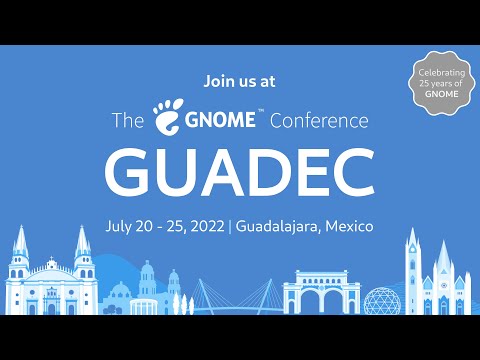
The video for the talk starts at 2:25:06 and ends at 3:07:18; you can click on the image above and it will take you to the correct timestamp.

Hi there! I'm Federico Mena Quintero, pronouns he/him. I have been working on GNOME since its beginning. Over the years, our accessibility infrastructure has acquired a lot of technical debt, and I would like to help with that.

For people who come to GUADEC from richer countries, you may have noticed that the sidewalks here are pretty rubbish. This is a photo from one of the sidewalks in my town. The city government decided to install a bit of tactile paving, for use by blind people with canes. But as you can see, some of the tiles are already missing. The whole thing feels lacking in maintenance and unloved. This is a metaphor for the state of accessibility in many places, including GNOME.

This is a diagram of GNOME's accessibility infrastructure, which is also the one used on Linux at large, regardless of desktop. Even KDE and other desktop environments use "atspi", the Assistive Technology Service Provider Interface.
The diagram shows the user-visible stuff at the top, and the infrastructure at the bottom. In subsequent slides I'll explain what each component does. In the diagram I have grouped things in vertical bands like this:
-
gnome-shell, GTK3, Firefox, and LibreOffice ("old toolkits") all use atk and atk-adaptor, to talk via DBus, to at-spi-registryd and assistive technologies like screen readers.
-
More modern toolkits like GTK4, Qt5, and WebKit talk DBus directly instead of going through atk's intermediary layer.
-
Orca and Accerciser (and Dogtail, which is not in the diagram) are the counterpart to the applications; they are the assistive tech that is used to perceive applications. They use libatspi and pyatspi2 to talk DBus, and to keep a representation of the accessible objects in apps.
-
Odilia is a newcomer; it is a screen reader written in Rust, that talks DBus directly.
The diagram has red bands to show where context switches happen when applications and screen readers communicate. For example, whenever something happens in gnome-shell, there is a context switch to dbus-daemon, and another context switch to Orca. The accessibility protocol is very chatty, with a lot of going back and forth, so these context switches probably add up — but we don't have profiling information just yet.
There are many layers of glue in the accessibility stack: atk, atk-adaptor, libatspi, pyatspi2, and dbus-daemon are things that we could probably remove. We'll explore that soon.
Now, let's look at each component separately.

For simplicity, let's look just at the path of communication between gnome-shell and Orca. We'll have these components involved: gnome-shell, atk, atk-adaptor, dbus-daemon, libatspi, pyatspi2, and finally Orca.

Gnome-shell implements its own toolkit, St, which stands for "shell toolkit". It is made accessible by implementing the GObject interfaces in atk. To make a toolkit accessible means adding a way to extract information from it in a standard way; you don't want screen readers to have separate implementations for GTK, Qt, St, Firefox, etc. For every window, regardless of toolkit, you want to have a "list children" method. For every widget you want "get accessible name", so for a button it may tell you "OK button", and for an image it may tell you "thumbnail of file.jpg". For widgets that you can interact with, you want "list actions" and "run action X", so a button may present an "activate" action, and a check button may present a "toggle" action.

However, ATK is just abstract interfaces for the benefit of toolkits. We need a way to ship the information extracted from toolkits to assistive tech like screen readers. The atspi protocol is a set of DBus interfaces that an application must implement; atk-adaptor is an implementation of those DBus interfaces that works by calling atk's slightly different interfaces, which in turn are implemented by toolkits. Atk-adaptor also caches some things that it already asked to the toolkit, so it doesn't have to ask again unless the toolkit notifies about a change.
Does this seem like too much translation going on? It is! We will see the reasons behind that when we talk about how accessibility was implemented many years ago in GNOME.

So, atk-adaptor ships the information via the DBus daemon. What's on the other side? In the case of Orca it is libatspi, a hand-written binding to the DBus interfaces for accessibility. It also keeps an internal representation of the information that it got shipped from the toolkit. When Orca asks, "what's the name of this widget?", libatspi may already have that information cached. Of course, the first time it does that, it actually goes and asks the toolkit via DBus for that information.

But Orca is written in Python, and libatspi is a C library. Pyatspi2 is a Python binding for libatspi. Many years ago we didn't have an automatic way to create language bindings, so there is a hand-writtten "old API" implemented in terms of the "new API" that is auto-generated via GObject Introspection from libatspi.
Pyatspi2 also has a bit of logic which should probably not be there, but rather in Orca itself or in libatspi.

Finally we get to Orca. It is a screen reader written in 120,000 lines of Python; I was surprised to see how big it is! It uses the "old API" in pyatspi2.
Orca uses speech synthesis to read out loud the names of widgets, their available actions, and generally any information that widgets want to present to the user. It also implements hotkeys to navigate between elements in the user interface, or a "where am I" function that tells you where the current focus is in the widget hierarchy.

Sarah Mei tweeted "We think awful code is written by awful devs. But in reality, it's written by reasonable devs in awful circumstances."
What were those awful circumstances?

Here I want to show you some important events surrounding the infrastructure for development of GNOME.
We got a CVS server for revision control in 1997, and a Bugzilla bug tracker in 1998 when Netscape freed its source code.
Also around 1998, Tara Hernandez basically invented Continuous Integration while at Mozilla/Netscape, in the form of Tinderbox. It was a build server for Netscape Navigator in all its variations and platforms; they needed a way to ensure that the build was working on Windows, Mac, and about 7 flavors of Unix that still existed back then.
In 2001-2002, Sun Microsystems contributed the accessibility code for GNOME 2.0. See Emmanuele Bassi's talk from GUADEC 2020, "Archaeology of Accessibility" for a much more detailed description of that history (LWN article, talk video).
Sun Microsystems sold their products to big government customers, who often have requirements about accessibility in software. Sun's operating system for workstations used GNOME, so it needed to be accessible. They modeled the architecture of GNOME's accessibility code on what they already had working for Java's Swing toolkit. This is why GNOME's accessibility code is full of acronyms like atspi and atk, and vocabulary like adapters, interfaces, and factories.
Then in 2006, we moved from CVS to Subversion (svn).
Then in 2007, we get gtestutils, the unit testing framework in Glib. GNOME started in 1996; this means that for a full 11 years we did not have a standard infrastructure for writing tests!
Also, we did not have continuous integration nor continuous builds, nor reproducible environments in which to run those builds. Every developer was responsible for massaging their favorite distro into having the correct dependencies for compiling their programs, and running whatever manual tests they could on their code.
2008 comes and GNOME switches from svn to git.
In 2010-2011, Oracle acquires Sun Microsystems and fires all the people who were working on accessibility. GNOME ends up with approximately no one working on accessibility full-time, when it had about 10 people doing so before.
GNOME 3 happens, and the accessibility code has to be ported in emergency mode from CORBA to DBus.
GitHub appears in 2008, and Travis CI, probably the first generally-available CI infrastructure for free software, appears in 2011. GNOME of course is not developed there, but in its own self-hosted infrastructure (git and cgit back then, with no CI).
Jessie Frazelle invents usable containers 2013-2015 (Docker). Finally there is a non-onerous way of getting a reproducible environment set up. Before that, who had the expertise to use Yocto to set up a chroot? In my mind, that seemed like a thing people used only if they were working on embedded systems.
But it is until 2016 that rootless containers become available.
And it is only until 2018 that we get gitlab.gnome.org - a Git-based forge that makes it easy to contribute and review code, and have a continuous integration infrastructure. That's 21 years after GNOME started, and 16 years after accessibility first got implemented.
Before that, tooling is very primitive.

In 2015 I took over the maintainership of librsvg, and in 2016 I started porting it to Rust. A couple of years later, we got gitlab.gnome.org, and Jordan Petridis and myself added the initial CI. Years later, Dunja Lalic would make it awesome.
When I took over librsvg's maintainership, it had few tests which didn't really work, no CI, and no reproducible environment for compilation. The book by Michael Feathers, "Working effectively with legacy code" describes "legacy code is code without tests".
When I started working on accessibility at the beginning of this year, it had few tests which didn't really work, no CI, and no reproducible environment.
Right now, Yelp, our help system, has few tests which don't really work, no CI, and no reproducible environment.
Gnome-session right now has few tests which don't really work, no CI, and no reproducible environment.
I think you can start to see a pattern here...

This is a chart generated by the git-of-theseus tool. It shows how many lines of code got added each year, and how much of that code remained or got displaced over time.
For a project with constant maintenance, like GTK, you get a pattern like in the chart above: the number of lines of code increases steadily, and older code gradually diminishes as it is replaced by newer code.

For librsvg the picture is different. It was mostly unmaintained for a few years, so the code didn't change very much. But when it got gradually ported to Rust over the course of three or four years, what the chart shows is that all the old code shrinks to zero while new code replaces it completely. That new code has constant maintainenance, and it follows the same pattern as GTK's.

Orca is more or less the same as GTK, although with much slower replacement of old code. More accretion, less replacement. That big jump before 2012 is when it got ported from the old CORBA interfaces for accessibility to the new DBus ones.

This is an interesting chart for at-spi2-core. During the GNOME2 era, when accessibility was under constant maintenance, you can see the same "constant growth" pattern. Then there is a lot of removal and turmoil in 2009-2010 as DBus replaces CORBA, followed by quick growth early in the GNOME 3 era, and then just stagnation as the accessibility team disappeared.
How do we start fixing this?

The first thing is to add continuous integration infrastructure (CI). Basically, tell a robot to compile the code and run the test suite every time you "git push".
I copied the initial CI pipeline from libgweather, because Emmanuele Bassi had recently updated it there, and it was full of good toys for keeping C code under control: static analysis, address sanitizer, code coverage reports, documentation generation. It was also a CI pipeline for a Meson-based project; Emmanuele had also ported most of the accessibility modules to Meson while he was working for the GNOME Foundation. Having libgweather's CI scripts as a reference was really valuable.
Later, I replaced that hand-written setup for a base Fedora container image with Freedesktop CI templates, which are AWESOME. I copied that setup from librsvg, where Jordan Petridis had introduced it.

The CI pipeline for at-spi2core has five stages:
-
Build container images so that we can have a reproducible environment for compiling and running the tests.
-
Build the code and run the test suite.
-
Run static analysis, dynamic analysis, and get a test coverage report.
-
Generate the documentation.
-
Publish the documentation, and publish other things that end up as web pages.
Let's go through each stage in detail.

First we build a reproducible environment in which to compile the code and run the tests.
Using Freedesktop CI templates, we start with two base images for "empty distros", one for openSUSE (because that's what I use), and Fedora (because it provides a different build configuration).
CI templates are nice because they build the container, install the build dependencies, finalize the container image, and upload it to gitlab's container registry all in a single, automated step. The maintainer does not have to generate container images by hand in their own computer, nor upload them. The templates infrastructure is smart enough not to regenerate the images if they haven't changed between runs.
CI templates are very flexible. They can deal with containerized builds, or builds in virtual machines. They were developed by the libinput people, who need to test all sorts of varied configurations. Give them a try!

Basically, "meson setup", "meson compile", "meson install", "meson test", but with extra detail to account for the particular testing setup for the accessibility code.
One interesting thing is that for example, openSUSE uses dbus-daemon for the accessibility bus, which is different from Fedora, which uses dbus-broker instead.
The launcher for the accessibility bus thus has different code paths and configuration options for dbus-daemon vs. dbus-broker. We can test both configurations in the CI pipeline.
HELP WANTED: Unfortunately, the Fedora test job doesn't run the tests yet! This is because I haven't learned how to run that job in a VM instead of a container — dbus-broker for the session really wants to be launched by systemd, and it may just be easier to have a full systemd setup inside a VM rather than trying to run it inside a "normal" containerized job.
If you know how to work with VM jobs in Gitlab CI, we'd love a hand!

The third stage is thanks to the awesomeness of modern compilers. The low-level accessibility infrastructure is written in C, so we need all the help we can get from our tools!
We run static analysis to catch many bugs at compilation time. Uninitialized variables, trivial memory leaks, that sort of thing.
Also, address-sanitizer. C is a memory unsafe language, so catching pointer mishaps early is really important. Address-sanitizer doesn't catch everything, but it is better than nothing.
Finally, a test coverage job, to see which lines of code managed to get executed while running the test suite. We'll talk a lot more about code coverage in the following slides.

At least two jobs generate HTML and have to publish it: the documentation job, and the code coverage reports. So, we do that, and publish the result with Gitlab pages. This "static web hosting inside Gitlab", which makes things very easy.

Adding a CI pipeline is really powerful. You can automate all the things you want in there. This means that your whole arsenal of tools to keep code under control can run all the time, instead of only when you remember to run each tool individually, and without requiring each project member to bother with setting up the tools themselves.

The original accessibility code was written before we had a culture of ubiquitous unit tests. Refactoring the code to make it testable makes it a lot better!

In a way, it is rewarding to become the CI person for a project and learn how to make the robots do the boring stuff. It is very rewarding to see other project members start using the tools that you took care to set up for them, because then they don't have to do the same kind of setup.

It is also kind of a pain in the ass to keep the CI updated. But it's the same as keeping any other basic infrastructure running: you cannot think of going back to live without it.

Now let's talk about code coverage.
A code coverage report tells you which lines of code have been executed, and which ones haven't, after running your code. When you get a code coverage report while running the test suite, you see which code is actually exercised by the tests.
Getting to 100% test coverage is very hard, and that's not a useful goal - full coverage does not indicate the absence of bugs. However, knowing which code is not tested yet is very useful!
Code that didn't use to have a good test suite often has many code paths that are untested. You can see this in at-spi2-core. Each row in that toplevel report is for a directory in the source tree, and tells you the percentage of lines within the directory that are executed as a result of running the test suite. If you click on one row, you get taken to a list of files, from which you can then select an individual file to examine.

As you can see here, librsvg has more extensive test coverage. This is because over the last years, we have made sure that every code path gets exercised by the test suite. It's not at 100% yet (and there are bugs in the way we obtain coverage for the c_api, for example, which is why it shows up almost uncovered), but it's getting there.
My goal is to make at-spi2-core's tests equally comprehensive.
Both at-spi2-core and librsvg use Mozilla's grcov tool to generate the coverage reports. Grcov can consume coverage data from LLVM, GCC, and others, and combine them into a single report.
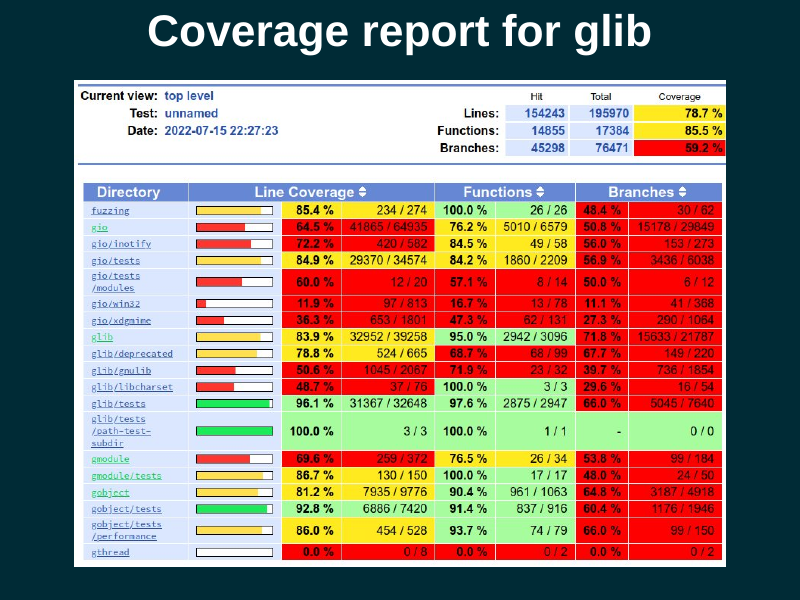
Glib is a much more complex library, and it uses lcov instead of grcov. Lcov is an older tool, not as pretty, but still quite functional (in particular, it is very good at displaying branch coverage).

This is what the coverage report looks for a single C file. Lines that were executed are in green; lines that were not executed are in red. Lines in white are not instrumented, because they produce no executable code.
The first column is the line number; the second column is the number of times each line got executed. The third column is of course the code itself.
In this extract, you can see that all the lines in the
impl_GetChildren() function got executed, but none of the lines in
impl_GetIndexInParent() got executed. We may need to write a test that
will cause the second function to get executed.

The accessibility code needs to process a bunch of properties in DBus objects. For example, the Python code at the top of the slide queries a set of properties, and compares them against their expected values.
At the bottom, there is the coverage report. The C code that handles each property is indeed executed, but the code for the error path, that handles an invalid property name, is not covered yet; it is color-coded red. Let's add a test for that!

So, we add another test, this time for the error path in the C code. Ask for the value of an unknown property, and assert that we get the correct DBus exception back.
With that test in place, the C code that handles that error case is covered, and we are all green.
What I am doing here is to characterize the behavior of the DBus API, that is, to mirror its current behavior in the tests because that is the "known good" behavior. Then I can start refactoring the code with confidence that I won't break it, because the tests will catch changes in behavior.

By now you may be familiar with how Gitlab displays diffs in merge requests.
One somewhat hidden nugget is that you can also ask it to display the code coverage for each line as part of the diff view. Gitlab can display the coverage color-coding as a narrow gutter within the diff view.
This lets you answer the question, "this code changed, does it get executed by a test?". It also lets you catch code that changed but that is not yet exercised by the test suite. Maybe you can ask the submitter to add a test for it, or it can give you a clue on how to improve your testing strategy.

The trick to enable that is to use the
artifacts:reports:coverage_report key in .gitlab-ci.yml. You have
your tools create a coverage report in Cobertura XML format, and you
give it to Gitlab as an artifact.
See the gitlab documentation on coverage reports for test coverage visualization.

When grcov outputs an HTML report, it creates something that looks and
feels like a <table>, but which is not an HTML table. It is just a
bunch of nested <div> elements with styles that make them look like
a table.
I was worried about how to make it possible for people who use screen readers to quickly navigate a coverage report. As a sighted person, I can just look at the color-coding, but a blind person has to navigate each source line until they find one that was executed zero times.
Eitan Isaacson kindly explained the basics of ARIA tags to me, and
suggested how to fix the bunch of <div> elements. First, give them
roles like table, row, cell. This tells the browser that the
elements are to be navigated and presented to accessibility tools as
if they were in fact a <table>.
Then, generate an aria-label for each cell where the report shows
the number of times a line of code was executed. For lines not
executed, sighted people can see that this cell is just blank, but has
color coding; for blind people the aria-label can be "no coverage"
or "zero" instead, so that they can perceive that information.
We need to make our development tools accessible, too!
You can see the pull request to make grcov's HTML more accessible.

Speaking of making development tools accessible, Mike Gorse found a bug in how Gitlab shows its project badges. All of them have an alt text of "Project badge", so for someone who uses a screen reader, it is impossible to tell whether the badge is for a build pipeline, or a coverage report, etc. This is as bad as an unlabelled image.
You can see the bug about this in gitlab.com.

One important detail: if you want code coverage information, your processes must exit cleanly!!!. If they die with a signal (SIGTERM, SIGSEGV, etc.), then no coverage information will be written for them and it will look as if your code got executed zero times.
This is because gcc and clang's runtime library writes out the
coverage info during program termination. If your program dies before
main() exits, the runtime library won't have a chance to write the
coverage report.

During a normal user session, the lifetime of the accessibilty daemons (at-spi-bus-launcher and at-spi-registryd) is controlled by the session manager.
However, while running those daemons inside the test suite, there is no user session! The daemons would get killed when the tests terminate, so they wouldn't write out their coverage information.
I learned to use Martin Pitt's python-dbusmock to write a minimal mock of gnome-session's DBus interfaces. With this, the daemons think that they are in fact connected to the session manager, and can be told by the mock to exit appropriately. Boom, code coverage.
I want to stress how awesome python-dbusmock is. It took me 80 lines of Python to mock the necessary interfaces from gnome-session, which is pretty great, and can be reused by other projects that need to test session-related stuff.

I am using pytest to write tests for the accessibility interfaces via DBus. Using DBus from Python is really pleasant.
For those tests, a test fixture is "an accessibility registry daemon tied to the session manager". This uses a "session manager fixture". I made the session manager fixture tear itself down by informing all session clients of a session Logout. This causes the daemons to exit cleanly, to get coverage information.

The setup for the session manager fixture is very simple; it just
connects to the session bus and acquires the
org.gnome.SessionManager name there.
Then we yield mock_session. This makes the fixture present itself to whatever needs to call it.
When the yield comes back, we do the teardown stage. Here we just
tell all session clients to terminate, by invoking the Logout method
on the org.gnome.SessionManager interface. The mock session manager
sends the appropriate singals to connected clients, and the clients
(the daemons) terminate cleanly.
I'm amazed at how smoothly this works in pytest.

The C code for accessibility was written by hand, before the time when we had code generators to implement DBus interfaces easily. It is extremely verbose and error-prone; it uses the old libdbus directly and has to piece out every argument to a DBus call by hand.

This code is really hard to maintain. How do we fix it?

What I am doing is to split out the DBus implementations:
- First get all the arguments from DBus - marshaling goo.
- Then, the actual logic that uses those arguments' values.
- Last, construct the DBus result - marshaling goo.

If you know refactoring terminology, I "extract a function" with the actual logic and leave the marshalling code in place. The idea is to do that for the whole code, and then replace the DBus gunk with auto-generated code as much a possible.
Along the way, I am writing a test for every DBus method and property that the code handles. This will give me safety when the time comes to replace the marshaling code with auto-generated stuff.

We need reproducible environments to build and test our code. It is not acceptable to say "works on my machine" anymore; you need to be able to reproduce things as much as possible.
Code coverage for tests is really useful! You can do many tricks with it. I am using it to improve the comprehensiveness of the test suite, to learn which code gets executed with various actions on the DBus interfaces, and as an exploratory tool in general while I learn how the accessibility code really works.
Automated builds on every push, with tests, serve us to keep the code from breaking.
Continuous integration is generally available if we choose to use it. Ask for help if your project needs CI! It can be overwhelming to add it the first time.
Let the robots do the boring work. Constructing environments reproducibly, building the code and running the tests, analyzing the code and extracting statistics from it — doing that is grunt work, and a computer should do it, not you.
"The Not Rocket Science Rule of Software Engineering" is to automatically maintain a repository of code that always passes all the tests. That, with monotonically increasing test coverage, lets you change things with confidence. The rule is described eloquently by Graydon Hoare, the original author of Rust and Monotone.
There is tooling to enforce this rule. For GitHub there is Homu; for Gitlab we use Marge-bot. You can ask the GNOME sysadmins if you would like to turn it on for your project. Librsvg and GStreamer use it very productively. I hope we can start using Marge-bot for the accessibility repositories soon.

The moral of the story is that we can make things better. We have much better tooling than we had in the early 2000s or 2010s. We can fix things and improve the basic infrastructure for our personal computing.
You may have noticed that I didn't talk much about accessibility. I talked mostly about preparing things to be able to work productively on learning the accessibility code and then improving it. That's the stage I'm at right now! I learn code by refactoring it, and all the CI stuff is to help me refactor with confidence. I hope you find some of these tools useful, too.

(That is a photo of me and my dog, Mozzarello.)
I want to thank the people that have kept the accessibility code functioning over the years, even after the rest of their team disappeared: Joanmarie Diggs, Mike Gorse, Samuel Thibault, Emmanuele Bassi.
Work Group Shifts to Feedback Session
Members of openSUSE’s Adaptable Linux Platform (ALP) community workgroup had a successful install workshop on August 2 and are transitioning to two install feedback sessions.
The first feedback session is scheduled to take place on openSUSE’s Birthday on August 9 at 14:30 UTC. The second feedback session is scheduled to take place on August 11 during the community meeting at 19:00 UTC.
Attendees of the workshop were asked to install MicroOS Desktop and temporarily use it. This is being done to gain some feedback on how people use their Operating System, which allows the work groups to develop a frame of reference for how ALP can progress.
The call for people to test spin MicroOS Desktop has received a lot of feedback and the workshop also provided a lot of feedback. One of the comments in the virtual feedback session was “stable base + fresh apps? sign me up”.
“stable base + fresh apps? sign me up.” - listed in comments during workshop
Two install videos were posted to the openSUSETV YouTube channel to help get people started with installing and testing MicroOS.
The video Installing Workshop Video (MicroOS Desktop) went over the expectations for ALP and then discussed experiences going through a testing spreadsheet.

The other video, which was not shown during the workshop due to time limitations, was called Installing MicroOS on a Raspberry Pi 400 and gave an overview on how to get MicroOS Desktop with a graphical interface running on the Raspberry Pi.

A final Lucid Presentation is scheduled for August 16 during the regularly scheduled workgroup.
People are encouraged to send feedback to the ALP-community-wg mailing list and to attend the feedback sessions, which will be listed in the community meeting notes.
Users can download the MicroOS Desktop at https://get.opensuse.org/microos/ and see instructions and record comments on the spreadsheet.

Recopilación del boletín de noticias de la Free Software Foundation – agosto de 2022
Recopilación y traducción del boletín mensual de noticias relacionadas con el software libre publicado por la Free Software Foundation.

La Free Software Foundation (FSF) es una organización creada en Octubre de 1985 por Richard Stallman y otros entusiastas del software libre con el propósito de difundir esta filosofía.
La Fundación para el software libre (FSF) se dedica a eliminar las restricciones sobre la copia, redistribución, entendimiento, y modificación de programas de computadoras. Con este objeto, promociona el desarrollo y uso del software libre en todas las áreas de la computación, pero muy particularmente, ayudando a desarrollar el sistema operativo GNU.
Además de tratar de difundir la filosofía del software libre, y de crear licencias que permitan la difusión de obras y conservando los derechos de autorías, también llevan a cabo diversas campañas de concienciación y para proteger derechos de los usuarios frentes a aquellos que quieren poner restricciones abusivas en cuestiones tecnológicas.
Mensualmente publican un boletín (supporter) con noticias relacionadas con el software libre, sus campañas, o eventos. Una forma de difundir los proyectos, para que la gente conozca los hechos, se haga su propia opinión, y tomen partido si creen que la reivindicación es justa!!
- En este enlace podéis leer el original en inglés: https://www.fsf.org/free-software-supporter/2022/august
- Y traducido en español (cuando el equipo de traducción lo tenga disponible) en este enlace: https://www.fsf.org/free-software-supporter/2022/agosto

Puedes ver todos los números publicados en este enlace: http://www.fsf.org/free-software-supporter/free-software-supporter
Después de muchos años colaborando en la traducción al español del boletín, desde inicios del año 2020 he decidido tomarme un descanso en esta tarea.
Pero hay detrás un pequeño grupo de personas que siguen haciendo posible la difusión en español del boletín de noticias de la FSF.
¿Te gustaría aportar tu ayuda en la traducción? Lee el siguiente enlace:
Por aquí te traigo un extracto de algunas de las noticias que ha destacado la FSF este mes de agosto de 2022
Acercándose a BIOS totalmente libres con el equipo técnico de la FSF
Del 13 de julio
Como parte de la recaudación de fondos de primavera de la FSF, el administrador sénior de sistemas, Ian Kelling, escribió un artículo que detalla el trabajo reciente del equipo técnico para migrar los últimos servidores que ejecutan BIOS no libres a otros que ejecutan BIOS libres.
Hubo muchos desafíos involucrados, pero el equipo técnico pudo enfrentar esos desafíos, y este artículo brinda una buena hoja de ruta para otras personas que planeen liberar sus computadoras de la red.
Publicado LibreJS 7.21.0
Del 21 de julio por Yuchen Pei
¡Hay una nueva versión de LibreJS, el complemento del navegador que lo ayuda a proteger su libertad!
Lea las notas de la versión, que detallan las correcciones de errores y las nuevas funciones, como una nueva prueba sin interfaz para desarrolladores de sitios web y documentación actualizada. Además, lea sobre la campaña Free JavaScript, que presenta a LibreJS como un recurso importante que se puede usar para navegar por Internet con libertad: https://www.fsf.org/campaigns/freejs.
Declaración de EFF sobre la adopción de la ley de servicios digitales y la ley de mercados digitales por parte del Parlamento de la UE
Del 5 de julio por la Electronic Frontier Foundation
La Electronic Frontier Foundation (EFF) publicó su declaración sobre la reciente aprobación por parte de la Unión Europea (UE) del «paquete de la Ley de Servicios Digitales». Hay algunas mejoras en las protecciones para los usuarios comunes, pero la DSA también obliga a las plataformas a evaluar y mitigar los riesgos sistémicos, y existe mucha ambigüedad sobre cómo resultará esto en la práctica. Mucho dependerá de cómo las plataformas de redes sociales interpreten sus obligaciones bajo la DSA y cómo las autoridades de la UE hagan cumplir la regulación.
Mientras tanto, organizaciones europeas como European Digital Rights (EDRi) han estado haciendo campaña contra lo que llaman «control de chat» durante meses. Los derechos de cifrado en las aplicaciones de chat y mensajería están en juego, y las organizaciones han formado diez principios de lo que significa, como dicen, «realmente defender a los niños en la era digital», que incluyen proteger el cifrado.
Tanto si vive dentro de la UE como si no, le recomendamos que se informe sobre los problemas y lo que está en juego. Lea la declaración completa de la EFF, respalde la lista de principios de EDRi en su sitio o en el sitio alemán https://chat-kontrolle.eu/ y lea lo que la FSF ha dicho anteriormente sobre la importancia del software libre en la tecnología de comunicación que realmente respeta la privacidad. La verdadera privacidad y seguridad dependen del software libre.
- https://www.eff.org/press/releases/eff-statement-eu-parliaments-formal-approval-digital-services-act-and-digital-markets
- https://edri.org/our-work/chat-control-10-principles-to-defend-children-in-the-digital-age/
- https://edri.org/wp-content/uploads/2022/02/EDRi-principles-on-CSAM-measures.pdf
- https://www.fsf.org/bulletin/2020/spring/privacy-encryption
Thomas Lord 1966-2022
Del 27 de julio por Trina Pudurs
Thomas Lord nació el 26 de abril de 1966 en Pittsburgh, Pensilvania. Apoyó el software libre durante toda su vida. Trabajó como empleado de la Free Software Foundation (FSF), desarrollando para el Proyecto GNU durante varios años a principios de la década de 1990.
La FSF reconoce y honra la contribución de Lord al software libre y su comunidad. Lamentamos la pérdida de Lord y expresamos nuestras condolencias a su familia, sus amigos y colegas.

Estas son solo algunas de las noticias recogidas este mes, pero hay muchas más muy interesantes!! si quieres leerlas todas (cuando estén traducidas) visita este enlace:
Y todos los números del «supporter» o boletín de noticias de 2022 aquí:
—————————————————————

Forum A l’asso de Rouen 2022
Cette année encore, notre association fondée en 2001 sera présente au forum des associations qui se tient le samedi 10 septembre 2022 de 10h à 18h sur les quais bas rive gauche entre le pont Guillaume-le-Conquérant et le pont Jeanne-d’Arc. Venez nous rencontrer au stand 107 et nous vous réserverons notre meilleur accueil. Toute la …
Forum A l’asso de Rouen 2022Read More »
The post Forum A l’asso de Rouen 2022 appeared first on Cybersécurité, Linux et Open Source à leur plus haut niveau | Network Users Institute | Rouen - Normandie.
YaST Development Report - Chapter 6 of 2022
Time for more news from the YaST-related ALP work groups. As the first prototype of our Adaptable Linux Platform approaches we keep working on several aspects like:
- Improving Cockpit integration and documentation
- Enhancing the containerized version of YaST
- Evolving D-Installer
- Developing and documenting Iguana
It’s a quite diverse set of things, so let’s take it bit by bit.
Cockpit on ALP - the Book
Cockpit has been selected as the default tool to perform 1:1 administration of ALP systems. Easing the adoption of Cockpit on ALP is, therefore, one of the main goals of the 1:1 System Management Work Group. Since clear documentation is key, we created this wiki page explaining how to setup and start using Cockpit on ALP.
The document includes several so-called “development notes” presenting aspects we want to work on in order to improve the user experience and make the process even more straightforward. So stay tuned for more news in that regard.
Improvements in Containerized YaST
As you already know, Cockpit will not be the only way to administer an individual ALP system. Our containerized version of YaST will also be an option for those looking for a more traditional (open)SUSE approach. So we took some actions to improve the behavior of YaST on ALP.
First of all, we reduced the size of the container images as shown in the following table.
| Container | Original Size | New size | Saved Space |
|---|---|---|---|
| ncurses | 433MB | 393MB | 40MB |
| qt | 883MB | 501MB | 382MB |
| web | 977MB | 650MB | 327MB |
We detected more opportunities to reduce the size of the container images, but in most cases they would imply relatively deep changes in the YaST code or a reorganization of how we distribute the YaST components into several images. So we decided to postpone those changes a bit to focus on other aspects in the short term.
We also adapted the Bootloader and Kdump YaST modules to work containerized and we added them to the available container images.
We took the opportunity to rework a bit how YaST handles the on-demand installation of software. As you know, YaST sometimes asks to install a given set of packages in order to continue working or to configure some particular settings.

Due to some race conditions when initializing the software management stack, YaST was sometimes checking and even installing the packages in the container instead of doing it so in the host system that was being configured. That is fixed now and it works as expected in any system in which immediate installation of packages is possible, no matter if YaST runs natively or in a container. But that still leaves one open question. What to do in a transactional system in which installing new software implies a reboot of the system? We still don’t have an answer to that but we are open to suggestions.
As you can imagine, we also invested quite some time checking the behavior of YaST containerized on
top of ALP. The good news is that, apart from the already mentioned challenge with software
installation, we found no big differences between running in a default (transactional) ALP system or
in a non-transaction version of it. The not-so-good news is that we found some issues related to
rendering of the ncurses interfaces, to sysctl configuration and to some other aspects. Most of
them look like relative easy to fix and we plan to work on that in the upcoming weeks.
Designing Network Configuration for D-Installer
Working on Cockpit and our containerized YaST is not preventing us to keep evolving D-Installer. If you have tested our next-generation installer you may have noticed it does not include an option to configure the network. We invested some time lately researching the topic and designing how network configuration should work in D-Installer from the architectural point of view and also regarding the user experience.
In the short term, we have decided to cover the two simplest use cases: regular cable and WiFi adapters. Bear in mind that Cockpit does not allow setting up WiFi adapters yet. We agreed to directly use the D-Bus interface provided by NetworkManager. At this point, there is no need to add our own network service. At the end of the installation, we will just copy the configuration from the system executing D-Installer to the new system.
The implementation will not be based on the existing Cockpit components for network configuration
since they present several weaknesses we would like to avoid. Instead, we will reuse the
components of the cockpit-wicked extension, whose architecture is better suited for the task.
D-Installer as a Set of Containers
In our previous report we announced D-Installer 0.4 as the first version with a modular architecture. So, apart from the already existing separation between the back-end and the two existing user interfaces (web UI and command-line), the back-end consists now on several interconnected components.
And we also presented Iguana, a minimal boot image capable of running containers.
Sure you already guessed then what the next logical step was going to be. Exactly, D-Installer running as a set of containers! We implemented three proofs of concept to check what was possible and to research implications like memory consumption:
- D-Installer running as a single container that includes the back-end and the web interface.
- Splitting the system in two containers, one for the back-end and the other for the web UI.
- Running every D-Installer component (software handling, users management, etc.) in its own container.
It’s worth mentioning that containers communicate with each other by means of D-Bus, using different techniques on each case. The best news if that all solutions seem to work flawlessly and are able to perform a complete installation.
And what about memory consumption? Well, it’s clearly bigger than traditional SLE installation with YaST, but that’s expected at this point in which no optimizations has been performed on D-Installer or the containers. On the other hand, we found no significant differences between the three mentioned proofs of concept.
- Single all-in-one container:
- RAM used at start: 230 MiB
- RAM used to complete installation: 505 MiB
- Two containers (back-end + web UI):
- At start: 221 MiB (191 MiB back-end + 30 MiB web UI)
- To complete installation: 514 MiB (478 MiB back-end + 36 MiB web UI)
- Everything as a separate container:
- At start: 272 MiB (92 MiB software + 74 MiB manager + 75 MiB users + 31 web)
- After installation: 439 MiB (245 MiB software + 86 manager + 75 users + 33 web)
Those numbers were measured using podman stats while executing D-Installer in a traditional
openSUSE system. We will have more accurate numbers as soon as we are able to run the three proofs
of concepts on top of Iguana. Which take us to…
Documentation About Testing D-Installer with Iguana
So far, Iguana can only execute a single container. Which means it already works with the all-in-one D-Installer container but cannot be used yet to test the other approaches. We are currently developing a mechanism to orchestrate several containers inspired by the one offered by GitHub Actions.
Meanwhile, we added some basic documentation to the project, including how to use it to test D-Installer.
Stay Tuned
Despite the reduced presence on this blog post, we also keep working on YaST beside containerization. Not only fixing bugs but also implementing new features and tools like our new experimental helper to inspect YaST logs. So stay tuned to get more updates about Cockpit, ALP, D-Installer, Iguana and, of course, YaST!
El comando locate de GNU
El comando locate sirve para encontrar archivos por el nombre en nuestro sistema GNU/Linux

El comando locate de GNU creado pro Miloslav Trmac, forma parte del paquete «GNU Find Utilities«, un conjunto de herramientas que trabajan junto con otros programas para ofrecernos herramientas muy útiles a la hora de buscar archivos en nuestros sistemas GNU/Linux.
«GNU Find Utilities» incluyen programas como:
- find – busca archivos en una jerarquía de directorios (del que ya escribí un artículo)
- locate – enumera los archivos en que se encuentran en una(s) base(s) de datos que coincidan con un patrón
- updatedb – actualizar una base de datos de nombres de archivos
- xargs – construye y ejecuta líneas de comando desde la entrada estándar
En esta ocasión vamos a ver cómo usar locate para buscar archivos en nuestro equipo, cuyos nombres están indexados en una base de datos.
El comando locate es el comando más rápido y la manera más rápida de buscar por el nombre un archivo en nuestro sistema GNU/Linux.
Si ya tenemos instalado el programa en nuestro sistema, ya podremos empezar a usarlo. El comando locate busca un patrón que le pasamos al ejecutarlo.
Ese patrón es el nombre (o parte del nombre) de un archivo y el comando lo que hace es buscarlo en una base de datos que mantiene y muestra los resultados por pantalla, de manera predeterminada un resultado por línea aunque eso se puede cambiar como veremos.
La base de datos en la que busca el comando se actualiza de manera diaria mediante una tarea «cron» que se instala en nuestro sistema al instalar el programa.
También podemos actualizar nosotros de manera manual la base de datos en cualquier momento ejecutando el comando updatedb Y dependiendo de nuestro sistema, esa actualización puede llevar más o menos tiempo.
Esa base de datos está localizada en la ruta /var/lib/mlocate/mlocate.db aunque podemos establecer otras rutas.
Pero vamos ya a ver cómo se usa el comando. El uso básico del comando es invocando el comando junto con un patrón de búsqueda. Imaginemos que queremos buscar en nuestro equipo un archivo que se llama hola.txt. Para ello ejecutaríamos:
locate hola
Nos mostrará todos los archivos que contengan la cadena hola en su nombre, ya que sin más parámetros busca el patrón no de manera estricta, si no como si fuera un comodín.
Así encontrará por ejemplo:
locate hola
/home/victorhck/Documentos/hola_mundo.html
/home/victorhck/Documentos/hola2.md
/home/victorhck/hola_mundo.txt
/home/victorhck/hola.txt
Eso sí, de manera predeterminada locate tiene en cuenta las mayúsculas y minúsculas, por lo que con la búsqueda anterior no mostrará por ejemplo ningún archivo HOLA.txt.
Si queremos que no tenga en cuenta mayúsculas y minúsculas deberemos ejecutar el comando con la opción -i
locate -i hola
/home/victorhck/Documentos/hola_mundo.html
/home/victorhck/Documentos/hola2.md
/home/victorhck/hola_mundo.txt
/home/victorhck/hola.txt
/home/victorhck/HOLA.txt
He dicho antes que el comando busca los nombres de archivo en una base de datos que se actualiza una vez al día o de manera manual.
Es decir que si creamos un nuevo archivo, si queremos que lo pueda encontrar, antes deberemos actualizar la base de datos como hemos visto antes.
Y quizás también se han borrado archivos desde que se actualizó la base de datos, si no queremos actualizarla y queremos que nos muestre los archivos que existen actualmente a la hora de ejecutarse el comando locate deberemos incluir la opción -e
locate -e prueba
El comando nos muestra cada coincidencia del patrón buscado en una línea, pero podemos hacer que nos devuelva todos los resultados seguidos mediante la opción -0
O podemos hacer que nos devuelva únicamente el valor del número de coincidencias encontradas con la opción -c
Si queremos buscar un archivo llamado hola.txt y no queremos que nos muestre otras opciones que no sean los archivos que se llaman exactamente como lo que buscamos, deberemos añadir la opción -b y añadir un caracter comodín al nombre para que así nos busque exactamente hola.txt y no *hola.txt*
locate -b '\hola.txt'
/home/victorhck/hola.txt
Lo mismo si queremos buscar todos los archivos que se llamen prueba ya sea mayúscula o minúscula y tenga cualquier extensión podremos hacerlo mediante:
locate -ib 'prueba.*'
/home/victorhck/prueba.txt
/home/victorhck/prueba.html
/home/victorhck/Prueba.html
Podemos obtener las estadísticas de la base de datos indexada que usa el comando locate ejecutando el comando con la opción -S
locate -S
Base de datos /var/lib/mlocate/mlocate.db:
   95.284 directorios
        1.378.246 archivos
        100.906.228 bytes en los nombres de archivo
        39.657.601 bytes utilizados para almacenar la base de datos
Podemos especificar varios patrones de búsqueda junto con el comando locate, no solo uno. El comando mostrará todos los archivos que cumplen uno u otro patrón de búsqueda.
En el siguiente ejemplo vamos a hacer que el comando nos muestre cuantos archivos coinciden con el patrón «mi_» o con el patrón «prueba», en mi caso:
locate -c mi_ prueba
127
Esto es muy distinto si incluimos la opción -A. Con esta opción el comando nos devuelve solo los archivos encontrados que cumplen ambos patrones de búsqueda. Es decir que tienen tanto «mi_» como «prueba». Veamos la diferencia:
locate -Ac mi_ prueba
4
Y estas son algunas de las opciones que tiene el comando locate de GNU a la hora de realizar búsquedas de archivos en tu equipo. Para una vista más detallada a otras opciones te recomiendo usar la página man del comando.
Espero que esta pequeña guía te haya resultado útil e incorpores el comando locate al arsenal de comandos que ya usas y manejas en la terminal de tu sistema GNU/Linux.
Si conocías el comando y quieres compartir algún truco, o si no conocías alguna opción o ni siquiera el comando, puedes usar los comentarios del blog para dejar tu comentario.

Microsoft loves «open source» solo cuando puede sacar provecho
Microsoft vuelve a dar ejemplos de la política de monopolio que subyace en sus venas por muy bonito que quede el eslogan de que ama al «open source»

Os traigo un par de ejemplos recientes de cómo Microsoft sigue siendo… Microsoft ¿sorpresa? la empresa se niega a ceder sus beneficios y parte de pastel a proyectos de código abierto o software libre… aunque quede muy bonito poner lo contrario en la publicidad.
El primer ejemplo tiene como protagonista a Nextcloud, software libre para crear tu propia nube con un montón de opciones que podemos ir implementando y sí, es software libre.
En una reciente entrevista al creador y CEO de Nextcloud, una persona que viene del software libre desde hace años, en la revista Wall Street Journal, este comentaba que a principios de año 2022 fue contactado por un abogado de Microsoft.
En la reunión, la persona de Microsoft ofreció beneficios en forma de colaboración y marketing a Nextcloud. Por ejemplo, querían promocionar el logotipo de Nextcloud en el material de marketing de Microsoft, si Nextcloud consideraría retirar su denuncia antimonopolio.
Esta queja antimonopolio es que a principios de 2021, bajo el liderazgo de Nextcloud, un grupo de empresas presentó una queja oficial ante la Dirección General de Competencia de la UE sobre el comportamiento de Microsoft. Esta coalición de empresas europeas en la nube aboga por la igualdad de condiciones en la UE.
Es decir Microsoft trata de seguir manteniendo su potencial en cuanto a la nube en Europa, donde va perdiendo poco a poco posiciones, chantajeando al CEO de Nextcloud para que sea bueno y retire la denuncia y a cambio le dan una palmadita en la espalda y poco más.
En la entrevista del Wall Street Journal el CEO de Nextcloud comenta:
“Básicamente nos estaba ofreciendo una galletita. No se trata de tener un logo en algún lado o hacer un trato rápido. No estamos interesados en eso. Estamos preocupados por la situación antimonopolio en general”.
El Zasca todavía resuena en Redmond
Pero hay más ejemplos.
Según ha denunciado a principios de julio de 2022 la Free Software Conservacy, Microsoft quiere prohibir en su «store» todo el software que sea FOSS (Free Open Source Software).
Han añadido una nueva cláusula que revierte las políticas de la tienda de aplicaciones y ya está interrumpiendo el comercio en su plataforma. En particular, Microsoft ahora prohíbe a los redistribuidores de FOSS cobrar dinero por casi todos los FOSS.
Sí el mismo «open source» que dicen querer, ahora les niegan que los proyectos de software libre cobren dinero y se financien a través de su «tienda». Bueno es su tienda y hacen lo que quieran, eso sí, están dañando seriamente el software libre.
Durante décadas, Microsoft hizo un gran esfuerzo para asustar al sector del software comercial con historias de cómo FOSS (y Linux en particular) no eran productos comercialmente viables. Microsoft incluso afirmó una vez que cualquiera que desarrollara FOSS bajo copyleft estaba en contra del estilo americano. (¡Qué tiempos aquellos que Microsoft no se escondía!)
Hoy en día, hay muchos desarrolladores que se ganan la vida creando, apoyando y redistribuyendo FOSS, que financian (en parte) cobrando por FOSS en las tiendas de aplicaciones.
Esto es, ante todo, una afrenta a todos los esfuerzos por ganarse la vida escribiendo software de código abierto. Esta no es una consideración meramente hipotética. Muchos desarrolladores ya respaldan su desarrollo FOSS (legítimamente, al menos bajo las propias licencias FOSS) a través de implementaciones de tiendas de aplicaciones que Microsoft prohibió recientemente en su Store.
Bueno, eso sí adoran el software libre que alojan en GitHub y del que Autopilot ahora puede beneficiarse. ¡Es hora de abandonar GitHub!
Os dejo los enlaces por aquí para que consultéis las fuentes de primera mano y saquéis vuestras propias conclusiones, podéis usar los comentarios del blog para compartirlas. Siempre con respeto y con ánimo constructivo, por favor.

MicroOS Install Workshop, Feedback Sessions Planned
In an effort so gain more user insight and perspective for the development of the Adaptable Linux Platform (ALP), members of the openSUSE community workgroup will have a MicroOS Desktop install workshop on August 2.
There will be feedback sessions the following weeks during the community workgroup and community meeting.
Users are encouraged to install the MicroOS Desktop (ISO image 3.8 GiB) during the week of August 1. There will be a short Installation Presentation during the ALP Workgroup Meeting at 14:30 UTC on August 2 for those who need a little assistance.
During the next two weeks’ meetings, follow ups will be given with a final Lucid Presentation on August 16 during the regularly scheduled workgroup.
Users are encouraged to note how their use, installation and experience goes on a spreadsheet while also using it as a reference for tips and examples on what to try.
Workflow examples like tweaking the immutable system by running sudo transactional-update shell or podman basics with container port forwarding and podman volumes are also on the list.
The call for people to test spin MicroOS Desktop has received a lot of feedback like the need for documentations for Flatpak on flatpak user profiles (located at ~/.var/app) and many other key points, which is the whole point of the exercise to try MicroOS to gain some valuable lessons for ALP.
In managing expectations, people testing MicroOS should be aware that it is based on openSUSE Tumbleweed, that YaST is not available and that MicroOS’ release manager would appreciate contributions rather than bug reports. MicroOS currently supports two desktop environments. GNOME is currently supported as a Release Candidate and KDE’s Plasma is in Alpha. MicroOS Desktop is currently the closest representation of what users can expect from next generation Desktop by SUSE.
Users have download the MicroOS Desktop at https://get.opensuse.org/microos/ and see instructions and record comments on the spreadsheet.
Scripts para subir texto o imágenes al servicio susepaste
Comparto unas modificaciones que he realizado a sendos scripts en Bash que sirven para subir texto o una imagen al servicio de paste mantenido por la comunidad openSUSE

Hace tiempo que he estado modificando y adaptando un par de scripts existentes que suben un texto o archivo de texto o una imagen al servicio susepaste para compartir logs o capturas en foros, listas de correo, etc.
Comparto con vosotros el resultado, que quizás lejos de ser perfecto es perfectamente válido y así me sirve para ver si hay que mejorar algo. Ya sabes: «release soon, release often».
susepaste.org es un sitio en el que poder compartir de forma efímera, textos, archivos o imágenes, para compartir con otras personas esa url que genera y así compartir un log, un mensaje de error, una captura de pantalla con un problema específico, etc.
Si usas openSUSE, seguro que ya tienes instalado en la ruta /usr/bin los scripts susepaste y susepaste-screenshot. Mis versiones actualizan y corrigen algún error además de eliminar partes que no se utilizaban y añadir nuevas opciones.
Si queremos utilizar mis scripts, lo primero vamos a renombrar los scripts originales, para ello en la ruta /usr/bin renombramos (como usuario root) ambos scripts añadiendo por ejemplo _orig al nombre de ambos archivos.
Ahora descargamos desde mi repositorio en Codeberg los scripts que he modificado en la misma ruta, ejecutando:
wget https://codeberg.org/victorhck/paste_scripts/raw/branch/main/susepastewget https://codeberg.org/victorhck/paste_scripts/raw/branch/main/susepaste-screenshot
Y ya los podremos utilizar. Si queremos volver atrás borramos los scripts descargados y volvemos a renombrar los scripts originales eliminando _orig del nombre.
susepaste
Este script sirve para enviar un archivo de texto, la salida de un comando o un texto que escribamos al servicio de susepaste y nos genera una url que nos devuelve y será la que podemos compartir. La modificación de mi script sigue haciendo eso, pero algunas cosas más.
¿Cómo utilizarlo?
Si ejecutamos susepaste -h nos muestra una pequeña información de cómo usar este sencillo script.
susepaste [-n nick] [-t title] [-e expire] [-f <file> or <path/to/file>]
(expire: 30m=30minutes; 1h=1hour; 6h=6hours; 12h=12hours; 1d=1day; 1w=1week; 1m=1month; 3m=3months; 1y=1year; 2y=2years; 3y=3years; 0=never)
Podemos especificar nuestro nick, un título, un periodo después del cual el archivo desaparecerá y un archivo.
Si no especificamos el nick, el título o el tiempo de expiración, se asignarán valores predeterminados. Y el archivo es opcional, ya que podemos poner la salida de un comando o escribir nosotros un texto. Si escribimos nosotros el texto deberemos terminar el comando con Ctrl+d
Vamos con unos ejemplos:
susepaste -n Victorhck -t repositorios -e 3m -f lista_repos.txt
Subimos el archivo lista_repos.txt indicando mi nick un título y que dure 3 meses en el servidor de susepaste. Otro:
zypper lr | susepaste -t repos -e 1h
Envía la salida del comando que muestra los repositorios (zypper lr) al script y este lo sube al servidor con un título y que dure 1 hora. Otro:
uname -a | susepaste
Envía la salida del comando al servicio susepaste. Y te devuelve la url y también la copia en el portapapeles.
susepaste-screenshot
Este script sirve para tomar una captura de pantalla y enviarla al servidor o para subir una captura que tengamos ya realizada.
¿Cómo utilizarlo?
Si ejecutamos susepaste-screenshot -h nos muestra una pequeña información de cómo usar este sencillo script.
susepaste-screenshot [--all] [-n nick] [-t title] [-e expire] [-d delay secs] [-f <file> or <path/to/file>]
(expire: 30m=30minutes; 1h=1hour; 6h=6hours; 12h=12hours; 1d=1day; 1w=1week; 1m=1month; 3m=3months; 1y=1year; 2y=2years; 3y=3years; 0=never)
Muy similar al anterior, pero se incluye la opción -d para indicar unos segundos de retraso a la hora de realizar la captura, para poder cambiar de pantalla, escritorio, etc…
Vamos con unos ejemplos:
susepaste-screenshot -n Victorhck -t error -e 3m -f /home/mi_usuario/capturas/mi_captura.png
Establecemos un nick, un título un tiempo de 3 meses de duración en el servidor y la ruta al archivo donde está la captura.
susepaste-screenshot -e 1m -d 5
La imagen durará 1 mes en el servidor y esperará 5 segundos antes de tomar una captura y enviarla.
Bueno, tanto si usas openSUSE como si no, podrás usar el servicio susepaste o paste.opensuse.org que en definitiva son los mismos para alojar textos o imágenes.
Y si usas estos scripts te ahorrarán tiempo y quizás te hagan la vida más fácil. Si los usas y encuentras algo que no funciona, o que habría que mejorar usa los comentarios del blog para compartir tu aporte.
No quiere decir que lo vaya a hacer  dependerá del tiempo que tenga, de las ganas, pero sin duda tu aporte será leído y tenido muy en cuenta.
Enlaces de interés
- https://codeberg.org/victorhck/paste_scripts
- https://github.com/openSUSE/paste/tree/master/script
- https://susepaste.org/
