
 Member
 baltolkien
Presenta tu charla para Linux App Summit 2021
Lo anuncié esta semana y el plazo termina pronto pero creo que vale la pena promocionar que todavía está abierto el plazo. Así que no te lo pienses mucho y presenta tu charla para Linux App Summit 2021 que se celebrará en línea del 13 al 15 de mayo. Pero ¡date prisa, el plazo finaliza el próximo 22 de marzo a las 23:59!
¿Qué es Linux App Summit (LAS)?
Para los que no lo conozcan os comento que el evento Linux App Summit lleva celebrándose hace unos años y que poco a poco va cogiendo impulso que se merece, convirtiéndose en un clásico en el blog.
LAS (acrónimo con el que se conoce Linux App Summit) reúne bajo un mismo techo, aunque sea virtual, a los desarrolladores de los entornos de trabajo KDE y Gnome para que compartan ideas, código y conocimiento.
En otras palabras, LAS está diseñado para acelerar el crecimiento del ecosistema de aplicaciones de Linux reuniendo a todos los que participan en la creación de una gran experiencia de usuario de aplicaciones de Linux.
Presenta tu charla para Linux App Summit 2021
Comenté LAS 2021 (que será como la todos los eventos actuales en línea) el pasado lunes 15 de marzo, y decía que seguro que se ampliaba el plazo para presentar las ponencia, como así ha sido ya que ahora tienes hasta el lunes que viene, 22 de marzo, para hacerlo.
Las charlas tienen una duración aproximada de 40 minutos, mientras que las relámpago se reducen a 10 minutos.

Por cierto, os recuerdo que el registro ya está abierto, así que os podéis apuntar en este enlace con lo que podréis, además, estar más informados de este interesante encuentro.
Otro fin de semana que intentaré estar delante del ordenador, afinando mi inglés y descubriendo más y más aplicaciones y proyectos libres.
Más información: Linux App summit 2021

Entire Rebuild of Tumbleweed Brings Enormous Update
There were few packages untouched in openSUSE’s rolling release distribution Tumbleweed this week as updates poured out of five new snapshots.
The 20210311 snapshot provided an entire rebuild of the distribution, which is something that occasionally happens.
The most recent 20210317 snapshot updated more than a half dozen packages, which included the data plotting package kplotting as the lone KDE Frameworks 5.80.0 package to update in the snapshot. A memory leak fix was made in the update of flatpak 1.10.2 and a security update in the package fixed a potential attack where a flatpak application could use custom formatted .desktop files to gain access to files on the host system. An update of systemd 246.11 fixed a void pointer arithmetic warning and moved Secure Boot logic to a new file. Other updates in the snapshot included spacenavd 0.8, python-packaging 20.9, python-scipy 1.6.1 and rtkit 0.13.
Snapshot 20210316 delivered most of the 5.80.0 Frameworks packages. Kirigami, which offers application framework components for mobile, had multiple improvements and fixes; it changed and improved the PlaceholderMessage for new Application Programming Interfaces. The Plasma Framework package ported a Plasma Style Kirigami Theme plugin to the new Kirigami API. A Flatpak manifest was also added to the Kirigami template. The snapshot brought an update of ImageMagick 7.0.11.3, which decodes HEIC images in sRGB instead of YCbCr. Mozilla Firefox 86.0.1 fixed a frequent Linux crash on the browser launch. The 5.11.6 Linux Kernel was updated in the snapshot, which had some Btrfs fixes. The kernel also enabled the headset microphone of the Acer Swift line. There was a fix for the maximum length of a password entered through a terminal with cryptsetup 2.3.5. Various fixes were made in the update of xfsprogs 5.11.0 and the Open Chinese Convert library opencc 1.1.2 added a Hong Kong Traditional Chinese conversion. A major version update of Python-hyperlink to 21.0.0 was included in the snapshot and bumped some long overdue dependencies. Other packages to update in the snapshot were gnutls 3.7.1, vim 8.2.2607 and sqlite3 3.35.0, which enhanced the .stats command to accept new arguments stmt and vmstep and causes the prepare statement statistics and only the virtual-machine step count to be shown, respectively.
Updated KDE packages appeared to be a common theme throughout the week as snapshot 20210315 provided an update of KDE Plasma 5.21.2; the Plasma Desktop update avoids using non-integer numbers as spacing and the Plasma Workspace fixed a bug that for a more graceful handling of the escape key in history view. KWin had some updates for Wayland like fixing the PrepareForSleep dbus connection and a commit that honors a NoPlugin option. A major version of rubygem-rspec-rails 5.0.0 added new fixture test support code and dropped support for Rails below 5.2. Multimedia package pipewire 0.3.23 has some critical fixes from the previous release, makes improvements in JSON parsing and encoding, and Bluetooth now supports delay adjustments. Wireshark 3.4.4 fixed one Common Vulnerabilities and Exposure that could open unsafe URLs.
Snapshot 20210312 provided some OpenPGP fixes and calendar fixes with the Mozilla Thunderbird 78.8.1 update. Data transfer package curl 7.75.0 added Hyper as a new optional HTTP backend and introduced AWS HTTP v4 Signature support. An update of btrfsprogs 5.11, which is the userspace utilities to manage btrfs filesystems, brought in a new subcommand create-control-device. The new version of bison 3.7.6 fixed the reused push parsers and table generation. The updated version of git 2.30.2 took care of a CVE that could have been fooled into running remote code during a clone. Other packages updated in the snapshot were text editor nano 5.6.1, sssd 2.4.2 and yast2 4.3.59.
Snapshot 20210311 was an entire rebuild of the Tumbleweed distribution. This snapshot also included package updates from KDE Plasma 5.21.2, but KDE Applications 20.12.3 had the most updates in in the snapshot. Video editor Kdenlive had the most enhancements in the snapshot; an enhancement included improving the handling when switching to fullscreen and there was a crash fix for group keyframe moves. Another 20.12.3 Applications update was made to the storage package Akonadi, which makes use of loose_ option prefix for the MySQL server settings. Most of the updates around the 7.1.1.2 update of LibreOffice involved translation updates. Updates to brltty, php, vim, fwupd and redis were among the several packages updated in this rebuild snapshot.
Solucionar problema con el repositorio Packman de #openSUSE
¿Has tenido problemas últimamente con tu repositorio Packman en openSUSE? Veamos cómo solucionarlo

Desde hace unas semanas los usuarios de openSUSE, tanto Leap como Tumbleweed, hemos tenido problemas a la hora de actualizar o instalar paquetes desde el repositorio no oficial de Packman.
Veamos cómo solucionar este problema cambiando el repositorio por otro “mirror” .
Este artículo tenía que haber llegado al blog hace unas semanas, pero como he tenido poco tiempo, no he podido publicarlo, así que más vale tarde que nunca.
Quizás muchas de las personas que utilizamos openSUSE tenemos habilitado el repositorio Packman, el repositorio no oficial, pero muchas veces necesario, ya que ahí es donde encontraremos software que por problemas de patentes, etc no se pueden incluir en los repos oficiales de openSUSE.
Desde hace unas semanas quizás tienes problemas relacionados con este repositorio a la hora de actualizar o instalar software. Puede ser a la hora de instalar software o actualizar el sistema te dice que no puede acceder al repositorio.
Ve a YaST y en la sección de Software abre el apartado Repositorios de software y comprueba si la dirección del repositorio Packman que tienes configurada apunta a esta url:
http://packman.inode.at/suse/openSUSE_Tumbleweed/
El problema aparece porque el servidor de inode.at al que apunta, desde hace un tiempo tiene problemas, desconozco si están actualizando el servidor u otro problema técnico.
Por lo que hay que hacer es quitar esa url o cambiarla para utilizar otro de los “mirrors” o servidores de réplica que contienen una copia de dicho repositorio.
También de esta manera distribuimos la carga del servidor, ya que cada persona utilizará un servidor de réplica distinto y lo más adecuado es utilizar un servidor que se encuentre cerca de nuestra ubicación.
Pero vamos al meollo y veamos cómo hacer todo esto.
En YaST, en la sección que nos encontrábamos yo he inhabilitado el repositorio de Packman que tenía actualmente configurado. No lo he borrado o modificado por si algún día lo vuelvo a activar, eso queda a tu elección.
Vamos a la sección de servidores de réplica o “mirrors” de Packman y escogemos una url y la copiamos:
Seleccionas el mirror, tu sistema, tu versión de sistema y copias la url. Por ejemplo yo utilizo esta:
Volvemos a YaST → Repositorio de software y pulsamos sobre el botón Añadir. Se nos abrirá una ventana donde nos pedirá una url. Pegamos la url que hemos copiado del repositorio de réplica que hemos seleccionado antes y le ponemos un nombre, por ejemplo Packman alternativo (o el que quieras)
Le damos aceptar y yo a este repositorio le tengo configurada una prioridad de 70 en vez de 99 (ya sabes, un valor más pequeño implica una mayor prioridad) para que a la hora de instalar software primero lo haga de este repositorio.
Aceptamos y guardamos. Podemos volver a cerrar y abrir de nuevo la sección de repositorios para forzar un refresco de los paquetes de software leídos. O podemos ir a la consola y ejecutar zypper ref.
Con esto, ya deberíamos tener solventado nuestro problema de acceso a Packman. Podemos ejecutar el siguiente comando para hacer que los paquetes de software se actualicen al nuevo repositorio:
sudo zypper dup --from <nombre> --allow-vendor-change
Donde <nombre> es el nombre que le has dado cuando lo has añadido. Si no te acuerdas ejecuta antes zypper lr donde verás los repositorios que tienes configurados y podrás consultar el nombre del nuevo repo que has activado antes.
Con el comando anterior lo que haces es que el software que tengas instalado se instale desde este repositorio para impedir mezclas de paquetes, etc.
¡Y con esto ya puedes seguir disfrutando de GNU/Linux con openSUSE! Espero que aunque un poco tarde, este artículo pueda solucionar alguna duda o problema que hayas tenido.
Enlaces de interés
- https://forums.opensuse.org/showthread.php/550696-Packman-repository-permission-denied
- https://forums.opensuse.org/showthread.php/551314-Which-Packman-mirror-should-i-choose-and-how-do-i-change-it
- https://en.opensuse.org/Additional_package_repositories#Packman

Instalando un servidor SFTP en openSUSE

Instalando un servidor SFTP en openSUSE
vsftpd (Very Secure File Transport Protocol Daemon) es un servidor FTP seguro y rápido para sistemas Unix / Linux. Tiene licencia GPL y es el servidor FTP predeterminado para CentOS, Fedora, RHEL, Ubuntu, Slackware, entre otros..
Instalar vsftpd
Ingresamos el siguiente comando para instalar el paquete vsftpd.
sudo zypper in vsftpd
Iniciamos el servicio vsftpd y lo habilítamos para que se inicie automáticamente en cada reinicio.
sudo systemctl start vsftpd
sudo systemctl enable vsftpd
Configurar vsftpd
Verificamos que se tenga el directorio para usuarios de ftp.
Nota: En openSUSE, este directorio se creará automáticamente después de instalar el paquete VSFTPD.
dir /srv/
Creamos un grupo llamado ftp-users.
sudo groupadd ftp-users
NOTA:En este ejemplo, se tiene creado con anterioridad un usuario de muestra llamado prueba, procedemos a asignar al usuario al grupo ftp-users.
sudo usermod -a -G ftp-users prueba
Hagamos que el directorio de inicio de ftp /srv/ftp/ sea accesible para los usuarios de ftp.
sudo chmod 750 /srv/ftp/
sudo chown prueba: ftp-users /srv/ftp/
Editamos el archivo vsftpd.conf
sudo vi /etc/vsftpd.conf
...]
# Descomentamos y cambiamos a YES el valor de escritura.write_enable=YES
[...]
# Descomentamos y agregamos un mensaje de bienvenidaftpd_banner=Bienvenido al ServIdor FTP.
[...]
# Descomentamosls_recurse_enable=YES
[...]
# Descomentamos y cambiamos a YES el valor para permitir el acceso a los usuarios locales.local_enable=YES
[...]
# Para deshabilitar el acceso a usuarios anónimos, dejamos el valor en NO.anonymous_enable=NO
[...]
# Descomentamos para habilitar la subida y descarga de código ascii.ascii_upload_enable=YES ascii_download_enable=YES
[...]
## Agregamos la siguiente línea al final del archivo ##use_localtime=YES
Guardamos cambios, salimos y reiniciamos el servicio.
su service vsftpd restart
Configurar FTP para conectarnos de forma segura (SFTP)
Generamos el certificado con el siguiente comando:
sudo openssl req -x509 -nodes -days 7300 -newkey rsa:2048 -keyout /etc/ssl/certs/vsftpd.pem -out /etc/ssl/certs/vsftpd.pem
Como resultado tendremos lo siguiente:
NOTA: Los valores que a continuación se muestra, únicamente son utilizados para este ejemplo, utilicen su propia información para su servidor
Generating a RSA private key
.......+++++
....................................................................+++++
writing new private key to '/etc/ssl/certs/vsftpd.pem'
-----
You are about to be asked to enter information that will be incorporated
into your certificate request.
What you are about to enter is what is called a Distinguished Name or a DN.
There are quite a few fields but you can leave some blank
For some fields there will be a default value,
If you enter '.', the field will be left blank.
-----
Country Name (2 letter code) [AU]:MX
State or Province Name (full name) [Some-State]:CDMX
Locality Name (eg, city) []:CDMX
Organization Name (eg, company) [Internet Widgits Pty Ltd]:openSUSE
Organizational Unit Name (eg, section) []:Comunidad
Common Name (e.g. server FQDN or YOUR name) []:openSUSE
Email Address []:info@opensusemexico.com
Abrimos el archivo vsftpd.conf y agregamos la siguiente información al final
sudo vi /etc/vsftpd.conf
ssl_enable=YES
allow_anon_ssl=NO
rsa_cert_file=YES
dsa_cert_file=NO
force_local_data_ssl=YES
force_local_logins_ssl=YES
ssl_tlsv1=YES
ssl_sslv2=NO
ssl_sslv3=NO
# Limit passive ports to this range to assis firewalling
pasv_min_port=30000
ssl_ciphers=HIGH
rsa_cert_file=/etc/ssl/certs/vsftpd.pem
rsa_private_key_file=/etc/ssl/certs/vsftpd.pem
Guardamos los cambios y reiniciamos el servico vsftpd
su service vsftpd restart
Hacemos pruebas de conexión
Desde la línea de comandos escribimos
NOTA: Es importante mencionar que el portador para esta opción será el servicio SSH, que deberá de estar funcionando previo a la ejecución del siguiente comando.
sftp 192.168.1.67
Al momento de realizar la conexión por primera vez, nos solicitará aceptar la huella digital para la conexión a este dispositivo.
Una vez confirmado la huella digital, nos pedirá la contraseña del usuario con el que estamos en sesión. Habiendo proporcionado la contraseña, nos mostrará el contenido del directorio de trabajo.
stuartlinux@geeko:~> sftp prueba@192.168.1.67
The authenticity of host '192.168.1.67 (192.168.1.67)' can't be established.
ECDSA key fingerprint is SHA256:0UTXOzaNnrGtqACSmep1Z5BZttvVwBc2c3NCRD/hvNI.
Are you sure you want to continue connecting (yes/no/[fingerprint])? yes
Warning: Permanently added '192.168.1.67' (ECDSA) to the list of known hosts.
Password:
Connected to 192.168.1.67.
sftp> dir
ftp.txt opensuse-logo.png
sftp>
Prueba utilizando Filezilla
Abrimos el programa de Filezilla y detallamos la dirección IP a la que nos vamos a conectar. Nótese que al inicio en el nombre de host, se hace referencia a que la conexión será segura utilizando una capa de seguridad que previamente creamos. Por eso se utliliza el protocolo sftp.
Colocamos el nombre de usuaario y su contraseña, así como el puerto que se utlizará para la conexión segura. Como se puede observar es el puerto 22.

Si es la primera vez que hacemos la conexión segura al serfidor FTP utilizando Filezilla, nos muestra la siguiente ventana emergente. Aceptamos la huella digital para realizar la conexión segura.

Una vez que se valida la conexión, estaremos dentro de nuestro servidor FTP visualizado desde la interfaz de Filezilla


Camino hacia Plasma 5.22
Inmersos en pleno escritorio Plasma 5.21, del cual los desarrolladores de la Comunidad KDE están puliendo gracias a sus actualizaciones menores, es hora de ir pensando en el siguiente gran paso. Y es que ya estamos de camino hacia Plasma 5.22 y ya tenemos algunas de las novedades que nos ofrecerá, así como las fechas más destacadas previas a su lanzamiento.
Camino hacia Plasma 5.22
La Comunidad KDE tiene muy bien aprendido como debe ir desarrollando su escritorio Plasma, no en vano llevan 21 lanzamientos exitosos y han conseguido quitarse de encima la mala experiencia de KDE 4.
Del mismo modo, versión tras versión demuestran que las actualizaciones no son malas, hacen que el sistema vaya consumiendo menos recursos y que poco a poco adaptan más su producto a los usuarios, ofreciendo nuevas funcionalidades y afinando las que ya ofrece.

De este modo siempre me llena de alegría cuando se habla de una nueva gran revisión del entorno de trabajo de la Comunidad KDE, Plasma 5.22, que ha anunciado que ell 29 de abril se congelarán sus nuevas funcionalidades, el 13 de mayo aparecerá su primera beta y el 3 de junio tendremos su lanzamiento definitivo.
Nuevas funcionalidades de Plasma 5.22
Aunque seguro que al final son muchas más, ya tenemos anunciadas algunas de las nuevas características de Plasma 5.22:
- Transparencia adaptativa en los paneles del escritorio: a partir de ahora la transparencia del panel y los comportamientos de cualquier ventana maximizada serán coherentes. Por ejemplo, si tu panel es digamos 50% transparente y tienes una ventana de aplicación maximizada, entonces el panel de escritorio inferior se ve extraño, así que a partir de ahora el panel adaptara su transparencia basándose en la configuración del panel para que coincidiera con la ventana.
- Información de la aplicación por defecto: en la nueva versión cuando se está copiando cualquier archivo o cualquier acción sobre el mismo, la ventana emergente de finalización mostrará qué aplicación está disponible para abrir el archivo. Por ejemplo, «Abrir con Ark» para un archivo zip. Si no se encuentra ninguna asociación de tipo de archivo, el botón cambiará a «Abrir con».
- Nueva advertencia: se introduce una ventana emergente de advertencia para evitar el borrado accidental de notas en la aplicación KNote. Hoy en día, no hay ninguna advertencia y simplemente la borra.
- Mejoras en Vault: las carpetas seguras de KDE mostrarán la opción para abrir en la acción del administrador de archivos para las carpetas y archivos que estén utilizando este servicio.
- Mejoras en el applet de audio: ahora mostrará los nombres completos de los altavoces y micrófonos al pasar el ratón por encima.
- Más información en Discover: ahora las aplicaciones mostrarán el tipo de paquete – por ejemplo, Flatpak, Snap, etc. Incluso incluye un pequeño icono para su rápida identificación.

- Mejoras en la administración del audio: será posible cambiar entre diferentes perfiles de audio de su micrófono, dispositivo de sonido de la nueva tarjeta de perfiles. Por ejemplo, si su altavoz soporta estéreo, Dolby 5.1, Dolby 7.1 – podrá cambiar entre ellos a través del nuevo menú de la tarjeta.
- Nuevos avisos sonoros: el nuevo Plasma podrá reproducir un sonido cuando sus dispositivos conectados están listos para ser retirados con seguridad.
Y esto es el principio, seguro que el 19 de abril tendremos muchas más novedades. De momento a esperar.
Vía: Unfox News
Parsing Fortigate logs and other syslog-ng 3.31 news
Version 3.31 of syslog-ng has been released recently. One of its most user-visible features is the parser for Fortigate logs, yet another networking vendor that produces log messages not conforming to syslog specifications. Parsing Fortigate logs builds upon the new no-header flag of syslog-ng combined with the key-value and date parsers. Other features include a new silent message option for the Telegram destination and automatic directory creation for disk-buffer files.
Note: as you could guess from the previous paragraph, Fortigate is not alone. Cisco also has “interesting” log messages, and a bit of extra parsing also helps with PAN-OS, even if their messages conform to syslog specifications.
Before you begin
In this blog, we check out some of the new features of syslog-ng 3.31. If you want to test them, you need to install syslog-ng 3.31 or later (I’m running a Git snapshot version on my laptop). It is available already in FreeBSD ports, but most Linux distributions carry older versions. Check the 3rd-party binaries page on the syslog-ng website if there are up-to-date 3rd-party packages for your distribution of choice: https://www.syslog-ng.com/3rd-party-binaries
Once you have syslog-ng 3.31 up and running, you are ready to test some of the new features. Let’s start with some of the smaller features and finish with the big one!
Disk buffer directory
Prior to version 3.31 of syslog-ng, you had to create a directory for disk buffer files manually before starting syslog-ng. If the directory was missing, syslog-ng stopped with an error. In my latest syslog-ng article on opensoure.com, where syslog-ng on a Raspberry Pi machine buffers sensor data until the server becomes available, I also warn you to create the directory.
Starting with version 3.31, if the directory specified in the configuration does not exist, syslog-ng creates it automatically.
Silent Telegram messages
Sending alerts to Telegram from syslog-ng has been possible for years already. But there are some situations when you want to receive all the interesting messages on your mobile without being disturbed each time a new message arrives. This is where the new disable_notification() option to the Telegram destination can come handy. If set to `True`, your mobile receives the new messages without alerting you each time.
“no-header” flag for the syslog parser
Some log messages only keep the PRI field from the syslog specification, but they lack a proper syslog header. Among others, Fortigate logs belong to these log messages. In this case, you can use the “no-header” flag on incoming log messages. This way, syslog-ng parses the PRI field, and puts the rest of the log message into $MSG. If the message is otherwise structured, you can parse it further, extract the date using the date parser, and create name-value pairs from other useful information.
Working with Fortigate logs
Here are some sample Fortigate log messages. These were used to test the new parser, and we will use them as well. You can copy and paste them from here or from /usr/share/syslog-ng/include/scl/fortigate/fortigate.conf as well:
<189>date=2021-01-15 time=12:58:59 devname="FORTI_111" devid="FG100D3G12801312" logid="0001000014" type="traffic" subtype="local" level="notice" vd="root" eventtime=1610704739683510055 tz="+0300" srcip=91.234.154.139 srcname="91.234.154.139" srcport=45295 srcintf="wan1" srcintfrole="wan" dstip=213.59.243.9 dstname="213.59.243.9" dstport=46730 dstintf="unknown0" dstintfrole="undefined" sessionid=2364413215 proto=17 action="deny" policyid=0 policytype="local-in-policy" service="udp/46730" dstcountry="Russian Federation" srccountry="Russian Federation" trandisp="noop" app="udp/46730" duration=0 sentbyte=0 rcvdbyte=0 sentpkt=0 appcat="unscanned" crscore=5 craction=262144 crlevel="low"
<189>date=2021-01-15 time=12:58:59 devname="FORTI_111" devid="FG100D3G12801312" logid="0001000014" type="traffic" subtype="local" level="notice" vd="root" eventtime=1610704739683498829 tz="+0300" srcip=91.234.154.139 srcname="91.234.154.139" srcport=45295 srcintf="wan1" srcintfrole="wan" dstip=213.59.243.9 dstname="213.59.243.9" dstport=46730 dstintf="unknown0" dstintfrole="undefined" sessionid=2364413214 proto=17 action="deny" policyid=0 policytype="local-in-policy" service="udp/46730" dstcountry="Russian Federation" srccountry="Russian Federation" trandisp="noop" app="udp/46730" duration=0 sentbyte=0 rcvdbyte=0 sentpkt=0 appcat="unscanned" crscore=5 craction=262144 crlevel="low"
<189>date=2021-01-15 time=12:58:59 devname="FORTI_111" devid="FG100D3G12801312" logid="0000000013" type="traffic" subtype="forward" level="notice" vd="root" eventtime=1610704739683525562 tz="+0300" srcip=10.9.1.26 srcname="sotina-sv" srcport=61105 srcintf="9 VLAN" srcintfrole="lan" dstip=77.88.55.66 dstname="www.yandex.ru" dstport=443 dstintf="wan1" dstintfrole="wan" sessionid=2364410752 proto=6 action="close" policyid=42 policytype="policy" poluuid="c1e5431a-d082-51e7-53e0-d3a8ab1a3ee2" service="HTTPS" dstcountry="Russian Federation" srccountry="Reserved" trandisp="snat" transip=213.59.243.9 transport=61105 appid=42899 app="Yandex" appcat="General.Interest" apprisk="elevated" applist="Application Control_User" duration=15 sentbyte=7286 rcvdbyte=1490 sentpkt=16 rcvdpkt=8 wanin=1158 wanout=6470 lanin=6470 lanout=6470 utmaction="allow" countapp=1 osname="Windows" srcswversion="7" unauthuser="sotina-sv" unauthusersource="kerberos" mastersrcmac="00:24:21:ac:fb:da" srcmac="00:24:21:ac:fb:da" srcserver=0
<189>date=2021-01-15 time=12:58:59 devname="FORTI_111" devid="FG100D3G12801312" logid="0001000014" type="traffic" subtype="local" level="notice" vd="root" eventtime=1610704739683532607 tz="+0300" srcip=94.143.50.155 srcname="94.143.50.155" srcport=56368 srcintf="wan1" srcintfrole="wan" dstip=213.59.243.9 dstname="213.59.243.9" dstport=46730 dstintf="unknown0" dstintfrole="undefined" sessionid=2364413216 proto=6 action="deny" policyid=0 policytype="local-in-policy" service="tcp/46730" dstcountry="Russian Federation" srccountry="Russian Federation" trandisp="noop" app="tcp/46730" duration=0 sentbyte=0 rcvdbyte=0 sentpkt=0 appcat="unscanned" crscore=5 craction=262144 crlevel="low"
As you can see, these lines start as any other log messages start, with a <PRI> field, but otherwise, they lack a proper syslog header. All further data is described as name-value pairs.
When we send this log to a port without Fortigate parsing enabled, the results are far from ideal. The date and time of the message will reflect the current time instead of the time encoded in the log message:
Mar 12 15:14:21 localhost date=2021-01-15 time=12:58:59 devname="FORTI_111" devid="FG100D3G12801312" logid="0001000014" type="traffic" subtype="local" level="notice" vd="root" eventtime=1610704739683510055 tz="+0300" srcip=91.234.154.139 srcname="91.234.154.139" srcport=45295 srcintf="wan1" srcintfrole="wan" dstip=213.59.243.9 dstname="213.59.243.9" dstport=46730 dstintf="unknown0" dstintfrole="undefined" sessionid=2364413215 proto=17 action="deny" policyid=0 policytype="local-in-policy" service="udp/46730" dstcountry="Russian Federation" srccountry="Russian Federation" trandisp="noop" app="udp/46730" duration=0 sentbyte=0 rcvdbyte=0 sentpkt=0 appcat="unscanned" crscore=5 craction=262144 crlevel="low"
By using the fortigate-parser(), we can extract the date from the message and also create name-value pairs from the message. This enables easier filtering (alerting), saving only specific fields to save space, or storing specific fields to an SQL or noSQL database, like Elasticsearch.
Luckily, there is no need to configure the fortigate-parser() yourself. Unless you have a high message rate, where even the smallest extra processing counts, using the default-network-drivers() of syslog-ng is easier. It parses Fortigate logs, and many other message types automatically. For this scenario and for other debugging ideas, check the Cisco parser blog at https://www.syslog-ng.com/community/b/blog/posts/parsing-cisco-logs-in-syslog-ng
The following configuration uses the default-network-drivers with a JSON-formatted destination file. This way, you can see that syslog-ng parses the logs and creates name-value pairs from them.
source s_net {
    default-network-drivers();
};
template t_jsonfile {
    template("$(format-json --scope rfc5424 --scope dot-nv-pairs
        --rekey .* --shift 1 --scope nv-pairs --key ISODATE)\n\n");
};
destination d_fromfortigate {
    file("/var/log/fromfortigate" template(t_jsonfile));
};
log {
    source(s_net);
    destination(d_fromfortigate);
};
The source is default-network-drivers() and it listens on TCP port 514. The template uses JSON formatting, includes any syslog fields and removes the leading dots from name-value pairs (by default syslog-ng parsers create names that start with a dot, but it can cause weird problems for example with Elasticsearch) before storing them. Then, apply this template to a destination file. Finally, a log statement connects the source to the destination.
Using netcat, you can send the test messages to the network source on port 514 and check the results:
czplaptop:~ # cat fortigate.txt | netcat -4 -n -N -v 127.0.0.1 514
Connection to 127.0.0.1 514 port [tcp/*] succeeded!
czplaptop:~ # cat /var/log/fromfortigate
{"fortigate":{"vd":"root","tz":"+0300","type":"traffic","trandisp":"noop","time":"12:58:59","subtype":"local","srcport":"45295","srcname":"91.234.154.139","srcip":"91.234.154.139","srcintfrole":"wan","srcintf":"wan1","srccountry":"Russian Federation","sessionid":"2364413215","service":"udp/46730","sentpkt":"0","sentbyte":"0","rcvdbyte":"0","proto":"17","policytype":"local-in-policy","policyid":"0","logid":"0001000014","level":"notice","eventtime":"1610704739683510055","duration":"0","dstport":"46730","dstname":"213.59.243.9","dstip":"213.59.243.9","dstintfrole":"undefined","dstintf":"unknown0","dstcountry":"Russian Federation","devname":"FORTI_111","devid":"FG100D3G12801312","date":"2021-01-15","crscore":"5","crlevel":"low","craction":"262144","appcat":"unscanned","app":"udp/46730","action":"deny"},"app":{"name":"fortigate"},"SOURCE":"s_net","PRIORITY":"notice","MESSAGE":"date=2021-01-15 time=12:58:59 devname=\"FORTI_111\" devid=\"FG100D3G12801312\" logid=\"0001000014\" type=\"traffic\" subtype=\"local\" level=\"notice\" vd=\"root\" eventtime=1610704739683510055 tz=\"+0300\" srcip=91.234.154.139 srcname=\"91.234.154.139\" srcport=45295 srcintf=\"wan1\" srcintfrole=\"wan\" dstip=213.59.243.9 dstname=\"213.59.243.9\" dstport=46730 dstintf=\"unknown0\" dstintfrole=\"undefined\" sessionid=2364413215 proto=17 action=\"deny\" policyid=0 policytype=\"local-in-policy\" service=\"udp/46730\" dstcountry=\"Russian Federation\" srccountry=\"Russian Federation\" trandisp=\"noop\" app=\"udp/46730\" duration=0 sentbyte=0 rcvdbyte=0 sentpkt=0 appcat=\"unscanned\" crscore=5 craction=262144 crlevel=\"low\"","ISODATE":"2021-01-15T12:58:59+01:00","HOST_FROM":"localhost","HOST":"localhost","FACILITY":"local7","DATE":"Jan 15 12:58:59"}
[…]
You can see all the name-value pairs extracted from the log messages, including a proper date as found in the log message.
What is next?
These were just my highlights from the 3.31 syslog-ng release. For the complete list of changes, check https://github.com/syslog-ng/syslog-ng/releases/tag/syslog-ng-3.31.1 where you might find other new features or bugfixes that might convince you to upgrade syslog-ng on your hosts.
If you have questions or comments related to syslog-ng, do not hesitate to contact us. You can reach us by email or even chat with us. For a list of possibilities, check our GitHub page under the “Community” section at https://github.com/syslog-ng/syslog-ng. On Twitter, I am available as @Pczanik.
packagesの説明文書を訳しつつ、使えるものを探してみました(G編)
前回は K でしたが、今回は G です。GAP 、GPS 関連のパッケージが多数ありました。ただ、取り上げられそうなものはあまりなく、1つだけです。
パッケージ名 Gcompris
バージョン gcompris-qt-1.0-2.1
動作 ○
詳細
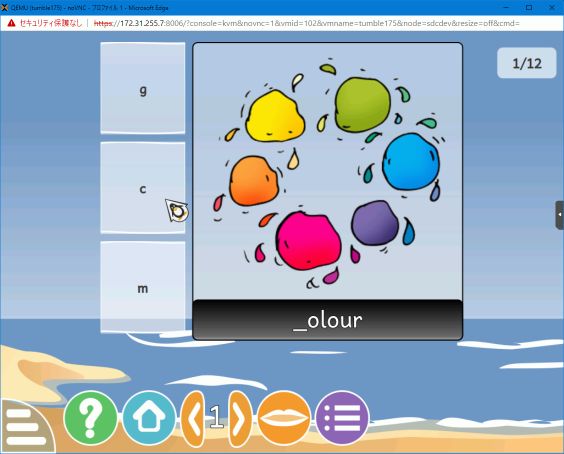
2歳から10歳までの子供向けの教育ソフトです。かなりの数の小さなアクティビティが含まれています。それなりに良く出来ています。但し、日本語には対応していません。いくつかの言語向けの翻訳はあるのですが。
そのため、日本ではあまり使い道はないでしょう。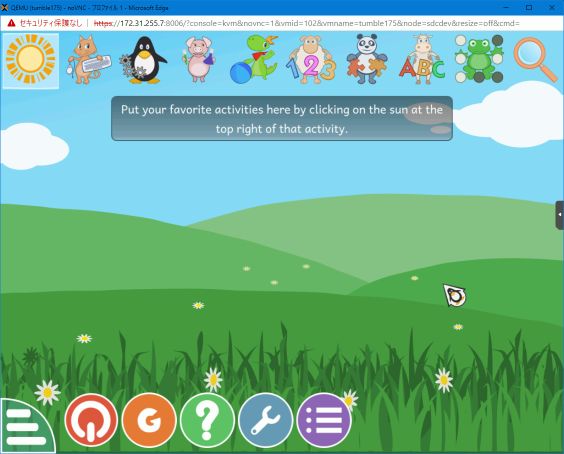
Presenta tu charla a Akademy 2021, edición en línea
Este año, como el anterior, Akademy 2021 se celebrará en línea del 18 al 25 de Junio. Ayer mismo se abrió el Call for Papers, es decir, el momento de participar activamente en el evento. Así que ya sabes: presenta tu charla a Akademy 2021 y presenta al mundo tu proyecto.
Presenta tu charla a Akademy 2021, edición en línea

A pesar de todas las restricciones para vernos que tenemos debido a la pandemia que ya dura un año, los eventos comunitarios no se han detenido.
El pasado 25 de febrero compartí con vosotros que este año Akademy 2021 se realizaría en línea del 18 al 25 de junio, en una edición que continua con el formato del 2020
Siguiendo el esquema habitual, las charlas se realizarán en línea el sábado 19, el domingo 20 y medio día del viernes 25, dejando el resto de días para el trabajo en pequeños grupos en sala más reservadas pero no privadas, es decir, que no están cerradas sino que todo el que quiera aportar algo está invitado.
Como se ha comentado en anteriores ocasiones, uno de los objetivos de Akademy es aprender y enseñar nuevos conocimientos y compartir entre nosotros la pasión de lo que se hace en KDE.
Para compartir ideas, experiencias o momentos, se reservan talleres específicos en la sede (o se aprovechan los corrillos en los pasillos, las cenas o los momentos de barra), pero para enseñar y compartir detalles técnicos se utilizan las charlas.

Si crees que tienes algo importante que presentar, por favor házselo saber a la organización. Y si crees que alguien debería presentar su ponencia, no dejes de animarlo para que lo haga. Todas las contribuciones son útiles.
Para más detalles, mira las líneas generales del Call for Papers. Tienes de plazo para enviar tu propuesta hasta el domingo 2 de mayo 23:59:59 CEST.
¿Qué es Akademy?
Para los que no lo sepan, Akademy es el evento de la Comunidad KDE que aúna en una gran conferencia todo tipo de simpatizantes de KDE como desarrolladores, diseñadores, usuarios, traductores, promotores, ideólogos, etc. Allí se reunirán a lo largo de una semana para compartir charlas, cenas, ponencias, talleres y, en definitiva, para trabajar juntos.
Es una gran semana que sirve para unir más fuerte los lazos que unen nuestra Comunidad, así como para crear nuevos que se mantendran gracias a las listas de correo, canales irc o Sprints.
Hay que recordar que en España tenemos gran tradición en la celebración de Akademy ya que en 2005 se celebró en Málaga , en 2011 en Gran Canaria, en 2013 en Bilbao, en 2015 en A Coruña y en 2017 en Almería, todos esos años junto con Akademy-es (como este año), y que fue un gran éxito tanto de asistentes, como de ponencias o de resultados. Así que no tienes excusa para asistir ya que por el «precio» de uno este año tienes dos grandísimos eventos a tu alcance.
packagesの説明文書を訳しつつ、使えるものを探してみました(K編)
前回は X でしたが、今回は K です。Kは、KDE関係が多いようです。そのほかに、kubernetes や kopano というツール群のファイルもかなりあります。
パッケージ名 kalzium
バージョン kalzium-20.12.2-1.2
動作 ◎
詳細
周期律表です。日本語も表示されます。ちゃんとメンテナンスされているようで、Nihonium も載っていました。起動した段階では、各元素毎の表示項目は最小限のみです。
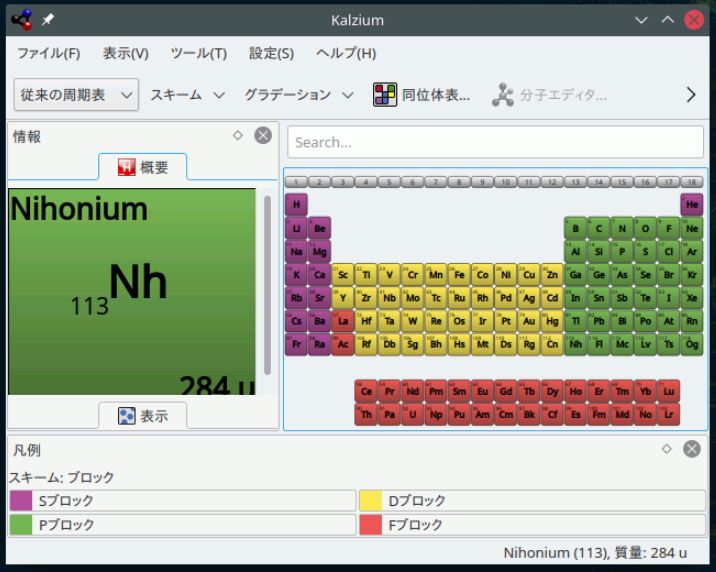
しかしメニューを選ぶことでかなり色々な表示が出来ます。たとえば、その元素にまつわるイラストを表示してみたり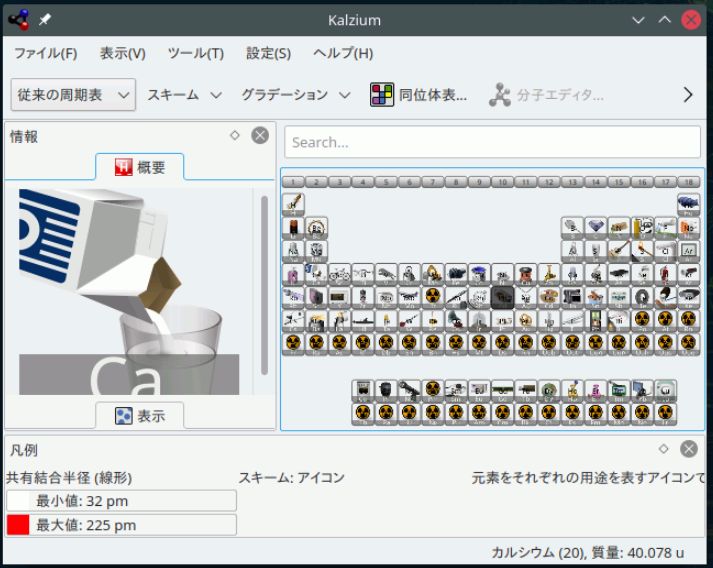
元素データの概要を表示することも出来ます。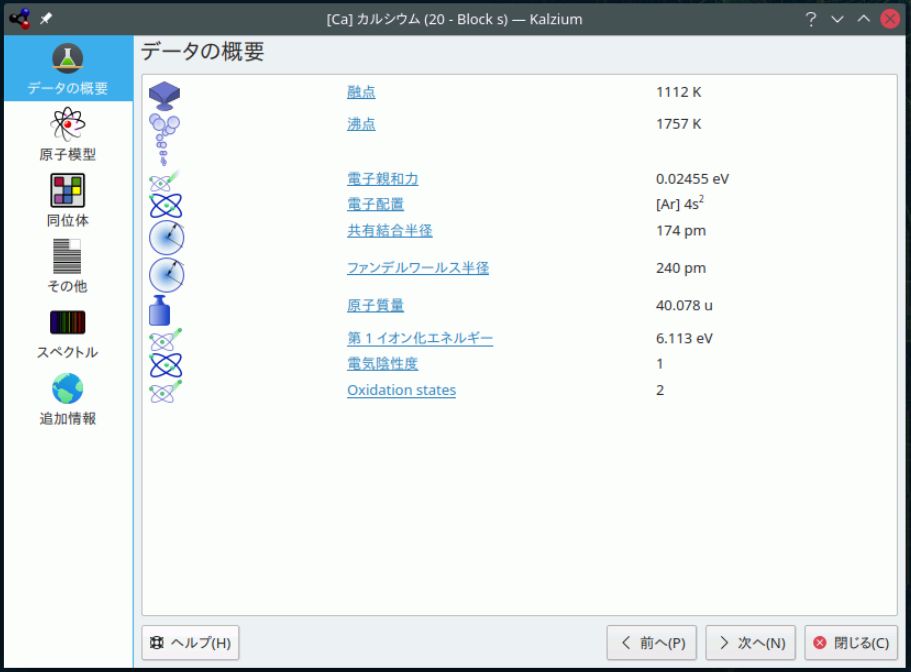
パッケージ名 klavalo
バージョン klavaro-3.11-1.2
動作 ◎
詳細
タッチタイプ練習ソフトです。オーソドックスに、ステップバイステップで練習することが出来るようになります。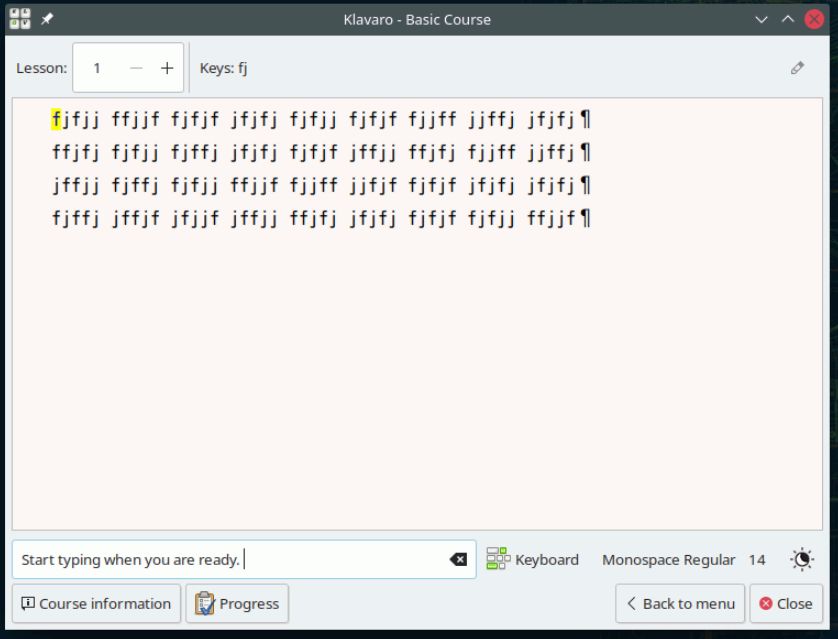
良く出来ているところは、キーマップを色々と替えられるところです。標準では qwerty USA キーボードですが、dvorakにも対応しています。dvorakにすると練習用データも dvorakに切り替わります。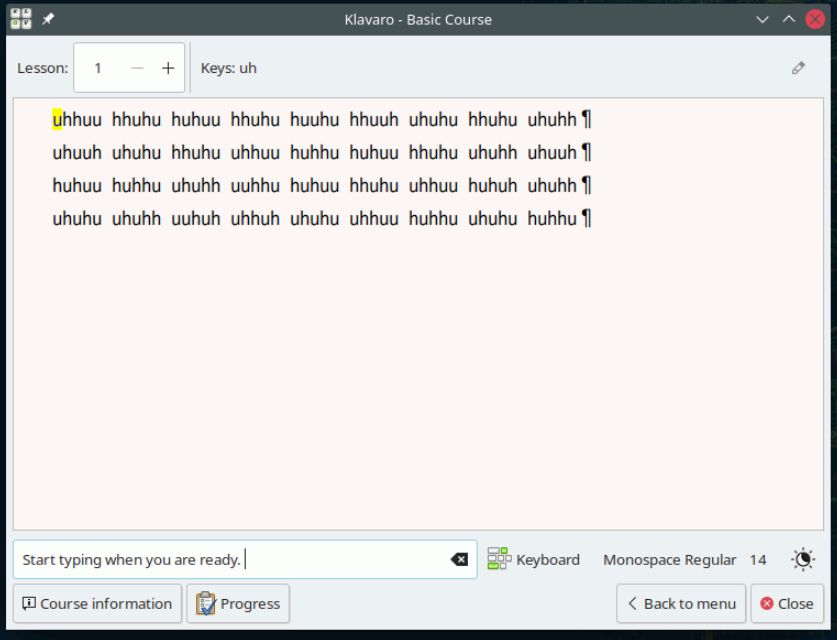
日本語キーボードにも対応しています。特殊記号の位置が正しい場所に来ます。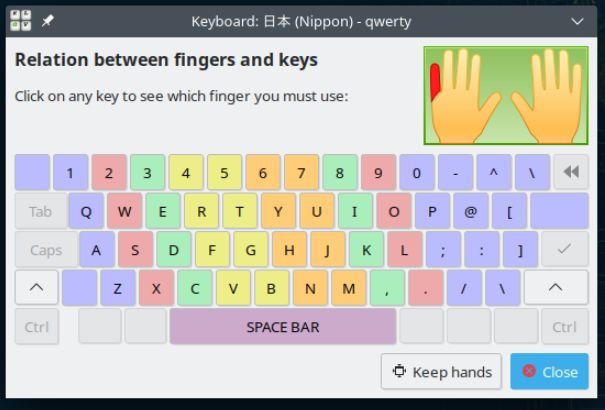
タッチタイプ練習ソフトには、コンソール用の GNU typist (gtypist) がありますが、日本語キーボードに対応している点、GUIで見やすい点でこちらの方が使い勝手が良いでしょう。
パッケージ名 krename
バージョン krename-5.0.1-2.3
動作 ◎
詳細
ファイルリネームツールです。GUI で対話的にファイル名を変更できます。単に名前を置き換えるだけではなく、順番に番号を振るとか、接頭辞、接尾辞を付けるなども出来ます。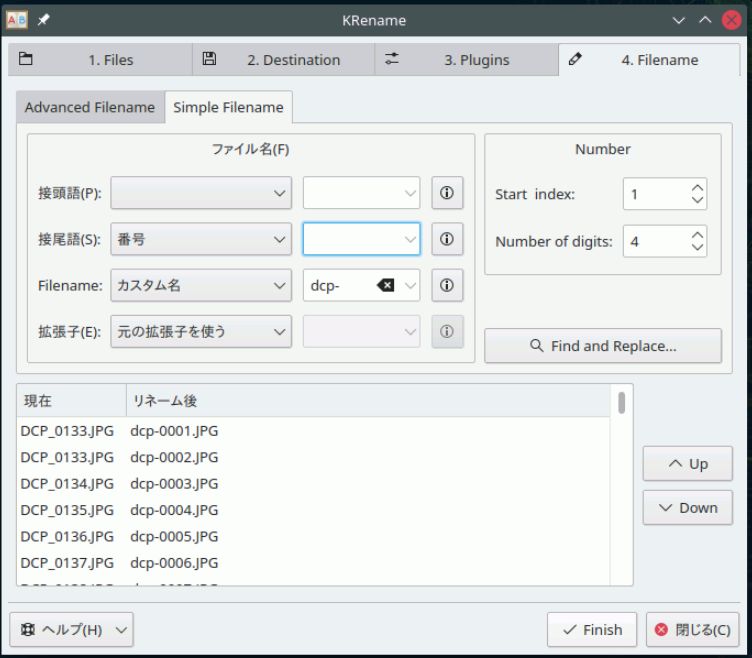
また、プラグインがあり、日付などの変更も出来ます。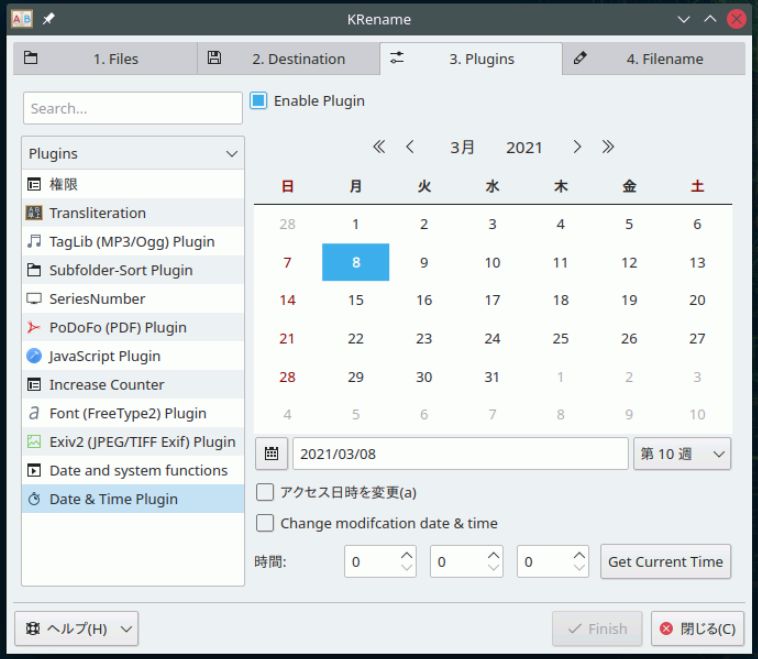
パッケージ名 kstars
バージョン kstars-3.5.2-1.1
動作 ◎
詳細
いわゆるデスクトッププラネタリウムです。そこそこ日本語化されていて、星座名などは日本語で表示されます。オプションで星座の絵も表示できます。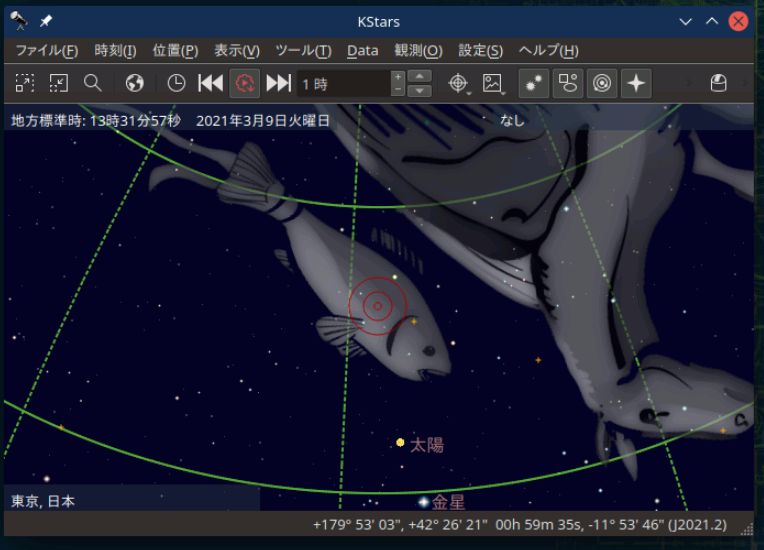
観測地点も予め日本のいくつかの都市がプリセットされています。野辺山とか飛騨とか、たぶん天文台がある所も含まれているのが面白いところです。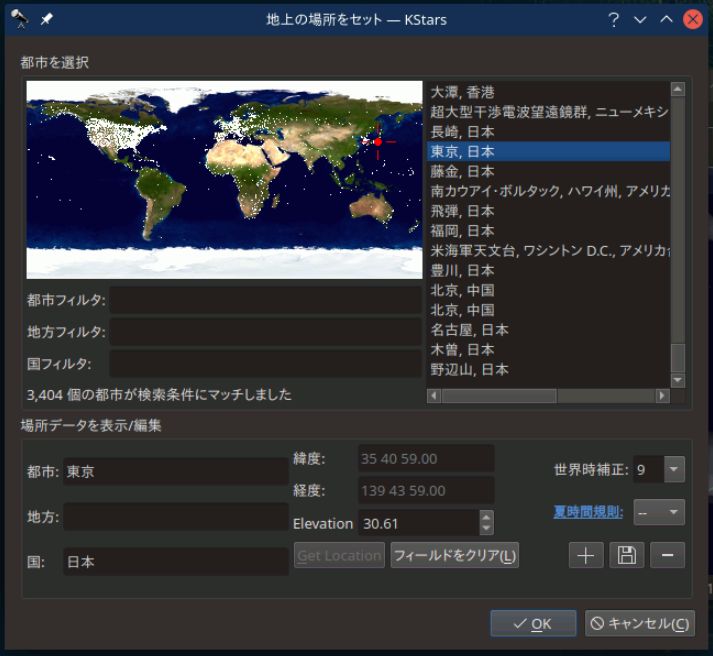
パッケージ名 ksystemlog
バージョン ksystemlog-20.12.2-1.2
動作 ◎
詳細
システムのログを GUI で表示するツールです。kernelのログ、X.org のログ、systemd のログが選べます。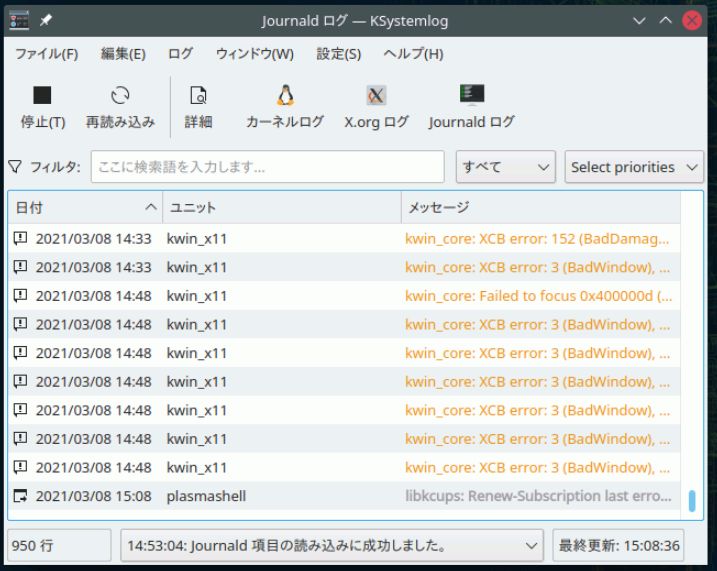
各行をクリックすることで詳細が表示されます。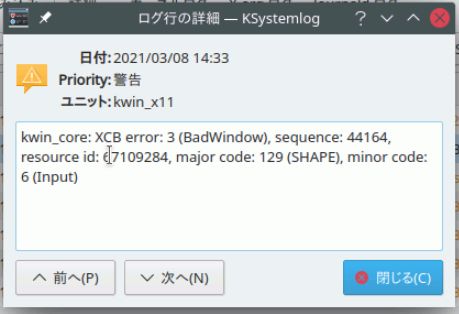
時々刻々と追加されているログについても、常時モニタしていますので、手軽にログを見たいときには便利でしょう。ただ、任意のログを見ることは出来なさそうなのですが。
パッケージ名 ktouch
バージョン ktouch-20.12.2-1.2
動作 ◎
詳細
これもタッチタイプ練習ソフトです。最初にレベル指定をした後 練習モードに入ります。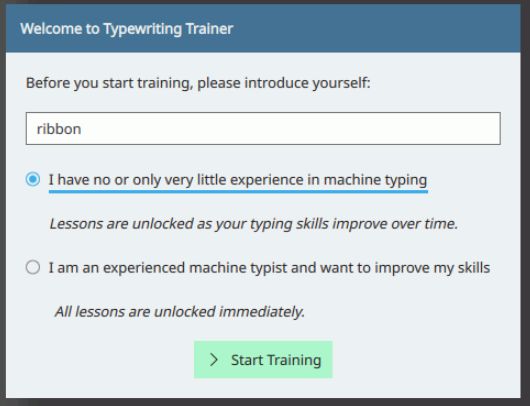 いくつかコースは予め用意されています。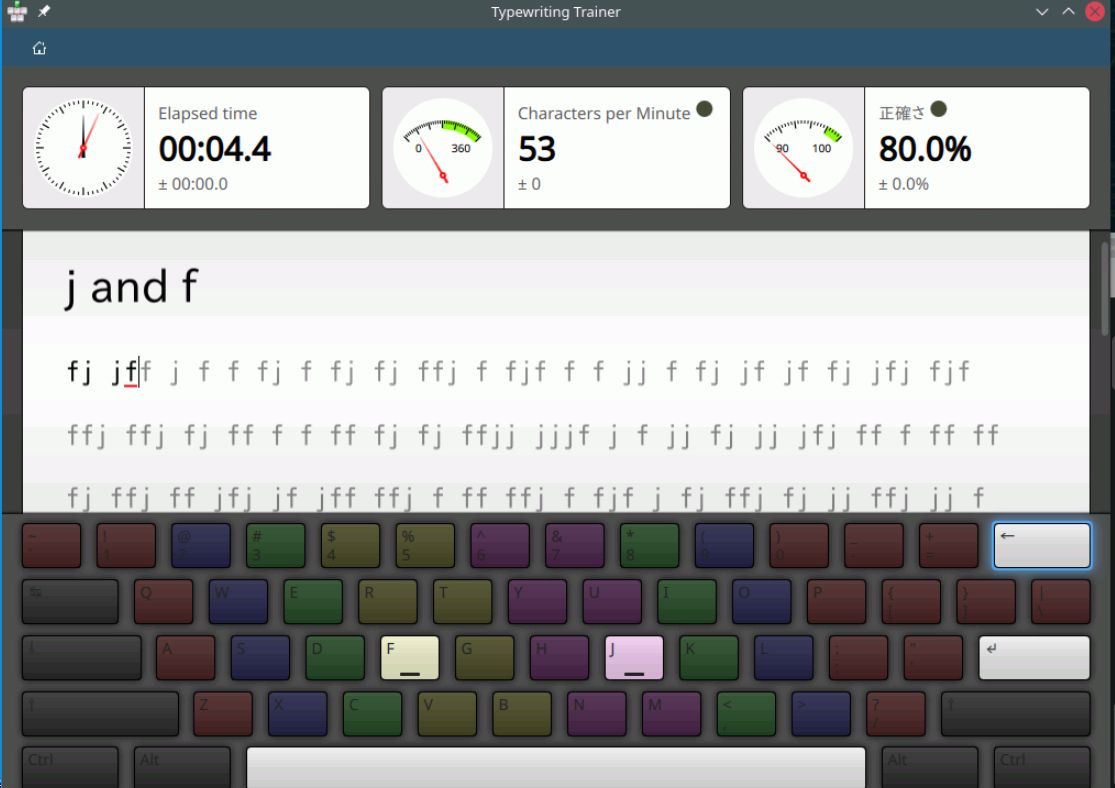
ただし、日本語キーボードには未対応、コースもそれほど多いわけではないので、先に紹介した klavaro と比べると見劣りがします。klavaro がある以上こちらを選ぶ必要性はなさそうです。
Playing along with NFTables
By default, openSUSE Leap 15.x is using the firewalld firewall implementation (and the firewalld backend is using iptables under the hood).
But since a while, openSUSE also has nftables support available - but neither YaST nor other special tooling is currently configured to directly support it. But we have some machines in our infrastructure, that are neither straight forward desktop machines nor do they idle most of the time. So let’s try out how good we are at trying out and testing new things and use one of our central administrative machines: the VPN gateway, which gives all openSUSE heroes access to the internal world of the openSUSE infrastructure.
This machine is already a bit special:
- The “external” interface holds the connection to the internet
- The “private” interface is inside the openSUSE heroes private network
- We run openVPN with tun devices (one for udp and one for tcp) to allow the openSUSE heroes to connect via a personal certificate + their user credentials
- In addition, we run wireguard to connect the private networks in Provo and Nuremberg (at our Sponsors) together
- And before we forget: our VPN gateway is not only a VPN gateway: it is also used as gateway to the internet for all internal machines, allowing only ‘pre-known traffic’ destinations
All this makes the firewall setup a little bit more complicated.
BTW: naming your interfaces by giving them explicit names like “external” or “private”, like in our example, has a huge benefit, if you play along with services or firewalls. Just have a look in /etc/udev/rules.d/70-persistent-net.rules once your devices are up and rename them according to your needs (you can also use YaST for this). But remember to also check/rename the interfaces in */etc/sysconfig/network/ifcfg-** to use the same name before rebooting your machine. Otherwise your end up in a non-working network setup.
Let’s have a short look at the area we are talking about:

As you hopefully notice, none of the services on the community side is affected. There we have standard (iptables) based firewalls and use proxies to forward user requests to the right server.
On the openSUSE hero side, we exchanged the old SuSEfirewall2 based setup with a new one based on nftables.
There are a couple of reasons that influenced us in switching over to nftables:
- the old SuSEfirewall2 worked, but generated a huge iptables list on our machine in question
- using ipsets or variables with SuSEfirewall2 was doable, but not an easy task
- we ran into some problems with NAT and Masquerading using firewalld as frontend
- Salt is another interesting field:
- Salt’ing SuSEfirewall2 by deploying some files on a machine is always possible, but not really straight forward
- there is no Salt module for SuSEfirewall2 (and there will probably never be one)
- there are Salt modules for firewalld and nftables, both on nearly the same level
- nftables is integrated since a while in the kernel and should replace all the *tables modules long term. So why not jumping directly to it, as we (as admins) do not use GUI tools like YaST or firewalld-gui anyway?
So what are the major advantages?
- Sets are part of the core functionality. You can have sets of ports, interface names, and address ranges. No more ipset. No more multiport.
ip daddr { 1.1.1.1, 1.0.0.1 } tcp dport { dns, https } oifname { "external", "wg_vpn1" } accept;This means you can have very compact firewall sets to cover a lot of cases with a few rules. - No more extra rules for logging. Only turn on counter where you need it.
counter log prefix "[nftables] forward reject " reject - You can cover IPv4 and IPv6 with a single ruleset when using
table inet, but you can have per IP protocol tables as well. And sometimes even need them e.g. for postrouting.
Starting from scratch
A very basic /etc/nftables.conf would look something like this
#!/usr/sbin/nft -f

flush ruleset

# This matches IPv4 and IPv6
table inet filter {
    # chain names are up to you.
    # what part of the traffic they cover,
    # depends on the type line.
	chain input {
		type filter hook input priority 0; policy accept;
	}
	chain forward {
		type filter hook forward priority 0; policy accept;
	}
	chain output {
		type filter hook output priority 0; policy accept;
	}
}
But so far we did not stop or allow any traffic. Well actually we let everything in and out now because all chains have the policy accept.
#!/usr/sbin/nft -f

flush ruleset

table inet filter {
    chain base_checks {
        ## another set, this time for connection tracking states.
        # allow established/related connections
        ct state {established, related} accept;

        # early drop of invalid connections
        ct state invalid drop;
    }

   	chain input {
		type filter hook input priority 0; policy drop;

        # allow from loopback
        iif "lo" accept;

        jump base_checks;

        # allow icmp and igmp
        ip6 nexthdr icmpv6 icmpv6 type { echo-request, echo-reply, packet-too-big, time-exceeded, parameter-problem, destination-unreachable, packet-too-big, mld-listener-query, mld-listener-report, mld-listener-reduction, nd-router-solicit, nd-router-advert, nd-neighbor-solicit, nd-neighbor-advert, ind-neighbor-solicit, ind-neighbor-advert, mld2-listener-report } accept;
        ip protocol icmp icmp type { echo-request, echo-reply, destination-unreachable, router-solicitation, router-advertisement, time-exceeded, parameter-problem } accept;
        ip protocol igmp accept;

        # for testing reject with logging
        counter log prefix "[nftables] input reject " reject;
	}
    chain forward {
		type filter hook forward priority 0; policy accept;
	}
	chain output {
		type filter hook output priority 0; policy accept;
	}
}
You can activate the configuration with nft --file nftables.conf, but do NOT do this on a remote machine. It is also a good habit to run nft --check --file nftables.conf before actually loading the file to catch syntax errors.
So what did we change?
- most importantly we changed the policy of the chain to drop and added a reject rule at the end. So nothing gets in right now.
- We allow all traffic on the localhost interface.
- The base_checks chain handles all packets related to established connections. This makes sure that incoming packets for outgoing connections get through.
- We allowed important ICMP/IGMP packets. Again this is using a set and the type names and not some crtyptic numbers. YAY for readability.
Now if someome tries to do a ssh connect to our machine, we will see:
[nftables] input reject IN=enp1s0 OUT= MAC=52:54:00:4c:51:6c:52:54:00:73:a1:57:08:00 SRC=172.16.16.2 DST=172.16.16.30 LEN=60 TOS=0x00 PREC=0x00 TTL=64 ID=22652 DF PROTO=TCP SPT=55574 DPT=22 WINDOW=64240 RES=0x00 SYN URGP=0
and nft list ruleset will show us
counter packets 1 bytes 60 log prefix "[nftables] input reject " reject
So we are secure now. Though maybe allowing SSH back in would be nice. You know just in case. We have 2 options now. Option 1 would be to insert the following line before our reject line.
tcp dport 22 accept;
But did we mention already that we have sets and that they are great? Especially great if we need the same list of ports/ip ranges/interface names in multiple places?
We have 2 ways to define sets:
define wanted_tcp_ports {
  22,
}
Yes the trailing comma is ok. And it makes adding elements to the list easier. So we do them all the time. This will change our rule above to
tcp dport $wanted_tcp_ports accept;
If we load the config file and run nft list ruleset, we will see:
tcp dport { 22 } accept
But there is actually a slightly better way to do this:
    set wanted_tcp_ports {
        type inet_service; flags interval;
        elements = {
           ssh
        }
    }
That way our firewall rule becomes:
tcp dport @wanted_tcp_ports accept;
And if we dump our firewall with nft list ruleset afterwards it will still be shown as @wanted_tcp_ports and not have variable replaced with the value.
While this is great already, the 2nd syntax actually has one more advantage.
$ nft add element inet filter wanted_tcp_ports \{ 443 \}
Now our wanted_tcp_ports list will allow port 22 and 443. This is of course often more useful if we use it with IP addresses.
    set fail2ban_hosts {
        type ipv4_addr; flags interval;
        elements = {
           192.168.0.0/24
        }
    }
Let us append some elements to that set too.
$ nft add element inet filter fail2ban_hosts \{ 192.168.254.255, 192.168.253.0/24 \}
$ nft list ruleset
… and we get …
        set fail2ban_hosts {
                type ipv4_addr
                flags interval
                elements = { 192.168.0.0/24, 192.168.253.0/24,
                             192.168.254.255 }
        }
Now we could change fail2ban to append elements to the set instead of creating a new rule for each new machine it wants to block. Fewer rules. Faster processing.
But with reloading the firewall we dropped port 443 from the port list again. Oops. Though … if you are happy with the rules. You can just run
$ nft list ruleset > nftables.conf
When you are using all the sets instead of the variables, all your firewall rules will still look nice.
Our complete firewall looks like
table inet filter {
        set wanted_tcp_ports {
                type inet_service
                flags interval
                elements = { 22, 443 }
        }

        set fail2ban_hosts {
                type ipv4_addr
                flags interval
                elements = { 192.168.0.0/24, 192.168.253.0/24,
                             192.168.254.255 }
        }

        chain base_checks {
                ct state { established, related } accept
                ct state invalid drop
        }

        chain input {
                type filter hook input priority filter; policy drop;
                iif "lo" accept
                jump base_checks
                ip6 nexthdr ipv6-icmp icmpv6 type { destination-unreachable, packet-too-big, time-exceeded, parameter-problem, echo-request, echo-reply, mld-listener-query, mld-listener-report, mld-listener-done, nd-router-solicit, nd-router-advert, nd-neighbor-solicit, nd-neighbor-advert, ind-neighbor-solicit, ind-neighbor-advert, mld2-listener-report } accept
                ip protocol icmp icmp type { echo-reply, destination-unreachable, echo-request, router-advertisement, router-solicitation, time-exceeded, parameter-problem } accept
                ip protocol igmp accept
                tcp dport @wanted_tcp_ports accept
                counter packets 12 bytes 828 log prefix "[nftables] input reject " reject
        }

        chain forward {
                type filter hook forward priority filter; policy accept;
        }

        chain output {
                type filter hook output priority filter; policy accept;
        }
}
For more see the nftables wiki