
packagesの説明文書を訳しつつ、使えるものを探してみました(I編)
前回 は W でしたが、今回は I です。
パッケージ名 i18nspector
バージョン i18nspector-0.26-1.2
結果◎
詳細
.po ファイルのエラーチェックをするプログラムです。.POT なども処理できます。試しに、linux jm project で翻訳しているファイルを処理してみたところ、結構エラーが出ました。
% i18nspector ./jm/jm/manual/util-linux/po4a/man8/lsblk.po
I: ./jm/jm/manual/util-linux/po4a/man8/lsblk.po: boilerplate-in-initial-comments 'Copyright (C) YEAR Free Software Foundation, Inc.'
I: ./jm/jm/manual/util-linux/po4a/man8/lsblk.po: boilerplate-in-initial-comments 'This file is distributed under the same license as the PACKAGE package.'
I: ./jm/jm/manual/util-linux/po4a/man8/lsblk.po: boilerplate-in-initial-comments 'FIRST AUTHOR <EMAIL@ADDRESS>, YEAR.'
P: ./jm/jm/manual/util-linux/po4a/man8/lsblk.po: no-language-header-field
I: ./jm/jm/manual/util-linux/po4a/man8/lsblk.po: unable-to-determine-language
W: ./jm/jm/manual/util-linux/po4a/man8/lsblk.po: boilerplate-in-project-id-version 'PACKAGE VERSION'
W: ./jm/jm/manual/util-linux/po4a/man8/lsblk.po: no-report-msgid-bugs-to-header-field
W: ./jm/jm/manual/util-linux/po4a/man8/lsblk.po: boilerplate-in-last-translator 'FULL NAME <EMAIL@ADDRESS>'
E: ./jm/jm/manual/util-linux/po4a/man8/lsblk.po: inconsistent-trailing-newlines msgid 'B<lsblk> lists information about all available or the specified block devices.  The B<lsblk> command reads the B<sysfs> filesystem and B<udev db> to gather information. If the udev db is not available or lsblk is compiled without udev support than it tries to read LABELs, UUIDs and filesystem types from the block device. In this case root permissions are necessary.'
ちなみにファイルの最初の所は
# SOME DESCRIPTIVE TITLE
# Copyright (C) YEAR Free Software Foundation, Inc.
# This file is distributed under the same license as the PACKAGE package.
# FIRST AUTHOR <EMAIL@ADDRESS>, YEAR.
#
msgid ""
msgstr ""
"Project-Id-Version: PACKAGE VERSION\n"
"POT-Creation-Date: 2020-09-20 15:12+0900\n"
"PO-Revision-Date: 2020-10-10 18:04+0900\n"
"Last-Translator: FULL NAME <EMAIL@ADDRESS>\n"
"Language-Team: Linux JM project <linuxjm-discuss@lists.osdn.me>\n"
"Language: \n"
"MIME-Version: 1.0\n"
"Content-Type: text/plain; charset=UTF-8\n"
"Content-Transfer-Encoding: 8bit\n"
となっているので、言語の指定が無いなどを指摘しています。
Qt の linguist などでもエラー表示を出しますが、マニュアルを見る限りかなり色々なチェックをしているようですので、翻訳終了後にこのプログラムを使って見るのも良いかもしれません。
パッケージ名 icmpinfo
バージョン icmpinfo-1.11-715.11
結果 ◎
詳細
icmp の受信状況を表示するだけのプログラムです。同等のことは tcpdump でも出来ますが、このプログラムはicmp の受信に特化しています。その分簡単に使えて見やすい、という利点はあります。
結果はこんな感じになります。
# icmpinfo -vv
icmpinfo: Icmp monitoring in progress...
Mar  2 11:38:44 ICMP_Echo < 192.168.3.11 sz=2008(+20)
Mar  2 11:38:45 ICMP_Echo < 192.168.3.11 sz=2008(+20)
Mar  2 11:38:46 ICMP_Echo < 192.168.3.11 sz=2008(+20)
Mar  2 11:38:47 ICMP_Echo < 192.168.3.11 sz=2008(+20)
Mar  2 11:38:48 ICMP_Echo < 192.168.3.11 sz=2008(+20)
Mar  2 11:38:50 ICMP_Echo < 192.168.3.11 sz=2008(+20)
パッケージ名 input-pad
バージョン input-pad-1.0.99.20140916-4.6
結果 ○
詳細
画面上に仮想キーボードを表示して、それをマウスでクリックしてテキストベースのアプリケーションに入力するツールです。細かくカテゴリが選べるなど、結構良く出来ています。
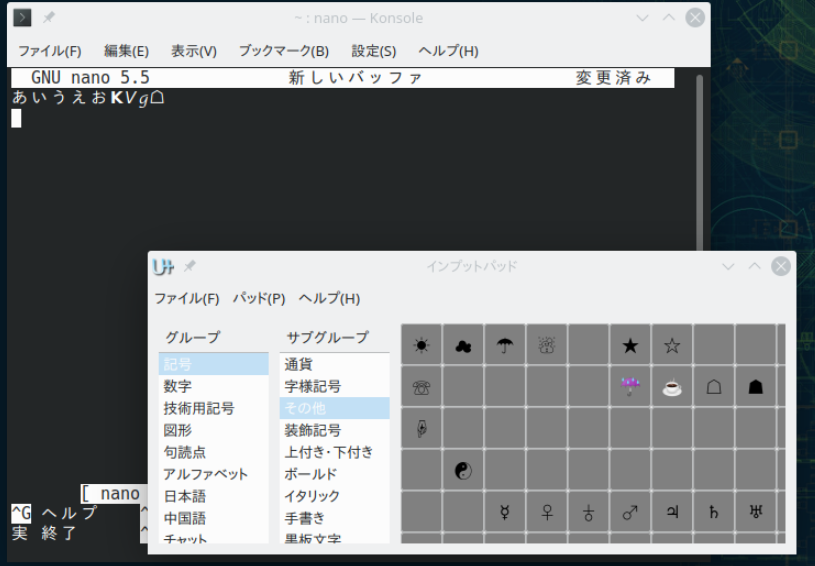
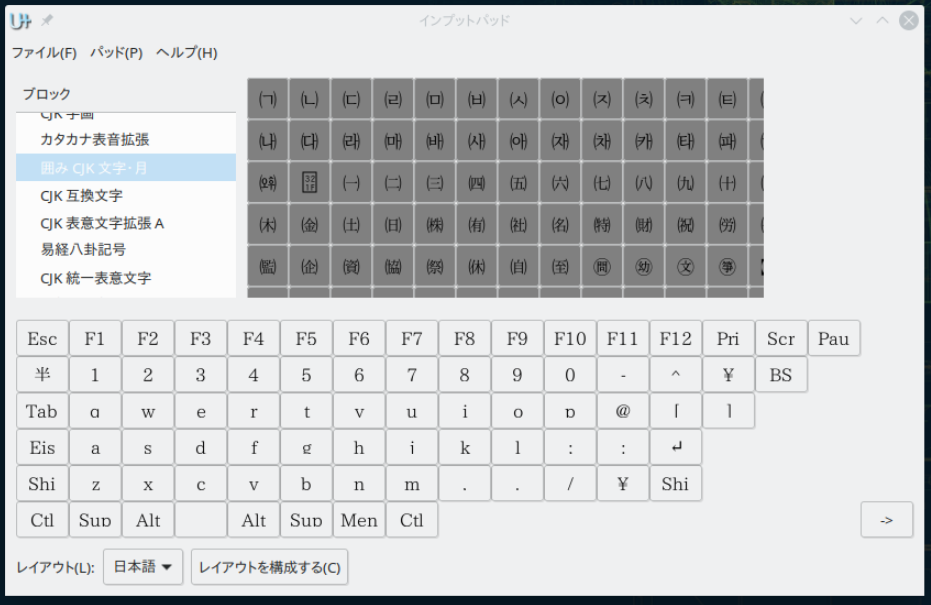
起動時にはカスタム文字表示になっていますが、ユニコードでのすべての文字を表示するモードや、キーボードレイアウトを表示することも出来ます。
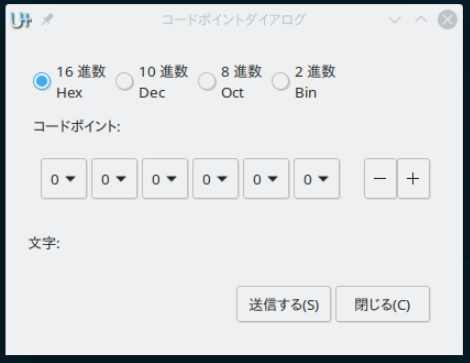
コードポイントで入力することも出来ます。
ただ、インプットメソッドの一部として提供されているわけではないので、GUIなアプリケーションとのレン回は出来ないようです。ターミナルからinput-pad を起動し、そのターミナルで動作するアプリケーションに入力することになります。ターミナルから GUI なプログラム (たとえば Libre Office)を起動してもそちらには文字を入力できません。ですので、利用範囲は少し限定されてしまうかもしれません。
packagesの説明文書を訳しつつ、使えるものを探してみました(W編)
openSUSE のパッケージを YaST からインストールするとき、そのパッケージの説明が表示されます。ただ、残念ながら、その多くは英文のままです。パッケージの多くは OS インストール時に自動的にインストールされてしまいますので、説明文を読むことはないのですが、後から個別にインストールする場合には、日本語の説明文があるとわかりやすいですね。
そこで、まだ訳されていないパッケージの説明文を訳してみることにしました。
また、訳していると結構おなじみなソフトウェアにお目にかかることもありますが、今まで聞いたことがないような、かつ、何か面白そうなソフトウェアに出くわすこともあります。そこで、そのようなソフトウェアを試しに動かしてみて、使えそうかどうか調べて見ることにしました。
パッケージ名 wkhtmltopdf
バージョン wkhtmltopdf-0.12.6-1.3
結果 △
詳細
これは、html を pdf に変換するためのツールです。が、残念ながらうまく変換してくれませんでした。情報がごっそり落ちてしまいます。
パッケージ名 w3c-markup-validator
バージョン w3c-markup-validator-1.3-10.4
結果 △
詳細
htmlファイルが w3c のマークアップ定義に準拠しているかどうかを調べるソフトウェアです。これは apache2 のcgiとして提供され、perl で書かれています。が、すんなりと動いてくれませんでした。起動時にエラーとなります。これは、
/etc/apach2/conf.d/w3c-markup-validator.conf の46行目に、
Order Deny,Allow と言う記述があり、Apache2.4では非推奨なためです。そのため、
https://www.adminweb.jp/apache/allow/index10.html
にあるように、 access_compat_module の導入が必要となります。
そこで、/etc/apache2/loadmodule.conf に下記の行を追加しました。
LoadModule access_compat_module /usr/lib64/apache2/mod_access_compat.so
が、やっぱりエラーとなります。原因は簡単で、/etc/sysconfig/apache2 の中にロードするモジュール一覧を記述するところがあり、そこに、access_compat という文字列を追加しなければならないのでした。
調べて見ると、まず最初に見るファイル、/etc/apache2/httpd.conf の内容から、openSUSEでは、apache の設定が、機能単位毎にファイルが分かれていることがわかりました。その中に、/etc/sysconfig/apache2 でモジュール設定をすることが書いてありました。動かなかったのはこういうことだったわけです。
次に、データの準備をします。w3c-markup-validation は /srv/www/w3c-markup-validation と言うディレクトリにデータをおいてくれます。今回はサクッとテストするので、これを /srv/www と置き換え(ディレクトリを1つ下げてディレクトリ名を入れ替え)てみました。これでブラウザを使ってアクセスしてみると動きました。
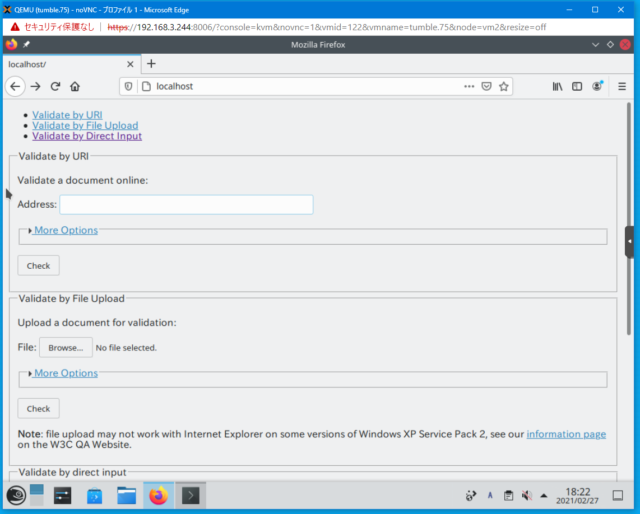
が、テストしてみるとやはり駄目です。
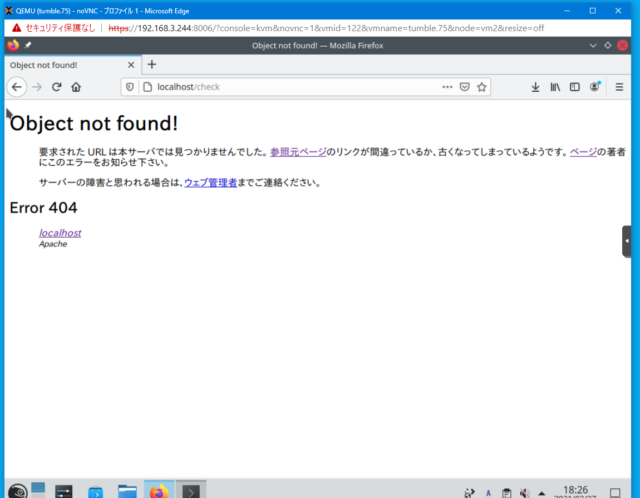
もう少し apache の設定ファイルに調整が必要なようです。
今回は、openSUSE の apacheの設定ファイルが、他のものとはかなり異なっていることが分かったというのが幸いでした。
パッケージ名 watchman
バージョン watchman-4.9.0-5.4
結果 △
詳細
ファイル変更を監視するプログラムらしいです。一応。コマンドを叩いて、サーバモードで動作することまでは動作確認が出来ました。しかし、ドキュメントを軽く読んで限りでは、使い方がよく分かりませんでした。一応試してみた方はいらっしゃるようです。
https://kore1server.com/260/ファイル監視のwatchman
パッケージ名 wcd
バージョン wcd-6.0.3-1.5
結果 ×
norton utility の wcd クローンです。最初にディレクトリをスキャンして、すべてのサブディレクトリを内部的に保持。次回からは、ずっとずっとしたのディレクトリ名を指定すれば一気に cd ができるというもののようです。
パッケージのバイナリは、 /usr/libexec/wcd.exe 。当然のことながら、パスが通ってないので直接指定しないと動きません。オプションで -g を付けると curses ベースのグラフィック表示になります。
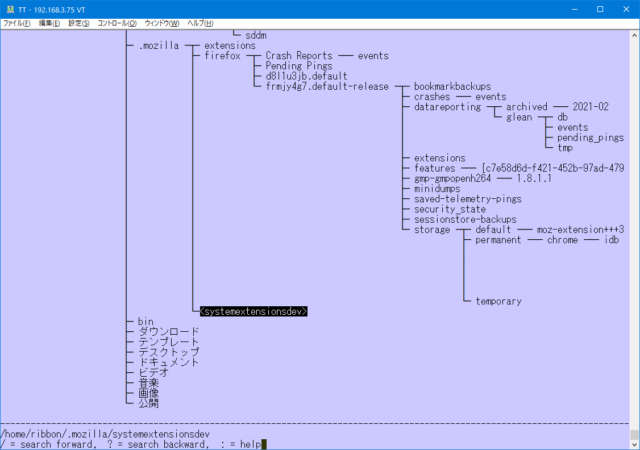
ここまではいい感じでした。
が、実際にやってみると cd しないのです。元のまま。というわけで使えませんでした。
パッケージ名 wdiff
バージョン wdiff-1.2.2-6.8
結果 ◎
詳細
単語レベルでの比較をする diff です。たとえば
% wdiff COPYING COPYING2 | head
GNU GENERAL PUBLIC LICENSE
Version 2, June 1991

Copyright (C) 1989, [-1991-] {+2021+} Free Software Foundation, Inc.,
51 Franklin Street, Fifth Floor, Boston, MA 02110-1301 USA
Everyone is permitted to copy and distribute verbatim copies
of this [-license document,-] {+license-documents,+} but changing it is not allowed.
のように、差分を表示してくれます。
英単語では当然のことながらちゃんと動きます。が、やはり日本語での単語切り分けは無理のようです。
….と思ったのですが、なんと、jwdiff という日本語対応の wdiff があったのでした。
https://fumiyas.github.io/2013/12/12/jwdiff.sh-advent-calendar.html
https://github.com/fumiyas/home-commands/blob/master/jwdiff
mecab を使うところがポイントですね。
そのほかに docdiff というのもあるそうです。
https://github.com/hisashim/docdiff
パッケージ名 whohas
バージョン whohas-0.29.1-1.10
結果 ◎
詳細
これは、あるパッケージが、複数のディストリビューションに含まれているかを調べるコマンドです。たとえば、このコマンド自身を検索すると
Couldn't fetch "http://dl.fedoraproject.org/pub/fedora/linux/releases/26/Everything/x86_64/os/Packages/w/". Giving up.
AUR 0.29.1-1 5 http://aur.archlinux.org 0.29.1-1
Ubuntu whohas 0.29.1-1 179K all http://packages.ubuntu.com/xenial/whohas
Ubuntu whohas 0.29.1-1 179K all http://packages.ubuntu.com/bionic/whohas
Ubuntu whohas 0.29.1-1 179K all http://packages.ubuntu.com/focal/whohas
Ubuntu whohas 0.29.1-1 179K all http://packages.ubuntu.com/groovy/whohas
Ubuntu whohas 0.29.1-1.1 179K all http://packages.ubuntu.com/hirsute/whohas
NetBSD whohas 0.29.1nb2 192K 2020-09-01 misc https://pkgsrc.se/misc/whohas
Couldn't fetch "http://ftp.openbsd.org/pub/OpenBSD/6.0/packages/i386/". Giving up.
Source Mage whohas 0.29.1 test
Source Mage whohas 0.29 stable
Debian whohas 0.29-0.3 189K all http://packages.debian.org/jessie/whohas
Debian whohas 0.29.1-1 180K all http://packages.debian.org/stretch/whohas
Debian whohas 0.29.1-1 180K all http://packages.debian.org/buster/whohas
Debian whohas 0.29.1-1.1 180K all http://packages.debian.org/bullseye/whohas
Debian whohas 0.29.1-1.1 180K all http://packages.debian.org/sid/whohas
という感じで表示されます。検索は、各ディストリビューションの検索サイトを使って行い、その結果を表示するということをやっています。そのため、似たようなパッケージなども表示されるときがあります。複数のバージョンが表示されるときもあります。
対象となるディストリビューションはArch, Debian, Fedora, Gentoo, Mandriva, openSUSE, Slackware (と linuxpackages.net), Source Mage, Ubuntu, FreeBSD, NetBSD, OpenBSD, Fink, MacPorts, Cygwin and OpenMoko です。ただ、openSUSE については、うまく検索ができないようです。ソースコードが期待している結果が返ってきてないのかもしれません。
あるパッケージの移植状況などを調べるときには重宝しそうです。
パッケージ名 wmutils
バージョン wmutils-1.4-1.9
結果 ◎
詳細
X のウィンドウに対して情報を得たり種々の操作をするコマンドラインツールです。たとえば、現在のウィンドウのサイズを調べるには、pfw コマンドを使ってウィンドウの ID を取得し、wattr コマンドでサイズを取得します。
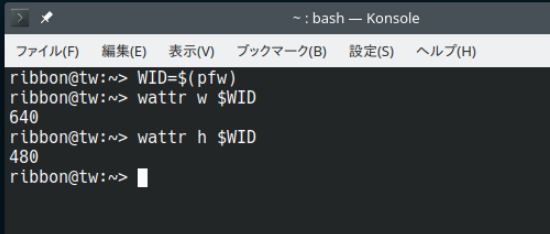
以下の機能が用意されています。
chwb - change window's borderchwso - change window's stacking orderignw - ignore/unignore windowkillw - kill windowslsw - list windowsmapw - map/unmap windowspfw - print focused windowwattr - show window's attributeswmp - move the mouse pointerwmv - move a windowwm_wtf - focus a windowwrs - resize a windowwtp - teleport a window
スクリプトなどでウィンドウの制御をするときには便利に使えそうです。
 Member
 baltolkien
Actualización de las aplicaciones de KDE de marzo de 2021
Me complace anunciar, un poco tarde, la actualización de las aplicaciones de KDE de marzo de 2021, una actualización que no nos ofrece novedades, simplemente soluciona errores y mejora traducciones, que tampoco está mal.
Actualización de las aplicaciones de KDE de marzo de 2021
Es complicado llevar al unísono todo el ecosistema que representa el proyecto KDE. No obstante creo que la Comunidad lo lleva bastante bien al dividir su trabajo en tres ramas diferenciadas: entorno de desarrollo KDE Frameworks, escritorio Plasma y aplicaciones KDE.

Esta estructura de trabajo parece funcionar bastante bien desde hace mucho tiempo (concretamente desde el lanzamiento de Plasma 5) siendo la última rama de ellas, el de las aplicaciones KDE, la que más problemas puede dar ya que es complicado que todas los programas sigan el mismo ritmo de desarrollo. No obstante hay que destacar que la mayor parte de ellas siguen el paso que se espera de ellas.
De esta forma, mes a mes los desarrolladores lanzan una gran actualización de sus aplicaciones, os animo a seguir la de noviembre o meses anteriores para poder ver esta evolución constante.

Hay que destacar que, a diferencia de meses anteriores, las actualizaciones destacadas de KDE de este marzo 2021 solo incluyen la tarea de corrección de errores realizada, la cual podéis consultar de forma completa en este enlace.
Más información: KDE
#openSUSE Tumbleweed revisión de la semana 10 de 2021
Tumbleweed es una distribución “Rolling Release” de actualización contínua. Aquí puedes estar al tanto de las últimas novedades.

openSUSE Tumbleweed es la versión “rolling release” o de actualización continua de la distribución de GNU/Linux openSUSE.
Hagamos un repaso a las novedades que han llegado hasta los repositorios estas semanas.
El anuncio original lo puedes leer en el blog de Dominique Leuenberger, publicado bajo licencia CC-by-sa, en este enlace:
Esta semana finalmente han llegado unas soluciones a problemas para glibc/i586 que habían surgido hace un tiempo. Desafortunadamente también para quienes usan x86_64, esto significa que una vez más es necesario recompilar toda la distribución (como ya sucedió con la snapshot 0311). Pero las 4 snapshots publicadas durante esta semana (0305, 0306, 0307 y 0311) también incluyen muchas otras cosas interesantes para todo el mundo.
Los cambios más importantes que han traído estas snapshots son:
- glibc
- Linux kernel 5.11.2 y 5.11.4
- gnutls 3.7.0
- openssl 1.1.1j
- Libvirt 7.1.0
- KDE Applications 20.12.3
- KDE Plasma 5.21.2
- LibreOffice 7.1.1.2
Esto es casi todo lo que salía en el listado de la semana anterior en lo que estaba previsto. Solo GCC 11 queda como tarea pendiente. Pero las cosas no se paran aquí, y todavía hay más actualizaciones pendientes de llegar a los repositorios, por ejemplo:
- Linux kernel 5.11.6
- Python 3.9 módulos para esta versión: Python 3.8 seguirá siendo el predeterminado por ahora.
- GCC 11 como compilador predeterminado.
Si quieres estar a la última con software actualizado y probado utiliza openSUSE Tumbleweed la opción rolling release de la distribución de GNU/Linux openSUSE.
Mantente actualizado y ya sabes: Have a lot of fun!!
Enlaces de interés
-
-
- ¿Por qué deberías utilizar openSUSE Tumbleweed?
- zypper dup en Tumbleweed hace todo el trabajo al actualizar
- ¿Cual es el mejor comando para actualizar Tumbleweed?
- Comprueba la valoración de las “snapshots” de Tumbleweed
- ¿Qué es el test openQA?
- http://download.opensuse.org/tumbleweed/iso/
- https://es.opensuse.org/Portal:Tumbleweed
-

——————————–

Fedora 33 | Review from an openSUSE User
openSUSE Tumbleweed – Review of the week 2021/10
Dear Tumbleweed users and hackers,
This week, we were finally getting some fixes together for the glibc/i586 issues that plagued us for a while. Unfortunately, also for the x86_64 users, this meant once again a full rebuild of the distribution (which was published just recently with snapshot 0311). But the 4 snapshots published during this week (0305, 0306, 0307, and 0311) also had something for everybody anyway.
The main changes in those 4 snapshots include:
- glibc: Disable x86 ISA level for now
- Linux kernel 5.11.2 & 5.11.4
- gnutls 3.7.0
- openssl 1.1.1j, based on a centralized crypto-policy package
- Libvirt 7.1.0
- KDE Applications 20.12.3
- KDE Plasma 5.21.2
- LibreOffice 7.1.1.2
That actually almost is everything I had listed last week as coming soon. Only GCC 11 as the default compiler remained, and that one is still going to be with us for a few weeks. But things did not stop there, and the stagings are already filled with other things again:
- Linux kernel 5.11.6
- Python 3.9 modules: besides python36-FOO and python38-FOO, we are testing to also shop python39-FOO modules; we already have the interpreter after all. Python 3.8 will remain the default for now.
- UsrMerge is gaining some traction again, thanks to Ludwig for pushing for it
- GCC 11 as default compiler
Richard M. Stallman presentará la reedición en español del libro «Software Libre para una Sociedad Libre» en la 1ª Edición de la Cumbre Software Libre y Educación
Esta semana se va a celebrar la 1ª Cumbre Software Libre y Educación y este blog está promocionándolo al máximo (supongo que tanto que los lectores estarán desertando). Hoy toca comentar que Richard M. Stallman presentará la reedición en español del libro «Software Libre para una Sociedad Libre» en la 1ª Edición de la Cumbre Software Libre y Educación. Una oportunidad única para conocer a fondo esta obra fundamental del conocimiento libre.
Richard M. Stallman presentará la reedición en español del libro «Software Libre para una Sociedad Libre» en la 1ª Edición de la Cumbre Software Libre y Educación
Ya he hablado de la Conferencia «La era de la digitalización en las aulas» de Javier Sepúlveda, de la mesa redonda «Software Libre y Educación en la Comunitat Valenciana» con Richard M. Stallman y la Conferencia «El Software Libre, la Libertad y la Educación» que realizará Richard M. Stallman el próximo domingo a las 17.00 horas.
Solo me queda comentar que con motivo de la presencia de Richard M. Stallman en los actos de la 1ª Cumbre Software Libre y Educación, por fin se puede hacer la presentación del libro, que fue aplazada en marzo de 2020 debido a la pandemia el próximo domingo a las 18:45 horas CET.

Según podemos leer en el anuncio de la asociación el año pasado se solicitó en una nueva reimpresión del libro de Richard Stallman «SOFTWARE LIBRE PARA UNA SOCIEDAD LIBRE». Esta fue la primera reimpresión desde el año 2004, de esta traducción al castellano del libro original «Free software Free Society«. La editorial Traficantes de Sueños tuvo la cortesía de realizarnos una impresión especial de tirada aquella para la serie de conferencias de Richard Stallman que programaron y tuvieron que suspender por la pandemia del Covid-19.
Los precios del libro son:
Precio en mano (cuando sea posible) 10€
Con envío por correo ordinario 14€
Con envío por correo certificado 17€
¡¡¡Solo se cuenta con 150 ejemplares!!! ¡¡Daos prisa!!
Y para finalizar, os pongo el vídeo del presidente de GNU/Linux València promocionando el evento.
1ª Edición de la Cumbre Software Libre y Educación
Este viernes empieza la 1ª Edición de la Cumbre Software Libre y Educación organizando la Asociación de Software Libre GNU/Linux València y Las Naves es altamente recomendable para todos y todas ya que contará con
Además, cuenta con un invitado de máximo nivel: Richard M. Stallman, fundador del movimiento del software libre, del sistema operativo GNU, de la Free Software Foundation (Fundación para el Software Libre) y defensor acérrimo de la Cultura Libre.

Más información: GNU/Linux València

Playing along with NFTables
By default, openSUSE Leap 15.x is using the firewalld firewall implementation (and the firewalld backend is using iptables under the hood).
But since a while, openSUSE also has nftables support available - but neither YaST nor other special tooling is currently configured to directly support it. But we have some machines in our infrastructure, that are neither straight forward desktop machines nor do they idle most of the time. So let's try out how good we are at trying out and testing new things and use one of our central administrative machines: the VPN gateway, which gives all openSUSE heroes access to the internal world of the openSUSE infrastructure.
This machine is already a bit special:
- The "external" interface holds the connection to the internet
- The "private" interface is inside the openSUSE heroes private network
- We run openVPN with tun devices (one for udp and one for tcp) to allow the openSUSE heroes to connect via a personal certificate + their user credentials
- In addition, we run wireguard to connect the private networks in Provo and Nuremberg (at our Sponsors) together
- And before we forget: our VPN gateway is not only a VPN gateway: it is also used as gateway to the internet for all internal machines, allowing only 'pre-known traffic' destinations
All this makes the firewall setup a little bit more complicated.
BTW: naming your interfaces by giving them explicit names like "external" or "private", like in our example, has a huge benefit, if you play along with services or firewalls. Just have a look in /etc/udev/rules.d/70-persistent-net.rules once your devices are up and rename them according to your needs (you can also use YaST for this). But remember to also check/rename the interfaces in /etc/sysconfig/network/ifcfg-* to use the same name before rebooting your machine. Otherwise your end up in a non-working network setup.
Let's have a short look at the area we are talking about:

As you hopefully notice, none of the services on the community side is affected. There we have standard (iptables) based firewalls and use proxies to forward user requests to the right server.
On the openSUSE hero side, we exchanged the old SuSEfirewall2 based setup with a new one based on nftables.
There are a couple of reasons that influenced us in switching over to nftables:
- the old SuSEfirewall2 worked, but generated a huge iptables list on our machine in question
- using ipsets or variables with SuSEfirewall2 was doable, but not an easy task
- we ran into some problems with NAT and Masquerading using firewalld as frontend
- Salt is another interesting field:
- Salt'ing SuSEfirewall2 by deploying some files on a machine is always possible, but not really straight forward
- there is no Salt module for SuSEfirewall2 (and there will probably never be one)
- there are Salt modules for firewalld and nftables, both on nearly the same level
- nftables is integrated since a while in the kernel and should replace all the *tables modules long term. So why not jumping directly to it, as we (as admins) do not use GUI tools like YaST or firewalld-gui anyway?
So what are the major advantages?
- Sets are part of the core functionality. You can have sets of ports, interface names, and address ranges. No more ipset. No more multiport.
ip daddr { 1.1.1.1, 1.0.0.1 } tcp dport { dns, https } oifname { "external", "wg_vpn1" } accept;This means you can have very compact firewall sets to cover a lot of cases with a few rules. - No more extra rules for logging. Only turn on counter where you need it.
counter log prefix "[nftables] forward reject " reject - You can cover IPv4 and IPv6 with a single ruleset when using
table inet, but you can have per IP protocol tables as well. And sometimes even need them e.g. for postrouting.
Starting from scratch
A very basic /etc/nftables.conf would look something like this
#!/usr/sbin/nft -f

flush ruleset

# This matches IPv4 and IPv6
table inet filter {
    # chain names are up to you.
    # what part of the traffic they cover,
    # depends on the type line.
	chain input {
		type filter hook input priority 0; policy accept;
	}
	chain forward {
		type filter hook forward priority 0; policy accept;
	}
	chain output {
		type filter hook output priority 0; policy accept;
	}
}
But so far we did not stop or allow any traffic. Well actually we let everything in and out now because all chains have the policy accept.
#!/usr/sbin/nft -f

flush ruleset

table inet filter {
    chain base_checks {
        ## another set, this time for connection tracking states.
        # allow established/related connections
        ct state {established, related} accept;

        # early drop of invalid connections
        ct state invalid drop;
    }

   	chain input {
		type filter hook input priority 0; policy drop;

        # allow from loopback
        iif "lo" accept;

        jump base_checks;

        # allow icmp and igmp
        ip6 nexthdr icmpv6 icmpv6 type { echo-request, echo-reply, packet-too-big, time-exceeded, parameter-problem, destination-unreachable, packet-too-big, mld-listener-query, mld-listener-report, mld-listener-reduction, nd-router-solicit, nd-router-advert, nd-neighbor-solicit, nd-neighbor-advert, ind-neighbor-solicit, ind-neighbor-advert, mld2-listener-report } accept;
        ip protocol icmp icmp type { echo-request, echo-reply, destination-unreachable, router-solicitation, router-advertisement, time-exceeded, parameter-problem } accept;
        ip protocol igmp accept;

        # for testing reject with logging
        counter log prefix "[nftables] input reject " reject;
	}
    chain forward {
		type filter hook forward priority 0; policy accept;
	}
	chain output {
		type filter hook output priority 0; policy accept;
	}
}
You can activate the configuration with nft --file nftables.conf, but do NOT do this on a remote machine. It is also a good habit to run nft --check --file nftables.conf before actually loading the file to catch syntax errors.
So what did we change?
- most importantly we changed the policy of the chain to drop and added a reject rule at the end. So nothing gets in right now.
- We allow all traffic on the localhost interface.
- The base_checks chain handles all packets related to established connections. This makes sure that incoming packets for outgoing connections get through.
- We allowed important ICMP/IGMP packets. Again this is using a set and the type names and not some crtyptic numbers. YAY for readability.
Now if someome tries to do a ssh connect to our machine, we will see:
[nftables] input reject IN=enp1s0 OUT= MAC=52:54:00:4c:51:6c:52:54:00:73:a1:57:08:00 SRC=172.16.16.2 DST=172.16.16.30 LEN=60 TOS=0x00 PREC=0x00 TTL=64 ID=22652 DF PROTO=TCP SPT=55574 DPT=22 WINDOW=64240 RES=0x00 SYN URGP=0
and nft list ruleset will show us
counter packets 1 bytes 60 log prefix "[nftables] input reject " reject
So we are secure now. Though maybe allowing SSH back in would be nice. You know just in case.
We have 2 options now. Option 1 would be to insert the following line before our reject line.
tcp dport 22 accept;
But did we mention already that we have sets and that they are great? Especially great if we need the same list of ports/ip ranges/interface names in multiple places?
We have 2 ways to define sets:
define wanted_tcp_ports {
  22,
}
Yes the trailing comma is ok. And it makes adding elements to the list easier. So we do them all the time.
This will change our rule above to
tcp dport $wanted_tcp_ports accept;
If we load the config file and run nft list ruleset, we will see:
tcp dport { 22 } accept
But there is actually a slightly better way to do this:
    set wanted_tcp_ports {
        type inet_service; flags interval;
        elements = {
           ssh
        }
    }
That way our firewall rule becomes:
tcp dport @wanted_tcp_ports accept;
And if we dump our firewall with nft list ruleset afterwards it will still be shown as @wanted_tcp_ports and not have variable replaced with the value.
While this is great already, the 2nd syntax actually has one more advantage.
$ nft add element inet filter wanted_tcp_ports \{ 443 \}
Now our wanted_tcp_ports list will allow port 22 and 443.
This is of course often more useful if we use it with IP addresses.
    set fail2ban_hosts {
        type ipv4_addr; flags interval;
        elements = {
           192.168.0.0/24
        }
    }
Let us append some elements to that set too.
$ nft add element inet filter fail2ban_hosts \{ 192.168.254.255, 192.168.253.0/24 \}
$ nft list ruleset
... and we get ...
        set fail2ban_hosts {
                type ipv4_addr
                flags interval
                elements = { 192.168.0.0/24, 192.168.253.0/24,
                             192.168.254.255 }
        }
Now we could change fail2ban to append elements to the set instead of creating a new rule for each new machine it wants to block. Fewer rules. Faster processing.
But with reloading the firewall we dropped port 443 from the port list again. Oops.
Though ... if you are happy with the rules. You can just run
$ nft list ruleset > nftables.conf
When you are using all the sets instead of the variables, all your firewall rules will still look nice.
Our complete firewall looks like
table inet filter {
        set wanted_tcp_ports {
                type inet_service
                flags interval
                elements = { 22, 443 }
        }

        set fail2ban_hosts {
                type ipv4_addr
                flags interval
                elements = { 192.168.0.0/24, 192.168.253.0/24,
                             192.168.254.255 }
        }

        chain base_checks {
                ct state { established, related } accept
                ct state invalid drop
        }

        chain input {
                type filter hook input priority filter; policy drop;
                iif "lo" accept
                jump base_checks
                ip6 nexthdr ipv6-icmp icmpv6 type { destination-unreachable, packet-too-big, time-exceeded, parameter-problem, echo-request, echo-reply, mld-listener-query, mld-listener-report, mld-listener-done, nd-router-solicit, nd-router-advert, nd-neighbor-solicit, nd-neighbor-advert, ind-neighbor-solicit, ind-neighbor-advert, mld2-listener-report } accept
                ip protocol icmp icmp type { echo-reply, destination-unreachable, echo-request, router-advertisement, router-solicitation, time-exceeded, parameter-problem } accept
                ip protocol igmp accept
                tcp dport @wanted_tcp_ports accept
                counter packets 12 bytes 828 log prefix "[nftables] input reject " reject
        }

        chain forward {
                type filter hook forward priority filter; policy accept;
        }

        chain output {
                type filter hook output priority filter; policy accept;
        }
}
For more see the nftables wiki
Insync | Google Drive and OneDrive Sync Client on openSUSE
forosuse.org está caído por cambio de servidor
Desde hace unos días el foro oficial en español de openSUSE está inaccesible

Sois varias personas las que me habéis preguntando por la caída del servicio de forosuse.org
Desde hace unos días el sitio está inaccesible, primero por problemas con el certificado y ahora porque está inutilizable.
Contacté hace unos días con el supermoderador, Diablo Rojo que se puso en contacto con Riven,el administrador del foro.
El problema es que la empresa de hosting donde está alojado el foro está migrando a un nuevo servidor.
Por lo que de momento no se puede hacer otra cosa que esperar a que termine la migración.
Esperemos que la espera sea corta y pronto se restablezca el servicio de nuestro foro. El foro oficial en español de la comunidad de openSUSE.
Nos leemos pronto por forosuse.org 
