
 ximion
Hello old new “Projects” directory!
If you have recently installed a very up-to-date Linux distribution with a desktop environment, or upgraded your system on a rolling-release distribution, you might have noticed that your home directory has a new folder: “Projects”
Why?
With the recent 0.20 release of xdg-user-dirs we enabled the “Projects” directory by default. Support for this has already existed since 2007, but was never formally enabled. This closes a more than 11 year old bug report that asked for this feature.
The purpose of the Projects directory is to give applications a default location to place project files that do not cleanly belong into one of the existing categories (Documents, Music, Pictures, Videos). Examples of this are software engineering projects, scientific projects, 3D printing projects, CAD design or even things like video editing projects, where project files would end up in the “Projects” directory, with output video being more at home in “Videos”.
By enabling this by default, and subsequently in the coming months adding support to GLib, Flatpak, desktops and applications that want to make use of it, we hope to give applications that do operate in a “project-centric” manner with mixed media a better default storage location. As of now, those tools either default to the home directory, or will clutter the “Documents” folder, both of which is not ideal. It also gives users a default organization structure, hopefully leading to less clutter overall and better storage layouts.
This sucks, I don’t like it!

As usual, you are in control and can modify your system’s behavior. If you do not like the “Projects” folder, simply delete it! The xdg-user-dirs utility will not try to create it again, and instead adjust the default location for this directory to your home directory. If you want more control, you can influence exactly what goes where by editing your ~/.config/user-dirs.dirs configuration file.
If you are a system administrator or distribution vendor and want to set default locations for the default XDG directories, you can edit the /etc/xdg/user-dirs.defaults file to set global defaults that affect all users on the system (users can still adjust the settings however they like though).
What else is new?
Besides this change, the 0.20 release of xdg-user-dirs brings full support for the Meson build system (dropping Automake), translation updates, and some robustness improvements to its code. We also fixed the “arbitrary code execution from unsanitized input” bug that the Arch Linux Wiki mentions here for the xdg-user-dirs utility, by replacing the shell script with a C binary.
Thanks to everyone who contributed to this release!
 Member
#openSUSE Tumbleweed revisión de la semana 16 de 2026
Tumbleweed es una distribución de GNU/Linux «Rolling Release» o de actualización contínua. Aquí puedes estar al tanto de las últimas novedades.

openSUSE Tumbleweed es la versión «rolling release» o de actualización continua de la distribución de GNU/Linux openSUSE.
Hagamos un repaso a las novedades que han llegado hasta los repositorios esta semana.
Y recuerda que puedes estar al tanto de las nuevas publicaciones de snapshots en esta web:
El anuncio original lo puedes leer en el blog de Dominique Leuenberger, publicado bajo licencia CC-by-sa, en este este enlace:
Siete nuevas snapshots en siete días ¿quién da más?
Estos son los cambios más relevantes:
- GNOME 50
- KDE Plasma 6.6.4
- KDE Frameworks 6.25.0
- Samba 4.23.6
- PHP 8.4.20
- libcap 2.78
- GStreamer 1.28.2
- Linux kernel 6.19.12
- lcms 2.18
- Python 3.13.13
- transactional-update
Y para próximas snapshots, ya se están preparando las siguientes actualizaciones:
- Systemd 260.1
- KDE Gear 26.04
- Linux kernel7.0
- GCC 16
- LLVM 22
- glibc 2.43
Si quieres estar a la última con software actualizado y probado utiliza openSUSE Tumbleweed la opción rolling release de la distribución de GNU/Linux openSUSE.
Mantente actualizado y ya sabes: Have a lot of fun!!
Enlaces de interés
- ¿Por qué deberías utilizar openSUSE Tumbleweed?
- zypper dup en Tumbleweed hace todo el trabajo al actualizar
- ¿Cual es el mejor comando para actualizar Tumbleweed?
- ¿Qué es el test openQA?
- http://download.opensuse.org/tumbleweed/iso/
- https://es.opensuse.org/Portal:Tumbleweed
——————————–
Tumbleweed – Review of the week 2026/16
Dear Tumbleweed users and hackers,
The time of long weekends off seems over, and Tumbleweed has been rolling full steam ahead for the last week. We have released 7 snapshots in 7 days. Unless we change the numbering scheme of our snapshots, that’s the maximum we can give you. But in any case, it’s realistically also about the maximum we can reliably punch through the build and QA queues.
Snapshots 0410 – 0416 delivered these changes:
- GNOME 50
- KDE Plasma 6.6.4
- KDE Frameworks 6.25.0
- Samba 4.23.6
- PHP 8.4.20
- libcap 2.78
- GStreamer 1.28.2
- Linux kernel 6.19.12
- lcms 2.18
- Python 3.13.13
- transactional-update: soft-reboot could finally be enabled
The outlook for the future promises these changes that are currently being worked on:
- Systemd 260.1
- KDE Gear 26.04
- Linux kernel 7.0
- LLVM 22
- SELinux-policies: Change store root-path for selinux modules from /var/lib/selinux to /etc; this is to stabilize usage on transactional systems further
- glibc 2.43, metabug: https://bugzilla.opensuse.org/show_bug.cgi?id=1257250
- GCC 16 as system compiler

Planet News Roundup
This is a roundup of articles from the openSUSE community listed on planet.opensuse.org.
The community blog feed aggregator lists the featured highlights below from April 10 to 16.
Blogs this week cover a combined two-week Tumbleweed review delivering 10 snapshots with notable updates including the Linux kernel, Qt 6.11.0, and GIMP 3.2.2. A follow-up on the growing ARMv9 build infrastructure, an updated version of OpenVINO, KDE Akademy 2026 in Graz, and more.
Here is a summary and links for each post:
OpenVINO 2026.1: More Models, Performance and a Real Jump in Multimodal AI
Alessandro’s Blog covers the release of OpenVINO 2026.1. The post highlights expanded support for large and multimodal models like GPT-OSS 120B running on CPU and Qwen3-VL across CPU and GPU while pointing out improvements to the OpenVINO Model Server. Alessandro emphasizes the practical value of dynamic LoRA for vision-language models, which lets teams swap adapters at runtime without reloading the base model, which helps cut memory overhead and latency in production.
Discussing RTO in My Genesi T-Shirt
Peter Czánik’s Blog reflects on a conversation with friends about return-to-office policies, prompted by wearing a t-shirt from Genesi, the US company where he first experienced fully remote work in the early days of his career. The post contrasts that flexible, asynchronous work culture with the rigid schedules of other professions like teachers.
New Configurator for Plasma 6.6
The KDE Blog highlights the new Plasma Setup wizard introduced in Plasma 6.6, which is a first-run tool that creates and configures user accounts independently of the operating system installation process. The separation of technical installation steps from user setup steps makes it easier to hand off a device. It is part of Plasma 6.6’s broader focus on improving usability and accessibility for new and reconditioned hardware.
Streaming syslog-ng Data to Your Lakehouse Using OpenTelemetry
Peter Czánik’s Blog explains how Databricks contributed OAuth2 authentication improvements to syslog-ng 4.11.0, which enables customers to stream logs to data lakehouses via the OpenTelemetry protocol. The contributions extended OAuth2 support to gRPC-based destinations including OpenTelemetry, Loki, BigQuery, and ClickHouse.
LibreCan 2026: The meeting of free software in the Canary Islands grows
Victorhck in the Free World promotes the second edition of LibreCan, a free software and hacker culture meetup taking place in the Canary Islands in May 2026. The event has grown since its first edition in 2025 and brings together free software enthusiasts from across the islands.
La Palma Tech Tagoror regresa este 2026
The KDE Blog discusses a series of meetups of the group “San Miguel de la Palma Tech”. The event is planned for April 23, 2026, from 18:00 to 20:00 (Canary time) and is being nicknamed “La Palma Tech Spring 2026”.
eQuest Icon Theme – Elegant Grey and Orange (or Blue or Green) Icons for Your PC
The KDE Blog presents the eQuest icon theme by Thalic with a set of elegant desktop icons combining grey with a vivid accent color such as orange, blue, or green. The pack is designed to complement desktops with matching wallpaper tones and is available through the KDE Store.
120+ Icons and Counting
Jakub Steiner’s Blog celebrates the milestone of over 120 completed app icon requests through the GNOME app-icon-requests project on GitLab. Each icon represents a collaborative design process between a contributor and an app developer following the modern GNOME icon style introduced in 2019.
Magic Folder – Automatically Sort Files with This Plasmoid for Plasma 6 (28)
The KDE Blog presents Magic Folder, the 28th entry in their Plasma 6 plasmoid series, which automatically moves files dropped onto its panel icon into predefined folders. The widget is aimed at users who want to bring order to a cluttered desktop without manual file management. It is a practical addition to the growing library of Plasma 6-native widgets available in the KDE Store.
Following Up on ARMv9 Build Infrastructure
openSUSE News provides an update on the native ARMv9 build capacity added to the Open Build Service following the arrival of NVIDIA Grace Hopper hardware last June. OBS worker dashboards now show active ARMv9 builds across a wide range of packages including the Linux kernel, LLVM, GCC, Python, and Qt. The post also invites hardware vendors to donate or lend equipment to expand multi-architecture coverage further.
release.gnome.org Refactor
Jakub Steiner’s Blog describes porting the GNOME Release Notes website from Jekyll to Zola after his successful migration of his personal blog. The move unlocks two long-missing features: a native RSS feed for GNOME releases and a fully navigable archive of release notes going all the way back to GNOME 2.x. The site now runs as a single binary with zero dependency management, making it far easier for contributors who just want to write markdown.
Submit Your Talk for Akademy 2026 in Graz, Austria
The KDE Blog encourages readers to submit talk proposals for KDE community conference Akademy 2026, which will be held in Graz, Austria from September 19 to 24 as a special edition marking KDE’s 30th anniversary. The event follows a hybrid format, with in-person and online participation. The talks will take place on the first two days with the remainder reserved for working sessions and BoFs. .
Linux Saloon 195 | Open Mic Night
CubicleNate’s Blog recaps episode 195 of the Linux Saloon podcast, which covered a range of tech topics. The episode also touched on critical security flaws in Telegram, and discusses Android malware. The open mic format allowed contributors to share their own perspectives on the week’s developments.
25th Update of KDE Frameworks 6 and the BluezQt Library
The KDE Blog announces the release of KDE Frameworks 6.25. As part of an ongoing series, the post also profiles the BluezQt library, which provides Bluetooth management for KDE Plasma and enables everyday tasks like connecting wireless headphones and monitoring peripheral battery levels.
openSUSE Tumbleweed Weekly Review – Week 14 & 15
Victorhck and dimstar publish a combined two-week Tumbleweed review covering weeks 14 and 15. Ten snapshots were released during the fortnight, delivering updates including the Linux kernel 6.19.10 and 6.19.11, Mozilla Firefox 149.0, Qt 6.11.0, Mesa 26.0.4, GIMP 3.2.2, and LibreOffice 26.2.2.2. Looking ahead, the post previews upcoming changes such as GNOME 50, KDE Plasma 6.6.4, GCC 16 as the default compiler, and LLVM 22.
Moving to Zola
Jakub Steiner’s Blog details the migration of his personal blog from Jekyll to the Rust-based static site generator Zola, driven by frustration with Ruby dependency management. Key benefits highlighted include near-instant build times, a single binary with no external dependencies, and native support for asset colocation keeping images alongside their posts. The post also notes CSS-only dark mode theming and improved font legibility as welcome side effects of the overhaul.
View more blogs or learn to publish your own on planet.opensuse.org.
Lanzado KDE Gear 26.04, Edición «KDE a los 30»
Pasados cuatro meses KDE Gear 25.12 es hora de realizar la gran actualización de las aplicaciones KDE. Hoy ha sido lanzado KDE Gear 26.04 la primera gran actualización de este año de la rama de aplicaciones de la Comunidad que en esta ocasión se ha centrado en mejorar las pequeñas tareas que realizamos de forma cotidiana.
Lanzado KDE Gear 26.04, Edición «KDE a los 30»
Una vez más esta entrada es muy sencilla de realizar gracias al gran trabajo del Equipo de Promoción, con la colaboración del resto de desarrolladores, de la Comunidad KDE ya que cada vez realizan mejores anuncios.
¡KDE ya lleva 30 años de existencia! Muchos de los proyectos de KDE también son maduros y consolidados: Okular tiene 21 años, KOrganizer tiene 23 y Kdenlive tiene 24.
Otros proyectos son jóvenes y prometedores, como NeoChat, Merkuro y AudioTube, ya que nuestra comunidad genera constantemente nuevas ideas y las convierte en productos para que los disfrutes.
Hoy traemos nuevas versiones de muchas de estas aplicaciones, tanto antiguas como nuevas. Sigue leyendo y descubre todas las funciones y mejoras que pronto estarán disponibles en tu escritorio.

Esto es todo hoy, en cuanto pueda empiezo la serie para ir repasando las novedades de KDE Gear 26.04 en el que veremos las mejoras en múltiples aplicaciones. Si estáis impacientes y queréis ver una lista completa de todas las mejoras podéis consultar el registro de cambios completo.
Y, recuerda, todo este software es gratuito y sin publicidad en todos los sentidos: no te cuesta ni un euro y no se cobra en en forma de datos personales. No obstante, si quieres ayudar a su desarrollo siempre puedes participar en su campaña de recaudación de fondos.
La entrada Lanzado KDE Gear 26.04, Edición «KDE a los 30» se publicó primero en KDE Blog.

OpenVINO 2026.1: Mais Modelos, Performance e um Salto Real na IA Multimodal
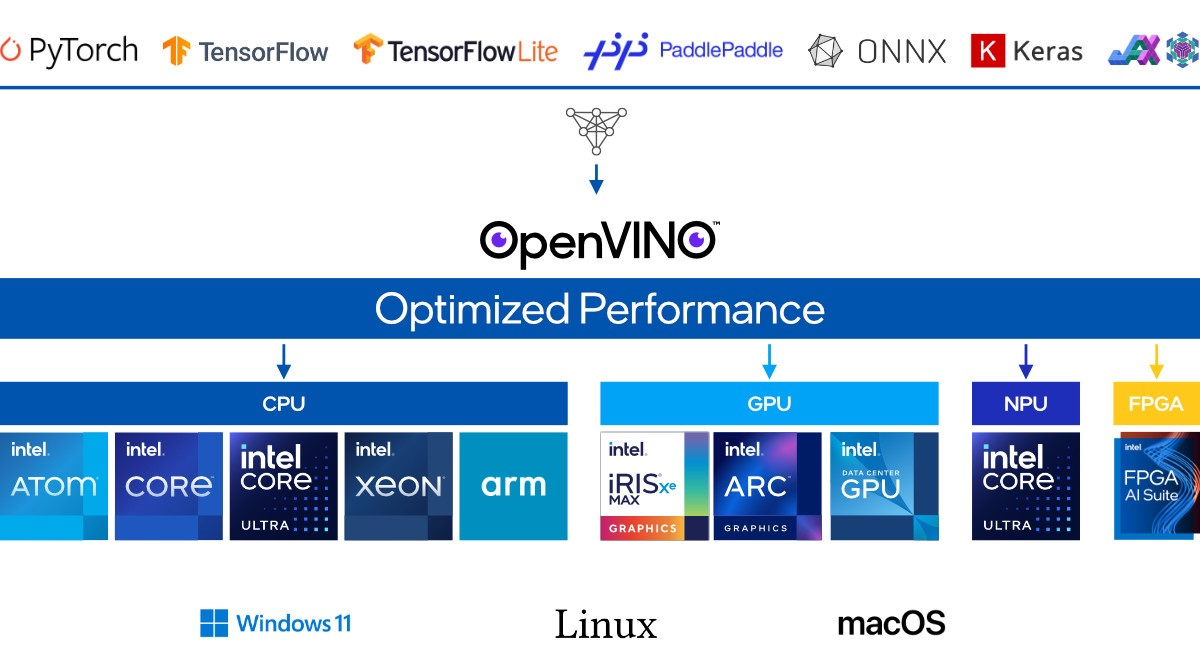
A evolução da inferência de IA em hardware Intel continua em ritmo acelerado, e o lançamento do OpenVINO 2026.1 consolida mais um avanço importante nessa jornada. Se a versão 2026.0 já havia estabelecido um novo patamar com suporte a Mixture of Experts (MoE), pipelines de Text-to-Video e técnicas mais inteligentes de compressão, a nova versão vai além: amplia significativamente o suporte a modelos, melhora a eficiência operacional e reforça o posicionamento do OpenVINO como uma das principais plataformas para inferência de IA em ambientes reais.
Mais do que uma atualização incremental, o OpenVINO 2026.1 representa uma resposta direta às demandas atuais do mercado: modelos maiores, workloads multimodais e a necessidade constante de reduzir latência sem comprometer qualidade.
Expansão de Modelos: Escalando a IA com Flexibilidade
Um dos pontos mais relevantes desta versão é a ampliação do suporte a modelos de grande porte e multimodais. O destaque vai para o suporte em CPU ao GPT-OSS 120B, um salto expressivo em relação à versão anterior (20B). Isso muda o jogo para organizações que precisam rodar modelos massivos sem depender exclusivamente de GPUs de alto custo.
Além disso, o suporte ao Qwen3 VL em CPU e GPU abre novas possibilidades para aplicações avançadas de visão computacional combinada com linguagem natural. Estamos falando de casos de uso como:
- Análise inteligente de imagens e vídeos
- Geração automática de descrições visuais
- Processamento documental com entendimento semântico
- Raciocínio multimodal em tempo real
Outro avanço importante está no OpenVINO Model Server, que agora suporta melhor modelos como Qwen3-MoE e GPT-OSS-20B. Com isso, há ganhos diretos em:
- Throughput via continuous batching
- Melhor uso de recursos em ambientes concorrentes
- Maior estabilidade em cenários de produção
E não para por aí: a introdução de endpoints de imagem com suporte a inpainting e outpainting leva o Model Server para além da inferência textual, entrando definitivamente no território da IA generativa visual.
LoRA Dinâmico e IA Multimodal: Eficiência em Escala
A adoção de LoRA dinâmico para modelos de visão e linguagem é um divisor de águas. Com suporte ao Qwen3-VL, o OpenVINO permite trocar adaptadores em tempo de execução sem recarregar o modelo base.
Na prática, isso resolve um problema crítico em produção: como servir múltiplas variações de um modelo sem multiplicar o consumo de memória e tempo de inicialização. O resultado é:
- Menor latência operacional
- Redução de custo de infraestrutura
- Maior flexibilidade para personalização de modelos
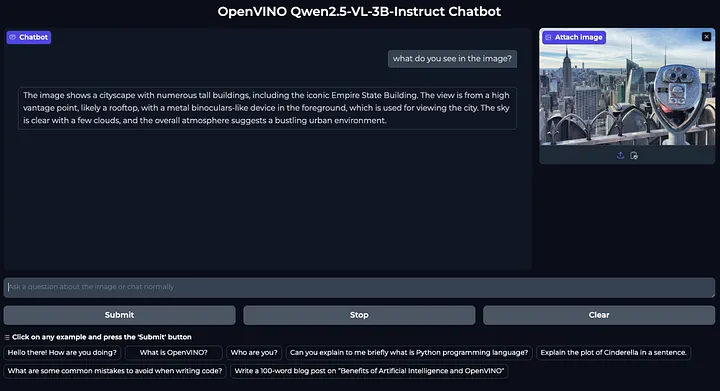
Outro ponto extremamente relevante é o novo notebook de referência que integra múltiplos VLMs, incluindo:
- Qwen2.5-VL
- LLaVA-Next-Video
Esse ambiente unificado permite explorar chatbots multimodais com suporte a vídeo e alternância dinâmica de modelos algo essencial para experimentação e benchmarking em cenários reais.
Performance: Onde o OpenVINO Realmente Brilha
Se há um ponto onde o OpenVINO tradicionalmente se destaca, é na otimização de performance e a versão 2026.1 reforça isso com avanços consistentes.
1. TaylorSeer Lite Caching
A introdução do caching TaylorSeer Lite para pipelines de difusão (como Flux, SD3 e LTX-Video) reduz computações redundantes durante o processo de denoising. Isso resulta em:
- Geração mais rápida de imagens e vídeos
- Menor consumo computacional
- Manutenção da qualidade do output
2. Otimizações em Vídeo (LTX-Video)
A fusão de operadores como RMSNorm e RoPE em um único kernel elimina overhead de execução sequencial. Esse tipo de otimização de baixo nível traz ganhos significativos:
- Redução de latência de kernel
- Menor uso de memória
- Aumento expressivo no throughput
3. Prompt Lookup Decoding
A extensão dessa técnica para pipelines multimodais é um dos avanços mais interessantes. Ao reutilizar padrões de tokens já processados, o sistema reduz a carga no modelo principal, acelerando a geração de tokens.
Isso é particularmente relevante para:
- Chatbots multimodais
- Assistentes com contexto longo
- Sistemas de análise documental
Um Novo Patamar para Inferência em Hardware Intel
O OpenVINO 2026.1 deixa claro que a estratégia da Intel não é apenas competir é redefinir o espaço de inferência eficiente. Ao permitir que modelos massivos rodem em CPU, otimizar pipelines multimodais e introduzir mecanismos inteligentes de caching e decoding, a plataforma se posiciona como uma solução altamente pragmática para empresas.
Em um cenário onde custo, performance e escalabilidade precisam coexistir, o OpenVINO oferece uma proposta extremamente equilibrada.
Para quem trabalha com IA aplicada seja em edge, cloud ou ambientes híbridos essa versão não é apenas uma atualização. É um convite para repensar arquitetura, otimizar pipelines e explorar novas possibilidades com modelos cada vez mais complexos.
Conclusão
O OpenVINO 2026.1 representa um avanço sólido na democratização da IA de alto desempenho. Com mais modelos, melhor suporte multimodal e otimizações profundas de performance, a plataforma continua evoluindo para atender às demandas reais do mercado.
Se você está construindo soluções com LLMs, VLMs ou pipelines generativos, este é o momento ideal para explorar o que há de novo e, principalmente, para extrair o máximo desempenho do hardware Intel com inteligência.
A próxima geração da IA não será apenas mais poderosa , será mais eficiente. E o OpenVINO está claramente liderando esse movimento.
Discussing RTO in my Genesi t-shirt...
This Monday I talked to a couple of friends about work while wearing my Genesi t-shirt. A teacher going back to school after Spring break and an IT guy explaining the nightmare of RTO threat. I love coincidences :-) Why do I say that?

Genesi t-shirt
As I wrote a few years ago about working from home: “After graduating from university, I worked from home for a small US-based company. I never met my boss while working there and met only one of my colleagues at a conference in Brussels. I eventually met my boss some seven years later, when I gave a talk at a conference in Washington, D.C.” The company was Genesi, and that was the work culture which defines me. I received the t-shirt on the photo during my visit to Washington, D.C.. Luckily, I’m still living mostly this way, visiting the office 1-2 times a week: working hybrid.
Imagine the contrast I felt, when I realized that I’m talking to someone who works on a very strict fixed schedule. For a teacher vacation is only possible when there is no school, like Spring break in Hungary last week. There is a fixed schedule all year around. Compare that to my Genesi years: no regular meetings, communicating by e-mail & chat, and working when it was the right time for me: sometimes in the morning, other days during the night. It was fantastic, especially with small kids. I have been working on flexible hours ever since, limited only by meetings.
COVID made remote work less of a niche. Sometimes even mandatory. Many people in IT started to work remotely. Most of our work does not require a fixed place or time. On-line meetings became the norm, teams are often not location based anymore but scattered around the globe. As long as you have an Internet connection and a noise canceling microphone you can join a meeting from anywhere, even from the top of a mountain. It is easy to get used to this flexibility and very difficult to give it up.
RTO became a periodical threat. It’s a lot cheaper to announce RTO and let people leave voluntarily than sending them away. Quite a few friends write me every once in a while that they have to return to the office starting in a few weeks time. Then, a few weeks later they happily share: they gave me an exemption, so they do not want me to leave…
Wearing my Genesi t-shirt all these problems feel so distant. I hope that it stays this way!
Nuevo configurador para de Plasma 6.6
El pasado 17 de febrero fue lanzado Plasma 6.6, el mejor escritorio del universo conocido (según nosotros). Ha pasado mucho tiempo y es el momento de hablar de sus mejoras, y hoy es el momento de hablar del Nuevo configurador para de Plasma 6.6, una nueva herramienta destinada a mejorar la eficiencia
Nuevo configurador para de Plasma 6.6
Tras comprobar que esta nueva versión de Plasma 6 sigue centrada en la mejora de la usabilidad , la accesibilidad y las nuevas opciones que nos encontramos a la hora capturar o grabar la pantalla.

Hoy toca hablar una nueva herramienta que viene siguiendo el hilo de acercar el uso del escritorio, sistema o entorno de trabajo y facilitar la instalación de Plasma en nuevos o reacondicionados equipos.
En palabras de los desarrolladores:
La Configuración de Plasma es el nuevo asistente de primera ejecución de Plasma, que crea y configura cuentas de usuario independientemente del proceso de instalación.
Con la Configuración de Plasma, los pasos técnicos de instalación del sistema operativo y particionado del disco se pueden gestionar de forma independiente a los pasos del usuario, como la creación de una cuenta, la conexión a una red, etc.
De esta forma, la idea del configurador es facilitar la puesta a punto en situaciones uso importantes como:
- Regalar o vender un equipo con Plasma, sin darle al nuevo propietario acceso a los datos del propietario anterior.
- Empresas que entregan Plasma preinstalado en dispositivos.
- Empresas u organizaciones benéficas que reacondicionan equipos con Plasma para darles nueva vida.
Más información: Plasma 6.6
-
Nuevo configurador para de Plasma 6.6

-
Capturas y grabación de pantalla en Plasma 6.6

-
Mejoras en la accesibilidad de Plasma 6.6

-
Las nuevas funcionalidades de Plasma 6.6

-
3 novedades destacadas de Plasma 6.6

-
Tercera actualización de Plasma 6.6


La entrada Nuevo configurador para de Plasma 6.6 se publicó primero en KDE Blog.
cosmic-greeter: Unsafe File System Operations in User Home Directories (CVE-2026-25704)
Table of Contents
- Introduction
- Overview
- Security Issues
- Suggested Fixes
- Upstream Bugfix
- CVE Assignment
- Timeline
- References
Introduction
Cosmic is a Linux desktop environment written in the Rust programming language. There is an ongoing effort to package it for openSUSE Tumbleweed; in this context we reviewed a number of Cosmic components, among them a D-Bus service found in cosmic-greeter. We found issues when the service accesses home directories of unprivileged users, which will be described further below. This report is based on cosmic-greeter version 1.0.8.
Overview
cosmic-greeter-daemon is implemented in
daemon/src/main.rs, runs with full root privileges
and offers a D-Bus interface “com.system76.CosmicGreeter” on the D-Bus system
bus. The interface only provides a single D-Bus method
“com.system76.CosmicGreeter.GetUserData”.
This D-Bus method is only allowed to be called by members of the
cosmic-greeter group, not by arbitrary other unprivileged users. What the
method does is basically looking up all
non-system user accounts in /etc/passwd and gathering Cosmic configuration
data from every user’s home directory.
Security Issues
The code contains a comment, outlining that it is important to drop privileges to the owner of the home directory being processed, to prevent security issues. While this is a good starting point, the actual implementation of this logic is still lacking in a number of spots.
Following is an excerpt of an strace of the cosmic-greeter-daemon process
during invocation of the D-Bus method. The output will help illustrate some of
the issues in question:
setresuid(-1, 1000, -1) = 0
<...>
statx(AT_FDCWD, "/var/lib/AccountsService/icons/<user>", AT_STATX_SYNC_AS_STAT, STATX_ALL, 0x7feb5d5f8a50) = -1 ENOENT (No such file or directory)
statx(AT_FDCWD, "/home/<user>/.local/share/cosmic/com.system76.CosmicTheme.Mode/v1", AT_STATX_SYNC_AS_STAT, STATX_ALL, 0x7feb5d5f8800) = -1 ENOENT (No such file or directory)
mkdir("/home/<user>/.config/cosmic/com.system76.CosmicTheme.Mode/v1", 0777) = -1 EEXIST (File exists)
statx(AT_FDCWD, "/home/<user>/.config/cosmic/com.system76.CosmicTheme.Mode/v1", AT_STATX_SYNC_AS_STAT, STATX_ALL, {stx_mask=STATX_ALL|STATX_MNT_ID, stx_attributes=0, stx_mode=S_IFDIR|0755, stx_size=4096, ...}) = 0
statx(AT_FDCWD, "/home/<user>/.config/cosmic/com.system76.CosmicTheme.Mode/v1/is_dark", AT_STATX_SYNC_AS_STAT, STATX_ALL, {stx_mask=STATX_ALL|STATX_MNT_ID, stx_attributes=0, stx_mode=S_IFCHR|0666, stx_size=0, ...}) = 0
mkdir("/home/<user>/.config/cosmic/com.system76.CosmicTheme.Dark/v1", 0777) = -1 EEXIST (File exists)
openat(AT_FDCWD, "/home/<user>/.config/cosmic/com.system76.CosmicTheme.Dark/v1/palette", O_RDONLY|O_CLOEXEC) = 11
<...>
setresuid(-1, 0, -1 <unfinished ...>
What we are seeing here is that the privilege drop only concerns the effective
user ID of the cosmic-greeter-daemon process. The root group credentials are
retained. This means any potential attacks by the owner of a home directory
can still try to leverage root group credentials to their advantage.
Given this, the file operations performed in the user’s home directory are subject to a range of security issues:
-
directory components within the path can be replaced by symbolic links. E.g. if a user places a symlink like this:
$HOME/.config/cosmic → /root/.config/cosmicthen the daemon would actually process root’s Cosmic configuration files, provided that root’s home directory is accessible for members of the root group.
- since the daemon also attempts to create directories under some conditions, these directories could be created in arbitrary locations where the root group has write permission.
- the daemon checks the type of files via
stat()before trying to open configuration files, for example. This is a typical Time-of-Check/Time-of-Use (TOCTOU) race condition, however, because the owner of the home directory can attempt to replace a regular file by a symbolic link or special file by the time the actualopen()call is performed by the daemon. This can lead to the following potential issues:- parsing of private files accessible to the root group. Whether the data parsed from such files could ever leak into the context of a local attacker is a matter that we did not investigate more closely for the purpose of this report.
- by placing a symbolic link to e.g.
/dev/zero, an out-of-memory situation can be triggered in the daemon, causing it to be killed by the kernel, leading to a local Denial-of-Service (DoS). - by placing a FIFO named pipe in the location the daemon would block on it forever, also leading to a local DoS.
- the daemon considers accounts with user IDs ≥ 1000 as regular user
accounts. On many Linux distributions
this means that also the
nobodyuser account is included (UID 65534). As a result, the daemon also attempts to process Cosmic configuration in/var/lib/nobodyon openSUSE. This grants processes operating withnobodyprivileges the opportunity to attempt to exploit the daemon’s logic.
The severity of these issues is reduced by the fact that only members of the
cosmic-greeter group are allowed to invoke the GetUserData D-Bus method,
thus potential attackers have to wait for an authorized process to call the
function to attempt to exploit it. We don’t have enough insight into the
bigger picture of the Cosmic desktop environment, but it could be possible
that local users are able to indirectly trigger the execution of this D-Bus
method by using other APIs made available by Cosmic.
Suggested Fixes
We suggested the following improvements to upstream to deal with the issues:
- the privileges should be fully dropped to the target user account, including group ID and the supplementary group IDs.
- to prevent potential DoS attack surface, the daemon should carefully
open target paths element by element, passing
O_NOFOLLOW|O_NONBLOCKto prevent symlink attacks, then perform anfstat()on the open file to determine its type in a race-free fashion. - the
nobodyuser account should be explicitly excluded based on its name for distributions that set a valid shell for this account. - as additional hardening, the systemd unit
cosmic-greeter-daemon.servicecan be extended with directives likeProtectSystem=full. This needs some tuning, though, since the daemon still needs to be able to read files in home directories of other users.
Upstream Bugfix
Upstream implemented commit 63cd93bddd0 containing the following changes:
- the daemon properly drops its group and supplementary group IDs to the target user’s.
- only user IDs in the range defined by
UID_MINandUID_MAXas configured in/etc/login.defswill be considered. - icon files in
/var/lib/accountservicewill be opened withO_NOFOLLOW(actually an unrelated change / security hardening).
This bugfix is part of upstream release 1.0.9 and newer.
What is still missing from our point of view is the prevention of local DoS attack surface when accessing files in the user’s home directory. We informed upstream about this but have not heard back about this topic for a while.
CVE Assignment
Upstream has not expressed any wishes regarding CVE assignment, or whether one should be assigned at all. We decided to assign a single CVE-2026-25704 from our pool to track the main aspect of this report, the incomplete privilege drop in the daemon.
Timeline
| 2026-03-11 | We forwarded this report to security@system76.com and the main developer of cosmic-greeter, offering coordinated disclosure. |
| 2026-03-11 | Upstream confirmed the issue and opted out of coordinated disclosure. |
| 2026-03-11 | We got a follow-up response asking us to keep the information private for while longer after all. |
| 2026-03-11 | We received a patch from upstream corresponding to commit 63cd93bddd0 and have been asked to review it. |
| 2026-03-12 | Upstream meanwhile created a public pull request based on this bugfix and informed us that the report no longer needed to be private. |
| 2026-03-13 | We assigned CVE-2026-25704 to track the main aspect of the vulnerability, an incomplete privilege drop. |
| 2026-03-13 | We shared the CVE with upstream and provided feedback on the bugfix, mainly pointing out that local Denial-of-Service (DoS) attack service still remains. |
| 2026-03-13 | Upstream informed us that they are going to address these remaining issues as well. |
| 2026-03-24 | We asked upstream about the status of the additional fixes, but received no response so far. |
| 2026-04-16 | Publication of this report. |
References
Streaming syslog-ng data to your lakehouse using OpenTelemetry
Version 4.11.0 of syslog-ng contains contributions from Databricks related to OAuth2 authentication. Recently, they published a blog about how this enables their customers to send logs to their data lake using syslog-ng and the OpenTelemetry protocol.
The syslog-ng project received two contributions from Databricks in the last weeks of 2025. The first one turned the already existing OAuth2 support generic and extensible, so it can be used anywhere, not just with Microsoft Azure (but of course, Azure compatibility was preserved). The next pull request was built on the first one and enabled OAuth2 support for gRPC-based destinations, like OpenTelemetry, Loki, BigQuery, PubSub, ClickHouse, etc. These changes were released as part of the syslog-ng 4.11.0 release. You can read more about these in the release notes at https://github.com/syslog-ng/syslog-ng/releases/tag/syslog-ng-4.11.0
Besides an excellent overview about syslog-ng, the related Databricks blog also provides step-by-step instructions on how to use syslog-ng with their product. You can read it at: https://community.databricks.com/t5/technical-blog/streaming-syslog-ng-data-to-your-lakehouse-powered-by-zerobus/ba-p/153979

syslog-ng logo
Originally published at https://www.syslog-ng.com/community/b/blog/posts/streaming-syslog-ng-data-to-your-lakehouse-using-opentelemetry