
 Member
 baltolkien
Las novedades de Elisa de abril de 2020
Seguimos la serie sobre los cambios en las aplicaciones que han llegado este mes (bueno, en realidad el mes pasado). Una vez comentado las mejoras de Dolphin, Okular, KMail y Gwenview sigo con las novedades de Elisa de abril de 2020, uno de los reproductores de audio de la Comunidad KDE, que lucha por heredar el reinado de Amarok.
Las novedades de Elisa de abril de 2020
 Si se analiza bien, la última a actualización de Software de la Comunidad KDE ha cubierto casi todos los aspectos que busca un usuario en un entorno de trabajo: archivo, documentos, correo electrónico e imágenes.
Quedan un par de facetas que también han sido cubiertas, como es el caso del audio con Elisa, el reproductor de la Comunidad KDE que está evolucionando rápido para convertirse el sucesor de Amarok, el gran reproductor de audio que tristemente no continuó su desarrollo.
Para quienes no lo conozcan, Elisa es un reproductor de música desarrollado por la Comunidad KDE que se basa en la simplicidad y facilidad de uso. Su nacimiento fue la respuesta a la necesidad de crear un producto flexible para afrontar los diferentes entornos de trabajo y casos de uso por parte de los usuarios. Su desarrollo es lento pero seguro, afianzándose versión a versión en el ecosistema de aplicaciones KDE y mostrando una imagen moderna, clara y funcional.
De esta forma, la nueva versión de Elisa de abril de 2020 ofrece importantes novedades:
- Nueva vista «Reproduciendo ahora», que lo hace más atractivo para todos los usuarios.
- Acceso a la aplicación mediante la bandeja del sistema, con lo que se puede acceder a la lista de reproducción cuando lo desee.
- Nuevo «modo aleatorio visual» que facilita la organización de la música en las listas de reproducción y le muestra la próxima canción que se va escuchar

Más información: KDE
Herramientas para monitorear tu sistema #Linux desde la línea de comandos
Veamos algunas herramientas para monitorear el funcionamiento de tu sistema y los procesos y aplicaciones que se ejecutan en tu sistema GNU/Linux

Bashtop en mi openSUSE con i3wm (clic sobre la imagen para apliar)
En ocasiones tenemos que mirar en nuestro sistema qué aplicación está consumiendo más recursos de memoria, o simplemente saber qué procesos se están ejecutando dentro de nuestro sistema GNU/Linux.
Vamos a ver algunas herramientas disponibles para la línea de comandos. Cada una con sus pros y sus contras, que cada cual elija en función de sus necesidades o preferencias.
Todas estas herramientas ofrecen información de manera dinámica de lo que se está ejecutando en el sistema y ofrecen un resumen de esa información y una lista de tareas que se puede ordenar por consumo de CPU, por consumo de RAM, etc.
Además también ofrecen un resumen de otras informaciones del sistema, como el número de usuario registrados, el tiempo de sesión, etc.
Veamos una lista de las herramientas que conozco disponibles en GNU/Linux…
top
Es uno de las más veteranas y más conocidas, y puede ser que venga instalada en tu sistema de manera predeterminada. En mi opinión ofrece la información de una manera “muy espartana”, pero con muchas opciones disponibles, como siempre para sacarle todo el jugo lo mejor es echar un vistazo a su página man
htop
En lo personal prefiero esta opción y es una herramienta que utilizo mucho para ver qué está consumiendo más RAM y como medio para “matar” los procesos que no quiero que estén corriendo.
Presenta la información de una manera más ordenada y ofrece un pequeño gráfico de la CPU y de la RAM. Además tiene unos útiles accesos mediante las teclas de función a la hora de búsqueda, matar procesos y otras opciones.
bashtop
El más reciente que he conocido, y el más vistoso, tal como puedes ver en la captura que abre este artículo. Es un script de bash que muestra información de una manera muy elegante sobre el uso de la cpu, espacio en nuestro disco duro y los procesos del sistema.
atop
Aplicación escrita en C, nos ofrece a pantalla completa información diversa sobre nuestro sistema. Personalmente no la he probado así que no puedo más que informar de su existencia.
ytop
Otro monitor de sistemas y procesos esta vez escrito en Rust, con gráficos en tiempo real.
gtop
Es una aplicación escrita en JavaScript y disponible desde el gestor de paquetes npm. También nos ofrece información de manera visual de nuestro sistema y nuestro equipo, tal como podéis ver en la imagen inferior.
Para instalarla tenéis que instalar el gestor de paquetes npm en vuestro sistema y después para instalar gtop hay que ejecutar:
npm install gtop -g
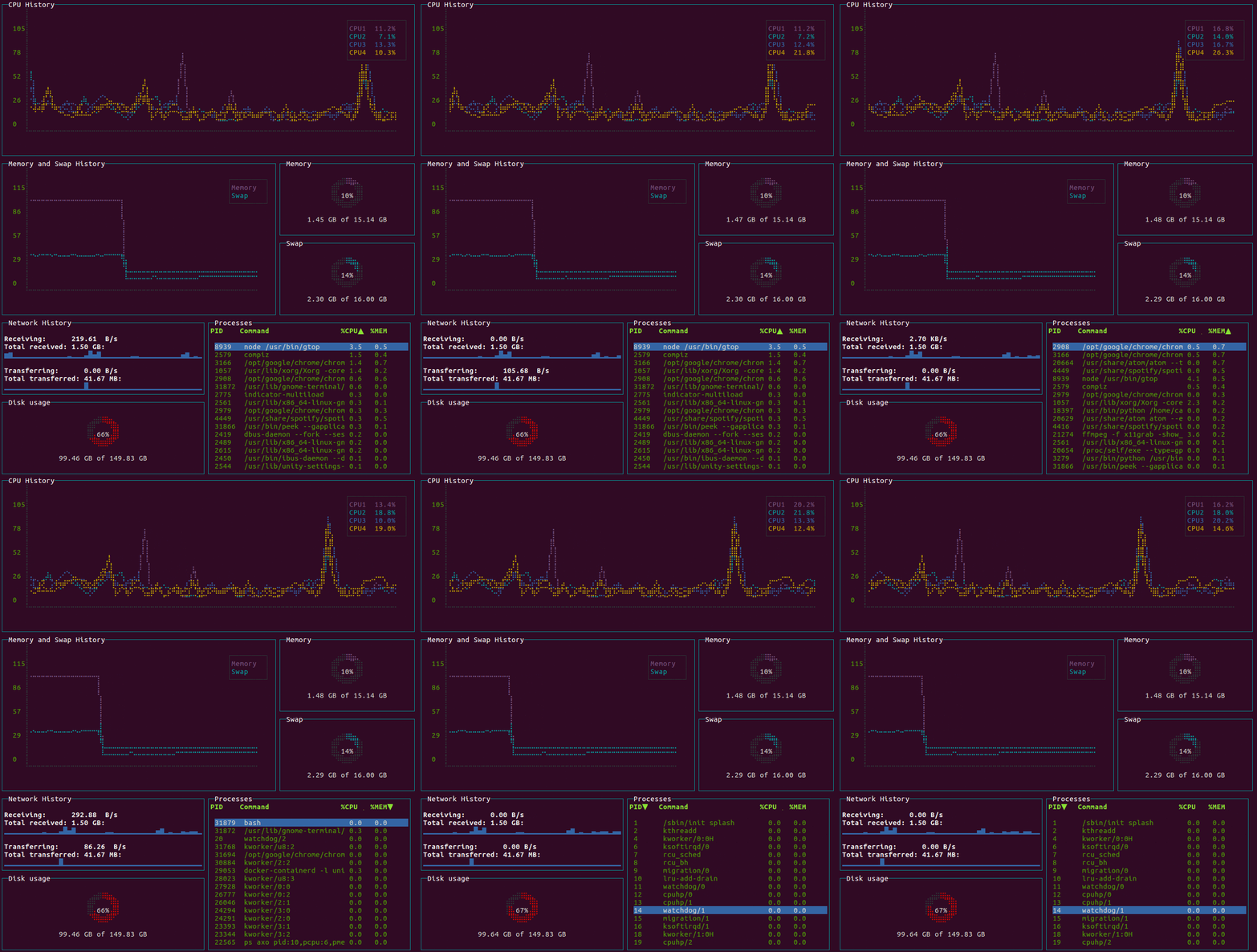
Hasta aquí las opciones que conozco y algunas que no he probado. Derivado de estas opciones hay herramientas específicas para monitorear nuestra red como iftop, u otras opciones específicas para otras tareas de nuestro equipo como iotop.
¿Conocías todas las opciones que te he traido? Si tu conoces y utilizas otras herramientas compártelas por los comentarios para completar el artículo con tus aportes.
Aportes de los lectores
nmon
Consiste en un único binario, que ejecutamos y el programa nos ofrece información sobre nuestro sistema: CPU, memoria, uso de discos, red, etc. También permite guardar los datos registrados en un archivo separado por comas para procesarlo o para almacenar los datos. (Aporte en un comentario del amigo Franja)
S-Tui
Un script de Python que también monitorea diferentes aspectos del sistema. Pero mejor podéis leer el artículo que escribió hace tiempo David en su blog ochobitshacenunbyte. (Aporte en un comentario del amigo Percaf_TI99)
- https://www.ochobitshacenunbyte.com/2019/02/13/s-tui-un-power-monitor-para-linux/
- https://github.com/amanusk/s-tui
Glances
También escrito en Python, este software multiplataforma incluye además de la interfaz de la consola una interfaz web. También permite el poder exportar los datos a diferentes formatos o incluso poder visualizarlos con Grafana. (Aporte en un comentario del amigo Taraak)
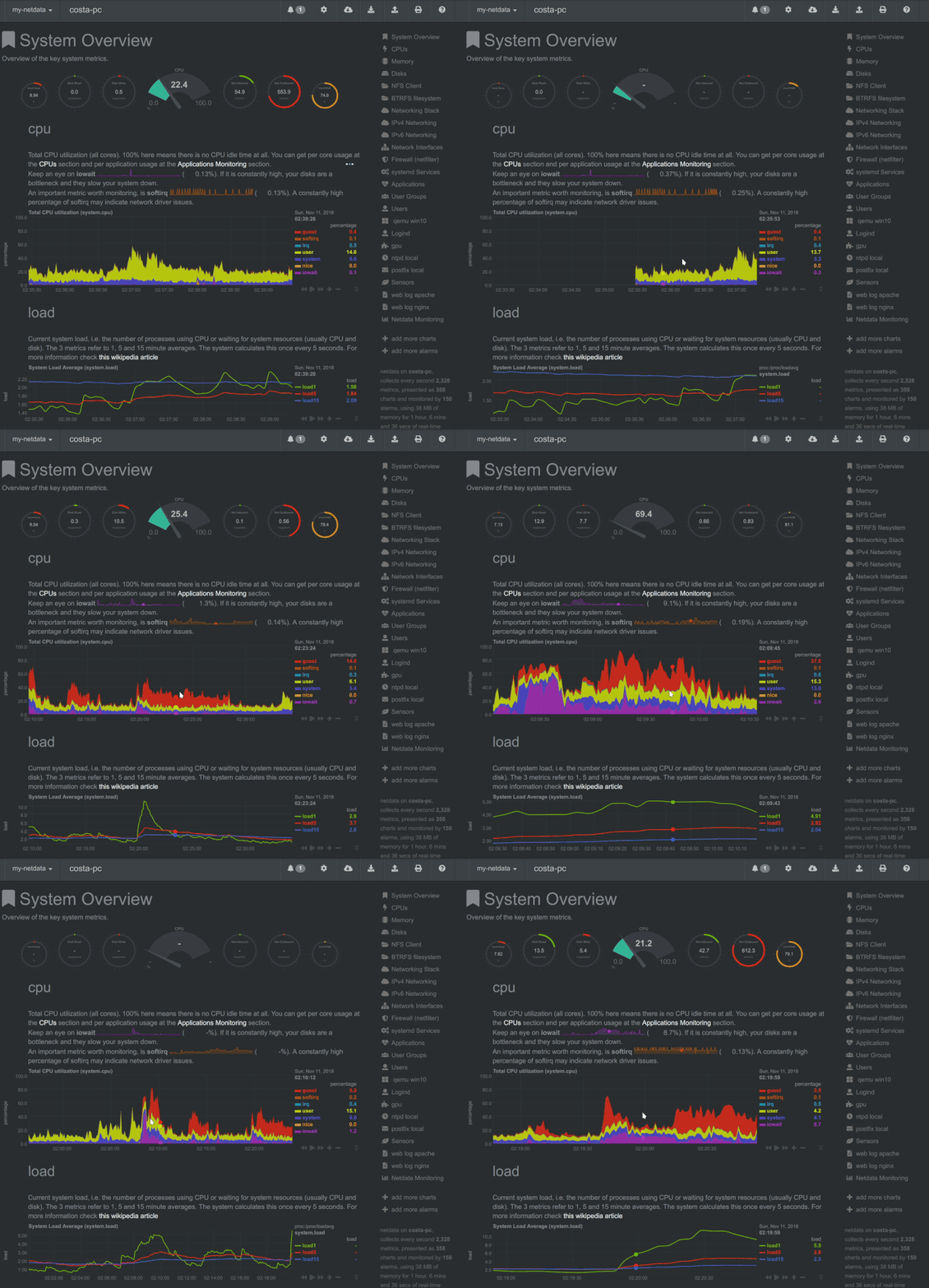
Netdata
Esta aplicación corre en sistemas GNU/Linux, FreeBSD o MacOS. Es rápido y eficiente y controla muchos aspectos del sistema sin sobrecargarlo. Puede ejecutarse de manera permanente en sistemas tanto físicos como virtuales, contenedores, dispositivos IoT.
Con un montón de recopilaciones de datos sin necesidad de configuraciones extras. Y una gran comunidad detrás de su desarrollo. Es capaz de guardar una base de datos y almacenarlos por días, semanas o meses. Mostrar unas útiles gráficas que se sincronizan y se ajustan a tus necesidades. (Aporte en un comentario del amigo Iyán)
Las novedades de Gwenview de abril de 2020
Seguimos la serie sobre los cambios en las aplicaciones que han llegado este mes (bueno, en realidad el mes pasado). Una vez comentado las mejoras de Dolphin, Okular y KMail, sigo con las novedades GWenview de abril de 2020, el visor de imágenes más simple de la Comunidad KDE, que aún teniendo ese título no se queda corto en cuanto a funcionalidades añadidas.
Las novedades de Gwenview de abril de 2020
 Creo que una de las aplicaciones que un escritorio debe ofrece a sus usuarios es un buen y rápido visor de imágenes. La Comunidad KDE ofrece un buen número de ellas, teniendo incluso un visor integrada en Dolphin, pero la que más utilizo, sin duda alguna, es Gwenview.
Esta pequeña pero potente aplicación abre de forma rápida y eficaz cualquier imagen de nuestro sistema, al tiempo que nos permite realizar acciones simples como el redimensionado o el recorte de imágenes de forma muy sencilla. Además, ofrece opciones de carrusel de imágenes, de visualización de varias imágenes de forma simultanea, de conexión con otras aplicaciones, reducción de ojos rojos, servicio de rotación o inversión de imágenes, integración con la barra de lugares de KDE, comapartición directa de imágenes con otros servicios como Telegram o Nextcloud, etc. Y eso que es la menor de la aplicaciones de imágenes de KDE, por debajo se ShowFoto o DigiKam. No está nada mal
De esta forma, la nueva versión de Gwenview de abril de 2020 ofrece pocas pero importantes novedades:
- Se ha solucionado el problema de bloqueo durante el inicio cuando el portapapeles del sistema contiene texto de KDE Connect, la aplicación que integra tu móvil con tu escritorio Plasma.
- Se ha corregido el acceso a lugares remotos (mediante Samba, por ejemplo) para importar o exportar fotos.
Un par de arreglos que hacen que Gwenview funcione un poco mejor.
Más información: KDE
Reducing jitter on Linux with task isolation
Last week I gave a talk at the first virtual adhoc.community meetup on the history of task isolation on Linux (slides, video). It was a quick 15-minute presentation, and I think it went well, but I really wanted to include some details of how you actually configure a modern Linux machine to run a workload without interruption. That’s kinda difficult to do in 15 minutes.
So that’s what this post is about.
I’m not going to cover how to use the latest task isolation mode patches because they’re still under discussion on the linux-kernel mailing list. Instead, I’m just going to talk about how to reduce OS jitter by isolating tasks using Linux v4.17+.
First, as the below chart shows, you really do need a recent Linux kernel if you’re going to run an isolated workload because years of work have gone into making the kernel leave your tasks alone when you ask.
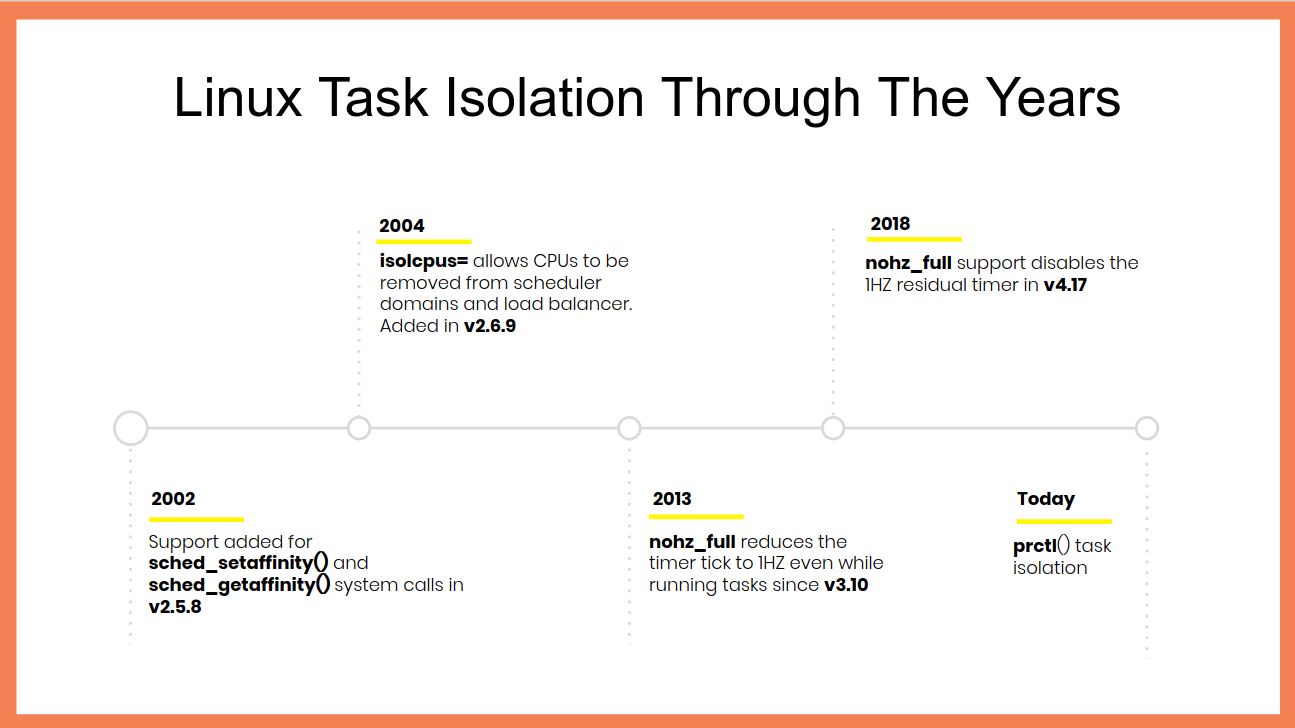 Linux task isolation features throughout the years
Each of these features is incremental and builds on top of the previous ones to quiesce a different part of the kernel. You need to use all of them.
Modern Linux does a pretty good job out of the box of allowing userspace tasks to run continuously once you pull the right options. Here’s my kernel command-line for isolating CPU 47:
isolcpus=nohz,domain,47 nohz_full=47 tsc=reliable mce=off
The first option, isolcpus, removes every CPU in
the list from the scheduler’s domains, meaning that the kernel will not
to do things like run the load balancer for them, and it also disables
the scheduler tick (that’s what the nohz flag is for). nohz_full=
disables the tick (yes, there’s some overlap of the in-kernel flags
which means you need both of these options) as well as offloading RCU
callbacks and other miscellaneous items.
On my machine, I needed the last two options to disable some additional timers and prevent them from firing while my task was running.
Once you’ve booted with these parameters (substitue your desired CPU
list for 47) you’ll need to setup a cpuset cgroup to run your task in
and make sure that no other tasks accidentally run on your dedicated
CPUs. cset is definitely my favourite
tool for doing this because it makes it so easy:
$ cset shield --kthread=on --cpu 47
cset: --> activating shielding:
cset: moving 34 tasks from root into system cpuset...
[==================================================]%
cset: kthread shield activated, moving 79 tasks into system cpuset...
[==================================================]%
cset: **> 56 tasks are not movable, impossible to move
cset: "system" cpuset of CPUSPEC(0-46) with 57 tasks running
cset: "user" cpuset of CPUSPEC(47) with 0 tasks running
Now all you need to do is add the PID of your task to the new user
cpuset and you’re good to go.
Verifying your workload is isolated
Of course, it’s all well and good me saying that these options isolate your tasks, but how can you know for sure? Fortunately, Linux’s tracing facilities make this super simple to verify and you can use ftrace to calculate when your workload is running in userspace by watching for when it’s not inside the kernel – in other words, by watching for when your workload returns from a system call, page fault, exception, or interrupt.
Say we want to run the following super-sophisticated workload without it entering the kernel:
while :; do :; doneHere’s a sequence of steps – assuming you’ve already setup the user
cpuset using cset – that enables ftrace, runs the workload for 30
seconds, and then dumps the kernel trace to a trace.txt
# Stop irqbalanced and remove CPU from IRQ affinity masks
systemctl stop irqbalance.service
for i in /proc/irq/*/smp_affinity; do
        bits=$(cat $i | sed -e 's/,//')
        not_bits=$(echo $((((16#$bits) & ~(1<<47)))) | \
		xargs printf %0.2x'\n' | \
		sed ':a;s/\B[0-9a-f]\{8\}\>/,&/;ta')
        echo $not_bits > $i
done

export tracing_dir="/sys/kernel/debug/tracing"

# Remove -rt task runtime limit
echo -1 > /proc/sys/kernel/sched_rt_runtime_us

# increase buffer size to 100MB to avoid dropped events
echo 100000 > ${tracing_dir}/per_cpu/cpu${cpu}/buffer_size_kb

# Set tracing cpumask to trace just CPU 47
echo 8000,00000000 > ${tracing_dir}/tracing_cpumask

echo function > ${tracing_dir}/current_tracer

echo 1 > ${tracing_dir}/tracing_on
timeout 30 cset shield --exec -- chrt -f 99 bash -c 'while :; do :; done'
echo 0 > ${tracing_dir}/tracing_on

cat ${tracing_dir}/per_cpu/cpu${cpu}/trace > trace.txt
# clear trace buffer
echo > ${tracing_dir}/trace
The contents of your trace.txt file should look something like this:
# tracer: function
#
# entries-in-buffer/entries-written: 102440/102440   #P:48
#
#                              _-----=> irqs-off
#                             / _----=> need-resched
#                            | / _---=> hardirq/softirq
#                            || / _--=> preempt-depth
#                            ||| /     delay
#           TASK-PID   CPU#  ||||    TIMESTAMP  FUNCTION
#              | |       |   ||||       |         |
          <idle>-0     [047] dN..   177.931485: sched_idle_set_state <-cpuidle_enter_state
          <idle>-0     [047] .N..   177.931487: cpuidle_reflect <-do_idle
          <idle>-0     [047] .N..   177.931487: menu_reflect <-do_idle
          <idle>-0     [047] .N..   177.931488: tick_nohz_idle_got_tick <-menu_reflect
          <idle>-0     [047] .N..   177.931488: rcu_idle_exit <-do_idle
          <idle>-0     [047] dN..   177.931488: rcu_eqs_exit.constprop.71 <-rcu_idle_exit
          <idle>-0     [047] dN..   177.931489: rcu_dynticks_eqs_exit <-rcu_eqs_exit.constprop.71
You want to make sure that the you didn’t lose any events by checking
that the entries-in-buffer/entries-written fields have the same
values. If they’re not the same you can further increase the buffer size
by writing to tracing/per_cpu/<cpu>/buffer_size_kb.
The key part of the trace file is the finish_task_switch tracepoint
which tells you when a context switch completed. You can use this
tracepoint to find when your bash process starts running and when it
finishes – hopefully after 30 seconds has elapsed – with a bit of awk
magic:
$ awk '/: finish_task_switch / {
        # Do not start counting until we see the bash task for the first time
        comm = substr($1, 0, index($1, "-")-1)
        if (comm == "bash") {
                counting = 1;
        }
}

{
        if (counting) {
                usecs = $4
                gsub(/\./,"",usecs)
                gsub(/\:/,"",usecs)
                msecs = usecs / 1000

                delta = msecs - last
                if (last && (delta > runtime)) {
                        runtime = delta
                }
                last = msecs
        }
}


BEGIN { runtime = -1 }

END { printf "Max uninterrupted exec: %.2fms\n", runtime }' < trace.txt
Max uninterrupted exec: 29877.67ms
I’ve successfully used this technique to verify that I can run a bash busy-loop for an hour without entering the kernel.

MicroOS - The OS that does "just one job"
The openSUSE Summit 2020 kicked off yesterday. Like many others this summit was a virtual one too. It ran on a platform managed by openSUSE fan and user P. Fitzgerald.
I was busy with work stuff and couldn't watch the presentations live. I hopped on and off on the platform. I didn't want to miss Richard's presentation about MicroOS yet I missed it. Luckily he was quick to record his session and upload it on YouTube. I got a chance to watch it afterwards. Surely, all other presentations will be available on openSUSE TV soon and I'll be able to catch-up.
If you didn't rush to watch Richard's presentation on YouTube right-away, here are a few hints that may encourage you to do so.
openSUSE container registry
I'm not going to tell you what MicroOS is, you got to watch the video to learn about that, but did you know that the openSUSE project had a containers registry available publicly at https://registry.opensuse.org ? You can add it to the /etc/containers/registries.conf file and Podman can now search & pull containers from it.
Tiny openSUSE containers
When deploying your application in a container you always look for the fattest container, right? Of course, no!
ish@coffee-bar:~$ podman pull registry.opensuse.org/opensuse/busybox
Trying to pull registry.opensuse.org/opensuse/busybox...
Getting image source signatures
Checking if image destination supports signatures
Copying blob b6fc9a391c78 [====>---------------------------------] 515.9KiB / 3.8MiB
ish@coffee-bar:~$ podman images
REPOSITORY TAG IMAGE ID CREATED SIZE
registry.opensuse.org/opensuse/busybox latest c19f82628d9f 44 hours ago 9.4 MBopenSUSE offers a small (Tumbleweed) busybox container that is just under 10 MB. Mini but mighty! 💪
How to keep a system patched & running?
If it's running you don't want to touch it, but, systems need security updates. Someone has to do the dirty-job. Who? Can a system update itself without breaking the applications that are running?

Health checks during boot-up
Have you ever had a system that fails to boot after an update? I had. MicroOS checks for errors during the boot phase and if a snapshot is faulty the system then boots up with the last known working snapshot. MicroOS does so without any manual intervention, so, automatic reboots are safe. 😀 🎉 🎊
Debugging your MicroOS container host
MicroOS is a lightweight system that doesn't come bundle with debugging tools (for obvious reasons). Once in a while though you need to troubleshoot things like network issues. There you go, you can spin a toolbox container and inspect the network interface on the host. 🛠️
I hope these are enough to convince you to watch the presentation and that openSUSE MicroOS becomes part of your servers infrastructure. 🐧
#openSUSE Tumbleweed revisión de la semana 18 de 2020
Tumbleweed es una distribución “Rolling Release” de actualización contínua. Aquí puedes estar al tanto de las últimas novedades.

openSUSE Tumbleweed es la versión “rolling release” o de actualización continua de la distribución de GNU/Linux openSUSE.
Hagamos un repaso a las novedades que han llegado hasta los repositorios estas semanas.
El anuncio original lo puedes leer en el blog de Dominique Leuenberger, publicado bajo licencia CC-by-sa, en este enlace:
Esta semana se han publicado menos snapshots, pero las que se han publicado han venido con cambios importantes y muy esperados.
Por ejemplo, se ha publicado GNOME 3.36.1 que también incluye un cambio menor en la fuente Cantarell. Y como el test automático openQA compara capturas de pantalla con unas de referencia, un cambio en una fuente tipográfica se traduce en un montón de desjustes que son necesarios confirmarlos.
Lo que lleva algo de tiempo, lo que ha resultado en que se han publicado solo 3 nuevas snapshots (0425, 0427 y 0428).
Que entre otros cambios, podemos destacar estos como los más importantes
- GNOME 3.36.1
- KDE Applications 20.04
- Linux kernel 5.6.6
- Mesa 20.0.5
- openSSL 1.1.1g
La lista parece corta pero GNOME y KDE Applications implican un buen número de aplicaciones actualizadas.
Y como es normal, hay muchas más cosas esperando para próximas actualizaciones, por ejemplo:
- Cambio de Ruby 2.6 a 2.7
- Linux kernel 5.6.8
- Qt 5.15.0
- TeXLive 2020
- Guile 3.0.2
- GCC 10 como compilador predeterminado
Si quieres estar a la última con software actualizado y probado utiliza openSUSE Tumbleweed la opción rolling release de la distribución de GNU/Linux openSUSE.
Mantente actualizado y ya sabes: Have a lot of fun!!
Enlaces de interés
-
-
- ¿Por qué deberías utilizar openSUSE Tumbleweed?
- zypper dup en Tumbleweed hace todo el trabajo al actualizar
- ¿Cual es el mejor comando para actualizar Tumbleweed?
- Comprueba la valoración de las “snapshots” de Tumbleweed
- ¿Qué es el test openQA?
- http://download.opensuse.org/tumbleweed/iso/
- https://es.opensuse.org/Portal:Tumbleweed
-

——————————–
Las novedades KMail de abril de 2020, el gestor de correo de KDE
Sigue la serie sobre los cambios en las aplicaciones que han llegado este mes (bueno en verdad técnicamente fue el mes pasado, pero ya me entendéis). Una vez comentado las mejoras de Dolphin y Okular, sigo con las novedades KMail de abril de 2020, el gestor de correos electrónicos de la Comunidad KDE. Hay que decir que no ofrece muchas mejoras, pero así aprovecho para hablar un poco de esta otra Killer App de KDE.
Las novedades KMail de abril de 2020
 Debo confesar que tengo una relación de amor/odio con KMail, el gestor de correo electrónico. Amor porque, al igual que con Okular, fue una de las que me conquistó al iniciarme en el mundo del Software Libre. Odio porque su funcionamiento ha sido irregular a lo largo del tiempo, en muchas ocasiones por culpa de indexeación de correos).
En la actualidad la estoy utilizando sin problemas en mi portátil y la utilizo para tener sincronizados mis correos de mi servidor y me encanta por muchos motivos: integración con Plasma (concretamente con Krunner), su vista de mensajes por hilos, su rapidez cuando se trabajan de forma local, sus integración con las demás aplicaciones de la suite Kontact (KOrganizer, KAdressBook, etc.)
Tras un periodo algo árido, la aplicación ha vuelto a encontrar el amor que loe faltaba y vuelve a evolucionar de forma positiva, como hemos podido comprobar el mes pasado.
De esta forma, la nueva versión de Okular de abril de 2020 son varios, y lo mejor es realizar una breve lista:
- Se ha añadido la posibilidad de exportar en formato pdf los mensajes de correo electrónico de forma sencilla.
- Mejorado la visualización de los mensajes formateados con Markdown,
- Mejoras varias en seguridad, como que ahora KMail muestra una advertencia cuando el compositor de mensajes se abre al pulsar un enlace que le solicita adjuntar un archivo.
Más información: KDE
La comunidad de #Xfce pasa sus repositorios de desarrollo a un GitLab propio
El desarrollo del escritorio Xfce se realizará en una instancia propia de GitLab

Git es sin duda la herramienta principal para muchos proyectos de software libre (y privativo también) y muchos proyectos prefieren tener esos repositorio de Git bajo control de su propio proyecto y no utilizando opciones de terceros.
Es por eso que cada vez más proyectos ponen en marcha instancias propias de Git en sus propios servidores para alojar sus proyectos y no utilizar opciones como por ejemplo GitHub.
Es el caso de la comunidad Xfce, que acaba de anunciar que el desarrollo de sus aplicaciones se realizará a partir de ahora en una instancia propia de GitLab.
Para los usuarios finales o las propias distribuciones, nada cambia. Seguirán disfrutando como hasta ahora de su escritorio preferido.
El cambio lo notarán aquellas personas que participan en el desarrollo y mantenimiento de paquetes de software.También tienen planeado migrar otras herramientas como Bugzilla… pero por partes.
Así que ya sabes, si participabas en el desarrollo de alguna de las grandes herramientas de este escritorio ahora encontrarás ese software en su propia instancia de GitLab.
Enlaces de interés


Under the hood of zypper-upgraderepo gem

Discuter, préciser et être transparent avec la communauté openSUSE
Salut,
Les responsables de SUSE Linux Enterprise reconnaissent les besoins de la communauté openSUSE pour une collaboration meilleure et transparente avec SUSE. La dynamique qui nous anime maintenant nous incite à réfléchir et à être différents.
La symbiose entre SUSE Linux Enterprise et openSUSE est réelle, nous partageons bien plus que du code, nous utilisons les mêmes outils comme Open Build Service, openQA, des processus de maintenance similaires, des personnes (Release Managers, contributeurs, etc.) et bien plus encore.
Nous avons peut-être été un peu discrets dans le passé, mais cela ne signifie pas que nous n'avons pas avancé ; au fil des ans, nous avons créé davantage de liens comme Package Hub, favorisé notre contribution avec la politique SLE Factory First pour les employés de SUSE et nos partenaires technologiques, être plus accessibles pendant notre phase de développement avec le programme de bêta publique de SLE, pour ne citer que quelques exemples.
Mais nous avons maintenant une dynamique à accélérer, notamment en ce qui concerne la transparence sur nos défauts et nos demandes de fonctionnalités au profit de la distribution et de la communauté openSUSE. Nous vous avons donc entendus, et aujourd'hui nous voulons clarifier et améliorer les processus, pour nous tous, et donner quelques éléments sur les discussions internes de SUSE concernant la suppression des "portes fermées".
Sans plus attendre, voici nos actions :
- Rafraîchir et créer des pages wiki openSUSE pour la clarification des processus
- Luboš Kocman a déjà commencé à documenter le processus mis en place pour récupérer les demandes de fonctionnalités de SLE et son projet est de présenter un processus réellement amélioré pour les contributeurs externes d'ici octobre ou plus tôt.
- Nous allons également revoir et améliorer “comment contribuer, phase de développement openSUSE Leap” afin de clarifier et formaliser les informations qui existaient depuis des années, mais qui n'étaient pas documentées.
- Créer une nouvelle page sur notre "Politique SLE Factory First", et les sujets potentiels de maintenance et d'assurance qualité.
- Parler plus ouvertement de la relation entre openSUSE et SLE,
- "Stratégie actuelle et future pour openSUSE Leap" et "Jump ! État actuel et changements à venir" pendant le sommet virtuel d'openSUSE.
- Sujet à venir dans le billet de blog "How SUSE Builds its Enterprise Linux Distribution".(«Comment SUSE construit sa distribution Linux pour l'entreprise»)
- Un exposé sur "la relation entre SLE et openSUSE" lors du sommet virtuel SUSECon
- Trouvez la bonne façon pour consulter notre site bugzilla.suse.com
- SUSE s'engage pleinement à protéger les données privées de ses clients et partenaires hébergées dans notre outil comme Bugzilla. Ils nous font confiance pour leurs données hautement sensibles, c'est pourquoi nous abordons ce sujet avec beaucoup de sérieux. Toutefois, grâce au transfert complet des instances de Bugzilla de MicroFocus à SUSE, nous avons désormais le contrôle total de Bugzilla et pouvons donc discuter de la manière de modifier nos processus en interne pour combiner confidentialité et ouverture des données.
- Un groupe a été formé (Vincent Untz, Anna...