
 Member
 slowhand
Remarkable Year 2018 for openSUSE Indonesia Community

It is also quite encouraging about the openSUSE translation. Unlike some other language versions, which are some of it translated by SUSE, the translation into Indonesian language is purely community work. Many thanks to the translation team, I have to name a few here, Arif Budiman, Kukuh Syafaat, and "primbon ijo" (green sacred book) bot manager, Yan Arief. Of course thank you also for all members of the translation team, there are 30 people. I don't mention them one by one, nevertheless you are all great 🙂.
There are some people who were accepted as openSUSE members in 2018, which I remember were Kukuh Syafaat, Dhenandi, Estu Fardani, Yan Arief. Some more people have applied for membership registration applications, I am sure they are eligible, and just a matter of time to be approved. If you are interested, please submit by following the instructions on the wiki page.
The saddest day for the community in 2018 is when we lose Muhammad Rafi in February 2018. I do not know him closely, but I've met him a couple of times, on the August 2017 Bekraf Habibie Festival, openSUSE 42.3 release party and some other events. On that occasions I knew him as a passionate and very humble young man. All our prayers for the late Rafi.
On March 23-25, 2018 Indonesia openSUSE Comunity / openSUSE received an invitation to open a booth at the Indonesian LibreOffice Conference. Thank you to the LibreOffice Indonesia Community for giving us the opportunity to participate in the event. openSUSE has always supported LibreOffice since the start of the project. Furthermore, please read how go-oo has been stopped and integrated into LibreOffice.
On May 21, 2018, we made a ticket in openSUSE progress to improve the status of community-managed repos to become openSUSE official mirror repository. On May 22, 2018, Per Jessen, one of the openSUSE Heroes Team members replied and said our repo officially entered the official openSUSE mirror repo. Hopefully this can help provide a fast and up-to-date update for the Indonesian openSUSE community.

openSUSE.Asia Summit 2018 was held in conjunction with GNOME.Asia Summit 2018 and COSCUP in Taipei 11-12 August 2018. In 2018 there were quite a number of colleagues from openSUSE Indonesia Community who attended the event both as speakers and participants. Good to you all. If you want to go abroad and to be paid up to 80% of your travel cost, don't hesitate to join the community and submit a proposal, who knows if you are selected 🙂.


During openSUSE.Asia Summit 2018, registration for Call for Host for a similar event in 2019 also opened. India and Indonesia volunteered to become candidates for the host. Finally, after the voting was held, on October 5, 2018 Bali, Indonesia was appointed as host of the openSUSE.Asia 2019 Summit.


The core committee for openSUSE. Asia Summit 2019 has already started the preparation work, there are Kukuh, Dhenandi, Ary, Yan Arief, Estu, Rania, Rifki. They have conducted a survey in Bali and the plan is openSUSE.Asia Summit 2019 will take place in the Information Technology Department, Faculty of Engineering, Udayana University in October 2019. Thank you for Putu Shinoda, our community member who also a lecturer in Udayana University who has been willing to become the host. The committee will definitely need a lot of help and support, and awaited the participation of all the Indonesian openSUSE community members.
The Indonesian openSUSE community contributes to the design of mugs for openSUSE GSoC mentors. There are 3 people who submitted the designs, Ahmad Romadhon (Rania), Pramasta, Tamara. Pramasta's design was finally chosen. Aris Winardi also made a poster for the openSUSE Board Elections that will be held in February 2019. Thank you all.
There is one thing in 2018 that Indonesian openSUSE community cannot fulfill, namely participation as student for Google Summer of Code under the openSUSE organization. I and Ana (openSUSE Board member) since 2017 have planned to promote GSoC to attract more students from Indonesia to this event. Unfortunately, from 3 people who expressed their interest in 2018 they could not go further. I noticed the weakness of our young people was not to start by doing research on the project in the first place, even though the openSUSE project that is included is very open, it can be seen on github! Also they're waiting until the last seconds to submit the proposal. You should prepare as early as possible, do PR if you see an opportunity for improvement, make it as exercise and warm up while showing your abilities to the mentor, and at the same time preparing your proposal. Well, some of them did a good job but the selection process sometimes is way too hard.
For GSoC in 2019, let's try again, there's still a chance, although from what I heard it is not sure yet that openSUSE will participate in GSoC in 2019. There are already 2 students who expressed their desire to participate. Prepare yourself from now on. For others if you are interested, stay tuned!

Have a lot of fun!

MX Linux | Review from an openSUSE User
Just a Christmas Day Blathering | Linux Makes it Better

9 extensions GNOME terbaik versi saya
GNOME merupakan DE (Desktop Environment) terbaik pilihan saya setelah KDE, walaupun agak berat untuk ukuran DE yang ketika idle memakan banyak RAM dan terkenal bahwa GNOME 3 adalah DE yang berat, tapi saya santai saja karena RAM saya gede jadi ya santai :D. GNOME memiliki tampilan yang bisa dibilang asik dan indah,tapi asik dan indah itu menurut saya tidak akan muncul jika user GNOME tidak menambahkan beberapa extension GNOME yang keren – keren, karena tanpa extension ini GNOME adalah DE yang sedikit membosankan.

Oke kita lanjut ke extension rekomendasi saya beberapa bulan terakhir ini, oiya sekedar info disini saya menggunakan openSUSE Leap 15.0 yang berjalan di atas mesin ThinkPad T460. Oke kita lanjut ke beberapa extension terbaik pilihan saya yang bisa diunduh pada halam berikut
-
Dash to Dock
Dash to Dock, ya itulah namanya, dimana extension ini berguna agar dapat memindahkan Dock yang biasanya ketika kita menginstall DE GNOME 3 itu terdapat Dock disebalah kanan, ketika kita menginstall Dash to Dock ke extension GNOME kita maka dock dapat dipindahkan sesuka hati.
-
User Themes
User Themes, GNOME tanpa User Themes tentu seperti nasi yang tidak ditambahkan apa – apa di nasi tersebut. Ya User Themes ini berfungsi agar tema di GNOME bisa diterapkan dengan mudah diterapkan, dan untuk temanya dapat diunduh di alamat berikut

User Themes
-
No Topleft Hot Corner
Ini juga merupakan salah satu extension yang cukup membantu, karena di GNOME yang ter-install default pada openSUSE ini sendiri, jika arah pointer mouse diarahkan kearah pojok kiri maka akan langsung masuk kearah efek yang sedikit mengganggu, karena saya sendiri sering tidak sengaja mengarahkan pointer ke arah tersebut. Dan tentu saja extension ini sangat membantu menghilangkan efek tersebut :D.

No Left Hot Corner
-
Extensions
Tanpa extensions ini mungkin kita akan bolak – balik ke pengaturan untuk menontaktifkan extension yang kadang belum terlalu kita perlukan. Ya fungsi extension ini adalah untuk menjadi jalan pintas agar kita dapat mengaktifkan atau menonaktifkan extension yang kita mau.

extension yang sudah terinstall
-
Refresh Wifi Connections
Default-nya pada GNOME tida terdapat tombol untuk me-refresh Wifi, dengan extension ini hal tersebut dapat diwujudkan dengan menampilkan tombol refresh yang akan muncul ketika kita melihat jaringan yang tersedia.

Tampilan Refresh Wifi
-
TopIcons
GNOME yang terdapat pada openSUSE Leap 15.0 ini adalah versi 3.26.2, yang mana system tray tidak akan mucul yang tempatnya biasanya terdapat di pojok kanan, itu sedikit meresahkan bagi saya, karena saya adalah pengguna aktif Telegram yang memakai Telegram Desktop di Laptop saya. Extension ini sangat berguna karena akan memunculkan system tray pada tempat semestinya.

TopIcons
-
Sound Input & Output Device Chooser
Pada GNOME ketika konek dengan Bluetooth, memindahkan sumber suara di pengaturan itu memakan waktu yang cukup, maka extension ini membantu untuk cepat memilih input dan output suara yang akan keluar pada GNOME.
-
Simple Name
Sesuai namanya, Simple Name akan menampilkan nama user pada panel GNOME di sebelah pojok kanan dengan nama user tersebut. Simpel tapi keren :D.Kayak MAC kan.

Simple Name pada panel GNOME
-
Dash to Panel
Extension yang berguna untuk memindahkan aplikasi yang berjalan pada panel atas GNOME. Ya fitur ini sangat fungsional seperti ini jadinya tampilannya :

Tampilan pengaturan Dash to Panel


Semoga bermanfaat, sekian.
Sumber : https://www.gnome.org/
BunsenLabs Linux | Review from an openSUSE User
Nudoku - pon aprueba tus habilidades en Sudoku
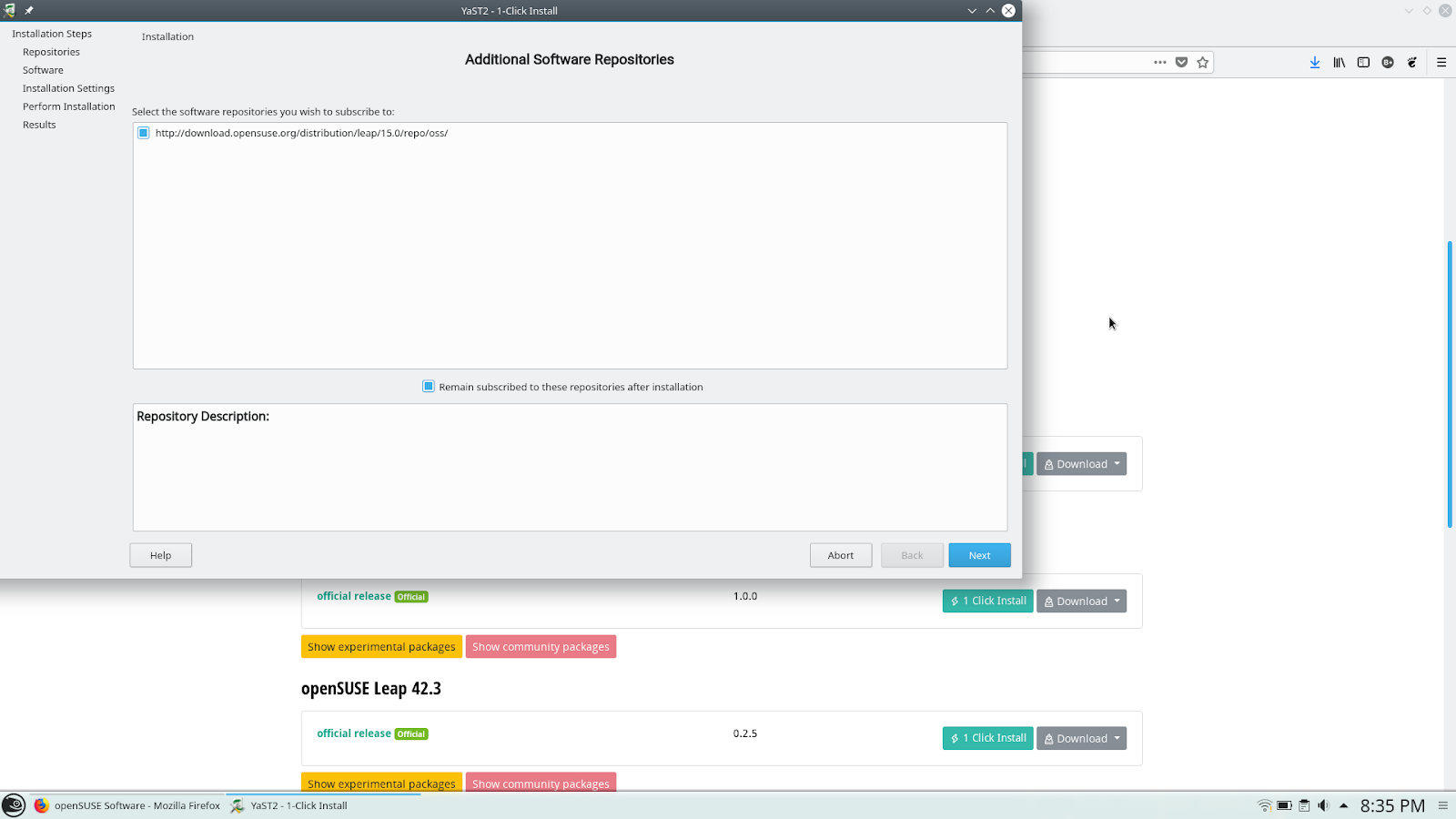
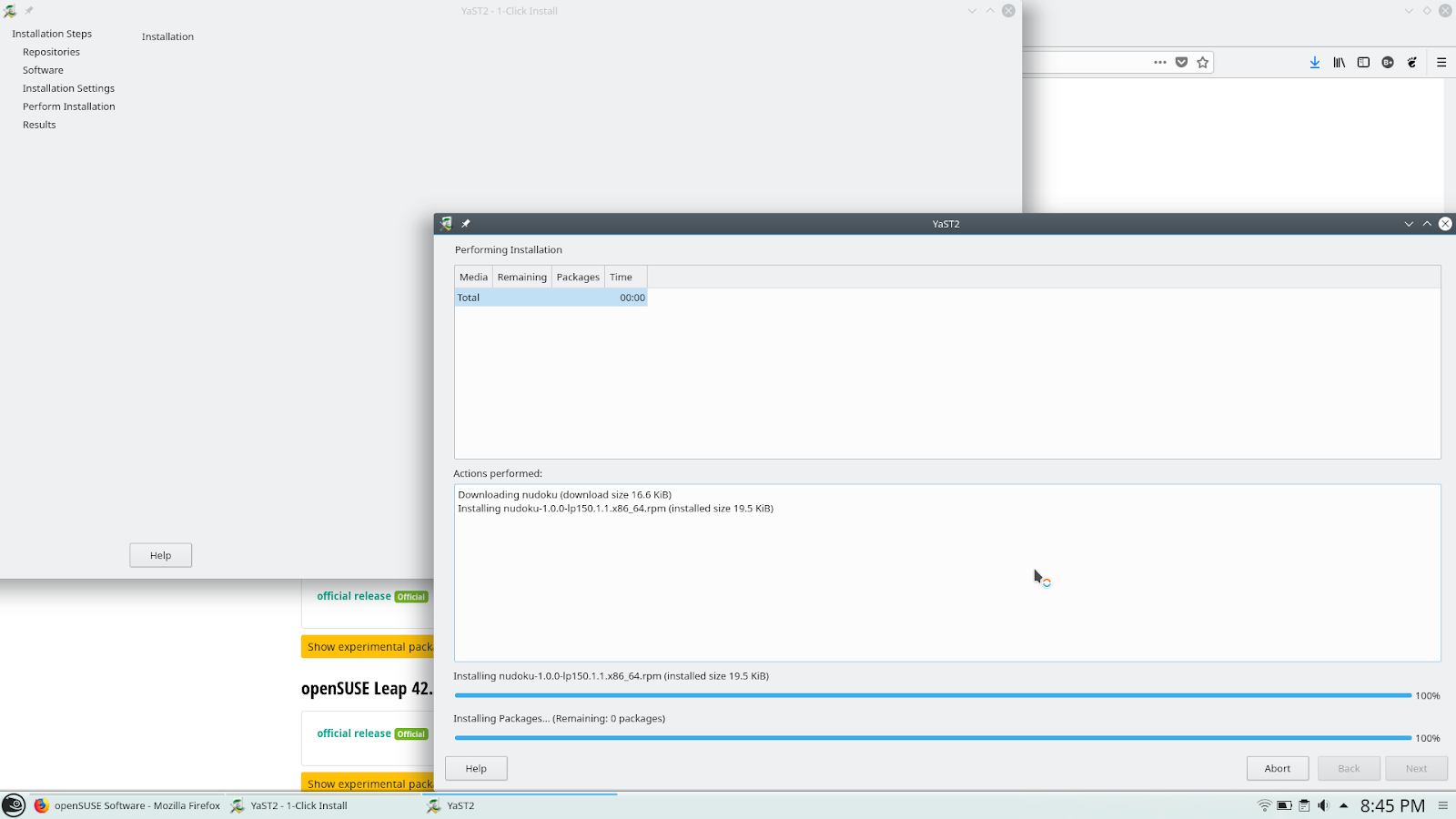
y seleccionar la opción 1-Click Install




Eighty Percent ownCloud
Recently the German computer magazin C’t posted an article about file sync solutions (“Unter eigener Regie”, C’t 23, 2018) with native sync clients. The article was pretty positive about the FOSS solution of… Nextcloud! I was wondering why they had not choosen ownCloud’s client as my feeling is that ownCloud is way more busy and innovative developing the desktop client for file synchronization together with community.
[caption id=“attachment_943” align=“alignright” width=“338”] Code lines changed as of Nov. 10, 2018[/caption]
That motivated me to do some investigation what the Nextcloud client actually consists of (at due date Nov. 10, 2018). I was looking into the NC desktop client git repoository grouped the numbers of commits of people that can be associated clearly to either the ownCloud- or Nextcloud project, or to “other communities” or machine commits. Since the number of commits could be misleading (maybe some commits are huge?) I did the same exercise with numbers of changed lines of code.
When looking on the changed lines, the first top six contributors to the Nextcloud desktop client are only active in the ownCloud project. Number seven is an “other community” contributor whos project the client was based on in the beginning. Number eight to eleven go to Nextcloud, with a low percentage figure.
[caption id=“attachment_944” align=“alignnone” width=“666”] # of commits to the Nextcloud Desktop repository as of Nov. 10, 2018[/caption]
As a result, far more than 80% of the changed lines of the Nextcloud client is actually work that ownClouders did (not considering the machine commits). In the past, and also today. The number would be even higher if it considered all the commits that go into the NC repo with an NC author, but are actually ownCloud patches where the original author got lost on the way by merging them through a NC branch. It looks like the Nextcloud developers were actually adding less commits to their client than all “other community” developers so far.
No wonder, it is a fork, you might think, and that is of course true. However, to my taste these numbers are not reflecting a “constructive” fork driving things forward when we talk about sync technology.
That is all fine, and I am proud that the work we do in ownCloud is actually stimulating two projects, with different focus areas nowadays. On the other hand, I would appreciate if the users of the technology would take a closer look to understand who really innovates, drives things forward and also fixes the nasty bugs in the stack. As a matter of fairness, that should be acknowledged. That is the motivation that keeps free software contributors busy and communities proud.
Minitube a YouTube Application on openSUSE
Ruby 2.6
Christmas is around the corner, but I couldn’t wait and I have already been trying the new Ruby release! :christmas_tree: :tada: Ruby 2.6, apart from efficiency improvements, which include the initial implementation of a just-in-time compiler, brings us many new cool features. Taking advance of the cold outside, let’s discover some of them! :snowflake:
Array#union & Array#difference
This Ruby version is particularly special to me because it includes my two new methods for the Array class, which I presented in my talks at EuRuKo and Brighton Ruby. Array#union and Array#difference are just readable alias for Array#| and Array#- respectively when only having two arrays:
[1, 3, 5, 7, 9].union([2, 3, 4, 5, 6]) #=> [1, 3, 5, 7, 9, 2, 4, 6]
[1, 1, 3, 3, 5, 7, 9].difference([3, 4, 7]) #=> [1, 1, 5, 9]
Array#union is also equivalent to combine Array#concat and Array#uniq (with the difference that concat modifies the array), but more readable.
But what is really important about those new methods, are the gains in efficiency when having more than two arrays.
We need some Benchmark now. :wink:
Using Array.new(num_elements) { Random.rand(20_100_000) } to create four arrays with 20,000,000, 30,000,000, 8,000,000 and 25,000,000 elements, those are the times for the different options:
-
(array1 | array2 | array3 | array4)~ 20.043 seconds -
array1.union(array2, array3, array4)~ 13.390 seconds -
array1.concat(array2, array3, array4).uniq~ 20.633 seconds
So please, stop using concat + uniq :pray: and let’s finally refactor some Ruby code! :tada:
Hash#merge with multiple parameters
Hash#merge and Hash#merge! were only able to merge two hashes at the same time.
With Ruby 2.6, we can merge as many hashes as we want at once, which provides an performance improvement similar to Array#union and Array#difference when merging several big hashes.
{ a: 1, b: 2 }.merge({ b: 3, c: 4 }, { d: 5 }) #=> {:a=>1, :b=>3, :c=>4, :d=>5}
Enumerable#to_h
Enumerable#to_h accepts a block which allows to do things that used to require iterating manually or prepending map, being consequently more efficient.
The following examples illustrate how it works:
(1..5).to_h { |x| [x, x % 3] } #=> {1=>1, 2=>2, 3=>0, 4=>1, 5=>2}
[1, 1, 2, 4].to_h { |x| [x, true] } #=> {1=>true, 2=>true, 4=>true}
Endless range
Ruby 2.6 introduces endless ranges like (1..), (74..) and (1..nil), whose size is infinite:
(1..).size => Infinity
It provides a nice alternative to [1..-1] to retrieve a slice up to the end of an Array or String:
[1, 2, 3, 4, 5][3..] => [4, 5]
'hello world'[6..] => "world"
It can also be combined with other methods to produce such elegant code:
# Selects from an array a range and from an element to the end
[0, 1, 2, 3, 4, 5, 6].values_at(1..3, 5..) #=> [1, 2, 3, 5, 6]

# Iterates over more than one array at the same time with index
[:a, :b, :c].zip([10, 37, 30], 1..) { |x1, x2, index| puts "#{index}: #{x1} #{x2}" }

# Multiples of π less than 100
(1..).lazy.map { |x| x * Math::PI }.take_while{ |x| x < 100 }.force
Last, it can be used to write infinit loops with index: (1..).each { |n| ... }, however we had already several alternatives to do this.
I personally find the following ones more readable:
1.step { |n| ... }
n = 1; loop { ...; n += 1 }
Note: Be careful when trying infinite ranges, as if you iterate over a range (for example with map) and forget lazy (or to stop it for instance with break), it may consume all the memory of your computer, as it happened to me. :sweat:
You can use ulimit to limit the memory available for the console where you execute irb when playing with it to avoid this (on Linux and macOS). :nerd_face:
Range#=== uses cover? instead of include?
Although Matz always aims to prioritize backwards compatibility, in this case performance has won.
Range#=== uses now cover? instead of include? to check if an object is an element of the range.
This is a reasonable but also breaking change, which modifies the behaviour of statements like:
(Date.today..(Date.today + 1)) === DateTime.now #=> true (false in Ruby 2.5)
Take into account that Range#=== is used in case, so the following example also change its behaviour:
case DateTime.now
when (Date.today..(Date.today + 1))
  'you are in Ruby 2.6!'
else
  'update to Ruby 2.6'
end
Proc#« & Proc#»
We can now compose procs both from left to right (>>) and from right to left (<<):
double = proc { |x| x * 2 }
increment = proc { |x| x + 1 }
(double >> increment).call(2) #=> 5
(double << increment).call(2) #=> 6
Procs with multiple arguments are also supported:
f = proc { |x, y| x + y }
g = proc { |x, y| [x * 2, -(y * 3)] }
(f << g).call(2, 1) #=> 1
Enumerator#+ and Enumerable#chain
Ruby 2.6 introduces Enumerator::Chain, a new class to represent a chain of enumerables that works as a single enumerator as well as methods to create chain of enumerables: Enumerable#chain and Enumerator#+:
chain = (1..3).chain([7, 8]) #=> #<Enumerator::Chain: [1..3, [7, 8]]>
chain.to_a #=> [1, 2, 3, 7, 8]

chain = (1..3).each + [7, 8] #=> #<Enumerator::Chain: [#<Enumerator: 1..3:each>, [7, 8]]>
chain.map { |x| x * 2 } #=> [2, 4, 6, 14, 16]
Dir#each_child & Dir#children
The Dir class had already the class methods children and each_child.
Ruby 2.6 add the equivalent instance methods:
d = Dir.new("/home/ana") #=> #<Dir:/home/ana/>
d.children #=> [".config", "bin", ".gitignore", ".vimrc", "github", "cat_pictures", ".bashrc", "VirtualBox VMs"]
non-ASCII constant names
Constant names can now start with non-ASCII capital letters. I am not sure how useful this is, but you can do funny things like:
class Σ♥²; end
In few days, you can update to Ruby 2.6 and have fun too! :wink: