
 Member
 hollowman
Deploy a Kubernetes Cluster based on Calico and openSUSE Kubic
Introduction
openSUSE Kubic is a certified Kubernetes Distribution based on openSUSE MicroOS. Calico is an open-source project that can be used by Kubernetes to deploy a pod network to the cluster. In this blog, I will show you how to deploy a Kubernetes Cluster based on Calico and openSUSE Kubic by a Virtual Machine. We are going to deploy a cluster that has a master and a worker.
I was intended to use Oracle VM VirtualBox. However, it turned out that on my machine, when I tried to run kubeadm at openSUSE Kubic in VirtualBox, it always stuck at watchdog: BUG: soft lockup - CPU#? stuck for xxs! with CPU usage around 100%. As a result, I switched to VMware Workstation Pro and the issue got solved. Guess it’s caused by some bugs of VirtualBox.
Steps
Create the Virtual Machine and Install openSUSE Kubic
Here I won’t explain how to do these things but share some important things to note, just refer to their documents if you don’t know or have any questions.
- Here is my configuration for the Virtual Machine. Recommend that your host machine has a memory that is larger than 8GB so that more than 3GB of memory can be assigned to the Virtual Machine for it to run smoothly. In order for the Virtual Machines to be connected to each other, and also connect to the Internet, you can set the Network Adapter to be
Bridged (Automatic).

- For openSUSE Kubic Installation, remember to choose
kubeadm Nodewhen it comes to System Role, as it will deploy a Weave pod network cluster instead of Calico if you choose to use Kubic.

- I suggest that you can install the openSUSE Kubic in one Virtual Machine, later after successful installation, clone that Virtual Machine, assign one as master and another worker. Remember to do a full clone.

Configuring the Master
When you boot into the master Virtual Machine, you can see your IP address in the notification part. In my case, it’s 192.168.1.14. Take note of that.

For the convenience of copy and paste commands, we can use SSH to log into the system. To configure that, first, log into the system with root account. Second, execute vi /etc/ssh/sshd_config.d/10-enable-root-password.conf, type i to insert, write the following into the file:
PasswordAuthentication yes
PermitRootLogin yes
This will enable SSH root password login, although it’s not recommended if you are in production. When editing is finished, press [ESC] then type :wq to save and exit.
Kubeadm Init
Run kubeadm config images pull to pull the container images required for Kubernetes.

You can also specify the --image-repository if, in your location, registry.opensuse.org downloading speed is too slow. In my case (in China) I’ll use Aliyun to speed up: kubeadm config images pull --image-repository registry.aliyuncs.com/google_containers

Then run kubeadm init --apiserver-advertise-address=<Your Master IP Address> --pod-network-cidr=192.168.0.0/16, replace <Your Master IP Address> with the IP address you just noted. If you specified the --image-repository in the last step, also append that to this command.


Wait for it to finish, remember to take notes of the worker nodes joining command.
Execute export KUBECONFIG=/etc/kubernetes/admin.conf in your shell for the kubectl to work.
Deploy Calico
Get the latest copy of the calico configuration yaml file by curl -O https://docs.projectcalico.org/manifests/calico.yaml.
Change the path to install the FlexVolume driver by sed -i 's#/usr/libexec/kubernetes/kubelet-plugins/volume/exec#/var/lib/kubelet/volume-plugin#g' calico.yaml as in Transactional (Atomic) systems /usr/libexec/kubernetes is read-only.
Finally, apply the yaml file by kubectl apply -f calico.yaml.

Wait for all the pods to be available.
watch kubectl get pods --all-namespaces

You can check the Events of the pod to get the error messages if you are waiting too much time on a specific pod: kubectl describe pods -n kube-system <Pod Name>.
Configuring the Worker
Start the worker Virtual Machine, login as root, change the host name as it can’t be the same with the master: hostnamectl set-hostname 'worker'.
Finally, execute the worker nodes joining command just noted, ignoring the hostname could not be reached warnings since we didn’t and don’t need to configure the DNS.

Then wait for the worker to be available, Done!


Release Manager Gives Community Update On Desktop Environment
The openSUSE community received cheerful news today after Leap release manager Luboš Kocman updated the community on the desktop environment expected for the next minor release.
Leap 15.4, which is in the alpha phase of the software release cycle, is planned to have updated desktop environments.
Kocman’s email “KDE Plasma 5.24 LTS will be in Leap 15.4” informed contributors on the Project’s Factory mailing list that all the “dependencies are already submitted” to SUSE Linux Enterprise. Leap is built with the same source code and exact same binary packages as SLE.
“We’ve received the green light,” Kocman wrote.
The feature is being tracked as issue #7.
Currently, the Long-Term-Support release of Plasma 5.24 is in it’s beta release cycle and will likely arrive in openSUSE Tumbleweed soon.
Based on GNOME’s upstream schedule and the roadmap for Leap, GNOME 41.x is expected to be in the release. The versions for LXQt, LXDE, Cinnamon, Mate, XFCE, sway have yet to be finalized, according to issue #9, which is tracking the Desktop Environments’ latest version for the forthcoming version Leap.

Booting custom Azure VM images
This blog post ist about uploading a custom VM disk image to the Azure cloud and create a VM to boot from this image.
If you just want to upload a image, checkout the az_upload_img bash script at the very end of this post for a easy-to-use script without the need to dive into details.

Unboxing Dell XPS 13 - openSUSE Tumbleweed alongside preinstalled Ubuntu
I received a new laptop for work - a Dell XPS 13. Dell has been long famous for offering certain models with pre-installed Linux as a supported option, and opting for those is nice for moving some euros/dollars from certain PC desktop OS monopoly towards Linux desktop engineering costs. Notably Lenovo also offers Ubuntu and Fedora options on many models these days (like Carbon X1 and P15 Gen 2).


Obviously a smooth, ready-to-rock Ubuntu installation is nice for most people already, but I need openSUSE, so after checking everything is fine with Ubuntu, I continued to install openSUSE Tumbleweed as a dual boot option. As I’m a funny little tinkerer, I obviously went with some special things. I wanted:
- Ubuntu to remain as the reference supported OS on a small(ish) partition, useful to compare to if trying out new development versions of software on openSUSE and finding oddities.
- openSUSE as the OS consuming most of the space.
- LUKS encryption for openSUSE without LVM.
- ext4’s new fancy ‘fast_commit’ feature in use during filesystem creation.
- As a result of all that, I ended up juggling back and forth installation screens a couple of times (even more than shown below, and also because I forgot I wanted to use encryption the first time around).
First boots to pre-installed Ubuntu and installation of openSUSE Tumbleweed as the dual-boot option:
(if the embedded video is not shown, use a direct link)
Some notes from the openSUSE installation:
- openSUSE installer’s partition editor apparently does not support resizing or automatically installing side-by-side another Linux distribution, so I did part of the setup completely on my own.
- Installation package download hanged a couple of times, only passed when I entered a mirror manually. On my TW I’ve also noticed download problems recently, there might be a problem with some mirror I need to escalate.
- The installer doesn’t very clearly show encryption status of the target installation - it took me a couple of attempts before I even noticed the small “encrypted” column and icon (well, very small, see below), which also did not spell out the device mapper name but only the main partition name. In the end it was going to do the right thing right away and use my pre-created encrypted target partition as I wanted, but it could be a better UX. Then again I was doing my very own tweaks anyway.
- Let’s not go to the details why I’m so old-fashioned and use ext4 :)
- openSUSE’s installer does not work fine with HiDPI screen. Funnily the tty consoles seem to be fine and with a big font.
- At the end of the video I install the two GNOME extensions I can’t live without, Dash to Dock and Sound Input & Output Device Chooser.
openSUSE Conference Design Contest Begins
openSUSE begins an image design contest for the openSUSE Conference 2022 today. The design will be used for the conference poster and t-shirt.
Submitted images must meet certain requirements listed below and on the contest wiki page. Designers are encouraged to use open-source graphic editing software like Inkscape, Gimp or Krita.
Submitted designs should be licensed under CC-BY-SA 4.0 and allow everyone to use it without attribution. Designs submitted must be original and should not include any third party materials conflicting with CC-BY-SA 4.0.
The design contest has the following requirements:
- The image(s) design must be an .svg format
- The image(s) needs to be emailed to ddemaio (@) opensuse.org with the subject “oSC22 Design Contest”
- The image(s) design must be a size that is able to be printed at the same size on a small and 3XL t-shirt. This means that designs can not be printed at the bottom, top or edges of the t-shirt and can not wrap around the t-shirt
- Must include the words openSUSE Conference in the design
- The image should be added to the contest wiki page as a .png so people can view the design
Design Guidelines:
- Avoid using thin lines
- Avoid using gradients
- Limit design image to 2 to 3 colors
- Designs should abide by the branding guidelines and guidelines for the use of the logo in the design
The contests begins today. The deadline for the contest is March 31 at 23:59 UTC. The winning design will be announced shortly after the deadline.

Sending logs to Elastic Cloud using syslog-ng
The Elastic Cloud is a service by Elastic providing Elasticsearch and related services in an easy-to-use package. Last year someone reported an issue that it does not work properly with syslog-ng. I did not have time to investigate at that time. Now I started a free trial and soon my log messages from syslog-ng started to appear in Kibana in Elastic Cloud.
From this blog you can learn how to configure syslog-ng for the Elastic Cloud. I go with the most basic settings: exploring Elastic Cloud and syslog-ng Elasticsearch features are both out of scope, as both are very well documented on their respective websites.
You can read my blog at https://www.syslog-ng.com/community/b/blog/posts/sending-logs-to-elastic-cloud-using-syslog-ng

syslog-ng logo
openSUSE Gains New Hardware
The openSUSE Project added an enormous amount of compute power for its projects this past year thanks to SUSE, which is the project’s main sponsor. The added hardware will help with open-source development.
The project now uses around a thousand build workers for x86, which will help with creating and distributing software for major Linux distributions in the Open Build Service.
Multiple other architectures were added to OBS; a few months ago, the project added five new POWER9 machines, which are valued at roughly $80,000 per machine. The additional machines will put PowerPC back to a level consistent with the build power of OBS’ arm machines. PowerPC wasn’t the only IBM addition to OBS. In August, the project added an additional mainframe; an IBM LinuxONE System was added as loaner hardware. Matched with a z13 mainframe computer, this gives OBS extensive build power for s390. A new IBM LinuxONE System without storage starts at about $135,000, so IBM is also investing a lot in the utility of openSUSE and community based open-source development. One thing for sure is that users of the Open Build Service will experience some high-performance building after receiving compute assets benefiting open-source development.
In addition, SUSE sponsored two new arm servers that are the first of its specific hardware type in Germany. SUSE also contributed an additional x86-System for rsync.opensuse.org, which was deployed in the fall. The enhancement of the rsync.opensuse.org system with its 42T direct-attached storage makes it possible to host a copy of all download.opensuse.org content; this immediately helped openSUSE Tumbleweed users across the globe since mirrors replicate package updates to end-point users of the rolling release. Thanks to another sponsor, IP-Exchange, rsync.opensuse.org is running in an external CoLocation Datacenter near Nuremberg.
The generosity to openSUSE extended not only from companies, but through individuals as well. Coly Li, who is working on bcache in the kernel, donated two 8TB SSDs for rsync.opensuse.org; bcache is a block cache that allows people to use an SSD as a fast read/write cache for another block device. A big thank you to Li and all the companies who are for investing in the openSUSE Project.

Linux User Group of Mauritius meets Luboš Kocman
We had a meetup in the conference room of Flying Dodo, Bagatelle, on Saturday 22 January 2022. Luboš Kocman, the Release Manager for openSUSE, who came to Mauritius on vacation was kind enough to spare a few hours and meet us.
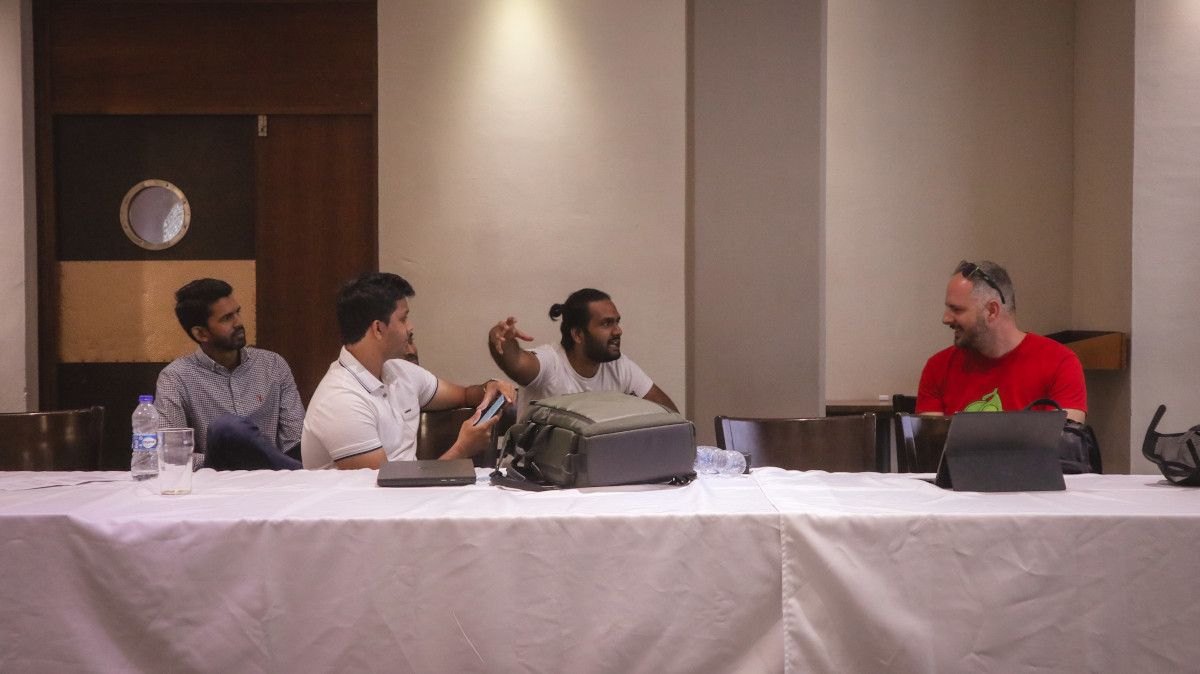
Nirvan Pagooah, the Secretary of the Linux User Group of Mauritius, made the announcement of the meetup on the LUGM discussion list. Due to sanitary restrictions imposed by the government we could not make the meetup public. We had to keep it a private event with a limited number of attendees.
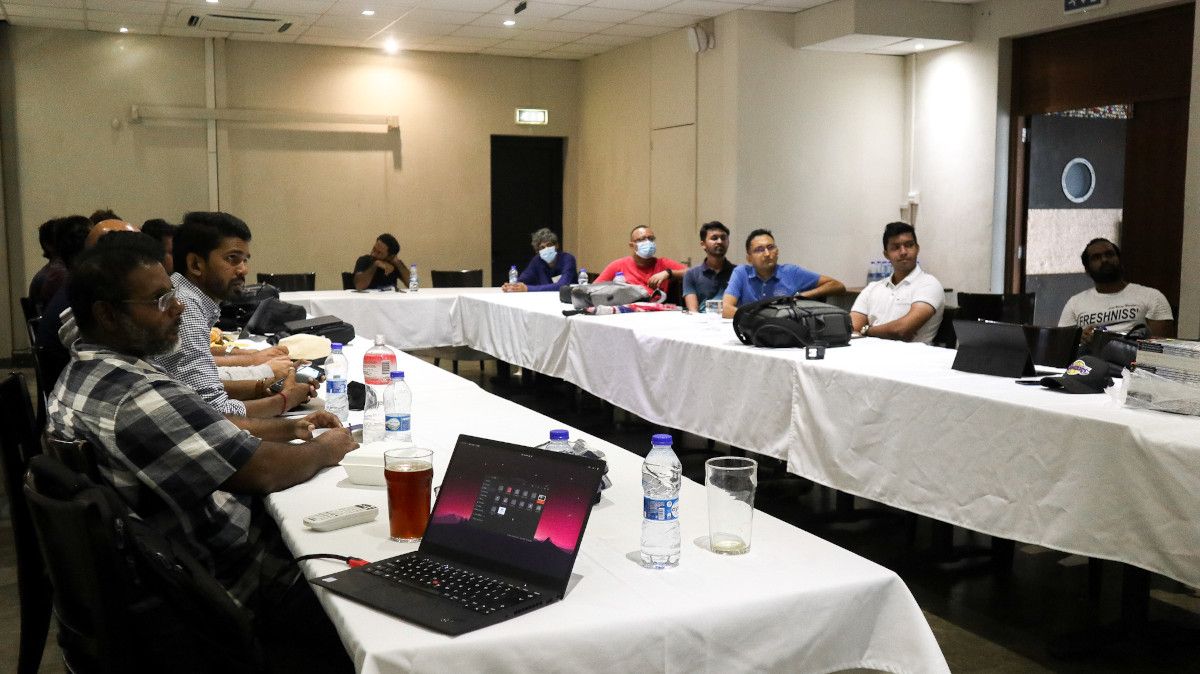
Luboš told us about some new things that will be coming to Leap in the future. He explained his role as a Release Manager for openSUSE and how the community as a whole is regarded as a SUSE partner. He explained the relationship between SUSE and the openSUSE community. He also talked about SUSE Liberty Linux, a new offering by SUSE which offers support for mixed Linux environment, like RHEL, CentOS and SLES.
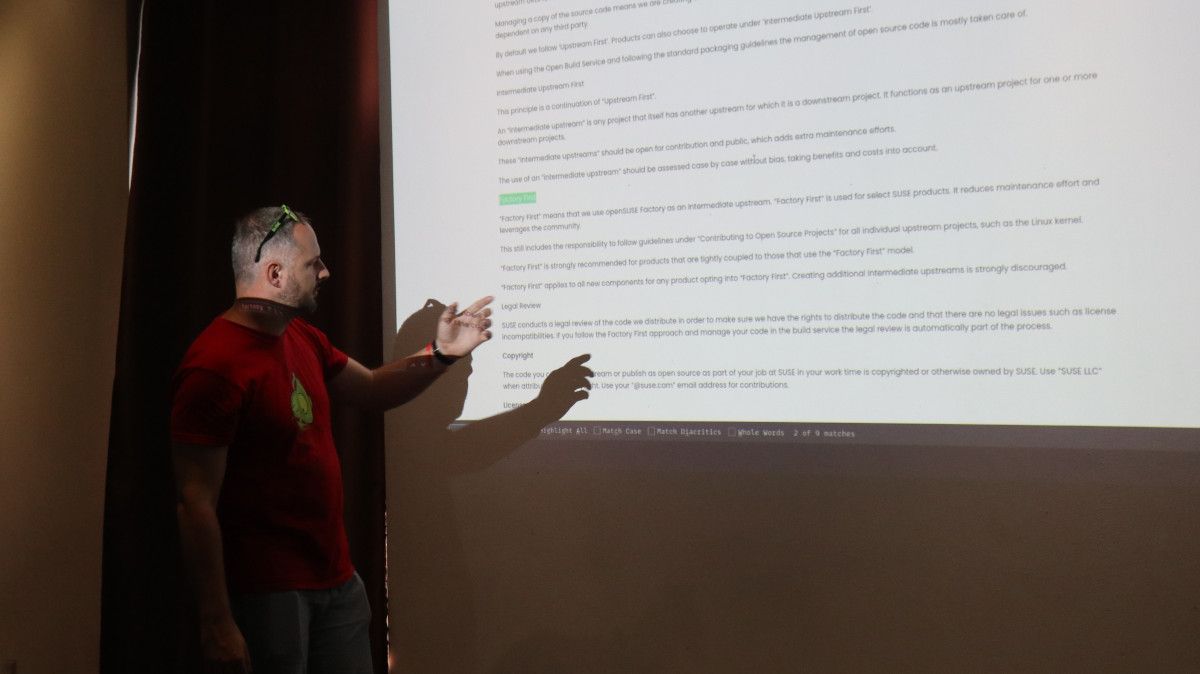
Luboš showed us code.opensuse.org/leap/features/issues where community members can request the features they want most in openSUSE Leap. Hence, contributing to making openSUSE distributions better.
I asked whether the feature requests for Leap won't make it such that Leap and Tumbleweed will have different features. Luboš opened opensource.suse.com/legal/policy and explained that the contributions land in Factory first. He talked about the binary compatibility between Leap & SLES and users can test on Leap then migrate to SLES at total ease.
We talked about contributing to open source. Luboš mentioned non-code contributions and how easy it is to contribute to openSUSE. Ajay Ramjatan, one of the founders and the current President of LUGM, mentioned that for many years this is what he's been telling Linux & FOSS enthusiasts, that contributions can be in any form, like designs, translations, etc.
On that note Avinash Meetoo added that the Mauritian Creole (kreol morisien) can be an interesting FOSS project if we would consider adding Kreol support to openSUSE. He mentioned that there are people who are well versed on the topic but might not be techie, that is where we can work together and make it happen.
Renghen Pajanilingum shot a few tech questions, from containers to programming languages & having to compile software using different versions of packages. I know Renghen does not like to spend time fixing the distro problems because he'd rather spend that on actual work. However, he is one of the several Linux people that I have tried to lure to the green side. 😁 Not there yet but I am hopeful that we'll paint his laptop green one day.
I cannot end this blog without thanking Joffrey Michaïe for sponsoring a round of beer 🍺 (and other drinks) for everyone.
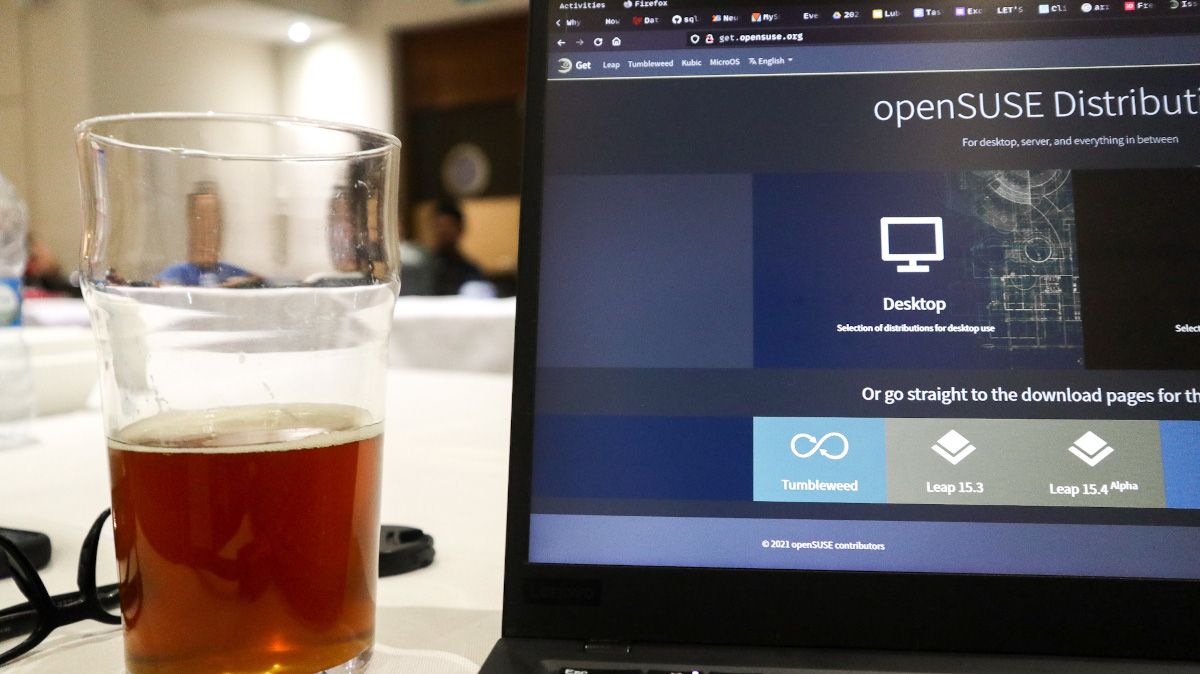
At around 5 p.m the meetup ended.
Some of us stayed at Flying Dodo for more beer and to have dinner. Finally, we went to Mugg & Bean for a coffee and continued chatting about work, life and the balance. At 8:30 p.m, the hotel's taxi came for Luboš.
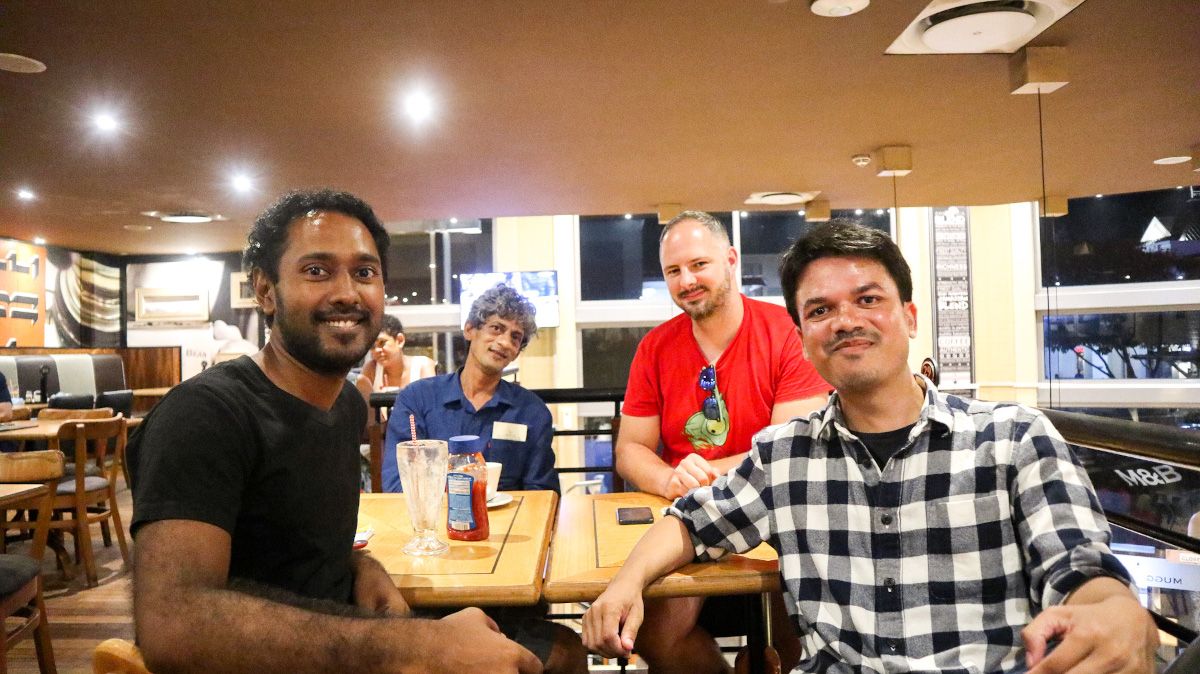
Hoping to be able to meet and greet geekos again.

PocketBook InkPad X – A Review
A couple of months ago my Jolla tablet was getting close to retirement, and I was looking for alternatives. The PineTab (and PineNote for that matter) wasn’t really attainable. And iOS and Android tablets don’t impress me much.
Since I was mainly using my tablet for reading my newspaper online and other reading, such as PDFs, I started looking at E-ink devices. More than ten years ago I had given e-book readers a try, without much success, the 6″ screen was too small for reading documents, the navigation was very cumbersome and the DRM situation with e-books was horrendous. But I did some research on the current situation and decided to get the 10.3″ PocketBook InkPad X. And so far I’m quite happy with it.
The main advantages of an E-ink device over a tablet is the eye-friendly E-ink screen. It’s very low weight even for a 10.3″, it’s significantly lighter than the 8″ Jolla tablet (300 g vs. 385 g). And the battery life is excellent, with about 30-45 minutes of reading per day I only have to charge it once per month – and this is with the backlight and Wi-Fi turned on.
Of course there are some limitations also. The update speed of the E-ink screen is very slow, compared to your general purpose tablet, so it’s not really a replacement. It’s a reading device only, period. The PocketBook doesn’t come with an app store where you can install additional apps, you’ll need to make do with the basic, default apps. I’ll go through the most important ones briefly below.

The web browser
The web browser is basic but it works quite well. Certainly well enough for me to read my daily newspaper online and to read Danish library e-books on the browser based system ereolen.dk. My only gripe with it, is that I’d wish there was a touchscreen gesture to page down, so you wouldn’t need to use the hardware buttons, like the books and document reader app has. The browser also works fine for text heavy web sites such as Wikipedia, but don’t even think about using the PocketBook for your general web browsing.
Documents and Books
I was really pleased to learn that these days e-readers have much better handling of PDF documents than last time I dappled with them. You can crop the margins and it handles columned documents well, so you can use screen real estate effectively and with the 10.3″ screen it comes quite close to a printed A4 version of the document.
As for books the PocketBook supports a wide range of formats and comes with the Legimi bookstore integrated, however that only has Polish and German books as far as I can tell, so it is of limited use. But these days you can buy e-pub format e-books on most online bookstores, and usually they only have watermark DRM. If you come by some books with more nasty DRM, supposedly you can transfer them to the PocketBook without the need for MS Windows-only Adobe Digital Editions, but I haven’t actually tested this feature.
You can easily transfer documents and books to the PocketBook via USB mass storage (USB-C), via an e-mail service or via DropBox.
RSS Reader
The PocketBook also comes with an RSS feed reader, however this works in a somewhat unusual way. What it does is, it downloads all your feeds and full articles to a flat local file for offline reading. Of course this is pretty smart in many cases. But for me personally it isn’t very useful, the feeds I subscribe to such as planet.opensuse.org, planetkde.org, boxingscene.com etc. tend to have a lot of new articles every day, and I just want to quickly browse the headlines and read a few select articles, and unfortunately this use-case isn’t really feasible with the PocketBook RSS reader.
