
 Member
 federico1
Moving librsvg's documentation to gi-docgen
Librsvg's documentation tooling is pretty ancient. The man page for
rsvg-convert is written by hand in troff, and the C library's
reference documentation still uses the venerable gtk-doc.
As part of the modernization effort, I have turned the man page into a reStructuredText document, and the C API documentation into gi-docgen. This post describes how I did that.
You can read librsvg's new documentation here.
From man to rst
The man page for rsvg-convert was written in troff, which is pretty cumbersome. The following gunk defines a little paragraph and a table:
.P
You can also specify dimensions as CSS lengths, for example
.B 10px
or \"
.BR 8.5in .
The unit specifiers supported are as follows:
.RS
.TS
tab (@);
l lx.
px@T{
pixels (the unit specifier can be omitted)
T}
in@T{
inches
T}
cm@T{
centimeters
T}
mm@T{
millimeters
T}
pt@T{
points, 1/72 inch
T}
pc@T{
picas, 1/6 inch
T}
.TE
Yeah, nope. We have better tools now like rst2man, which take a
reStructuredText document — fancy plain text — and turn it into a
troff man page. I just had to use a command line like
pandoc --from=man --to=rst rsvg-convert.1 > rsvg-convert.rst
and then tweak the output a little:
You can also specify dimensions as CSS lengths, for example ``10px`` or
``8.5in``. The unit specifiers supported are as follows:

   == ==========================================
   px pixels (the unit specifier can be omitted)
   in inches
   cm centimeters
   mm millimeters
   pt points, 1/72 inch
   pc picas, 1/6 inch
   == ==========================================
Much better, right?
I've learned that Pandoc is awesome. Pure magic, highly recommended.
I hope to integrate the man page into a prettier user manual for rsvg-convert at some point. It's no longer a trivial program, and its options allow for some interesting combinations that could use some illustrations and generally more detail than a man page.
From gtk-doc to gi-docgen
I highly recommend that you read Emmanuele's initial description of gi-docgen, which includes the history of gtk-doc, a description of its shortcomings, and how gi-docgen is a simpler tool that leverages the fact that GObject Introspection already slurps documentation from source code and so obviates most of gtk-doc already.
Summary of how gi-docgen works:
-
The C code has documentation comments in Markdown format, with annotations for GObject Introspection. (Note: librsvg has no C code for the library, so those documentation comments actually live in the
.hheader files that it installs for the benefit of C programs.) -
The library gets compiled and introspected. In this step,
g-ir-scanner(1)extracts annotations and documentation from the source code and puts them in theMyLibrary.girXML file. -
You write a small configuration file to tell gi-docgen about the structure of your documentation. Unlike gtk-doc, you don't need to write a DocBook skeleton or anything complicated. Stand-alone chapters can be individual Markdown files, and the configuration file just lists them in the order you want them to appear. Gi-docgen automatically includes all the classes, types, functions, etc. from your code into the docs.
-
... it runs very fast. Gtk-doc was always slow due to xsltproc and complicated stylesheets to turn a DocBook document into browsable HTML documentation. Gi-docgen is much leaner.
Doing the conversion
Unlike the mostly automatic pandoc step for the man page, I
converted the documentation comments to from DocBook to Markdown by
hand. For librsvg this took me a moderately caffeinated afternoon;
it's a little fiddly business, but nothing out of this world.
You can look forward to having good error messages from gi-docgen when something goes wrong, unlike gtk-doc, whose errors I always tended to ignore until the last minute because they were so hard to discern and diagnose.
Some hints:
-
DocBook hyperlinks that looked like
<ulink url="blahblah.html">blah
  blah</ulink>
get turned into[blah blah](blahblah.html)Markdown. -
Gi-docgen allows references to methods like
[method@Gtk.Button.set_child]- see the linking documentation for other kinds of links. -
You can get progressively fancy with introspection attributes.
-
There is no direct mapping between DocBook's extremely granular semantic markup and Markdown conventions, so for example I'd substitute both
<literal>foobar</literal>and<filename>/foo/bar</filename>for `foobar` and `/foo/bar`, respectively (i.e. the text I wanted to show, between backticks, to indicate verbatim text).
Librsvg seemed to include verbatim text blocks in gtk-doc delimited like this:
/**
 * blah_blah():
 *
 * For example:
 *
 * |[
 * verbatim text goes here
 * ]|
 *
 * Etc. etc.
 */
Those can go between ``` triple backticks in Markdown:
/**
 * blah_blah():
 *
 * For example:
 *
 * ```
 * verbatim text goes here
 * ```
 *
 * Etc. etc.
 */
Errors I found
My first manual run of gi-docgen looked like this:
$ gi-docgen check Rsvg-2.0.gir
INFO: Loading config file: None
INFO: Search paths: ['/home/federico/src/librsvg/gi-docgen/_build', '/home/federico/.local/share/gir-1.0', '/home/federico/.local/share/flatpak/exports/share/gir-1.0', '/var/lib/flatpak/exports/share/gir-1.0', '/usr/local/share/gir-1.0', '/usr/share/gir-1.0']
INFO: Elapsed time 1.601 seconds
WARNING: Symbol 'Rsvg.HandleFlags' at <unknown>:0 is not documented
WARNING: Return value for symbol 'Rsvg.Handle.get_dimensions_sub' is not documented
WARNING: Return value for symbol 'Rsvg.Handle.get_geometry_for_element' is not documented
WARNING: Return value for symbol 'Rsvg.Handle.get_geometry_for_layer' is not documented
WARNING: Return value for symbol 'Rsvg.Handle.get_position_sub' is not documented
WARNING: Return value for symbol 'Rsvg.Handle.render_document' is not documented
WARNING: Return value for symbol 'Rsvg.Handle.render_element' is not documented
WARNING: Return value for symbol 'Rsvg.Handle.render_layer' is not documented
WARNING: Return value for symbol 'Rsvg.Handle.set_stylesheet' is not documented
WARNING: Symbol 'Rsvg.Handle.base-uri' at <unknown>:0 is not documented
WARNING: Symbol 'Rsvg.Handle.dpi-x' at <unknown>:0 is not documented
WARNING: Symbol 'Rsvg.Handle.dpi-y' at <unknown>:0 is not documented
WARNING: Symbol 'Rsvg.cleanup' at include/librsvg/rsvg.h:447 is not documented
WARNING: Symbol 'Rsvg.DEPRECATED_FOR' at include/librsvg/rsvg.h:47 is not documented
WARNING: Parameter 'f' of symbol 'Rsvg.DEPRECATED_FOR' is not documented
The warnings like WARNING: Return value ... is not documented are easy
to fix; the comment blocks had their descriptions, but they were
missing the Returns: part.
The warnings like WARNING: Symbol 'Rsvg.Handle.base-uri' at <unknown>:0 is not documented are different. Those are GObject properties, which previously were documented like this:
/**
 * RsvgHandle::base-uri:
 *
 * Base URI, to be used to resolve relative references for resources.  See the section
 * "Security and locations of referenced files" for details.
 */
There is a syntax error there! The symbol line should use a single
colon between the class name and the property name,
e.g. RsvgHandle:base-uri instead of RsvgHandle::base-uri. This
one, plus the other properties that showed up as not documented, had
the same kind of typo.
The first warning, WARNING: Symbol 'Rsvg.HandleFlags' at <unknown>:0
is not documented, turned out to be that there were two
documentation comments with the same title for RsvgHandleFlags, and
the second one was empty — and the last one wins. I left a single one
with the actual docs.
Writing standalone chapters
Librsvg had a few chapters like doc/foo.xml, doc/bar.xml that were
included in the reference documentation; those were a DocBook
<chapter> each. I was able to convert them to Markdown with
pandoc individually, and then add a Title: heading in the first
line of each .md file — that's what gi-docgen uses to build the
table of contents in the documentation's starting page.
Title: Overview of Librsvg

# Overview of Librsvg

Librsvg is a library for rendering Scalable Vector Graphics files (SVG).
Blah blah blah blah.
Build scripts
There are plenty of examples for using gi-docgen with meson; you can look at how it is done in gtk.
However, librsvg is still using Autotools! You can steal the following bits:
Publishing the documentation
Gtk-doc assumed that magic happened somewhere in
developer.gnome.org to generate the documentation and publish it.
Gi-docgen assumes that your project publishes it with Gitlab pages.
Indeed, the new documentation is published there — you can see how
it is generated in .gitlab-ci.yml. Note that there are
two jobs: the reference job generates gi-docgen's HTML in a
public/Rsvg-2.0 directory, and the pages job integrates it with
the Rust API documentation and publishes both together.
Linking the docs to the main developer's site
Finally, librsvg's docs are linked from the GNOME Platform
Introduction. I submitted a merge request to the
developer-www project to update it.
That's all! I hope this is useful for someone who wants to move from gtk-doc to gi-docgen, which is a much more pleasant tool!

openSUSE 15.2 Reached End-of-Life
Users of openSUSE Leap 15.2 will not be receiving security and maintenance updates as the version is now EOL (end of life) as of Jan. 4, 2022.
EOL ends updates for the operating system minor version. Those who continue to use EOL versions will be exposed to vulnerabilities because these discontinued versions no longer receive security and maintenance updates. This is why users need to upgrade to the newer minor release; openSUSE Leap 15.3!
Users can upgrade from 15.2 to 15.3 by downloading the iso image or following the instructions on how to upgrade found on https://en.opensuse.org/SDB:System_upgrade.
For new installations, download openSUSE Leap 15.3 images at https://get.opensuse.org/leap/. The Leap 15.3 release is supported with security patches and updates and is expected to reach its EOL in November 2022. Leap 15.4 is expected to be released in June 2022, according to the roadmap.
Users interested in changing from the point release version to the rolling version can move to Tumbleweed, which provides large daily and frequent updates of all software in the official repositories.
Download it from here and the best way to do the change is to reinstall your system, so take a backup of your /home directory and any configuration files you want to save ( f.e. /etc /var ).

Linux Saloon, the Next Generation of BDLL

Cost of Attrition
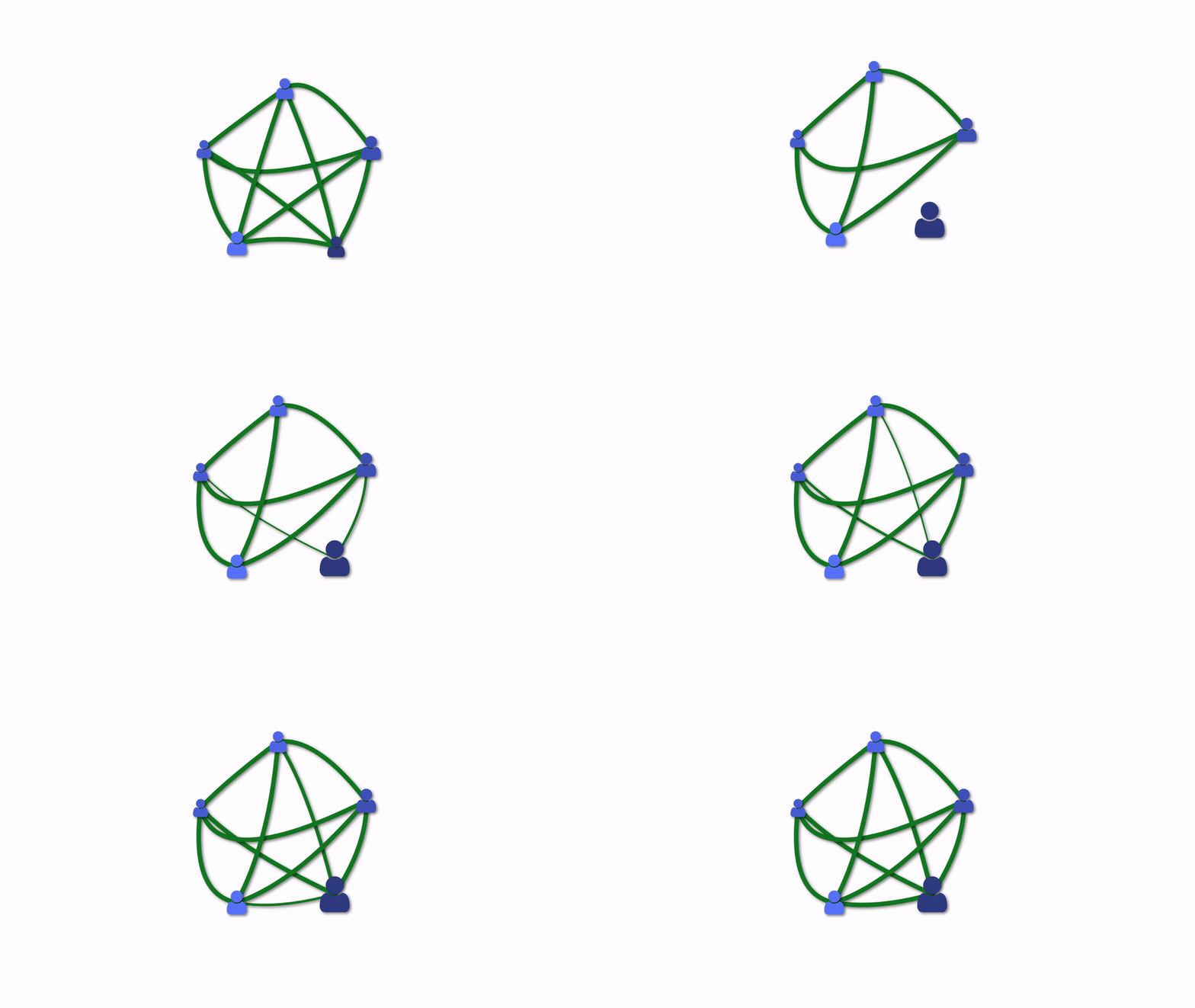
What if we could visualise the cost of attrition?
Here’s a team. Someone leaves. We hire a replacement.
We get lucky and manage to find someone more skilled. Looks like we’re better off?
Really when someone leaves we lose all the relationships they had with the rest of the team as well. The team is a diminished more like 40% than the apparent 20% by their loss. It takes longer to rebuild the team than is apparent. Relationships take time.
It’s worse than that. The team probably wasn’t maximally-connected to start with. And it’s not just the interpersonal relationships that matter but the knowledge of tech and domain. A departure can break teams apart and organisational knowledge needs to be rebuilt.
Your organisation probably has multiple teams. Someone leaving your team reduces its connectedness to the rest of the organisation. Increasing the time to recover even with a swift new hire.
Internal mobility is less of a hit to the team’s connectedness due to pre-existing relationships. It also increases the whole organisations resilience by establishing more inter-team relationships.
Teams following the Isolated-individual model of work… (as opposed to collaborative work like pairing and collective ownership) …are particularly brittle & significantly impacted by staff churn.
How would we think about retention if we could visualise the full impact of someone leaving our team?
Beware looking at teams on a spreadsheet. If you have a hiring rate matching attrition rate it might look like the team health is maintained. It’s probably not.
Tracking tenure by team and average tenure in team can be interesting proxy indicators. Teams can be growing but have dropping tenure.
Bear in mind “All models are wrong, some are useful”. Sometimes teams benefit more from fresh ideas than the value of relationships lost in a change. Sometimes gaining someone who helps everyone else in the team form connections at a faster rate can accelerate the team.
This post is also available as a Twitter Thread
Here’s a team. Someone leaves.
— Benji Weber (@benjiweber) January 9, 2022
We hire a replacement.
We get lucky and manage to find someone more skilled.
Looks like we’re better off? [1/10] pic.twitter.com/nSE8wJxElo
The post Cost of Attrition appeared first on Benji's Blog.
Installing the latest syslog-ng on Ubuntu and other DEB distributions
The syslog-ng application is part of all major Linux distributions, and you can usually install syslog-ng from the official repositories. If you use just the core functionality of syslog-ng, use the package in your distribution repository (apt-get install syslog-ng), and you can stop reading here. However, if you want to use the features of newer syslog-ng versions (for example, send log messages to MQTT or Apache Kafka), you have to either compile the syslog-ng from source, or install it from unofficial repositories. This post explains you how to do that.
Read the rest of my blog at https://www.syslog-ng.com/community/b/blog/posts/installing-the-latest-syslog-ng-on-ubuntu-and-other-deb-distributions

syslog-ng logo

Virtual machine for my courses
For my courses ofwork in Linux command line not only for MetaCentrum and with molecular data in R I provide VirtualBox image, which allows to run complete desktop Linux (in this case openSUSE Leap) with all preinstalled applications needed for both courses. It's easy way how to get fully working Linux to play with. It requires at least bit powerful notebook, e.g. at least quad-core with at least 8 GB RAM, but more is better.
My polyamorous relationship with operating systems: FreeBSD, openSUSE, Fedora & Co.
Recently, I have posted blogs and articles about three operating systems (or rather OS families) I use, and now people ask which one is my “true” love. It’s not easy, but I guess, the best way to describe it is that both FreeBSD and openSUSE are true ones, and Fedora & Co. is a workplace affair :-) This is why I’m writing that it is a polyamorous relationship. Let me explain!
My first ever opensource operating system was FreeBSD. I got an account on the faculty server in 1994, a FreeBSD 1.X system. A few months later, I got the task to install Linux and a year later I ended up using S.u.S.E. Linux on the second faculty server. Soon, I was running a couple of Linux and FreeBSD servers at the university and elsewhere as a part-time student job. SuSE Linux also became my desktop operating system. I have always liked state-of-the art hardware, and while I felt FreeBSD to be a lot more mature on the server-side, it did not play well on a desktop. 25+ years later, it is still the case…
SUSE Linux, which later turned into openSUSE is still my desktop OS after 25 years. Of course, just like anybody else, I tried many other distributions. I was flirting with Gentoo Linux (due to its similarity to FreeBSD) and Fedora Linux (did I mention that I love having the latest hardware?), but I’ve always returned to openSUSE within months, as soon as it ran on my new hardware.
FreeBSD became my primary server OS around the year 2000. Web servers, especially those running PHP applications, were common targets for attacks. The FreeBSD jail system, or as Linux users know it: containers, was a perfect solution for this problem, over a decade earlier than Docker and over 1.5 decades earlier than Kubernetes became available. Jails are still my preferred container technology. Unlike the early days, there are now easy-to-use tools to manage them: I use BastilleBSD.
syslog-ng logo
As I mentioned, Fedora & Co. is a workplace affair. I love the Fedora community; I have more friends there than in the openSUSE and FreeBSD communities combined. But the single reason I run Fedora, RHEL, CentOS and all the other RHEL clones is syslog-ng, my current job. The vast majority of syslog-ng users run syslog-ng on RHEL and compatible systems. So, I use these operating systems only for work. Except a couple of times for a few months, when openSUSE does not run on new hardware.
So, which is the true one? There is no definite answer. When it comes to operating systems, I live in a polyamorous relationship. You can read more on the various operating systems I use in my earlier blogs:
One More Trip Around the Sun
It's been exactly one year since I've done the foolish thing and changed my blog backend to write more. And to my own surprise it worked. Let me look back at 2021 from a rather narrow perspective of what I usually write about. Perhaps to your disappointment most of it is personal, not professional.
I've produced a fraction of my drone videos from the past years in 2021 and haven't practiced or raced nearly at all this year. This void has been fully filled by music and synthesizers. After two decades of hiatus I enjoy making music again. Fully aware how crude and awful I am at it, there isn't any other medium where I enjoy my own creations as much as music.
I've also come back to pixel art, even though the joy is a lot tainted by the tools I use. Very convenient, very direct, so much fun, very proprietary.

In 2022 I'd like to
- Replace my reliance on iPad and Apple Pencil. Would be nice to use a small screen tablet on my Fedora instead. Just plug it when I need it, run GIMP or Aseprite in the same time it takes me with Procreate and Pixaki.
- Embrace Fedora for music making. While I'm not a heavy Ableton Live user, I should totally embrace Bitwig instead as it's conveniently available as a Flatpak. The Pipewire revolution also made Renoise usable for me again, so maybe I'll give it another stab.
- Continue using the gear I have and not buy any more. I have way more gear than I need. I'm going to sell some I don't actually enjoy using anymore, but even splitting time between the Digitone, Digitakt, Polyend Tracker and Dirtywave M8 is making me feel unfocused. If I only had a synth room where I could just walk in and jam :)
- Continue posting on this ancient platform called WWW. Before I figure out a replacement for comments, feel free to tweet at me or toot.
A little late with wishing you a better 2022 than 2020 was! I didn't even catch 2021 fly by.
One More Trip Around the Sun
It’s been exactly one year since I’ve done the foolish thing and changed my blog backend to write more. And to my own surprise it worked. Let me look back at 2021 from a rather narrow perspective of what I usually write about. Perhaps to your disappointment most of it is personal, not professional.
I’ve produced a fraction of my drone videos from the past years in 2021 and haven’t practiced or raced nearly at all this year. This void has been fully filled by music and synthesizers. After two decades of hiatus I enjoy making music again. Fully aware how crude and awful I am at it, there isn’t any other medium where I enjoy my own creations as much as music.
I’ve also come back to pixel art, even though the joy is a lot tainted by the tools I use. Very convenient, very direct, so much fun, very proprietary.

In 2022 I’d like to
- Replace my reliance on iPad and Apple Pencil. Would be nice to use a small screen tablet on my Fedora instead. Just plug it when I need it, run GIMP or Aseprite in the same time it takes me with Procreate and Pixaki.
- Embrace Fedora for music making. While I’m not a heavy Ableton Live user, I should totally embrace Bitwig instead as it’s conveniently available as a Flatpak. The Pipewire revolution also made Renoise usable for me again, so maybe I’ll give it another stab.
- Continue using the gear I have and not buy any more. I have way more gear than I need. I’m going to sell some I don’t actually enjoy using anymore, but even splitting time between the Digitone, Digitakt, Polyend Tracker and Dirtywave M8 is making me feel unfocused. If I only had a synth room where I could just walk in and jam :)
- Continue posting on this ancient platform called WWW. Before I figure out a replacement for comments, feel free to tweet at me or toot.
A little late with wishing you a better 2022 than 2020 was! I didn’t even catch 2021 fly by.
openSUSE Tumbleweed – Review of the week 2022/01
Dear Tumbleweed users and hackers,
First off, welcome to twenty-twenty-two, the year of the Linux desktop (wasn’t it?). The year is kicking off strong with openSUSE Tumbleweed – but not with daily snapshots: openQA did not agree with some of the changes (i.e one snapshot caused all non-x86_64 architectures to fail to boot, one snapshot had a broken virtualization stack, and of course, none of that made it to you, our users). Despite all that, we published 4 snapshots during this week: 20220101, 0102, 0103, and 0106.
The major changes include:
- Mozilla Firefox 95.0.2
- Linux kernel 5.15.12
- GTK 4.6.0
- Python 3.10 has been added to the list of python versions to build python<X>-modules.
- fmt 8.1.0
Things being worked on, that should reach Tumbleweed rather sooner than later:
- Python 3.6 modules will no longer be built (snapshot 0107+). We now build modules for python 3.8, 3.9 and 3.10. For now, python 3.8 is still the distro default python interpreter
- openssl 1.1.1m
- meson 0.60.3: since meson 0.59, the build system became much stricter. Meson now fails if invalid paramters are passed to it (most of the issues found were typos that were silently ignored, or config parameters that no longer eixtsed and thus had no effect anyway)
- KDE Plasma 5.23.5
- KDE Gear 21.12.1
- Switch to Ruby 3.1: all tests passed, only apparmor fails to build
- Python 3.10 to be promoted to the distro default interpreter (tests to start soon)
- PHP 8 as the default php flavor
- zstd 1.5.1: this was responsible in an earlier snapshot for the non-x86_64 boot failures; issue should be fixed, rebuild in progress