
 metalgod
I'm going to GLUA TechSessions 08
I'll be talking about our magnific BugSquad, Patchsquad, Translators, Gnome Love, my involvment on OSS and Brasero.
Thanks to GLUA members for inviting me for this presentation.
Bootloader gets chattier
Since openSUSE 11.0. we have some basic speech support in our bootloader. This enables visually impaired people to use the bootloader as there is usually no other output device available at that time (BIOS doesn’t really support braille displays).
It uses the PC-speaker for output (which has the benefit that you don’t need specialized sound drivers for every hardware).
If you didn’t try it yet: press F9 at the boot screen.
I’ve reworked that a good deal in openSUSE 11.1 RC1 (2MB sound samples) and now it reads all menus and dialogs to you and spells all chars you enter in input dialogs (actually it speaks the char left from cursor).
The sound samples are pre-generated with espeak. But you are of course free to replace them with your own voice if you like that more. 

 Member
QJson: a Qt-based library for mapping JSON data to QVariant objects
In order to realize a project of mine I started looking for a Qt library for mapping JSON data to Qt objects.
I came over a couple of solutions but none of them made me happy. So in the last weekend I wrote my own library : QJson The library is based on Qt toolkit and converts JSON data to QVariant instances. JSON arrays will be mapped to QVariantList instances, while JSON’s objects will be mapped to QVariantMap. The JSON parser is generated with Bison, while the scanner has been coded by me.
Usage
Converting JSON’s data to QVariant instance is really simple:
{% codeblock [] [lang:cpp ] %} // create a JSonDriver instance JSonDriver driver; bool ok; // json is a QString containing the data to convert QVariant result = driver.parse (json, &ok); {% endcodeblock %}
Suppose you’re going to convert this JSON data:
{% codeblock [JSON data] [lang:json ] %} { “encoding” : “UTF-8”, “plug-ins” : [ “python”, “c++”, “ruby” ], “indent” : { “length” : 3, “use_space” : true } } {% endcodeblock %}
The following code would convert the JSON data and parse it:
{% codeblock [] [lang:cpp ] %} JSonDriver driver; bool ok; QVariantMap result = driver.parse (json, &ok).toMap(); if (!ok) { qFatal(“An error occured during parsing”); exit (1); } qDebug() << “encoding:” << result[“encoding”].toString(); qDebug() << “plugins:“; foreach (QVariant plugin, result[“plug-ins”].toList()) { qDebug() << “\t-” << plugin.toString(); } QVariantMap nestedMap = result[“indent”].toMap(); qDebug() << “length:” << nestedMap[“length”].toInt(); qDebug() << “use_space:” << nestedMap[“use_space”].toBool(); {% endcodeblock %}
The output would be:
encoding: "UTF-8" plugins: - "python" - "c++" - "ruby" length: 3 use_space: true
Requirements
QJson requires:
- cmake
- Qt
Obtain the source
Actually QJson code is hosted on KDE subversion repository. You can download it using a svn client:
svn co svn://anonsvn.kde.org/home/kde/trunk/playground/libs/qjson
For more informations visit QJson site
Followup “10 Things …”
I put the post “10 Things …” into the wiki. I rearranged the order a little bit, but basicly it’s the same page. If you have suggestions how to expand it, feel free to do it. The main intention was to write down things that users always ask me on events, of course it could be extended to a general “Tips and Tricks for openSUSE users”. But keep in mind that we already have the Users FAQ. Thanks for the comments, i will start writing an article or chapter how to buy new hardware for Linux soon.

Got a G1, Yay Linux!
Rock
- I can has source!
- No need to print from Google Maps when I leave the house.
- Better reception in my house with T-Mobile than I had with AT&T.
- ConnectBot SSH client works great with my screen+irssi setup.
- Used ShopSavvy at Sports Authority yesterday to convince Ellery it was worth getting her a shiny new pair of rollerblades. Hold phone up to barcode, see local and online price comparisons.
- Used Shazam to find out what's playing on the radio. Hold phone up to speaker, wait a few seconds, prompted with all the info you could desire, including a link to download via phone at Amazon MP3 store.
- Unlock screen shows when my alarm is set to go off.
- Keyboard surprisingly comfortable to use.
- Camera image quality decent.
- Easier than I thought to patch HAL (or just edit .is_audio_player) so that G1 Just Works in Banshee:

Click for larger view, obligatory F-Spot Awesomeness
- My thumbs are a bit fat to use on the touch screen (I have somewhat-deformed wide thumbs). So, no one-handed use.
- No visual voice mail.
- When interacting with a phone service, like voicemail, and you are prompted to enter digits, I go into freak-out mode, because I look at the screen and it is blank, so I have to unlock, then find the dialer so I can hit a number, which can be kind of tricky depending on how the call started. I can probably flip out the keyboard and use that, but as I said, I'm in a panic.
- Not sure how to carry this thing. It comes with a sleeve/pouch/thingy, and for now I put it in there and then in my pocket, but now it takes two hands and an extra few seconds to answer my phone. What do people do? I'm used to having a crappy phone that can live in the same pocket as keys and other dangerous items!
- Camera slow, worthless in low-light situations.
Really looking forward to Tomdroid!
LAPP - Light Art Performance Photography
LAPP - Light Art Performance Photography:
"The light art performance photography (briefly LAPP), is a one-shot long time bullb exposure Photography, performed additionally with movement of Light"


Check their website for more and interesting shots (LAPP)
Tomboy Planning Meeting Tomorrow
In case anybody's interested, we're having our planning meeting for this development cycle in #tomboy tomorrow...

Thursday, October 23, 2008 at 1930 UTC
http://www.timeanddate.com/worldclock/fixedtime.html?month=10&day=23&year=2008&hour=12&min=30&sec=0&p1=224

That's 12:30 PM PDT, 8:30 PM BST, etc etc.

Everybody is welcome!  We've started a wiki page to gather ideas before
holding the meeting, so check it out here, and add your name if you're
attending, along with any ideas you might have:

http://live.gnome.org/Tomboy/DevMeetingZeroPointFourteen

Topics to dicuss:
* Features for this cycle
* Cross-platform updates
* Plans for bug/patch days to clean up bugzilla

My personal goals for this cycle:
* Solid Windows binaries with every 0.13.x release
* Experimental Mac binaries with every 0.13.x release
* Power through bugzilla, with a major focus on memory/performance
issues and other long-standing embarrassing bugs (like note renaming
problems).
* Better community management on my part, frequent bug/patch days, not
letting patches rot in bugzilla.  Basically, enabling our awesome
contributors instead of frustrating them!
Tomboy Preview for Windows and Mac
At the end of August, I told you about my little project to bring Tomboy to Windows users. Well, last week I finally merged that code into trunk. And then Friday, the excellent Mono team released a Mono 2.0 installer for OS X, and I found that my Windows build of Tomboy finally worked pretty well on the Mac, too. Of course, some platform integration there would be nice...


Click for full-screen shots. Notice that I added a menu for tracking open note windows, and attached the classic recent notes menu to the dock icon. This is not the most elegant solution, but I wanted Mac users to play around with it and share their own opinions. I'm very open to changes here. :-)
I didn't have any plans this weekend, so I present to you "preview builds" of Tomboy 0.13.0 for Windows and Mac OS X. I'm distributing them with the disclaimer that they are not widely tested, though in my own testing I have found no bugs that would make me worry about loss of data. Just consider yourself warned, and please back up your notes.
If you find any bugs, or have ideas for better platform integration, or find issues with install, please please PLEASE file bugs!
Click to file a bug for Tomboy on Windows!
Click to file a bug for Tomboy on Mac OS X!
Mac Instructions
- Install Mono 2.0 for Mac OS X.
- Download and mount the Tomboy disk image.
- Drag Tomboy to Applications, run!
- (optional) Copy your notes to ~/.config/tomboy
Mac Known Issues
- Shortcut keys all use Control instead of Command.
- The Bugzilla add-in doesn't work.
- In the note window toolbar, notebook names can be ellipsized oddly.
- Hand cursor doesn't show when hovering over links, but they're still clickable.
- No keybindings support.
- No i18n support.
Windows Instructions
- Install Medsphere's GTK# SDK installer (the runtime installer should work, but in my testing it did not install a particular registry key needed for Tomboy to recognize its presence).
- If you are running Windows Vista, you may need to follow additional instructions to work around an installer bug.
- Restart your computer.
- Download the Tomboy installer.
- Double-click to install!
- (optional) Copy your notes to %appdata%\tomboy
Windows Known Issues
- Menu rendering issues.
- Two console windows appear briefly when Tomboy starts (fixed in Mono.Addins SVN).
- No drag and drop from other apps into Tomboy (appears to be unimplemented in GTK+ for Windows).
- If you try to run Tomboy twice, it should show the Search window instead of launching again, but sometimes it will not show the Search window until you have interacted with Tomboy in some other way (by hovering over a window or clicking the tray icon, for example).
- No i18n support.
Big Thanks
This was actually a pretty easy job, thanks to these folks:
- Eoin Hennessey, who pioneered a lot of this work in his banshee-osx git branch, which he and Aaron are merging into Banshee trunk this week. Among other things, he created Mono bindings for Imendio's excellent ige-mac-integration library, and scripts for building app bundles.
- Andrew Jorgensen, Thomas Wiest, Marc Christensen, and Geoff Norton of the Mono team. These guys have been rocking hard on Mono's Mac story, and it shows. Thanks especially for getting me a build of MonoDevelop in time for my Saturday hack fest!
- Aaron Bockover, who keeps threatening to do a Mac release before me.
- Brad Taylor and his old Medsphere cronies, who whipped gtk-sharp on Windows into shape.
- All GTK+ developers and porters, especially those at Imendio!
- The entire Tomboy community, especially Dmitry Kostenko, Doug Johnston, and Samuel Vandamme for their patches to help make Tomboy on Windows a reality. You guys are awesome!
10 Things …
Some people asked me to compile a 10 bullet list what every user should know if new to openSUSE. It’s not intended to be useful for the hardcore user, it’s for beginners. It’s not only openSUSE 11.0 focused, most of the stuff can be also used with older versions. This is my list, totally biased and based of what i found are the most asked questions on events.
1. Make Installation Easy!
Don’t be too smart. I really like that the second part of the installation is now optional. Many users had trouble because they tried to configure the system in the second stage (after the reboot), my recommendation was always: skip it, just press next, you can configure everything later in the running system.
So skip it, leave the default on “automatic configuration”. You can argue about the “same root password as user” thing — but for a single user system it’s in my opinion perfectly OK. If you don’t like it, select a separate root password at the user configuration screen.
2. Be root, but not always
Sometimes you need to do things as root user. Some people don’t want to enter the password everytime
so the they login as user root. Don’t do that. This could be a security problem and you are much more likely to screw things up. You have options to start even graphical programs as root when running the X Server as user. If you open a terminal like konsole or xterm, you can change the user with
su - Pre openSUSE 10.3 have to use sux – otherwise graphical programs will not work. Without any further option it will switch to the root user and you can do everything without having everything as root running. You can also use su – to start programs as other users, su – username. This helps sometimes if you are not sure if your configuration is screwed. I always have a second use on my system with the default configuration.
You can also use sudo to make this easier, look at the wiki page. And don’t forget: with great power comes great responsibility (qoute from sudo and spiderman  )
)
3. Install packages much faster with zypper
YaST Package management is very good, but sometimes you don’t need to use the graphical interface, because you know what you want. It’s as simple as opening a terminal (as user root) and run:
zypper in kdirstat That command will install the kdirstat package with all dependencies.
zypper se gcc The se option searches all enabled repositories and the rpm database on the system for gcc. A new option is “dup”, for a distribution update. More information can be found, as usual, using man zypper,zypper –help or at the wiki page.
4. Beagle
Beagle has its up- and downsides. With Beagle you can search all your documents with amazing speed, at the cost that it’s slowing down the system sometimes as its indexing your files. It is in theory nice, but sometimes it’s slowing down the system to much when you don’t want it.
To be honest, Beagle’s performance is much better since 10.3 iirc, so it’s not halting the system completely anymore. :-). I do always a default installation on my systems, with Beagle. I thought it might be handy to search through my email and stuff. But I realized that I never used it. I can find my stuff also without it, maybe I will rethink about it when my brain is getting worse …. :-). If you want to deinstall it, just use this commnad as root:
zypper rm beagle This will deinstall Beagle and all dependencies. One major painpoint I have is that Beagle is especially annoying on a laptop, because of the slow 2,5″ hard drives. On a desktop system you will probably not recognize it running.
5. simple-cssm
You want an awesome desktop with state of the art 3D effects? You want Compiz.
In former versions you have to call a couple of commands, restart the
X-Server to get it. Not very userfriendly. Now it’s so simple, just use:
simple-ccsm to enable it. Some flashing of the screen, and it’s on! You can also configure the most used options for Compiz right in this nice program. Of course you need a graphic card with enabled 3D acceleration. If you want more options, you can use ccsm. More information about it: compiz fusion.
6. Using Gestures
Not really something new in openSUSE 11.0, but a feature I really love. It started, as far as I know, with opera and only because of that it was my favorite browser for a long time. So what is a gesture? You are on a Web page and want to go back, what are you doing? Here are the usual options:
* alt cursor left
* right click, select back
* click on the left arrow in the browser
or just hold the right button and move to left. Simple. Close a page is right button, down, right (like an L). Gestures work in Firefox with a plugin, Opera, and the whole KDE desktop. Right, the whole desktop! And you can even configure it for every application differently. Some examples I use:
right click, down, left – closes tab (konqueror or Firefox)
right click, down, right – closes window
right click, up – scroll to beginning
right click, down – scroll to end
right click, down, right, up – show source code of a webpage
right click, down, up – reload
The gesture setting in KDE 3.x are a little bit hidden, Regional/Input actions. And they also work now in KDE4, one more reason to switch.
7. Need Software?
The openSUSE build service (obs) have a lot of software which is not included in the distribution, or some newer versions of it. You want to have the latest KDE? You will find it in the obs. Just go to software.opensuse.org/search and enter what you want. Becaus of the nice 1-Click installation feature you can install it right away from the browser.
So if you need additional packages you should always go to the obs first, there is a lot of stuff, build for openSUSE, for your version, for your architecture. No dependency hell, no mismatching libraries.
8. Webcam Support
Most new Laptops have a webcam integrated and there are even users who want to use them. :-). The good news is that the support for webcams is much better with openSUSE 11.0 and chances are quite high that your cam is supported.
Unfortunately, the right drivers are maybe not installed by default, so you probably have to install them manually. Many cams are supported by 2 drivers, uvc, which is a new standard for webcams, or the gspca driver which supports
a lot of cams. Just search for the drivers in the YaST software module and install both. Connect the cam after the installation of the drivers so hotplug can load the needed modules.
While you are in YaST you should also install a program to view the pictures: my favorite is Cheese. If you use KDE you can also use also kopete for a quick test. If your cam is still not running: we are working in the build service on a eebcam driver project, there you can find additional drivers and newer versions. You will find them at:
http://download.opensuse.org/repositories/drivers:/webcam/
The tricky thing might be to find out which driver you need. As i said before, gspca and uvc cover most of the cams, if yours is still not working, here is a short workflow:
Open a terminal, enter lsusb. This shows all devices which are connected via usb. Yes, even the webcam is build in, it’s very likely that it is connected to the usb bus. Search for something like “cam”, “web” or “video”, it should be not that hard to figure out which device the webcam is. You will see in the output of lsusb after ID something like this: 174f:a311, the vendor and device id. Head over to Linux USB and enter the second part of the hex number, so in this case a311. Sometime you will find more than one entry for the id, but it’s quite easy to figure out which is the right one. Select the right one and click on show. The second line shows the used Driver, if there is one, like stk11xx. You can now use zypper or YaST to search for it, maybe it’s already included. If not, you have the option to use the software search, or go directly to the buildservice project. After the installation you have to replug the webcam.
If you search for a very easy way to broadcast yourself, try out yahoo’s live service.
9. KDE4.1 … or better!
The version of KDE4 we have in openSUSE 11.0 is quite OK, and was at the release for sure the best, but you deserve better. It’s a awesome difference if you install the latest packages from the build service. You have more options, it’s more stable and you have icons back on the desktop :-). If you are like me not really convinced that KDE4 is the way to go, check it out … the difference is really awesome. Just head over to http://en.opensuse.org/KDE4 and use the 1-Click install option.
10. Enable external software repos
Because of some laws we can’t put some stuff such as codecs for video on the images or our repositories. But thanks to the community, you can easily install these missing packages with the 1-Click install feature. Just head over to opensuse-community and select your distribution and used desktop to get the full multimedia package.
11. There is only one option to do xyz
Wrong, there are nearly always several options. For example you can configure your system with YaST or with an editor manually. You have to decide what’s better for you. If you talk with an openSUSE newbie keep in mind that YaST is most of the times easier, even it’s sometimes more hard to explain. And if you did something yourself don’t be afraid that it is wrong just because you found another howto which described it different. Of course it makes sense to read the documentation, especially if you are doing security related things.
12. This list is not 10 bullets long!
Right, and if you have a recommendation you give always to users: feel free to add it as a comment.
New Hardware for the OBS
Today we got new hardware for the Build Service!
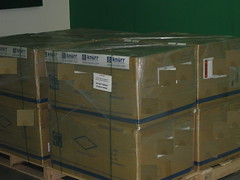


Thanks to AMD who sponsored the hardware, we will have soon a lot more buildpower resulting in less waiting time. We got 8 machines, each a 16 core system with 16GB ram. It will take some time to build all into the rack and have them up and running, so in the meantime we have some pictures for you


