
 Member
 baltolkien
Cómo crear una actividad de operaciones matemáticas con eXeLearning – Vídeo
Hace ya casi tres años que presenté eXeLearning, un editor de recursos educativos e interactivos de código abierto que te permite llevar tu actividades a otro nivel a la vez que compartirlos sin ningún tipo de restricción en multitud de formatos. Lo cierto es que me interesa mucho esta aplicación y he empezado a aprender mucho sobre ella, y es mi deber pagarlo mediante promoción. Hoy os traigo cómo crear una actividad de operaciones matemáticas con eXeLearning, un vídeo de Cedec_Intef .
Cómo crear una actividad de operaciones matemáticas con eXeLearning – Vídeo
Seguimos con eXeLearning, y en esta ocasión con un vídeo de Cedec_Intef, que no es más que el Centro Nacional de Desarrollo Curricular en Sistemas no Propietarios (Cedec), un organismo público español que promueve la transformación digital y metodológica de las aulas que pone a disposición de los docentes recursos educativos abiertos (REA) del Proyecto EDIA, elaborados por docentes en activo con la herramienta de software libre eXeLearning.
Pues bien, en el vídeo que os presento hoy se explica en varios pasos cómo crear una actividad de operaciones matemáticas con eXeLearning que permite crear actividades con operaciones matemáticas básicas (suma, resta, multiplicación y/o división) aleatorias en las que el alumnado tendrá que averiguar el resultado, el operador o uno de los operandos.
¿Qué es EXeLearning?

Para los que no lo conozcan, eXeLearning es un editor de recursos educativos e interactivos de código abierto se caracteriza por:
- Permite crear contenidos educativos de una manera sencilla
- Descarga fácil y gratuita desde su web.
- Está disponible para todos los sistemas operativos.
- Nos pemite catalogar los contenidos y publicarlos en diferentes formatos:
- Sitio web navegable y adaptable a diferentes dispositivos (responsive design).
- Estándar educativo, para trabajar con Moodle y otros LMS.
- Página HTML única para imprimir cómodamente tu trabajo.
- ePub3 (libro electrónico), etc.
- Ofrece diferentes diseños a elegir desde el menú, además de la posibilidad de crear diseños propios.
Con eXelearnig se puede crear todo tipo de actividades entre las que destaco rellenar huecos, pregunta de elección múltiple, pregunta de selección múltiple, pregunta verdadero-falso, cuestionario SCORM o actividad desplegable.
Además, y este es uno de los principales usos que hago de esta aplicación, nos permte crear rúbricas de forma sencilla, así como incluir recursos realizados con otras aplicaciones. Por ejemplo, Jclic, Descartes, Scratch, Geogebra, Physlets…
La entrada Cómo crear una actividad de operaciones matemáticas con eXeLearning – Vídeo se publicó primero en KDE Blog.
#openSUSE Tumbleweed revisión de las semana 36 y 37 de 2024
Tumbleweed es una distribución de GNU/Linux «Rolling Release» o de actualización contínua. Aquí puedes estar al tanto de las últimas novedades.

openSUSE Tumbleweed es la versión «rolling release» o de actualización continua de la distribución de GNU/Linux openSUSE.
Hagamos un repaso a las novedades que han llegado hasta los repositorios esta semana.
Y recuerda que puedes estar al tanto de las nuevas publicaciones de snapshots en esta web:
El anuncio original lo puedes leer en el blog de Dominique Leuenberger, publicado bajo licencia CC-by-sa, en este este enlace:
- https://dominique.leuenberger.net/blog/2024/09/tumbleweed-review-of-the-week-2024-36/
- https://dominique.leuenberger.net/blog/2024/09/tumbleweed-review-of-the-week-2024-37/
Durante la semana 36 se publicaron 6 nuevas snapshots que han trajeron entre otros, estas actualizaciones:
- PHP 8.3.11
- Linux kernel 6.10.7
- freerdp 3.8.0
- Ruby 3.3.5
- Libvirt 10.7.0
Y durante esta semana se han publicado 5 nuevas snapshots, entre las que podemos destacar estas actualizaciones:
- Linux kernel 6.10.8 y 6.10.9
- Qt 5.15.15
- mariadb 11.5.2
- zypper 1.14.77 / libzypp 17.35.10
- GTK 4.16.0
- KDE Plasma 6.1.5
- gdbm 1.24
- go 1.23 as default go compiler
La próxima snapshot (0912) se publicará a final de este viernes y la siguiente (0913) ya se está compilando. Estas snapshots traerán algunas de estas actualizaciones:
- cURL 8.10.0
- KDE Gear 24.8.1
- Boost 1.86
- LibreOffice 24.8.1.2
- timezone 2024b
- grub2
- Python Sphinx 8.0.2
- Python Numpy 2.1.0
Si quieres estar a la última con software actualizado y probado utiliza openSUSE Tumbleweed la opción rolling release de la distribución de GNU/Linux openSUSE.
Mantente actualizado y ya sabes: Have a lot of fun!!
Enlaces de interés
- ¿Por qué deberías utilizar openSUSE Tumbleweed?
- zypper dup en Tumbleweed hace todo el trabajo al actualizar
- ¿Cual es el mejor comando para actualizar Tumbleweed?
- ¿Qué es el test openQA?
- http://download.opensuse.org/tumbleweed/iso/
- https://es.opensuse.org/Portal:Tumbleweed

——————————–
Tumbleweed – Review of the week 2024/37
Dear Tumbleweed users and hackers,
Despite a few things taking longer than we wish (e.g. Mesa, which fails openQA tests, we are busy bisecting this), we see a lot of changes coming to staging that pass all tests and can be checked in within 24 hours.
All those changes helped us produce 5 snapshots during this week (0906, 0908, 0909, 0910, and 0911) containing these changes:
- Linux kernel 6.10.8 & 6.10.9
- Qt 5.15.15
- mariadb 11.5.2
- zypper 1.14.77 / libzypp 17.35.10
- GTK 4.16.0
- KDE Plasma 6.1.5
- gdbm 1.24
- go 1.23 as default go compiler
The next snapshot (0912) will be published later today, and 0913 is already building too. A few things are known to happen in the not-too-distant future, based on current submit requests being tested in staging. This includes:
- cURL 8.10.0
- KDE Gear 24.8.1
- Boost 1.86
- LibreOffice 24.8.1.2
- timezone 2024b
- grub2 change: Introduces a new package, grub2-x86_64-efi-bls; fixes for installation-images were submitted today; tests pending
- Python Sphinx 8.0.2
- Python Numpy 2.1.0
- Change of the default LSM (opted in at installation) to SELinux. AppArmor is still an option, just not the default. This change only impacts new installations
- perl-Bootloader will be renamed to update-bootloader: it’s been a while since there was no Perl code. Some openQA tests need to be adjusted for this (https://progress.opensuse.org/issues/165686)
- Mesa > 24.1.3: we keep on seeing openQA issues whenever we update to a version newer than 24.1.3, but so far could not yet pinpoint what is going wrong
Tumbleweed – Review of the week 2024/36
Dear Tumbleweed users and hackers,
After all the troubles and successes of the last weeks, this one felt less spectacular and more like a smooth sail, which was a welcome change. Submissions were incoming at about the same rate as we could process them, which is a great sign.
We have published six snapshots (0830, 0901…0905) containing these changes:
- PHP 8.3.11
- Linux kernel 6.10.7
- freerdp 3.8.0
- Ruby 3.3.5
- Libvirt 10.7.0
The backlog looks reasonably good, nothing has been there for too long. As a small overview, we are currently testing the integration of:
- Linux kernel 6.10.8
- Boost 1.86: breaks LibreOffice / cmis; fixes are in the works
- go 1.23 as default go compiler: ignition is broken. An upstream bug is filed, and a possible fix/workaround is submitted to the development project
- grub2 change: Introduces a new package, grub2-x86_64-efi-bls; fixes for installation-images were submitted today; tests pending
- Python Sphinx 8.0.2
- Python Numpy 2.1.0
- Change of the default LSM (opted in at installation) to SELinux. AppArmor is still an option, just not the default. This change only impacts new installations
- perl-Bootloader will be renamed to update-bootloader: it’s been a while since there was no Perl code. Some openQA tests need to be adjusted for this (https://progress.opensuse.org/issues/165686)
- Mesa > 24.1.3: we keep on seeing openQA issues whenever we update to a version newer than 24.1.3, but so far could not yet pinpoint what is going wrong

Pulse Secure Linux client with openSUSE Leap 15.6 安裝小記
Pulse Secure Linux client with openSUSE Leap 15.6 安裝小記

OS: openSUSE Leap 15.6
Pulse Secure: 22
公司的 SSLVPN 用的是 Pulse Secure, 但是 openSUSE Leap 的參考文章相對少
今天就寫相關的安裝方式
取得套件 RPM from 公司同事
也可以參考臺大的網頁與取得 https://ccnet.ntu.edu.tw/vpn/for-ubuntu.html
先嘗試安裝
# rpm -ivh ps-pulse-linux-22.7r3-b30227-installer.rpm
error: Failed dependencies:
gtkmm30 >= 3.22.2 is needed by pulsesecure-2:22.7-R3.x86_64
libbsd is needed by pulsesecure-2:22.7-R3.x86_64
libcurl >= 7.29.0 is needed by pulsesecure-2:22.7-R3.x86_64
nss-tools is needed by pulsesecure-2:22.7-R3.x86_64
webkit2gtk3 >= 2.24.4 is needed by pulsesecure-2:22.7-R3.x86_64
直接安裝會遇到相依性的問題
安裝 mozilla-nss-tools
# zypper install mozilla-nss-tools
Loading repository data...
Reading installed packages...
Resolving package dependencies...
The following 4 NEW packages are going to be installed:
libfreebl3 libsoftokn3 mozilla-nss mozilla-nss-tools
4 new packages to install.
Overall download size: 2.1 MiB. Already cached: 0 B. After the operation, additional 5.4 MiB
will be used.
Backend: classic_rpmtrans
Continue? [y/n/v/...? shows all options] (y):y
新增兩個 repo
# zypper addrepo https://download.opensuse.org/repositories/server:mail/openSUSE_Tumbleweed/server:mail.repo
這個 repo 雖然有 15.6 但是他 15.5 沒有編譯過, 所以我還是維持 Tumbleweed
# zypper addrepo https://download.opensuse.org/repositories/devel:gcc:next/openSUSE_Tumbleweed/devel:gcc:next.repo
這個 repo 就沒有 15.6 了
更新 repo, 並信任相關 Key
# zypper refresh
安裝 glibc 套件
# zypper install glibc
Loading repository data...
Reading installed packages...
There is an update candidate for 'glibc' from vendor 'obs://build.opensuse.org/devel:gcc:next', while the current vendor is 'SUSE LLC <https://www.suse.com/>'. Use 'zypper install glibc-2.40.9000.164.gc9154cad6-4264.1.x86_64' to install this candidate.
Resolving package dependencies...
The following package is going to be upgraded:
glibc
1 package to upgrade.
Overall download size: 1.9 MiB. Already cached: 0 B. No additional space will be used or freed after
the operation.
Backend: classic_rpmtrans
Continue? [y/n/v/...? shows all options] (y): y
這次不像上一個版本有衝突
安裝 pulse secure 套件
# zypper install ps-pulse-linux-22.7r3-b30227-installer.rpm
Loading repository data...
Reading installed packages...
Resolving package dependencies...
Problem: 1: nothing provides 'libbsd' needed by the to be installed pulsesecure-2:22.7-R3.x86_64
Solution 1: do not install pulsesecure-2:22.7-R3.x86_64
Solution 2: break pulsesecure-2:22.7-R3.x86_64 by ignoring some of its dependencies
Choose from above solutions by number or cancel [1/2/c/d/?] (c): 2
Resolving dependencies...
Resolving package dependencies...
The following NEW package is going to be installed:
pulsesecure
1 new package to install.
Overall download size: 11.8 MiB. Already cached: 0 B. After the operation, additional 33.9 MiB will
be used.
Backend: classic_rpmtrans
Continue? [y/n/v/...? shows all options] (y): y
Retrieving: pulsesecure-2:22.7-R3.x86_64 (Plain RPM files cache) (1/1), 11.8 MiB
ps-pulse-linux-22.7r3-b30227-installer.rpm:
Package header is not signed!
pulsesecure-2:22.7-R3.x86_64 (Plain RPM files cache): Signature verification failed [6-File is unsigned]
Abort, retry, ignore? [a/r/i] (a): i
這邊使用方案 2 , 忽略相依性的方式來進行安裝, 並忽略簽章問題
PulseSecure UI 在 Leap 15.6 還要補一個套件
# zypper install libwebkit2gtk-4_0-37
因為預設的套件比較新
安裝完畢就可以找到圖形介面的程式

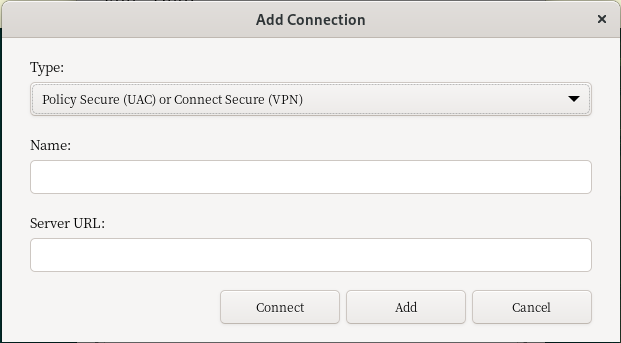
點選 新增的 + 按鈕
輸入 名稱與 Server URL
點選 Connect 就可以進行連線
同場加映, 文字介面連線方式
建立憑證存放資料夾
# mkdir -p /etc/pki/ca-trust/extracted/openssl
建立檔案
# touch /etc/pki/ca-trust/extracted/openssl/ca-bundle.trust.crt
使用 Brave 瀏覽器開啟之後要存取的網址, 例如 https://YOUR_SERVER_URL
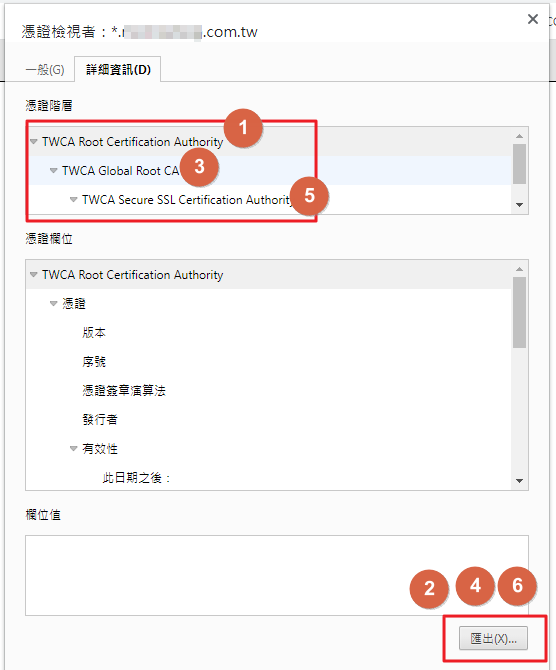
點選 鎖頭 -- > 點選 憑證有效的另開視窗

點選 詳細資訊

將 3 個憑證全部匯出
將憑證放入
# cat /home/sakanamax/Builtin\ Object\ Token_TWCA\ Global\ Root\ CA > /etc/pki/ca-trust/extracted/openssl/ca-bundle.trust.crt
# cat /home/sakanamax/TWCA\ Secure\ SSL\ Certification\ Authority >> /etc/pki/ca-trust/extracted/openssl/ca-bundle.trust.crt
# cat /home/sakanamax/_.YOURS.com.tw >> /etc/pki/ca-trust/extracted/openssl/ca-bundle.trust.crt
公司憑證名稱記得換成自己的
進行連線 - 要切換成一般使用者
> /opt/pulsesecure/bin/pulselauncher -U https://YOUR_SERVER_URL -u YOUR_USER
實務上測試用一般使用者可以連線, root 無法連線
輸入User Realm: (詢問網管, 也許是 RWXY Users)
輸入密碼
連線成功可能不一定有訊息, 可以另外開一個視窗用 > ip r s 看路由表確認
這樣之後就可以用 Pulse Secure 進行 SSLVPN 連線了
~ enjoy it
Reference
公司協力廠商協助, 同事協助

Feliz dia do Desenvolvedor !

O Dia do Programador é o 256º dia do ano, celebrada por programadores de computador em boa parte do mundo. Este número foi escolhido porque é o maior número que pode ser representado por um byte (oito bits). Além disso, esse número é a maior potência de dois , como também inferior ao número 365 (o número de dias do ano). Também pode ser representado, em hexadecimal como 0x100 e em octal como 0400.
Dia do Programador é dia 13 de setembro, exceto em anos bissextos, nos quais ele é comemorado no dia 12 de setembro, pois esse é o 256º dia do ano bissexto.
Weyland

A couple of weeks ago, I went to see Alien: Romulus. While many of my friends were disappointed, I actually enjoyed it. In fact, it exceeded my expectations — mainly because I didn’t expect much! :)
Fede Alvarez delivered exactly what producer Ridley Scott asked of him, leaning heavily on the nostalgia of the original masterpiece while skirting the edge of a reboot. The world of Prometheus wasn't ignored, but purposedly avoided referencing too deeply.
The dystopian world of corporate feudalism set a tone even darker than the original, to the point where the xenomorph didn’t seem like the worst thing that could happen. I’m still holding out hope for 90-minute movies as the gold standard, but the two-hour runtime was manageable—though my aging buttocks may disagree. The slow-burn first act was actually the most enjoyable part, as that’s where the fresh world-building took center stage. Even as the familiar plot unfolded, Alvarez delivered memorable suspense and action scenes.
Of course, it’s never going to feel the same as seeing Alien or Aliens as a teenager. I can’t fully dive into my minor criticisms without spoilers, but let’s just say the movie understood that "less is more" — except in one area. Other than that, Alien: Romulus proved that going to the movies can still be a pretty great experience.
★★★★☆
Weyland

A couple of weeks ago, I went to see Alien: Romulus. While many of my friends were disappointed, I actually enjoyed it. In fact, it exceeded my expectations — mainly because I didn’t expect much! :)
Fede Alvarez delivered exactly what producer Ridley Scott asked of him, leaning heavily on the nostalgia of the original masterpiece while skirting the edge of a reboot. The world of Prometheus wasn’t ignored, but purposedly avoided referencing too deeply.
The dystopian world of corporate feudalism set a tone even darker than the original, to the point where the xenomorph didn’t seem like the worst thing that could happen. I’m still holding out hope for 90-minute movies as the gold standard, but the two-hour runtime was manageable—though my aging buttocks may disagree. The slow-burn first act was actually the most enjoyable part, as that’s where the fresh world-building took center stage. Even as the familiar plot unfolded, Alvarez delivered memorable suspense and action scenes.
Of course, it’s never going to feel the same as seeing Alien or Aliens as a teenager. I can’t fully dive into my minor criticisms without spoilers, but let’s just say the movie understood that “less is more” — except in one area. Other than that, Alien: Romulus proved that going to the movies can still be a pretty great experience.
★★★★☆
ReactFlux una interfaz web para tu instancia de Miniflux
ReactFlux ofrece una interfaz web más moderna y atractiva visualmente para utilizara con nuestra instancia de Miniflux

En un artículo anterior escribí sobre Miniflux, el lector de feeds ligero y libre que podemos autohospedar en un servidor propio o pagar al desarrollador para que nos deje abrirnos una sesión en su propio servidor.
En este caso quiero escribir sobre ReactFlux, una interfaz web o fronted web para nuestra instancia de Miniflux, que nos ofrece un diseño más atractivo a la hora de leer nuestros feeds.
ReactFlux ofrece una interfaz más amigable para nuestra instancia de Miniflux (ya sea autoalojada o la instancia de pago) escrita en JavaScript y publicada bajo una licencia libre MIT.
En mi proceso de exploración de Miniflux di con esta opción que hace muy sencillo y atractivo visualmente el navegar y ponernos al dia con nuestros feeds.
Ofrece una interfaz con tres paneles, a la izquierda información sobre los artículos recibidos, los marcados como favoritos, las categorías y cuantos feeds tenemos en total y cuantos sin leer.
En el medio una lista en miniatura de los feeds ordenados por fecha de publicación, con el icono de la propa página, y la imagen destacada de la fuente y fecha de cuando fue publicada. Sobre esta lista, podemos hacer scroll y según avancemos podemos hacer que se marquen como leídos.
Y en el panel derecho, un espacio más grande para leer la fuente seleccionada al completo y desde ese mismo panel marcarlo como favorito, pasar al siguiente elemento, descargar el feed completo.
Nos permite buscar en nuestras fuentes, añadir nuevas fuentes o categorías, seleccionar un tema claro u oscuro, tamaño de fuente, tamaño de panel, cantidad de fuentes por página, y ahora también disponible en español (vaya, me pregunto quien habrá realizado la traducción de la interfaz, guiño, guiño), además de inglés y chino.
Nos permite acciones sobre los feed de manera particular, añadir categorías, atajos de teclado y muchas más acciones que hacen muy agradable el ponernos al día de las webs que más nos interesan.
Desde nuestra instancia de Miniflux, seleccionamos Configuración → Claves API → Generar nueva clave API. Le damos un nombre y esperamos a que nos genere la cadena de caracteres API. Después vamos a ReactFlux, introducimos nuestro nombre de usuario y la cadena generada y accedemos a nuestros feeds mediante ReactFlux.
Podéis echarle un vistazo para comprobar en primera persona si os gusta más esta acercamiento aunque visualmente agradable, manteniendo el minimalismo de ReactFlux frente a la interfaz, determinantemente espartana de Miniflux y me comentáis vuestras opiniones.

Primera actualización de KDE Gear 24.08
La Comunidad KDE es una comunidad responsable y no solo se preocupa en lanzar novedades sino que también en mejorarlas. Me complace presentar la primera actualización de KDE Gear 24.08 que apareció hace casi un mes. Más estabilidad, mejores traducciones y pequeñas mejoras para las aplicaciones de nuestro entornos de trabajo.
Primera actualización de KDE Gear 24.08
A pesar de lo que puedan pensar muchas personas, las aplicaciones no son perfectas. Entre las líneas de código se pueden colar errores de tipografía o que el usuario realice alguna opción que en un principio no estaba prevista por los desarrollador, por poner solo un par de ejemplos de imperfecciones.
Este no es un problema del Software Libre ya que el Software actual funciona de esta manera ya que no se piensa en él como un producto final que se encierra en una caja y se olvida. En la actualidad se sabe que el Software está vivo y sería estúpido ir guardando las mejoras sin dejarlas a disposición del gran público.
Con esto se gana en rapidez y evolución pero puede aumentar el número de errores (por norma general) leves, los cuales son subsanables con pequeñas actualizaciones.
La Comunidad KDE lo tiene claro: grandes lanzamientos cada cuatro meses y actualizaciones mensuales para subsanar errores.

Por ello me congratula compartir con vosotros la primera actualización de KDE Gear 24.08 que nos ofrece más de 180 errores resueltos entre aplicaciones, librerías y widgets, algo que mejora el rendimiento del sistema.
Aquí podéis encontrar la lista completa de cambios de KDE Gear 24.08.1, pero por poner unos cuantos ejemplos de los errores que sea han resuelto tenemos:
- filelight: La barra lateral se actualiza correctamente al eliminar algo del menú contextual
- kclock: Corregida la alineación del círculo del temporizador
- kwalletmanager: Arranca correctamente cuando se invoca desde el menú en wayland
Más información: KDE Gear 24.08.01
La entrada Primera actualización de KDE Gear 24.08 se publicó primero en KDE Blog.