
 Member
 Victorhck
Cambiar el número de elementos mostrados en la página de pestaña nueva del navegador Firefox
Vamos a cambiar la cantidad de enlaces habituales que se muestran en la página de nueva pestaña del navegador Firefox para ajustarlo a nuestros gustos

Desde hace ya muuuchos años, utilizo la página de nueva pestaña que ofrece el navegador Firefox. Y dentro de esta, aunque se pueden añadir notas, temporizadores, etc, yo quito enlaces patrocinados, el tiempo, y barras de búsqueda quedándome únicamente unas filas en las que se muestran los emblemas de las webs que más visito, para tenerlas rápidamente accesibles.
Desde la publicación de Firefox 151, esta página sencilla, ha mejora un poco su aspecto y ahora muestra unas animaciones al pasar el cursor por encima. Desde esa propia página podremos configurar el número de filas que queremos que se muestren, hasta un máximo de 4.
Ahora veremos cómo modificar el número de elementos por fila que queremos que aparezcan.
Las pantallas de nuestros equipos portátiles o monitores suelen tener un formato apaisado, siendo más largas que altas, por tanto creo que tiene sentido poder aprovechar todo ese espacio en las filas que nos ofrece Firefox en la página de nueva pestaña.
Como he dicho el número de filas es muy accesible desde la propia página pinchando en el botón inferior derecha en Personalizar y en la siguiente pantalla podremos escoger el número de filas.
Pero no así el número de elementos que queremos que se muestren por fila, y no sé porqué esa opción no tiene un acceso sencillo similar en la pantalla de personalización.
Sea como fuere, podremos cambiar ese número de sitios mostrados entrando en la configuración escribiendo about:config en la barra de direcciones y aceptando que no vamos a romper nada.
En la siguiente pantalla, en el cuadro de búsqueda escribimos:
browser.newtabpage.activity-stream.topSitesMaxSitesPerRow
Que probablemente tenga un valor de 8. Yo en mi caso lo he modificado a 11 y solo he dejado 3 filas, para que queden centrados los enlaces en la pantalla y no moleste a la imagen que tengo de fondo.
Podemos abrir una nueva pestaña y ver que el formato ha cambiado y podremos ajustarlo y ver cómo cambia de manera dinámica. Ahora ya es cuestión de gustos personales y preferencias, así que déjalo como más te guste…

Tumbleweed Monthly Update - May 2026
May delivered a steady cadence of openSUSE Tumbleweed snapshots across the major desktop stacks with KDE Gear 26.04.1, KDE Frameworks 6.26.0, Plasma 6.6.5 and GNOME 50 minor releases. Mesa made a couple leaps with the 26.1 series with the new Vulkan 1.4 Application Programming Interfaces, and the Linux kernel progressed from 7.0.5 through 7.0.9 with significant security and driver fixes. Sysadmins received a major AppArmor 5.0 release and a fresh Apache HTTP Server 2.4.67 carrying many Common Vulnerability and Exposure fixes.
Other notable bumps include libusb 1.0.30, GnuPG 2.5.20, LibreOffice 26.2.3.2, PostgreSQL 18.4, rsync 3.4.3, poppler 26.05.0, and Expat 2.8.1.
Security received heavy attention with Apache HTTP Server, PostgreSQL, rsync, dnsmasq, jq, PHP, OpenEXR, and the Linux kernel all receiving multiple CVE fixes.
As always, be sure to roll back using snapper if any issues arise.
For more details on the change logs for the month, visit the openSUSE Factory mailing list.
New Features and Enhancements
KDE Gear 26.04.1: Akonadi fixes a crash in EntityTreeView when selecting multiple items, and KOrganizer resolves black squares in the todo view and re-enables icons in monthview. Dolphin refines the selection panel and search popup behavior. Kate restores middle-click closing of tabs when the close button is disabled, Konsole prevents QTabBar from closing tabs on stray middle clicks, and Okular hardens fax handling against malformed .g3 inputs. Umbrello gets six bug fixes including diagram-load and Qt6 configuration crashes, and Itinerary adds new Condor PKPass and monbus.es ticket extractors.
KDE Frameworks 6.26.0: KIO adds the Startpage search provider, expands KFilePlacesModel with kdeconnect device support, gains MIME-type detection from text content in the paste flow, and exposes the current folder in the file widget placeholder. KCoreAddons introduces KAboutRelease for listing application release notes, parses AppStream release notes, and switches to libmount for filesystem-type detection where available. KImageFormats corrects EXR loading from Photoshop 2026 saves, plugs JXR memory leaks, and improves EXIF handling. KHolidays introduces HolidayCategories and fixes Philippines Easter holidays.
Plasma 6.6.5: KWin gains numerous DRM backend fixes including correctly updating outputs only on changed GPUs, preserving custom output modes across reboots, setting full color range for RGB planes on NVIDIA, and avoiding multi-GPU copies with unsupported formats. Input handling is hardened by mapping devices to device outputs (not logical ones), processing key repeat before the accessibility monitor, and cleaning up keyboard grabs on shutdown. KScreen hides the DDC/CI option when HDR is enabled and prevents off-by-one gaps when creating replicas. Discover corrects text color inversion in ProgressView, and Plasma Workspace fixes klipper clipboard updates, lockscreen timezone init races on multi-screen, and broken text legibility with the Air and Breeze Light themes. Spectacle keeps the application alive briefly after copying screenshots and fixes magnifier activation during hover events. PowerDevil addresses screen brightness getting stuck at 30 percent after a restart.
GNOME 50.1 and 50.2: These point releases bring stability and usability fixes across the GNOME desktop. GDM 50.1 fixes a failure to properly terminate conflicting graphical sessions started outside of GDM (such as ThinLinc or TigerVNC) by querying logind directly, and resolves Plymouth hanging indefinitely on headless systems or those without monitors. A bug incorrectly setting XDG_SESSION_TYPE=wayland on X11 sessions was corrected, along with XDG_DATA_DIRS construction that could prevent GNOME Shell from finding its files. GNOME Shell 50.2 fixes extending screenshot area selection to monitor edges, adds rate control to VA-API H.264 screencast pipelines, and restores the “Install Updates” checkbox in the power-off/restart dialog. Autorun notifications for USB drives, spinner resets during overview search, and wiggle feedback on non-password auth failures are all corrected, and the audio input icon now only appears when actually recording. GNOME Control Center 50.2 fixes the “Show Content” notification setting, relaxes app-id validation for Global Shortcuts, and improves mobile-width label fitting in Device Security and Wellbeing panels. GNOME Session 50.1 fixes a double-free bug. For Tumbleweed users, these updates improve login reliability, screencast quality, and overall GNOME desktop polish.
KDE Network File Sharing 26.04.0: This update refactors the file properties plugin initialization and now automatically enables and starts the Samba service if needed when sharing folders. Service aliases are handled correctly, the user list in combo boxes is clipped with scrolling disabled for better usability, and a regression in smbd path lookup was fixed.
AppArmor 5.0.0: This major version bump from the 4.1 series is a significant milestone for the mandatory access control framework. The release modernizes the parser and userspace utilities, adopts a new ABI abi/5.0, and introduces broader profile updates. Profiles for samba, dovecot, postfix, wpa_supplicant, and syslog-ng are refined to better handle modern filesystem layouts. The full upstream changelog is available at the AppArmor 5.0 release notes wiki.
GnuPG 2.5.20: This update implements GCM encryption in gpgsm (decryption was already supported in earlier versions), adds the --attribute option and SETATTR server command for including arbitrary signed or unsigned attributes in signatures, and introduces a new system attribute _signingCertificateV2. A possible double free in the CMS parser is fixed, along with a buffer overflow in scdaemon when handling SC-HSM cards with RSA keys larger than 2 kilobits. Several agent and keyboxd fixes correct loopback pinentry caching and PUT_SECRET input handling.
libusb 1.0.30: This update introduces new APIs libusb_get_device_string() and libusb_get_session_data() for accessing device strings without opening the device and retrieving OS-specific handles. Device removal races on non-hotplug builds are fixed and descriptor parsing memory safety is improved.
poppler 26.05.0: This jump from 26.02.0 rolls up three upstream releases. The release improves reconstruction of damaged files, fixes crashes in malformed documents, and removes the PSOutputDev “pipe as filename” feature for security reasons. pdftotext gains a -remove-hyphens option and no longer aborts on empty strings. The qt5/qt6 search APIs receive a fix for inverted continuation rectangles, and the GPG signature backend correctly marks qualified keys.
gpg2 and libksba 1.8.0: The S/MIME-related X.509 and CMS support library jumps from 1.6.8 to 1.8.0. New functions include ksba_cms_add_attribute and ksba_cms_get_attribute, support for building AuthEnvelopedData, and corrections to silent truncation of 64-bit length fields and overflow guard conditions in _ksba_ber_read_tl.
open-vm-tools 13.1.0: This major version bump introduces support for GTK4 alongside continued GTK3 compatibility. The configure script accepts options to restrict the build to either toolkit; otherwise it picks the latest available. Several upstream GitHub issues are resolved as documented in the 13.1.0 Release Notes.
fwupd 2.1.3: This update for the firmware update daemon continues to add features and hardware coverage. New capabilities include Redfish bearer token authentication, support for several XMC SPI chips, parsing of JCat files without libjcat, native CBOR parsing (dropping libcbor2 as a dependency), and an HSI check for AMD SB-7033 (a.k.a. EntrySign). The earlier 2.1.2 release also added native EFI authenticated variable loading with ContentInfo headers and decompression-ratio limits to prevent ZIP-bomb-style emulation parsing. New hardware support spans the SHIFT6mq, SHIFTphone 8, Google Moonstone, Lenovo USB-4 dock, HP 400/405 Mouse, Parade USB hubs with GPIO control, Pixart PLP239 devices, Raydium TP devices, Sunplus cameras, and the LX Semicon SW42101 touch controller.
python-cryptography 48.0.0: A major version bump that drops Python 3.8 support and changes X.509 CRL parsing so that a mismatched inner TBSCertList.signature and outer signatureAlgorithm raises a ValueError. ML-KEM and ML-DSA are now supported when building against OpenSSL 3.5.0 or later (in addition to AWS-LC and BoringSSL), bringing post-quantum algorithms to upstream wheel users.
Key Package Updates
Linux Kernel 7.0.9: The kernel progressed through 7.0.5, 7.0.6, 7.0.7 and 7.0.9 during the month, accumulating a substantial pile of security and stability fixes. The 7.0.5 release fixed a buffer overflow in vrealloc_node_align() along with a deadlock in mmap_prepare error handling when holding rmap. The crypto subsystem received extensive fixes including memory leaks in atmel-aes, ccree, and nx842, a use-after-free in atmel-sha204a removal, and short digest rejection in authencesn. netfilter rejects zero shifts in nft_bitwise, and IPsec (xfrm) avoids in-place decryption on shared skb fragments. NTFS3 receives integer overflow and buffer boundary checks in run_unpack(), and EROFS fixes an unsigned underflow in LZ4 overlap handling. The 7.0.6 follow-up added an rxrpc fix for DATA/RESPONSE packets when paged frags are present and an ALSA fasync state-check serialization. The 7.0.7 release brought multiple CVE fixes detailed below, scsi target configfs bounds tightening in snprintf(), ipmi event/receive message limits, KVM x86 shadow-paging use-after-free protection, smbdirect MR registration fixes for coalesced SG lists, and many wifi mt76 fixes for mt7921/mt7925. The 7.0.9 jump adds HID fixes (PlayStation num_touch_reports clamp, appletb-kbd UAF on inactivity-timer cleanup, pidff integer overflow), drm/gpusvm correctness fixes, and many spi controller deregistration fixes.
curl 8.20.0: This release addresses half a dozen security vulnerabilities. RTMP support is dropped entirely and SMB support is now opt-in. A new thread pool and queue system was added for async resolution, and HTTPS DNS record resolution is made more reliable. Credential handling is hardened across redirects, with digest nonces cleared on cross-origin redirects and proxy credentials cleared on port or scheme changes. The alt-svc and HSTS lists are now capped (at 5,000 entries) and expired entries are skipped when reading from file. HTTP/2 now prevents secure schemes being pushed over insecure connections, and MIME processing limits nesting to 40 levels.
GnuTLS 3.8.13: This major security release addresses more than a dozen vulnerabilities. Three high-severity DTLS reassembly issues are fixed. Medium-severity fixes address a use-after-free in gnutls_pkcs11_token_set_pin(), an overread in RSA key exchange with PKCS#11 keys, CN fallback suppression issues with URI/SRV SANs, and intersecting empty name constraints. Lower-severity fixes cover a multi-entry OCSP response revocation bypass, a timing side-channel in PKCS#7 padding removal, and an off-by-one in PKCS#12 bag bounds checking. HPKE (Hybrid Public Key Encryption, RFC 9180) is available as a technology preview, ML-DSA public key derivation from expanded private keys (RFC 9881) is supported, and building with Nettle 4.0 is now possible. TLS 1.3 client certificate selection is fixed for servers advertising only rsa_pss_rsae_* algorithms, and kTLS ChaCha20-Poly1305 IV handling is corrected for TLS 1.2.
GLib 2.88.1: This update fixes a miscompilation with GCC 16 caused by incorrect function attribute usage. A flag confusion security issue in GRegex when using G_REGEX_RAW is resolved, which could result in unbounded out-of-bounds heap reads off the start of a regex input string. Various minor security issues are also addressed, typically involving small out-of-bounds reads or scenarios relying on discouraged P2P D-Bus configurations.
SQLite 3.53.1: The recovery extension is hardened against SQL injections from the sqlite_schema table of databases being recovered. A crash in sqlite3_deserialize() when overwriting a database with an open transaction is fixed (a bug dating back to version 3.23.0). A single-byte out-of-bounds read in the session module when concatenating patchsets is corrected. The EXISTS-to-JOIN optimization receives fixes for OR-optimization early-exit logic and OFFSET clause handling. A printf() optimization regression causing sqlite3_snprintf() to incorrectly truncate floating-point conversions is resolved, and sqlite3_str_free() no longer crashes when called on objects returned after an out-of-memory condition.
Mesa 26.1.0 to 26.1.1: Version 26.1.1 fixes RADV sample shading with required sample-shaded inputs, VRS with mipmaps on GFX10.3, acceleration structure copies with DAC, and enables a VM map update workaround for Forza Horizon 6. ANV (Intel) adds a SIMD32 requirement heuristic for Dragon Dogma 2, fixes usage flags not propagated to ISL for explicit layouts, bumps the max compute workgroup count, and corrects timebase scale precision loss across 2^32 ticks. The Vulkan 1.4 API is now implemented, with support varying by driver with version 26.1.0. Experimental support for Intel Nova Lake P hardware is introduced. Zink now supports OpenGL ES 2.0 on PowerVR GPUs, expanding its reach to embedded hardware. New Vulkan and OpenGL extensions are supported across drivers including VK_EXT_present_timing, GL_NV_timeline_semaphore (RadeonSI), VK_QCOM_image_processing (Turnip), VK_KHR_present_id, and VK_KHR_present_wait. Rusticl (OpenCL) now requires a static C++ standard library. The update delivers broader Vulkan support, improved virtualization performance, and expanded hardware compatibility.
GStreamer 1.28.3: A bugfix release with security fixes across the framework. Highlights include applemedia vtdec stability, MoltenVK integration and planar video format handling fixes, an audioresample regression fix on armv7hf, bpmdetect corrections for stereo and multi-channel modes, and webrtcsink support for the imx8mp vpuenc_hevc H.265 encoder. Codec parsers receive multiple hardening fixes including a stack buffer overflow in the H.265 buffering period SEI parser, bounds checks in MPEG-TS PES header parsing, and a heap buffer overflow in MXF AES3 audio descriptor write_tags. The mxf and mpegtsdemux plugins receive numerous additional bounds and overflow fixes, and pngparse gets a use-after-free fix. Several memory leaks across decodebin2, subparse, samiparse, baseparse, and others are also addressed.
expat 2.8.1: This update jumps from 2.7.5 and addresses two security issues. A quadratic-runtime attack via attribute name collision checks is corrected, and the SipHash-based hash flooding protection now uses the full 16 bytes of salt instead of 4 to 8. The existing XML_SetHashSalt API is deprecated and a new XML_SetHashSalt16Bytes is introduced for callers that want to provide their own high-quality entropy.
rsync 3.4.3: A security-focused release fixing six CVEs in the file-synchronization tool. Three of the six (CVE-2026-29518, CVE-2026-43617, CVE-2026-43619) require non-default daemon configurations, two (CVE-2026-43618, CVE-2026-43620) are reachable from normal pulls or normal authenticated daemon connections, and the sixth (CVE-2026-45232) requires RSYNC_PROXY to be set with a pathological proxy response. Detailed CVE notes appear in the security section below. The release also adds defence-in-depth hardening on adjacent paths and fixes a regression introduced by the 3.4.0 secure_relative_open().
PostgreSQL 18.4: This point release of the database addresses 10 CVEs covering schema privilege checks, integer overflows in memory allocation calculations, time-zone name handling, path traversal in pg_basebackup and pg_rewind, subscription-name quoting in pg_createsubscriber, marking PQfn() as unsafe, timing-safe string comparisons in authentication, recursion limits in startup packet processing, MCV statistics validation, SQL injection protection in contrib/spi, and quoting of object names in logical replication origin checks. See the official 18.4 release announcement for full notes.
dnsmasq 2.92rel2: A security-focused point release fixing six CVEs in the DNS and DHCP server. Vulnerabilities include cache poisoning that could enable DoS or attacker redirection, DNSSEC validation flaws, a heap out-of-bounds read in DNSSEC validation, a heap out-of-bounds write in DHCPv6 handling, an information disclosure flaw allowing source-check bypass, and a buffer overflow in extract_addresses().
ImageMagick 7.1.2.23 and 7.1.2.24: The 7.1.2.24 version strengthens input validation by rejecting MTV, TGA, Cineon, and Farbfeld image files with zero columns or rows, preventing potential crashes or undefined behavior from malformed files. A new profile fuzzer is added for raw EXIF, XMP, IPTC, and ICC parsing to improve robustness. The 7.1.2.23 version rolls up many GitHub security advisories from upstream and applies an integer overflow fix tracked as CVE-2026-31853.
OpenEXR 3.4.11: A double update from 3.4.9 through 3.4.10 to 3.4.11 closes several additional CVEs in the EXR image format library. Fixes address a shift exponent overflow in readVariableLengthInteger(), an out-of-bounds read in IDManifest::init() during prefix expansion, an integer overflow in ImageChannel::resize, a signed integer overflow in ht_undo_impl() in the HTJ2K decoder, and two missed variants of the earlier DWA-decoder pointer arithmetic overflow.
ncurses 6.6.20260516: Two snapshot patches bring loop limit corrections in lib_twait.c, magic-cookie initialization deferral, terminal database refinements for kitty, contour, screen4/screen5, xterm-utf8, and warp, and a recur_wgetnstr() buffer limit correction.
hplip 3.26.4: A new release of the HP Linux Imaging and Printing project adds support for a broad range of new printers including the HP LaserJet Pro MFP 3106sdw/3105sdw, OfficeJet Pro 9730/9720/8130/8120 series, Envy 6500 series, and several DeskJet Ink Advantage models.
Vulkan SDK 1.4.350: Both vulkan-loader and vulkan-tools jump from 1.4.341 to 1.4.350. vulkaninfo now enables the device groups extension and checks extensions before querying properties, and a wrong extension being used for GGP is corrected.
Security Updates
net-tools 3.14~alpha:
-
CVE-2024-58251: Fixes a flaw in
netstatwhere a local user could launch a network application and cause a denial of service by locking up the terminal of a victim viewing netstat output.
curl 8.20.0:
-
CVE-2026-4873: Addresses a flaw where a connection requiring TLS could incorrectly reuse an existing unencrypted IMAP, POP3, or SMTP connection from the pool and cause the subsequent data to be transmitted in clear-text.
-
CVE-2026-5545: Resolves a vulnerability where HTTP Negotiate connections could be wrongly reused and potentially lead to authentication bypass.
-
CVE-2026-5773: Fixes a flaw where SMB connections could be reused for transfers to a different share on the same server and potentially lead to the wrong file being downloaded or uploaded.
-
CVE-2026-6253: Addresses a credential leak where proxy credentials could be exposed across a redirect to a different proxy.
-
CVE-2026-6276: Resolves a cookie leak caused by stale custom cookie host handling on subsequent requests.
-
CVE-2026-6429: Fixes a
.netrccredential leak when a proxy connection was reused across requests.
update-alternatives 1.22.22:
- CVE-2026-2219: Addresses a flaw that could result in denial of service via an infinite CPU-spinning loop.
GnuTLS 3.8.13:
-
CVE-2026-33845: Resolves an integer underflow that could lead to an out-of-bounds read and potential denial of service or information disclosure.
-
CVE-2026-42009: Fixes a flaw potentially triggering undefined behavior.
-
CVE-2026-33846: Addresses a heap buffer overflow that may allow remote denial of service or memory corruption.
-
CVE-2026-42010: Resolves an authentication bypass in servers configured with RSA-PSK where usernames containing NUL characters wrongly matched ones truncated at the NUL.
-
CVE-2026-3833: Fixes a name-constraint bypass that could cause certificates that should be rejected to be accepted.
mariadb 11.8.6:
- CVE-2026-32710: Addresses a heap-based buffer overflow that allows an authenticated user to crash the server and potentially achieve remote code execution.
krb5:
-
CVE-2026-40355: Resolves a NULL pointer dereference that allowed an unauthenticated remote attacker to terminate the process when a NegoEx mechanism was registered.
-
CVE-2026-40356: Fixes an integer underflow that could allow an unauthenticated remote attacker to trigger an out-of-bounds read of up to 52 bytes and potentially terminate the process.
-
CVE-2026-37555: Addresses an integer overflow that could lead to a heap buffer overflow or denial of service.
-
CVE-2025-52194: Resolves a buffer overflow that could potentially lead to memory corruption or code execution.
- CVE-2026-6210: Fixes a type confusion and heap buffer overflow that results in an application crash.
tar:
-
CVE-2025-45582: Addresses a directory traversal flaw that allows file overwrite bypassing the standard
../protection.
Apache HTTP Server 2.4.67:
-
CVE-2026-34059: Fixes a heap over-read and memory disclosure in
mod_proxy_ajpinajp_parse_data(). -
CVE-2026-34032: Addresses a heap buffer over-read in
ajp_msg_get_string()due to a missing null-termination check. -
CVE-2026-33857: Resolves an off-by-one out-of-bounds read in AJP getter functions.
-
CVE-2026-33523: Patches an HTTP response splitting vulnerability across multiple modules when forwarding malicious status lines.
-
CVE-2026-33007: Corrects a NULL pointer dereference in
mod_authn_socacheallowing an unauthenticated remote user to crash a child process in a caching forward proxy configuration. -
CVE-2026-33006: Resolves a timing attack against
mod_auth_digestthat allows a Digest authentication bypass. -
CVE-2026-29169: Fixes a NULL pointer dereference in
mod_dav_lockallowing a server crash via a malicious request. -
CVE-2026-29168: Addresses unrestricted OCSP response handling in
mod_md. -
CVE-2026-28780: Resolves a heap buffer overflow in
mod_proxy_ajpviaajp_msg_check_header()where a malicious AJP server could write 4 attacker-controlled bytes past a heap buffer. -
CVE-2026-24072: Fixes an
ap_exprprivilege escalation inmod_rewriteallowing local.htaccessauthors to read files with the privileges of the httpd user. -
CVE-2026-23918: Addresses a double free and possible RCE in HTTP/2 on early reset.
PHP 8.5.6:
-
CVE-2026-7263: Fixes duplicate
xmlnsdeclarations fromDom\XMLDocument::C14N()aftersetAttributeNS(). -
CVE-2026-6735: Resolves a XSS within the FPM status endpoint.
-
CVE-2026-7259: Addresses a NULL pointer dereference in
php_mb_check_encoding()viamb_ereg_search_init(). -
CVE-2026-6104: Patches an out-of-bounds access in
mbfl_name2encoding_ex(). -
CVE-2025-14179: Fixes a SQL injection via NUL bytes in PDO_Firebird quoted strings.
-
CVE-2026-6722: Addresses a stale
SOAP_GLOBAL(ref_map)pointer with Apache Map. -
CVE-2026-7261: Resolves a use-after-free after SOAP header parsing failure with
SOAP_PERSISTENCE_SESSION. -
CVE-2026-7262: Fixes a broken Apache map value NULL check.
-
CVE-2026-7568: Addresses a signed integer overflow of a char array offset.
-
CVE-2026-7258: Patches inconsistent passing of unsigned char to
ctype.hfunctions. -
CVE-2026-42371: Fixes a numeric truncation in URI parsing carried by
uriparser.
OpenEXR 3.4.11:
-
CVE-2026-42217: Fixes a shift exponent overflow in
readVariableLengthInteger(). -
CVE-2026-42216: Addresses an out-of-bounds read in
IDManifest::init()during prefix expansion. -
CVE-2026-41142: Resolves an integer overflow in
ImageChannel::resizethat leads to a heap out-of-bounds write via the OpenEXRUtil public API. -
CVE-2026-39886: Fixes an HTJ2K signed integer overflow in
ht_undo_impl(). -
CVE-2026-40244: Addresses an integer overflow in DWA
setupChannelData planarUncRlepointer arithmetic. -
CVE-2026-40250: Resolves an integer overflow in the DWA decoder
outBufferEndpointer arithmetic.
rsync 3.4.3:
-
CVE-2026-29518: Fixes a TOCTOU symlink race in daemon mode (
use chroot = no) allowing local privilege escalation. -
CVE-2026-43617: Addresses an authorization bypass via hostname resolution when the daemon chroot tree lacks DNS resolution support, causing the connecting hostname to be set to
UNKNOWN. -
CVE-2026-43618: Resolves an integer overflow in the compressed-token decoder enabling remote memory disclosure.
-
CVE-2026-43619: Fixes symlink races on path-based system calls (
chmod,lchown,utimes,rename,unlink,mkdir,symlink,mknod,link,rmdir,lstat) inuse chroot = nodaemon mode. -
CVE-2026-43620: Patches an out-of-bounds read in the receiver’s
recv_files()allowing remote DoS of any client pulling from a malicious server. -
CVE-2026-45232: Addresses an off-by-one stack out-of-bounds write in
establish_proxy_connection()HTTP CONNECT proxy response parsing.
PostgreSQL 18.4:
-
CVE-2026-6472: Ensures the user has CREATE privilege on the schema specified.
-
CVE-2026-6473: Fixes integer overflows in memory-allocation calculations.
-
CVE-2026-6474: Guards against malicious time zone names.
-
CVE-2026-6475: Prevents path traversal in
pg_basebackupandpg_rewind. -
CVE-2026-6476: Properly quotes subscription names in
pg_createsubscriber. -
CVE-2026-6477: Marks
PQfn()as unsafe and avoids using it within libpq. -
CVE-2026-6478: Uses timing-safe string comparisons in authentication code.
-
CVE-2026-6479: Prevents unbounded recursion while processing startup packets.
-
CVE-2026-6575: Detects faulty input when restoring attribute MCV statistics.
-
CVE-2026-6637: Prevents SQL injection and buffer overruns in
contrib/spi. -
CVE-2026-6638: Properly quotes object names in logical replication origin checks.
dnsmasq 2.92rel2:
-
CVE-2026-2291: Fixes cache poisoning that could enable DoS or attacker redirection.
-
CVE-2026-4890: Addresses a DoS vulnerability in DNSSEC validation.
-
CVE-2026-4891: Resolves a heap-based out-of-bounds read in DNSSEC validation.
-
CVE-2026-4892: Patches a heap-based out-of-bounds write in the DHCPv6 implementation.
-
CVE-2026-4893: Fixes an information disclosure flaw allowing source-check bypass.
-
CVE-2026-5172: Addresses a buffer overflow in
extract_addresses().
expat 2.8.1:
-
CVE-2026-45186: Fixes a quadratic runtime from attribute name collision checks enabling DoS through moderately sized crafted XML input.
-
CVE-2026-41080: Resolves limited hash flooding entropy by raising the hash salt size from 4-8 bytes to a full 16 bytes.
-
CVE-2026-42050: Fixes a stack buffer overflow in
XTileImage.
ImageMagick 7.1.2.23:
- CVE-2026-31853: Addresses an overflow check flaw.
Linux Kernel 7.0.7:
-
CVE-2026-43349: Resolves a use-after-uninitialized-value access in f2fs.
-
CVE-2026-43350: Addresses an SMB client flaw requiring a full NFS-mode SID before continuing.
-
CVE-2026-43348: Fixes a
vmemmap_shiftexceedingMAX_FOLIO_*inmshv_vtl. -
CVE-2026-43490: Validates inherited ACE SID length in ksmbd.
-
CVE-2026-5928: Fixes
ungetwcoperating on a byte stream. -
CVE-2026-5450: Addresses a buffer overflow in
scanf %mc.
libzypp 17.38.9:
- CVE-2026-44933: Prevents configured scripts from escaping the sigcheck directory.
python-Twisted 26.4.0:
- CVE-2026-42304: Prevents a DoS attack via resource exhaustion during DNS name decompression.
bind 9.20.23:
-
CVE-2026-3592: Fixes an amplification vulnerability that could be made to consume disproportionate resources.
-
CVE-2026-3039: Addresses excessive memory consumption when processing maliciously-constructed packets.
-
CVE-2026-5950: Resolves a flaw exhausting CPU and memory.
-
CVE-2026-5947: Fixes a race condition that could allow an unauthenticated remote attacker to crash the server.
-
CVE-2026-5946: Addresses multiple flaws that could cause assertion failures via recursion, UPDATE, or NOTIFY paths.
python-idna 3.15:
- CVE-2026-45409: Closes a bypass of the CVE-2024-3651 mitigation by rejecting oversize inputs up-front.
python-urllib3 2.7.0:
-
CVE-2026-44432: Closes a decompression-bomb safeguard bypass in the streaming API.
-
CVE-2026-44431: Fixes HTTP pools created via
ProxyManager.connection_from_urlnot stripping sensitive headers when redirecting to a different host.
perl-libwww-perl 6.83:
-
CVE-2026-8368: Strips
AuthorizationandProxy-Authorizationheaders on cross-origin redirects to prevent credential leakage.
perl-CryptX 0.89:
- CVE-2026-41564: Patches a security flaw in the Perl interface to LibTomCrypt.
perl-Net-CIDR-Lite 0.24:
-
CVE-2026-45190: Rejects Unicode digits and trailing newlines in parser inputs.
-
CVE-2026-45191: Rejects zero-padded CIDR masks.
-
CVE-2026-40199: Fixes an IPv4-mapped IPv6 packed length flaw.
-
CVE-2026-40198: Rejects invalid uncompressed IPv6 addresses.
perl-XML-LibXML 2.0212:
-
CVE-2026-8177: Prevents an out-of-bounds UTF-8 read in
domParseCharby replacing it with libxml2’sxmlValidateName.
hplip 3.26.4:
-
CVE-2026-8631: Fixes a flaw in the HP Linux Imaging and Printing stack.
-
CVE-2026-8632: Addresses a second related flaw.
xen 4.21.1_06:
- CVE-2025-54518: Mitigates AMD-SN-7052 CPU Op Cache Corruption.
Users are advised to update to the latest versions to mitigate these vulnerabilities.
Conclusion
May 2026 was a steady month for openSUSE Tumbleweed with point releases landing across all three major KDE stacks (KDE Gear 26.04.1, Frameworks 6.26.0, and Plasma 6.6.5). Mesa made the leap to 26.1 with the Vulkan 1.4 API, and AppArmor shipped its first 5.0 release. Sysadmins received headline updates across Apache HTTP Server 2.4.67, PostgreSQL 18.4, rsync 3.4.3, dnsmasq 2.92rel2, GnuPG 2.5.20, and expat 2.8.1 — almost all driven by CVE fixes. The Linux kernel progressed from 7.0.5 to 7.0.9 with broad subsystem hardening, and security was the dominant theme across PHP, OpenEXR, jq, ImageMagick, python-cryptography, python-urllib3, and a long tail of Perl networking modules.
Slowroll Arrivals
Please note that these updates also apply to Slowroll and arrive between an average of 5 to 10 days after being released in Tumbleweed snapshot. This monthly approach has been consistent for many months, ensuring stability and timely enhancements for users. Updated packages for Slowroll are regularly published in emails on openSUSE Factory mailing list.
Contributing to openSUSE Tumbleweed
Stay updated with the latest snapshots by subscribing to the openSUSE Factory mailing list. For those Tumbleweed users who want to contribute or want to engage with detailed technological discussions, subscribe to the openSUSE Factory mailing list . The openSUSE team encourages users to continue participating through bug reports, feature suggestions and discussions.
Your contributions and feedback make openSUSE Tumbleweed better with every update. Whether reporting bugs, suggesting features, or participating in community discussions, your involvement is highly valued.
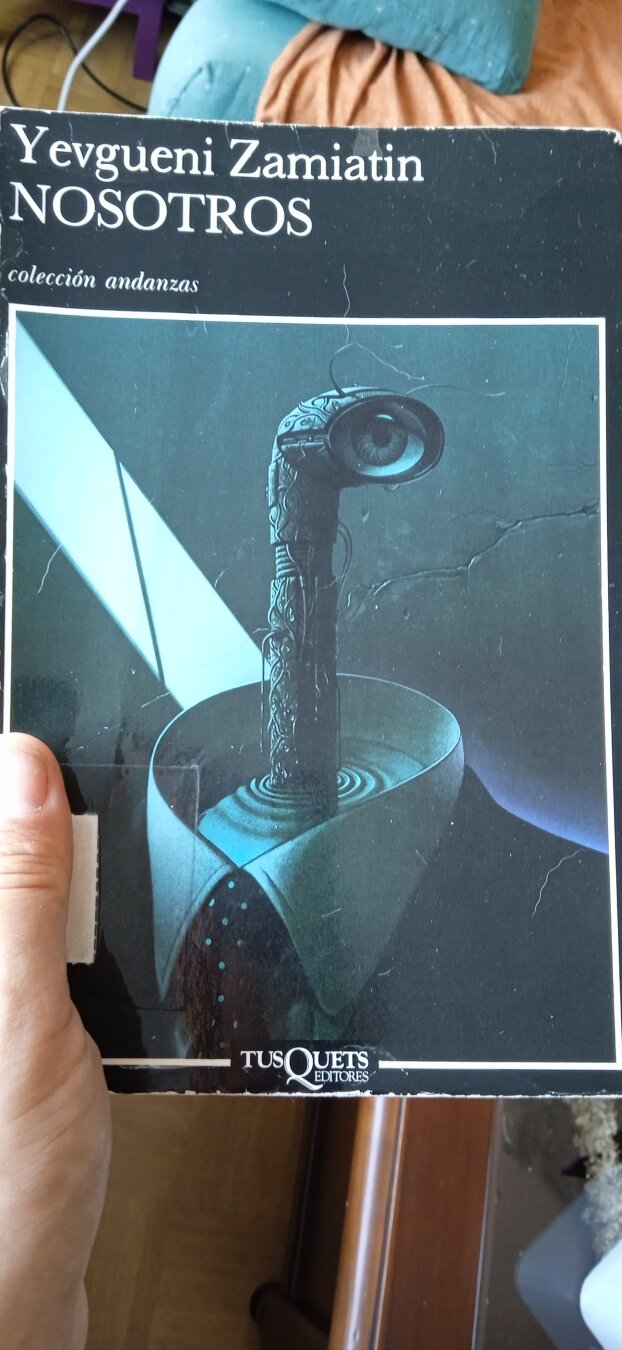
Libro «Nosotros» de Yevgueni Zamiatin
Una distopía escrita en 1920, creo que injustamente olvidada que nos recuerda a 1984 de George Orwell

Todos tenemos en la mente la famosa tríada distópica literaria de lectura cuasi obligatoria como son: 1984, Un mundo feliz y Fahrenheit 451, de George Orwell, Aldous Huxley y Ray Bradbury respectivamente. Junto con otras incorporaciones que se han ganado su fama como El cuento de la criada de Margaret Atwood, por citar las más conocidas.
Si no las has leido, deja de leer este artículo ahora mismo y dirígete a tu biblioteca más cercana a empezar a remediar ese descuido.
Pero antes que todas esas, hoy quiero escribir por una que para mí era una desconocida y que podríamos determinar como la semilla de todas ellas. Se trata de la novela Nosotros del escritor Yevgueni Zamiatin escrita en (nada más y nada menos) 1920.
Creo que la existencia del libro me llegó por Mastodon (no recuerdo por parte de quién) ya que lo desconocía por completo y no me sonaba de nada. Así que en mi biblioteca municipal me prestaron el libro para poder leerlo.
En Nosotros de Zamiatin empezamos a leer muchas de las cosas que ya nos suenan de la obra de Orwell 1984.
Si en 1984 teníamos a un Gran Hermano que todo lo controlaba, de igual manera en esta novela tenemos al Gran Bienhechor, que todo lo sabe y que perpetua ese estado que todo lo controla y castiga de manera ejemplar la disidencia.
Pero ¿quién va a querer disidencia si ya son felices y han eliminado la libertad de elección que era fuente de tristeza? Ahora todo está planeado, todo es más fácil, todo está pensado para ser eficiente.
¿Queremos esa libertad sin felicidad? o ¿La felicidad sin libertad?
Creo que es una falsa dicotomía plantear eso y aceptarlo sin más análisis y crítica. ¿cuál sería tu elección? Un estado que controla todo para hacer así que no tengas que pensar en nada y que seas feliz (¿realmente eso es felicidad?) o que tengas libertad de acción, y eso te acarreará infelicidad muchas veces…
Pero volvamos al libro a la sociedad que plantea, rodeada de un muro de cristal que nadie se ha atrevido a traspasar ¿y por qué hacerlo? ¿nadie? Una sociedad encerrada en sí misma, que ahonda únicamente en su historia contada por el Estado Único que es quien mantiene la «pureza» de espíritu y criterio de sus ciudadanos o números, ya que eso son.
Matemática, racionalidad. Nada de sueños. Dormir sí, pero soñar no. Es una anormalidad que no tiene sentido ni beneficio. Fantasear acarrea infelicidad ¿por qué hacerlo? No nos salgamos del camino marcado. Estamos siendo vigilados.
Han diluido su personalidad propia y única en un conglomerado de sociedad vigilada por los unos vigilantes que todo lo controlan y no es difícil ya que los edificios son de cristal y no existe intimidad.
Toda su vida está organizada y regida por unos horarios que controlan su tiempo: trabajo, «ocio», relaciones sexuales, comida (a base de una comida para todos igual). Desfilan por la ciudad de cristal en filas únicas y alineadas, como sus cerebros. Aquí el autor habla del sistema Taylor de control de tiempo. Que según la wikipedia:
El taylorismo, en organización del trabajo, hace referencia a la división de las distintas tareas del proceso de producción. Fue un método de organización industrial, cuyo fin era aumentar la productividad y evitar el control que el obrero podía tener en los tiempos de producción.
Saben que hace tiempo existió otra sociedad infeliz y dan gracias al Gran Bienhechor por haber remediado eso.
El libro es sin duda la semilla de 1984. Orwell dio a su sociedad una complejidad que la hace más creíble. Pero sin duda Nosotros ofrece una visión desasosegante y opresiva de una sociedad alineada y feliz en esa falta total de libertad.
Las revoluciones ocurrieron hace ya mucho tiempo. La última revolución fracasó y esto que ves aquí es lo que hay. Adáptate y no pienses, ya lo hacen otros por tí.
El libro me gustó. Pensar que está escrito en 1920 sorprende por ver la imaginación del autor a la hora de escribir sobre una ciudad que me imagino futurista, gris y fea estéticamente sin ninguna gracia, uniforme y banal.
El libro fue prohibido y no fue hasta 1988 cuando se publicó en ruso. Me parece injustamente olvidado (o esa es mi apreciación, igual todos lo conocíais) en esa gran literatura de distopías. Esas historias que son las que prohiben los estados totalitarios, pero que en algunos casos han tomado como manual de sus propios desvaríos peligrosos.
Te recomiendo la lectura del libro, una especie de diario del protagonista llamado D-503 en el que descubre que quizás la última revolución no existe y siempre hay una pendiente… ya veremos.
Reloj de interfaz múltiple para tu escritorio con Manalog Clock- Plasmoides para Plasma 6 (30)
Tras un parón debido al salto de Qt5/KF5 a Qt6/KF6 que realizó la Comunidad KDE hace ya más de año y medio. Es por ello que decidí retomar esta sección aunque renombrándola ya que en ella solo hablaría de Plasmoides para Plasma 6. Así que hoy os presento un reloj de interfaz múltiple para tu escritorio con Manalog Clock, que te proporciona un aspecto único a tu entorno de trabajo. Con este será el widget número 29 de la serie. Espero que os guste.
Reloj de interfaz múltiple para tu escritorio con Manalog Clock- Plasmoides para Plasma 6 (30)
Como he comentado en otras ocasiones, de plasmoides tenemos de todo tipo funcionales, de configuración, de comportamiento, de decoración o, como no podía ser de otra forma, de información sobre nuestro sistema como puede ser el uso de disco duro, o de memoria RAM, la temperatura o la carga de uso de nuestras CPUs.
Así que espero que le deis la bienvenida a Manolog Clock, un plasmoide para el escritorio de Plasma 6 que te proporciona no una esfera de reloj, sino un buen conjunto de ellas con muchas opciones de configuración, como vemos en la imagen inferior.


Se trata de una creación de mcc45tr que lo describe como:
Un widget de reloj analógico sofisticado y minimalista diseñado para el entorno KDE Plasma 6. Va más allá de los widgets de reloj tradicionales gracias a su diseño geométrico adaptativo y sus estados interactivos.
Y para muestra, mira las opciones básicas que muestran. En mi opinión, solo le falta añadir la posibilidad de cambiar el color del resaltado.

Y como siempre digo, si os gusta el plasmoide podéis «pagarlo» de muchas formas en la página de KDE Store, que estoy seguro que el desarrollador lo agradecerá: puntúale positivamente, hazle un comentario en la página o realiza una donación. Ayudar al desarrollo del Software Libre también se hace simplemente dando las gracias, ayuda mucho más de lo que os podéis imaginar, recordad la campaña I love Free Software Day de la Free Software Foundation donde se nos recordaba esta forma tan sencilla de colaborar con el gran proyecto del Software Libre y que en el blog dedicamos un artículo.
Más información: KDE Store
¿Qué son los plasmoides?
Para los no iniciados en el blog, quizás la palabra plasmoide le suene un poco rara pero no es mas que el nombre que reciben los widgets para el escritorio Plasma de KDE.
En otras palabras, los plasmoides no son más que pequeñas aplicaciones que puestas sobre el escritorio o sobre una de las barras de tareas del mismo aumentan las funcionalidades del mismo o simplemente lo decoran.
Aquí bajo os muestro los últimos publicados en el blog:
-
Reloj de interfaz múltiple para tu escritorio con Manalog Clock- Plasmoides para Plasma 6 (30)
 Calendario original para tu escritorio, Almanac Asimetric – Plasmoides para Plasma 6 (2)
 -
Reloj original para tu escritorio con Scrolling Clock- Plasmoides para Plasma 6 (29)
 Calendario original para tu escritorio, Almanac Asimetric – Plasmoides para Plasma 6 (2)
 -
Visualiza la letra de las canciones con Plasma Lyrics – Plasmoides para Plasma 6 (28)
 Calendario original para tu escritorio, Almanac Asimetric – Plasmoides para Plasma 6 (2)
 -
Ordena archivos de forma automática con Magic Folder – Plasmoides para Plasma 6 (27)
 Calendario original para tu escritorio, Almanac Asimetric – Plasmoides para Plasma 6 (2)
 -
Visor meteorológico Aero Weather – Plasmoides para Plasma 6 (26)
 Calendario original para tu escritorio, Almanac Asimetric – Plasmoides para Plasma 6 (2)
 -
Controla tu batería en Plasma con Battery Plasmoid Boero – Plasmoides para Plasma 6 (27)
 Calendario original para tu escritorio, Almanac Asimetric – Plasmoides para Plasma 6 (2)
 -
Lanzador estilo MacOS para KDE Plasma: Tahoe Launcher – Plasmoides para Plasma 6 (25)
 Calendario original para tu escritorio, Almanac Asimetric – Plasmoides para Plasma 6 (2)
 -
Mejoras en el nuevo Bouncy Ball de Plasma 6
 Calendario original para tu escritorio, Almanac Asimetric – Plasmoides para Plasma 6 (2)
 -
El rebote infinito de Bouncy Ball aterriza en Plasma 6 – Plasmoides para Plasma 6 (24)
 Calendario original para tu escritorio, Almanac Asimetric – Plasmoides para Plasma 6 (2)


La entrada Reloj de interfaz múltiple para tu escritorio con Manalog Clock- Plasmoides para Plasma 6 (30) se publicó primero en KDE Blog.

Linux Saloon 204 | Quarkos
Lanzamiento de la segunda beta de 6.7 – Esta semana en Plasma
El incansable trabajo de promoción que está realizando Nate (ahora con ayuda de otros desarrolladores) en su blog sigue su ritmo. Cada semana hace un resumen de las novedades más destacadas, pero no en forma de telegrama, sino de artículo completo. Su cita semanal no falla y desde hace un tiempo que le voy a siguiendo semana tras semana, traduciendo sus artículos al castellano utilizando los magníficos traductores lo cual hará que la gente que no domine el inglés esté al día y que yo me entere bien de todo. Bienvenidos pues a «Lanzamiento de la segunda beta de 6.7» de «Esta semana en Plasma«. Espero que os guste.
Lanzamiento de la segunda beta de 6.7 – Esta semana en Plasma
Nota: Artículo original en Blogs KDE. Traducción realizada utilizando Perplexity. Esta entrada está llena de novedades de la Comunidad KDE. Mis escasos comentarios sobre las mejoras entre corchetes.
¡Bienvenido a un nuevo número de This Week in Plasma!
Esta semana, el equipo siguió dejando Plasma 6.7 en muy buena forma de cara a su lanzamiento. Así que gran parte del trabajo se centró en corregir errores y pulir la interfaz de usuario.
Hemos publicado la segunda beta de Plasma 6.7, repleta de las correcciones más recientes. Si puedes, ¡instálala y pruébalo todo! Hay muchas opciones para hacerlo.
Mejoras en la interfaz de usuario
Plasma 6.7
Se hizo imposible arrastrar accidentalmente una ventana tanto fuera del borde de la pantalla que luego no pudiera volver a colocarse. (Vlad Zahorodnii, KDE Bugzilla #495635) [Esto me ha pasado alguna vez y me tocó hacer cosas con la barra de tareas o atajos de teclado para solucionarlo)
Al desinstalar una aplicación, ahora también se elimina de la sección de historial de todos los distintos widgets del lanzador. (Christoph Wolk, KDE Bugzilla #437303)
Los paneles con auto-ocultación ahora son compatibles con la opción “Cambiar de escritorio al pasar por el borde > Siempre activado”. (Francesco Panarese, KDE Bugzilla #370964)
La vista “Todas las aplicaciones” del lanzador de aplicaciones ahora agrupa las apps sin distinguir entre mayúsculas y minúsculas, así que las que empiezan por minúscula ya no quedan relegadas a su propio grupo. (Christoph Wolk, KDE Bugzilla #501788)
Se aclaró cómo funciona la opción para crear una pantalla virtual en el diálogo de selección de pantalla. (David Redondo, KDE Bugzilla #517296)

Plasma 6.8
La pantalla de bloqueo ahora respeta por completo el valor de tiempo de espera establecido por PAM en el sistema subyacente, en lugar de añadir su propio retraso obligatorio encima. Esto significa que, en sistemas con el retraso fijado en 0, puedes volver a escribir tu contraseña de inmediato después de introducirla mal. (Tobias Fella, plasma-desktop MR #3702 y plasma-workspace MR #322)
La pantalla de bloqueo ahora te avisa cuando la función de accesibilidad “Teclas lentas” está activada, por si no consigues escribir bien tu contraseña y no sabes por qué. (Martin Riethmayer, plasma-desktop #3726 y plasma-workspace MR #6626)
El diálogo de Discover sobre una app Flatpak que va a ser reemplazada por otra ahora te confirma que tus datos se transferirán automáticamente, y también te avisa de que los favoritos, accesos directos, etc. de la app antigua tendrán que rehacerse manualmente. (Nate Graham, discover MR #1342 y discover MR #1343)
Se redujo la cantidad de parpadeo visual cuando Discover comprueba si hay actualizaciones. (Aleix Pol Gonzalez, KDE Bugzilla #513220)
Corrección de errores importantes
[No comento las correcciones de errores ya que son bastante evidentes].
Plasma 6.6.6
Se corrigió un caso en el que KWin podía bloquearse cuando un monitor se apagaba y encendía rápidamente o cuando se cambiaban rápidamente algunos de sus ajustes. (Vlad Zahorodnii, KDE Bugzilla #520145)
Se corrigió un caso en el que el servicio kactivitymanagerd podía bloquearse en segundo plano. (Marco Martin, KDE Bugzilla #520595)
Se corrigió un problema relacionado con el portapapeles que podía hacer que las apps que usan XWayland se ralentizaran o se quedaran congeladas justo después de bloquear la pantalla. (Vlad Zahorodnii, KDE Bugzilla #520674)
Se corrigió un problema que podía hacer que el texto grande del reloj digital mostrado en las pantallas de bloqueo e inicio de sesión se viera algo dentado con ciertas tipografías concretas. (Filip Fila, KDE Bugzilla #516314)
Plasma 6.7
Se aplicó una solución temporal a un problema muy específico de Qt que podía hacer que los widgets dejaran de funcionar al activarlos en la bandeja del sistema después de haberlos desactivado antes y reiniciar el equipo. (Tobias Fella, KDE Bugzilla #520144)
Se aplicó una solución temporal a un problema del hardware o del firmware en ciertos portátiles que podía provocar un flujo infinito de notificaciones OSD de brillo del teclado al cerrar la tapa. (Vitaly Repin, powerdevil MR #632)
Se corrigió un problema que podía hacer que un archivo renombrado en el escritorio desapareciera visualmente —seguía existiendo y se podía acceder a él mediante Dolphin— mientras se usaban varias Actividades, o que se moviera a otra ubicación cuando solo había una Actividad. (Akseli Lahtinen, KDE Bugzilla #520633 y KDE Bugzilla #511920)
Se corrigió un problema que hacía imposible usar una tecla de hardware para autenticarse en una red protegida con 802.1x. (Katharina Bogad, KDE Bugzilla #520449)
Se corrigió un problema que hacía que el widget de redes mostrara el icono incorrecto para una red de tipo OVS bridge. (Ivan Perevalov, KDE Bugzilla #517384)
Se corrigió un problema que podía hacer que el servidor de escritorio remoto integrado de Plasma se ralentizara o se congelara al copiar ciertas cosas concretas en ciertas apps concretas. (Paul Hoskinson, KDE Bugzilla #520175)
Se corrigió un problema que hacía imposible enfocar el campo de búsqueda del widget de red usando Ctrl+F. (Akseli Lahtinen, KDE Bugzilla #515280)
Se corrigió un problema que hacía que los botones del diálogo de registro de huella dactilar quedaran mal colocados. (Harald Sitter, KDE Bugzilla #515824)
Se corrigió un problema con el tema Breeze de las apps GTK que hacía que las líneas separadoras de la barra lateral se volvieran de un blanco brillante con esquemas de color oscuros. (Levi Leal, KDE Bugzilla #484383)
Plasma 6.8
Se corrigieron dos problemas que podían hacer que KWin se bloqueara o no pudiera evaluar cálculos matemáticos desde el efecto Overview. (Alexander Lohnau, KDE Bugzilla #519923 y KDE Bugzilla #483147)
Se corrigió un problema que hacía imposible abrir el menú contextual del panel mientras ya se estaba en modo de edición. (Tobias Fella, libplasma MR #1468)
Cómo puedes ayudar
KDE se ha vuelto importante en el mundo, y tu tiempo y contribuciones han ayudado a llegar hasta aquí. A medida que crecemos, necesitamos tu apoyo para mantener KDE sostenible.
¿Te gustaría ayudar a preparar este informe semanal? Preséntate en la sala de Matrix y únete al equipo.
Más allá de eso, puedes ayudar a KDE involucrándote directamente en cualquier otro proyecto. Donar tiempo es realmente más impactante que donar dinero. Cada colaborador marca una gran diferencia en KDE — ¡no eres un número ni un engranaje en una máquina! No tienes que ser programador, existen muchas otras oportunidades.
También puedes ayudar haciendo una donación. Esto ayuda a cubrir costes operativos, salarios, gastos de viaje para colaboradores y, en general, a mantener KDE llevando Software Libre al mundo.


La entrada Lanzamiento de la segunda beta de 6.7 – Esta semana en Plasma se publicó primero en KDE Blog.
Marknote 1.6.0 ya publicado
Marknote es una aplicación de la comunidad KDE para escrirbir notas en formato Markdown

Desde que conocí Marknote, la aplicación de software libre de la comunidad KDE para escribir notas y tenerlas organizadas, allá por 2024, lo instalé y lo utilizo de manera intermitente para escribir algún borrador o ideas para artículos para el blog u otros menesteres
La anterior versión 1.5.0 se publicó el pasado marzo de 2026:
Y ahora vamos a echar un vistazo a las novedades de esta nueva versión 1.6.0 de Marknote que puedes leer en el anuncio oficial y que llega con un buen número de nuevas funcionalidades.
En primer lugar, por fin ya se pueden utilizar subcarpetas para organizar nuestras notas. Esta función aún es muy nueva y, por ahora, no todavía no se pueden crear estas subcarpetas desde el propio Marknote. Por lo que habrá que crearlas desde Dolphin. Pero ya están trabajando para solucionar esto y que desde el propio Marknote se puedan gestionar esas nuevas carpetad. Además cada cuaderno ahora también muestra cuántas notas hay almacenadas en su interior.
Otro gran cambio nuevo es que desde la barra de comandos de Marknote ahora se pueden notas en todos los cuadernos.
Y un toque elegante es que a gusto personal del usuario se ha añadido la posibilidad de añadir un efecto de desenfoque de fondo para el editor, similar al que también está disponible en otras aplicaciones de KDE como NeoChat.
Y otra mejora es la posibilidad de añadir emojis de manera fácil a las notas añadiendo completados de emojis al editor de texto. Simplemente escribiendo :smil mostrará todas las opciones de los emojis disponibles, pudiendo seleccionar el que queremos.
Pronto estará disponible esta versión en los repositorios de las distribuciones de GNU/Linux y para quienes utilicéis Flatpack, ya está disponible esta versión más reciente para instalarlo medianta Discover, por ejemplo.
#openSUSE Tumbleweed revisión de la semana 22 de 2026
Tumbleweed es una distribución de GNU/Linux «Rolling Release» o de actualización contínua. Aquí puedes estar al tanto de las últimas novedades.

openSUSE Tumbleweed es la versión «rolling release» o de actualización continua de la distribución de GNU/Linux openSUSE.
Hagamos un repaso a las novedades que han llegado hasta los repositorios esta semana.
Y recuerda que puedes estar al tanto de las nuevas publicaciones de snapshots en esta web:
El anuncio original lo puedes leer en el blog de Dominique Leuenberger, publicado bajo licencia CC-by-sa, en este este enlace:
A pesar de los problemas ocasionados con AppArmor, esta semana se han publicado 5 Snapshots (0521, 0523, 0524, 0525, y 0527)
Estos son los cambios más relevantes:
- Mozilla Firefox 151.0.1
- Linux kernel 7.0.10
- Agama 21
- freerdp 3.26.0
- postfix 3.11.3
- Ruby 4.0.5
- Poppler 26.05.0
- libgit2 1.9.4
- hplip 3.26.4
- Qt 5.15.19
Y para próximas snapshots, ya se están preparando las siguientes actualizaciones:
- Qt 6.11.1
- Mesa 26.1.1
- mariadb 11.8.7
- GNOME 50.2
- gcc 16
Si quieres estar a la última con software actualizado y probado utiliza openSUSE Tumbleweed la opción rolling release de la distribución de GNU/Linux openSUSE.
Mantente actualizado y ya sabes: Have a lot of fun!!
Enlaces de interés
- ¿Por qué deberías utilizar openSUSE Tumbleweed?
- zypper dup en Tumbleweed hace todo el trabajo al actualizar
- ¿Cual es el mejor comando para actualizar Tumbleweed?
- ¿Qué es el test openQA?
- http://download.opensuse.org/tumbleweed/iso/
- https://es.opensuse.org/Portal:Tumbleweed
——————————–
Tumbleweed – Review of the week 2026/22
Dear Tumbleweed users and hackers,
Week 22 seemed a bit less hectic than the previous one. AppArmor profiles are still being fixed left and right. We’re really sorry for all the trouble AppArmor 5.0 brought you. The number of reports on that topic is decreasing, which means the AppArmor maintainer has done a great job addressing the issues as they were reported. Let’s all give our appreciation to Christian for his dedication to the topic.
The release team managed to publish 5 snapshots (0521, 0523, 0524, 0525, and 0527) during this week, delivering the following changes:
- freerdp 3.26.0
- postfix 3.11.3
- Ruby 4.0.5
- Poppler 26.05.0
- libgit2 1.9.4
- hplip 3.26.4, See Martin’s mail regarding plugins and workarounds
- Qt 5.15.19
- Mozilla Firefox 151.0.1
- Linux kernel 7.0.10
- Agama 21 based installer to test: https://download.opensuse.org/tumbleweed/appliances/iso/agama-installer.x86_64-openSUSE.iso
The machinery is oiled, and updates are submitted frequently. Currently, we are preparing the implementation of these updates:
- Qt 6.11.1
- Mesa 26.1.1
- mariadb 11.8.7
- GNOME 50.2
- Rework of Python3 packaging (as a meta package instead of a provides of the default interpreter)
- gcc 16 as the system default compiler
Planet News Roundup
This is a roundup of articles from the openSUSE community listed on planet.opensuse.org.
The community blog aggregates a list of the featured highlights below from May 22 to 27.
Blogs this week cover security vulnerabilities discovered and patched in qSnapper’s privileged D-Bus service, a new GSoC 2026 contributor joining the openSUSE Project, nightly syslog-ng container images now available based on Alma Linux, a new plasmoid Scrolling Clock for KDE Plasma 6, a tip for previewing Markdown in the Kate editor, the April 2026 Krita report, the Mobile Linux Hackday in České Budějovice, Agama 21 and more.
Here is a summary and links for each post:
Whaleshark Opens Knopje
Sébas announces that on June 19 he will open the next edition of Knopje with a 1.5-hour melodic techno set.
Krita April 2026 Report
The KDE Blog covers the April 2026 Krita monthly report, which announces the release of Krita 5.3.2 and 6.0.2 with two months’ worth of bug fixes and improvements including text tool enhancements, performance fixes, and an Android crash fix. The post also highlights upcoming features in development and improves wide-gamut color conversion.
Introducing Shared Canned Responses
The Open Build Service Blog introduces shared canned responses in OBS, expanding a feature that previously only allowed users to create personal canned responses under their own profiles. The update allows canned responses to now be shared across projects and packages, streamlining collaboration and communication in request workflows.
How to Install exeLearning 4.0 on Your Computer
The KDE Blog explains how to install exeLearning 4.0, a free and open-source tool for creating interactive digital educational resources. The post outlines the three available editions.
Scrolling Clock Widget: Plasmoids for Plasma 6 (29)
The KDE Blog presents Scrolling Clock, the 29th widget in their Plasma 6 plasmoid series, which displays an animated clock cycling through all digits for a unique and eye-catching desktop look. Users who enjoy the widget are encouraged to support the developer through ratings, comments, or donations on the KDE Store.
Previewing Markdown Files in the Kate Editor
Victorhck shares a quick tip for enabling live Markdown preview inside the KDE Kate editor by activating the “Document Preview” plugin. The author notes that HTML preview does not work the same way and recommends using a browser for that format instead.
Nightly syslog-ng Containers Based on Alma Linux
Peter Czanik announces that nightly syslog-ng container images based on Alma Linux are now available on Docker Hub. Previously only Debian-based images were provided, but this new Alma Linux offering is built from the latest syslog-ng git snapshot packages.
Accepted into Google Summer of Code 2026 with openSUSE!
Mario Marín announces on his GSoC 2026 blog that he has been accepted into Google Summer of Code 2026 to contribute to the openSUSE project under two mentors. Over 12 weeks, he will work on improving the obs-status-service, including better SVG visualizations, a Gitea bot for Pull Request build information, and an AI-assisted stretch goal using Log Detective to analyze failed builds. He will be posting weekly progress updates on his blog.
qSnapper: Various Security Issues in Privileged D-Bus Service (CVE-2026-41045 through CVE-2026-41049)
The SUSE Security Team blog discloses five CVEs found during a security review of qSnapper, a GUI frontend for the Btrfs snapshot manager snapper. All issues were addressed through coordinated disclosure with the upstream author and fixes were shipped in the qSnapper 1.3.3 released on May 26.
MobileLinux Hackday #1 in České Budějovice
The SUSE Community Blog reports that the first Mobile Linux Hackday held in České Budějovice had a bigger turnout than the well-established Prague series with regard to attendance and synergy. The Prague series had already built a strong following over seven monthly events and the new venue signals growing momentum and geographic expansion for the Mobile Linux hackday movement in Czechia.
How to Use Desktop Icons NG (DING) on openSUSE 16 GNOME
The Geeko Blog provides a fix for the Desktop Icons NG (DING) GNOME extension failing to work on openSUSE 16. The post includes the relevant error message from /var/log/messages to help users identify the problem.
Long-Term Support Doesn’t Mean What You Think
The KDE Blog summarizes a post by KDE developer Nate Graham clarifying that LTS releases promise extended maintenance and security patches, not bug-free software or guaranteed personal support. The post draws a clear distinction between free community LTS distributions and commercially supported products and suggests that Flatpak apps can help bridge the software freshness gap on stable systems.
Haruna 1.8 Released – New Version of This KDE Media Player
The KDE Blog announces the release of Haruna 1.8, an open-source video player built on libmpv with YouTube integration. Haruna continues to be a solid alternative to Dragon Player and Kaffeine within the KDE ecosystem.
Linux Saloon 202 | Early Edition
CubicleNate recaps episode 202 of the Linux Saloon podcast, covering Colin’s use of his Surface Go running Cosmic Desktop, the release of Ubuntu 26.04 LTS, and updates on the Framework Computer Laptop 13 Pro.
Linux Saloon 203 | News Flight Night
CubicleNate recaps episode 203 of the Linux Saloon podcast, during which attendees discuss Collin’s experience with stillOS, the value of operating system rollback features, and notable news including HP sponsoring the Linux Vendor Firmware Service and KDE receiving a significant investment.
Xe Driver Support and Discover Improvements – This Week in Plasma
The KDE Blog translates Nate Graham’s weekly Plasma development summary. A standout community contribution added support for monitoring modern Intel Xe GPUs in System Monitor and its widgets. Discover also received several improvements including safer Flatpak data deletion sending files to the trash, a reorganized front page with the Editor’s Choice section moved higher, and case-insensitive search on the Updates page.
Agama 21 Released
Victorhck summarizes the release of Agama 21. The network configuration interface was redesigned with a new form supporting bond and bridge connections in addition to Ethernet and Wi-Fi. A new boot option inst.remote=0 allows disabling remote installer access for improved security in sensitive environments.
Tumbleweed – Review of the Weeks 2026/21
Victorhck and Dominique Leuenberger’s blog recap week 21 with six snapshots. The releases shipped notable updates including AppArmor 5.0.0, KDE Plasma 6.6.5, Linux kernel 7.0.6 through 7.0.9, GStreamer 1.28.3, Ruby 4.0.4, and PostgreSQL 18.4. Upcoming pipeline changes include Agama 21, GCC 16 as the default system compiler, and a rework of Python 3 packaging.
Workshop: Agentic AI and Total Automation at Linux Center València
The KDE Blog announces a hands-on workshop on agentic AI and automation taking place on June 6 at Slimbook’s Linux Center in Paterna, Valencia. The event features sessions on building intelligent agent systems using OpenClaw, privacy-respecting automation with Hermes, and a practical pair-programming workshop on Slimbook One mini PCs.
View more blogs or learn to publish your own on planet.opensuse.org.