
GNOME 40, KDE Frameworks, Plasma Update in Tumbleweed
Two openSUSE Tumbleweed snapshots were released since last week’s blog.
The snapshots brought the much anticipated GNOME 40 as well as an update of KDE Frameworks 5.81.0, Plasma 5.21.4 and several other packages.
The 20210414 snapshots was a monster; the amount of packages updated in the snapshot was ginormous. The update to GNOME 40 brought some significant changes to the desktop environment. New visual changes with rounded corners, and gestures like a three-finger swipe to move between workspaces were among the improvements in the release. The app launcher is more customizable and more intuitive to navigate with a mouse. Another desktop environment that was updated in the snapshot was Plasma 5.21.4, which had color scheme fixes and a fix for a broken keyboard configurations with single layout on Wayland. The release also set the preferred aspect ratio to “21:9” over “64:27” with KScreen. KDE Frameworks 5.81.0 added high-brightness and low-brightness Breeze Icons and the user interface builder Kirigami fixed a potential crash in the SizeGroup. Even Xfce had in update in the snapshot; this update in the xfce4-settings 4.16.1 package fixed scaling and updated translations. Dependencies were update in the upgrade to nodejs15 15.14. There was a minor fix for the cups printing package and xterm 367 updated some patches and improved responsiveness of the terminal. Linux Kernel 5.11.12 arrived in the snapshot and had several Advanced Linux Sound Architecture fixes and a commit for a nosy driver with Common Vulnerabilities and Exposures (CVE)2021-3483. Both ruby2.7 and ruby3.0 received minor updates to fix an XML vulnerability and GStreamer 1.18.4 fixed mpeg-2 video handling and a memory leak. Several YaST packages also had updates.
A major version update of audacity 3.0.0 arrived in snapshot 20210408. The format to save Audacity projects was changed and a new analyzer called Label Sounds can label sounds and silences for more effective use of the application. Less than a handful of CVEs were updated in curl 7.76.0; the command line tool strips credentials from the auto-referer header field and adds support to read and store the referrer header. An update of systemd 246.13 had some changes to handle large packets more gracefully and rubygem-rubocop 1.12.1 had an enormous amount of fixes jumping from version 1.8.1. Another package that received a large amount of updates was vim 8.2.2725; there were fixes for a memory leak when compiling and a fix for hangs with the terminal when resized. The xf86-input-libinput package moved from version 0.30.0 to 1.0.0 and its biggest change was the change to an MIT Licence. Other packages updated in the snapshot were bind 9.16.12, fwupd 1.5.8 and openssl 1.1.1k, which fixed CVE-2021-3450 that had a problem with verifying a certificate chain when using a certain flag.

 Member
 baltolkien
Más vídeos de Plasma 5.21
Hoy vamos de entrada ligera y visual, y que además del oficial hay más vídeos de Plasma 5.21 que demuestran lo pulido que ha salido esta nueva versión del escritorio de la Comunidad KDE.
Más vídeos de Plasma 5.21
De la mano de The Linux Experiment os presento un vídeo donde se comentan algunas de las novedades más destacadas de nuestro entorno favorito.

De esta forma nos comentan en un vídeo de unos 10 minutos el nuevo lanzador de aplicaciones y el nuevo aspecto de las barras de herramientas de las aplicaciones, bien sean qt o gtk.
También comenta el nuevo tema crepúsculo, que aúna lo mejor del tema calro y del oscuro de Breeze, y el nuevo Monitor del Sistema.
Las novedades de Plasma 5.21
Ya he hablado largo y tendido sobre las novedades de Plasma 5.21, podéis encontrarlos con esta etiqueta, pero he aquí un breve resumen de las novedades más destacada:
- Nuevo lanzador de aplicaciones que presenta una interfaz de usuario de doble panel, mejoras en la navegación con el teclado y con el ratón, mejor accesibilidad y soporte para idiomas con escritura de derecha a izquierda.
- Mejoras visuales en el tema por defecto de Plasma que disponen ahora de una combinación de colores renovada y lucen un nuevo estilo de barra de encabezado unificado con un aspecto limpio y refrescante.
- Presentación de Breeze Crepúsculo («Twilight») nevo tema oficial disponible que combina lo mejor de los temas claros y oscuros.
- Nueva interfaz de información del sistema llamdo Plasma System Monitor para monitorizar los recursos del sistema construido sobre Kirigami y un servicio de estadísticas del sistema llamado «KSystemStats».
- Mejoras y avances importantes en Kwin con Wayland cuyo código de composición de KWin se ha refactorizado mejorando la latencia (tiempo de respuesta del escritorio) .
- Nueva página para las «Preferencias del sistema»: las preferencias del cortafuegos de Plasma. Este módulo de configuración le permite ajustar y editar el cortafuegos de su sistema y constituye una interfaz gráfica para «UFW» y «firewalld».
¿De dónde viene #Vim? La historia de este gran editor
Veamos la historia que hay detrás del editor Vim y cómo este ha llegado a ser lo que es hoy

¿Te has preguntado alguna vez por qué para salir de Vim hay que pulsar :wq? ¿Sabes cual es la historia del editor Vim?
Viajemos hacia atrás en el tiempo y encontrémonos en los orígenes de la informática con algunos de los pioneros de mentes lúcidas.
Este artículo es una nueva entrega del curso “improVIMsado” que desde hace meses vengo publicando en mi blog sobre el editor Vim y que puedes seguir en estos enlaces:
- https://victorhckinthefreeworld.com/tag/vim/
- https://victorhck.gitlab.io/comandos_vim/articulos.html
Este artículo es una traducción que he realizado del artículo en inglés “Where Vim came from” escrito por Sinclair Target y publicado bajo una licencia CC-by-sa. Comenzamos…

Recientemente me encontré con un formato de archivo conocido como Intel HEX. Por lo que puedo deducir, los archivos Intel HEX (que usan la extensión .hex) están destinados a hacer que las imágenes binarias sean menos opacas al codificarlas como líneas de dígitos hexadecimales.
Aparentemente, son utilizados por personas que programan microcontroladores o necesitan grabar datos en ROM. En cualquier caso, cuando abrí un archivo HEX en Vim por primera vez, descubrí algo impactante. Aquí estaba este formato de archivo que, al menos para mí, era profundamente esotérico, pero Vim ya lo sabía todo.
Cada línea de un archivo HEX es un registro dividido en diferentes campos; Vim se había adelantado y coloreó cada uno de los campos con un color diferente. Ejecuté y pregunté con asombro :set ft? Y Vim me contestó triunfante: filetype = hex
Vim está en todas partes. Es utilizado por tanta gente que algo como la compatibilidad con archivos HEX no debería ser una sorpresa. Vim viene preinstalado en MacOS y tiene una gran participación en el mundo de Linux.
Es familiar incluso para las personas que lo odian, porque bastantes herramientas de línea de comandos populares arrojarán a los usuarios a Vim de forma predeterminada y los no iniciados que se quedan atrapados en Vim se ha convertido ya en un meme.
Hay sitios web importantes, incluido Facebook, que se desplazarán hacia abajo cuando presione la tecla j y hacia arriba cuando presione la tecla k, el testigo inesperado de la propagación de Vim a través de la cultura digital.
Y, sin embargo, Vim también es un misterio. A diferencia de React, por ejemplo, que todo el mundo sabe que es desarrollado y mantenido por Facebook, Vim no tiene un patrocinador obvio. A pesar de su ubicuidad e importancia, no parece haber ningún tipo de comité u organización que tome decisiones sobre Vim.
Podría pasar varios minutos hurgando en el sitio web de Vim sin tener una mejor idea de quién creó Vim o por qué. Si inicia Vim sin darle un argumento de archivo, verá el mensaje de inicio de Vim, que dice que Vim fue desarrollado por “Bram Moolenaar et al.” Pero eso no dice mucho.
¿Quién es Bram Moolenaar y quiénes son sus sombríos cómplices?
Quizás lo más importante, mientras hacemos preguntas, ¿por qué salir de Vim implica escribir :wq ? Claro, es una operación de “escritura” (write en inglés) seguida de una operación de “salida” (quit en inglés), pero esa no es una convención particularmente intuitiva.
¿Quién decidió que copiar texto debería llamarse “yank”? ¿Por qué: %s/foo/bar/gc es la abreviatura de “buscar y reemplazar”? Las idiosincrasias de Vim parecen demasiado arbitrarias para haber sido inventadas, pero ¿de dónde vienen?
La respuesta, como suele ser el caso, comienza con ese antiguo crisol de la informática, que es Bell Labs. En cierto sentido, Vim es solo la última versión de un software, llámelo el “editor de texto wq”, que se ha desarrollado y mejorado continuamente desde los albores de la época Unix.
Ken Thompson escribe un editor de líneas
En 1966, Bell Labs contrató a Ken Thompson. Thompson acababa de completar una maestría en Ingeniería Eléctrica y Ciencias de la Computación en la Universidad de California, Berkeley.
Mientras estaba allí, había utilizado un editor de texto llamado QED, escrito para el sistema de tiempo compartido de Berkeley entre 1965 y 1966.1 Una de las primeras cosas que hizo Thompson después de llegar a Bell Labs fue reescribir QED para el sistema de tiempo compartido compatible con MIT.
Más tarde escribiría otra versión de QED para el proyecto Multics. En el camino, expandió el programa para que los usuarios pudieran buscar líneas en un archivo y hacer sustituciones usando expresiones regulares.
El proyecto Multics, que al igual que el Berkeley Timesharing System buscaba crear un sistema operativo de tiempo compartido comercialmente viable, fue una asociación entre el MIT, General Electric y Bell Labs. AT&T finalmente decidió que el proyecto no iba a ninguna parte y se retiró.
Thompson y el investigador de Bell Labs Dennis Ritchie, ahora sin acceso a un sistema de tiempo compartido y sin la “sensación de computación interactiva” que ofrecían tales sistemas, se propusieron crear su propia versión, que eventualmente se conocería como Unix.
En agosto En 1969, mientras su esposa y su hijo pequeño estaban de vacaciones en California, Thompson reunió los componentes básicos del nuevo sistema, asignando “una semana a cada uno, al sistema operativo, el shell, el editor y el ensamblador”.
El editor se llamaría ed. Se basó en QED pero no fue una reimplementación exacta. Thompson decidió deshacerse de ciertas funciones de QED. La compatibilidad con las expresiones regulares se redujo para que solo se entendieran las expresiones regulares relativamente simples.
QED permitía a los usuarios editar varios archivos a la vez abriendo varios búferes, pero ed solo funcionaría con un búfer a la vez. Y mientras que QED podría ejecutar un búfer que contenga comandos, ed no haría tal cosa.
Estas simplificaciones pueden haber sido necesarias. Dennis Ritchie ha dicho que prescindir de las expresiones regulares avanzadas de QED “no fue una gran pérdida”.
ed ahora es parte de la especificación POSIX, por lo que si tiene un sistema compatible con POSIX, lo tendrá instalado en su computadora.
Vale la pena jugar con él, porque muchos de los comandos ed son hoy parte de Vim. Para escribir un búfer en el disco, por ejemplo, debe usar el comando w. Para salir del editor, debe usar el comando q. Estos dos comandos se pueden especificar en la misma línea a la vez, por lo tanto, wq.
Como Vim, ed es un editor modal; para ingresar al modo de entrada desde el modo de comando, debe usar el comando de inserción (i), el comando de agregar (a) o el comando de cambio (c), dependiendo de cómo esté tratando de transformar su texto. ed también introdujo la sintaxis s/foo/bar/g para buscar y reemplazar o “sustituir” texto.
Dadas todas estas similitudes, es de esperar que el usuario promedio de Vim no tenga problemas para usar ed. Pero ed no se parece en nada a Vim en otro aspecto importante. ed es un verdadero editor de líneas. Fue escrito y ampliamente utilizado en los días de la impresora de teletipos.
Cuando Ken Thompson y Dennis Ritchie estaban hackeando creando Unix, se veían así:

ed no te permite editar líneas ubicadas entre las otras líneas del búfer abierto, o mover un cursor, porque ed tendría que volver a imprimir todo el archivo cada vez que le hiciera un cambio.
En 1969 no existía ningún mecanismo para que ed “borrara” el contenido de la pantalla, porque la pantalla era solo una hoja de papel y todo lo que ya había salido se había impreso en tinta.
Cuando sea necesario, puede pedirle a ed que imprima un rango de líneas usando el comando list (l), pero la mayoría de las veces está operando con texto que no puede ver.
Por lo tanto, usar ed es un poco intentar orientarse en una casa oscura con una linterna de poca potencia. Solo puede ver una cantidad limitada a la vez, por lo que debe hacer todo lo posible para recordar dónde está todo.
A continuación, se muestra un ejemplo de una sesión de educación. Agregué comentarios (después del carácter #) que explican el propósito de cada línea, aunque si realmente se ingresaran esos caracteres, ed no los reconocería como comentarios y se quejaría:
[sinclairtarget 09:49 ~]$ ed
i                           # Enter input mode
Hello world!
Isn't it a nice day?
.                           # Finish input
1,2l                        # List lines 1 to 2
Hello world!$
$
2d                          # Delete line 2
,l                          # List entire buffer
Hello world!$
Isn't it a nice day?$
s/nice/terrible/g           # Substitute globally
,l
Hello world!$
Isn't it a terrible day?$
w foo.txt                   # Write to foo.txt
38                          # (bytes written)
q                           # Quit
[sinclairtarget 10:50 ~]$ cat foo.txt
Hello world!
Isn't it a terrible day?
Como podéis ver, ed no es un programa especialmente hablador.
Ed funcionó bastante bien para Thompson y Ritchie. A otros les resultó difícil de usar y adquirió la reputación de ser un ejemplo particularmente atroz de la hostilidad de Unix hacia el novato.
En 1975, un hombre llamado George Coulouris desarrolló una versión mejorada de ed en el sistema Unix instalado en el Queen Mary’s College de Londres. Coulouris escribió a su editor para aprovechar las pantallas de video que tenía disponibles en Queen Mary’s.
A diferencia de ed, el programa de Coulouris permitía a los usuarios editar una sola línea mostrada en la pantalla, navegando a través de la línea pulsación de tecla por pulsación de tecla (imagínese usando Vim en una línea a la vez).
Coulouris llamó a su programa em, o “editor para mortales“, que supuestamente se había inspirado a hacer después de que Thompson hizo una visita a Queen Mary’s, vio el programa que Coulouris había construido y lo descartó, diciendo que no tenía necesidad de ver el estado de un archivo mientras lo edita.
En 1976, Coulouris los llevó consigo a UC Berkeley, donde pasó el verano como visitante del departamento de informática. Esto fue exactamente diez años después de que Ken Thompson dejara Berkeley para trabajar en Bell Labs.
En Berkeley, Coulouris conoció a Bill Joy, un estudiante graduado que trabajaba en Berkeley Software Distribution (BSD). Coulouris se los mostró a Joy, quien, comenzando con el código fuente de Coulouris, creó una versión mejorada de ed llamada ex, que significa “edición extendida”.
La versión 1.1 de ex se incluyó con el primer lanzamiento de BSD Unix en 1978. ex era en gran parte compatible con ed, pero agregó dos modos más: un modo “abierto”, que permitía la edición de una sola línea como había sido posible con em, y un modo “visual”, que se apoderó de toda la pantalla y permitió la edición en vivo de un archivo completo como estamos acostumbrados hoy.
Para la segunda versión de BSD en 1979, se introdujo un ejecutable llamado vi que hacía poco más que abrir ex en modo visual.
ex/vi (de ahora en adelante vi) estableció la mayoría de las convenciones que ahora asociamos con Vim que aún no formaban parte de ed.
El terminal de video que estaba usando Joy era un Lear Siegler ADM-3A, que tenía un teclado sin teclas de cursor. En cambio, se pintaron flechas en las teclas h, j, k y l, razón por la cual Joy usó esas teclas para el movimiento del cursor en vi.
La tecla de escape en el teclado ADM-3A también estaba donde hoy encontraríamos la tecla de tabulación, lo que explica cómo a una tecla tan difícil de alcanzar se le asignó una operación tan común como salir de un modo.
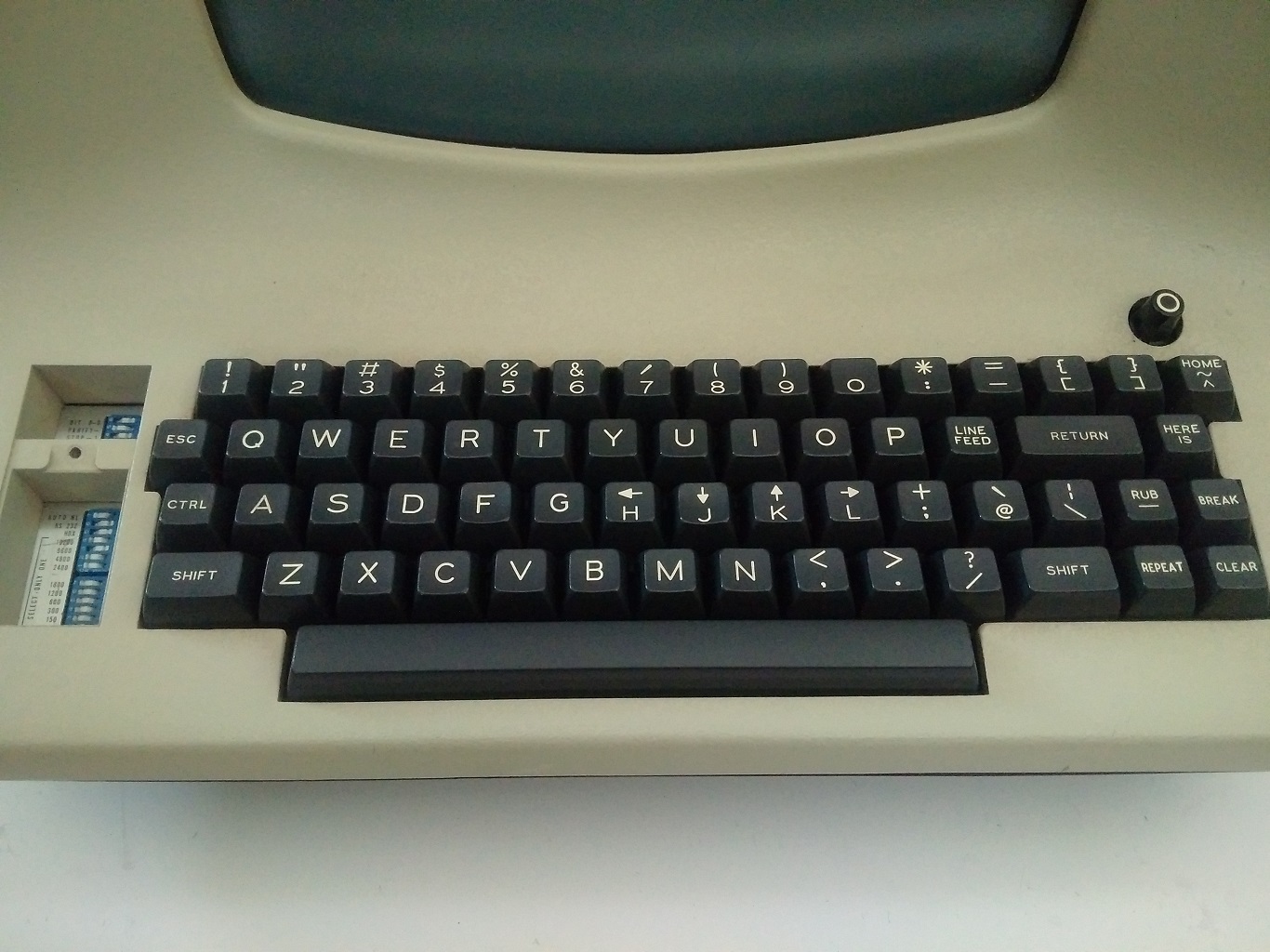
El caracter : que precede a los comandos también proviene de vi, que en el modo normal (es decir, el modo ingresado al ejecutar ex) usaba : como indicador.
Esto abordó una queja que había desde hace tiempo sobre ed, que, una vez lanzada, saluda a los usuarios con absoluto silencio. En modo visual, guardar y salir ahora implicaba escribir el clásico :wq.
Las acciones de “yank” (copiar) y “put“ (pegar o poner), las marcas y el comando set para configurar las opciones eran parte del vi original. Las funciones que usamos en el curso de la edición básica de texto hoy en Vim son en gran parte funciones de vi.
vi fue el único editor de texto incluido con BSD Unix además de ed. En ese momento, Emacs podía costar cientos de dólares (esto fue antes de GNU Emacs), por lo que vi se volvió enormemente popular.
Pero vi era un descendiente directo de ed, lo que significaba que el código fuente no podía modificarse sin una licencia fuente de AT&T. Esto motivó a varias personas a crear versiones de código abierto de vi.
STEVIE (Editor ST para entusiastas de VI) apareció en 1987, Elvis apareció en 1990 y nvi apareció en 1994. Algunos de estos clones agregaron características adicionales como resaltado de sintaxis y ventanas divididas. Elvis, en particular, vio muchas de sus características incorporadas en Vim, ya que muchos usuarios de Elvis presionaron por su inclusión.
Bram Moolennar escribe Vim

“Vim”, que ahora es la abreviación de “Vi mejorado”, originalmente significaba “Vi imitación”. Como muchos de los otros clones de vi, Vim comenzó como un intento de replicar vi en una plataforma donde no estaba disponible.
Bram Moolenaar, un ingeniero de software holandés que trabaja para una empresa de fotocopiadoras en Venlo, Países Bajos, quería algo como vi para su nuevo equipo Amiga 2000. Moolenaar se había acostumbrado a usar vi en los sistemas Unix en su universidad y ahora estaba “en sus dedos.”
Así que en 1988, utilizando el clon existente de STEVIE vi como punto de partida, Moolenaar comenzó a trabajar en Vim.
Moolenaar tenía acceso a STEVIE porque STEVIE había aparecido previamente en algo llamado “Fred Fish disk”. Fred Fish era un programador estadounidense que enviaba por correo un disquete todos los meses con una cuidada selección del mejor software de código abierto disponible para la plataforma Amiga.
Cualquiera podía solicitar un disco por nada más que el precio del envío. Se lanzaron varias versiones de STEVIE en “Fred Fish disk”. La versión que usó Moolenaar había sido lanzada en el disco 256.11 de Fred Fish (lamentablemente, los discos de Fred Fish parecen no tener nada que ver con Freddi Fish).
A Moolenaar le gustaba STEVIE, pero rápidamente se dio cuenta de que faltaban muchos comandos vi. Así que, para la primera versión de Vim, Moolenaar hizo de la compatibilidad con vi su prioridad.
Alguien más había escrito una serie de macros vi que, cuando se ejecutaban a través de un editor compatible con vi, podían resolver un laberinto generado aleatoriamente. Moolenaar pudo hacer que estas macros funcionaran en Vim.
En 1991, Vim fue lanzado por primera vez en el disco 591 de Fred Fish como “Vi Imitation”. Moolenaar había agregado algunas características (incluyendo deshacer multinivel y un modo de “corrección rápida” para errores del compilador) que significaban que Vim había superado vi . Pero Vim seguiría siendo “Vi Imitation” hasta Vim 2.0, lanzado en 1993 a través de FTP.
Moolenaar, con la ayuda ocasional de varios colaboradores de Internet, agregó funciones a Vim a un ritmo constante.
Vim 2.0 introdujo soporte para la opción de ajuste y para el desplazamiento horizontal a través de largas líneas de texto. Vim 3.0 agregó soporte para ventanas divididas y búferes, una característica inspirada en el clon de vi nvi.
Vim ahora también guarda cada búfer en un archivo de intercambio, para que el texto editado pudiera resistir a un bloqueo del equipo o editor.
Vimscript hizo su primera aparición en Vim 5.0, junto con soporte para resaltado de sintaxis. Mientras tanto, la popularidad de Vim fue creciendo. Fue portado a MS-DOS, a Windows, a Mac e incluso a Unix, donde compitió con el vi original.
En 2006, Vim fue votado como el editor más popular entre los lectores de Linux Journal. En la actualidad, según la Encuesta para desarrolladores de Stack Overflow 2018, Vim es el editor en modo texto (es decir, emulador de terminal) más popular, utilizado por el 25,8% de todos los desarrolladores de software ( y el 40% de la gente de Sysadmin / DevOps).
Durante un tiempo, a fines de la década de 1980 y durante la de 1990, los programadores libraron las “Guerras de los editores”, que enfrentaron a los usuarios de Emacs contra los usuarios de vi (y eventualmente Vim). Si bien Emacs ciertamente todavía tiene seguidores, algunas personas piensan que las guerras de los editores terminaron y que Vim ganó.
La Encuesta de desarrolladores de Stack Overflow de 2018 sugiere que esto es cierto; sólo el 4,1% de los encuestados utilizó Emacs.
¿Cómo llegó Vim a tener tanto éxito? Obviamente, a la gente le gustan las características que Vim ofrece. Pero yo diría que la larga historia detrás de Vim ilustra que tiene más ventajas que unicamente su conjunto de características.
El código base de Vim se remonta solo a 1988, cuando Moolenaar comenzó a trabajar en él. El “editor de texto wq”, por otro lado, la visión más amplia de cómo debería funcionar un editor de texto Unix, se remonta a medio siglo.
El “editor de texto wq” tenía algunas expresiones concretas diferentes, pero gracias en parte a la inusual atención prestada a la compatibilidad con versiones anteriores tanto por Bill Joy como por Bram Moolenaar, las buenas ideas se acumularon gradualmente con el tiempo.
El “editor de texto wq”, en ese sentido, es uno de los proyectos de código abierto más antiguos y exitosos, habiendo disfrutado de las contribuciones de algunas de las mentes más brillantes del mundo de la informática.
No creo que el enfoque de desarrollo de “compañía-reciente-que-desecha-todos-precedentes-y-crea-nuevo-software-disruptivo” sea necesariamente malo, pero Vim es un recordatorio de que el enfoque colaborativo e incremental también puede producir maravillas.
Y hasta aquí el artículo y mi traducción. Espero que te resulte interesante la lectura de este pedazo de historia en cuentión tecnológica. Y cómo el software libre es una pieza importante a la hora de mejorar el software junto con el aporte de muchas personas.
Te invito a leer el artículo original y descubrir sus enlaces, y te suscribas a sus feeds.

Slimbook ofrece serigrafía por láser para sus dispositivos
Hoy me congratula presentaros un nuevo servicio de la compañía de ensamblaje valenciana de ordenadores GNU/Linux. Y es que Slimbook ofrece serigrafía por láser para sus dispositivos con lo que podemos personalizar de forma única sus portátiles (tecla SUPER y tapa de portátil) u ordenadores de sobremesa.
Slimbook ofrece serigrafía por láser para sus dispositivos
Una de las ventajas de adquirir productos de una empresa que monta ordenadores a medida y que siempre está buscando nuevas formas de complacer a sus clientes es que suele ofrecer soluciones únicas y que van mas allá del hardware.
Juesto eso es el nuevo servicio que ofrece Slimbook desde hace poco, y es que a partir de ahora, y por un precio razonable, podemos serigrafiar con nuestro diseño favorito algunas partes de los dispositivos que les adquiramos.
De esta forma, se puede personalizar:
- La tecla SUPER (más conocida como tecla Windows)
- La tapa de nuestro portátil
- La carcasa del ordenador de sobremesa KYMERA

En todos los casos la serigrafía cumplirá las siguientes normas:
- El logo SLIMBOOK no se eliminará (evidentemente la marca del producto se debe mantenir por motivos de marketing).
- En el caso de portátil o sobremesa, el logo se pondrá junto al de Slimbook en la posición que valore nuestro departamento de diseño para que quede lo mejor posible.
- El diseño que enviará en formato svg, cuando se responda al correo de confirmación del pedido.
- Es importante enviar el archivo svg del dibujo en negro, siendo el negro la parte que se serigrafiará.
Los precios van desde 15 a 40 € según qué queramos personalizar, una cantidad que en mi humilde opinión, no es desorbitado si queremos obtener un producto único.
Y para muestra nada mejor que un pequeño vídeo del equipo de Slimbook serigrafiando un KDE Slimbook en segunda pasada, un proceso que impresiona mucho, sobre todo al verlo en directo.
Geoestrategías de Big Data, control de la libertad. Software libre y educación – Mesa Redonda
En esta ocasión casi que no llego pero al final lo puedo anunciar con más de un día de antelación. Me congratula promocionar una nueva actividad de la Asociación GNU/Linux València que lleva por título «Geoestrategías de Big Data, control de la libertad. Software libre y educación» una mesa redonda moderada por D. José M. Mira Ros con la participación de lo Doctores Wim Dierckxsens y Richard M. Stallman.
Geoestrategías de Big Data, control de la libertad. Software libre y educación – Mesa Redonda
De nuevo me complace compartir con vosotros los eventos de un grupo de personas que en Valencia está impulsado el Software Libre gracias a sus reuniones tanto presenciales cuando se podía como virtuales.
Se trata un nuevo encuentro organizado del grupo de GNU/Linux València que el próximo miércoles 41 de abril de 2021 realizarán de forma online y que tiene por temática: Geoestrategías de Big Data, control de la libertad. Software libre y educación

En esta ocasión se trata de una mesa redonda que contará con la presencia del doctor Richard M. Stallman y el doctor Wim Dierckxsens moderada por D. José M. Mira Ros en la que hablarán de los retos futuros que tiene una educación que ser verá muy afectada por el uso datos masivos y su posible (y probable) injerencia en la libertad del alumnado.
Si tenéis preguntas las podéis formular preguntas enviando un correo a preguntas (@) sicsal.net
Resumiendo, la información básica es:
- Fecha: miércoles, 14 de abril de 2021
- Horario: 21:00 CEST (19:00 UTC)
- Lugar: Streaming https://streaming.gnulinuxvalencia.org/talk.webm
- ¿Registro necesario? No
Si podéis asistir no os lo perdáis, seguro que no quedáis decepcionados.
Más información: GNU/Linux València
¡Únete a GNU/Linux València!
Aprovecho para recordar que desde hace unos meses, los chicos de GNU/Linux Valencia ya tienen su menú propio en el blog, con lo que seguir sus eventos en esta humilde bitácora será más fácil que nunca, y así podréis comprobar su alto nivel de actividades que realizan que destacan por su variedad.
Y que además, GNU/Linux València ha crecido y se ha ¡¡¡convertido en asociación!!! Así que si buscas una forma de colaborar con el Software Libre, esta asociación puede ser tu sitio. ¡Te esperamos!
De Mandrake a /e/ OS y e.foundation en Compilando Podcast #53
Sigo con los podcast atrasados de 24H24L, con lo que me está costando ponerme al día con todos los podcast de Software lIbre que hay, pero debo reconocer que cuando sale uno de Compilando Podcast lo subo rápidamente al principio de las lista. Así que os quiero recomendar el «De Mandrake a /e/ OS y e.foundation» de Compilando Podcast, un audio que llega en forma de crossover con Más Allá de la Innovación.
De Mandrake a /e/ OS y e.foundation en Compilando Podcast #53
En palabras del gran Paco Estrada que sirven de introducción del episodio 53 de Compilando Podcast:

La edición de hoy de Compilando Podcast es un crossover con Más Allá de la Innovación y estará dedicado a Gaël Duval. No podemos hablar de Gaël sin mencionar Mandrake. Así que antes de conocer la persona de Gaël y sus nuevos retos, empezaremos preguntando : ¿Qué significó Mandrake y qué trajo al ecosistema GNU/Linux?
De Mandrake a Eelo (que nace 2017 en Kickstarter, mediante crouwdfounding) y que después se transforma en /e/OS, … hay un largo viaje que conoceremos de primera mano.
Cuando hablamos de los usos o quizás abusos de nuestros datos de compañías como Google, ha surgido en el mundo Linux un debate sobre la privacidad en ciertas distribuciones como Ubuntu o Deepin ¿Se está siguiendo en estas distribuciones una filosofía similar a la de Google, en algunos aspectos, como forma de hacer negocio?
¿Cuánto y cómo de compatible es /e/ OS con el store de Google? Y ¿cómo están planteado la privacidad en las apps que corren sobre / e / os y que ya en sus términos reconocen un rastreo? Y, dentro de mismo ámbito , ¿Se usa algún sistema para detectar y avisar o alertar de uso indebido o backports en aquellas aplicaciones que lo advierten, al estilo delo que plantea IOS en su próxima entrega?

Terminaremos sabiendo como las personas, empresas u organismos públicos pueden colaborar en el proyecto que lidera Gaël Duval.
Como siempre os invito a escuchar el podcast completo y compartirlo con vuestro entorno cercano y en vuestras redes sociales.
Más información: #53 De Mandrake a /e/ OS y e.foundation con Gaël Duval
¿Qué es Compilando Podcast?
Dentro del mundo de los audios de Software Libre, que los hay muchos y de calidad, destaca uno por la profesionalidad de la voz que lo lleva, el gran Paco Estrada, y por el mimo con el que está hecho. No es por nada que ganó el Open Awards’18 al mejor medio, un reconocimiento al trabajo realizado por la promoción .
A modo de resumen, Compilando Podcast es un proyecto personal de su locutor Paco Estrada que aúna sus pasiones y que además, nos ofrece una voz prodigiosa y una dicción perfecta.
Más información: Compilando Podcast
Recopilación del boletín de noticias de la Free Software Foundation – abril de 2021
Boletín de noticias relacionadas con el software libre publicado por la Free Software Foundation.

La Free Software Foundation (FSF) es una organización creada en Octubre de 1985 por Richard Stallman y otros entusiastas del software libre con el propósito de difundir esta filosofía.
La Fundación para el software libre (FSF) se dedica a eliminar las restricciones sobre la copia, redistribución, entendimiento, y modificación de programas de computadoras. Con este objeto, promociona el desarrollo y uso del software libre en todas las áreas de la computación, pero muy particularmente, ayudando a desarrollar el sistema operativo GNU.
Además de tratar de difundir la filosofía del software libre, y de crear licencias que permitan la difusión de obras y conservando los derechos de autorías, también llevan a cabo diversas campañas de concienciación y para proteger derechos de los usuarios frentes a aquellos que quieren poner restricciones abusivas en cuestiones tecnológicas.
Mensualmente publican un boletín (supporter) con noticias relacionadas con el software libre, sus campañas, o eventos. Una forma de difundir los proyectos, para que la gente conozca los hechos, se haga su propia opinión, y tomen partido si creen que la reivindicación es justa!!
- En este enlace podéis leer el original en inglés: https://www.fsf.org/free-software-supporter/2021/april
- Y traducido en español (cuando esté traducido) en este enlace: https://www.fsf.org/free-software-supporter/2021/abril-s

Puedes ver todos los números publicados en este enlace: http://www.fsf.org/free-software-supporter/free-software-supporter
Después de muchos años colaborando en la traducción al español del boletín, desde inicios del año 2020 he decidido tomarme un descanso en esta tarea.
Pero hay detrás un pequeño grupo de personas que siguen haciendo posible la difusión en español del boletín de noticias de la FSF.
¿Te gustaría aportar tu ayuda en la traducción? Lee el siguiente enlace:
Por aquí te traigo un extracto de algunas de las noticias que ha destacado la FSF este mes de abril de 2021
Trabajo en curso para mejorar la gobernanza en la FSF
Del 29 de marzo
Desde el anuncio de que el fundador de la FSF, Richard Stallman, había retornado a la junta de dirección de la FSF, la juntaha estado trabajando duro para esforzarse en hacer la FSF más transparente y sensible a las necesidades de la comunidad del software libre.
Los cambios en las operaciones y el liderazgo en la FSF todavía están en curso mientras se escribe esto, y próximamente se darán nuevos anuncios. Puedes estar al día en estos enlaces: https://www.fsf.org/news y las redes sociales de la FSF.
Los cambios en los estatutos y estructura de la FSF deben hacerse con un gran cuidado, pero la junta está actuando de urgencia. Leemos todo el “feedback” que nos mandáis a info@fsf.org.
- https://www.fsf.org/news/preliminary-board-statement-on-fsf-governance
- https://www.fsf.org/news/update-on-work-to-improve-governance-at-the-fsf
- https://www.fsf.org/news/welcoming-ian-kelling-to-staff-seat-on-fsfs-board-of-directors
- https://www.fsf.org/news/statement-from-the-fsf-board-of-directors-meeting-on-march-29-2021
Reembolso de un Windows preinstalado. Lenovo debe pagar 20.000 euros en daños
Del 3 de marzo por FSFE
En un juicio histórico en Italia, en un caso iniciado por un colaborador de la FSFE llamado Luca Bonissi, Lenovo fue sentenciado a pagar 20.000 euros por daños por un comportamiento abusivo por negar un reembolso del precio de una licencia de Windows preinstalado.
Las novedades de marzo de GNU Emacs
Del 29 de marzo por Sacha Chua
Sacha Chua realiza un repaso semanal de las novedades dentro de GNU Emacs. En este caso encontraremos información sobre varios aspectos de GNU Emacs y Org-mode que siempre son interesantes.

Estas son solo algunas de las noticias recogidas este mes, pero hay muchas más muy interesantes!! si quieres leerlas todas (cuando estén traducidas) visita este enlace:
Y todos los números del “supporter” o boletín de noticias de 2021 aquí:
—————————————————————
A Message from the openSUSE Board
(This message was originally published on the mailing list on April 2, 2021)
We, the members of the openSUSE Board, strongly value the openSUSE Code of Conduct and Guiding Principles:
Inclusion is a fundamental pillar of our community and the broader free software and open source communities that we are part of, are connected with, and value.
We firmly stand against sexism, racism,… and strive to keep our communities open, welcoming, and safe for everyone to join.
As a board, we also believe that these principles that apply to our openSUSE communities shall also apply to the events and groups that we partner with and sponsor.
We are reassessing our sponsorships in that light.
In accordance with this statement, we are discontinuing sponsorship of all events and organizations affiliated with the Free Software Foundation until further notice.
Axel, Gerald, Gertjan, Neal, Simon, Syds, Vinz
Las aplicaciones de Plasma Mobile – abril 2021
Hace poco hablé del progreso de Plasma Mobile y realizando el artículo me percaté de la gran cantidad de aplicaciones básicas ya tiene el proyecto. Es hora de empezar a conocer las aplicaciones de Plasma Mobile que tienen los que disponen de un smartphone con esa tecnología y que muestra los avances de este proyecto.
Las aplicaciones de Plasma Mobile – abril 2021
Para los que no lo conozcan Plasma Mobile es la alternativa libre a interfaz gráfica para smartphones de la Comunidad KDE, hablé de él hace muy poco.
Su idea es muy simple, tras conquistar tu escritorio KDE también quiere conquistar tu teléfono móvil… aunque todavía lo tenga complicado.

No obstante, confiemos que de igual forma se han ido conquistando los ordenadores de sobremesa, portátiles y servidores, lleguemos un día que podamos tener libertad total en nuestros smartphones.
Y para cuando eso ocurra la Comunidad estará preparada para ello y por eso está confeccionando un catálogo más que decente de aplicaciones con tecnología adaptativa que se ajustarán a nuestras pantallas.
Como muestra quisiera realizar un breve listado de ellas, simplemente con nombre y breve descripción, lo cual cumplirá un doble propósito: hacer que me aprenda las aplicaciones que ya ofrece Plasma Mobile y demostrar a cualquiera que esta interfaz está ya preparada para cualquier uso.
NeoChat: aplicación de mensajería instantánea para Matrix.
Alligator: un lector de noticias rss.
GCompris: el juego educativo más completo que puedes encontrar.
Kontrast_ aplicación que te ayuda seleccionar los colores para tus aplicaciones.
Peruse: lector de cómics.
Angelfish Web Browser: navegador web.
Spacebar: aplicación para recibir y enviar mensajes SMS.
Elisa: reproductor de audio.

Kamoso: la cámara fotográfica de Pasma Mobile.
Okular: lector de documentos universal.
Kongress: aplicación para estar informado de las actividades de un evento.
Calindori: calendario.
Phone Book: agenda telefónica.
KAlgebra Mobile: la calculadora con más solera de la Comunidad KDE.
Vvave: otro reproductor de audio.
Koko: galería de imágenes.
KDE Itinerary: tu mayordomo que te ayuda a gestionar tus viajes.
Index: gestor de archivos.
Keysmith: generador de tokens para autorizaciones en dos pasos.

Recorder: grabador de sonidos.
Clock: reloj, alarma, etc.
KTrip: ayudante para tus viajes con medios de trasnpoetes públicos.
Pix: otra galería de imágenes.
Weather: aplicación meteorológica que todo móvil debe tener.
Don’t hire top talent; hire for weaknesses.
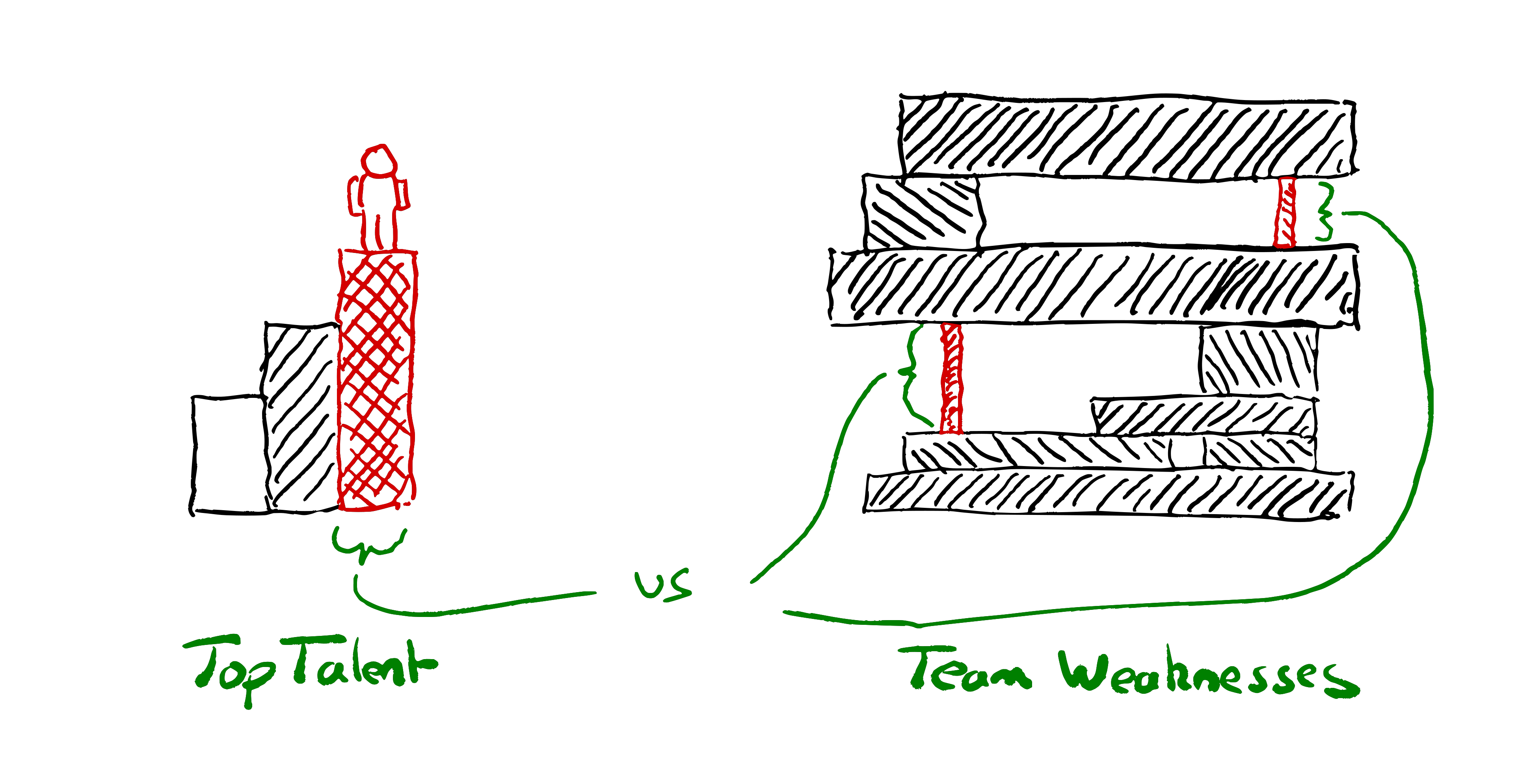
Instead of starting from “how do we hire top talent?”, start from “what are our weaknesses?”
Why are you hiring? Are you hiring to do more, or are you hiring to achieve more?
Design your hiring process to find the right people to strengthen your teams’ weaknesses, rather than trying to find the best people.
Instead of “how can we find the smartest people?” think about “how can we find people who will make our team stronger?”
Often the language used by those hiring betrays their view of people as resources. Or, to use its current popular disguise: “talent”.
“We hire top talent” “the candidate didn’t meet our bar”, “our hiring funnel selects for the best”. “we hire smart people and get out of their way”. We design “fair tests” that are an “objective assessment” of how closely people match our preconceptions of good.
The starting point for the talent mindset is that we want to hire the smartest people in the “talent pool”. If only we can hire all the smartest people, that will give us a competitive advantage!
If you focus on hiring brilliant people, and manage to find people who are slightly smarter on average than your competitors, will you win? Achievements in tech seldom stem solely from the brilliance of any one individual. Successes don’t have a single root cause any more than failures do.
We’re dealing with such complex systems; teams that can capture and combine the brilliance of several people will win.
With the right conditions a team can be smarter than any individual. With the wrong conditions a team can be disastrously wrong; suffering from over confidence and groupthink, or infighting and undermining each other. Hiring the right people to help create the right conditions in the team gives us a better chance of winning than hiring the smartest people.
| Talent Mindset | Weaknesses Mindset |
| Find top Talent | Find skills that unlock our potential |
| Grow Team | Transform Team |
| Help teams do more things | Help teams achieve greater things |
| People who can do what we’re doing | People can do things we can’t do |
| Hire the best person | Hire the person who’s best for the team |
| People who match our biased idea of good | People who have what we’re missing |
| Fair tests & Objective assessment | Equal opportunity to demonstrate what they’d add to our team |
| Consistent process | Choose your own adventure |
| Hire the most experienced/skilled candidate | Hire the person who’ll have the greatest impact on the team’s ability. |
| Number of candidates & Conversion rate | How fast can we move for the right candidate? |
| Centralised Process & Bureaucracy | Teams choose their own people |
| Grading candidates | Collaborating with candidates |
| Prejudging what a good candidate looks like | Reflecting on our team’s weaknesses |
| Fungibility | Suitability |
| Smart people | People who make the team smarter |
| Intelligence | Amplifying others |
| Culture Fit | Missing Perspectives |
| People who’ve accomplished great things | People who’ll unblock our greatness |
| Exceptional individuals. | People we can grow and who will grow us |
| What didn’t the candidate demonstrate against checklist | What would the candidate add to our team |
Talent-oriented hiring
If we start out with the intent to find the “best people” it will shape our entire process.
We write down our prejudices about what good looks like in job descriptions. We design a series of obstacles^Winterviews to filter out candidates who don’t match these preconceptions. Those who successfully run the gauntlet are rewarded with an offer, then we figure out how to best put them to use.
Hiring processes are centralised to maximise efficiency & throughput. We look at KPIs around the number of candidates at each stage in the funnel, conversion rates.
Interviewing gets shared out around teams like a tax that everyone pays into. Everyone is expected to interview for the wider organisation.
Hiring committees are formed and processes are standardised. We try to ensure that every candidate is assessed as fairly as possible, against consistent criteria.
We pat ourselves on the back about how we only hire the top 1% of applicants to our funnel. We’re hiring “top talent” and working here is a privilege. We’re the best of the best.
Weaknesses-oriented hiring
There’s another approach. Instead of starting from our idea of talent and the strengths we’re looking for, start from our weaknesses. What’s missing in our team that could help us achieve more?
Maybe we have a team of all seniors, frequently stuck in analysis. We need some fresh perspectives and bias for action.
Maybe we are suffering from groupthink and need someone with a different background and new perspectives. Someone who can help generate some healthy debate?
Maybe we have all the technical skills we need but nobody is skilled at facilitating discussions. We struggle to get the best out of the team.
Perhaps we’re all fearful of a scaling challenge to come. We could use someone experienced who can lend the team some courage to meet the challenge.
Maybe those in the existing team specialise in frontend tech, and we’ve realised we need to build and run a data service. We could learn to do it, but bringing someone in with existing knowledge will help us learn faster.
Maybe we are all software engineers, but are spending most of our time diagnosing and operating production systems. Let’s add an SRE in the team.
Maybe we don’t even know what our weaknesses are—until we experience collaboration with the right person who shows us how to unlock our potential.
Identify your weaknesses. Use them to draft role descriptions and design your interview processes.
Design your interviews to assess what the candidate brings to your team. How do they reduce your weaknesses and what strengths would they add?
Leave space in the process to discover things people could bring to your team that you weren’t aware you needed.
A talent-oriented process would assess how the candidate stacks up against our definition of good. A weaknesses-oriented process involves collaborating with the candidate, to see whether (and how) they might make your team stronger.
If possible, have candidates join in with real work with the team. When this is not feasible for either side, design exercises that allow people on your team to collaborate with them.
Pair together on a problem. Not what many companies call paired interviews where it’s really an assessor watching you code under pressure. Instead, really work together to solve something. Help the candidate. Bounce ideas off each other. Share who’s actually doing the typing, as you would if you were pairing with a colleague. Don’t judge if they solved the same problems you solved; see what you can achieve together.
A weaknesses-oriented process might mean saying no to someone eminently qualified and highly skilled; because you have their skills well covered in the team already.
A weaknesses-oriented process might mean saying yes to someone inexperienced who’s good at asking the right questions. Someone whose feedback will help the experienced engineers in the team keep things simple and operable.
Why not both?
It’s often worth thinking about when something good is not appropriate. There are rarely “best practices”, only practices that have proven useful in a given context.
At scale I can see the need for the talent-oriented hiring approach in addition to weaknesses-oriented.
Exposing all of your teams’ variety of hiring needs to candidates may create too much confusion.
You may well want a mechanism to ensure some similarity. A mechanism to select for those who share the organisational values. To find those with enough common core skills to increase the chances that they can move from team to team. Indeed, long-lived and continuously funded teams are not a given in all organisations.
If you’re getting thousands of applications a day you’ll probably want a mechanism to improve signal to noise ratio for teams wishing to hire. Especially if you don’t want to use education results as a filter.
I suspect a lot of hiring dysfunction comes from people copying the (very visible) talent-oriented top-of-funnel hiring practices that big companies use. Copy-pasting as the entire hiring mechanism for their smallish team.
Start from reflecting on your weaknesses. Whose help could you use? Some of the practices from the talent-oriented approach may be useful, but don’t make them your starting point. Start from your weaknesses if you want strong teams.
The post Don’t hire top talent; hire for weaknesses. appeared first on Benji's Blog.