
 Trebol-a
Konsola en KDE con estilo
Ya lo he contado por aquí alguna vez, mi entorno de trabajo en el ordenador me gusta con tendencia minimalista. En general, pero en especial en el trabajo gráfico, me parece fundamental eliminar todos los menúes y botoneras posibles y manejar la aplicación a base accesos directos/métodos abreviados. Me da mucho coraje que lo fundamental, el trabajo que se está realizando, se pierda en una selva de menúes desplegables, solapas, botoneras, barras de herramientas, de progreso, at infinitum.
Lo puedo entender si eres el programador que ha desarrollado el programa y está encantado disfrutando con el panorama de funciones y órdenes que eres de capaz de desplegar para ayudar al usuario… pero si eres el usuario final, pasártela contemplando la interfaz, es poco recomendable (por decirlo con suavidad).
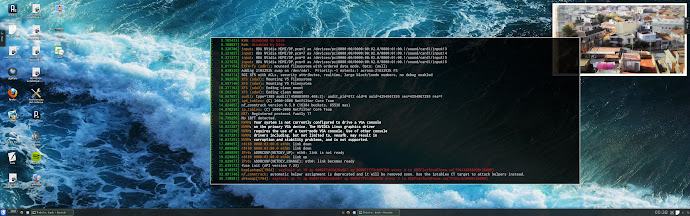
Pues el otro día descubrí como minimalizar la konsola de KDE a su expresión más simple y dejándola más bonita que la original. Muy sencillo y en dos cómodos pasos:
– Sobre el borde de una konsola de KDE pulsamos botón derecho y elegimos “Preferencia específicas de ventana“. Nos vamos a la solapa “Apariencia y fijados” activamos la casilla “Sin barra de título y marco“. Aceptar.
Con esto eliminamos toda la decoración y bordes, pero entonces se nos queda todavía muy fea.
– Lo siguiente es aplicar una hoja de estilos personalizada (stylesheet) a la konsola en el momento de abrirla. Así es que en Kate creamos un archivo de texto con el siguiente contenidoQFrame {border:1px solid #AAAAAA; }
y lo guardais en ~/.konsole.qss
Ahora lo único que tenéis que hacer es cambiar las llamadas a ejecutar konsole añadiendo la opción konsole −−stylesheet /home/tu-usuario/.konsole.qss
La hoja de estilo funciona casi igual que CSS de HTML, obviamente cambian las clases y los elementos. Investigadlo, podéis empezar probando con los elementos QFrame, QListview, QScrollBar, QTabBar…

 Member
Announcing Li-f-e 42.1
The best Linux distribution for education got a whole lot better, your Li-f-e(Linux for Education) takes a “Leap” to 42.1. openSUSE Education community is proud to present this latest edition based on openSUSE 42.1 with all the features, updates and bug fixes available on it till date. This effectively makes it the only enterprise grade long term supported(LTS) distribution for Education.
As with previous releases we have bundled a ton of softwares on this live DVD/USB specially packaged for education, along with the Plasma, GNOME and Mate Desktop Environments, full multimedia experience is also provided out of the box thanks to the Packman repositories. Only x86_64 architecture is supported, if you have a lot of machines that only support x86 then read on to find out how you can extend their Li-f-e.
You can of course very easily turn Li-f-e to full-fledged LTSP server to PXE boot machines in your local network. Booting both i686 and x86_64 architectures is supported. In case you need to PXE boot machines below i686 then you would have to install this package.
Happy holidays!


Get Li-f-e from here: Direct Download | md5sum | Alternate download and mirrors

Various Dock on openSUSE Leap 42.1
目前這些套件都是非官方支援

#zypper ar obs://home:Herbster0815/openSUSE_Leap_42.1 cairo-dock
#zypper ref cairo-dock
#zypper in cairo-dock

注意:
LXDE 預設選單的應用程式無法用拖曳的方式加到 cairo-dock 以及後面介紹的其他 dock
請開啟檔案管理員,
由 /usr/share/applications/ 中選取應用程式拖曳到 dock 上


cairo-dock 需要搭配開啟視窗管理員的 compositing 的功能才跑得順暢
您可以安裝 xcompmgr
#zypper in xcompmgr
然後執行
$xcompmgr-autostart on
重新登入

由 LXDE 控制中心-工作階段設定-自動啟動的應用程式
可以設定登入時自動啟動
openSUSE 使用者可由 home:swyear 安裝 docky
#zypper ar obs://home:swyear/openSUSE_Leap_42.1 swyear
#zypper ref swyear
#zypper in docky


如果要啟用輔助程式,請安裝 dockmanager
#zypper ar obs://home:sergeyopensuse/openSUSE_Leap_42.1 dockmanager
#zypper ref dockmanager
#zypper in dockmanager
一樣可由工作階段設定自動啟動

3. wbar (Warlock Bar)
Home: https://code.google.com/p/wbar/
openSUSE 使用者可以從 home:stefjakobs 安裝
#zypper ar obs://home:stefjakobs/openSUSE_Leap_42.1 wbar
#zypper ref wbar
#zypper in wbar imlib2 imlib2-loaders
請確認安裝 imlib2 和 imlib2-loaders


wbar 無法用拖曳方式建立應用程式
需要花點時間填寫標題、命令和指定圖示
大部分的圖示都可以在 /usr/share/pixmaps/ 和 /usr/share/icons/ 底下找到
wbar 要手動操作進行自動啟動
$cd ~/.config/autostart/
Home: http://wiki.go-docky.com/index.php?title=Plank:Introduction
openSUSE 使用者可以由 home:swyear 安裝
#zypper ar obs://home:swyear/openSUSE_Leap_42.1 swyear
#zypper ref swyear
#zypper in plank


Docklets 這一頁不知為何無法使用(I don't know why)
要啟用這些 Docklets 需要手動建立
$cd ~/.config/plank/dock1/launchers/
$vi clock.dockitem
內容為
[PlankDockItemPreferences]
Launcher=docklet://clock
其他的分別為
docklet://desktop
docklet://trash
docklet://clippy

plank 也可以設定自動啟動
全部玩過一遍後,你最喜歡哪一個呢?

Docker Internals and Implementing Rebase
SUSE's semi-annual Hackweek was last week and I decided to work on implementing docker rebase, mainly to learn about the internal image format of Docker and see whether it was possible to improve how the updating of Docker images works in practice (either rebuilding or zypper-docker).
Configuring a Brother MFC-7460DN Laser Printer/Scanner on Fedora 23 (64-bit)
Update: the MFC-7460DN printer is now supported via the brlaser open source printer driver by Peter De Wachter. See this post for a much simpler way to configure this printer on Fedora (and other Linux distributions).
I’ve always been a fan of Brother, as their devices usually come with decent support for the Linux OS (at least initially). I have an MFC-7460DN Laser Printer / Scanner in my home office, that worked fine with Ubuntu Linux for the past few years. It’s hooked up to my DSL router’s ethernet switch and acts like a network printer for all of our devices.
Just to keep my mind flexible and to take a look at another Linux distribution for a change, I recently started using Fedora Workstation 23 on my Laptop (a company-issued Lenovo ThinkPad T440s). While the OS installation was painless and all main components like Video, Audio, Networking were detected and configured correctly out of the box, the post-installation of some tools and services required some more effort.
This time, the printing part of the MFC-7460DN took me quite some time to figure out. While Brother provides RPM packages of the drivers, they are 32-bit only, and the instructions hadn’t been updated since Fedora 12. The first thing I had to do was to download two driver RPM packages. I initially started with the newer versions of the drivers, brgenml1cupswrapper-3.1.0 and brgenml1lpr-3.1.0, but somehow did not get them to work at all. I then tried the older packages, mfc7460dnlpr-2.1.0 and cupswrapperMFC7460DN-2.0.4. These installed flawlessly, and a new printer was added to the CUPS configuration automatically.
However, it was configured as a local printer, so I first had to change the existing configuration to talk to the remote LPD port instead. While the printer configuration looked correct and no errors showed up, all print jobs simply disappeared into the bit bucket, without any visible error on the application side. Unfortunately the web-based CUPS administration tool was not much helpful, either – the button View Error Log simply returned a “Not found” error. There was no error log file in /var/log/cups, so I queried the status of the CUPS service via systemd next.
The command systemctl status -l cups then gave me a first hint:
sh: /opt/brother/Printers/BrGenML1//lpd/rawtobr3: /lib/ld-linux.so.2: bad ELF interpreter: No such file or directory
Since this is a 32-bit binary, it might help to actually install a 32-bit version of the GNU C library! I simply forgot this step, even though it’s documented in the installation instructions. A simple dnf install glibc.i686 got me over this hurdle.
Unfortunately the print jobs still did not reach the printer and disappeared in the void! Checking the CUPS error log again, I now saw this:
/usr/local/Brother/Printer/MFC7460DN/lpd/filterMFC7460DN: line 131: 11660 Done                    eval cat $INPUT_TEMP
11661 Broken pipe             | $PSCONV $PSCONV_OP
11662 Segmentation fault      | $BRCONV $BRCONV_OP
PID 11602 (/usr/lib/cups/filter/brlpdwrapperMFC7460DN) exited with no errors.
PID 11603 (/usr/lib/cups/backend/lpd) exited with no errors.
Hilarious. Oh well, maybe the 32-bit binary is simply too old and crashes in the new environment? Let’s take a look at the full systemd journal with journalctl! This gave me further clues:
cupsd[10951]: /usr/local/Brother/Printer/MFC7460DN/lpd/filterMFC7460DN: line 131: 11660 Done                    eval cat $INPUT_TEMP
cupsd[10951]: 11661 Broken pipe             | $PSCONV $PSCONV_OP
cupsd[10951]: 11662 Segmentation fault      | $BRCONV $BRCONV_OP
cupsd[10951]: PID 11602 (/usr/lib/cups/filter/brlpdwrapperMFC7460DN) exited with no errors.
cupsd[10951]: PID 11603 (/usr/lib/cups/backend/lpd) exited with no errors.
cupsd[10951]: time-at-completed=1449759139
cupsd[10951]: Job completed.
cupsd[10951]: Removing document files.
dbus[1190]: [system] Successfully activated service 'org.fedoraproject.Setroubleshootd'
setroubleshoot[11624]: SELinux is preventing brprintconflsr3 from using the execmem access on a process. For complete SELinux messages. run sealert -l 5d873063-1d87-4e82-b
python3[11624]: SELinux is preventing brprintconflsr3 from using the execmem access on a process.

                                *****  Plugin catchall_boolean (89.3 confidence) suggests   ******************

                                If you want to allow cups to execmem
                                Then you must tell SELinux about this by enabling the 'cups_execmem' boolean.

                                Do
                                setsebool -P cups_execmem 1

                                *****  Plugin catchall (11.6 confidence) suggests   **************************

                                If you believe that brprintconflsr3 should be allowed execmem access on processes labeled cupsd_t by default.
                                Then you should report this as a bug.
                                You can generate a local policy module to allow this access.
                                Do
                                allow this access for now by executing:
                                # grep brprintconflsr3 /var/log/audit/audit.log | audit2allow -M mypol
                                # semodule -i mypol.pp
OK, so SELinux seems to be getting in the way here. I did as suggested and ran the following commands:
# setsebool -P cups_execmem 1
# grep brprintconflsr3 /var/log/audit/audit.log | audit2allow -M brothermfc7460dn
# semodule -i brothermfc7460dn.pp
An lo and behold, the printer started printing! Let’s hope it still does when I reboot the system…
Things I learned and that surprised me:
- The error handling in CUPS completely failed here. There was not a single end-user accessible hint that something went wrong, the print jobs just disappeared in the void.
- The move to
systemdstill has some ripple effects, e.g. the “Not found” error for the missing CUPS error log in the web UI. - Analyzing log files with
journalctlis actually quite convenient. Instead of grepping and tailing multiple logs under/var/log/, these tasks can now be performed using a single tool. - SELinux is still a bitch, even though the hints provided by
setroubleshootdwere quite useful to resolve the issues at hand.
New Cantarell Maintainer
GNOME's default UI typeface Cantarell gained a new maintainer, Nikolaus Waxweiler. Nikolaus was on a holy crusade to improve the state of text rendering on Linux by improving FreeType and lobbying for changes in different projects. While he continues on those efforts, bug reports hinted (pun intended) that GNOME's font rendered worse as FreeType improved so he went on to investigate why. It turns out that Cantarell had many metric related issues and its development was quite stagnant.

The process of making fonts look good even on our crappy LoDPI screens is commonly called hinting and it requires precision. Cantarell ships as an .otf font or OpenType font with Postscript-flavor. Hinting .otf fonts works differently from hinting common TrueType or .ttf fonts. You define several horizontal snapping zones, also called blue zones, like descender, x-height, capital height, ascender height, etc. so that they match your design. That means that the outlines you are designing must as a general rule be placed precisely within these blue zones or the hinting algorithm will ignore them. Blue zones must be constructed to contain everything they should contain. The idea is that a well designed typeface is consistent and regular enough that coarse blue zones describe the design well. The hinting algorithm of the font design application will then place stem information according to those blue zones, among other considerations. For a final rendering, glyphs are snapped to those horizontal blue zones, meaning they are only snapped on the Y-axis. Think ClearType.
Cantarell was full of off-by-ones-or-twos and technical don't-do-thats, diacritics were inconsistent and Cyrillics still need a look-over. The bold face was in an even poorer state. Back in June 2013 Adobe's contributed a new high-quality OpenType/Postscript-flavor hinting engine. The problems were only magnified because the new engine actually takes hinting information seriously and will spit out garbage when the font designer isn't careful.
Nikolaus has cleaned up the fonts considerably by fixing the blue zones, outline precision to fall within them and numerous other problems. You might also notice that letters like bdfklh are a bit taller for a more harmonious look. It should display consistently at all sizes now.
Oh, by the way: FreeType 2.6.2 brings more user-visible changes. If you are on a rolling-release distribution, you might have noticed them already. If you wish to read up more on those changes, Nikolaus wrote a lengthy article about the changes and future plans on freetype.org.
For a Cantarell 0.1.0 release we plan to have all accented glyphs fixed. Nikolaus has finished a first pass at diacritics and is now looking for testers. Anyone who deals with diacritics in his/her language, especially central European people, please get the .otf fonts from the git repo and report bugs to the GNOME bug tracker.
Do note that Nikolaus didn't just dive into maintainership, but wrote most of this post. My incentives to get him set up a blog and post on Planet GNOME have been fruitless so far.
關於 plasma 5 系統匣的一些問題
http://lists.opensuse.org/opensuse-factory/2015-12/msg00029.html
請換個主題試試看
2. 設定隱藏/顯示圖示失效
https://forums.opensuse.org/showthread.php/511643-System-Tray-in-Plasma5-doesn-t-allow-to-hide-or-show-icons
修改
/usr/share/plasma/plasmoids/org.kde.plasma.systemtray/contents/ui/ConfigEntries.qml
KDE Plasma 5.5 veröffentlicht
Heute hat das KDE Team ein neue Version des Plasma Desktops veröffentlicht. Plasma hat nun Version 5.5 erreicht und einige neue Features bekommen.
Neue Features in Plasma 5.5
Für mich ist das Update von Plasmas Breeze-Theme eine der interessantesten und wichtigsten Neuerungen. Die Überarbeitung bringt nicht nur eine Verbesserung der vorhandenen Icons und einige neue Icons zusätzlich, sondern auch Versionen des Breeze-Themes für das GTK+2 und GTK+3 Toolkit. Auf diese Weise sehen nun GTK-basi...
KDE Plasma 5.5 released
Today the KDE team released a new version of it's desktop environment Plasma. It has now reached version 5.5 with a few nice new features.
New features in Plasma 5.5
For me the most important and most visible new feature is the update of Plasma's theme Breeze. This overhaul does not only mean that existing icons have been updated and improved and a few new icons have been added, but Breeze has been released for the GTK+2 and GTK+3 toolkits as well. This way GTK-based applications are now lo...
How to run Rails with PostgreSQL on openSUSE Leap 42.1
Install PostgreSQL:
sudo zypper install postgresql-server postgresql-devel
Start the database server:
sudo systemctl start postgresql
Enable server to be started on boot:
sudo systemctl enable postgresql
Switch to the postgres user to set up the database:
sudo su -l postgres
Create database user:
createuser -d USERNAME
Return to your normal user, exchange the database driver in the Gemfile from sqlite3 to pg and run
bundle install
Change the configuration of the database driver to something like:
  default: &default
    adapter: postgresql
    username: cs

  development:
    <<: *default
    database: APPNAME_development

  test:
    <<: *default
    database: APPNAME_test

  production:
    <<: *default
    database: APPNAME_production
Create the databases:rake db:create
rake db:migrate
rake db:migrate RAILS_ENV=test
That's it.