
Hi how are you doing? Sorry you can’t get through. Just leave your name and you number and I’ll get back to you
No.. I haven’t forget you! I think of you every day, night and if I’m honest all the time. You and you and you and especially you who are reading these lines. This is going to be sort blog entry. I want you to know what you should start doing! Yes just stop being social in internet. Get out of your comfort zone and start spank the monkey (oh.. sorry not spank the monkey this is children approved blog..) er.. learning new stuff.
Start you maker project and learn how to 3D with Blender (it’s marvelous 3D application). After Blender there is no excuse and it’s free (but remember if you really like it give something back). Are you on more on CAD? Learn 3D CAD with FreeCAD (Again amazing tool). Want to ride IoT wave but you don’t have too much money then get new shiny Tiny $5 Raspberry Pi Zero or 9$ C.H.I.P and make your Fritzing electric boogie with ease (and by the way you can commit those boards to library. It’s open source!). You are in music how about doing some DJ:n with linux? Mixxx just got shiny 2.0 RC1 out. Are you more reading type and need something to manage you e-books: Calibre is here to help. Huh so much to do so less time!
Where to get them? openSUSE have RPM for all of them just learn to search them from Packman or from OBS. Sorry to say Raspberry Pi Zero is currently not supported but you can help to add it to ARM boards working with openSUSE same problems with C.H.I.P (If you have Raspberry Pi 1/2 just get image for them from openSUSE ARM image and start hacking). You should learn how to add new repos to YaST2 and add Packman repo for new FreeCAD, Fritzing and Mixxx. Yes! most of them run also on Windows and Mac OS X. Now smile on, thumbs up and get your groove on with title song: De La Soul – Ring Ring Ring (Ha Ha Hey)
 Member
 swyear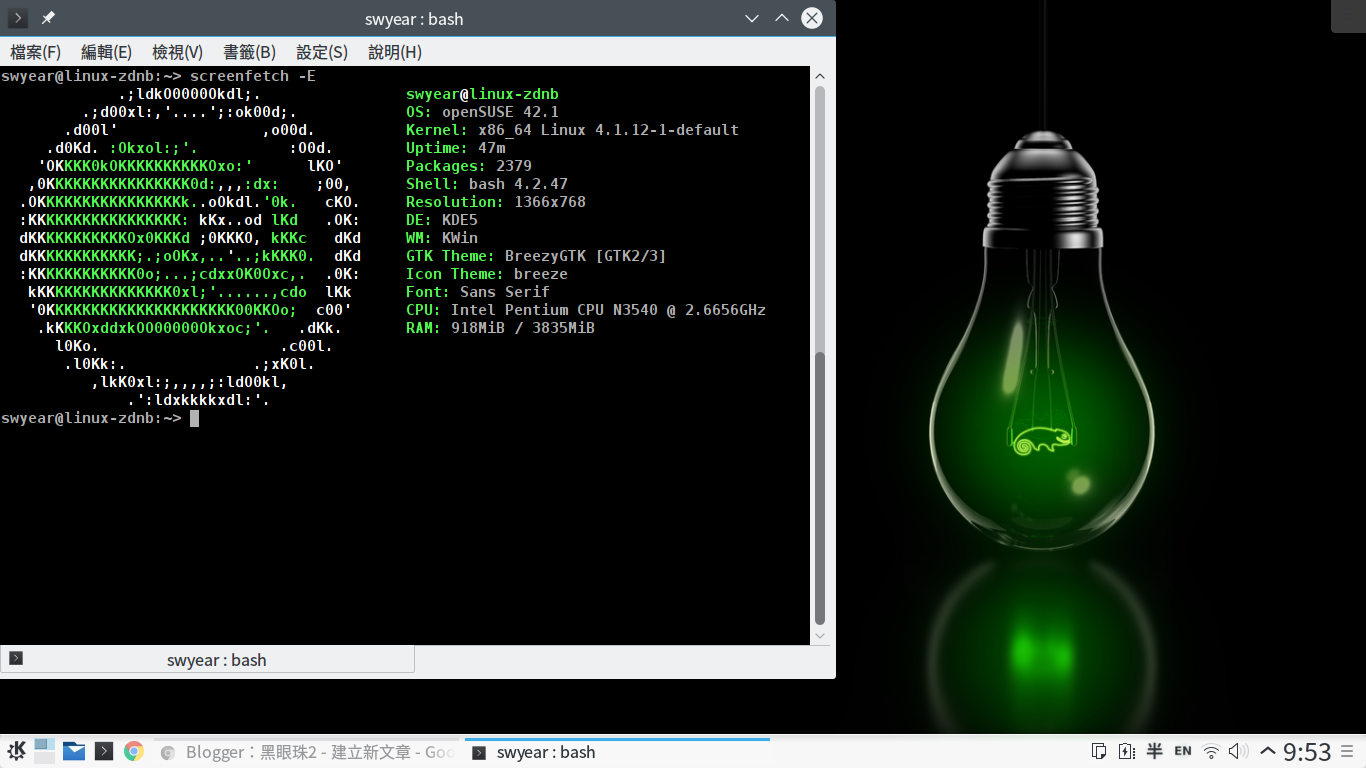




Kurz práce v příkazové řádce Linuxu nejen pro MetaCentrum 2016
Don’t be afraid of command line! It is friendly and powerful tool. Practically identical is command line also in Mac OS X, BSD and another UNIX-based systems, not only in Linux. Basic knowledge of Linux is not conditional. Course will be taught in Linux, but most of the point are applicable also for another UNIX systems like Mac OS X. Knowledge of Linux/UNIX is useful e.g. for working with molecular and another data. MetaCentrum is service provided by CESNET allowing access to huge computational capacity.

Explorar y buscar fotos de Digikam desde Firefox
Ya lo he comentado por aquí muchas veces, para el archivo/clasificación de mis fotografías/vídeos soy fans incondicional de Digikam, gestor y editor de fotografías especialmente desarrollado para GNU/Linux y KDE pero también exportado desde unos años a MAC y Windows.
Los motivos son muchos, a continuación os demuestro como explotar dos de sus características más fundamentales: la clasificación por etiquetas y el uso de bases de datos SQLite.
La clasificación por etiquetas (tags) está muy extendida y popularizado y podéis verla en funcionamiento en casi cualquier servicio de gestión de álbumes fotográficos online como Picasaweb, Flickr ó mi propia galería de fotos/vídeos.
Consiste básicamente en asignar un término/expresión/clave a la imagen para posteriormente poder filtrar las búsquedas y de esta manera localizar rápidamente una imagen entre un millar.
La utilidad salta a la vista. En mi caso que vengo clasificando fotografías en Digikam desde que tengo cámara digital (2002) me permite encontrar cualquier foto en unos segundos entre las casi 60.000 fotografías que tengo clasificadas.
Digikam implementa desde sus inicios de un completísimo conjunto de herramientas desde los cuales el etiquetado de imágenes (y vídeos) es tremendamente fácil con un buen montón de funciones para etiquetado masivo, por jerarquías, anidadas, renombrar, mover, copiar, asignación/desasignación, automatización de tareas, búsqueda, filtrado, repetición, etc… Cada semana entre 100-300 fotografías/vídeos procedentes de las cámaras de fototrampeo entran en mi base de datos. Todos perfectamente etiquetadas por la especie/s de que se trate y el identificador de la cámara que lo grabó. De este modo puedo cuando quiera ver todos los vídeos que tengo de ginetas ó todos los grabados por la Cámara22A.
Arrancando Digikam podemos encontrar casi cualquier foto en segundos a base de filtrar por etiquetas, o por fecha, o por nombre, o por todo a la vez… pero ¿y si no queremos ni siquiera iniciar Digikam?
Acceso externo a la base de datos
Ventajas de software libre, Digikam guarda todos los datos en bases de datos en formato sqlite. Con algunos conocimientos de bases de datos sqlite y unos pocos de Firefox podemos en segundos hacer consultas a la base datos (ya hace tiempo expliqué por aquí con acceder a la base de datos para consultar la última fotografía alterada en la base de datos y generar con ella un splash dinámico).
Pero se puede hacer todavía más sencillo y en entorno gráfico dejando que sea Firefox y Bash quienes hagan el trabajo. A continuación os comento como activar un protocolo en Firefox que nos permita explorar las fotografías etiquetadas en Digikam desde una página web local que se generan de forma dinámica, de tal manera que en segundos podamos consultar/compartir alguna foto/vídeo sin siquiera salir del navegador web.
Protocolo para Firefox
Lo primero es pensar un nombre único para nuestro nuevo protocolo en Firefox. No valen ni http, ni ftp, ni file… :D Por motivos obvios mi protocolo se va a llamar digi://.
Lo que pretendemos hacer es que se nos muestre en Firefox las fotografías etiquetadas bajo una palabra simplemente escribiendo en la barra de dirección digi://gorrion
Abrimos Firefox y en la barra de dirección nos dirigimos a about:config (prometo no ser un manazas). Cliqueamos en el listamos y creamos tres claves nuevas booleanas (si/no las llama Firefox) (sí, una más de las que aparece en imagen).
Las tres claves a crear y sus valores son:(tipo si/no) network.protocol-handler.expose.digi -> false
(tipo si/no) network.protocol-handler.external.digi -> true
(tipo si/no) network.protocol-handler.warn-external.digi -> true
Donde digi es el nombre que hemos elegido para protocolo, podéis cambiarlo a vuestro antojo (claro, sin espacios ni símbolos especiales y preferiblemente corto)
A continuación, si tratamos de utilizar el recién creado protocolo escribiendo en la barra de dirección algo como digi://etiqueta el navegador nos preguntará qué programa queremos ejecutar para este protocolo. En el diálogo elegimos el script que vamos a crear a continuación.
Script BASH de búsqueda
Desglosar por partes el script sería muy extenso. Os comento de forma esquemática su funcionamiento y os pego el contenido del que yo mismo estoy usando para que los destripéis a gusto.
Cuando escribimos en la linea de dirección de Firefox una url con formato digi://cualquier-cosa se ejecuta este script.
Como variable $1 al script le llega la url completa (digi://cualquier-cosa). Descomponemos y nos quedamos con cualquier-cosa. Con este término realizamos una consulta a la base de datos de nuestra instalación de Digikam (si aún no tenéis instalado necesitareis instalar sqlite3). La orden sqlite3 que podéis ver en el script es sqlite3 "$bd" "SELECT b.relativePath || '/' || a.name FROM images AS a JOIN albums AS b ON a.album = b.id WHERE a.id IN (SELECT imageid FROM imagetags WHERE tagid IN (SELECT id FROM tags $condicional))" | sort
Esta orden nos devuelve una lista ordenada de archivos con PATH ABSOLUTO de todas las imágenes que Digikam tiene catalogados bajo la etiqueta cualquier-cosa (en realidad la orden es algo más compleja pero para no aburrir).
Una vez tenemos la lista de archivos construimos y generamos un HTML en /tmp y mandamos a Firefox que abra este archivo. Las imágenes son ampliables cliqueando y los vídeos reproducibles directamente en Firefox (mp4 embebido con tag VIDEO) 
Limitaciones y extras
Como veis en realidad es proceso es muy sencillo ahora bien, tiene algunas limitaciones:
paginación: Hay que paginar (sí o sí) y limitar el número de imágenes/vídeos que se muestran por página. Tened en cuenta que los vídeos e imágenes se muestran tal y como los tenéis guardados. En mi caso fotos pueden ser fotos de 8000 pixels y vídeos MP4 de 1920 pixels. En cuanto le metáis a Firefox un página con muchos de estas imágenes y vídeos le va a venir un calentón de agarrate y no te menees (probado ayer: una página con 1600 fotos/vídeos de Garduñas lo dejan colgado cargando sin responder durante varios minutos).
Esta necesidad de paginar enfanga un poco el contenido del script que de no ser por así sería mucho más “limpio”.
Caracteres especiales: Todavía no me he puesto a arreglarlo, pero no debería ser muy complicado de arreglar. Caracteres especiales como ñ generan archivos con la codificación de caracteres erronea que no encuentra Firefox. Temporal. Por ahora lo soluciono buscando GARDU en lugar de GARDUÑA.
Busqueda condicional: Podéis buscar dos etiquetas al mismo tiempo usando la coma. Por ejemplo digi://gineta,tejon devolverá fotografias etiquetadas con alguna (condición OR) de estas etiquetas.
Formato de vídeo: Los vídeos se reproducen en Firefox siempre y cuando sean de formato compatible con la etiqueta HTML5 VIDEO. Con el plugin mplayerplug para Firefox/Linux los mp4 se reproducen perfectamente redimensionados y a pantalla completa.
CSS, en las primeras líneas del script tenéis las líneas de CSS para personalizar la presentación de las fotografías a vuestro gusto. No hay grandes florituras, pero bueno si queréis poner el fondo de color rojo es fácil.
velocidad, a cada solicitud se hace una consulta MYSQL y se generan uno o varios html en /tmp. Esto le puede llevar desde unas decimas a varios segundos. Haciendo búsquedas de varias miles de fotografías (2800) se demoró unos 11-12 segundos. Esto claro, varía entre una máquina y otra.

Descargar script bash
Podéis descargar y personalizar el script desde aqui.
Lo copiáis a vuestro ~/bin y lo haceis ejecutable (chmod +x ~/bin/digi.protocol). Cuando Firefox os pregunte con qué abrir el protocolo digi:// lo dirigís a este archivo. Y a jugar.

AWStruck
tldr:
Prelude
In 2002 (iirc) (thirteen years ago, as of composing this post) when I was in college, we had an inter-collegiate technical symposium, where Online Quiz was one of the events. A Microsoft Visual Basic 6.0 (which I personally consider to be one of the best software ever developed) application was developed in-house and installed on about 50 computers, where various contestants from different colleges could come and take the test. However, as Murphy predicted, due to various virus issues, the software failed spectacularly. Some answers/responses got corrupt, accumulation of responses from different machines proved faulty, the scoring went awry in some corner cases, etc. Overall, the application turned out to be total chaos. However, since India is populous, we were able to throw more people at the problem and finish the event, with a lot of manual effort, inspite of a few unhappy participants.In the planning phase for the subsequent edition of the symposium two years later, a software development committee for formed. It would do all the software for the entire event, (like creating a website, developing flash/swish videos, software for the individual events, etc.). The quiz event had two rounds, a preliminary round where all the appearing colleges contested and a final round where six (or probably more) top colleges from the previous round were selected. An eloquent person was made incharge of the quiz event. I proposed to the person that we do the software for the preliminary rounds ourselves, instead of depending on the committee. The committee was already swamped with work and they were happy to get rid of a piece that has more chances of failure. Some adventurous people (like Antony) expressed their interest in joining the project. Thus it all began.
The Adventure
Much to the amusement of my roommate Bala, I started with planning the architecture and design on paper (complete with UML diagrams, etc.), instead of starting with coding as is the norm for us those days. Much later I came across an interesting quote by Alan Kay, "At scale, architecture dominates material". Having learnt from the mistakes of the previous years, I made some decisions.* The software should follow the web (client-server) model, that is getting popular. At least this is an excuse to learn some new (then) technologies, like JSP, Javascript, Tomcat etc.
* The server machine becomes a single point of failure for the entire system. It could prove to be a performance bottleneck to, as our machines were all having a humongous 32 MB of RAM. There was one 64 MB ram in our lab which I planned to use as the server. In our hostel, some had a machine with luxurious 128 MB of RAM, which I was planning to borrow if the need comes.
* The single point of failure, the server should not be susceptible to virus attacks. So we should experiment installing Solaris or this thing called Linux (There was no Ubuntu then).
* Internet was a luxury and for the entire college we had access to it in about three computers, only in the evenings. So anything that requires too much internet access for development is automatically rejected.
* The software should scale at any cost, for at least 200 parallel connections
* We should regularly backup the sources in different machines, in case the development boxes gets a virus attack. We had no idea of version control systems then.
* We will be using Mysql/oracle or some real database instead of writing to files. MS Access was ruled out automatically as Visual Basic was eliminated already. In hindsight, sqlite would have been an excellent choice.
* The quiz webpage when saved on the client browser should save the file along with the answers chosen/typed.
* Each quiz session will last for about 30 minutes. There will be username/passwords generated for each unique participant.
We developed the JSP webapp running in Tomcat in a few weeks. We used the generous help of my classmates to throughly test the correctness of our scoring system. As with any manual system, it was prone to errors. A tester made a mistake in scoring and we broke our head trying to find a non-existent bug in our code for a few hours. This testing also helped us get the load numbers for the current system, with about 30 concurrent users. We had some performance monitoring hooks written in our code for this.
We survived multiple virus attacks during the development, because of the distributed source backup techniques that we have employed. At one stage, we even burnt our sources in a CD when the administrators decided to Norton Ghost all the hard disks in our lab, with a fresh Windows XP image, to minimise the virus effects.
I learnt the magical world of performance monitoring, database indexes, high availability, connection pools etc. during this project. I learnt much more in this single experiment than the almost half a dozen papers we had on software engineering, process management, quality assurance etc. taught by lecturers with no real world knowledge and questionable scoring practices. Some of the fascination that I acquired with database engines has still not subsided.
Having finished the coding one week prior to the event, we focussed more on scaling and testing. I prepared a backup server, another high-RAM machine in case our main server went kaput. Much to the jovial criticisms of my friend Sangeeth, we tested our system, the night before the event, for 2000 parallel users and it worked well without breaking a sweat. This is such a silly number in today's figures, but we were easily satisfied then with low numbers in both server performance (and salary). Almost all the front end code was handwritten Javascript with no frameworks / libraries (as mostly none existed or we were not aware). I was satisfied with what we have done, irrespective of however the results may turn out to be the next day.
Having lost a good sleep due to the stress testing the previous night, I woke up late and missed the delicious Pongal in our hostel for breakfast. Ruing about the missed breakfast caused a weird stare from the rest of the team. I rushed for the preliminary quiz event ahead of time and two among us did a final test on the last day. We planned on using some Rational test suites for automated testing but could never get to that, thanks to all the virus related frequent re-installs of the base operating system.
The participants came in numbers, attended the event. Surprisingly for us, a lot of people did not use the half-an-hour duration and finished much earlier, even with negative questions. The event chief too had a moment of doubt, if we have prepared the questions easy. But looking at the instant results in the server and the high percentage of low marks taught the lesson that many people have come to the event to have fun and not to seriously compete or win.
Before we could ruminate on that philosophical thought, a participant had a problem. Her network cable went broke and she could not submit her quiz. I felt bad that I should have implemented auto-save for responses as soon as people make a choice. I intentionally avoided that to reduce load on the server. I was about to ask if the person could take the test from a different machine. But the inimitable event-head the presence of mind, to ask the participant to save the quiz on the same computer and that we will evaluate that offline. Antony did the scoring and that particular person turned out to be a topper. This particular event taught me a lot about presence of mind and how we should always plan for failure in computer systems, how ever thorough we test. The scalability as expected was never found to be a problem.
After the event is finished, our lab admin, Marshal joked that we should start a company with this quiz software, as we have done it as a generic survey software where questions can be added. We laughed at the suggestion and moved away. The event was successful. Some of the software developed by the committee for some other events were affected by the recurring virus problem. But I went and slept like a log on a temporary bed made of three office chairs, next to my classmate Saktheesh who was working on a closing video for the event.
The Present
The long story above is not to just narrate my/our work, but also to highlight how much approachable the programming / technology landscape has become. A quiz / questionnaire software can be implemented today (2015) in probably a few hours, thanks to the large number of frameworks (such as Rails, Django, etc.). In fact, most of the tutorials have better code that you can merely copy/paste than what we have implemented a decade ago. The most striking thing today, however, is not the story of coding, but the story of deployment.Anyone with an internet connection, a basic course on programming and decent googling skills can program any service easily today. What is even more fascinating is that such a software can be very easily deployed on the internet, served to the whole of the world, complete with a domain name, auto-scaling, DoS prevention etc. in just a few clicks. This is all made possible through Amazon Web Services. There are other players like Google, Heroku etc. but it is AWS that is way ahead of any other players and provide more services. The reach of AWS is what made me choose the title of this blog post.
AWS has done more to spur the startup ecosystem. The social impact of AWS is much higher than what Google did for online Ads, Microsoft did for PCs. Disruptive companies like airbnb, slack, netflix (which was just an online video rental service 7 years ago) can exist today, only because their devops, installation and maintenance of machines could be outsourced to AWS. They could not have grown to such 800 hundred pound gorillas if the AWS infrastructure was not available, in such a short time. Sure, there are some companies like Uber, Whatsapp that do not use AWS, but they would not have got funded easily if not for the startup scenario, which was formed with AWS as the backbone.
The Future
I have been visiting various buildings in Bangalore trying to find an office space for Zenefits India, as I am the first engineer here. All the places have a Server Room, which is not used by any of the startups. Almost all the startups use a Mac for developer machine and have their deployment servers in AWS (or some public cloud). The office spaces of Bangalore have not caught on with the trend. We are hiring btw, so if you consider yourself an extremely good engineer and one of the best at what you do in your job, do apply.Most of the new services offered by Amazon, such as Amazon Lambda, DynamoDB etc. and also things like Containerisation, have made development of scalable applications, easier. Developers need not worry about failover systems, HA system, clusters etc. any more. I wonder what kind of an impact this will have on the job market. I wonder how long it might take job positions like mysql admins, sysadmins, devops engineers, DBAs to become as old/obsolete as, say mainframe programmers are considered today (2015). Perhaps it may not be soon but it is very much possible soon. Ubiquitous applications like SAP, Office etc. are also now cloud first and it will only become more cloud focussed in the future.
I wonder how much of system software research will be affected in the long term. Many of the modern day young bright minds (students from prestigious colleges and universities) are working in webapps, joining startups and doing their own companies, instead of working on projects with high entry barriers like the Linux Kernel, LLVM etc. (at least in India). Perhaps, we would have started the quiz project that we did as a company (somewhat like surveymonkey) if we had enough exposure then. I may not have done that but some students smart with a business acumen, would have.
There are very interesting research problems in distributed systems that include both Databases and OSes. Most of the present day systems are just distributed systems constructed over Linux / POSIX systems. However, there is a potential for a DOSIX (along the lines of POSIX) API purely designed for large-scale, cross-geo distributed systems. It will be interesting to see what kind of research happens in this direction. In the recent past, We have a new distributed consensus algorithm Raft after decades of using Paxos. More such re-inventions are bound to happen soon, may be on novel things like non-blocking, distributed garbage collection etc.
FFI and Requires
FFI is a method to interface with native libraries, which is becoming more and more popular in many scripting languages. Unlike with native extensions though, we have nothing that links the shared library. As such our requires generator for shared libraries doesn’t kick in and we get no requires on the shared library package.
To make matters worse with the shared library policy the soversion is dependent on against which distro you build against.
Linux Presentation Day + Leap 42.1 release party in Munich
 On Saturday we had the openSUSE Leap 42.1 release party in Munich, which I announced a couple of days ago. We had around 20 participants there: about 10 openSUSE users and also about 10 GNU/Linux users from the Linux Presentation Day – people that just started using Free Software and wanted to know more about openSUSE, GNU project, Open Source in general and of course celebrate with us the new release
But at the beginning I had no idea where we can meet in Munich. On Wednesday I asked in our German ML about location and Marcus advised Linux Presentation Day. Two minutes later I sent email to Linux Presentation Day event’s organizers and asked about separate room with beamer and power sockets. We got everything what we asked about. Thanks a lot for collaboration!
After that, on Friday (when I was sure about location and room was reserved for us) I come to Nuremberg to take openSUSE promotion material like USB flash sticks, DVDs, stickers, green “Leap” T-shirts and openSUSE beer. It’s not so far away from Munich. I think, about half of eighth I was at SUSE Office and Richard gave all “release party stuff” (last time, when I organized openSUSE 12.1 release party in Göttingen, I got all these stuff via post, with the exception of beer of course).
I had a talk about openSUSE project in general: the talk was targeted primarily for those who never heard about OBS, Leap or openQA. I tried emphasized the role of the community in openSUSE project.
I got many questions about systemd, SUSE impact on the openSUSE and quality of the “Enterprise Core” part which will be used in the Leap. I enjoyed talking with many that showed up and received as main feedback from many of those that I talked with.
 If you’re going to invite “everybody” to your release party, you don’t need to talk so much about infrastructure or development model of openSUSE, I guess. That’s important and interesting for developers and Free Software evangelists maybe, but not for users, who are still not sure about contributing. For such users it’s more important how good this version as a desktop system than how easy to use submit request in OBS or which programming language should they use for implementation of tests for openQA or something like this.
By the way, at Linux Presentation Day we met one journalist from linux-user.de. So, I think my post will not be the only one about this event
I want to thank Richard and Doug for openSUSE stuff, Linux Presentation Day organizers for hosting us in the VHS building and… thanks to all who joined us! See you next time and have a lot of fun
VLC media player
從 Packman 儲存庫中安裝
您只需要點選 vlc 、 vlc-noX-lang 和 vlc-codecs
其他部份 YaST 會幫您處理好
2. intel 顯示卡的問題
用 vlc 開啟您的影音檔案
發現只有聲音沒有影像
用命令行執行看看
$ vlc MOV_0119.mp4
VLC media player 2.2.1 Terry Pratchett (Weatherwax) (revision 2.2.1-0-ga425c42)
[00000000022060c8] core libvlc: Running vlc with the default interface. Use 'cvlc' t
o use vlc without interface.
[VS] Software VDPAU backend library initialized
libva info: VA-API version 0.38.0
libva info: va_getDriverName() returns 0
libva info: Trying to open /usr/lib64/dri/i965_drv_video.so
libva info: Found init function __vaDriverInit_0_38
libva info: va_openDriver() returns 0
[00007f5190c10b88] avcodec decoder: Using OpenGL/VAAPI/libswscale backend for VDPAU
for hardware decoding.
[h264 @ 0x7f5190c25be0] hardware accelerator failed to decode picture
[h264 @ 0x7f5190cb1c60] hardware accelerator failed to decode picture
查詢網路的結果發現 intel 顯示卡不支援 VDPAU
開啟 vlc 由工具-偏好設定-視訊-輸出
選擇 OpenGL
由輸入/編解碼器-硬體加速解碼
選擇 VA-API
vlc MOV_0119.mp4
VLC media player 2.2.1 Terry Pratchett (Weatherwax) (revision 2.2.1-0-ga425c42)
[000000000242f0c8] core libvlc: 以預設介面執行 VLC。使用「cvlc」指令以無介面方式執行
VLC。
libva info: VA-API version 0.38.0
libva info: va_getDriverName() returns 0
libva info: Trying to open /usr/lib64/dri/i965_drv_video.so
libva info: Found init function __vaDriverInit_0_38
libva info: va_openDriver() returns 0
[00007fb748c10b88] avcodec decoder: Using Intel i965 driver for Intel(R) Bay Trail - 1.6.0 for hardware decoding.
即可正常播放
3. 播放 samba 分享的影音檔
直接在 Dolphin 中開啟會出現
無法開啟您的輸入:
VLC 無法開啟 MRL 「smb://USER@192.168.XX.XXX/Users/Public/Videos/MOV_0119.mp4」。詳細資訊請閱讀記錄檔。
若在命令行輸入
$ vlc smb://USER:PASSWORD@192.168.XX.XXX/Users/Public/Videos/MOV_0119.mp4
是可以播放的
查詢網路似乎很久前就有這樣的問題...
如果您使用的 smb 分享是固定使用者名稱和密碼的
可以從 vlc 中設定
由工具-偏好設定-介面-顯示設定
修改成『全部』
由輸入/編解碼器-存取模組-SMB
將使用者名稱和密碼輸入在此
就可以直接播放了
晚安,要去晾衣服了,明天還要上班