
 Member
CVE-2104-0081 timeline
12.Feb.2014 - 02:36 CET - Rafael Modença França commits the fix (private)[1]
14.Feb.2014 - 21:41 CET - RedHat create bugzilla entry (private)[2]
18.Feb.2014 - 17:06 CET - SUSE creates bugzilla entry (private)[3]
18.Feb.2014 - 20:00 CET - Rafael Modença França merges the fix to master[4]
- version 4.1.0.beta2 is released [5]
- version 4.0.3 is released [5]
- version3.2.17 is released [5]
18.Feb.2014 - 20:03 CET - aaron patterson sends email to rubyonrails-security@googlegroups.com, oss-security@lists.openwall.com, secalert@redhat.com[6][7]
18.Feb.2014 - 20:10 CET - redruby.io service sends me an email[8]
18.Feb.2014 - 20:12 CET - aaron patterson sends email to ruby-security-ann@googlegroups.com[9]
18.Feb.2014 - 20:17 CET - Rafael França publishes on weblog.rubyonrails.org [10]
18.Feb.2014 - 20:33 CET - hakiri.io service sends me an email[11]
18.Feb.2014 - 20:36 CET - holepicker adds the security alerts in its database[12]
18.Feb.2014 - 21:06 CET - hacker news publishes in its blog[13]
18.Feb.2014 - 21:38 CET - RedHat removes embargoed[2]
19.Feb.2014 - 03:30 CET - Added to osvdb[14]
19.Feb.2014 - 09:03 CET - SUSE removes embargoed[3]
19.Feb.2014 - 11:49 CET - gemnasium.com sends me an email [15]
20.Feb.2014 - 15:24 CET - ruby weekly publishes the new (ruby weekly is released every Thursday)[16]
[1] https://github.com/rails/rails/commit/08d0a11a3f62718d601d39e617c834759cf59bbb
[2] https://bugzilla.redhat.com/show_bug.cgi?id=1065520
[3] https://bugzilla.novell.com/show_bug.cgi?id=864433
[4] https://github.com/rails/rails/commit/1879c259b870938c42d5d52f63123bfa0b8c81c8
[5] http://rubygems.org/gems/rails/versions
[6] https://groups.google.com/forum/#!topic/rubyonrails-security/tfp6gZCtzr4
[7] http://www.openwall.com/lists/oss-security/2014/02/18/8
[8] https://www.redruby.io
[9] https://groups.google.com/forum/#!topic/ruby-security-ann/1PWnwW4jRkY
[10] http://weblog.rubyonrails.org/2014/2/18/Rails_3_2_17_4_0_3_and_4_1_0_beta2_have_been_released/
[11] https://haikiri.io
[12] https://github.com/jsuder/holepicker/commits/master/lib/holepicker/data/data.json
[13] https://www.facebook.com/hnbot
[14] http://osvdb.org/103439
[15] https://gemnasium.com
[16] http://rubyweekly.com
El model de negoci del software lliure a Berga el 27 de Març

El 27 de Març a les 18:00 de la tarda faré una presentació al coworking loficina (loficina.cat) sobre com fer negoci amb software lliure. Animeu-vos a venir :) !
How can one catch OS X sandbox violations in a debugger?
Do you know of any way to catch OS X sandbox violations as they happen (in a huge program like LibreOffice where you don't have a clue what is going on in all places in the codebase) in a debugger (either gdb on the command line, or lldb under Xcode)? The trick using Dtrace in https://devforums.apple.com/message/874181#874181 does not seem to work in 10.9.1 at least.
 libv
libvFOSDEM14 lima driver talk.
Luckily, some people from the sunxi community took the livestream of sunxi related talks, and produced some quick dumps of it. I have now copied the Mali driver talk over to my fd.o account so that the sunxi server doesn't become too overloaded. Slides are also available.
This talk mentions where i am at with my mesa driver, why i am taking the route i am taking, the importance of SoC communities, and how the lack thereof hampers driver development, and also talks about the company ARM and their stance towards the open driver.
Enjoy!

First fruits – update on openQA and Staging work
In our previous summary, we talked about some basic research and some ground work to build on. This time we have some first exciting results!
openQA
Last week we rearranged the repository a little bit, creating a new branch called "devel" where all the exciting (and not so exciting) changes are taking place. Our little Factory 
The main difference between this branch as master is that, as you could read in the previous blog, the devel branch is openQA build on Mojolicious, a nice web development framework. And having a proper web framework is starting to show its benefits: we have openID login available! Unfortunately the current openSUSE openID provider is a little bit weird, so it doesn’t play well with our tool yet, but some others are working and openSUSE accounts will be the next step. Having working user accounts is necessary to be able to start defining permissions and to make openQA truly multiuser. And to be able to deploy the new version on a public server!
The other main focus of this week has been internal polishing. We have revamped the database layout and changed the way in which the different openQA components communicate with each other. The openQA functionality is spread out over several parts: the workers are responsible of actually executing the tests in virtual machines reporting the result after every execution; some client utilities are used to load new ISO images and similar tasks and, finally, we have the one openQA Server to rule them all. Until now, the communication between the server and the other components was done using JSON-RPC (a lightweight alternative to XML-RPC). We have dropped JSON-RPC in favor of a REST-like API with just JSON over plain HTTP. This change allowed us to implement exactly the same functionality in a way that is simpler, perfectly supported by any web framework, natively spoken by browsers and easier to authenticate (using, for example, plain HTTP authentication or openID). This is also the first step to future integration with other services (think OBS, as the ultimate goal is to use openQA to test staging projects).
But, who tests the tester? openQA is growing and changing quite fast so we have continued with the task of creating a good testing infrastructure to tests openQA itself to make sure that all our changes do not result in breakage. We only have a few tests right now, but we now have a solid foundation to write more and more tests.
Staging and package manipulation
In the last blog post we told you we were investigating a code test suite to test the abilities of a osc plugin we are writing. osc is the commandline tool for handling the Open Build Service, and this plugin is meant to help with the administration of staging projects. We’ve been thinking about how to move forward with the testing part as we want to make sure the functionality works as advertised. More important, we write tests to make sure that our additions and changes do not break existing functionality. We have started merging functionality from various scripts handling staging thingies and rings we had into this plugin. This is partially done so we can do basic staging project tasks! We can take a request (be it submit or delete) and put it to test in a staging project. We can also move packages between staging projects and we have a simple YAML in project descriptions to indicate what packages and what requests are there.
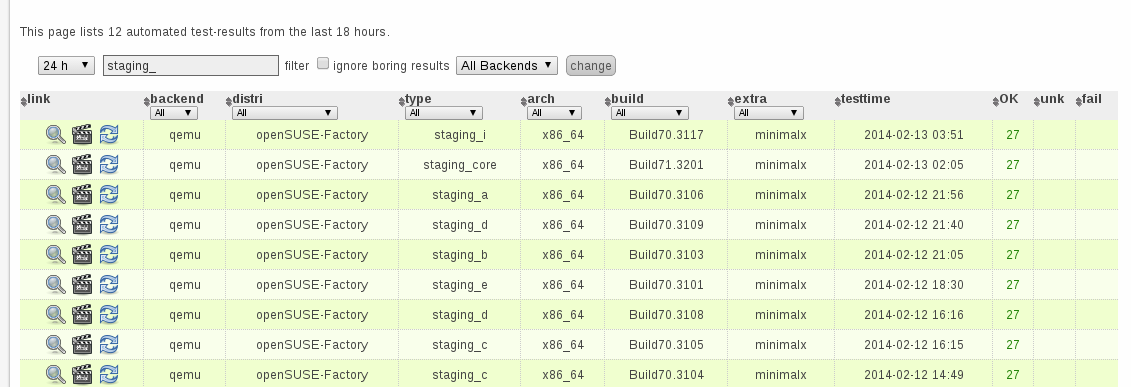
Coolo already started using the plugin for some tasks, so you can see pretty titles and metadata in staging projects descriptions. Not impressive enough? Let me provide you a good headline:
Thanks to staging projects, no single regression have been introduced this year in the core of Factory
You can enjoy a more detailed description in this announcement written by coolo to the Factory mailing list and have some visual joy in the included screenshot (genuine pr0n for QA engineers).
Last but not least, we also did some cleanup of the sources in the repo and of course we added more tests (as functionality grows). And there has been work on other parts of the plugin, like taking rings into account.
Result
We already have some useful functionality which we are going to expand and build on. Not that much to show yet, but we are progressing towards our goal. You can follow our progress either in the way of tasks (openQA and staging projects) or just follow our commit history on github (again for both openQA and staging plugin).
We are very much looking forward to feedback and thoughts – these changes aim to make Factory development easier and thus we need to hear from all you!
Gerenciando seu smartphone Android via wifi com Air Droid
Acessar seu smartphone via cabo usb utilizando o protoclo MTP às vezes pode ser uma dor de cabeça. Uso o openSUSE e às vezes o aparelho simplesmente é desconectado mesmo estando com o cabo usb plugado, ou seja é uma chatice só. Passei então a procurar um aplicativo no GooglePlay que pudesse me ajudar nesta tarefa. Encontrei o Samsung Kies (meu celular é um Samsung Trios) com um custo muito baixo (quase R$4,00) e também encontrei um outro aplicativo que me chamou a atenção que foi o Air Droid.
Com o Air Droid instalado, basta eu me conectar na mesma rede wifi que meu smartphone estiver conectado e autorizar a conexão no meu celuar, ou seja, quando inicio o Air Droid ele acessa a rede wifi e me informa um endereço na rede ex: 192.168.1.20:888, então, basta acessar este endereço no meu navegador preferido em meu notebook. Ao acessar este endereço aparece no celular a mensagem de uma conexão que está sendo feita e a pergunta se eu autorizo. Depois de autorizar, consigo acessar todas as funções do meu celular via navegador.
Depois de estabelecida a conexão, eu consigo acessar a lista de contatos, fotos, arquivos, ver e gravar vídeos, músicas, transferir arquivos, efetuar ligações, instalar e remover aplicativos, enviar e gerenciar mensagens SMS e o melhor de tudo sem o maldito cabo USB.
Veja uma imagem da tela:

Você pode configurar o nível de segurança do aplicativo, por exemplo, você pode escolher se deve ser dada permissão ou se a conexão entre computador e smartphone pode acontecer sem que haja essa necessidade. Claro que recomendo que seja necessário autorizar o acesso. Já pensou qualquer pessoa poder acessar seu smartphone ??
Resumindo… achei muito interessante e funcional este aplicativo. Remendo com louvores.
Se estiver interessado em baixar ou saber mais sobre o aplicativo acesse esta página:
https://play.google.com/store/apps/details?id=com.sand.airdroid&hl=pt_BR

openSUSE Board In The Flesh
$ICECC_VERSION
It's been brought to my attention that the Icecream documentation more or less suggests it is necessary to manually set up $ICECC_VERSION (which also involves creating the environment tarball with the compiler and so on). That is incorrect. I've already updated the documentation to say that, like with pretty much everything, Icecream simply figures it out itself by default.
So if you happen to use $ICECC_VERSION, unless you know why you do that (e.g. cross-compilation), don't. It's not only simpler but also better to leave it up to Icecream to package the system compiler as necessary, as it simply works, and avoids possible problems (such as updating the system compiler and forgetting to update the tarball).

Docker and openSUSE getting closer
I have some good news about Docker and openSUSE.
First of all the Docker package has been moved from my personal OBS project to the more official Virtualization one. The next step is to get the Docker package into Factory :)
I’m going to drop the docker package from home:flavio_castelli:docker,
so make sure to subscribe to the Virtualization repository to get latest versions of
Docker.
I have also submitted some openSUSE related documentation to the official Docker project. If you visit the “Getting started” page you will notice the familiar geeko logo. Click it to be redirected to the openSUSE’s installation instructions.
Improved OS X look of the upcoming LibreOffice 4.3
We achieved a lot (incomplete list - many haven't added their achievements yet), but I want to particularly highlight the result of me teaming up with +Joren dc and +Tor Lillqvist. It is the new look of LibreOffice on OS X:
 |
| Improved OS X look of LibreOffice |
Have a look at the toolbar - it is using CoreUI to render the gradient in a native way. It is based on similar work that has been done for Firefox - thank you, Markus Stange, for your observations & code, we have reused pieces under the MPL license.
It is visible that the work is not finished yet; we need to extend the gradient to cover even the title bar (or how is it called exactly?), but there is enough time for the LibreOffice 4.3 feature freeze in May - I am sure it will be perfect by then.
Other Improvements
Other than that, I have extended the new Start Center to be able to show previews of other file formats than just ODF. As a sideeffect, it should improve the startup speed with many previews.The last thing I've done was that I have converted the Template Manager to use dynamic widget layout. This led to removing many hacks there that made the Template Manager resizable even before - but using the .ui is much more elegant, and potentially may allow integration of the Template Manager directly into the Start Center.
Overall, the UX hackfest was awesome - I am really looking forward to the next one :-) Thank you, Mirek, for organizing it!