
open source xml editor in sight
Six years ago I was involved with an early predecessor of the openfate feature tracker. I had extended docbook sgml with a few feature tracking tags and it rendered nicely. We stored it in cvs and jointly hacked on the document. It never really got off the ground though, because there was no open source xml editor for Linux beyond emacs.
xml is great: It’s a simple, human- and machine readable serialization. And xml sucks because of all these ankle brackets. You need a tool to edit it.
Now yesterday I’m getting this mail:
Subject: ANN: Serna Free XML Editor Goes Open Source Soon! Help Us Build the Community!
From: Syntext Customer Service <XXXXX@syntext.com>
To: Susanne.Oberhauser@XXXXX
Date: 2009-06-17 17:11:26Dear Susanne Oberhauser,
We are happy to tell you that our Serna Free XML Editor is going to be open-source software soon! Serna is a powerful and easy-to-use WYSIWYG XML editor based on open standards, which works on Windows, Linux, Mac OS X, and Sun Solaris/SPARC.
We love Serna and wish to share our passion with anyone who wants to make it better. Our mission is to make XML accessible to everyone, and we believe that open-source Serna could enable much more users and companies to adopt XML technology.
It goes on about spreading the news and supporting the transition from just cost free to open source.
I got this mail because I’ve tried Serna five years ago, on the quest for a decent Linux xml editor. Back then it just rendered xml to xsl-fo with xslt, and then you edit the document in that rendered view, as if it was a word document. Serna came with docbook and a few toy examples like a simple time tracking sheet. Meanwhile they’ve added python scripting, dita support, an “xsl bricks” library to quickly creaty your own xslt transforms for your own document schemes, and the tool gathers the data from different sources with xinclude or dita conref and stores the data back to them and on the screen you just happily edit your one single unified document view.
I just hesitated to build an infrastructure around it because it was prorietary. I hate vendor lock-in. And now they want to open source serna!!
If this comes true, serna rocks the boat. It’s as simple as that. With the python scripting Serna is more than an xml editor: it actually is a very rich xml gui application platform, with one definition for print and editing, with wysiwyg editing in the print ‘pre’view. I dare to anticipate this is no less than one of the coolest things that ever happened to the Linux desktop… Once Serna is open source it will be so much simpler to create xml based applications. I guess I’m dead excited 
Serna, I whish you happy trails on your open source endeavour!!
S.
An Update
My other baby (my seven year old laptop, Lazarus) is losing its memory. One of the memory slots decided to give up the ghost, so it now only has half a gig of RAM. One gig was already on the low side of comfortable, so now it's extremely frustrating to use. At least I'm running Linux on it and not Windows, since I generally find Windows likes to have around double the amount of RAM that Linux likes. It'd be a good excuse to put Lazarus in the grave one final time and get a nice, fast, new computer. But I can't afford a new computer and a new baby. Well, I could, but I just got a new 10-22mm lens for my camera and I want a new Line 6 box for my guitar, so I might just have to struggle on. Oh well, I'm in Canada for the next five weeks, so I don't have to worry about it at the moment.
openSUSE@ARM/GSoC: Cross-compilation & speedup
This weeks topic was the integration of the cross-compilation mode into the build environment. But it’s more than just a cross-toolchain – it’s a speed-boost for our ARM build environment. As of today, the source is deployed in the repository Base:build:arm:cross. It’s not fully bootstrapped because of the current high load and the upcoming downtime – so watch out for changes there and in Base:build:arm.
But what are these “speedup’s” ? First, you’ve to know that in our build environment the ARM binaries are executed through an emulation-layer. This works on the cost of speed. The goal is now, to exchange some key parts in a transparent manner with native x86 binaries: no emulation, no slowdown. Sounds reasonable, but is it easily possible ?
I had to take care not to mix stuff too much because the environment would break. But now I’ve to say: WOW, this worked incredibly well  .
.
The distinctive feature of our approach in comparison to usual cross-build environments is that we use the best of native environment emulation and the speed of cross-compilation. Because of this combination we don’t have to patch the individual packages to make them cross-compilation ready. This is a new way of cross-compiling suitable also for large number of packages. A detailed overview about the different crossbuild types can be found on this page.
Another feature to note is that the exchanged binaries (replacing ARM with x86 in the build environment) also don’t need heavy patching and there’s no need to compile them as static binaries. All of them are normal distribution packages.
A switch in the project enables/disables the new features. With the new changes in place, the speed could be vastly increased. Some figures:
* package rpm
* package glibc w/o locales
| Build time in minutes | ||||||
| x86 native | armv5tel native | armv5tel cross | factor native | factor cross | ||
| rpm | 8 | 107 | 17 | 13,38 | 2,13 | |
| glibc | 33 | 505 | 63 | 15,3 | 1,91 | |
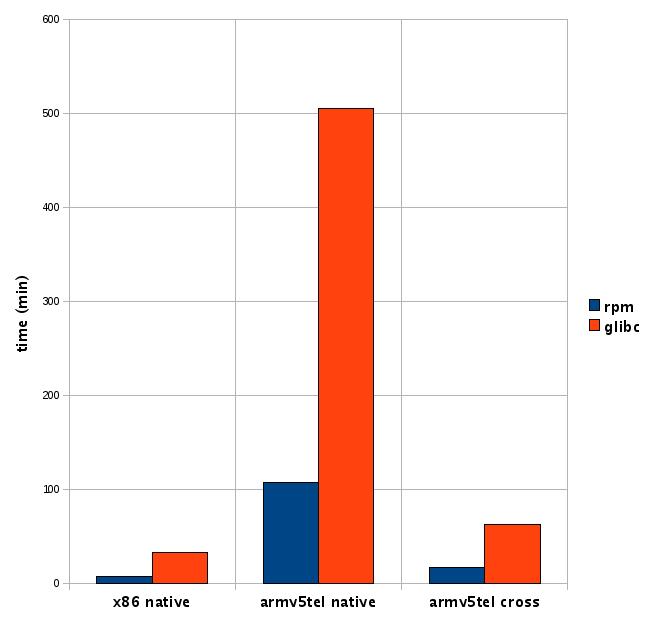
Thats a drop from about x15 to x2 in comparison to the native x86 build-time !! See it yourself when the “crosscompiled” repo in Base:build:arm is up and running.
In other words: “Warp 5, Mr. Sulu !”
 SLEducator
OBS-Education Questions specific to openSUSE Education development, bugs, enhancements, etc.
Please take a look at the new forum for the opensuse-edu project.
http://forums.opensuse.org/obs-projects/obs-education/
Hopefully the start of a lot more communication and growth!
South East Linux Fest
This week I attended SELF (South East Linux Fest) at Clemson University here in South Carolina. It was a great day! I met and worked the openSUSE booth with Joe Brockmeier aka “Zonker”. There were lots of enthusiastic attendees both from the Linux and Education communities. All of the Educators that came to visit the booth where extremely pleased with the work the EDU team has completed and If I had been able to supply them, many would have taken copies of the EDU Li-F-E disk and Sugar disk that I had running on my laptop. Cyberog and the team really have hit a home run! I had with me a thin client setup and did several demonstrations on the ease of installation and setup. Kiwi-LTSP is one of the most exciting products for Education I have seen in a long time. Easy-LTSP, the openSUSE configuration utility for LTSP, is by far the easiest configuration utility available to LTSP users. Combine Easy-LTSP and Italc (a computerlab monitoring suite) and in 5 minutes a teacher can setup a computer lab and either display the lesson on each\all screen or capture a students screen for display to others or simple monitoring of all screens.
I sat through a couple of presenters and I was most excited to hear Chad Wollenburg from VA. Chad is a kindred spirit , he has been slowly moving his district to open source for a few years now and he started much the same way most of us have, his school district could not afford to relicense Microsoft office. He too, had to show that Open Office was compatible and comparable to MSOffice and explain the over 200,000.o0$ savings to his district using small steps and insider advocates as his method of operation. I am glad to meet so many people dedicated to reducing the “criminal” costs of licensing.
Our project itself past another milestone this week, I am proud to present the OBS-Education forum. http://forums.opensuse.org/obs-projects/obs-education/ Please feel free to post questions specific to openSUSE Education development, bugs, enhancements, etc.
Blah blah...
1. "... regardless of what people believe or know about the inner workings of computers, they talk about them and interact with them as social entities. People act towards computers as if they were people, they are polite to them, treat them as team members, and expect among other things that computers should be able to understand their needs, and be capable of interacting with them naturally" [doesn't that make my job simpler, this software should only understand polite commands and not the rude, mean ones :P ]
2. ELIZA (probably the first cool NLP application, written back in 1966) actually managed to fool people into believing that it were a Rogerian psychotherapist by simply rephrasing sentences inputted by them.
"ELIZA's deep relevance to Turing's ideas is that many people who interacted with ELIZA came to believe that it really understood them and their problems. Indeed, Weizenbaum (1976) notes that many of these people continued to believe in ELIZA's abilities even after the program's operation was explained to them."
[check this for a sample conversation with ELIZA : http://www.stanford.edu/group/SHR/4-2/text/dialogues.html]
The future looks all hunky dory, doesn't it...
Btw my firefox too is showing some signs of being talkative, the last I heard was
"
(firefox:19328): Gdk-WARNING **: XID collision, trouble ahead
(firefox:19328): Gdk-WARNING **: XID collision, trouble ahead
(firefox:19328): Gdk-WARNING **: XID collision, trouble ahead
"
openSUSE Day (Chile). June 18th, 2009.
We are hoping to have students, young people, professors, teachers, and professionals from many fields as well. Actually everyone is welcome to attend the event. We’ll have presentations, stands, gaming, and of course the fun install fest (openSUSE 11.1). And yes, you can have an original openSUSE 11.1 Live DVD if you are one of the first 400 people to get there (Thanks Zonker!).
Where? Meet us at Universidad Andres Bello (UNAB), Campus República, República 239/Subterráneo R3. Check the map here.
Time? 10 AM though 8 PM.
Talks:
- Rafael de la Horra, from UNAB: Education for Professionals and the Free Software Environment.
- Enrique Herrera, from Linux Latin America: GNU/Linux, 10 years of progress.
- Myself, openSUSE Ambassador: SUSE Studio.
- Patricia Albornoz, SUN Campus Ambassador: Netbeans and openSUSE.
- Francisco del Castillo, from the Air Force: Linux and the Air Force.
- Rodrigo Romo, from IBM/Tallard: Reducing Costs with IBM and Linux.
See you there. Join openSUSE and have a lot of fun!

 Member
DaysToGo - Minimalistic SuperKaramba Theme

I easily loose track of time when i have a lot of things to do on my list. I needed something to remind me how much time i have left when deciding what do to next or whether to promise to do something more. So i made this simple SuperKaramba theme.
You can download it from here.
The theme is pretty minimalistic and only contains three text items, one using a simple perl script, and an image for the background. So you can easily change it as you wish.
To install SuperKaramba and the theme on a recent openSUSE using terminal do this:
$ sudo zypper in kde4-superkaramba 'perl(Date::Parse)'
$ wget http://www.suse.de/~jkupec/superkaramba/daystogo.tar.gz
$ cp daystogo.tar.gz .kde4/share/apps/superkaramba/themes
(Did you know you could install perl modules like this? :O)
Now if you open Superkaramba, its theme selector should appear and should already contain the new theme. Opening the theme should also unpack the tarball. See the Readme file in the daystogo theme directory for further instruction on how to edit the theme (set your own text and date).
The theme file is as simple as this:
KARAMBA W=280 H=280The red parts are what you want to change to suit you. See this manual for description of used items and attributes. You'll find many more there, together with examples you can use to extend this theme or create your own. Looking at other existing themes is useful, too.
<group> x=5 y=5 w=270 h=270
image x=-10 y=-10 path="img/SUSE_Head_lt.png"
text x=10 y=0 value="<edit daystogo.theme>" color=255,255,255 fontsize=24 shadow=2 bgcolor=100,100,100 font="Sans"
text x=135 y=70 w=270 align=center sensor=program program="~/.kde4/share/apps/superkaramba/themes/daystogo/scripts/daystogo.pl '31/dec/2009 23:59'" line=1 color=255,255,255 shadow=4 bgcolor=0,50,0 fontsize=120 font="Sans" interval=900000
text x=270 y=250 w=270 align=right value="days to go" color=255,255,255 shadow=2 bgcolor=50,50,50 fontsize=24 font="Sans"
</group>
Last, but not least, i want to thank Troy Watson for the pretty Geeko icon i used as the background image.
Improved Installation Summary in Zypper
If the architecture or the vendor of an installed package is about to be changed, the old and the new arch/vendor is shown next to the package name:
The following packages are going to change vendor:Other information, like version or repository is not shown by default, like it was before (i argue that it would be too much info for the default output):
kde4-akonadi openSUSE -> openSUSE Build Service
kde4-knemo http://packman.links2linux.de -> openSUSE Build Service
oxygen-icon-theme openSUSE -> openSUSE Build Service
oxygen-icon-theme-scalable openSUSE -> openSUSE Build Service
The following NEW packages are going to be installed:But you can toggle display of such info in the 'Continue?' dialog. Enter '?' to show all the available options:
dmidecode libpkcs11-helper1 libstorage libx86emu1
The following packages are going to be upgraded:
ConsoleKit ConsoleKit-32bit ConsoleKit-x11
...
Continue? [y/n/?] (y):
Continue? [y/n/?] (y): ?Enter 'v' to see the versions:
y - Yes, accept the summary and proceed with installation/removal of packages.
n - No, cancel the operation.
v - Toggle display of package versions.
a - Toggle display of package architectures.
r - Toggle display of repositories from which the packages will be installed.
m - Toggle display of package vendor names.
d - Toggle between showing all details and as few details as possible.
g - View the summary in pager.
[y/n/?] (y):
[y/n/?] (y): vIf the list is too long, enter 'g' to view the result in pager.
The following NEW packages are going to be installed:
dmidecode 2.10-3.4
libpkcs11-helper1 1.07-1.7
libstorage 2.18.16-1.1
libx86emu1 1.1-3.1
The following packages are going to be upgraded:
ConsoleKit 0.3.0-1.5 -> 0.3.0-1.6
ConsoleKit-32bit 0.3.0-1.5 -> 0.3.0-1.6
ConsoleKit-x11 0.3.0-1.5 -> 0.3.0-1.6
Also, the package counts are shown at the end:
1230 packages to upgrade, 2 to downgrade, 5 new, 2 to remove, 4 to change vendor.If you have colors enabled the numbers will be highlighted and the ones to-be-removed and to-change-vendor are shown in red to catch your attention.
Overall download size: 1.02 GiB. After the operation, 175.0 KiB will be freed.
Enjoy, and let us know what you think!
todo: Add an option to show the dependency graph of the listed packages. That will answer the questions why zypper wants to install or remove a particular package.
todo: Add an option to view detailed package info.
todo: Add an option to view the changelog (esp. of the to-be-upgraded packages).
Zypper Dialogs
- be translatable, including the answers (or options)
- have default option, that would be chosen with a simple Enter key stroke (or automatically in non-interactive mode)
- have the default option visibly marked
- have help
- be simple (have expert options hidden from default view)
Download (curl) error for 'http://foo.bar/beer/content':And a translated version:
Error code: Connection failed
Error message: Couldn't resolve host 'foo.bar'
Abort, retry, ignore? [a/r/i/?] (a): ?
a - Skip retrieval of the file and abort current operation.
r - Try to retrieve the file again.
i - Skip retrieval of the file and try to continue with the operation without the file.
u - Change current base URI and try retrieving the file again.
[a/r/i/?] (a):
Ukončiť, znova, ignorovať? [k/z/i/?] (k): ?

k - Preskoč súčasný súbor a ukonči operáciu.
z - Skús stiahnuť súbor znova.
i - Preskoč súčasný súbor a pokračuj v operácii bez neho.
u - Zmeň základnú URI adresu a skús súbor stiahnuť znova.

[k/z/i/?] (k):
- the prompt options are made of a string like "a/r/i/u", which is marked for translation. Translators are advised in the source comment about the meaning of the options and that they
should use lowercase letters to translate them (but even a longer string would work). - The default option is chosen by the programmer, using its position (0 in the above example). On Enter, this option would be used as an answer.
- The default option is visibly shown in separate parentheses. First i thought highlighting it with some color would be nice, but then my colleagues convinced me that showing different output in color/non-color mode was not a good idea.
- Whenever there's help or more options available, a question mark (?) is shown as one of the possible options. When entered, the help would be shown, as you can see in the examples above.
- Programmer can choose how many options should be shown, the rest will be hidden. Only the most important options should be shown, the rest will be listed after entering the '?'.
todo: Allow to pass arguments together with the option as part of the answer. This would allow to e.g. remove particular package from the list of to-be-installed packages when seeing the summary. Or show detailed info (e.g. changelog) of a package that caught your attention in the summary before starting the installation.
(oh, did i mention that we'd be glad to receive patches implementing any of the todo's i mention in my blog posts? :O) If you like zypper and would enjoy some coding in C++, don't hesitate to contact us).