
 sakana
三大雲平台工具容器升級小記 - gcloud 406.0 / AWS Cli 2.8.5 / ansible 2.11.12
三大雲平台工具容器升級小記 - gcloud 406.0 / AWS Cli 2.8.5 / ansible 2.11.12
OS: container with openSUSE Leap 15.4
上次升級是 2022/4 , 這次會來升級的原因是
OS 更新到 openSUSE Leap 15.4
更新 gcloud 以及 AWS Cli 版本
Ansible 在 2.10 以後的版本, 有很多 module 被移動到 Ansible Collections, 也就是說現在不是如同 Ansible 官網上面的 pip3 install ‘ansible[azure]’ 的安裝方式. 接下來就是透過 collection 方式來進行安裝
參考網路上的文章 https://stackoverflow.com/questions/64921336/warning-ansible-2-10-3-does-not-provide-the-extra-azure
微軟官網文章 https://docs.microsoft.com/zh-tw/azure/developer/ansible/install-on-linux-vm?tabs=azure-cli
這樣也是好事, 之前也是因為這樣報了一個 issue ( 目前還是有 Bug, 持續回報中 )
同步紀錄一下目前 Azure CloudShell 上面的 Ansible 資訊
Ansible: 2.13.3 / python 3.9.13
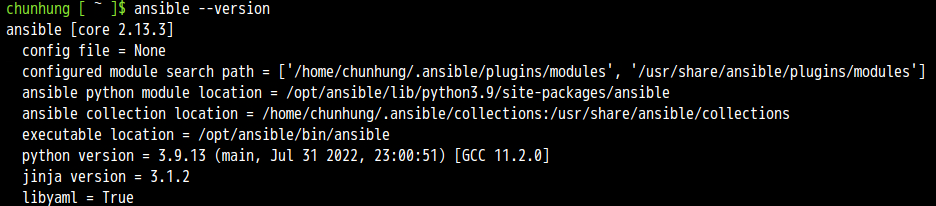
先整理結果
升級前
OS: openSUSE Leap 15.3
awscli: aws-cli/2.5.6 Python/3.9.11
gcloud: Google Cloud SDK 381.0.0
azure-cli: 2.35.0 (目前有 bug)
ansible: 2.11.10
升級後
OS: openSUSE Leap 15.4
awscli: aws-cli/2.8.5 Python/3.9.11
gcloud: Google Cloud SDK 406.0.0
azure-cli: 2.35.0 (目前有 bug)
ansible: 2.11.12
AWS CLI v2 安裝文件
GCP Cloud SDK 版本
另外執行 ansible --version 也會收到之後 ansible 需要 python 3.8 以上的告警, 訊息如下
[DEPRECATION WARNING]: Ansible will require Python 3.8 or newer on the controller starting with Ansible 2.12. Current version: 3.6.15 (default, Sep 23
2021, 15:41:43) [GCC]. This feature will be removed from ansible-core in
version 2.12. Deprecation warnings can be disabled by setting
deprecation_warnings=False in ansible.cfg.
這個部份應該是因為 openSUSE Leap 15.x 還是基於 SLES 15, 所以 python 的策略是還在 3.6, 只能先這樣
這次的做法還是會透過 docker build 指令來進行
我有比較過 docker build 以及使用現有的 docker image 修改後再使用 docker commit 建立的 image 大小還是很有差異的
Dockerfile 的部分我是拿之前的 Dockerfile 來修改目前是 openSUSE Leap 15.3
修改細節
Update time
Google SDK 版本還有下載的檔案路徑以及檔案名稱
列出 diff 的結果給大家參考
> diff opensuseLeap153_ansible_20220417_Dockerfile opensuseLeap154_ansible_20221022_Dockerfile
1,2c1,2
< # openSUSE Leap 15.3 with ansible, azure-cli, aws cli, gcloud
< FROM opensuse/leap:15.3
---
> # openSUSE Leap 15.4 with ansible, azure-cli, aws cli, gcloud
> FROM opensuse/leap:15.4
6c6
< # update time: 20220417
---
> # update time: 20221022
78,79c78,79
< RUN wget https://dl.google.com/dl/cloudsdk/channels/rapid/downloads/google-cloud-sdk-381.0.0-linux-x86_64.tar.gz && \
< tar zxvf google-cloud-sdk-381.0.0-linux-x86_64.tar.gz && \
---
> RUN wget https://dl.google.com/dl/cloudsdk/channels/rapid/downloads/google-cloud-sdk-406.0.0-linux-x86_64.tar.gz && \
> tar zxvf google-cloud-sdk-406.0.0-linux-x86_64.tar.gz && \
Dockerfile 內容如下
我檔案的名稱取名爲 opensuseLeap154_ansible_20221022_Dockerfile
# openSUSE Leap 15.4 with ansible, azure-cli, aws cli, gcloud
FROM opensuse/leap:15.4
# Author
# MAINTAINER 已經棄用, 之後要使用 LABEL 方式
# update time: 20221022
LABEL maintainer="sakana@cycu.org.tw"
# Set LANG for UTF-8 - for Chinese
ENV LANG C.UTF-8
# Install python3-pip, upgrade pip, ansible, boto, boto3
RUN zypper refresh && \
zypper install -y python3-pip && \
pip3 install --upgrade pip && \
pip3 install ansible && \
pip3 install boto boto3
# Install openssh, set ls alias
RUN zypper install -y openssh
RUN echo "alias ls='ls --color=tty'" >> /root/.bashrc
# Install wget, download azure_rm.py, set permission
RUN zypper install -y wget
# azure_rm.py no need to download
# Starting with Ansible 2.8, Ansible provides an Azure dynamic-inventory plug-in
# https://docs.ansible.com/ansible/latest/plugins/inventory/azure_rm.html
# old azure_rm.py URL https://raw.githubusercontent.com/ansible/ansible/devel/contrib/inventory/azure_rm.py
#
# Create working directory in /root
RUN mkdir /root/.azure && \
mkdir /root/.aws && \
mkdir /root/playbook && \
mkdir -p /root/.config/gcloud && \
wget https://raw.githubusercontent.com/sakanamax/LearnAnsible/master/template/ansible.cfg && \
mv /ansible.cfg /root && \
wget https://raw.githubusercontent.com/sakanamax/LearnAnsible/master/template/hosts && \
mv /hosts /root
#### Azure ####
# Install azure-cli
# 2020/11/29 Still have az login issue in Github https://github.com/Azure/azure-cli/issues/13209
RUN zypper install -y curl && \
rpm --import https://packages.microsoft.com/keys/microsoft.asc && \
zypper addrepo --name 'Azure CLI' --check https://packages.microsoft.com/yumrepos/azure-cli azure-cli && \
zypper install --from azure-cli -y azure-cli
# Install Ansible azure module
# After ansible 2.10, some module move to ansible collect, change install method
RUN zypper install -y curl && \
curl -O https://raw.githubusercontent.com/ansible-collections/azure/dev/requirements-azure.txt && \
pip3 install -r requirements-azure.txt && \
rm -f requirements-azure.txt && \
ansible-galaxy collection install azure.azcollection
#install vim tar gzip jq unzip less bind-utils iputils groff
RUN zypper install -y vim tar gzip jq unzip less bind-utils iputils groff
RUN echo "set encoding=utf8" > /root/.vimrc
#### AWS ####
# Install awscli v1
#RUN pip3 install awscli
#RUN echo "source /usr/bin/aws_bash_completer" >> /root/.bashrc
# Install awscli v2
RUN curl "https://awscli.amazonaws.com/awscli-exe-linux-x86_64.zip" -o "awscliv2.zip" && \
unzip awscliv2.zip && \
/aws/install
RUN echo "complete -C '/usr/local/bin/aws_completer' aws" >> /root/.bashrc
#### GCP ####
# Install google cloud SDK 381.0.0
ENV CLOUDSDK_CORE_DISABLE_PROMPTS 1
RUN wget https://dl.google.com/dl/cloudsdk/channels/rapid/downloads/google-cloud-sdk-406.0.0-linux-x86_64.tar.gz && \
tar zxvf google-cloud-sdk-406.0.0-linux-x86_64.tar.gz && \
/google-cloud-sdk/install.sh && \
echo "if [ -f '/google-cloud-sdk/path.bash.inc' ]; then . '/google-cloud-sdk/path.bash.inc'; fi" >> /root/.bashrc && \
echo "if [ -f '/google-cloud-sdk/completion.bash.inc' ]; then . '/google-cloud-sdk/completion.bash.inc'; fi" >> /root/.bashrc
使用 docker build 指令建立 image
> docker build -t sakana/ansible_opensuse154:20221022 -f ./opensuseLeap154_ansible_20221022_Dockerfile .
使用 -f 指定 Dockerfile 名稱
最後是 ” . “ 目前的目錄
這邊有個網路問題自己小記一下, 不知為何, 在家中如果是用固定 IP, 可能是有走 IPv6, 在執行 docker build 就有連線問題, 切成浮動 IP 或是先 ping 外部 就沒有相關問題, 日後再研究
測試 container image
> docker run -v ~/.aws:/root/.aws -v ~/.azure:/root/.azure -v ~/.config/gcloud:/root/.config/gcloud -it sakana/ansible_opensuse154:20221022 /bin/bash
測試結果 OK, 建立 tag
這邊目前因為 openSUSE Leap 15 使用舊的 azure cli 以及相依性, 所以現在 az 指令會有問題, 已經 update issue 以及花了很多時間調整, 目前還是要等 openSUSE and Azure 看是否會有後續更新
目前 az 指令可能會暫時透過 Azure cloud shell, ansible with Azure 目前有問題, 後面要再測試
觀察資訊
> docker images
REPOSITORY TAG IMAGE ID CREATED SIZE
sakana/ansible_opensuse154 20221022 d7eaacc18701 10 minutes ago 3.67GB
opensuse/leap 15.4 b59a33a9e95e 10 days ago 112MB
建立 tag
> docker tag d7eaacc18701 sakana/ansible_opensuse154:latest
登入 docker
> docker login
上傳 image
> docker push sakana/ansible_opensuse154:20221022
> docker push sakana/ansible_opensuse154:latest
完工, 以後使用就用
> docker run -v ~/.aws:/root/.aws -v ~/.azure:/root/.azure -v ~/.config/gcloud:/root/.config/gcloud -it sakana/ansible_opensuse154 /bin/bash
額外小記: 更新 blog 就會順道檢查 Azure 的認證資訊有沒有超過一年, 參考之前自己的筆記
http://sakananote2.blogspot.com/2020/05/azure-dynamic-inventory-with-ansible.html
使用 az ad sp list --all --output table | grep azure-cli 找出舊的認證,
刪除他 ex: # az ad sp delete --id d06f8905-ad21-425b-9da5-3e0bcf22a853
然後建立新的認證 ex: # az ad sp create-for-rbac --query '{"client_id": appId, "secret": password, "tenant": tenant}'
查詢 subscription_id, ex: # az account show --query "{ subscription_id: id }"
更新 ~/.azure/credentials 內的 client_id 以及 secret
~ enjoy it
Reference:
https://sakananote2.blogspot.com/2022/04/ansible-21110-aws-cli-256-gcloud-3810.html
https://sakananote2.blogspot.com/2021/12/ansible-2116-aws-cli-245-gcloud-3650.html
http://sakananote2.blogspot.com/2021/05/ansible-2109-aws-cli-224-gcloud-3400.html
http://sakananote2.blogspot.com/2020/11/ansible-2103-azure-module.html
https://sakananote2.blogspot.com/2020/11/opensuse-leap-152-container.html
https://stackoverflow.com/questions/64921336/warning-ansible-2-10-3-does-not-provide-the-extra-azure
http://sakananote2.blogspot.com/2020/08/opensuse-leap-152-container.html
https://sakananote2.blogspot.com/2020/05/aws-cli-v2-with-opensuse-leap-151.html
http://sakananote2.blogspot.com/2020/01/python-3-with-opensuse-leap-151.html
http://sakananote2.blogspot.com/2019/07/with-opensuse-leap-15-container.html
http://sakananote2.blogspot.com/2019/05/ansible-azure-cli-awscli-gcloud-with.html
http://sakananote2.blogspot.com/2019/11/with-opensuse-leap-151-container.html

 Member
#openSUSE Tumbleweed revisión de la semana 42 de 2022
Tumbleweed es una distribución «Rolling Release» de actualización contínua. Aquí puedes estar al tanto de las últimas novedades.

openSUSE Tumbleweed es la versión «rolling release» o de actualización continua de la distribución de GNU/Linux openSUSE.
Hagamos un repaso a las novedades que han llegado hasta los repositorios estas semanas.
El anuncio original lo puedes leer en el blog de Dominique Leuenberger, publicado bajo licencia CC-by-sa, en este este enlace:
En este periodo, para Tumbleweed se han publicado 7 snapshots (1014…1020), lo que viene siendo una semana normal en la distro.
Entre los cambios que han llegado a los repositorios, se pueden destacar las siguientes actualizaciones:
- Linux kernel 6.0.1 & 6.0.2
- KDE Gear 22.08.2
- Libzypp 17.31.3
- libxml 2.10.3
- Node.JS 18.11.0
- KDE Plasma 5.26.1
- Virtualbox 6.1.40
- Meson 0.63.3
Y para próximas actualizaciones de openSUSE Tumbleweed, ya se están preparando:
- Systemd 251.6
- Mesa 22.2.2
- fwupd 1.8.6
- Mozilla Thunderbird 102.4.0
- Mozilla Firefox 106.0
- Samba 4.17.1
- Swig 4.1.0 (beta 1)
- gpgme 1.18.0
- python Sphinx 5.3.0
- suse-module-tools 16.0.24
Si quieres estar a la última con software actualizado y probado utiliza openSUSE Tumbleweed la opción rolling release de la distribución de GNU/Linux openSUSE.
Mantente actualizado y ya sabes: Have a lot of fun!!
Enlaces de interés
- ¿Por qué deberías utilizar openSUSE Tumbleweed?
- zypper dup en Tumbleweed hace todo el trabajo al actualizar
- ¿Cual es el mejor comando para actualizar Tumbleweed?
- ¿Qué es el test openQA?
- http://download.opensuse.org/tumbleweed/iso/
- https://es.opensuse.org/Portal:Tumbleweed

——————————–
openSUSE Tumbleweed – Review of the week 2022/42
Dear Tumbleweed users and hackers,
To me, this week felt somewhat unspectacular. Staging projects are moving along, snapshots are coming out and no drama happened. That’s a good week, right? For Tumbleweed, this seems to be any regular week with 7 published snapshots (1014…1020).
The most interesting changes delivered this week include the following:
- Linux kernel 6.0.1 & 6.0.2
- KDE Gear 22.08.2
- Libzypp 17.31.3: Implement GeoIP feature for zypp
- libxml 2.10.3
- Node.JS 18.11.0
- KDE Plasma 5.26.1
- Virtualbox 6.1.40
- Meson 0.63.3
The staging projects are almost all empty – almost. Still, a few things are being build-tested and QA:
- Systemd 251.6
- Mesa 22.2.2
- fwupd 1.8.6
- Mozilla Thunderbird 102.4.0
- Mozilla Firefox 106.0
- Samba 4.17.1
- Swig 4.1.0 (beta 1)
- gpgme 1.18.0: breaks LibreOffice
- python Sphinx 5.3.0: breaks python doc builds
- suse-module-tools 16.0.24: breaks dpdk and Virtualbox
Mi escritorio Plasma de octubre 2022 #viernesdeescritorio Plasma 5.26 edition
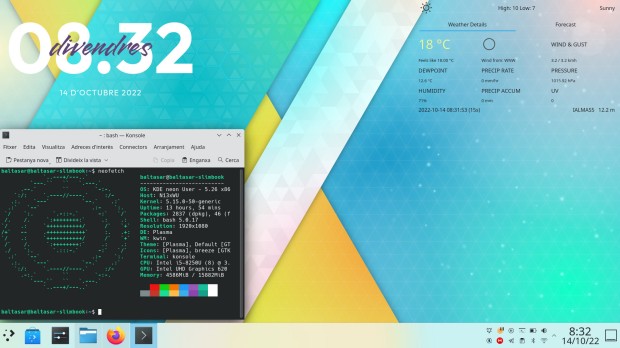
Sigo la serie de la iniciativa #viernesdeescritorio con una nueva captura, con la que llegaré a más de un año y medio compartiendo «Mi escritorio», una mirada a la intimidad de mi entorno de trabajo. De esta forma, bienvenidos a mi escritorio Plasma de octubre 2022 que sigue con un tema claro y dedicado al lanzamiento de Plasma 5.26.
Mi escritorio Plasma de octubre 2022 #viernesdeescritorio Plasma 5.26 edition
Esta va a ser la vigesimooctava vez que muestro mi escritorio Plasma 5 en público, lo cual es número nada desdeñable de entradas que sigue creciendo de forma constante. Tengo pendiente hacer una entrega recopilatorio con los 25 primeros escritorios para ver la evolución… a ver si lo consigo antes de que acabe el año.
Respecto al mes pasado, sigo con un tema claro ya que al actualizar mi equipo a la última versión de Plasma he decidido mantener su aspecto por defecto, es decir, con tema global Plasma y la barra de tareas inferior (un poco más ancha de lo normal para que la bandeja del sistema sea doble).
En cuanto a plasmoides, uno de los protagonistas de Plasma de 5.26, he añadido un par:
- el plasmoide meteorológico llamado Wunderground PWS Widget for KDE 5 que es de lo más completo… aunque hay uno todavía más espectacular del que debo hablar un día de estos.
- Clear Clock, el reloj elegante del cual ya he hablado en el blog.
Y sigo, tras unos meses enseñando mi Slimbook Kymera AMD de sobremesa, sigo realizando a captura está realizada sobre mi portátil Slimbook Pro de 13 pulgadas, el cual tiene instalado un KDE Neon con el recientemente actualzado Plasma 5.26, siendo mi sistema gráfico Wayland.
El resultado de mi escritorio de octubre de 2022 es un entorno de trabajo claro y, como siempre, funcional que podéis ver en la imagen inferior (pinchad sobre ella para verlo un poco más grande).
La entrada Mi escritorio Plasma de octubre 2022 #viernesdeescritorio Plasma 5.26 edition se publicó primero en KDE Blog.
Benih dan Bibit Pepaya Calina/California
Saat ini sudah mulai masuk musim hujan. Cocok bagi rekan-rekan yang berniat menanam tanaman tertentu di kebun atau pekarangan rumah. Salah satu tanaan buah yang bisa menjadi pilihan untuk ditanam adalah pepaya.
Berbeda dengan pepaya yang dibeli yang kadang rasanya hambar atau malah cenderung pahit karena dipetik sebelum waktunya, kita bisa memilih untuk panen pepaya saat matang di pohon. Rasanya lebih manis dan lebih segar. Kadang ada titik-titik embun didalam buahnya.
Di Zeze Zahra, saya membuktikan langsung menanam pepaya dengan hasil buah yang berlimpah. Padahal awalnya saya hanya menanam 2 bibit pepaya saja. Setelah melihat hasilnya, saya menambah 2 bibit lagi yang juga sudah mulai berbuah dan kemudian mulai menyemai dan menanam hingga belasan bibit di rumah kabin Zeze Zahra.


Hasil yang saya dapatkan membuat saya berpikir, mengapa tidak sekalian menyediakan benih dan bibitnya buat rekan-rekan yang ingin juga mencoba menanam pepaya.
Untuk membantu rekan-rekan yang ingin menanam pepaya tanpa repot, toko pertanian Zeze Zahra menyediakan baik benih maupun bibit pepaya. Benihnya merupakan benih pilihan dan bibitnyapun dari kualitas bibit F1, yaitu dari benih galur pertama dengan kualitas yang maksimal.
Benih Pepaya : https://www.tokopedia.com/zezezahra/bibit-benih-pepaya-unggul-california?extParam=whid%3D10089129
Bibit Pepaya : https://www.tokopedia.com/zezezahra/bibit-tanaman-buah-pepaya-california-f1?extParam=whid%3D10089129
Bibit pepaya yang disediakan di Zeze Zahra ini rata-rata mulai berbunga dalam waktu singkat. Pepaya yang ditanam di rumah kabin Zeze Zahra rata-rata sudah mulai berbuah pada usia 5-6 bulan saja. Tidak sampai 1 tahun sampai mulai menikmati hasilnya.
Untuk sementara pengiriman bibit hanya menggunakan jasa pengiriman same day atau instant, mengingat untuk bibit tanaman hidup perlu kecepatan pengiriman agar bibit tidak layu.
Untuk pengiriman benih (biji pepaya) bisa menggunakan layanan pengiriman normal (JNE, Sicepat dll) dan bisa dikirim hingga ke luar kota atau luar pulau.

Audacity, Gear, GPG update in Tumbleweed
Snapshots of openSUSE Tumbleweed rolled out consistently this week.
The rolling release put out a snapshot everyday since Oct. 12 and this week brought a few major version updates as well as an update of KDE’s Gear.
The latest snapshot 20221019 came out a few hours ago and updated the Common Internet File System and user-space tool cifs-utils 7.0. The update fixed some warnings that included a compiler warning as well as the package fixing some memory allocation. The Netscape Portable Runtime package mozilla-nspr updated to version 4.35, and it had fixes for building with clang compiler. The package also uses a number of online processors on certain platforms. Mozilla’s mozilla-nss updated to version 3.83. The Network Security Services package removed older unix support, added two DigitalSign root certificates and changed configuration settings behavior to skip configs with unsupported mandatory extensions instead of these failing; this was focused on Encrypted Client Hello extensions. A few other packages updated in the snapshot.
GNOME’s encryption interface Seahorse updated to major version 43 in snapshot 20221018. This package joined the several other GNOME 43 Guadalajara packages that are already in the rolling release. The package fixed warnings related to authorized keys, and it disabled key sharing over DNS Service Discovery by default. An update of gpg2 2.3.8 fixed a problem with Yubikey 5.4 firmware and fixed a regression in READKEY --format=ssh. An update of libsoup 3.2.1 fixed a minor memory leak and libxml2 2.10.3 fixed an integer overflow, which addressed CVE-2022-40303; this had no effect on OpenStack Cloud’s 8 and 9. And cfg80211, which is configuration Application Programming Interfaces for 802.11 devices in Linux, had some changes with the 6.0.2 kernel-source update. It fixed a Block Starting Symbol refcounting bug and avoids a non-transmitted BSS list corruption. A change was made with the nodejs18 18.11.0 update; it added an experimental watch mode. Running in watch mode using node, watch restarts the process when an imported file is changed. Several other packages updated including libzypp 17.31.4, libgcrypt 4.4.28, yast2-network 4.5.9 and more.
Two packages updated in snapshot 20221017. Podcasters using Tumbleweed will see the latest audio editing package update for audacity. The 3.2.1 countdown version fixes some bugs and has minor improvements. One of those fixed the crashing of the startup on some systems and a freeze when very quickly starting and stopping playback. The C Library for manipulating module metadata files, libmodulemd, updated to version 2.14.0 and it has new functions for stripping XMD from an index.
KDE users had their second consecutive update of Gear 22.08.2 in snapshot 20221016. Gear 22.08.2 updated several packages. File archiver Ark stopped killing extraction/compression jobs when dolphin quits. The itinerary package updated the current reservation identification of the event page when changing tickets and explicitly positioned the event ticket header fields. Multiple updates were made with Gear’s new kalendar version, like fixing the double-click to edit in the tasks view and implementing the use of standard keys for viewing navigation actions. Gear’s video editor Kdenlive made several changes including the timecode display, so it listens to the profile change and automatically adjusts frames per second. The package also fixed the pasting effect with keyframes that were partially broken. The lightweight C library for storing RDF data in memory, sord 0.16.14, fixed an issue that accidentally exposed internal zix symbols. The first stable release arrived with the gcr 4.0.0 major version update; not much info was provided in the changelog. Other updates in the snapshot were made to perl-HTML-Parser 3.79, perl-HTTP-Message 6.41, perl-JSON 4.10 and more.
Most of the KDE Gear 22.08.2 packages arrived in snapshot 20221015 and just a few other packages updated in the snapshot. The 4.5.46 version of libstorage-ng merged a change that allows it to work with other linux flavors. There were also updates to libzypp 17.31.3, yast2 4.5.17 and more.
Both 20221014 and 20221013 snapshots had multiple package updates. The update of ethtool 6.0, which is a utility for controlling network drivers and hardware, fixed advertisement modes autoselection. The 3D graphics package Mesa 22.2.1 implemented the Vulkan 1.3 API and fixed regressions with the open-source Sony PlayStation 3 emulator RPCS3 where nothing was being rendered. An update of yast2-bootloader 4.5.7 prevents the leak of grub2 password to the logs. The 7.1.0.50 update of ImageMagick added a private API to go through a linked list without using semaphores, and it has the latest automake configuration.
Campañas médicas solidadrias con software libre: openSUSE + GNU Health
Una reciente campaña de asistencia médico-quirúrgica en Senegal por parte de una Organización No Gubernamental destaca los beneficios del uso de software libre

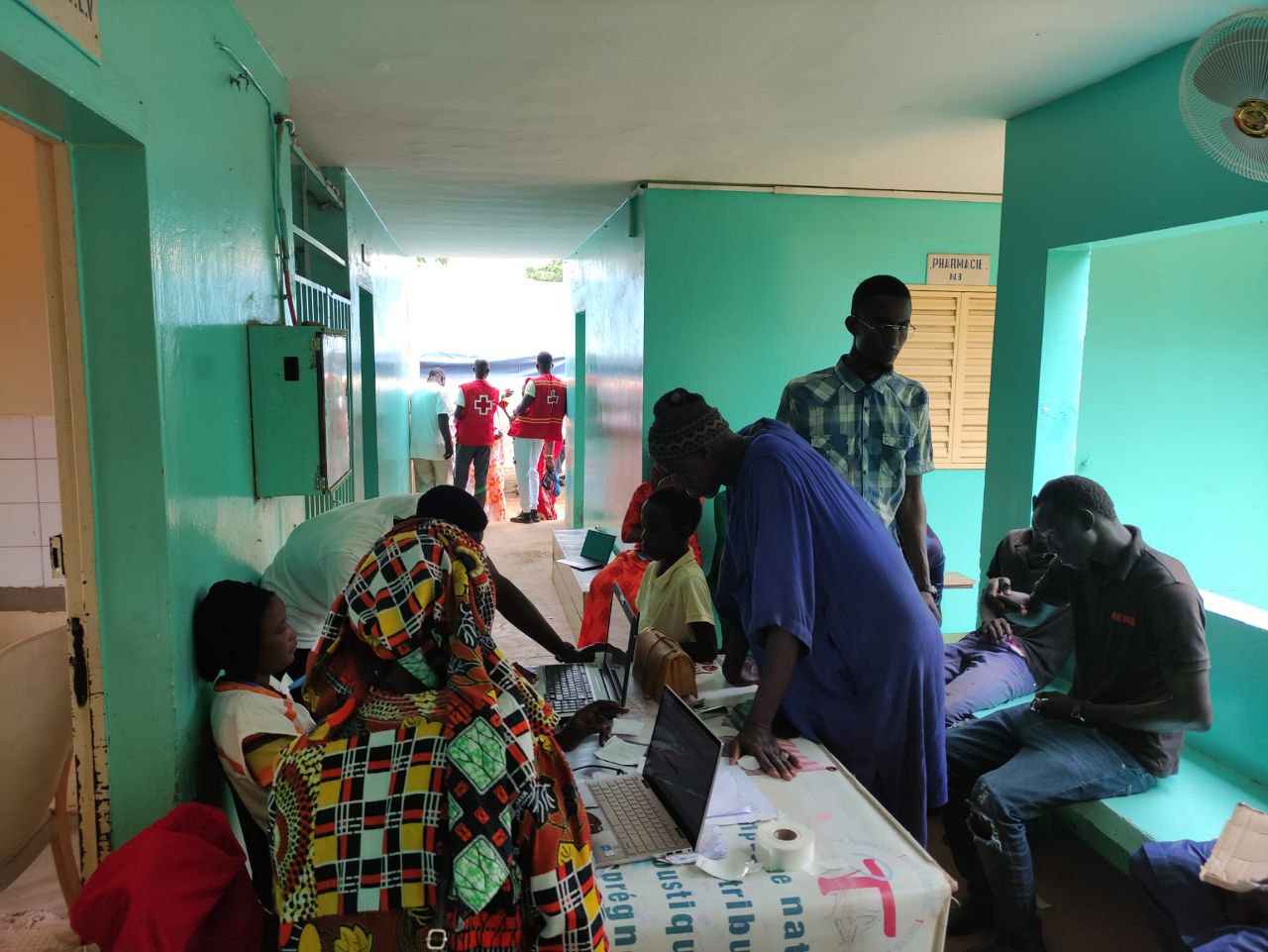
Un equipo de Cirugía Solidaria, que es una ONG que brinda asistencia médica en países desfavorecidos junto con otras actividades de promoción de la salud, realizó una campaña del 23 de septiembre al 3 de octubre con la Fundación Elizabeth Diouf.
La campaña involucró a varios profesionales médicos que realizan asistencia médica utilizando las tecnologías de software libre que ofrecen GNU Health y el proyecto openSUSE.
El uso de GNU Health, que es un Sistema de Información de Gestión Hospitalaria, permitió que el equipo multidisciplinario, que incluía enfermeras, cirujanos, pediatras, ginecólogos y otros profesionales, organizara y facilitara la atención médica diaria durante la campaña de asistencia médica.
La tecnología en los dispositivos del equipo y la impresora que se ejecutaban en un servidor local usando como sistema operativo del servidor openSUSE, y esto le dio al equipo la máxima oportunidad de organizar, evaluar y tratar a los pacientes.
Los 10 días ininterrumpidos de operación simultánea con cuatro consultas, cinco mesas quirúrgicas, una sala de reanimación y unas 40 camas de hospital permitieron al equipo atender a 1.200 pacientes de diferentes distritos y regiones de Senegal, así como realizar unas 370 cirugías, incluidas 77 para niños, entre ellas 8 eran urgentes.
Este es el segundo programa de salud en África que se ha destacado utilizando el softwarela unión de dos proyectos de software libre como son: GNU Health y openSUSE.
El año pasado, miles de pacientes en la zona costera de Kribi, Camerún, en el Hospital Ebomé utilizaron estas soluciones de software libre, como empoderamiento local para expandir la prestación de atención médica en África Occidental.
Se espera que algunos miembros del equipo y miembros de GNU Health y openSUSE asistan a la Conferencia de GNU Health el próximo mes.
Es de verdad una gran noticia, ver cómo unas comunidades de software libre se unen y apoyan a los voluntarios de algo tan importante como la salud en países olvidados de las portadas de las noticias, donde el saqueo, la corrupción interna y los conflictos de su país han provocado grandes carencias y sufrimiento.
En vez de ser campañas esporádicas que solucionen algunos problemas, deberían ser programas a largo plazo, pero supongo que como siempre, habrá una dejadez y falta de recursos que lo hará muy difícil. Espero que se pueda ir cambiando eso.
Puedes leer el artículo original en inglés en el siguiente enlace:
Relaxing Sounds for KDE – Plasmoides de KDE (205)
Llegando a los 205 plasmoides con Relaxing Sounds for KDE, una miniaplicación que nos permite estar un poco más relajados cuando estemos trabajando con nuestro ordenador. Nota:Esta entrada aparece después de la 206 por un error.
Relaxing Sounds for KDE – Plasmoides de KDE (205)
Por norma general los plasmoides sirven para decorar, ampliar funcionalidades o proporcionar información. No obstante casi siempre pensamos en ellos en términos visuales y pocas veces en términos auditivos.
Hace poco rompí esa dimensión presentando Trumpet Test Audio en el blog, y hoy toca hablar de Relaxing Sounds for KDE, un widget creado por rrayagjain en el que puedes poner sonidos relajantes para los amantes de la naturaleza, que puedes escuchar mientras trabajas, duermes o estudias.
Además, el plasmoide te permite añadir tus propios sonidos, con el que persoalizarlo es solo cuestión de esfuerzo… es más, os ahorro tener que buscarlos muchos ya que los podéis encontrar en Freesound.

Y como siempre digo, si os gusta el plasmoide podéis “pagarlo” de muchas formas en la cambiante página de KDE Store, que estoy seguro que el desarrollador lo agradecerá: puntúale positivamente, hazle un comentario en la página o realiza una donación. Ayudar al desarrollo del Software Libre también se hace simplemente dando las gracias, ayuda mucho más de lo que os podéis imaginar, recordad la campaña I love Free Software Day 2017 de la Free Software Foundation donde se nos recordaba esta forma tan sencilla de colaborar con el gran proyecto del Software Libre y que en el blog dedicamos un artículo.
Más información: KDE Store
¿Qué son los plasmoides?
Para los no iniciados en el blog, quizás la palabra plasmoide le suene un poco rara pero no es mas que el nombre que reciben los widgets para el escritorio Plasma de KDE.
En otras palabras, los plasmoides no son más que pequeñas aplicaciones que puestas sobre el escritorio o sobre una de las barras de tareas del mismo aumentan las funcionalidades del mismo o simplemente lo decoran.
La entrada Relaxing Sounds for KDE – Plasmoides de KDE (205) se publicó primero en KDE Blog.

YaST Development Report - Chapter 10 of 2022
Almost one month after our latest update, here it comes a bunch of news from the YaST Team trenches. And, as usual, we fire in many directions including:
- Several news about D-Installer
- An update about the new Security Policies in the YaST installer
- An effort to streamline a bit the YaST container
- Some polishing of Podman checkpoints
So let’s go into the details.
Fueling the D-Installer Project
Some months ago we presented our proof of concept for a future Linux installer codenamed D-Installer. Since then, we have scattered news about it on our blog posts. Now we decided it’s the right time to invest a bit more in the project in order to move it forward.
As a first step, we improved the README file that serves as landing page for the project. Now it includes more information about the motivation and general structure of the project, as well as some screenshots of the web interface.
We also designed the D-Bus and web interfaces for defining the storage setup. That is, the set of partitions, LVM logical volumes and related data structures that should be created to install the system on. We published a document describing how it could work and we are already implementing that behavior. So if you have questions or suggestions, please speak up the sooner the better.
We are also making good progress in the configuration of the network, but since the feature is not complete yet we will save those news for upcoming blog posts. ;-)
On a more technical level, we introduced type checking in the JavaScript part of D-Installer by relying on TypeScript support for JSDoc annotations. If you don’t care about software internals, the previous sentence is just gibberish you can happily ignore. But if you are a JavaScript developer working on a project that is growing a bit too much, you may be interested in checking our approach in order to take advantage of the most important feature of TypeScript without actually changing the implementation language of the project.
Security Policies in the YaST Installer
Although we envision D-Installer as the future of (open)SUSE installation, we never forget YaST is still the present and will remain so for some years. Therefore we keep enhancing it and adapting it to new use cases. Lately we invested some time polishing the feature about security policies we originally presented some posts ago, based on the feedback we keep receiving about it.
As you can see in the screenshot below, now the initial scan performed in the first boot after installation is configurable and can even be skipped in order to be run manually afterwards. Additionally we changed the way the failing rules are presented and the way to acknowledge the situation in order to continue with the installation anyway. Moreover we extended the help texts to better explain the rationale and implications of each option.

You can check up-to-date information about the feature and several current screenshots (bear in mind they are collapsed by default) at this pull request.
A More Container-friendly iSCSI Client
The containerized version of YaST includes several modules that are known to work correctly when
executed from a container. But “correctly” does not always imply “optimally”. For example, the
module for configuring iSCSI clients required some iSCSI tools to be installed both in the system to
be managed (as expected) and in the container itself. That impacted the size of the YaST container,
even for those who were not interested in executing yast2-iscsi-client. Moreover, while
investigating that circumstance, we found the dependencies of the package were not aligned with YaST
best practices. All that is fixed now and we
have a more maintainable and standardized YaST iSCSI Client and a smaller YaST container.
Helping to Fix Problems with Cockpit and Podman Checkpoints
Talking about system management tools, you already know our team is lately looking beyond YaST and
trying to help with the maintenance and integration of Cockpit. As a consequence of that continuous
effort, we realized the functionality for creating checkpoints for Podman containers was not working
as expected neither in openSUSE Tumbleweed nor in the ALP prototypes due to some problem in the package
criu. Fortunately we are surrounded by people smarter than us, so we contacted Takashi Iwai and
helped him to diagnose the problem. As a result, criu and Podman checkpoints are now working again
in both Tumbleweed and the ALP prototypes. But don’t ask us for technical details, it’s all
Takashi’s merit.
More to Come
We keep working in all the areas related to system installation and configuration, so we hope to be back soon with more news about D-Installer, Cockpit and, of course, YaST. Meanwhile do as chameleons do and have a lot of fun!

Packages needed for Vulkan development on openSUSE
Recently I had a first look into Vulkan development. So I started by reading
a Vulkan Tutorial. It’s rather detailed and actually it takes a
long time before you see your first shaded triangle (about 900 lines of
code!). The Vulkan Tutorial has some software requirements on
Linux, which are explained in detail in the Development environment for
Linux. In order to make things easier for openSUSE users here
is the package list you need to have installed. Just install them via
zypper.
Since the tutorial is using C++ …
# if you don't have the C++ compiler installed yet
zypper in gcc-c++
Vulkan packages
zypper in vulkan-tools vulkan-devel vulkan-validationlayers libvulkan_intel libvulkan_radeonShader Compiler glsc for generating SPIR-V binaries
zypper in shadercGLM library needed for linear algebra operations (not included by Vulkan, but also popular on OpenGL)
zypper in glm-develGLFW library for window handling, etc. used by the Tutorial (Vulkan is platform-agnostic!)
zypper in libglfw-develOther needed packages since mentioned in the sample Makefile of the Tutorial
zypper in libXi-devel libXxf86vm-devel
And now have fun with the Vulkan Tutorial ! :-)