
pwdutils RIP
Репортаж с места события:
- https://features.opensuse.org/314473
- README.changes-pwdutils (самый полный список различий смотрите тут)
- http://lists.opensuse.org/archive/opensuse-packaging/2012-11/msg00096.html — первые поломки не заставили себя долго ждать
Возрадуемся же необходимости оборачивать свои spec-файлы очередными несвежими условными операторами, впрочем я уже давно и так это делаю:
%if 0%{?fedora} || 0%{?rhel_version} || 0%{?centos_version}
%define usermod_A /usr/sbin/usermod -a -G
%else
%define usermod_A /usr/sbin/usermod -A
%endif
p.s. Неужели pam_unix2.so будет следующей жертвой унификации?
 Member
 einar77
Systemd and KDE Workspaces in openSUSE 12.3
openSUSE is migrating to the use of systemd for the upcoming 12.3 version, given the difficulties that emerged in trying to co-maintain two different init systems (SysV + systemd). While I am not going into the details of this choice (I leave this to more informed people), this has some consequences for software higher in the stack.
As ConsoleKit is deprecated, systemd offers its own daemon to keep track of sessions and assigned seats in a system. However, the KDE Workspaces rely on ConsoleKit to handle user switching, reboot, shutdown and a lot of ther things. Removing ConsoleKit would mean that users would suffer feature loss. On the other hand, with something that’s been deprecated and no longer actively worked on, you have issues with maintenance.
The solution the openSUSE KDE team took was to introduce support for systemd in the KDE Workspaces (this was mainly done by Raymond “tittiatcoke” Wooninck). The task was much easier than it seemed at first, because Red Hat people have already made patches to support systemd in Fedora. The part from the KDE team was to take these patches, test them for a few months (I’ve been running them smoothly for quite a while, along with others in the group), then apply them to the packages for the next version of the distribution. We’re currently testing a patch from Fedora that allows either ConsoleKit or systemd support runtime, without needing a compile-time dependency. Once sufficient data are available, it will be pushed to the distro packages.
Other patches were directly pushed upstream by Red Hat engineers, and include a better interaction between the workspaces’ power management infrastructure and systemd itself.
In short, the next version of openSUSE (12.3) should be fully capable of handling systemd. Of course, to ensure it’s as bug free as possible it requires testing, so why don’t you jump into the fray and share your experience with us?
Heads Up: PHP deprecates mysql extension in 5.5.
In a recent developer vote, the php project decided to deprecate the mysql extension in PHP 5.5 and finally remove it from the main PHP project. It may or may not be available for a longer period as a PECL extension.
The mysql extension has long been superseded by two more powerful extensions, PDO/Mysql and mysqli (improved). For years, the older extension has not received any new features and the developers kept it around just to keep compatibility with old code. Framework and application developers are now urged to update their code to use one of the alternative mysql APIs. There are a lot of old code snippets and tutorials around which describe the old API. Eventually, this code will begin to throw warnings and finally stop to work.
Developers discussed the impact of this move on end users. While it might be shocking to see hordes of old installations break just because the hoster updates his PHP version, there is no need to panic. Most hosters have not clenbuterol hydroklorid clen kjope even upgraded to the recent PHP 5.4 release and it might be years to go until PHP 5.6 finally hits enterprise distributions like SLES or RHEL. Additionally, distributors and hosters might opt to provide the PECL version of the mysql extension for backward compatibility. There is enough time left for developers and end users to react on the coming change.

HOWTO: MonoTouch Enterprise Deployment

Step 1.
First, you'll need to make sure that you've created and installed your "In-House" Distribution Certificate via Apple's iOS Provisioning Portal.
Step 2.
Open your Project Options in MonoDevelop and navigate to the iPhone Bundle Signing section.
If you've got MonoDevelop 3.1.0 or later, you'll be able to set your configuration to:

Otherwise you'll simply have to select your Provisioning Profile manually.
Once you've selected your signing certificate and provisioning profile, click the OK button to dismiss the Project Options dialog.
Step 3.
In MonoDevelop, click on the Build menu and select Archive. This will build your project and archive it in a location that Xcode will be able to see it in its Organizer window.
Step 4.
Launch Xcode and then click on the Window menu and select Organizer. At the top of Xcode's Organizer window, you will see an array of icons. Click on the one labeled Archives.
Find your application in the list of archives and select it.

Now click on the Distribute... button in the top-right area of the window and select Save for Enterprise or Ad-Hoc Deployment.
The next screen will prompt you for your code-signing certificate, providing you with a drop-down menu listing your available options.
Clicking Next will cause an action sheet to slide into view, prompting you for the location to save the AppName.ipa package and the AppName.plist file.
Important: Make sure to toggle the Save for Enterprise Distribution checkbox.
Once you've finished filling out all of the fields, click on the Save button.
Step 6.
You'll need to upload the saved AppName.ipa and AppName.plist files to your corporate web server in the location that you specified in the previous step. You'll also need a web page that will link to your app using a hyperlink similar to the one below:
<a href="itms-services://?action=download-manifest&url=http://internal.mycompany.com/Applications/AppName.plist">Install AppName!</a>
That's it! You're done!
Conferencia del openSUSE (oSC13) en Tesalónica,Grecia.¡OPA!
Estamos muy contentos de informarles que la próxima Conferencia del openSUSE (oSC13), la reunión añual de nuestra comunidad, tendrá lugár en Julio 2013 , en la hermosa ciudad de Tesalónica, Grecia. La oSC13 reunirá a una amplia variedad de contribuyentes en FLOSS a colaborar en uno de los mayores proyectos de distribución de Linux. Habrá conversaciones interesantes, talleres y eventos sociales de nuestra comunidad viva nuestro lema “Divertete mucho” (“Have a lot of fun” ).
http://blip.tv/openSUSEtv/geeko-stories-thessaloniki-greece-6470971
En este momento estamos entrando en la fase de organización y todavía no se ha resuelto sobre la fecha exacta y el lugar, pero vamos a dejar que a ustedes colaboren el link news.opensuse.org, y una vez que tengamos esa información la pondremos ahí. Mientras tanto, ¿qué tal si nos ayudan a organizar oSC13?
!Te necesitamos en el “kick off meeting”!
Para hacer esta conferencia más impresionante que nunca, estamos buscando personas que estén dispuestas a ayudar.
¡Te necesitamos!
Hay un par de cosas por organizarse, logotipos que se pueden extraer, diseñar sitios web, los horarios, los hoteles,los patrocinadores se encuentran y un millón de otras cosas que ustedes pueden ayudar. Así que para poner en marcha el equipo de la organización y para que todos sigan la misma página , nos vamos a reunir este jueves, 13 de diciembre, en IRC para hablar lo que tenemos que hacer y cómo lo vamos a hacer. Si usted está buscando una oportunidad de devolver a la comunidad openSUSE eso es todo!
Cuándo: 12/13/2012 a las 15:00 UTC
Dónde: #opensuse-project en la red freenode
Quién: Todos los que quieren hacer la oSC13 un gran evento
Si, por cualquier razón, no puede participar, pero todavía quiere ayudar , usted tiene que suscribirse a nuestra lista de correo de conferencia:
opensuse-conference@opensuse.org
Vamos a publicar actas de las reuniones allí y utilizar esta lista para organizar más la oSC13.
!Vamos a seguir adelante y hacer oSC13 en Salónica la mejor conferencia!
El anuncio esta disponible tambien en inglés.
Para conocer mejor la ciudad de Tesalónica , puede ver un reportaje muy interesante.

openSUSE on the Series 3 Chromebook - Quick and Easy

A week for csync
On Friday I arrived back from Berlin where I had the pleasure to work with my great colleague Danimo and our friends from Woboq, Markus and Olivier, in the Woboq Headquarter in Berlin Kreuzberg for a week.
We thought that it might be fun to work together on csync, our sync engine under the hood of the ownCloud client. There were some issues that should be fixed and on the way we cleaned and improved quite some code in csync.
Here are some things we worked on:
-
We added a function that lets the program that uses the csync library pass arbitrary module parameters to the backend module. That way its more easy to steer the behaviour of the ownCloud modules from the calling app.
-
Error handling was improved, ie. if an http error happens, csync works errno based error reporting. We added custom errnos because not all error cases with http can be mapped to system errnos.
-
Formerly the csync ownCloud module was spooling files through an additional temporar file on client side. That step is skipped now which results in performance improvements as well as in more clean code.
-
We were able to reduce the number of HTTP requests that go over the wire even more. For example to check if there are changes on server side, now there is exactly one http propfind required. Also if files have to be synced, we could save some HTTP requests by improving caching of some requests.
-
Andreas recently changed the logging system in csync upstream master branch. We merged that back and now do not longer need the log4c framework. One build dependency less and a nice new logging framework.
-
Other bugs were fixed, such as a potential crash if a folder as deleted during it is synced, SSL handling shortcomings, code streamlining in handling compressed data streams and more.
-
We finalized a patch that uniforms the utf8 representations of characters over all platforms. That will fix problems we saw especially with MacOS and special filenames.
Ah, yes, we also did other things, more related to the ownCloud client. Danimo managed to implement a cross platform filesystem watcher class that is able to fulfill our requirements. That obsoletes polling for changes on the local file system, one of the most popular enhancement requests.
And finally there now is a API in csync thats reports file transmission progress if a callback is installed accordingly. So the client hopefully soon will tell ya what it’s doing for you. Also appreciated I guess…
Last but not least we added code to use QtKeyChain, a cross platform password storage library that stores password encrypted. For example on Linux QtKeyChain connects to kwallet. QtKeyChain was provided by Frank Osterfeld, thanks a lot for that contribution.
Quite some stuff for a short week, note that stuff that fills a short line in this blog can be quite nifty to investigate, implement and test. Not everything is stable, polished and properly integrated but it was a great and productive week. The next release of ownCloud Client will be a nice one.
 And sice you can not always work, we had a nice dinner at a very cool italian restaurant. We met with other ownCloud employees located in Berlin, Arthur and Georg. Fun :) And Berlin, yes, a great place to be, but finally I appreciated to arrive back to my snow covered home.
Many thanks to Olivier and Markus for hosting us and for the nice week.
Developer Barcelona Events
Here is a list of the events I have assisted during the past months. If you know of other interesting events, please tell me.
Barcelona Ruby Conference
Nosql matters conference
Barcelona On Rails events (barcelona rails group)
Barcelona testing open space
Barcelona DevCon
I think Barcelona is a great city for such events since a lot of people from other countries enjoy visiting it and hence it makes it easier to convince them to come.
In the other hand, I think it is very important for our economy, not only because of the hotels, restaurants, etc. but also for the business/jobs opportunities that this kind of events bring.
By the way, I missed the LinuxCon Europe, but I think it is worth mentioning that this one took place in Barcelona.
LibreOffice Visio Import Filter: 20 years of drawings opened in your favourite office suite
Since the first release of our filter in LibreOffice 3.5.0, we were improving it thanks to bug reports from our users. It is a big thank you that I would like to say to all those that took the bother to submit reports in our bugzilla. Without you, guys, this filter would be only a moot exercise.
But wait... Do I write this blog now only to thank the people who contributed to the current quality of the filter? Yes to a big extent! Nevertheless, I know that the distinguished readers of this blog would like to have some news. And, yes, we have some news.
The
libvisio library underwent heavy re-factoring as we started to understand more and more details about the underlying file-format.- A particular bug report about files imported as empty pages provided us with a document structure that we did never see before. This resulted in a more generic parser and unification on the way we parse master shapes and visible pages.
- This re-factoring in its turn allowed us to extend our file-format coverage to all earlier binary Visio file-format versions. We now support all binary Visio documents starting from Visio 1 (released in 1992).
- Extending the support to earlier file-format versions allowed us to better understand the development of the file-format, to find more information that we did not parse before, and improve the conversion quality for other binary versions too.
- Another re-factoring came with our work to support the
XML-based Visio file-formats, namely the "XML Drawing" also known as*.vdx; and the Microsoft Visio 2013 new file-format, known as*.vsdx.
And since the readers of this blog are more interested in pictures than in pointless words, here come some candies for your eyes:
| File opened in Visio 1.0 | The same file opened in LibreOffice 4.0.0 beta1 | |
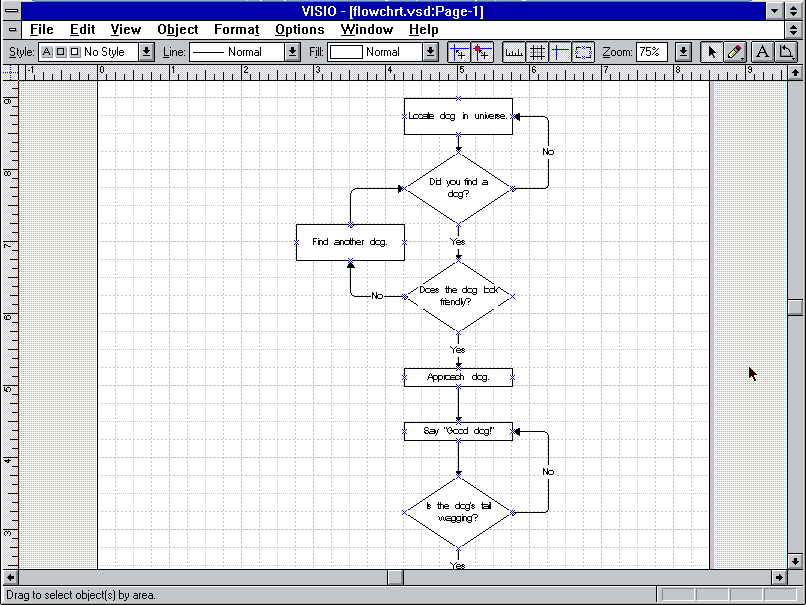 |
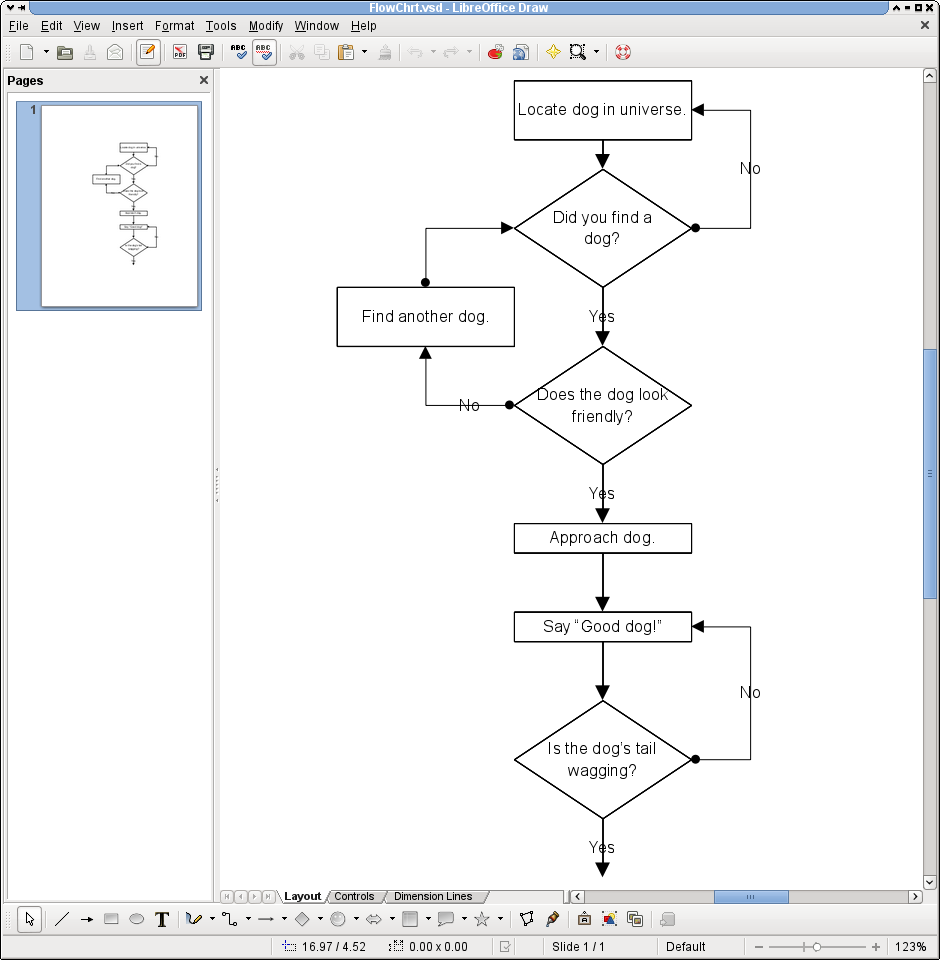 |
| VSDX File opened in Microsoft Visio 2013 | The same file opened in LibreOffice 4.0.0 beta1 | |
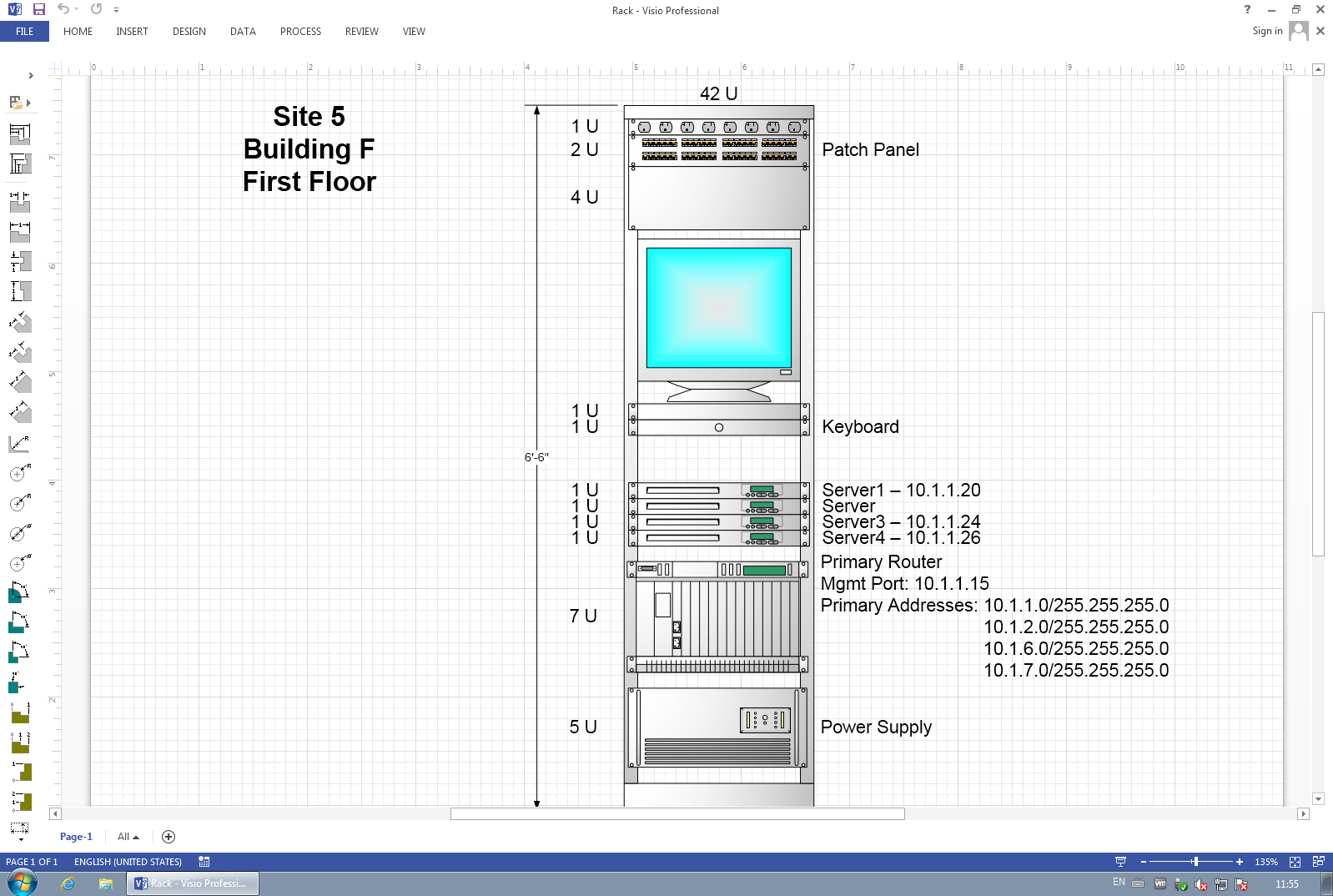 |
 |
